Select Advisee
Overview
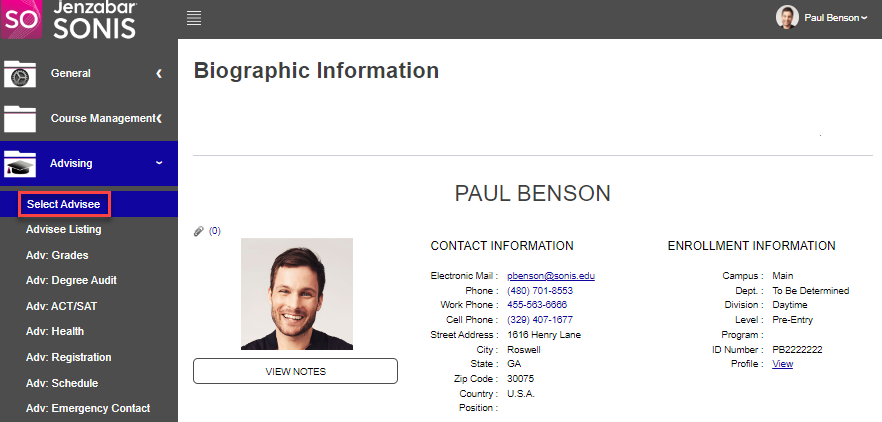
If the advisor knows the name, part of the name, or ID of an advisee, the Select Advisee utility can be used to quickly find them. The utility can also be used to search by module status in case a non-student status advisee needs to be searched for.
Using the Select Advisee Utility
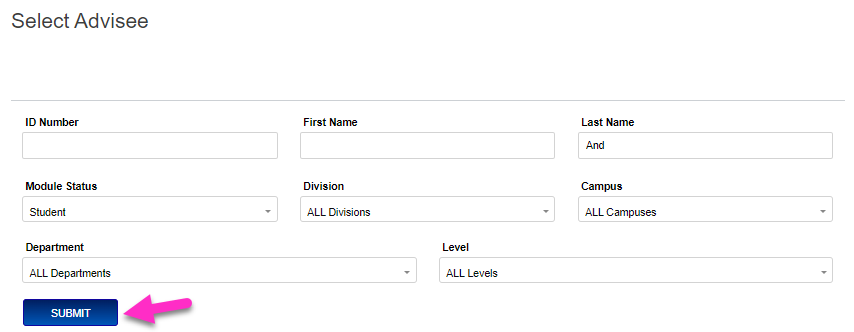
Enter the utility by clicking the Select Advisee link in the Advising menu. Alternately, it will be displayed on any Advising page if no user was selected prior to entering a page. The find an advisee, simply enter either an advisee's Last Name or their ID number (or a portion of either). If desired, results can be further defined by Module Status (in most cases, this would be Student, however, statuses can change to Alumni, etc., so if the advisor is looking for a former student they can check the other statuses). Other search options are First Name, Division, Campus, Department, and Level. A value must be entered in the ID or Last Name field to conduct a search. In this example, the letter "And" is entered into the Search Criteria text box and Student Module Status is chosen.
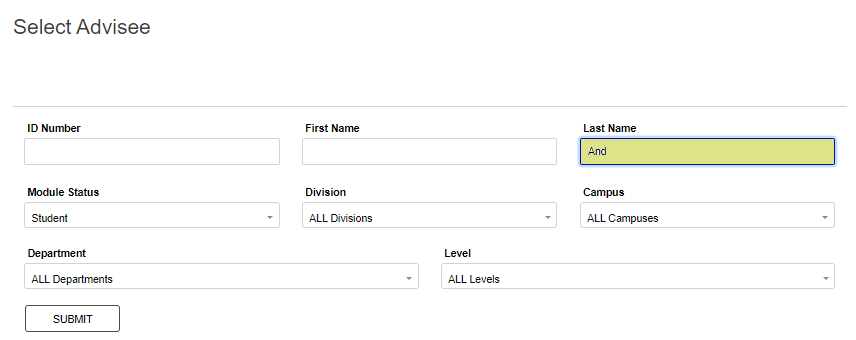
Click Submit to execute the query.
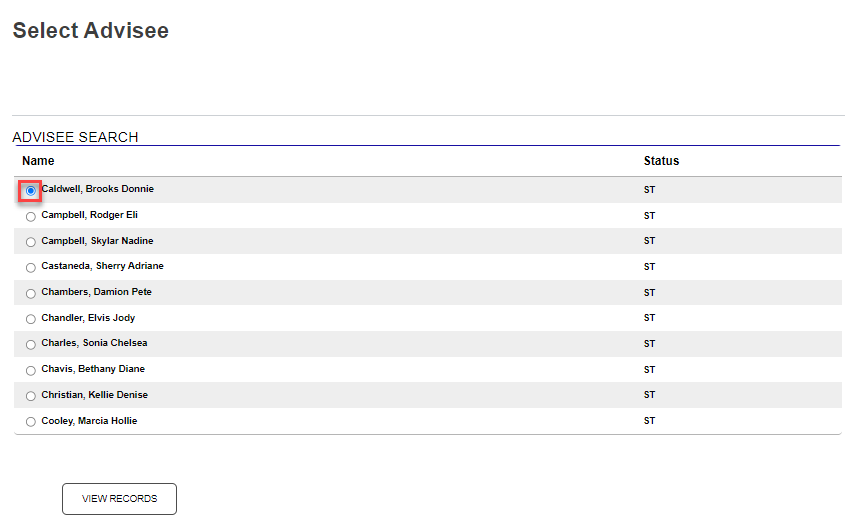
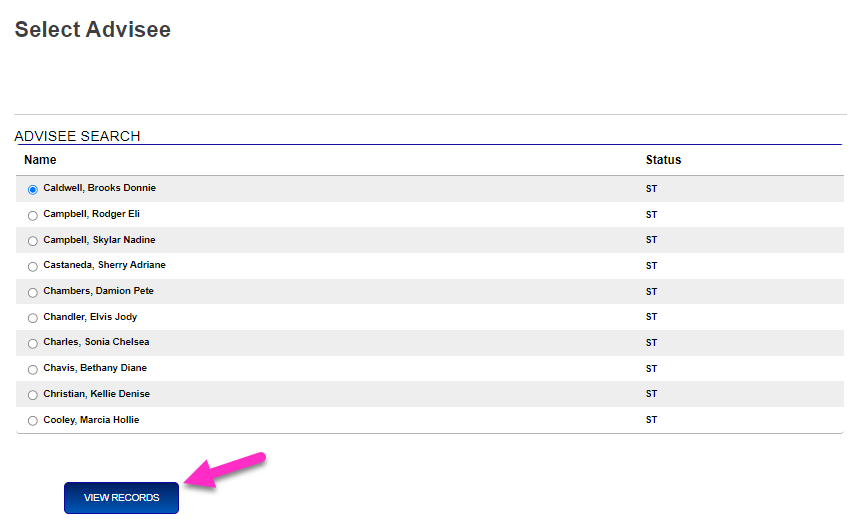
Click the radio button next to the desired advisee and click View Records.
Default Advisee Page
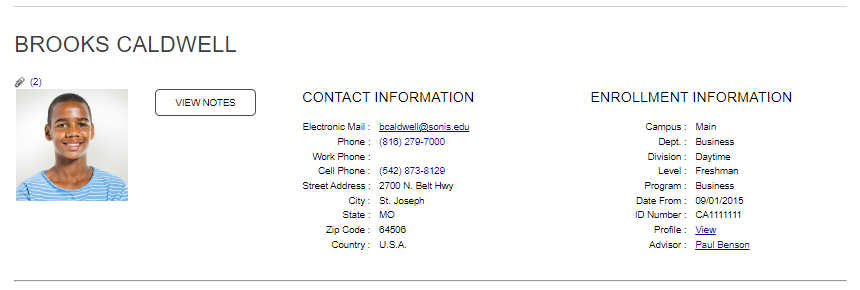
Once an advisee is chosen, a default advisee page is displayed. At the top this page is a snapshot of the advisee's name and address records. To the right of Contact Information is the advisee's Enrollment Information. This information is a snapshot of a variety of records concerning the advisee, including their advisor, and education and program records.