Honors/Probation Assignment
Overview
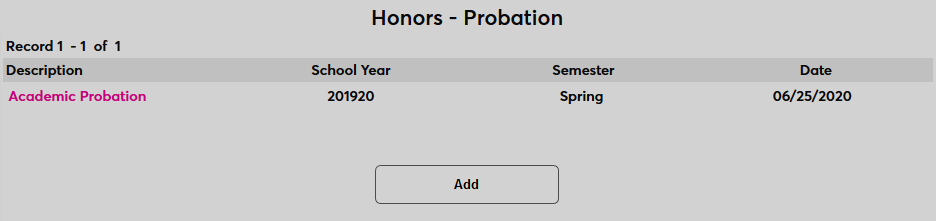
The Honors/Probation Assignment utility and the Honors/Probation Requirements page are used to set the standards for and provide an easy method of awarding honors distinction to high-achieving students while disciplining students who do not meet institutional standards. Institutions can create multiple types of probation and/or honors with different requirements. Once the requirements have been created, administrators can assign either an honors or probation status to students using module status filters or based on a List. Honors and probation records are stored on the Honors - Probation page under the Users hub where they can be manually added and edited.
Table Maintenance
Before honors and probation requirements can be set, honors and probation statuses must be created using the Table Maintenance utility under the Systems menu. Select Honors - Probation from the list to begin.
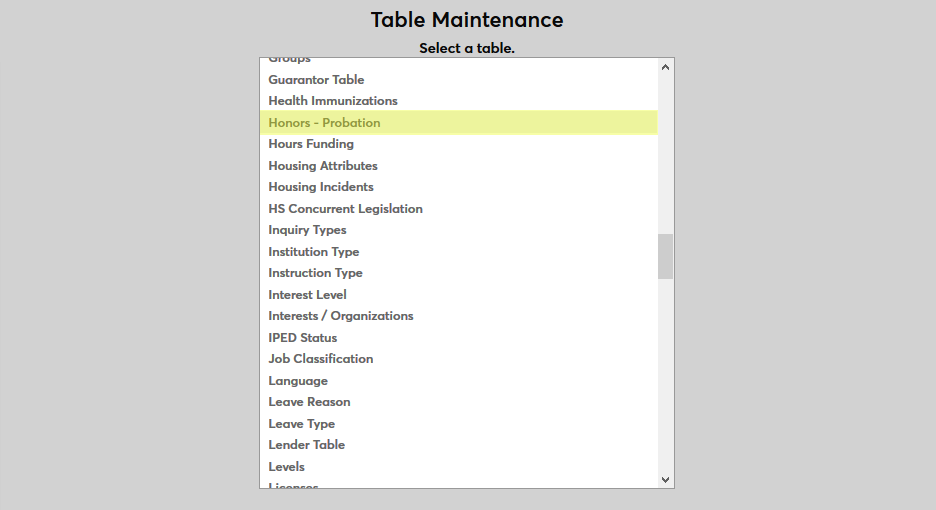
Click Add to create a new honors or probation type.
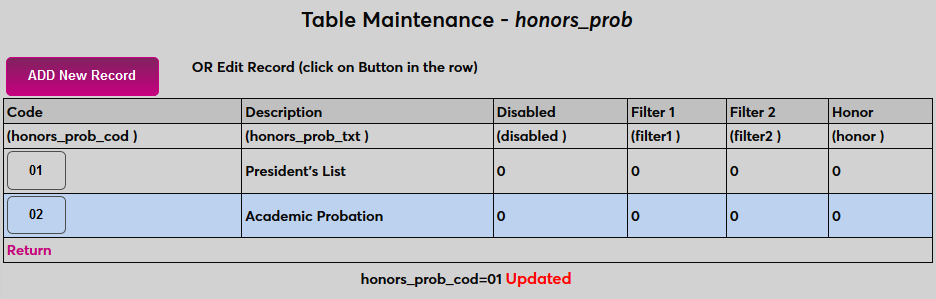
Create a name for the status in the Description field. The Description field has a 25-character limit. Then, create a shortened version of the description or numerical signifier to serve as the Code that will be used to identify it behind the scenes. The Code field has an 8-character limit.
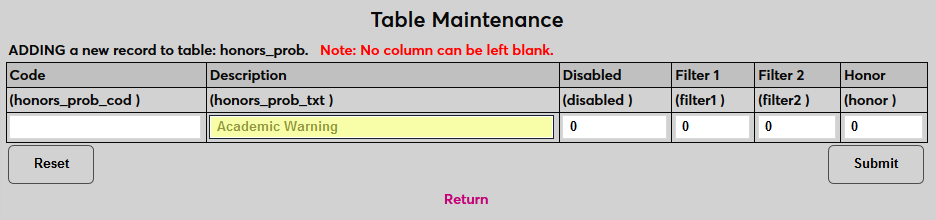
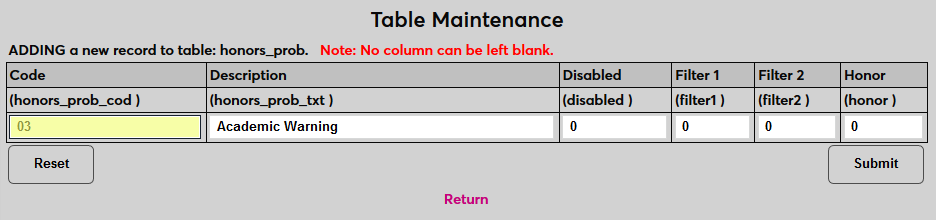
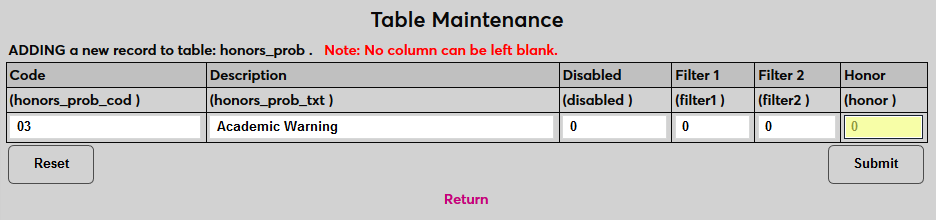
If the status is an honor, put a 1 in the Honor field. If the status is a probation, leave a 0 in the field.
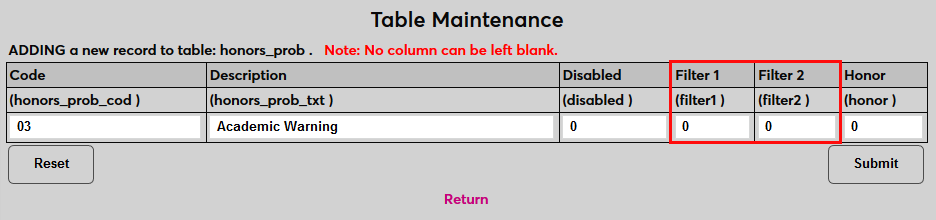
The Filter 1 and Filter 2 fields are only used by Oklahoma tech centers and can be ignored by other institutions.
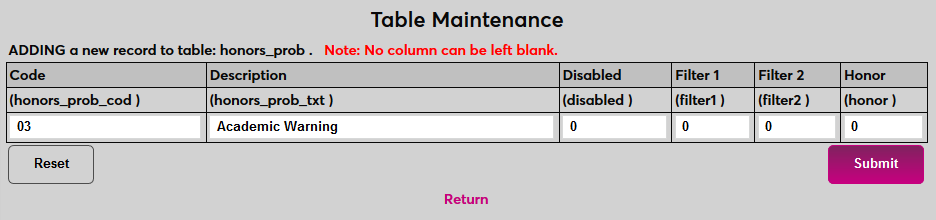
Click Submit to save the changes and create the status.
Requirements
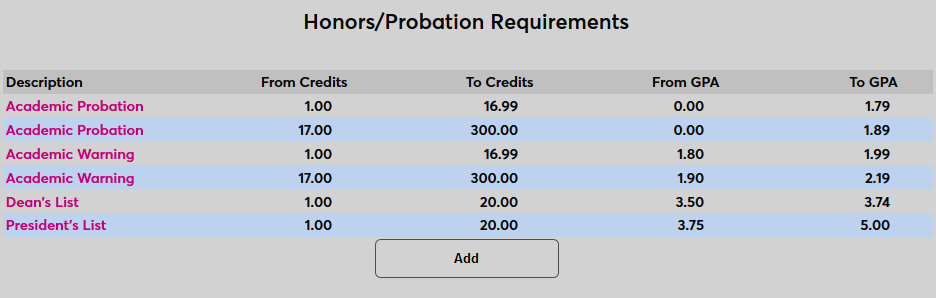
Once honors and probation statuses have been created, each status must be set up using the Honors/Probation Requirements page under the systems menu. To create a new requirement, click Add.

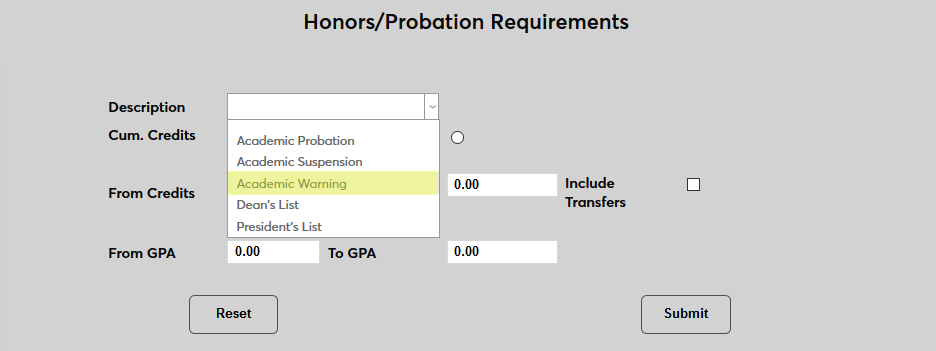
Select the Description of the honors or probation status to be set up.
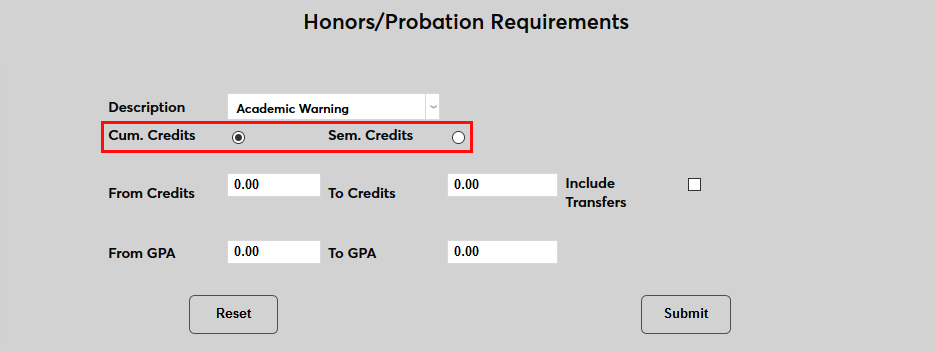
Chose whether the assignment should be based on the student's Cumulative credits or their credits from the individual Semester in question.
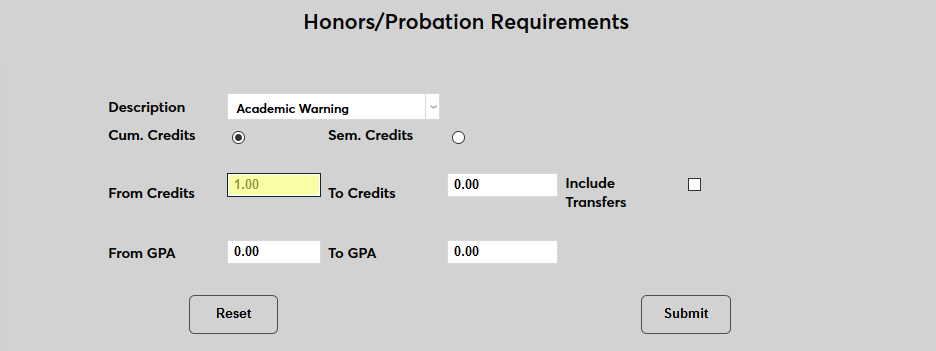
Fill in the From Credits and the To Credits fields. Only students with credits in this range, either cumulatively or for the semester depending on the credits chosen, will be eligible for the designation.
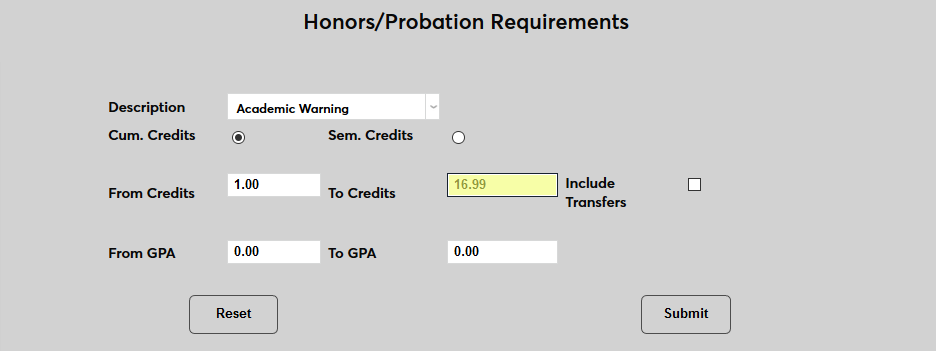
Check the Include Transfers box to include transfer credits in this calculation or leave it unchecked to ignore them.
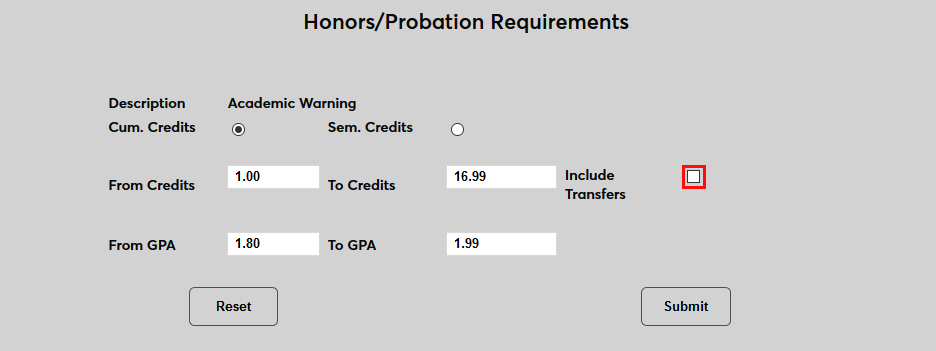
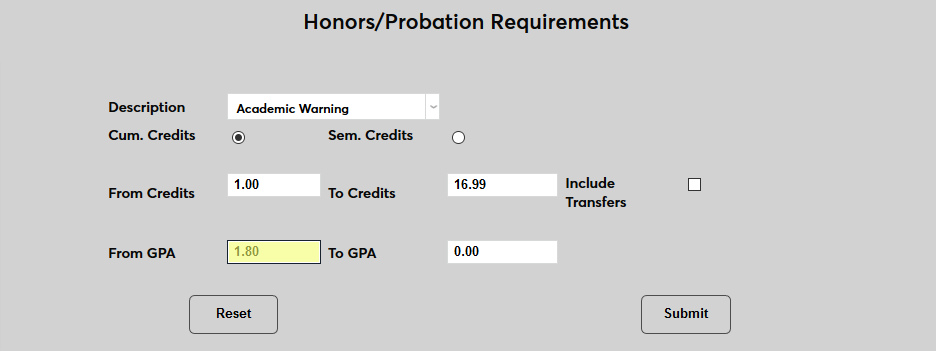
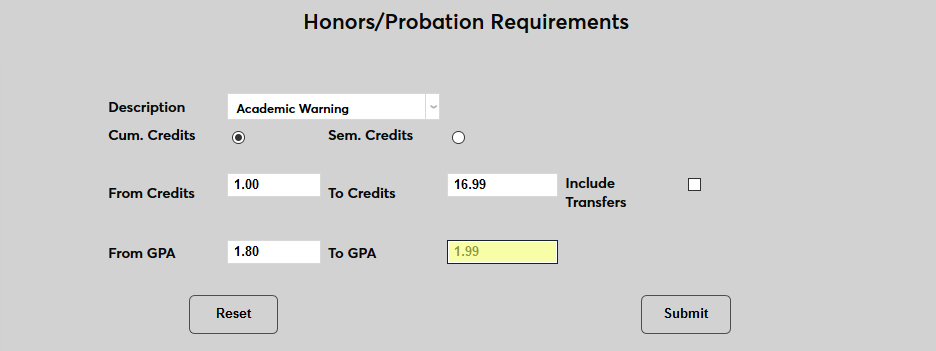
Fill in the From GPA and To GPA fields. Only students with a GPA in this range, either cumulatively or for the semester depending on the credits chosen, will be eligible for the designation.
Click Submit to save the requirements.
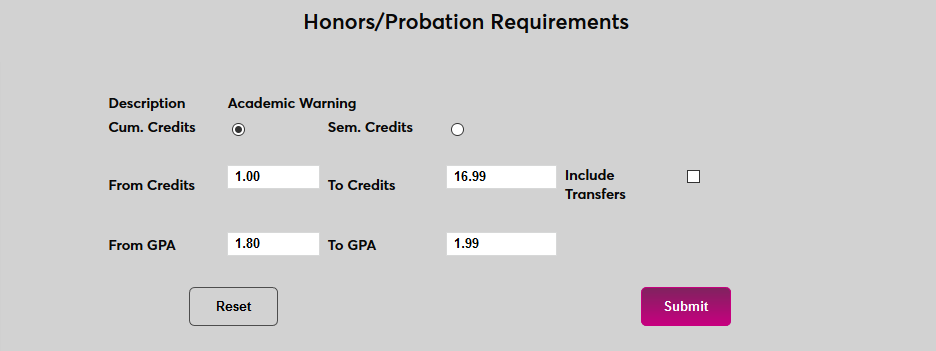
Repeat the process until all requirements have been created.
Assignment
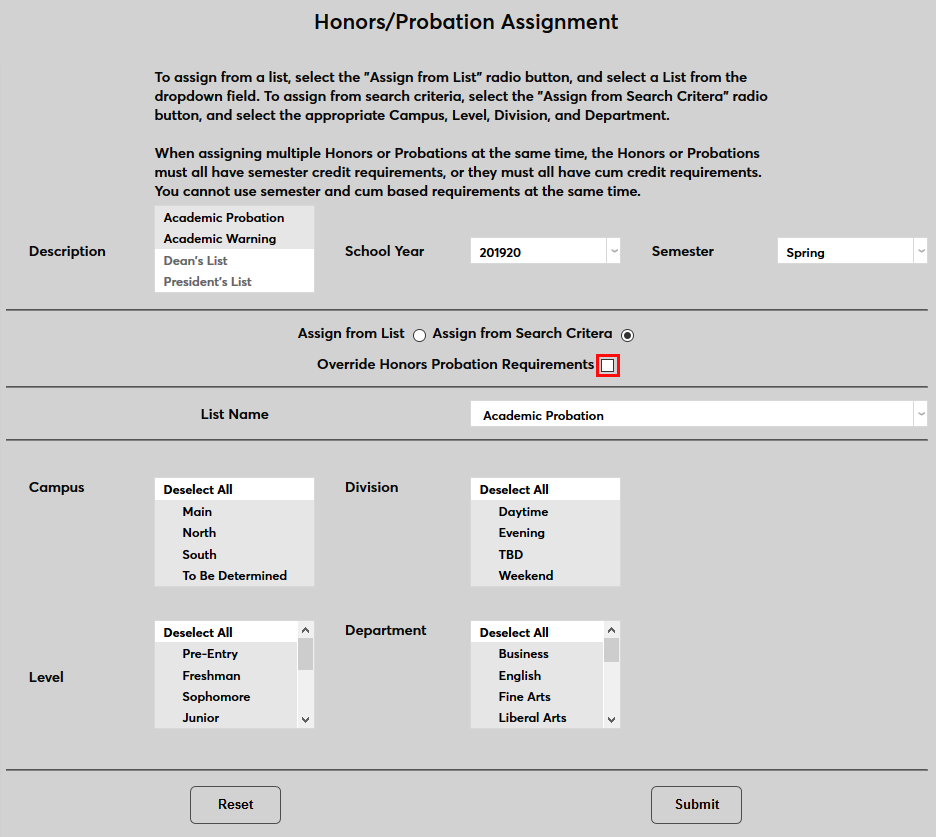
To assign honors or probation status to a student, navigate to the Honors/Probation Assignment utility in the Systems hub. More than one status can be added at a time, but assignments based on cumulative GPA and semester GPA can not be processed concurrently.
Assign from Search
The first way to assign honors or probation status is to do so based on a demographic search. To begin, select a status or statuses to assign from the Description menu.

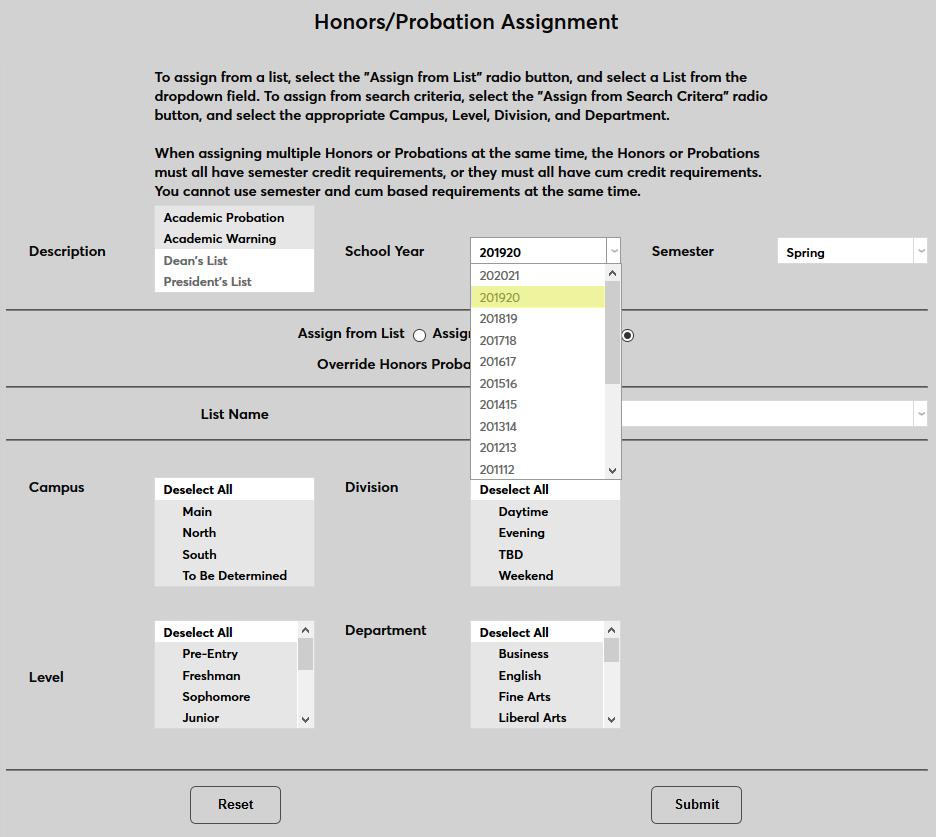
Next, select a School Year and a Semester. The assignment will be based on GPA from this semester alone or cumulatively through that point depending on the requirement settings.
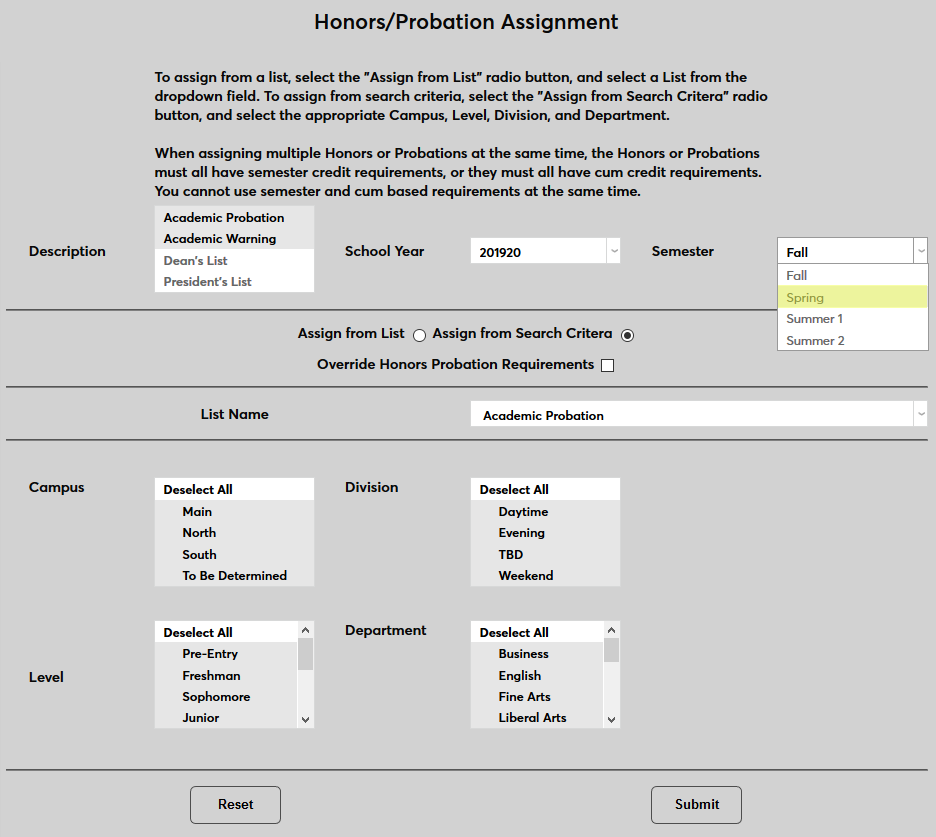
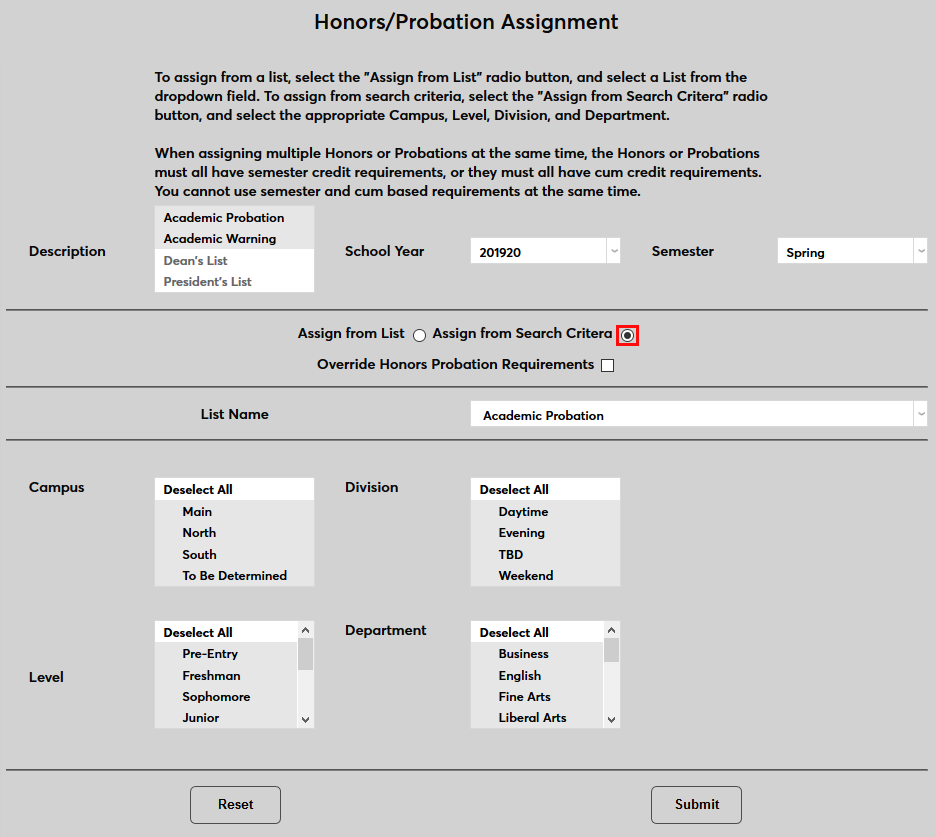
Select Assign from Search Criteria. If the Override Honors Probation Requirements checkbox appears, leave it unchecked.
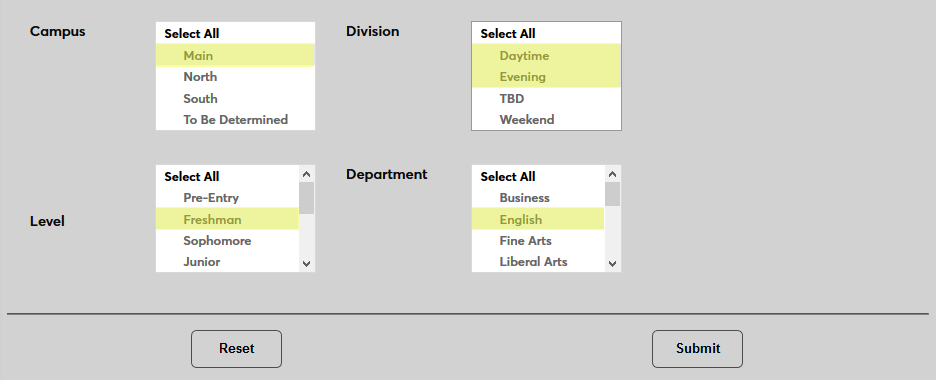
Use the Campus, Division, Level, and Department selectors to narrow down the list of students or leave everything selected to search for all students who meet the selection criteria.
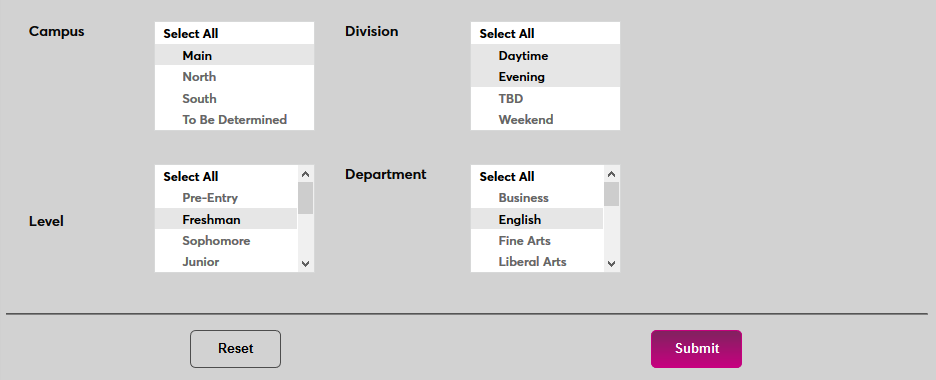
Click Submit to run the search.
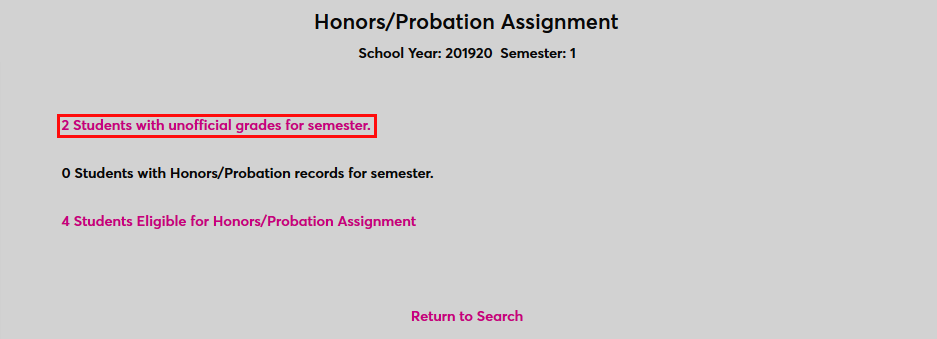
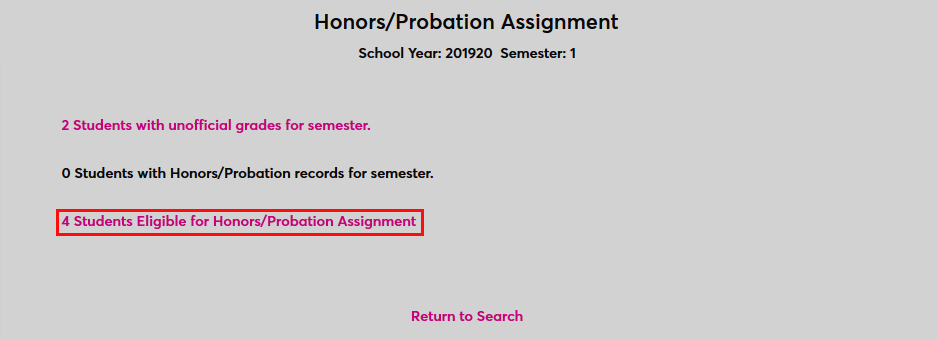
The following page lists the results of the search broken down into three categories. There are are those who meet the criteria but have unofficial grades, those that meet the criteria but already have honors or probation records for the semester, and those that meet the criteria and are eligible for honors or probation assignment. Click on any of the links to view the list of students.
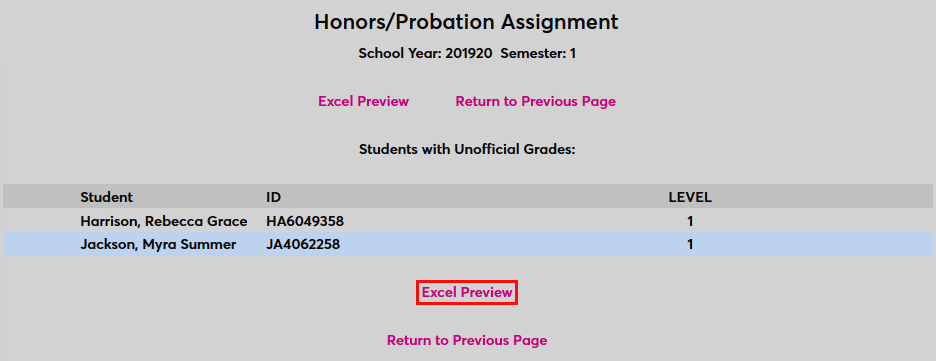
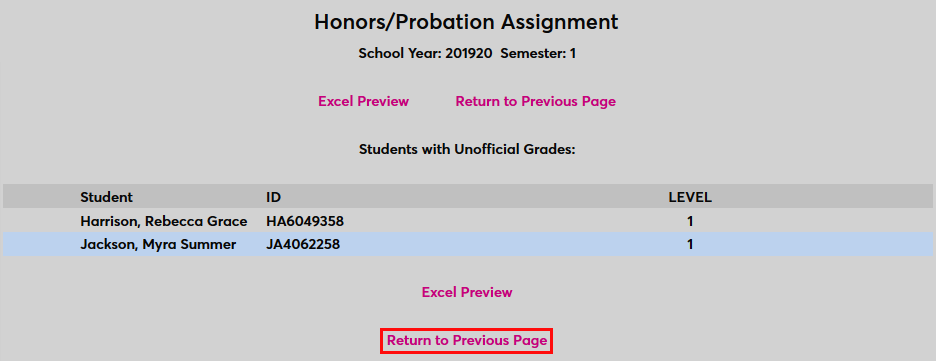
Clicking on the list of students with unofficial grades or who have an honors or probation status already will bring up a list of those students so these grades can be made official if appropriate. Click Excel Preview to view the list as an Excel spreadsheet or Return to Previous Page to return and view the other lists.

To process assignments, click the link to display the Students Eligible for Honors/Probation Assignment.
As on the other search result pages, the Students Eligible for Honors/Probation Assignment offers an Excel Preview link that allows administrators to view this list as an Excel spreadsheet.
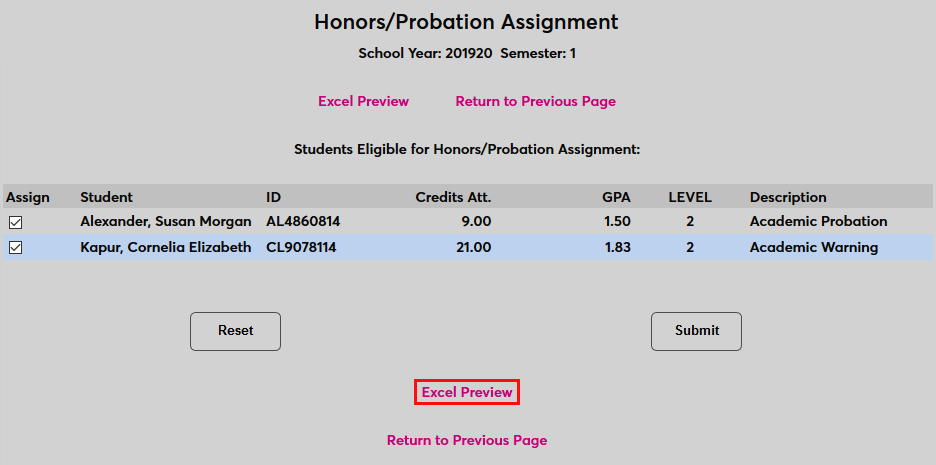
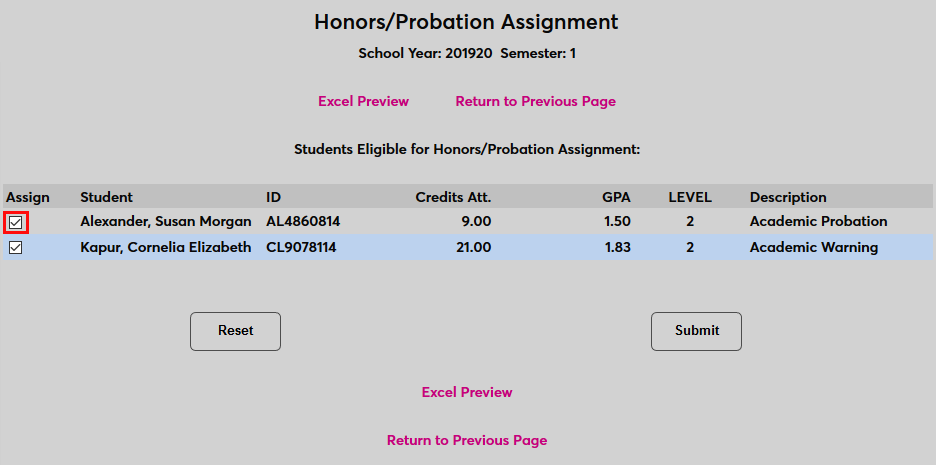
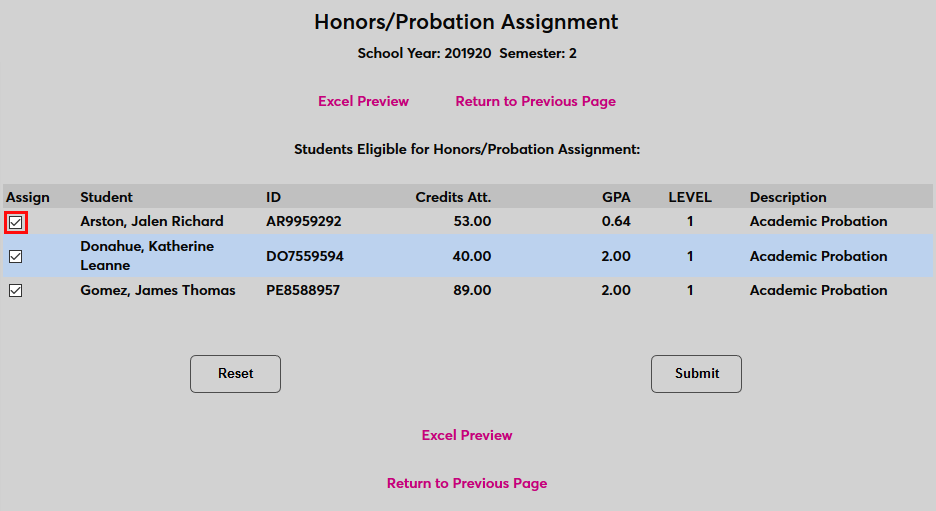
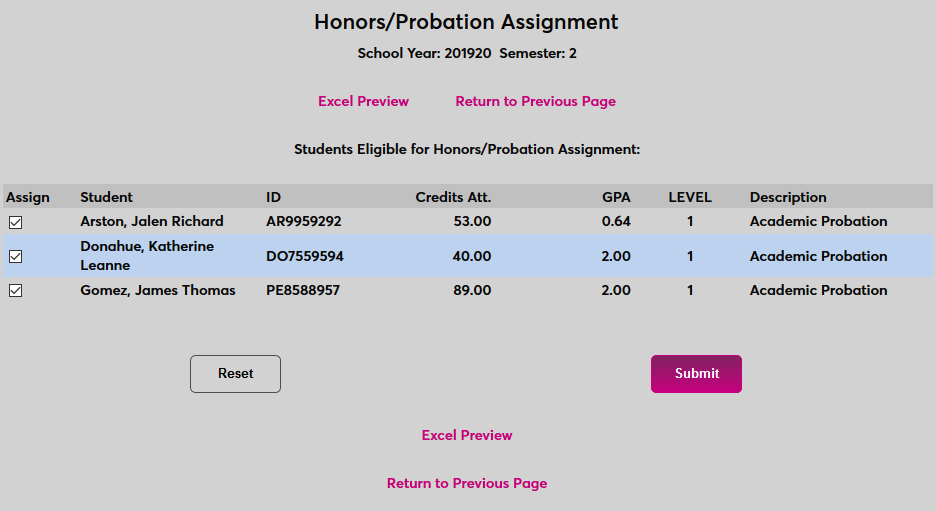
Check or uncheck the boxes in the Assign column to designate which students should be given the selected status(es) and click Submit to process the change.
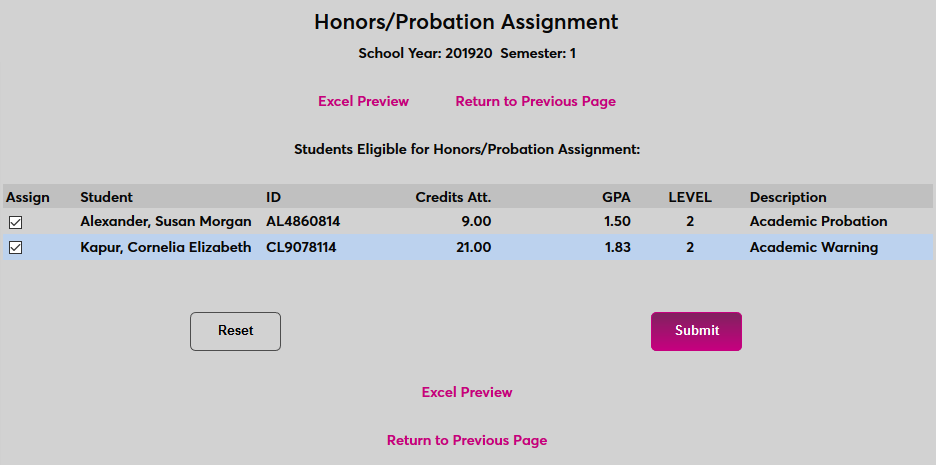
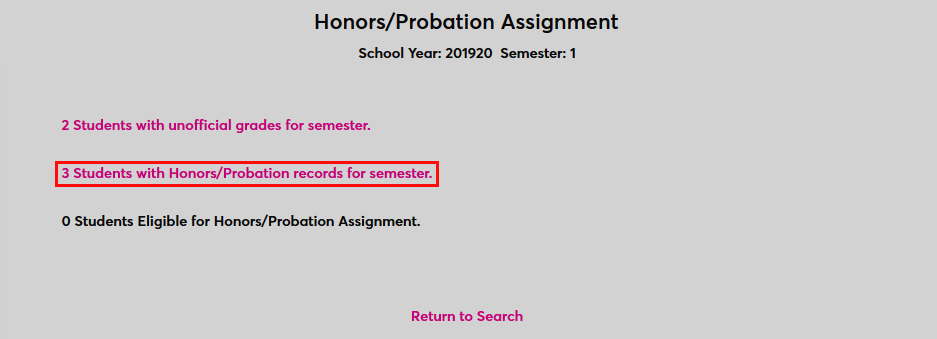
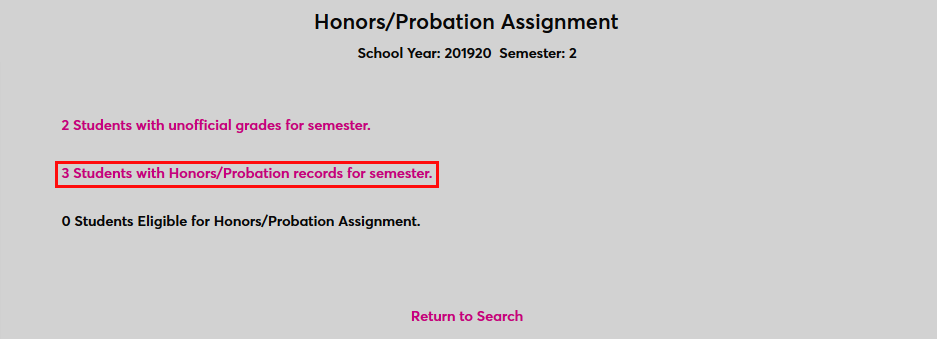
Once the assignment has been processed, the the students will be added to the Students with Honors/Probation records for the semester search results.
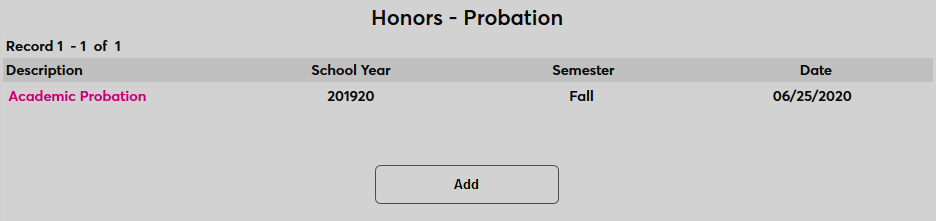
The honors or probation assignment will appears in the student's Honors - Probation records.
Assign from List
Some institutions have honors and/or probation requirements that are too specific to be covered by the Honors/Probation Requirements. For these institutions along with anyone else who may find it more convenient, SONIS offers Honors and Probation assignment based from lists as well. Lists are custom groupings of students that can be used various places in the system. They're created and maintained through the List Management Utility.
To assign honors or probation based on a list, begin by selecting an honors or probation Description.
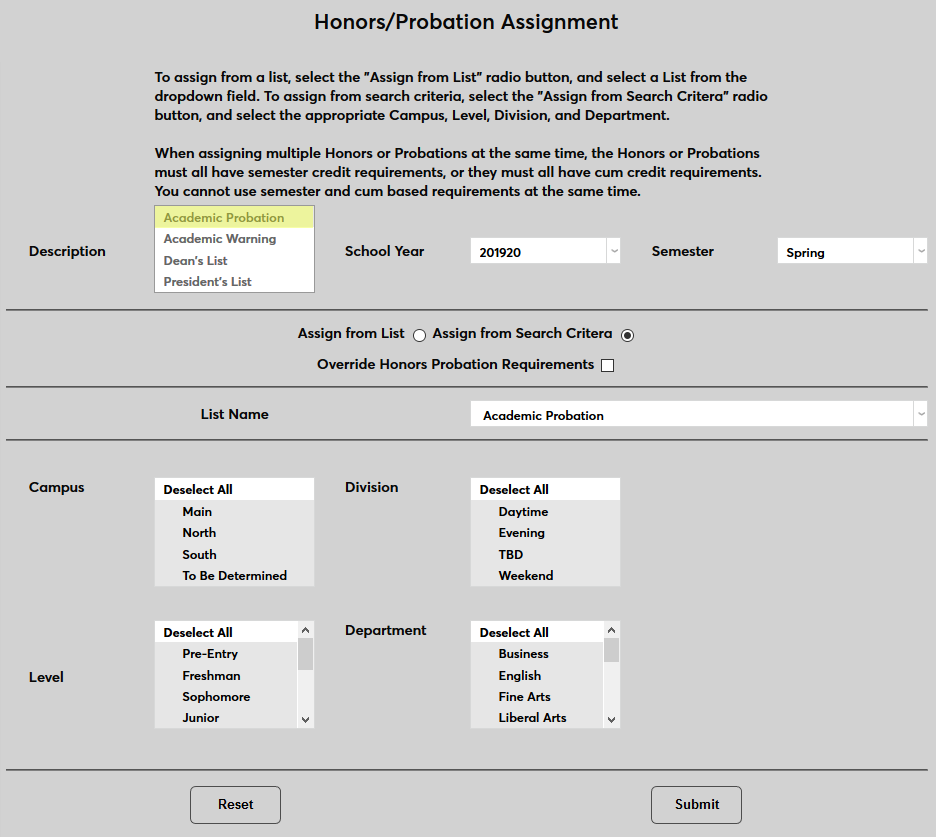
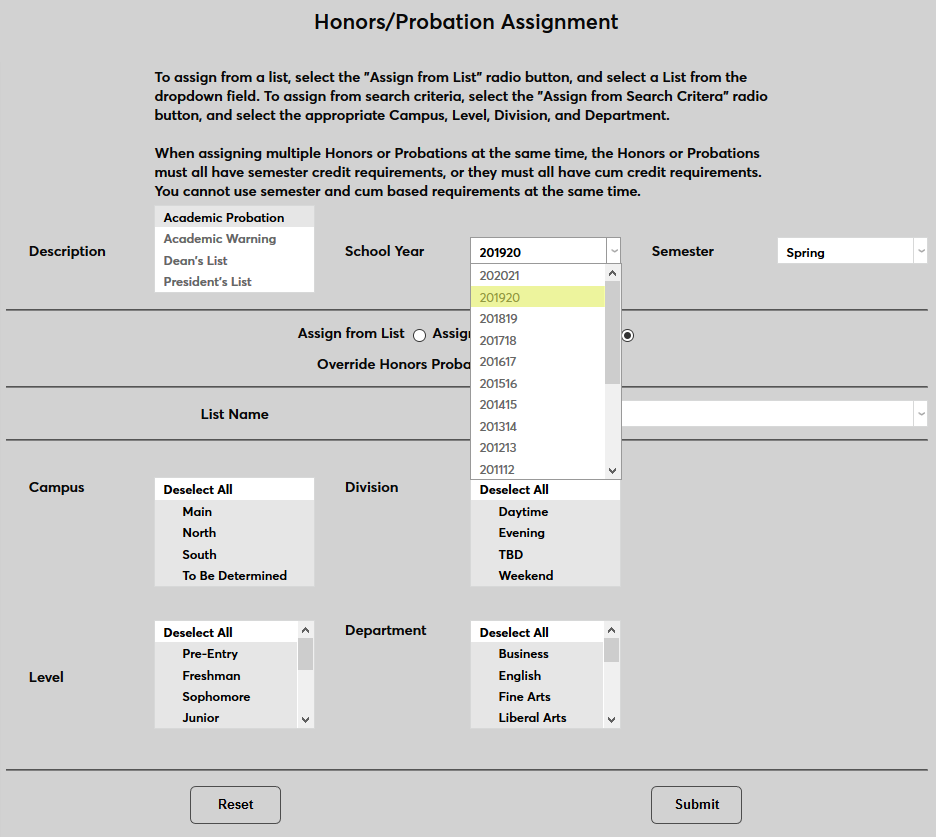
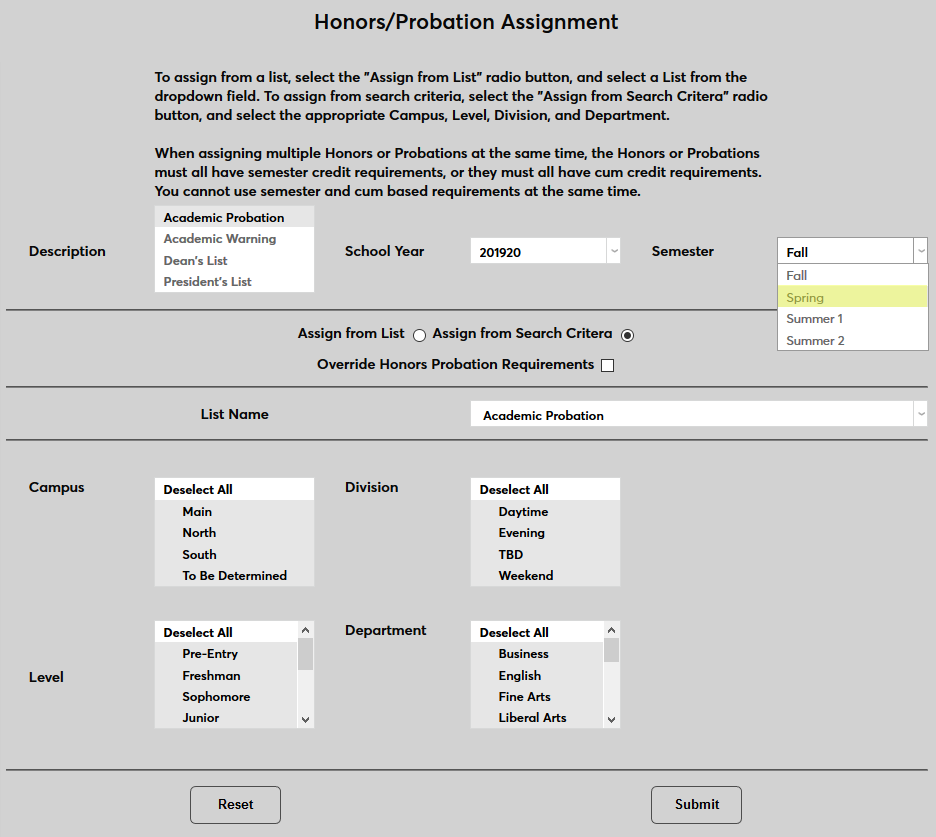
Next, select a School Year and a Semester. The assignment will be based on GPA from this semester alone or cumulatively through that point depending on the requirement settings.
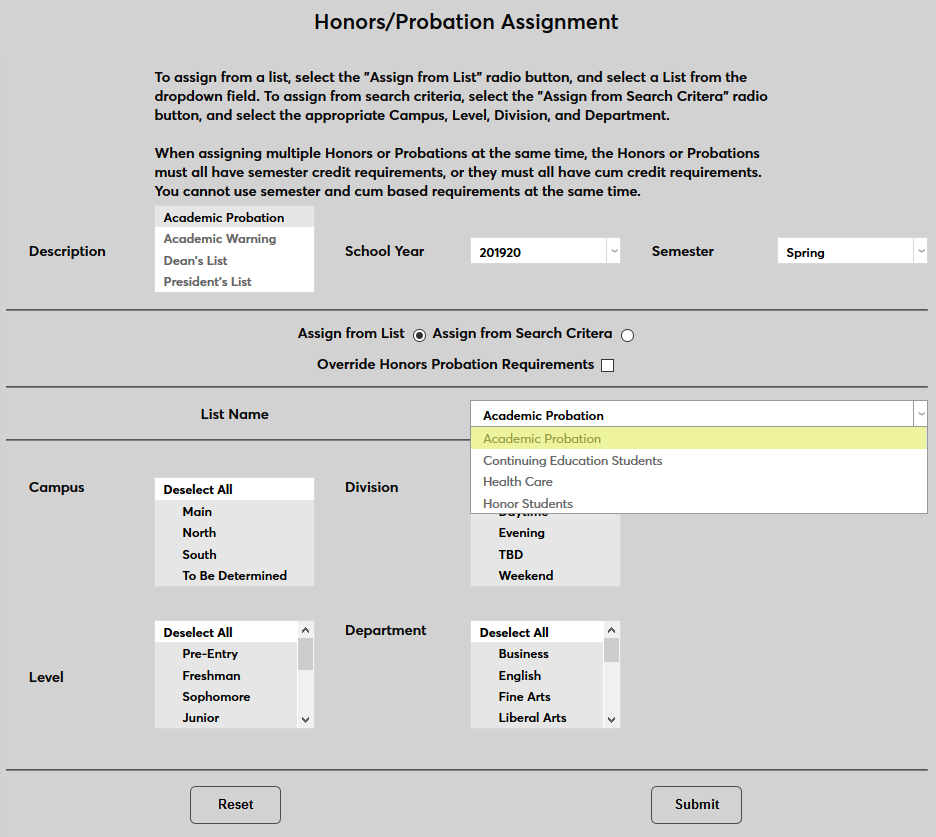
Select the Assign from List radio button.
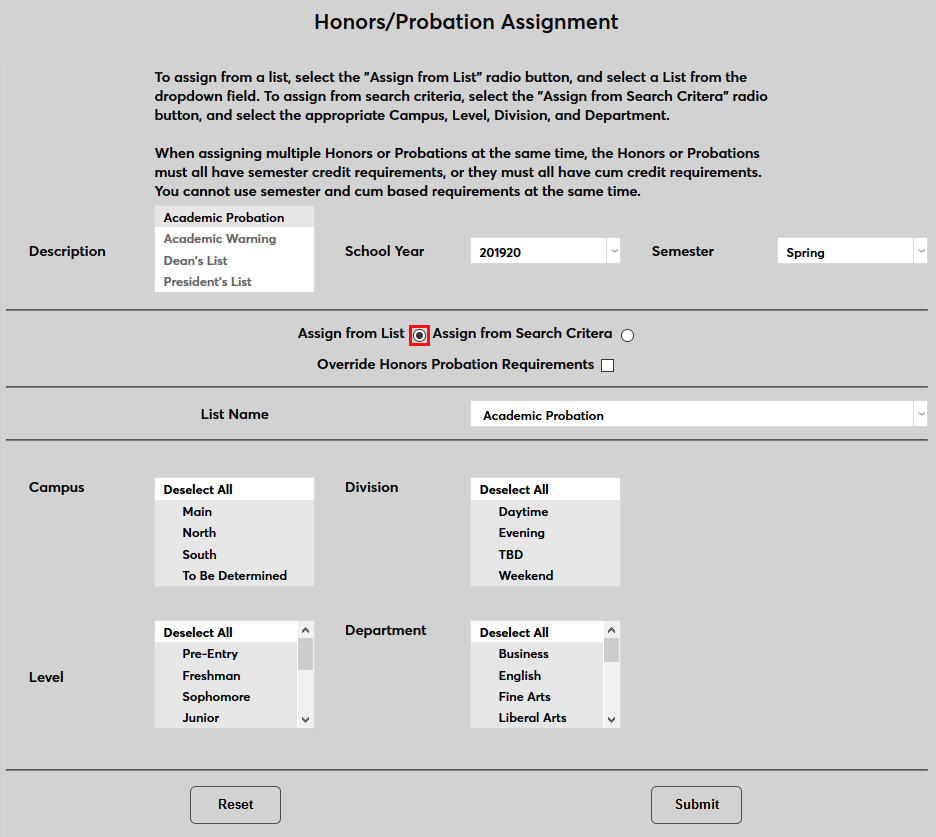
Select a List Name to use as the basis for the assignment.
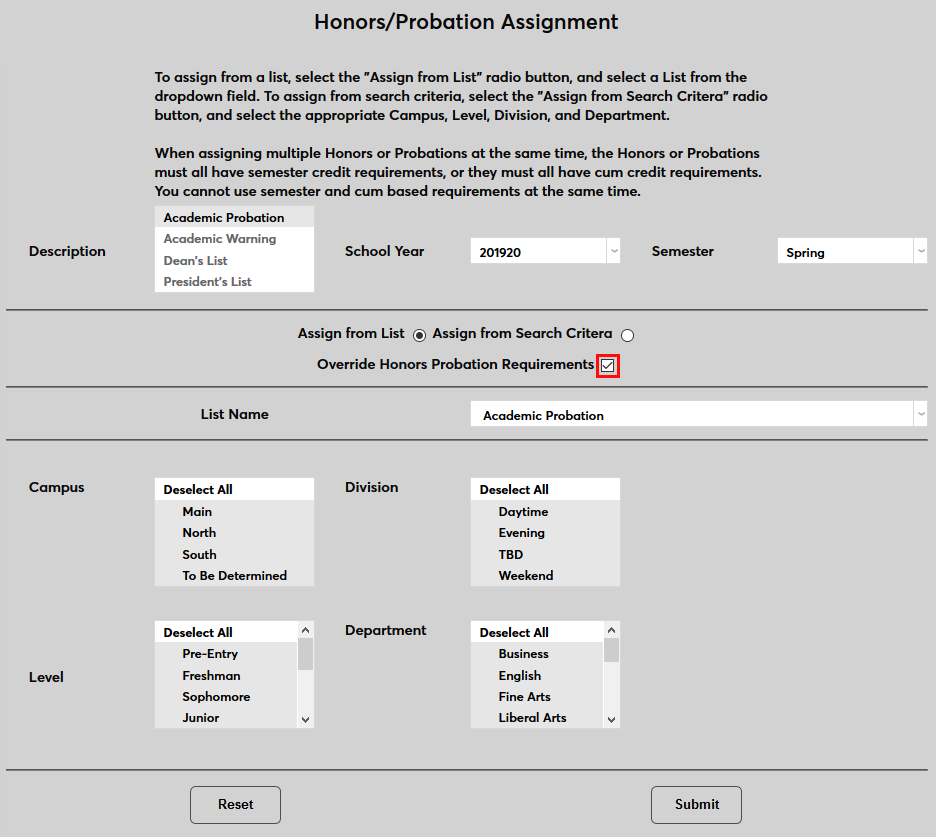
Check the Override Honors Probation Requirements box to ignore the requirements and use only the selected list. This box can only be used if the administrator has a User Security privilege granting them access. Otherwise, the box will not appear on the page.

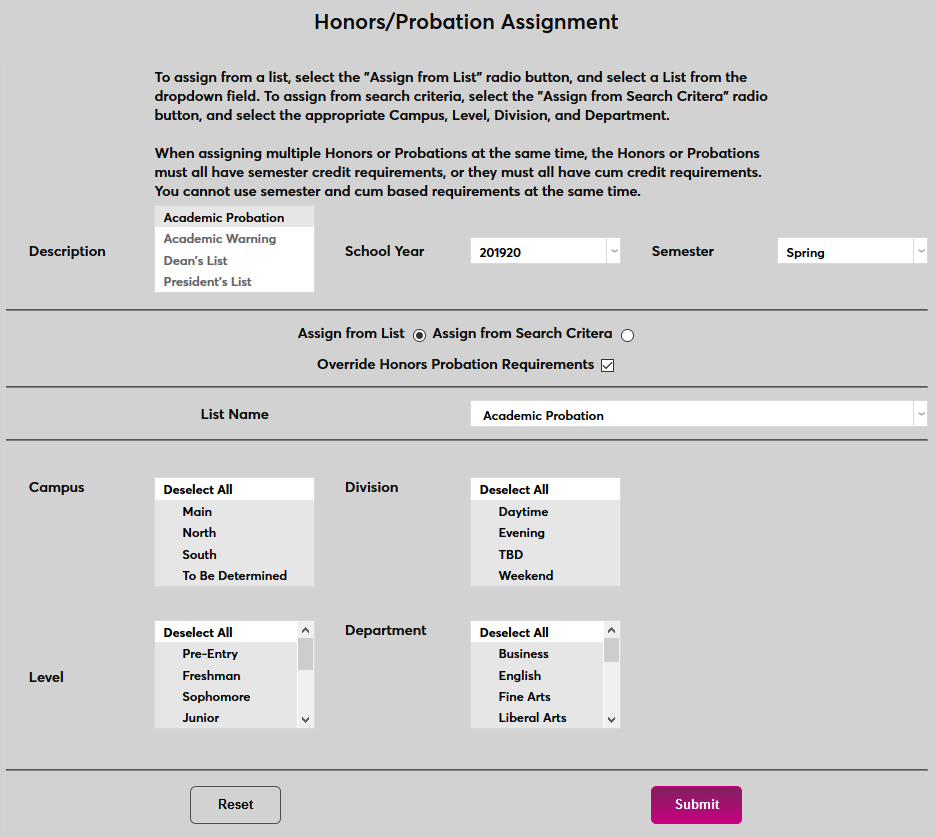
The module status search fields are ignored when the Assign from List button is selected. Click Submit to continue.
The following page lists the results of the search broken down into three categories. There are are those who meet the criteria but have unofficial grades, those that meet the criteria but already have honors or probation records for the semester, and those that meet the criteria and are eligible for honors or probation assignment. Click on any of the links to view the list of students.
Clicking on the list of students with unofficial grades or who have an honors or probation status already will bring up a list of those students so these grades can be made official if appropriate. Click Excel Preview to view the list as an Excel spreadsheet or Return to Previous Page to return and view the other lists.
To process assignments, click the link to display the Students Eligible for Honors/Probation Assignment.
As on the other search result pages, the Students Eligible for Honors/Probation Assignment offers an Excel Preview link that allows administrators to view this list as an Excel spreadsheet.
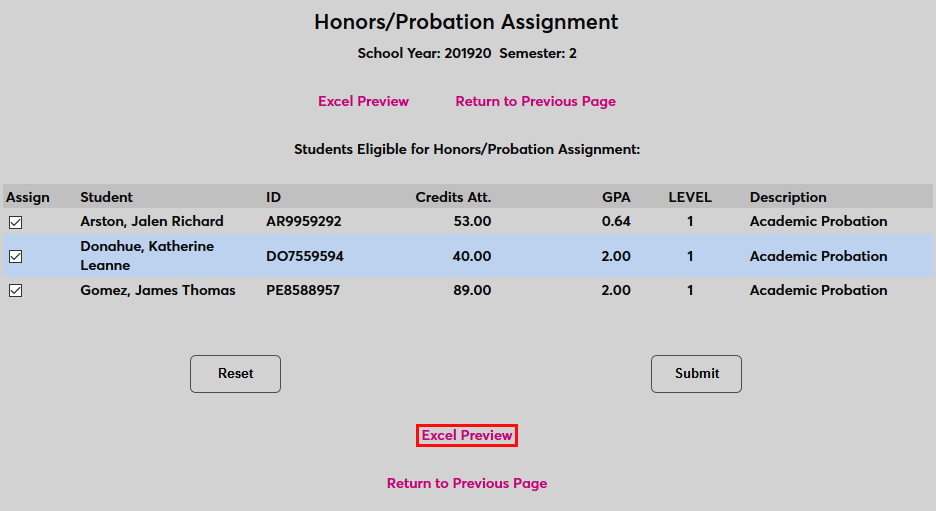
Check or uncheck the boxes in the Assign column to designate which students should be given the selected status(es) and click Check or uncheck the boxes in the Assign column to designate which students should be given the selected status(es) and click Submit to process the change. to process the change.
Once the assignment has been processed, the the students will be added to the Students with Honors/Probation records for semester search results.
The honors or probation assignment will appears in the student's Honors - Probation records.