Workflows
Overview
The Jenzabar SONIS Workflows feature allows administrators to create a saved list of pages to be accessed in a specific order. This makes repeat tasks faster and easier to complete since can move directly between sub-pages in different menus. Workflows can also be useful in training new employees or for keeping track of infrequent but recurring tasks.
Users can share workflows within the same role as the creator of the workflow based on User Security settings. You can control which workflows you're sharing from the Workflows setup page. Click List All Workflows under the Worflows sub-menu in your User Card or navigate to Workflows under the Systems hub to access this page.
System Activation
Before workflows can be used, they must be turned on from the Web Options page in the Systems hub. Check the Enable Workflows box and click Submit to save the changes. Workflows will be turned on for all SONIS users with an Administration login.

Adding New Workflows
Once workflows have been turned on, you can access a Workflows menu from the User Card menu in the upper left-hand corner. Workflow controls are available on the Workflows page under the Systems hub.
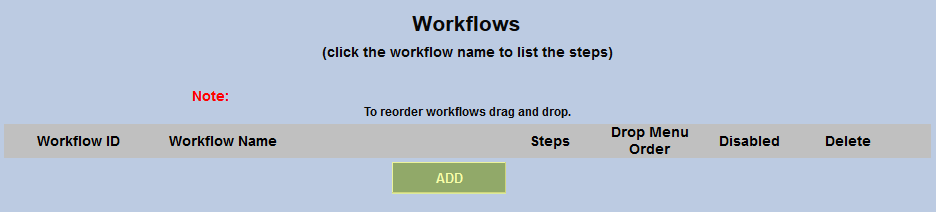
To add a new workflow, click the Create and Record New Workflow button from the User Card or navigate to the Workflows summary page and click the Create New button.

Tip
If you use Create and Record New Workflow button in the User Card menu, the prompt to name the workflow will appear in a pop-up window. This allows you to add the current page you're on to the workflow rather than having to navigate back to the page from the Workflows summary page.
Enter a Workflow Name and click Add to continue.
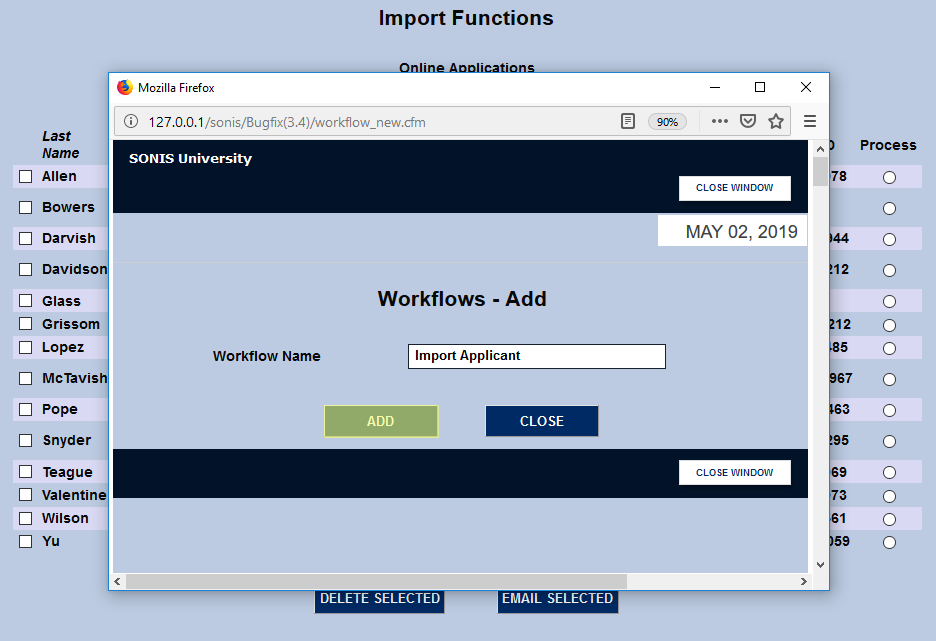
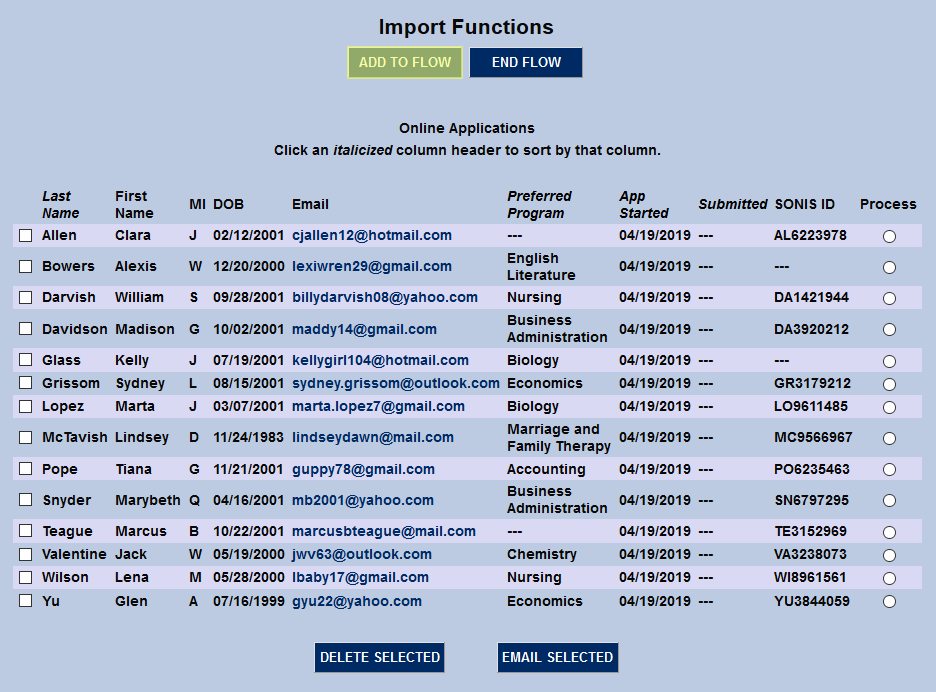
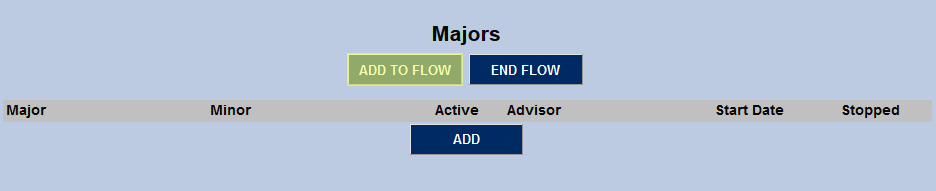
Once a new workflow has been added, Add This Page to Workflow and Done Adding Steps buttons will appear on each page you visit until the flow has been ended. Click Add This Page to Workflow to add the first page to the newly created workflow.
Note
If you add a page from the Users or Courses hub to a workflow, the Name Search or Course Search page will be automatically added to the flow preceding those pages since they can not be accessed without a student or course being selected first.
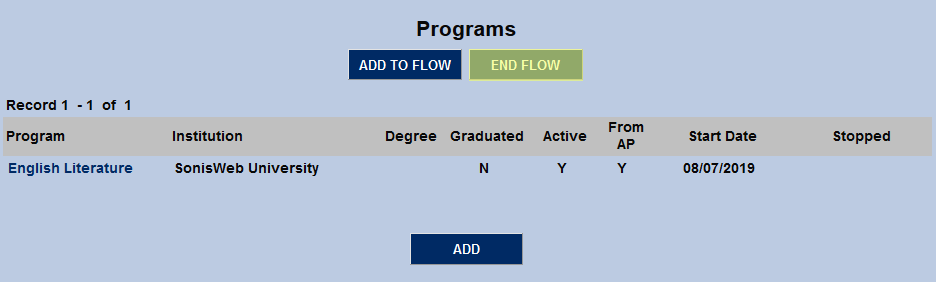
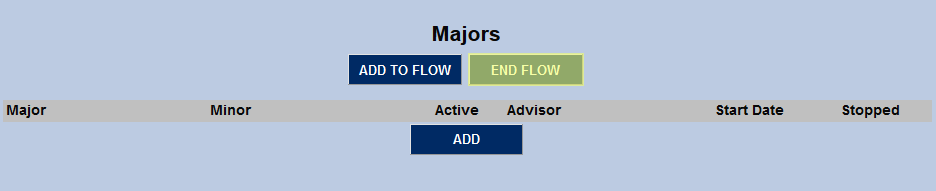
When all the necessary pages have been added to the workflow, click Done Adding Steps to finish.
Editing Workflows
Once a workflow has been created, you can edit it from the Workflows summary page.
Tip
You can sort the listed workflows by the Workflow Name, Shared status, or Shared By column in ascending or descending order using the up and down arrows next to each column heading. To locate a specific workflow quickly, use the Search box.
To change the name of a workflow, click the edit  icon. Enter a new name in the pop-up box and click OK.

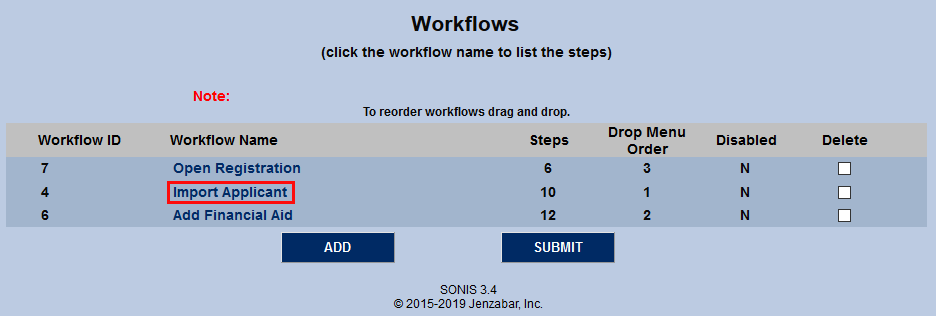
To see the pages in a workflow and make changes, click on the Workflow Name.
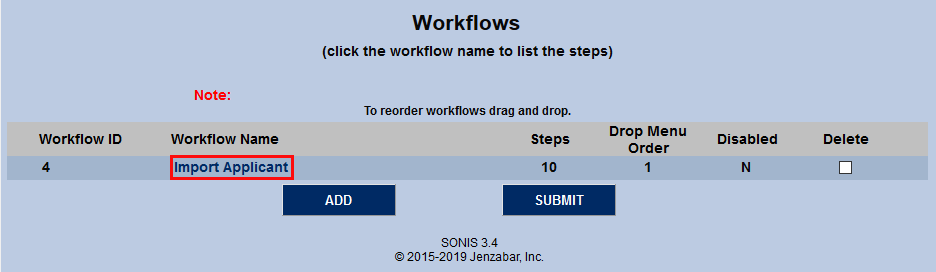
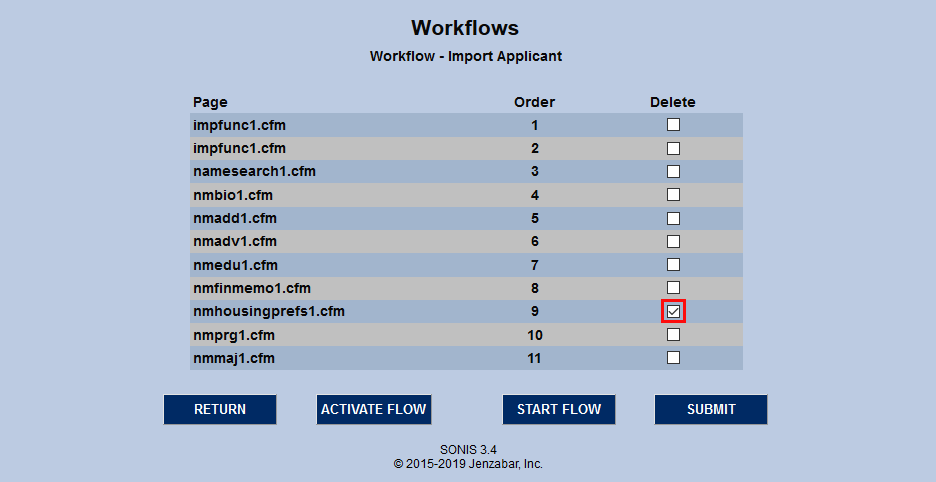
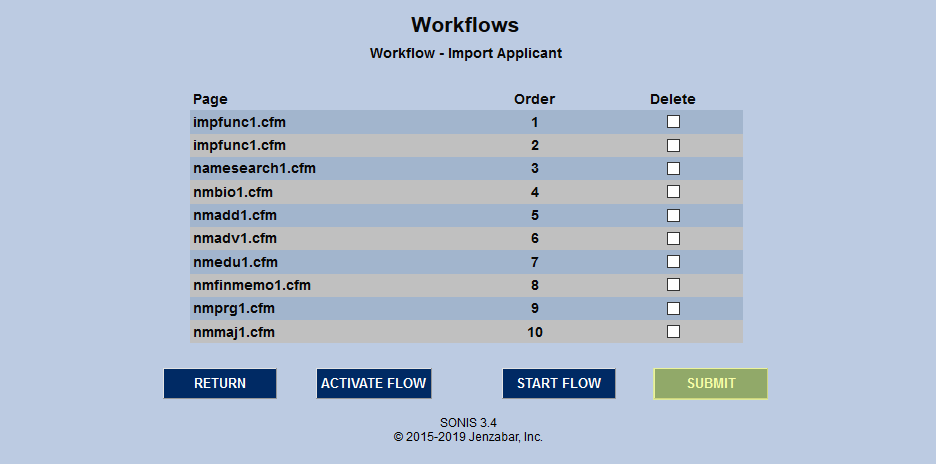
Every page in the workflow is listed in the order it was added to the flow.
To add additional pages to a workflow, click Add Steps.
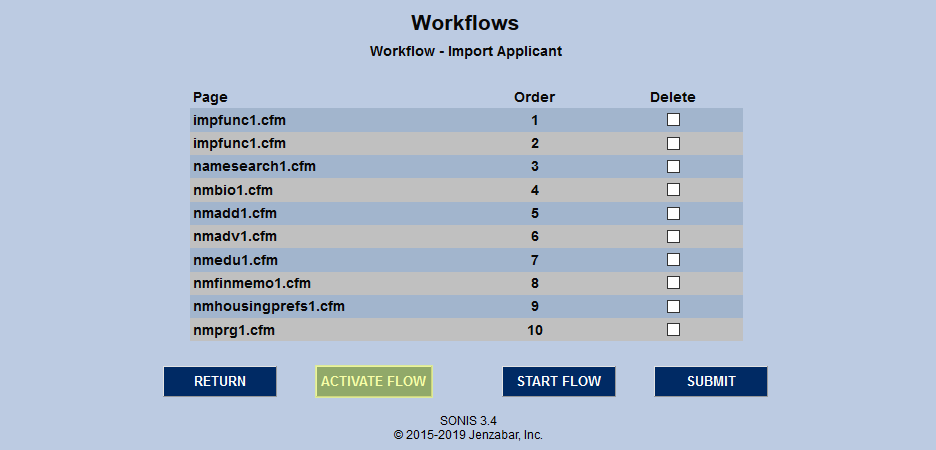
Once the flow has been activated, navigate to the page to be added add click Add This Page to WorkFlow. As when the workflow was initially created, click Done Adding Steps to stop adding pages.
To delete a page from a workflow, simply check the corresponding Delete box and click Submit.
Running a Workflow
To run a workflow, click on the workflow name from the Workflows User Card menu.
Note
You can also run a workflow from the Workflows list page, but this requires more clicks.
When the workflow starts, you will be taken to the first page in the workflow. Complete the tasks you need to complete on this page and then click the Next step button to continue the workflow and move to the next page in the list.
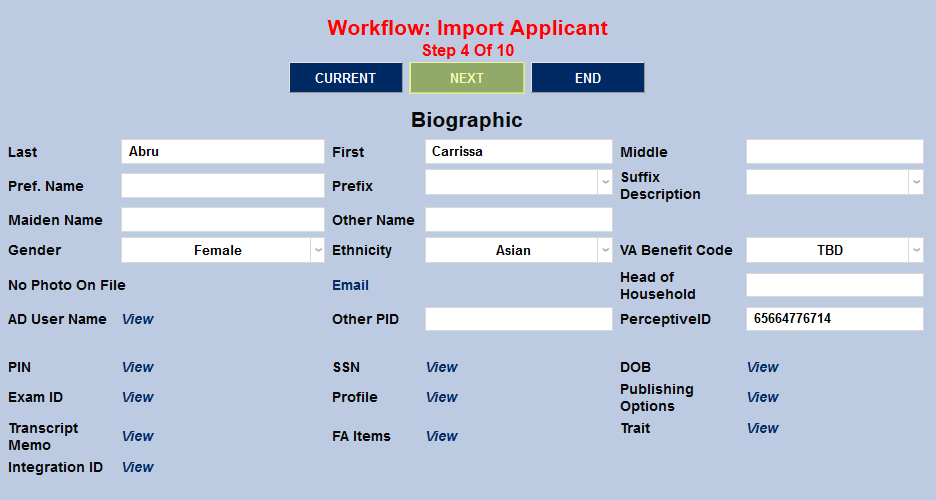
You can also click the Previous step button to go backwards.
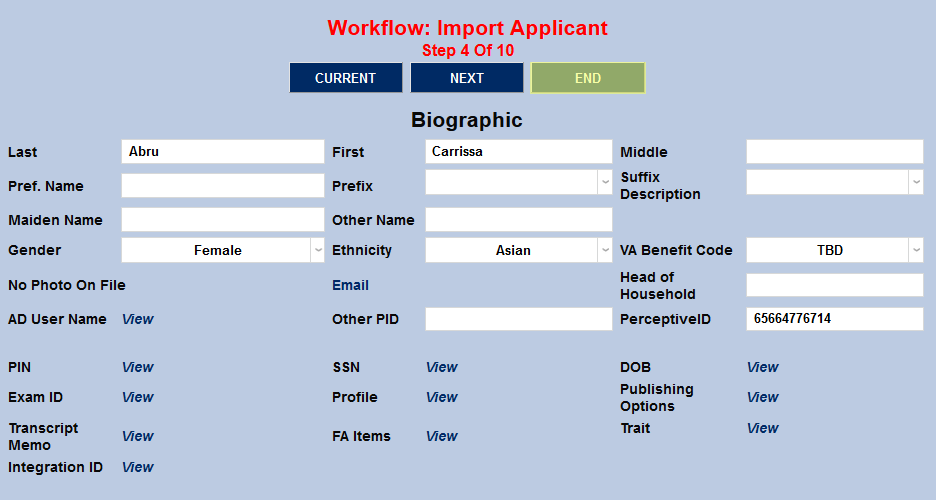
If you navigate away from the pages in the workflow and need to return to where you left off, you can click the Current step button.

To end the workflow early, click the Exit workflow button.
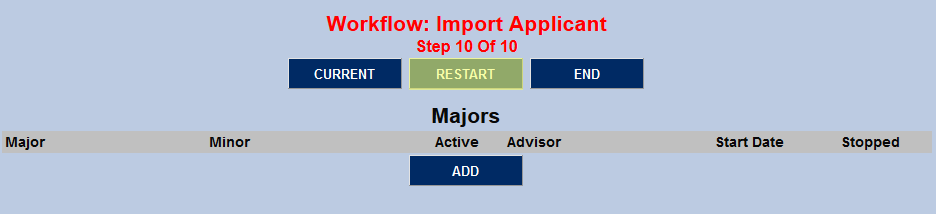
You can click the Restart button at any time to return to the first step in the workflow.
Workflow Sharing
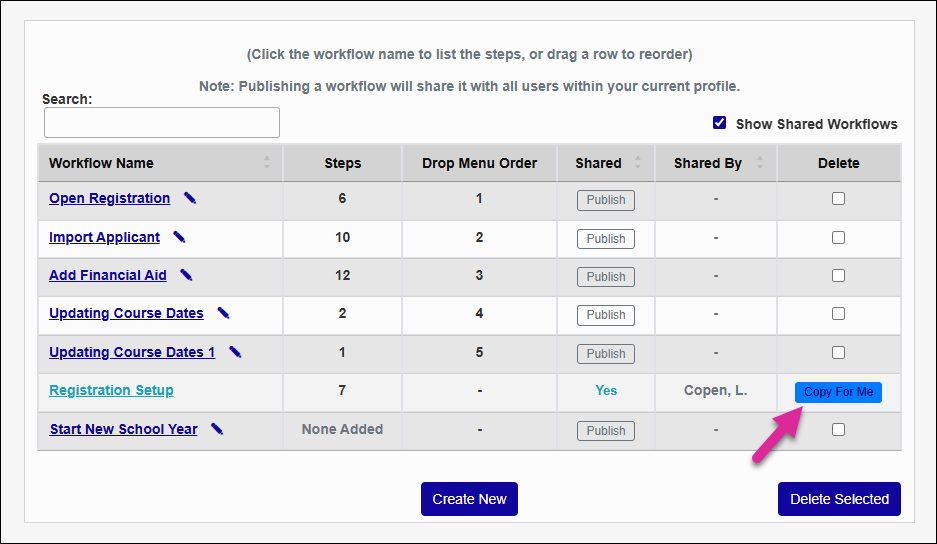
You can share your workflows with other users who have the same User Security profile. To share one of your workflows, navigate to the Workflows list page and click Publish.
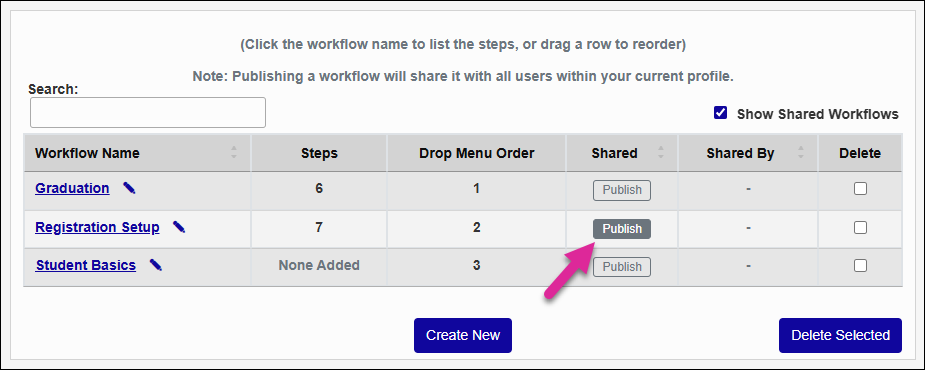
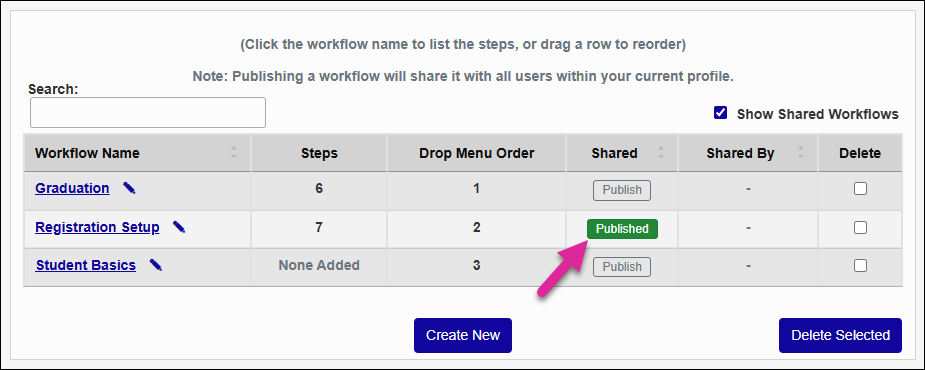
You can unpublish a published workflow by clicking the green Published button.
When someone has shared a workflow with you, you'll see a green Yes in the Shared column. To hide workflows that are not your own, uncheck the Show Shared Workflows box.
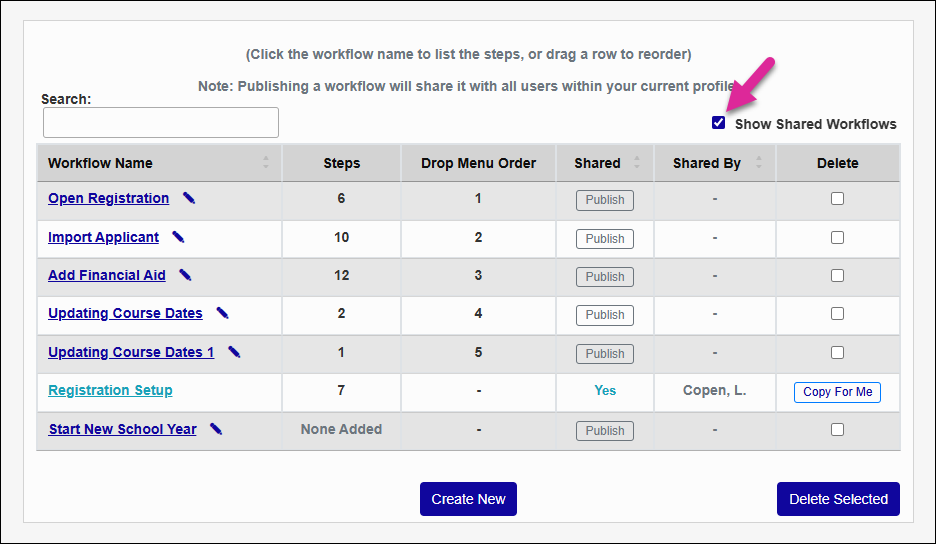
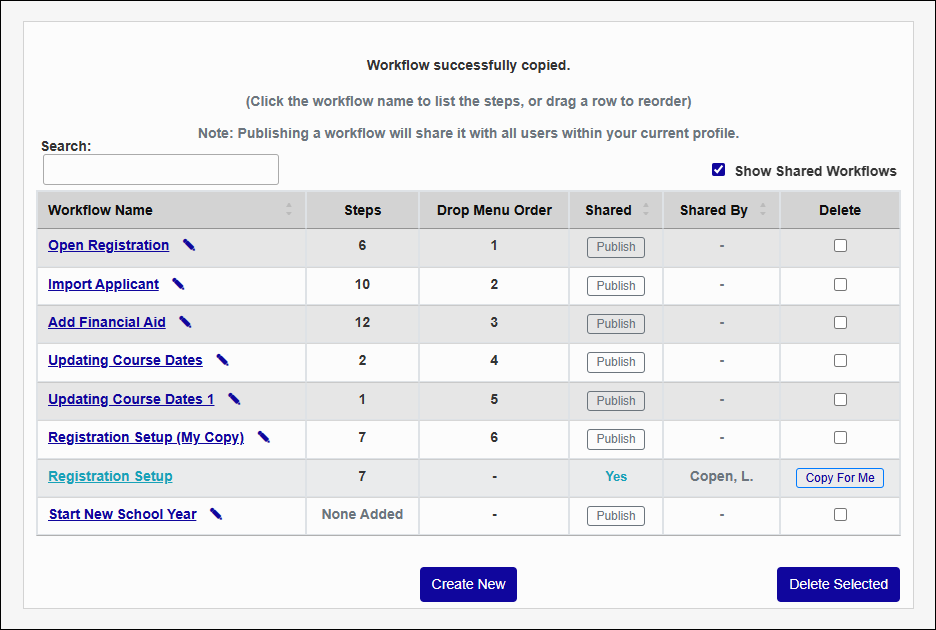
If you want to make changes to a shared workflow or ensure that you can still retain a copy if the other user unshares it, click the Copy For Me button to create your own identical workflow.