PowerFAIDS Cloud: Anticipated Awards
Overview
The PF Cloud: Ant. Awards page is used to import anticipated award information in a .CSV file from PowerFAIDS Cloud to SONIS. A sample file can be viewed or downloaded here.
Once you've imported awards through PowerFAIDS, you can use the PowerFAIDS Anticipated Awards Utility to review awards. You can also use this utility to delete awards in bulk as long as they haven't been exported to your general ledger system.
Setup
Some initial SONIS setup is required.
PowerFAIDS Cloud Setup Table
All columns on this table must be completed for each academic year and semester where data will be imported. Select PowerFAIDS Cloud Setup from the Table Maintenance utility and click Add New Record. Enter the POE Token used within PowerFAIDS for the term period being defined.

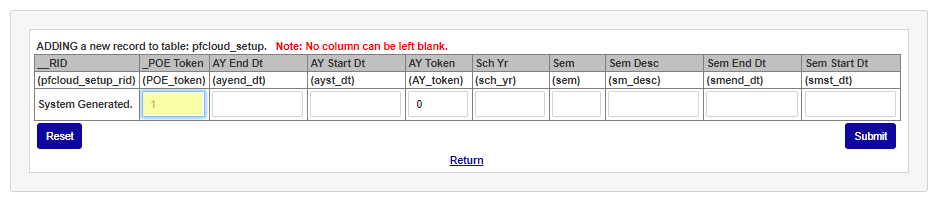
Enter the academic year start date in the AY Start Dt field and the academic year end date in the AY End Dt field.
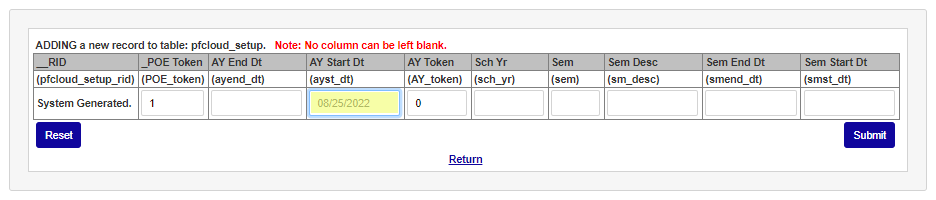
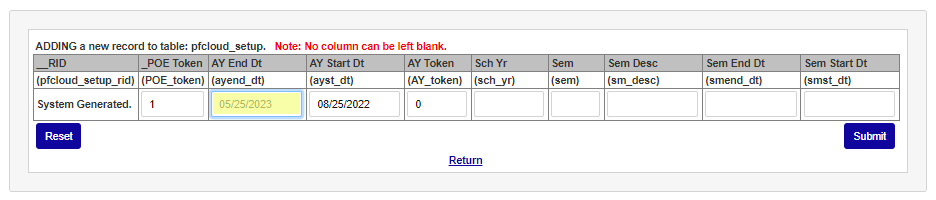
Enter the PowerFAIDS token for the academic year being setup in the AY Token field. Enter the school year code used in SONIS in the Sch Yr field.
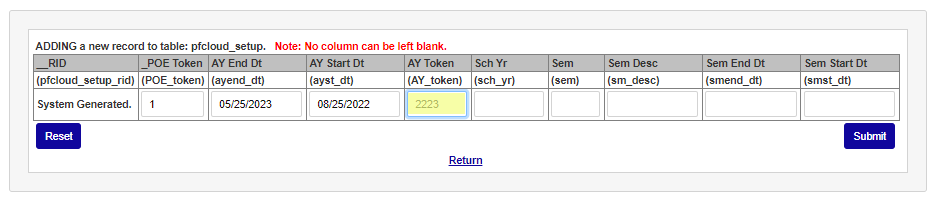
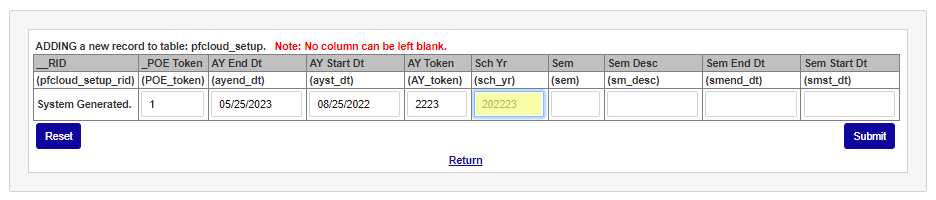
Enter the semester number used in SONIS for this POE in the Sem field. Enter the name of the semester in the Sem Desc field.
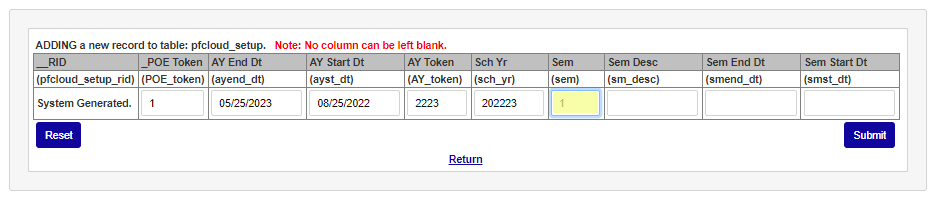
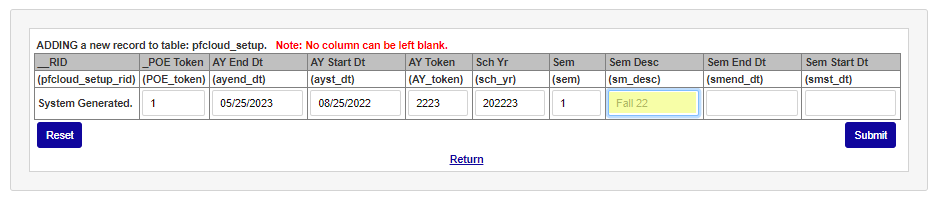
Enter the last day of the semester in the Sem End Dt field and the first day of the semester in the Sem Start Dt field.
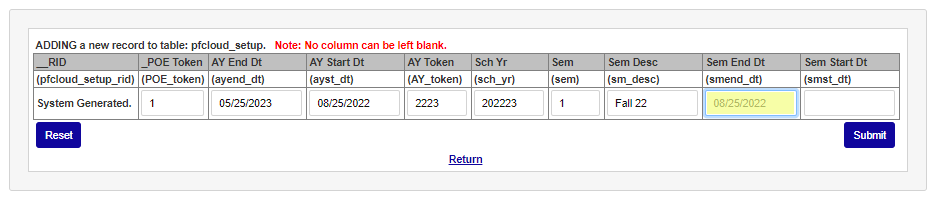
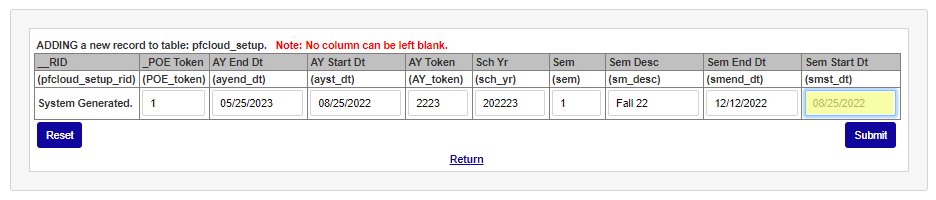
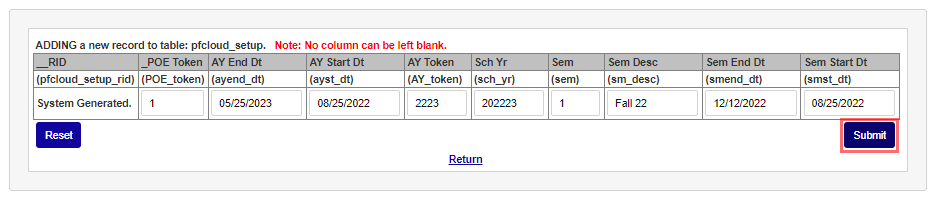
Click Submit to save the entry. Repeat these steps for any semester or term that information will be sent to PowerFAIDS.
Import T-Codes
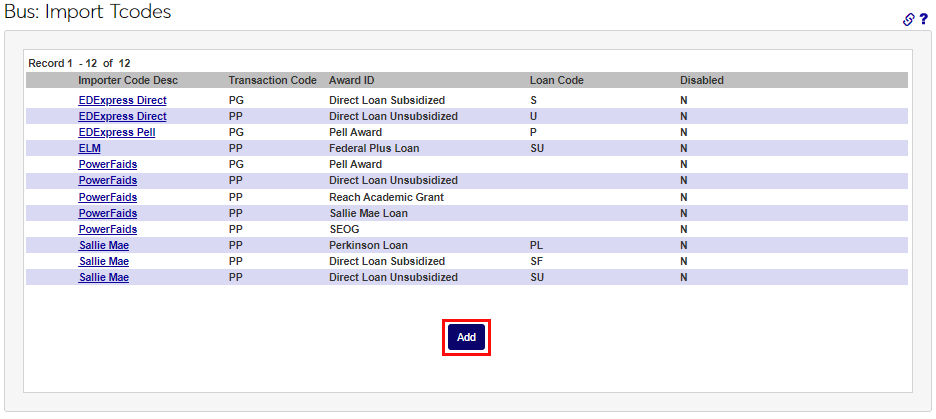
Each Award ID or award type that will be imported via PowerFAIDS must be appropriately associated with PowerFAIDS on the Business: Import T-Codes page. Click Add to begin creating import associations.
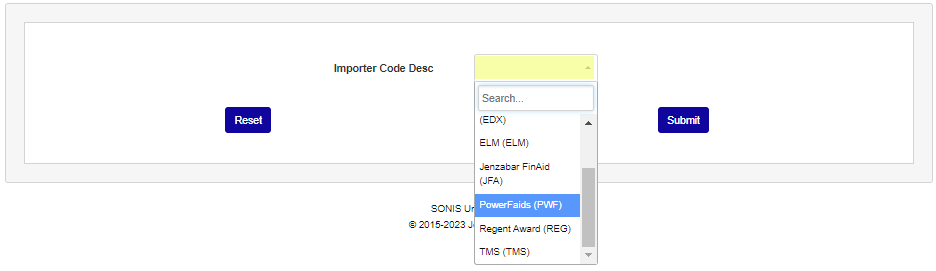
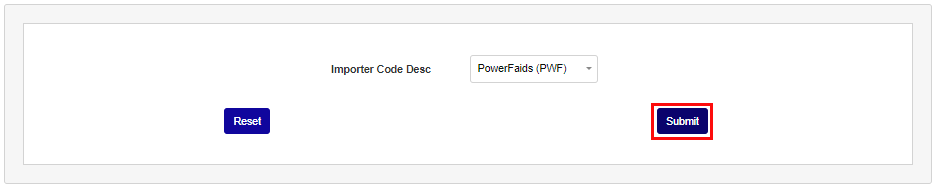
Select an option from the Importer Code Desc drop-down menu and click the Submit button.
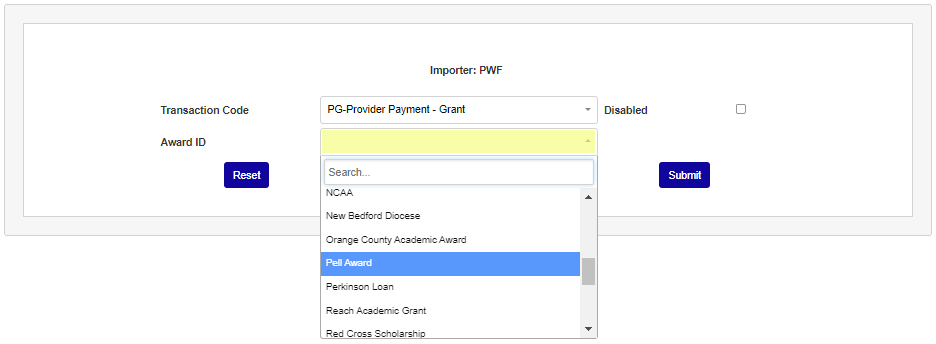
On the following page, select the appropriate T-Code from the Transaction Code drop-down menu. T-Codes can be added or deleted through the Tbl: Transaction Codes utility.
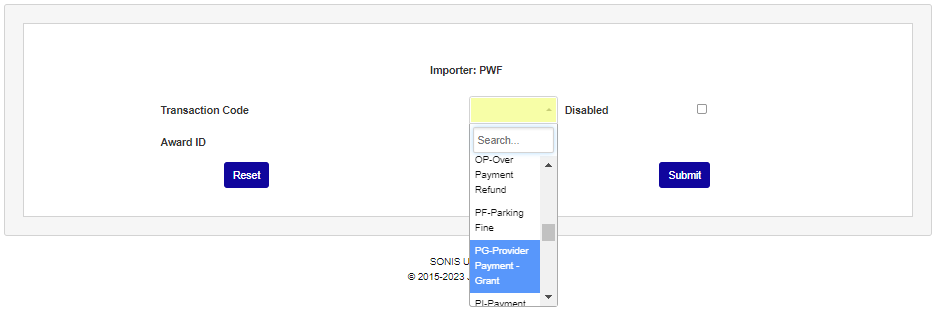
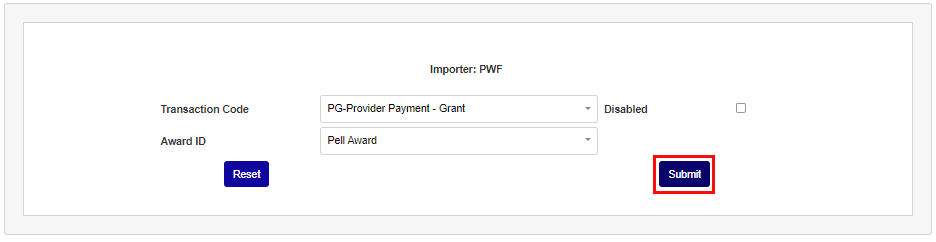
Select the Award ID that corresponds to the selected Transaction Code and click the Submit button.
Importing PF Cloud Anticipated Aid Files
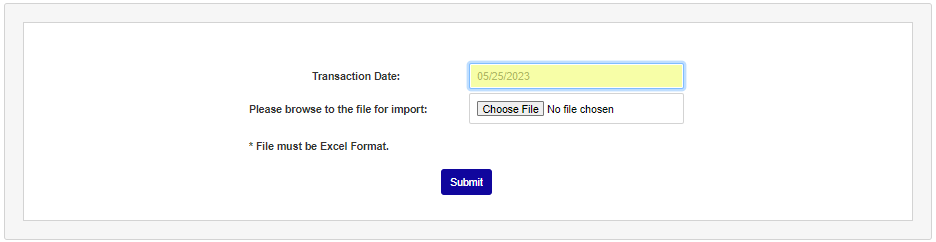
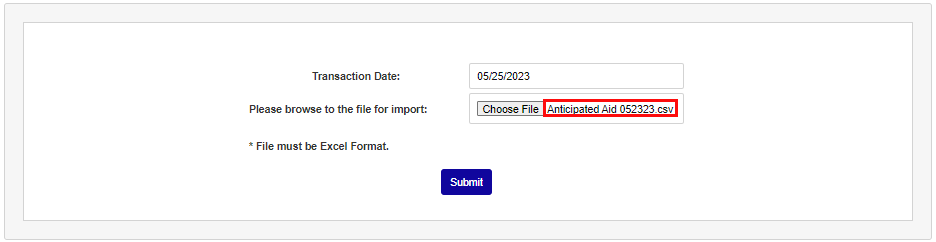
Prior to beginning, ensure an Anticipated Awards file has been downloaded to an accessible location. Enter the PF Cloud: Ant. Awards page from the Financials menu. In the Transaction Date field, enter the appropriate transaction date for this import file. Using the Choose File button, select the .CSV import file.
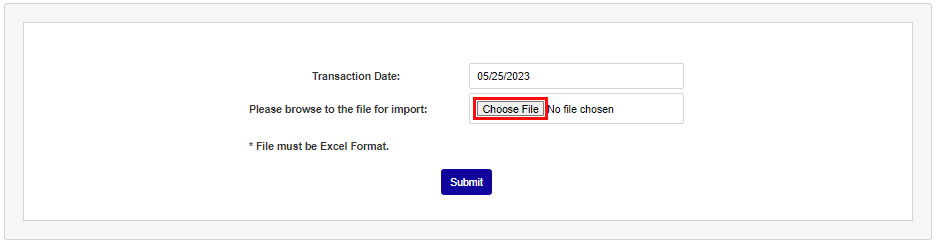
Confirm that the file selected is the desired file, then click Submit.
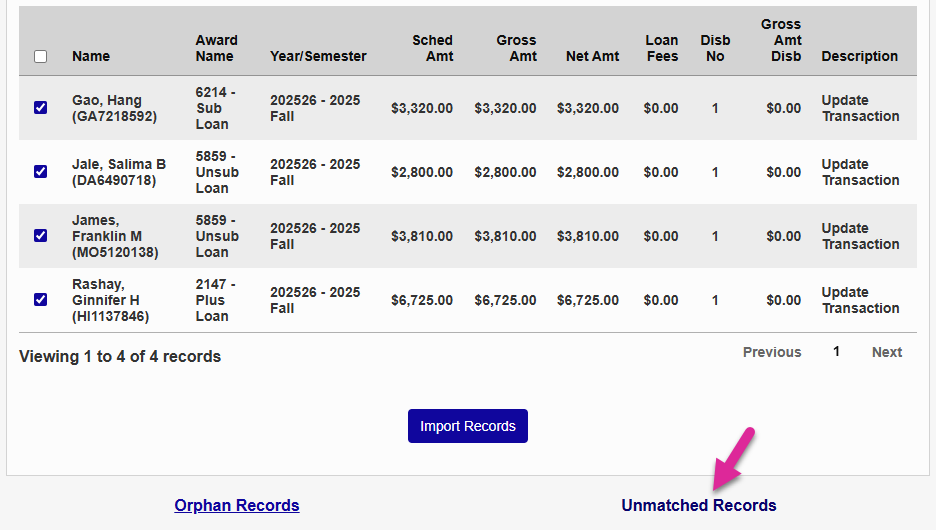
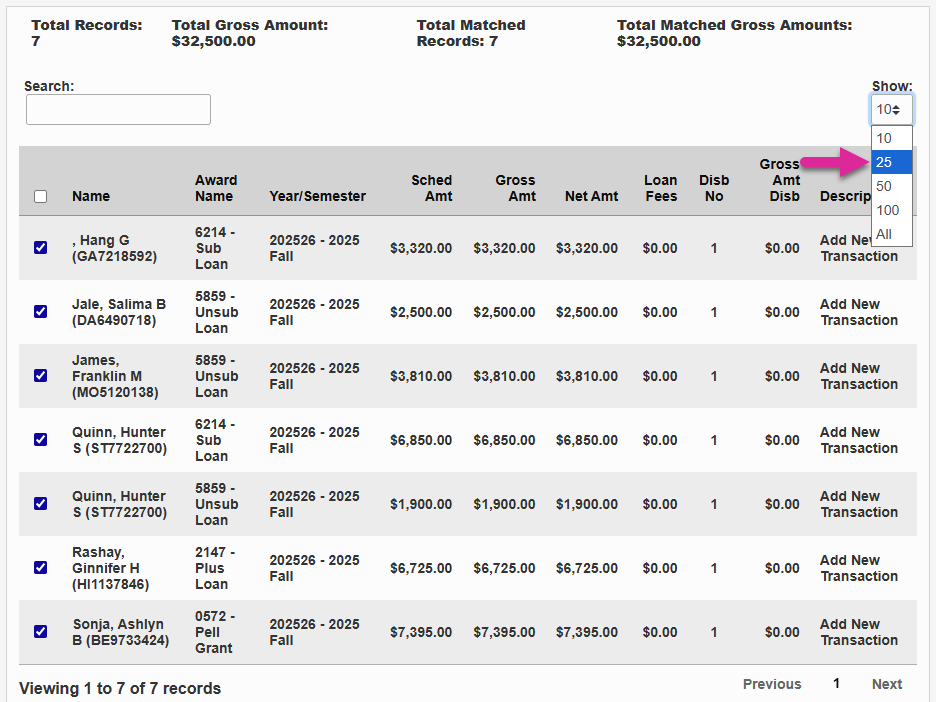
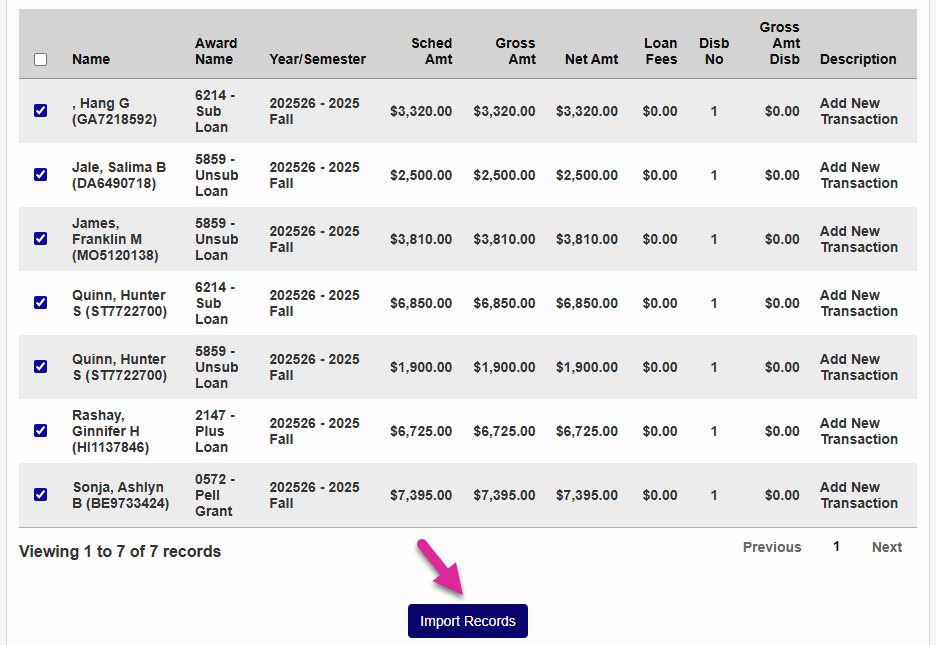
The data you're importing is shown in a table on the next page. The totals are listed along the top, above the table. Total Matched Records is the number of records that match a student in SONIS. The records are matched on SONIS ID or Social Security Number, depending on your SONIS and PowerFAIDS setup. Total Matched Amount is the amount of aid associated with matched students.
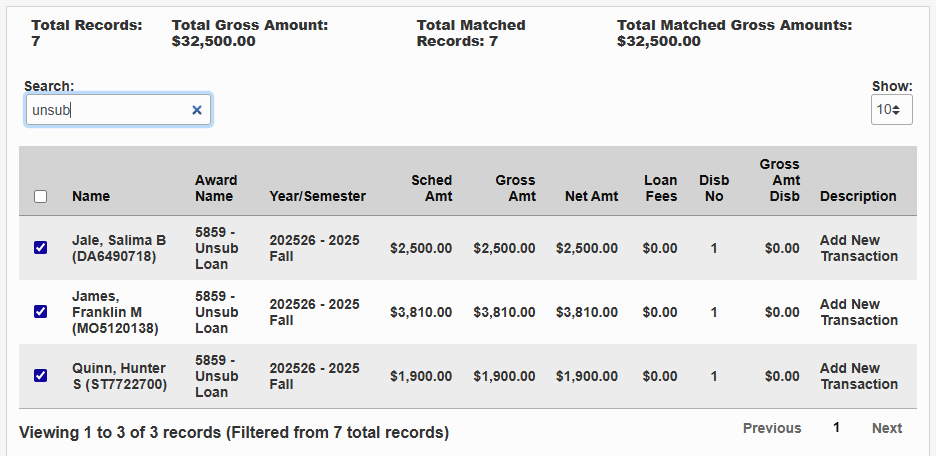
You can use the Show menu to control how many entries are displayed per page and the Previous and Next buttons along the bottom to move between pages. The Search menu can be used to narrow down the list to certain entries.
By default, every record will be imported, but you can uncheck any of the boxes in the first column to prevent a record from being imported. You can also use the checkbox in the header row to check all records.
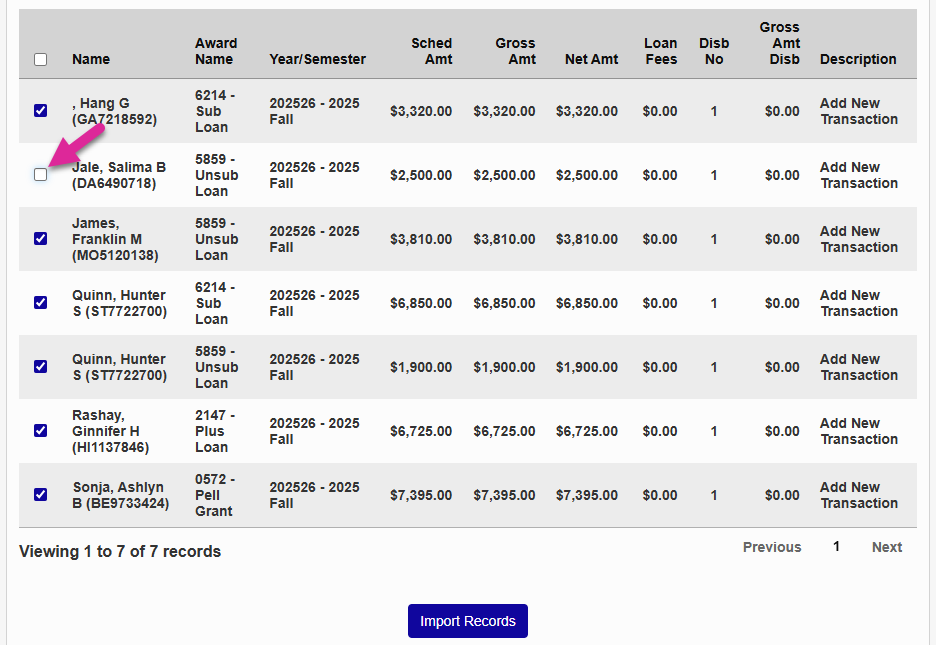
Once you've ensured that the right boxes are checked and unchecked, click Import Records to complete the process.
Orphaned Records
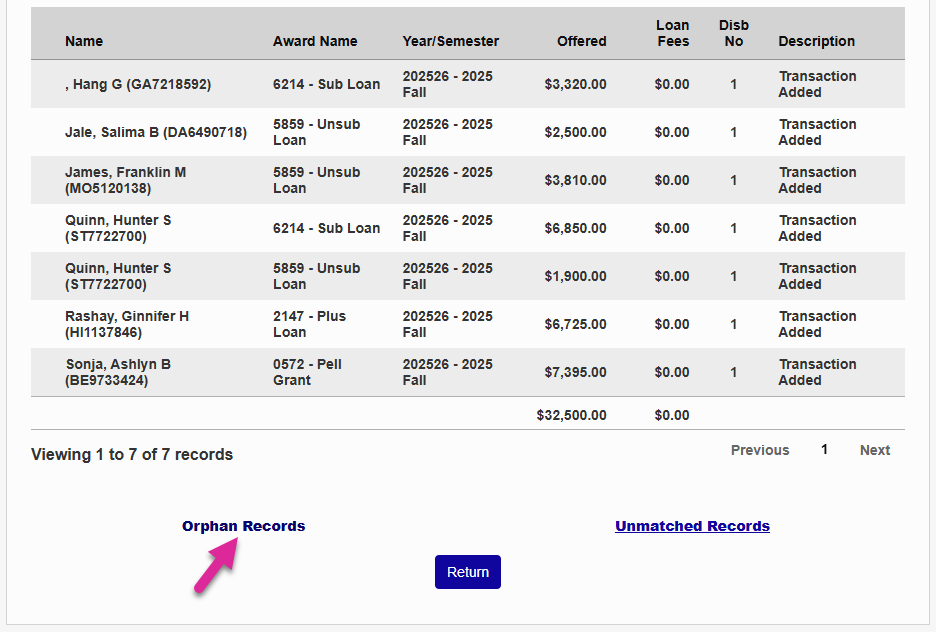
Click Orphan Records to view and resolve a list of students with previously imported, unposted, award records.
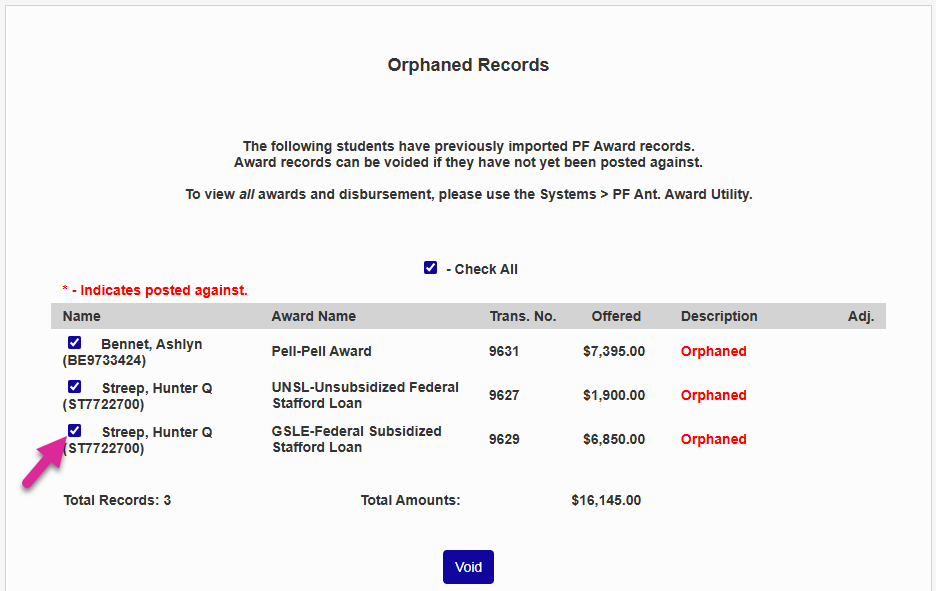
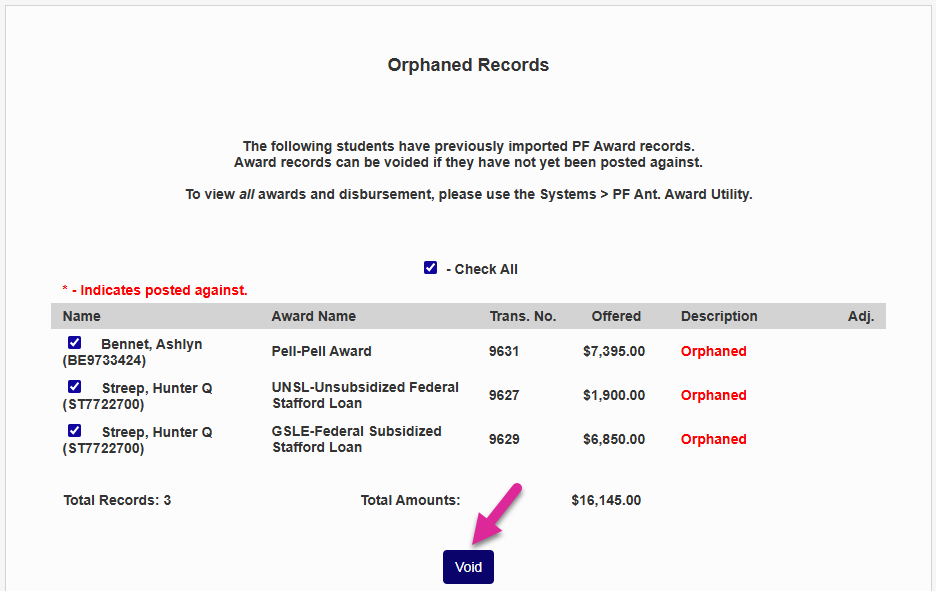
Each orphaned record is listed along with the details. Use the checkboxes in the far-left column to choose which records will be included in the process and click Void to remove these records from the system.
Unmatched Records
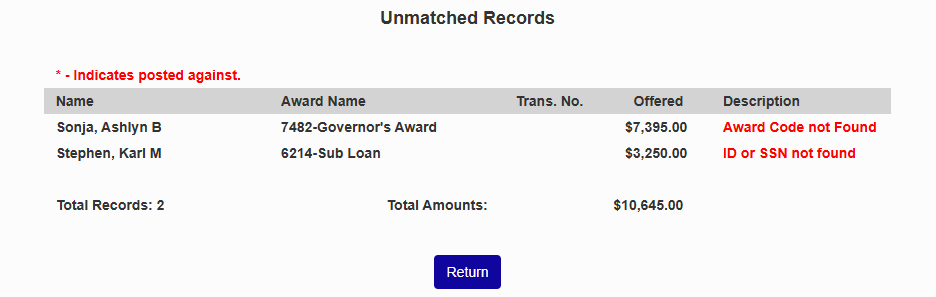
Click Unmatched Records to view a list of records that did not match a student's award records in SONIS. Errors are detailed in the Description column. You can correct the errors and import the file again.