Room Finder
Overview
The Systems hub utility, Room Finder, functions much like Set Events. It allows administrators to identify available rooms for courses or campus events. Available rooms can be searched for scheduling availability based on building, number of seats, number of available seats, number of seats for those needing physical accommodations, day of the week, times, school year, semester, and room attributes such as whiteboard and computers. Rooms are created and attributes are added using the Rooms & Buildings utility.
Finding a Room
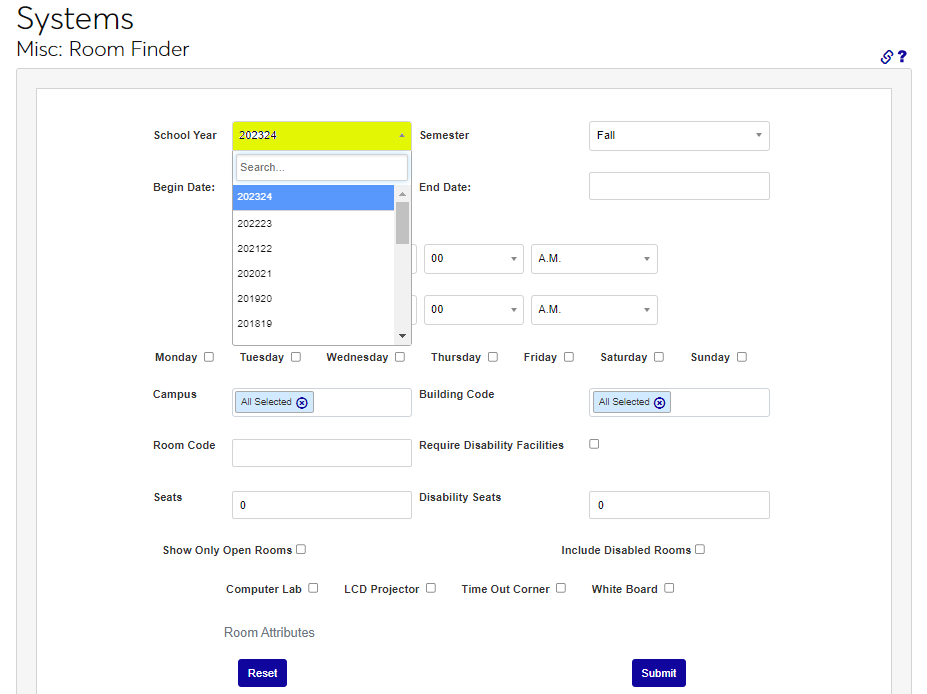
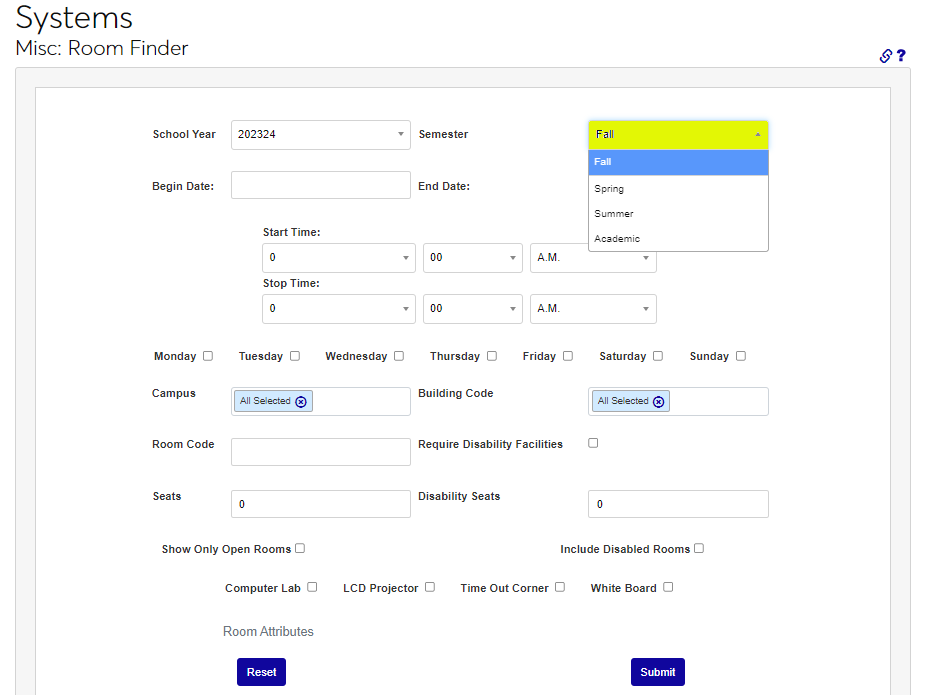
The Room Finder can be accessed from the Systems hub, or from within the Section List page, available within the Courses hub. After opening the page, select the School Year and Semester that the course meetings or event will occur during. By default, the current school year and semester settings, as set on System Variables will populate.
Enter the first date the room is needed in the Begin Date field and the last date the room is needed in the End Date field.
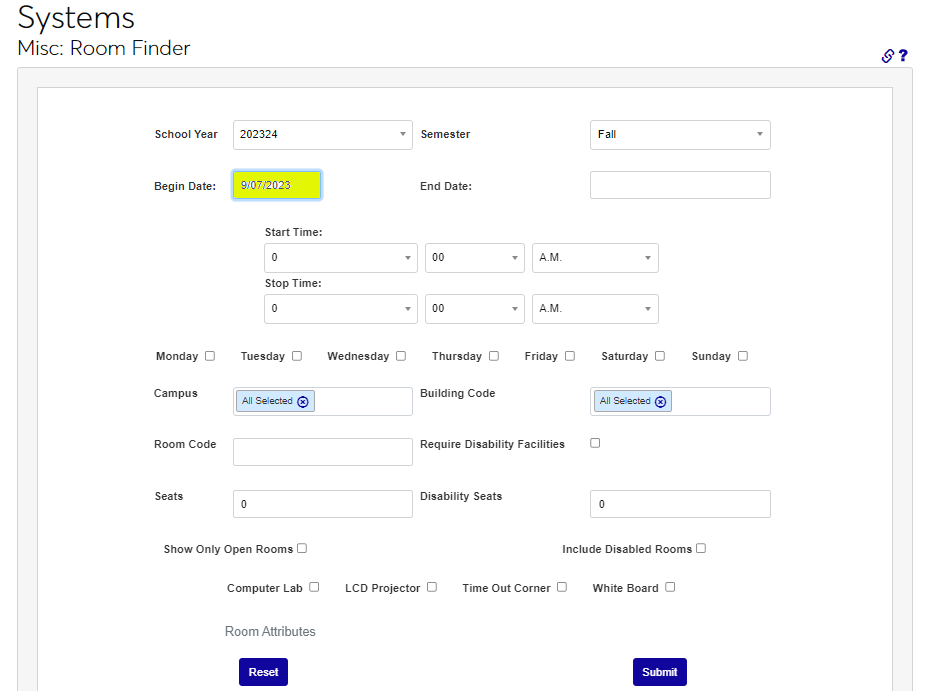
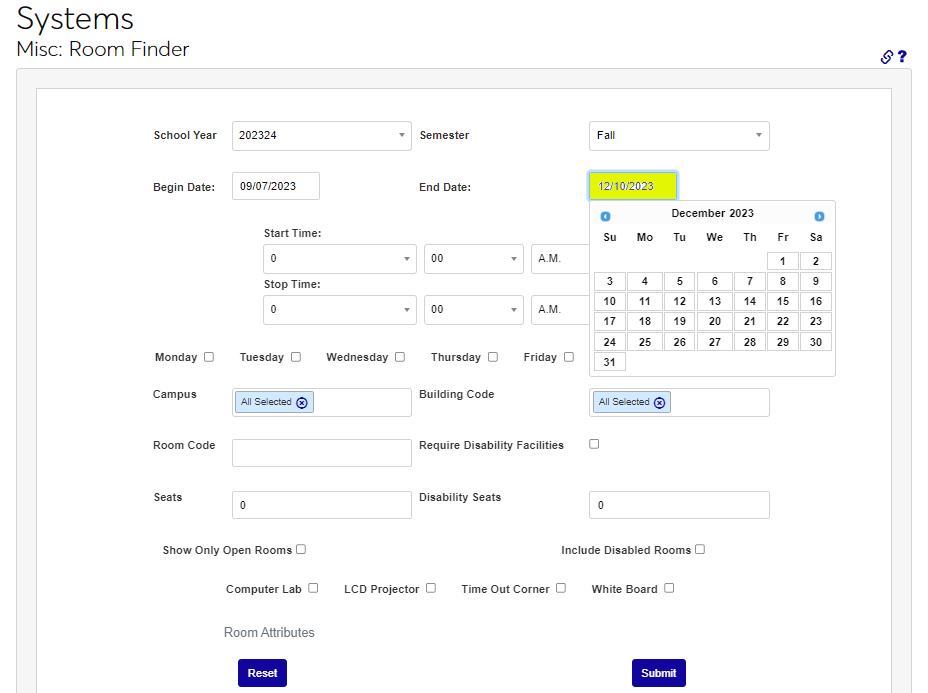
Enter the time the course or event will begin in the Start Time fields and the time the course or event will end in the Stop Time fields.
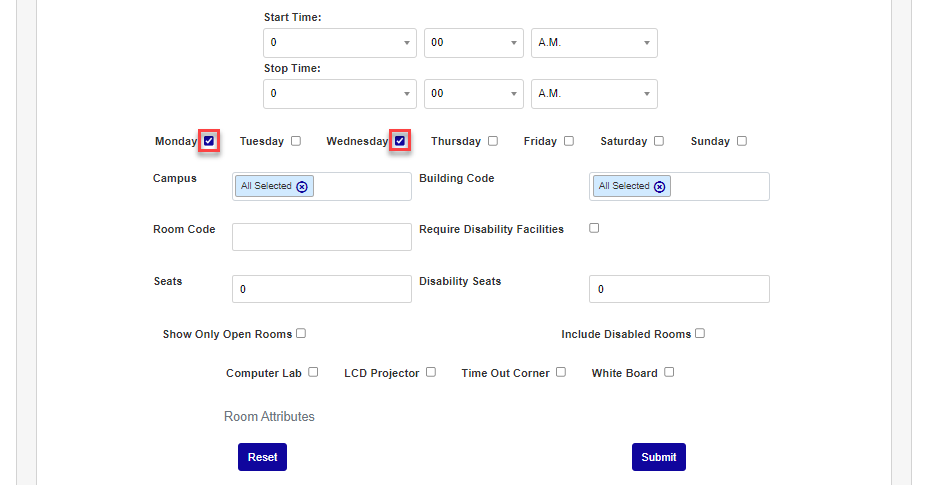
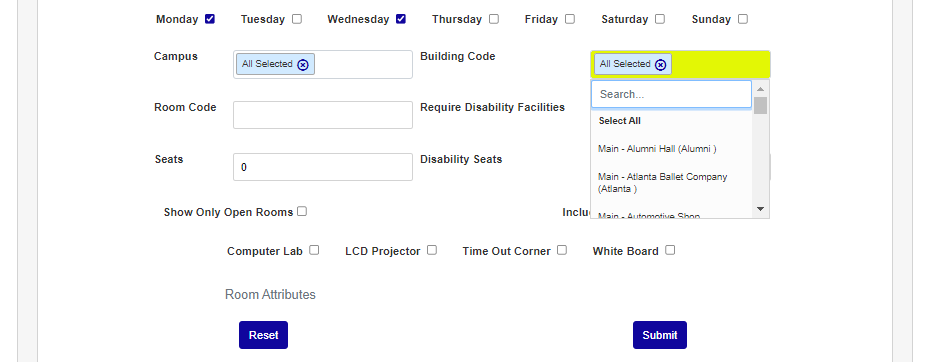
Select the day(s) of the week the course or event will occur on by clicking the checkbox(es) associated with the day(s). If a specific location is desired, select it from the Campus menu. Leave the default of All Selected if any campus location is acceptable.
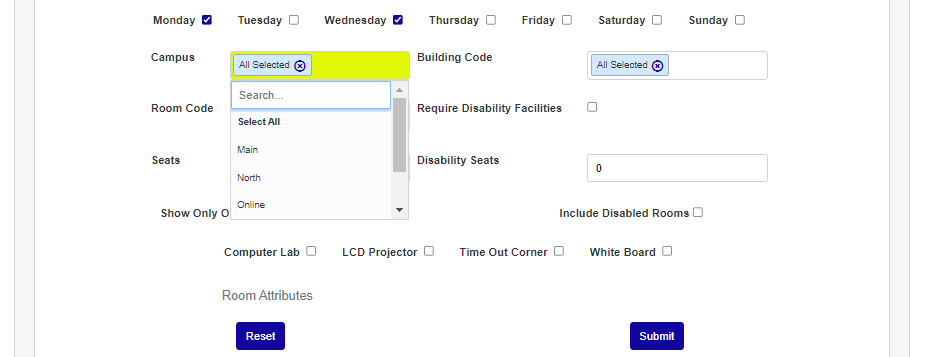
If a specific building is desired, select it from the Building Code menu. If any available building should be returned, leave the default of All Selected. If there is a specific room needed, enter the Room Code in the field.
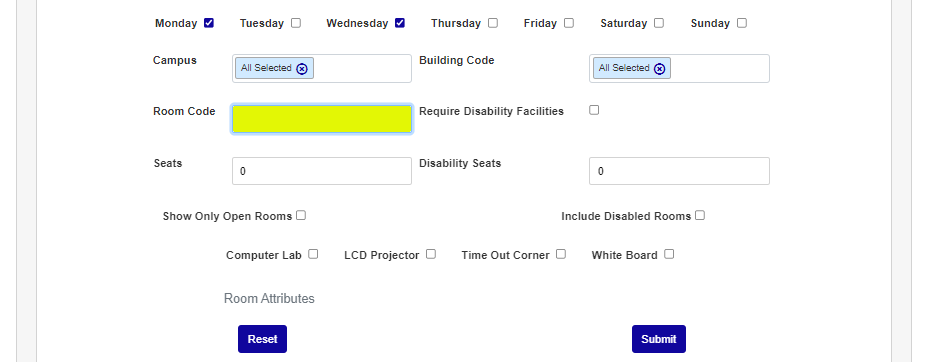
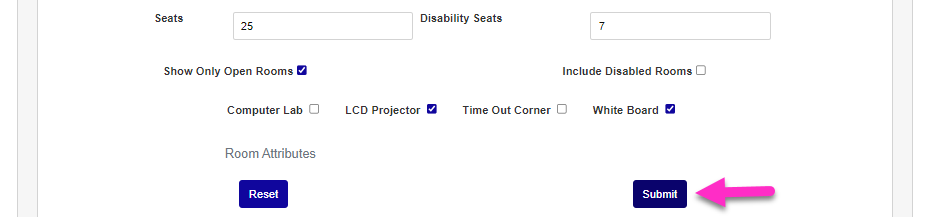
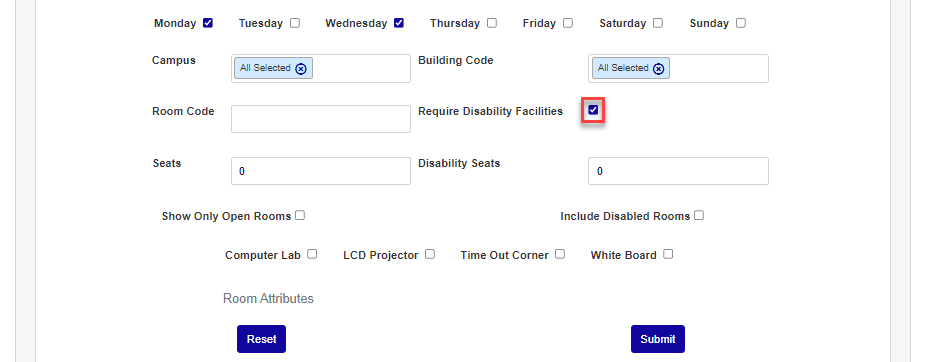
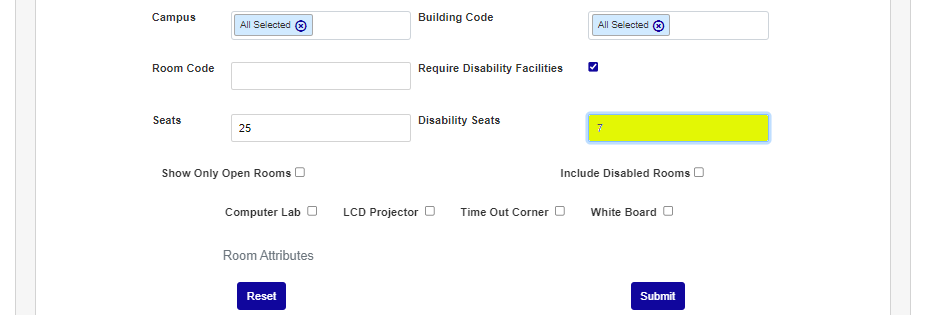
If an accessible room is needed for the course or event, click the Require Disability Facilities checkbox. Enter the minimum number of seats needed in the Seats field.
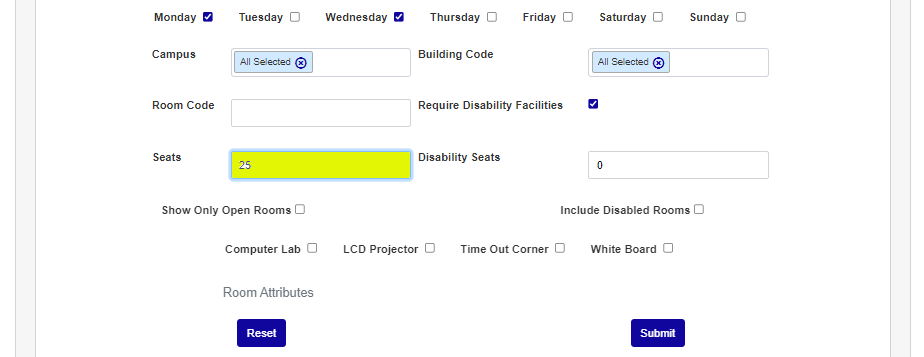
Enter the minimum number of accessible seats in the Disability Seats field. If only available room should be returned, click the Show Only Open Rooms checkbox.
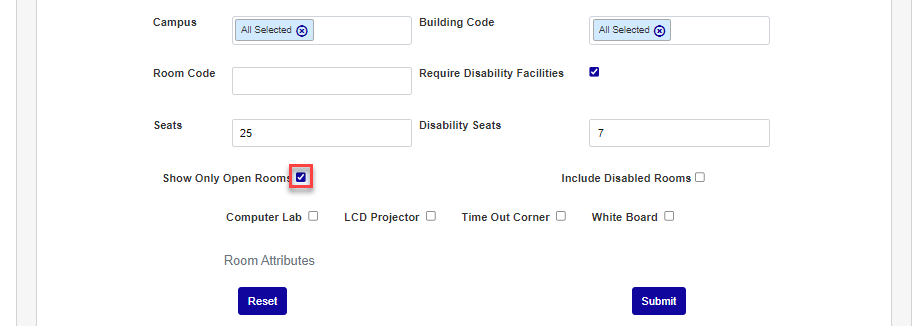
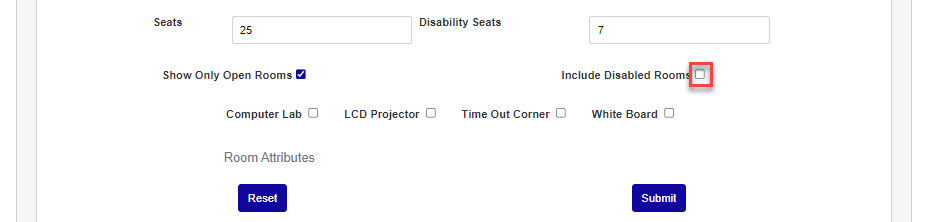
If rooms designated as Disabled Rooms, or no longer in active use, in Rooms & Buildings setup should be included, click this checkbox. Select any necessary Room Attributes by clicking the appropriate checkboxes.
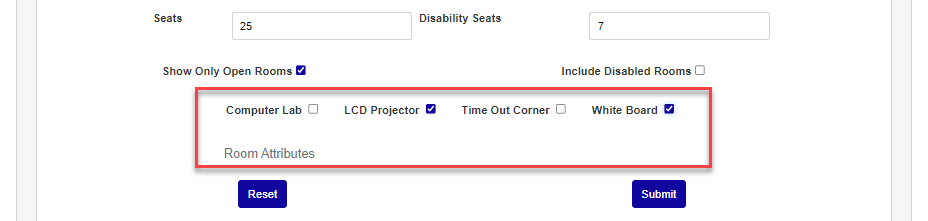
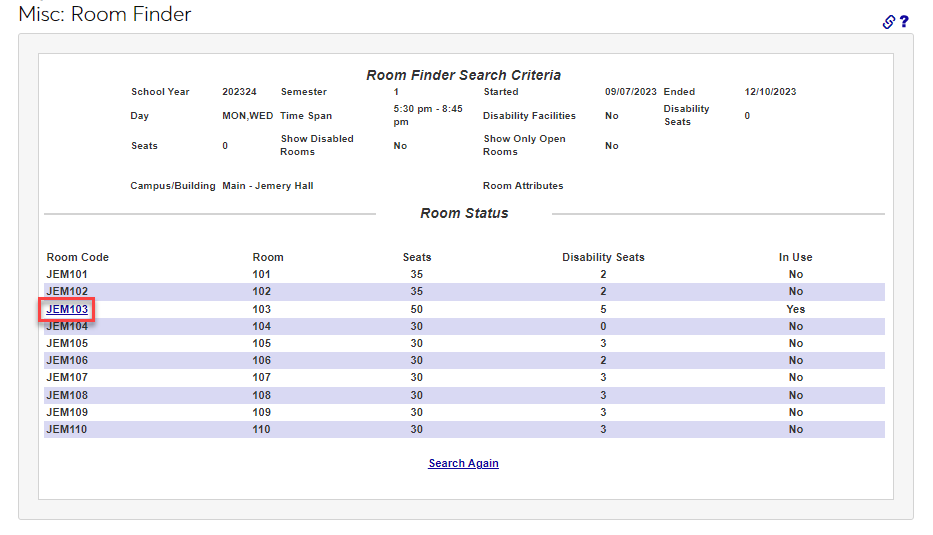
Click Submit to perform the search. The results page will display the criteria entered and any rooms that meet it. Any in-use room can be selected to view more details about the currently scheduled activity by clicking the linked name.