Employment
Overview
An Employment record details an alumnus' employment. An alumnus or administrator can create and manage an Employment record. When an employer is listed associated with an alumnus, the employer can be given the option to provide feedback on the individual's work.
See Evaluations under the Systems hub for more information.
Set Up
A few tables must be set up before employers can be given access to manage employees within the portal.
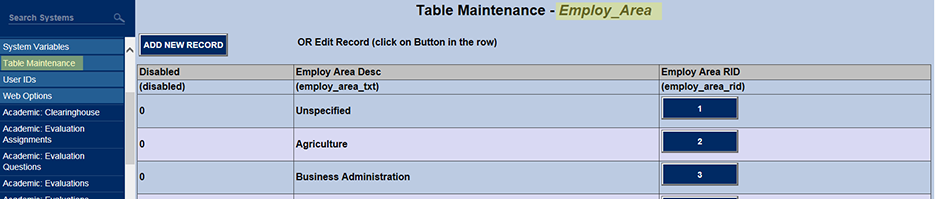
Employ Area is the academic area of an individual's Employment record.
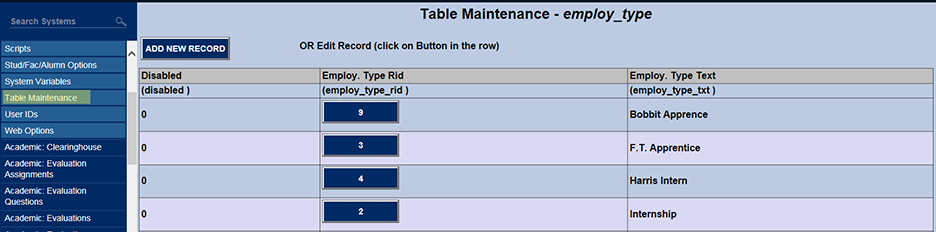
Employ Type refers to an additional way to describe a particular employment.
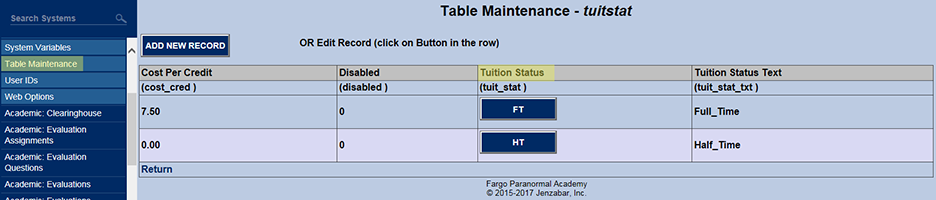
Employment Status is determined using the values in the Tuition Status (TUITSTAT) table because, for example, you can be a FULL TIME employee as well as a FULL TIME student.
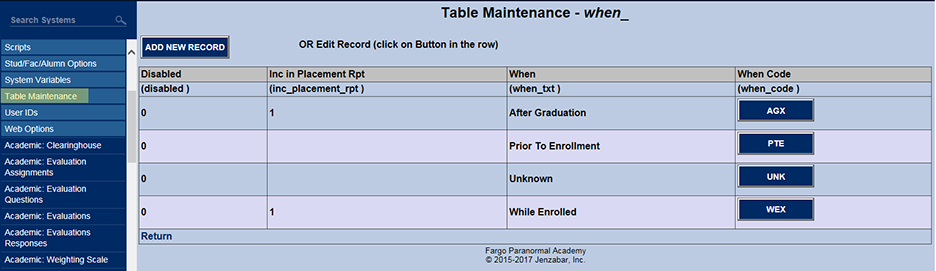
When Employed is used to show when their employment was secured in relationship to a step in their educational career.
As stated, both alumni and administrators can access an Employment record. Alumni logon and then go to Employment/Employment. Administrators must Name Search an alumnus and then click Employment.
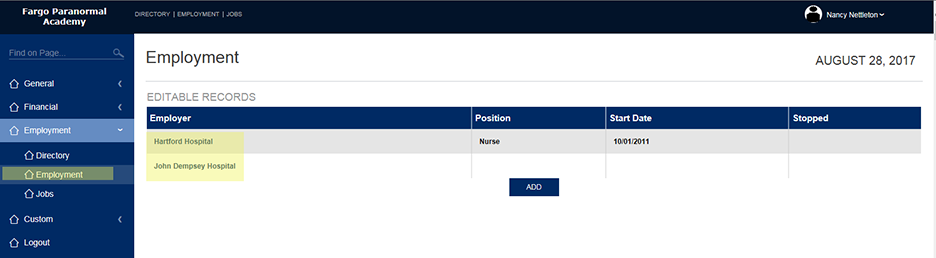
When an Employer link is clicked, it opens the full Employer record. Another option is to add a new Employer record.
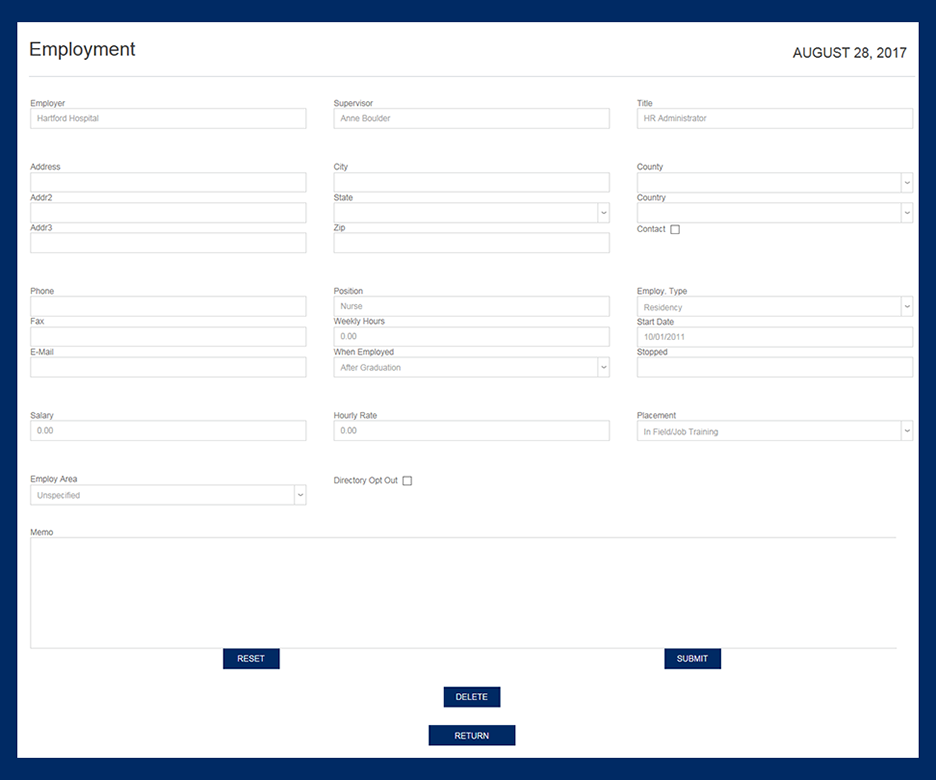
Directory Opt-Out
When an alumnus wishes to prevent one of their Employment records from displaying in the Directory, they must check Opt-Out on that record. The opt-out option may not appear for some alumni based on institutional settings.

Note
To turn off the opt-out checkbox, select the element Show All Alumni in Directory in the Portal Menu Utility.
Placement
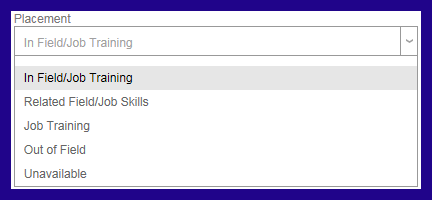
Placement refers to under what auspices the Placement office secured the employment for the individual. Note that he options for Placement are systems-defined. There is no utility for changing/adding to the options.