Trust Commerce Integration
Overview
TrustCommerce was acquired by Sphere Commerce and the existing Jenzabar SONIS interface was sunset by Sphere Commerce. Sphere recommended their preferred integration partner, Premier Hosted Payments for eCommerce, as the appropriate replacement. To provide clarity in this transition, the existing TrustCommerce integration has been renamed TrustCommerce-Sphere, and modified as necessary in the Jenzabar SONIS 2024 release. Some setup may need to be completed by the institution and Sphere to work with this new payment process.
To view information on using the TrustCommerce integration prior to the updates in Jenzabar SONIS 2024, click here.
TrustCommerce-Sphere is a PCI-compliant online payment gateway, which allows institutions to process payments quickly and securely. Jenzabar SONIS allows customers to use TrustCommerce to process student payments once they've completed a simple setup process.
TrustCommerce-Sphere Setup
To set up an integration with TrustCommerce-Sphere for payment processing, contact the institution's Sphere Account Manager or Solutions Consultant and request the following information:
account information for Sphere's test and production environments,
details about the process for moving to Production after work in Test is complete,
details about how to add a logo to the institution's TrustCommerce-Sphere payment page, and
assistance with any and all issues related to accessing either the Test or Production TrustCommerce-Sphere account.
SONIS Setup
Providers Account Setup
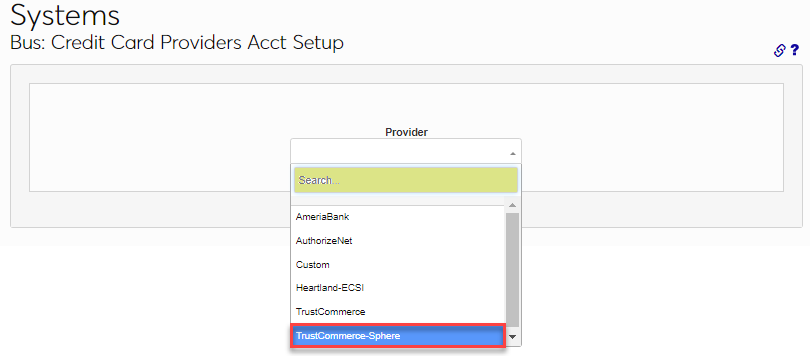
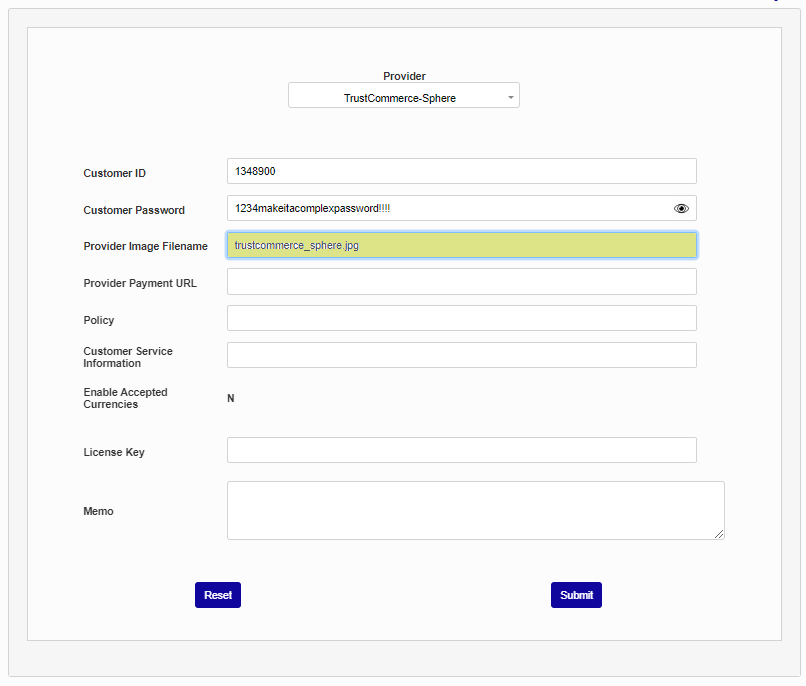
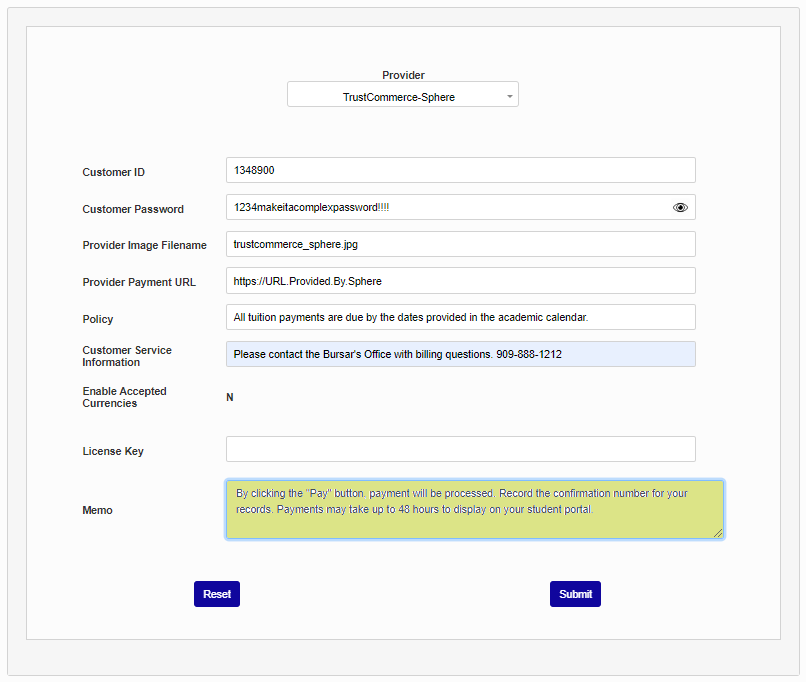
To set up the TrustCommerce-Sphere account in SONIS, navigate to the Providers Account Setup page in the Systems hub. Select TrustCommerce-Sphere from the Provider dropdown menu.
On the next page, enter the school's TrustCommerce-Sphere account number and password in the Customer ID and Customer Password fields.
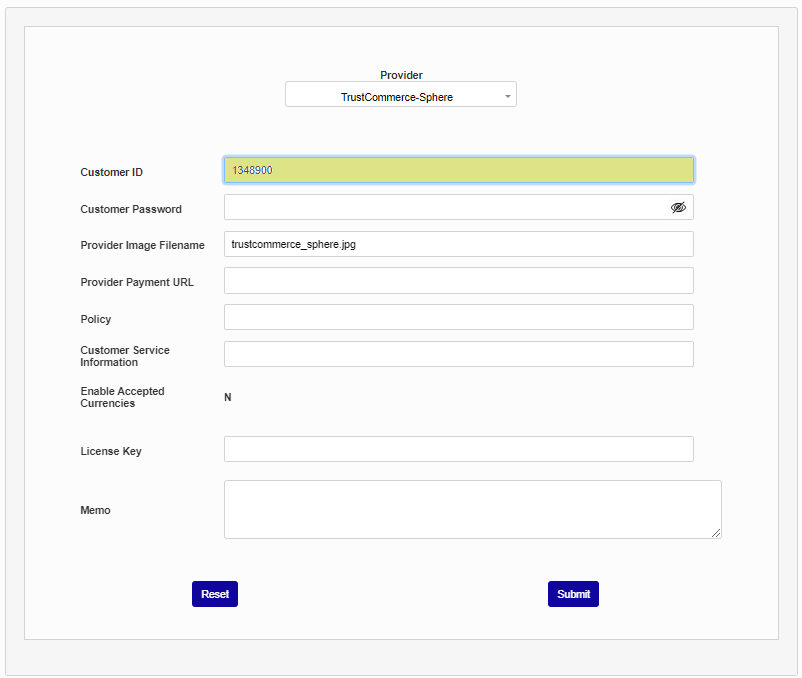
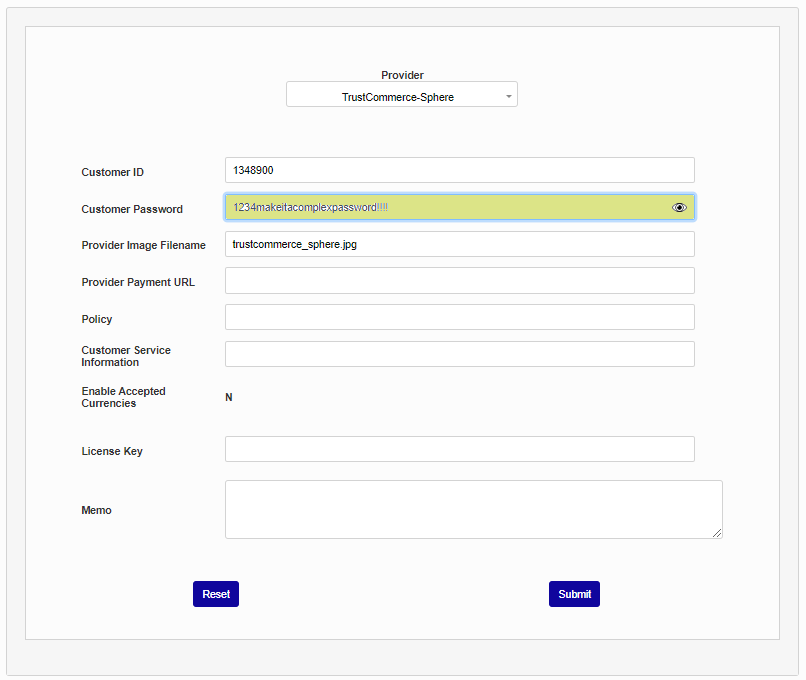
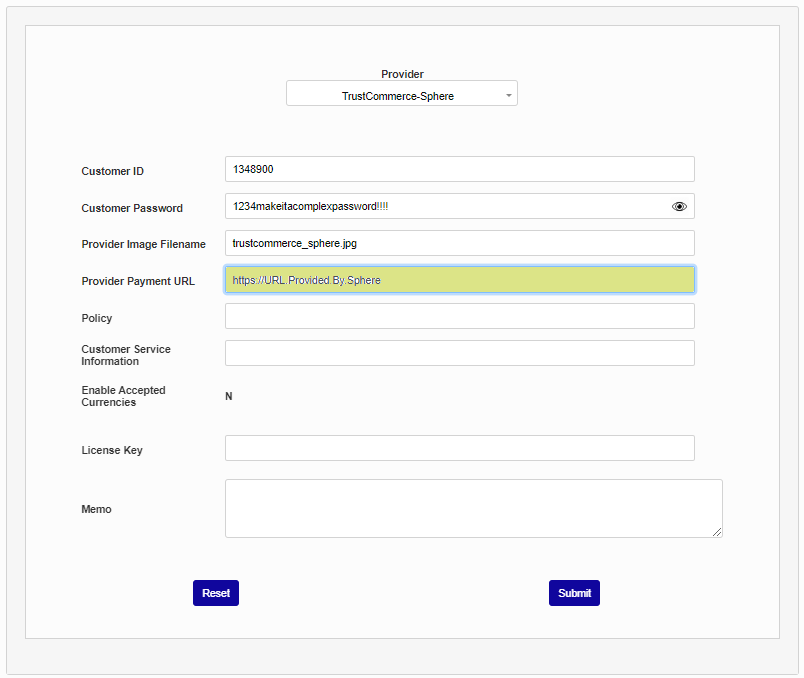
The Provider Image Filename links to a file in the SONIS Images folder. To change this display image, simply copy a new JPG or PNG file into the school's images folder and update the filename. The Provider Payment URL will be provided by Sphere. Enter it here.
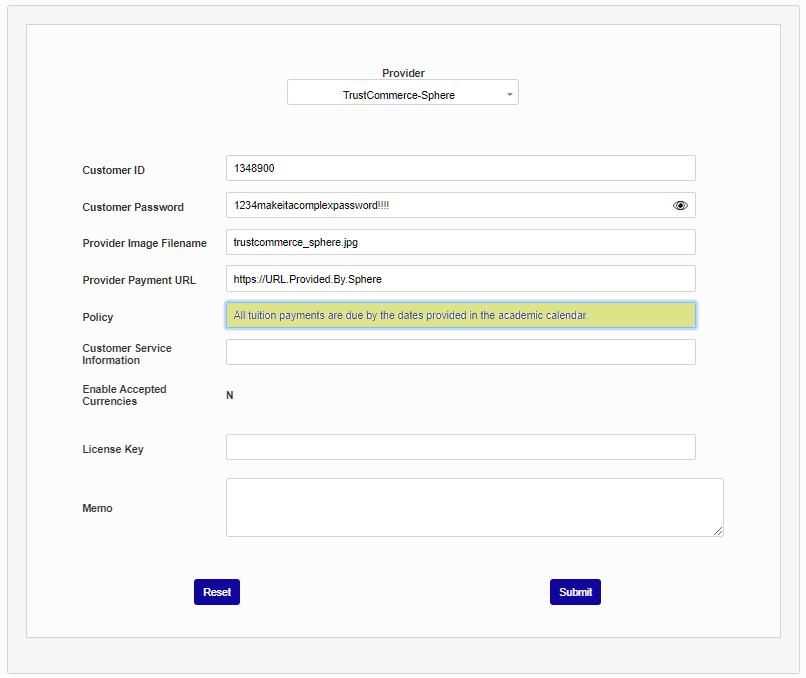
Policy , Customer Service Information , and Memo are all fields that display on the initial page before going to the payment site and can be tailored to the needs of the institution.
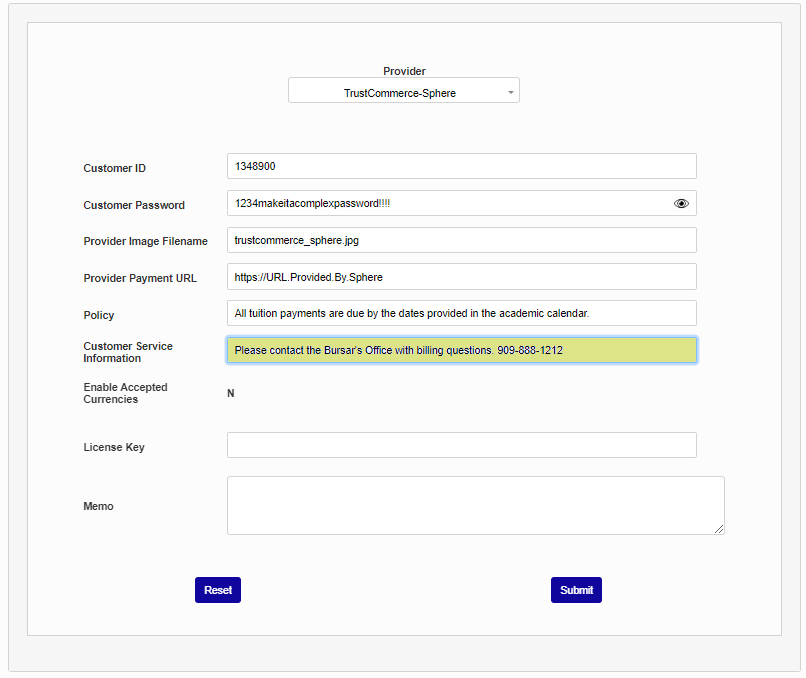
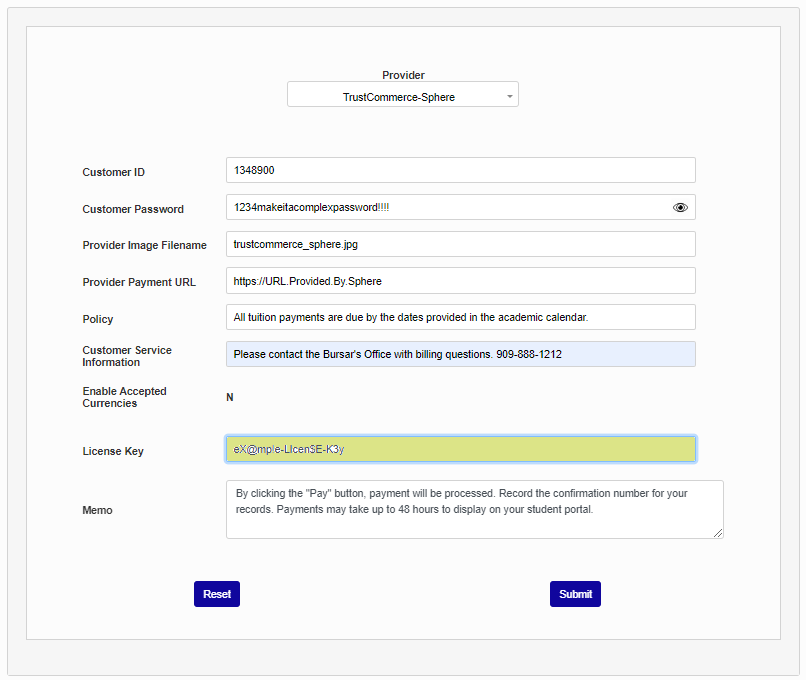
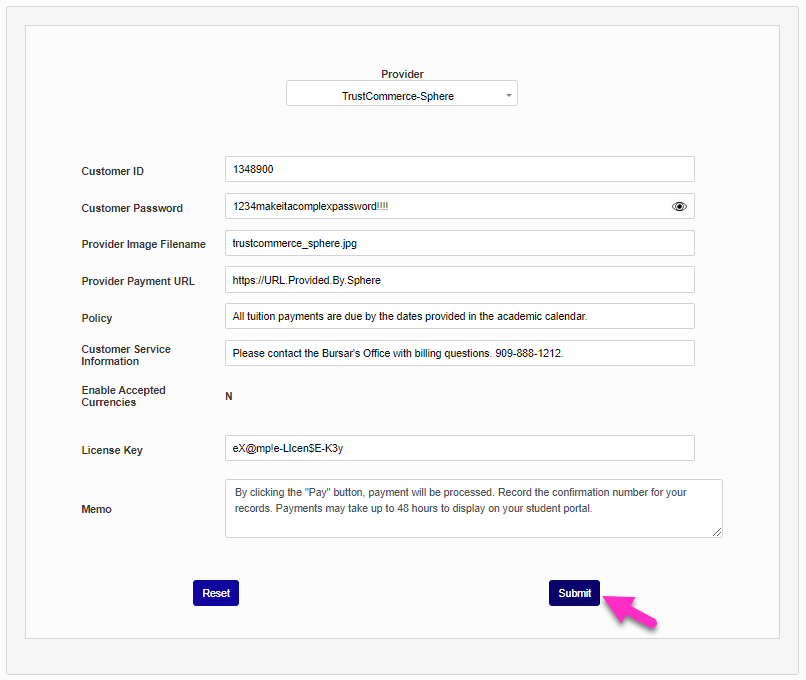
Enter the License Key, as provided by TrustCommerce-Sphere. Click the Submit button to save the entered information.
Credit Card Processing
Once the Provider Account page has been set up, administrators must choose a payment type or types to be handled by TrustCommerce-Sphere. Navigate to the Credit Card Processing utility in the Systems hub.
The start page displays each type of payment process along with the Provider currently set up for that process, the Account, the standard Amount if there is one, the Transaction Code, and the Operator. The utility also lists whether the process is Disabled or not. The Dev field is no longer used. To set up a process type, click the link for that type in the Process column.
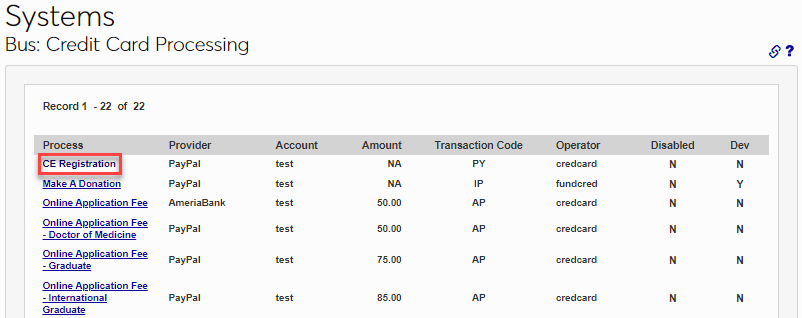
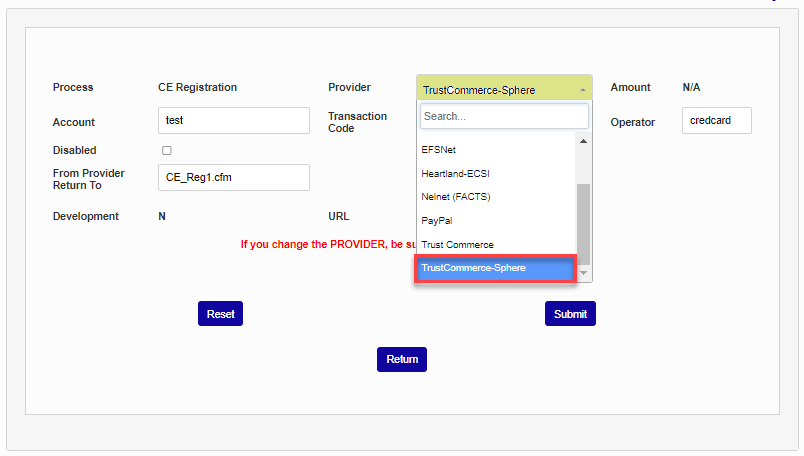
Select TrustCommerce-Sphere from the Provider dropdown menu and enter the school's TrustCommerce-Sphere account number, as provided by TrustCommerce-Sphere.
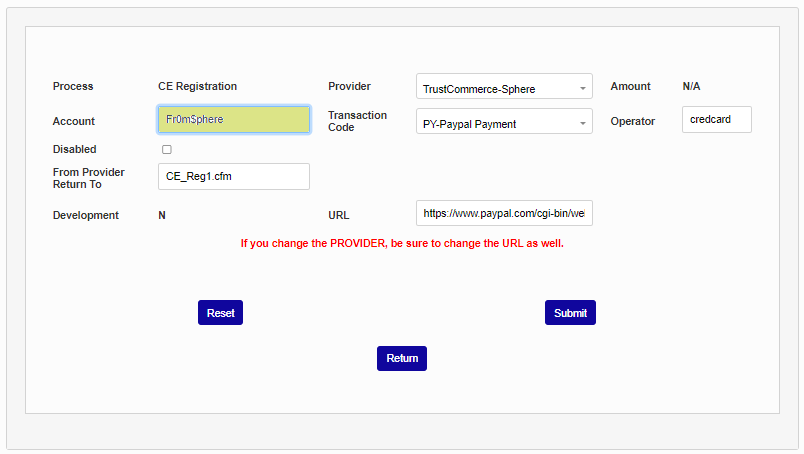
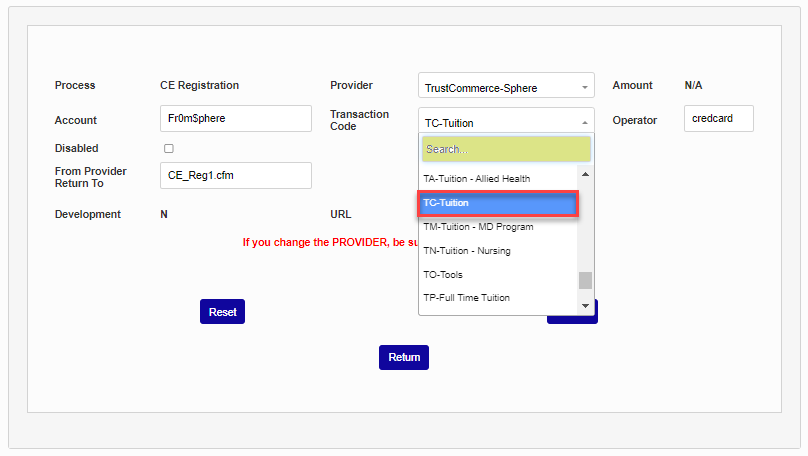
Next, select the corresponding Transaction Code for this transaction type from the Tcode dropdown. Enter the Operator name that will appear in transaction history. Generally, this would be credcard.
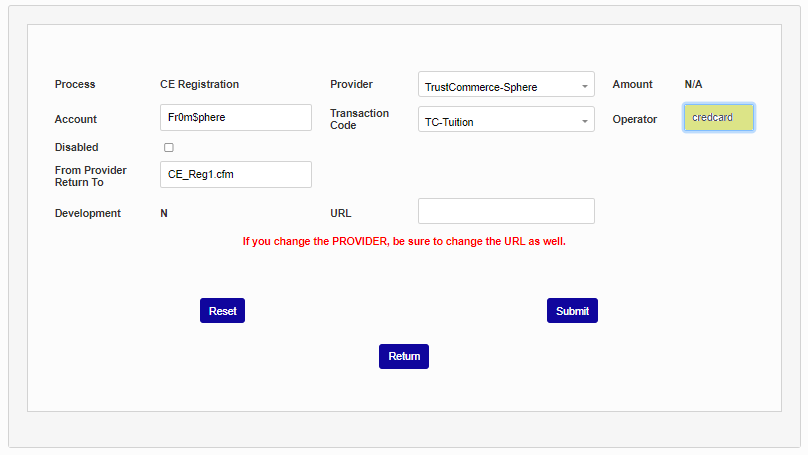
After the user makes a payment, they will be redirected to a SONIS page. Enter the .cfm name of the page they should be returned to in the From Provider Return To field.
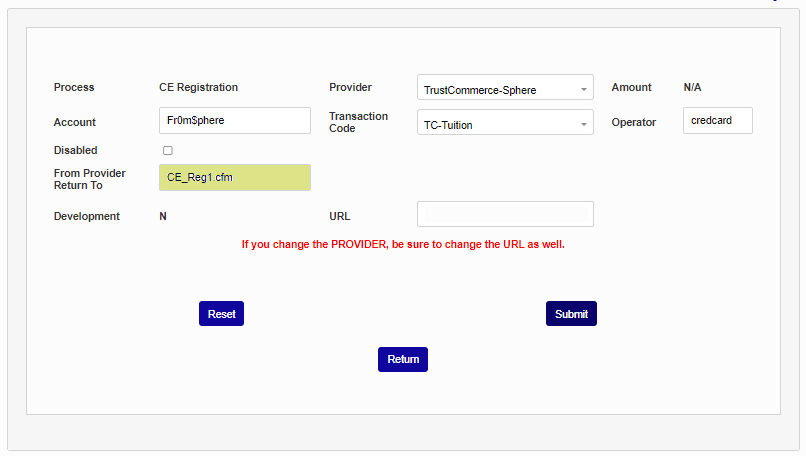
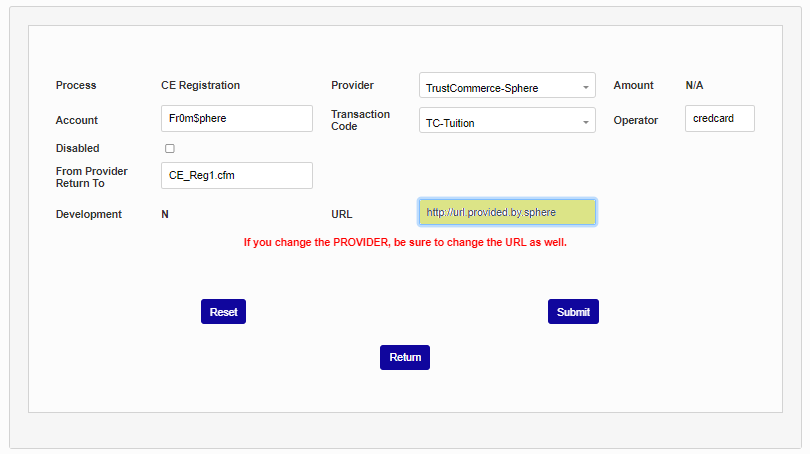
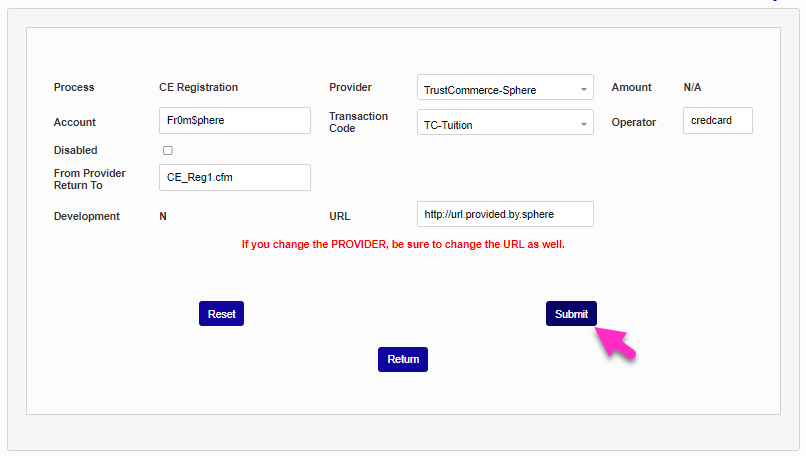
Fill in the proper URL for the payments to be processed through, as provided by TrustCommerce-Sphere and click Submit .
Convenience Fee
Schools can choose to charge a fee to users who pay with TrustCommerce-Sphere to cover the cost of the credit card transaction. Users can choose to pay with a debit card from a bank account, but the fee will be charged for either payment method as TrustCommerce-Sphere is not able to differentiate payment types from SONIS. After submitting the credit card processing update, to set a fee, scroll down to the Convenience Fee Setup section of the page and check the Include Fee box.
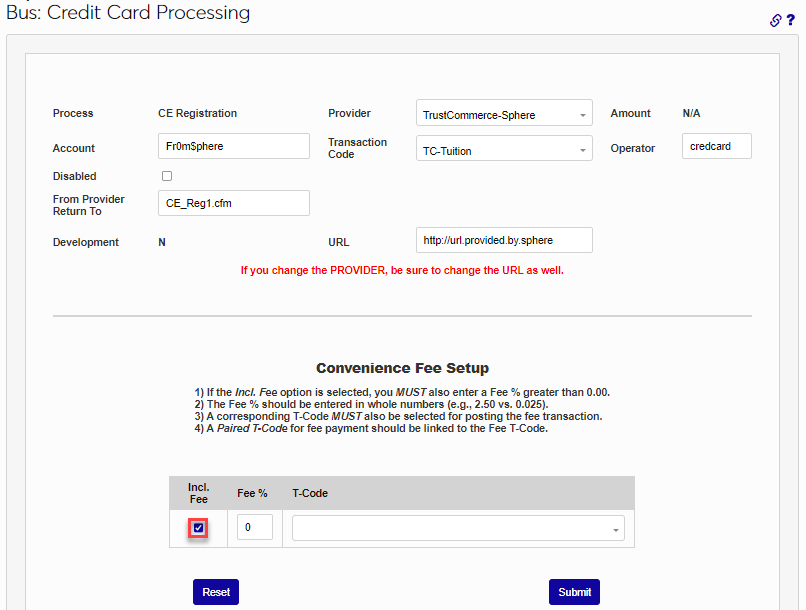
Set a Fee % to be charged. If a fee is included, a fee amount must be entered. The Fee % should be entered in whole numbers, for example 2.50 instead of .025.
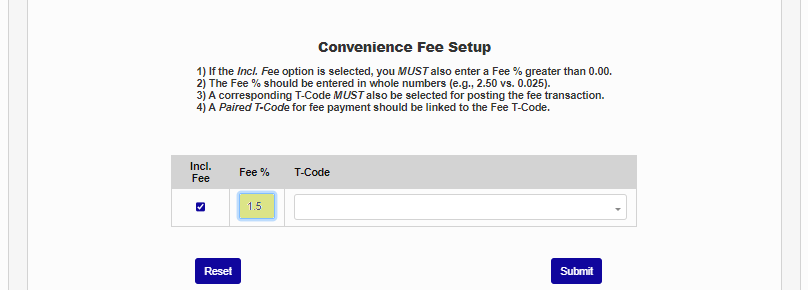
Finally, each transaction type must have a T-Code associated with it. For accurate bookkeeping, institutions should create a specific transaction code for each payment type. These t-codes should be linked to the t-code for the payment type itself. Some institutions may also wish to link the fee code under the payment type code as well for added clarity.
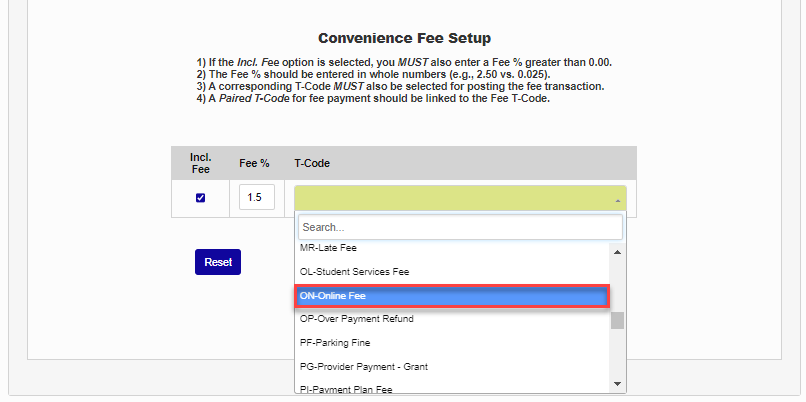
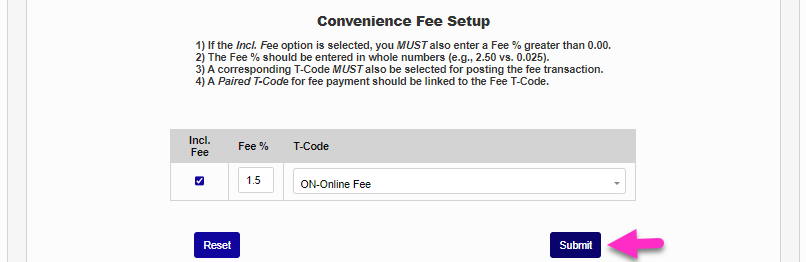
Click the Submit button to save the changes and activate TrustCommerce-Sphere as a payment provider.
Payment Balance Display Options
While some institutions post all charges immediately, others take advantage of the Jenzabar SONIS Pre-Billing feature to create what is essentially a balance preview before the charges are posted. This pending balance is shared with the student, allowing them to anticipate charges and make payments towards those charges. However, the SONIS Credit Card Processing utility only displays charges that have been billed and cannot display pre-billing information. For this reason, some schools wish to show students a balance of zero when they make a payment rather than showing them a balance that may be less than their full charges for the semester and encourage partial payments.
Payments
Once TrustCommerce-Sphere has been set up, some users can make payments through their SONIS portal. To make a payment from the student portal, select Billing from the left-nav menu and then click the Credit Card Payment button. On the next page, edit the payment amount if necessary and click Continue to Process Payment.
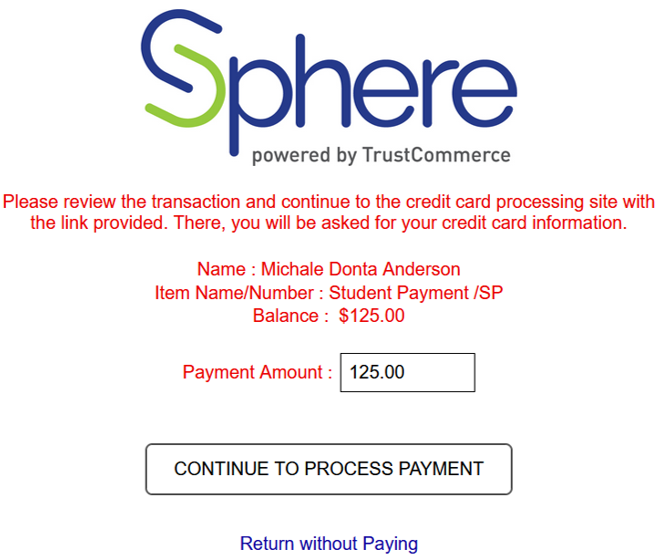
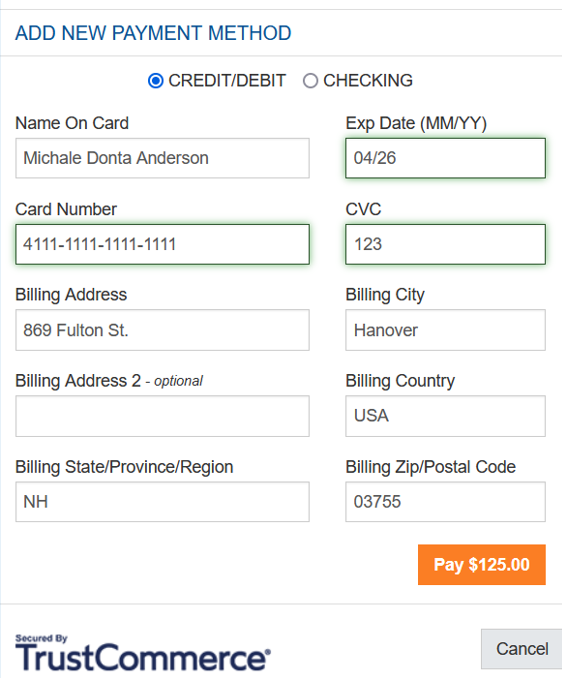
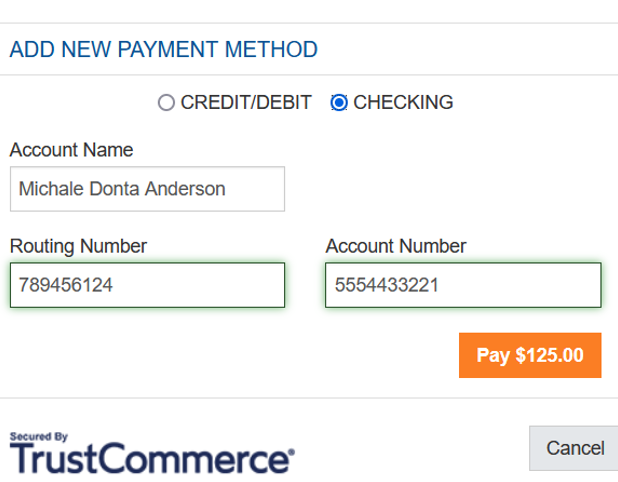
The user will then be taken to the TrustCommerce-Sphere payment processing page with their name and the payment amount already filled out. The user can select Credit/Debit or Checking to pay with an ACH. Once the payment is processed, a confirmation page will display. They will then be taken back to SONIS to the page entered during provider set-up.
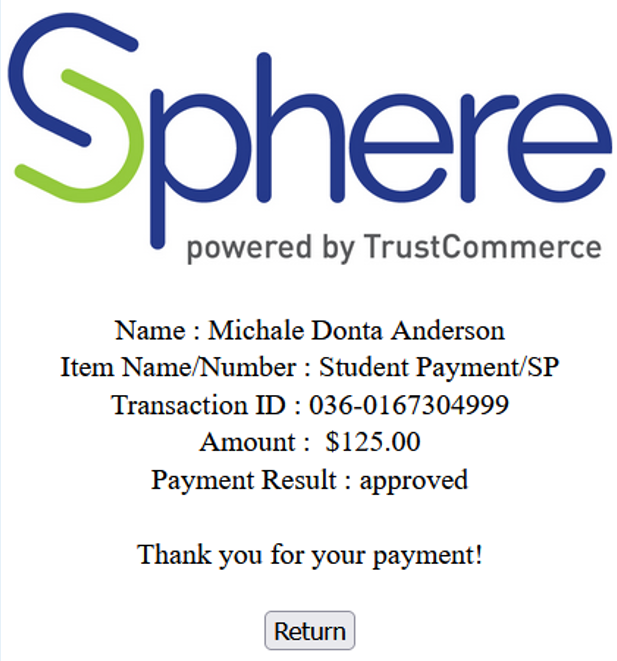
If the user chooses to cancel the transaction, a confirmation page will display for the user's records. The cancelled status will also be sent back to SONIS for institutional record-keeping.