Jenzabar SONIS Version 3.5 Blue Default CSS Update
Overview
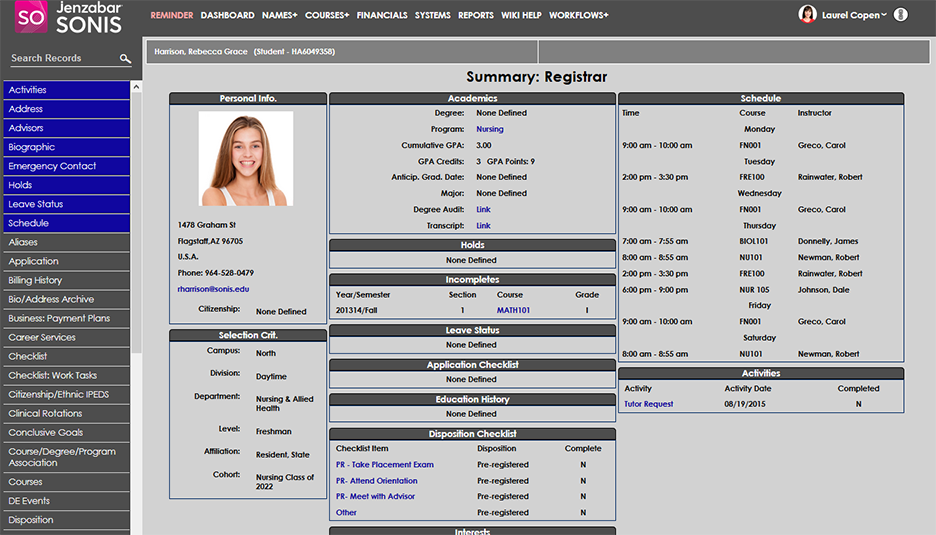
Based on user feedback, Jenzabar SONIS Product Development, in coordination with the Jenzabar Marketing team, has created a blue color scheme of the 3.4 default CSS as an alternate option for schools that do not use their own color scheme and do not like the magenta highlights. The CSS preserves all other 3.4 CSS changes, including the new sidebar and menus. The blue CSS can be applied to individual portals or can be applied globally using a script. Hosted customers should contact Jenzabar SONIS Support if they would like to automatically update all portals to the blue CSS.
Setup
To turn on the new Jenzabar SONIS CSS page by page, begin by navigating to the Login Page Setup utility under the Systems hub. Select a page to modify from the dropdown menu and click Select.


On the following page, replace the existing login page and external page CSS with the new CSS. These files are already saved in the correct folders and do not need to be downloaded or moved.
CSS for Login Pages: blue_Login_JSONIS.css
CSS for Internal Admin Pages: blue_jSONISadm.css
CSS for Internal Portal Pages: blue_internal_JSONIS.css
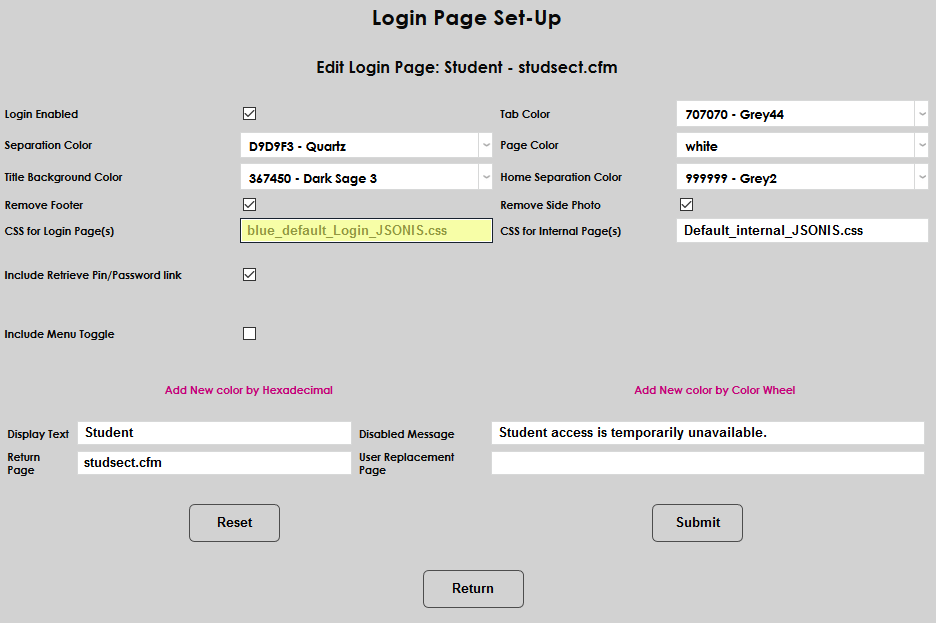
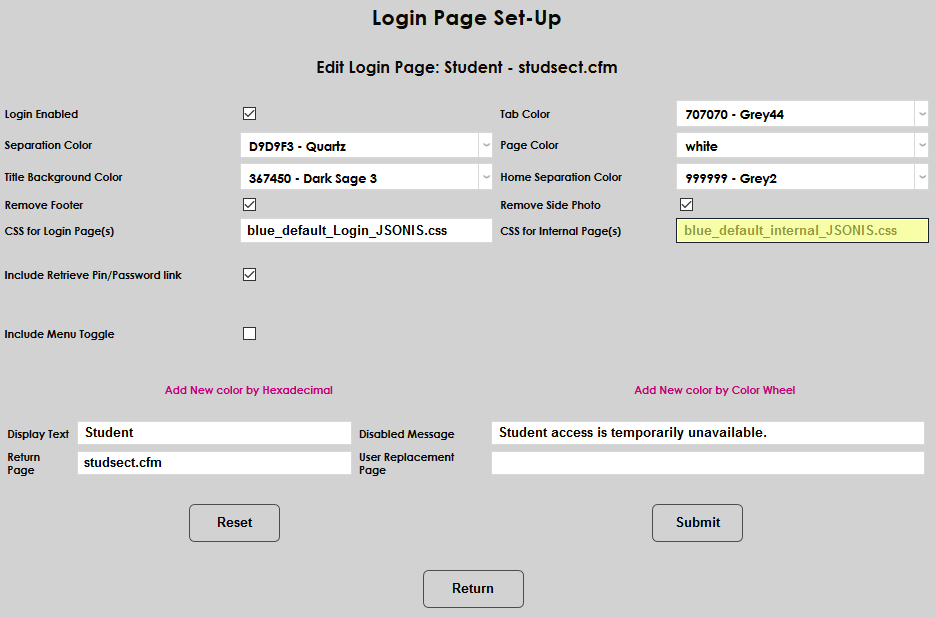
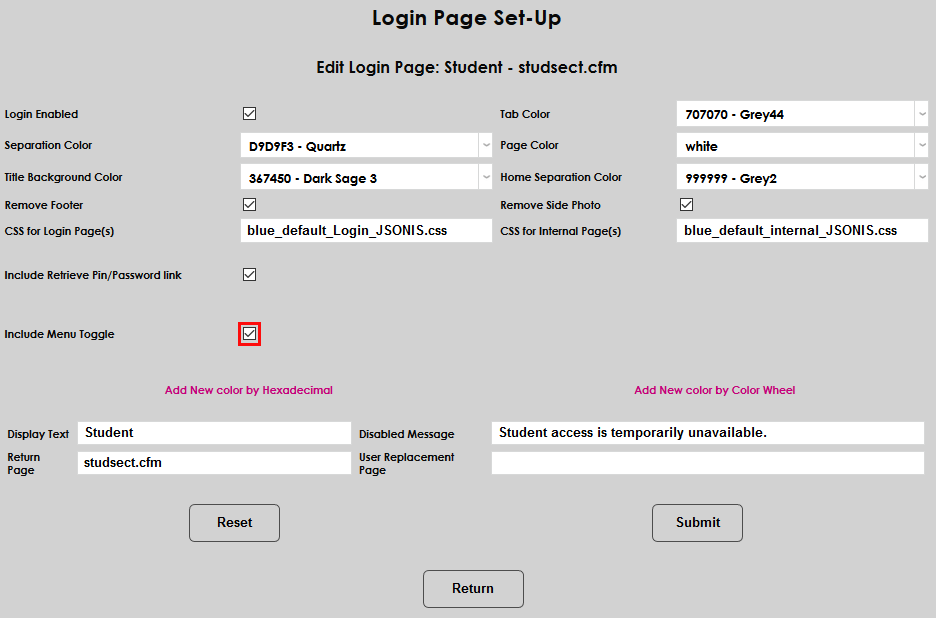
For portal pages, ensure that the the Include Menu Toggle box is checked. The menu toggle is an important feature of the new CSS, but will interfere with custom CSS designs if it's turned on inadvertently.
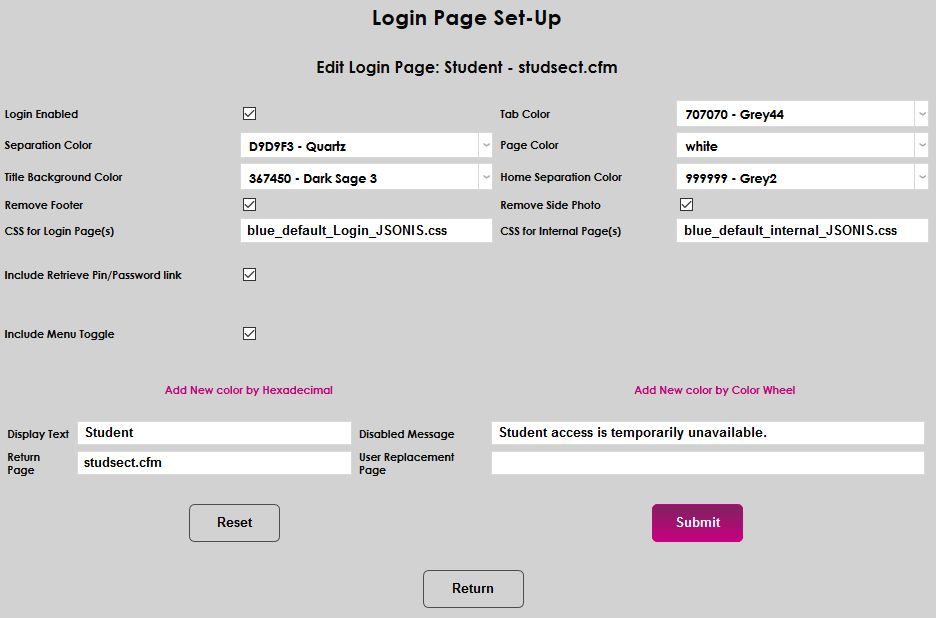
Click Submit to save the changes and repeat the process for any other pages that should be converted to the blue CSS.
New Look
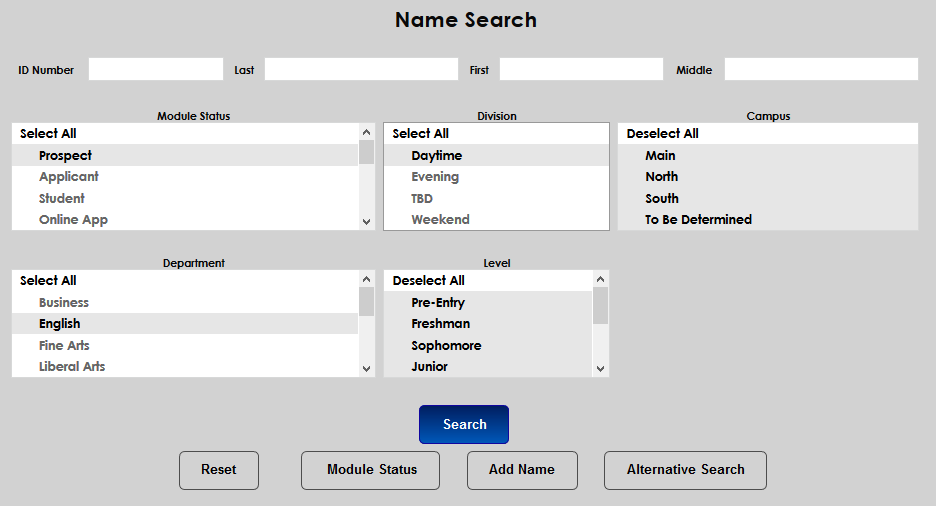
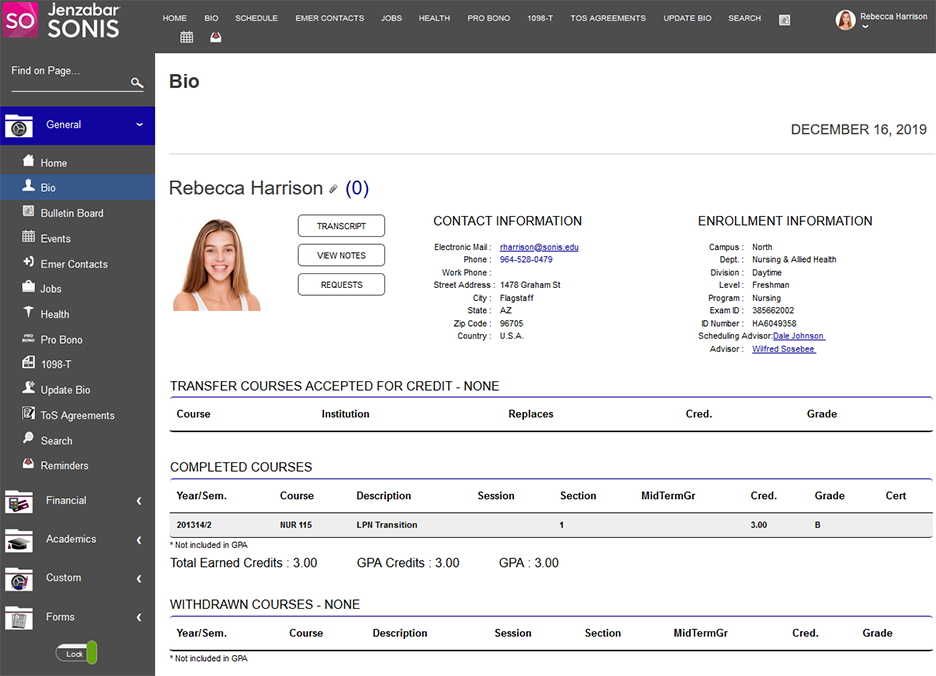
With the blue CSS activated, highlights, text, and menu buttons have a medium blue coloring rather that replaces the previous magenta.