Bulk Attendance
Overview
When it is necessary to record the attendance of more than one student at a time, for example when groups or teams of students are all absent or present at the same time, the Systems hub item Bulk: Attendance can be used. The following restrictions must be considered:
1) the course section needs to be using meetings,
2) the course start date needs to be earlier than the date attendance is being recorded for,
3) the student's course start date must be earlier than the date attendance is being recorded for,
4) the student must be enrolled in the course and not have an official grade already recorded for the course, and
5) there cannot already be an attendance record for the date attendance is being recorded for.
Courses and students can be selected using the provided filters: Campus, Division, Department, Level, Cohort Code, List Name, School Year, and Semester.
Updating Attendance
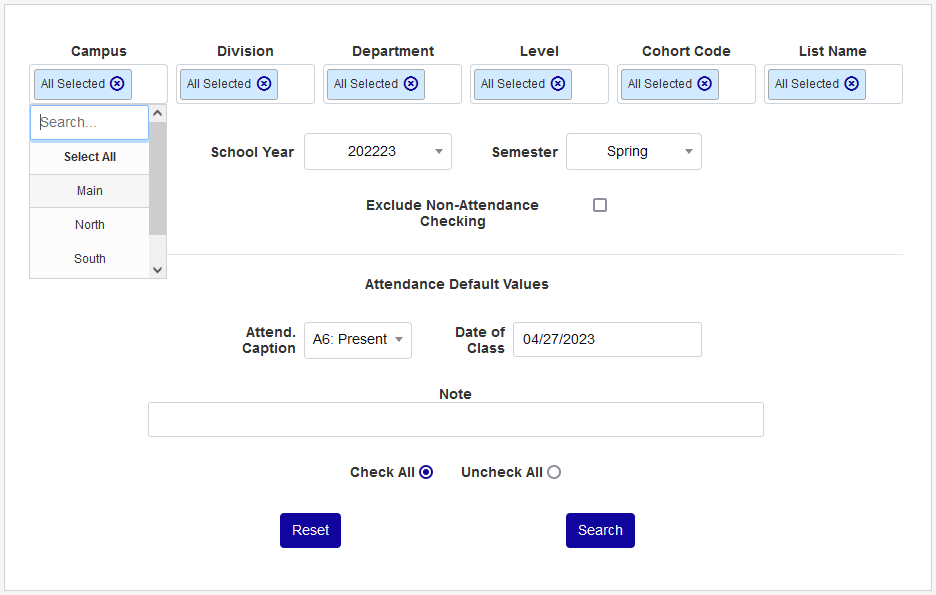
To add bulk attendance, begin by filtering the results using the Campus, Division, Department, Level, Cohort Code, and/or List Name menus. These filters apply to the students selected, not the courses.
Next, select a School Year and a Semester. Only course sections within this year and semester will be included.
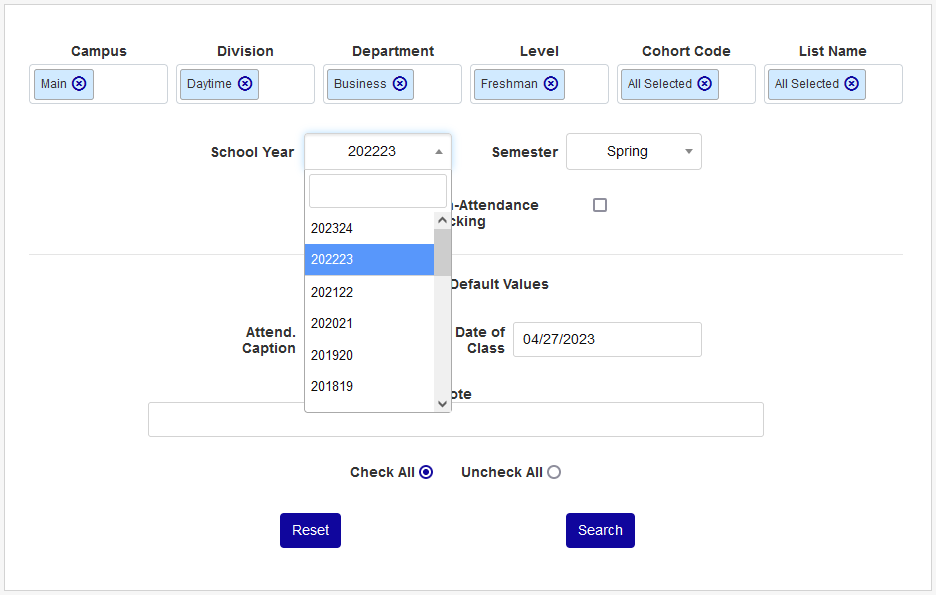
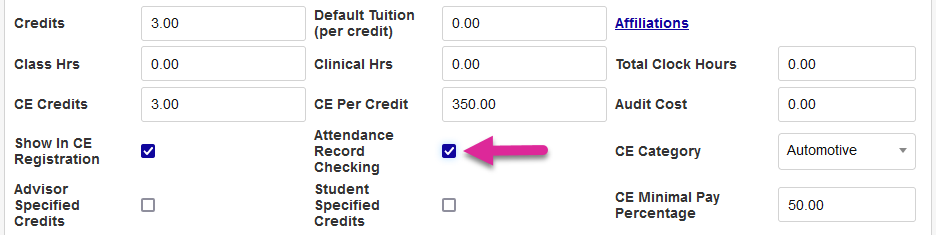
If the Exclude Non-Attendance Checking box is checked, only courses with the Attendance Record Checking box on the Course Add/Edit page will be included.
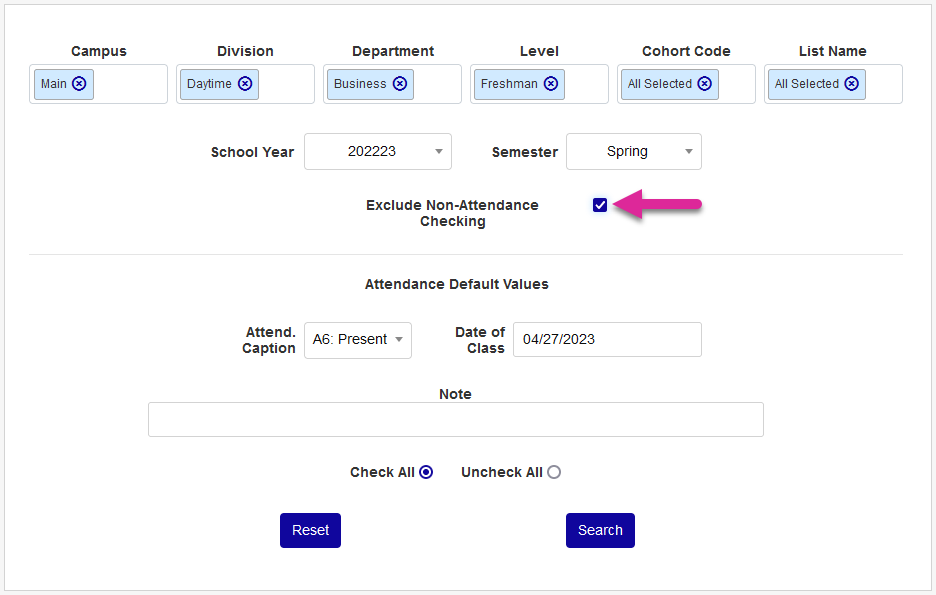
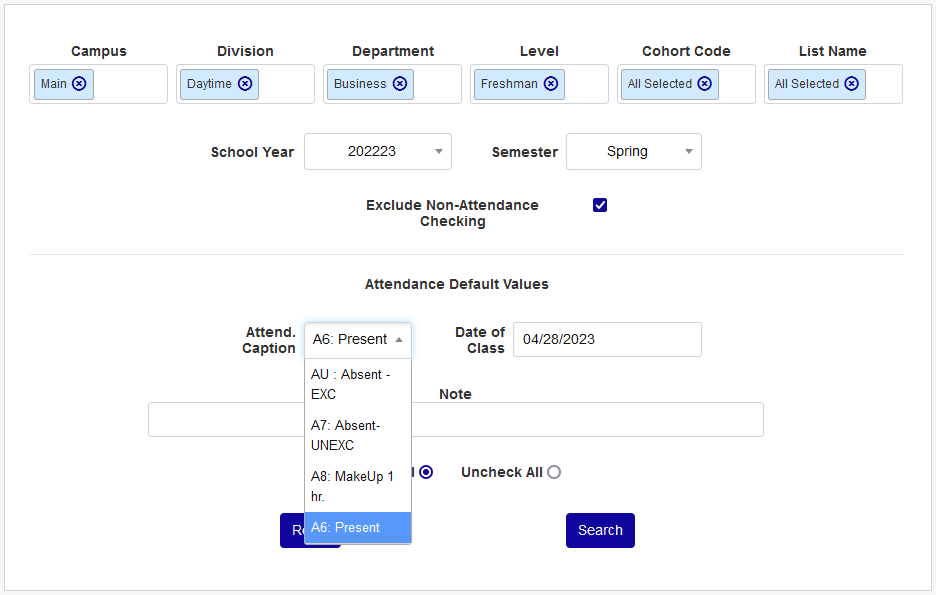
Select the Attendance Captions that will be assigned to these students and the Date of Class it will apply to.
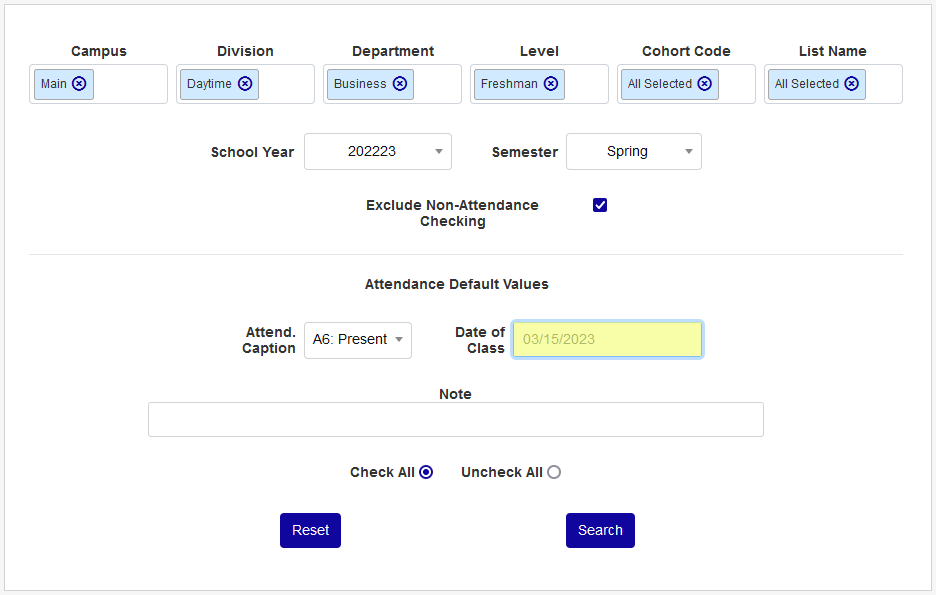
Administrators can add a Note explaining why they're making this change. The note field is optional.
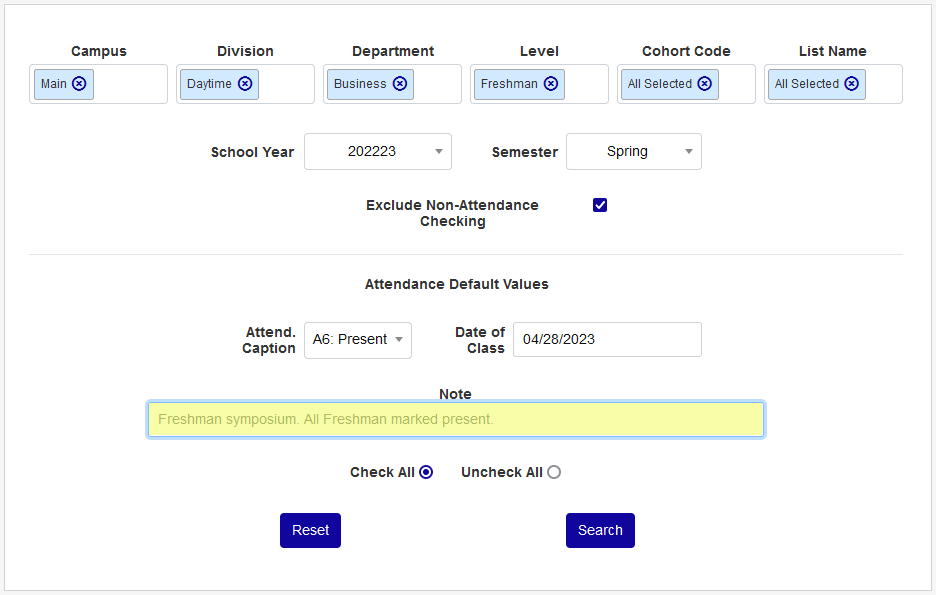
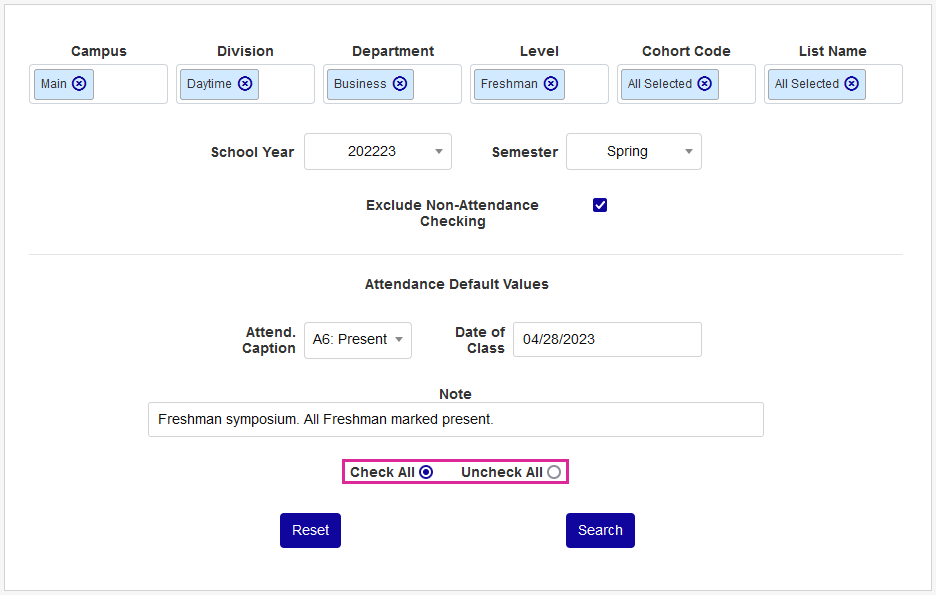
Select Check All to ensure that the boxes on the search results page will be checked when the results are displayed or select Uncheck All to have them default to unchecked. Choosing the correct option based on what percentage of the students displayed will be included in the attendance update can save a lot of time and effort.
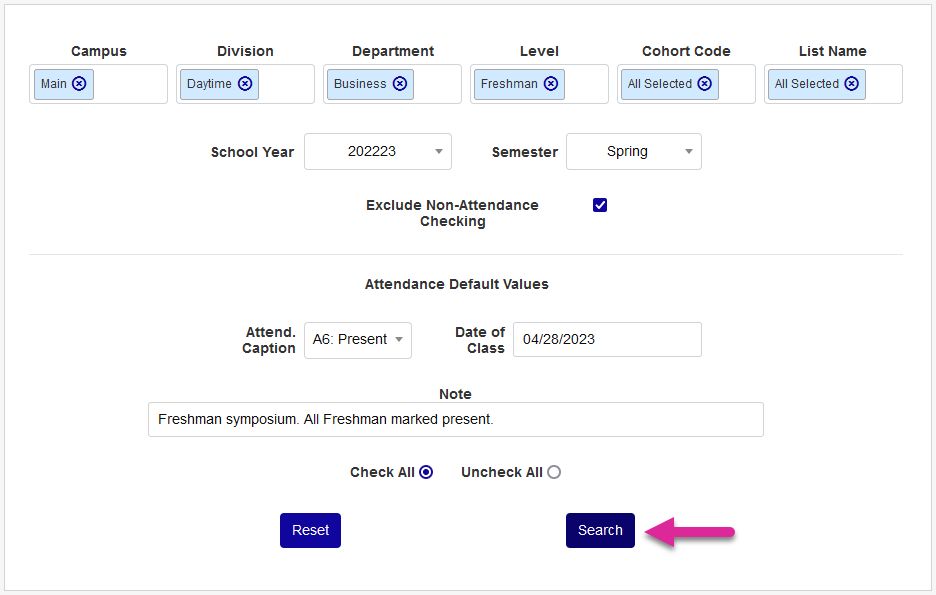
Click Search to continue.
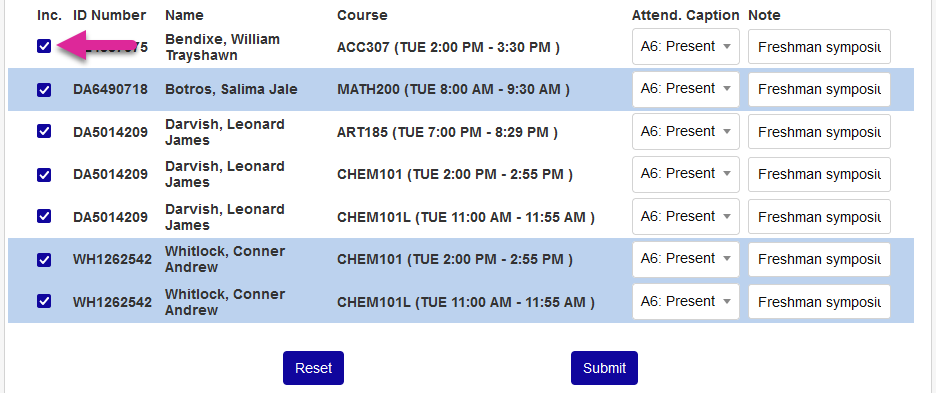
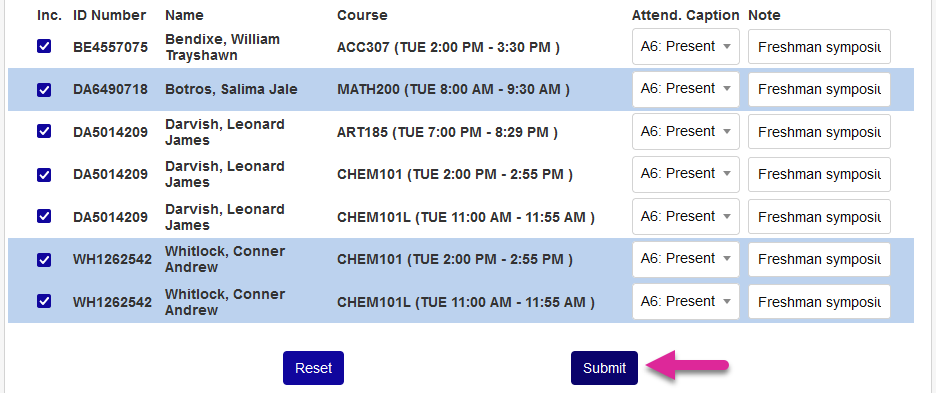
On the following page, use the checkboxes on the left side of each student's name to change who will be included in the update, if necessary. Click Submit to complete the process.