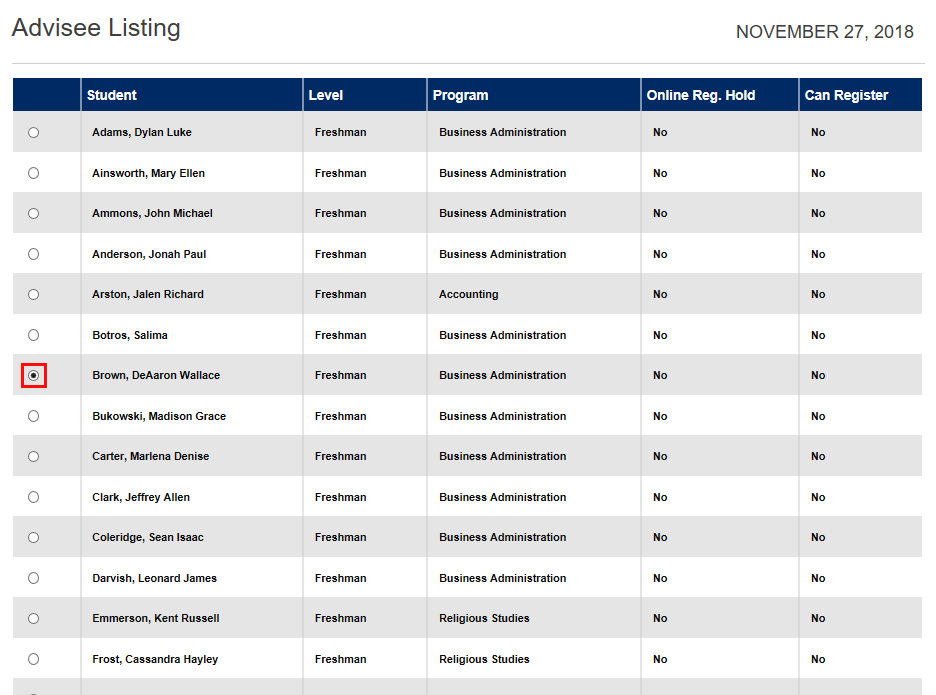
Advisee Listing
Overview
Faculty members who are advisors have two options to look up one of their advisees: Faculty Select Advisee or Faculty Advisee Listing. The first allows users to search for a particular student while the second, discussed here, lists all advisees assigned to that faculty member.
To learn how advisors are assigned, visit the Advisors utility wiki page.
Selecting Students
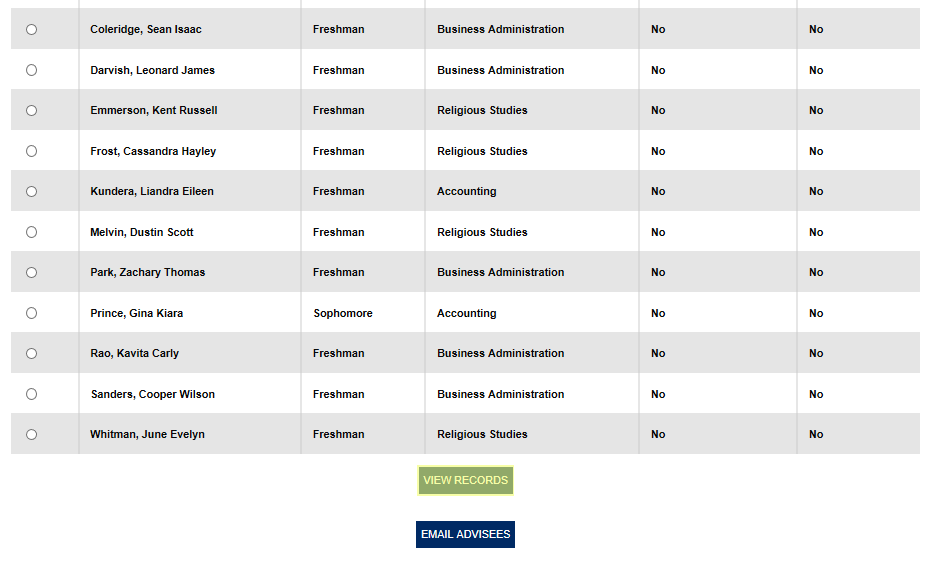
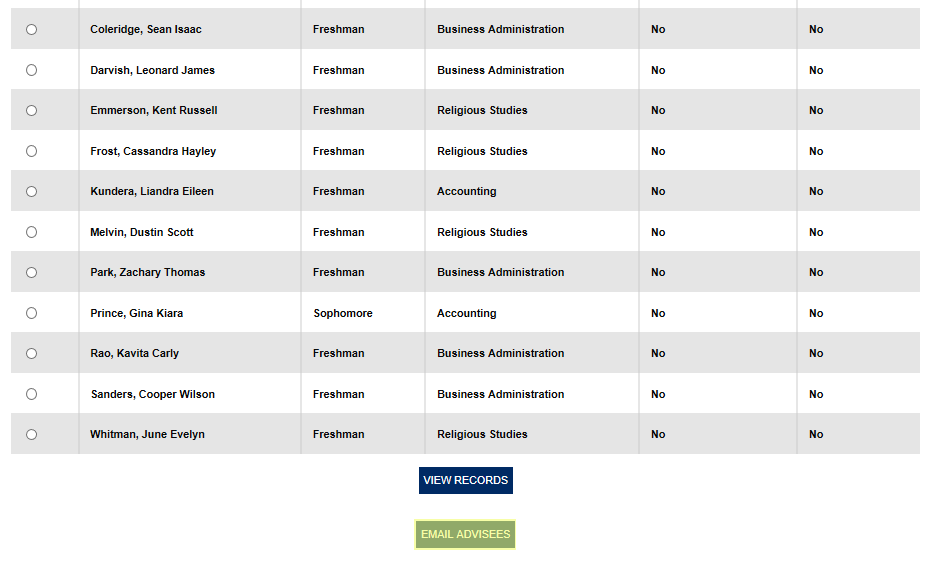
To view the full list of assigned advisees, click Advisee Listing under the Advising menu. Click the radio button to the left of the student's name and then click View Records to select the student. Only one students can be selected at a time.
When a student is selected, the primary page displays the student's contact information and enrollment information. If the student has any current holds, they can be viewed by clicking the Holds link, which will open a new window.
Administrators, see Holds Defined for more information on how holds work in Jenzabar SONIS.
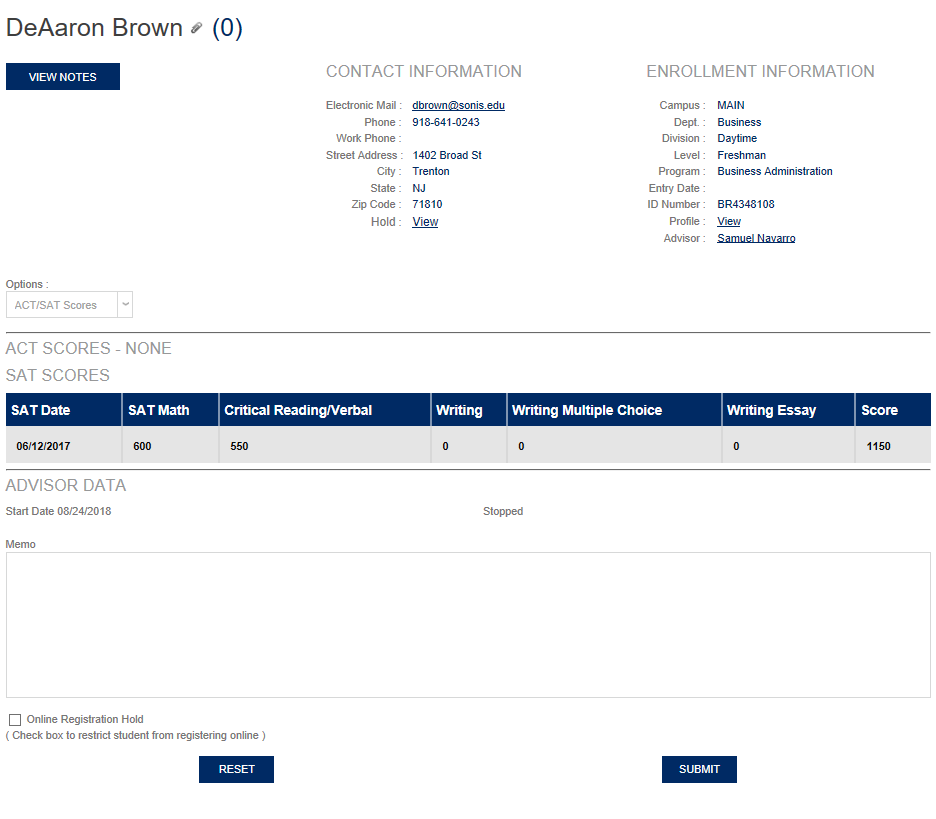
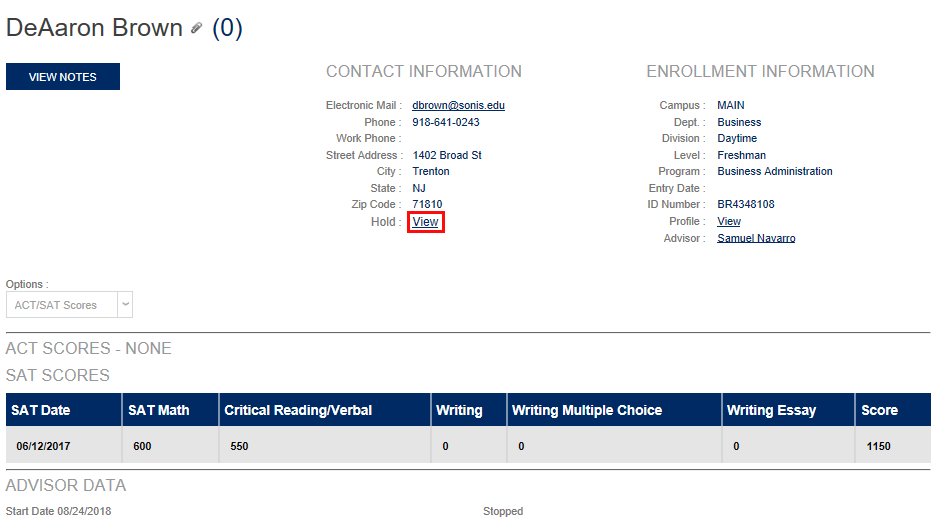
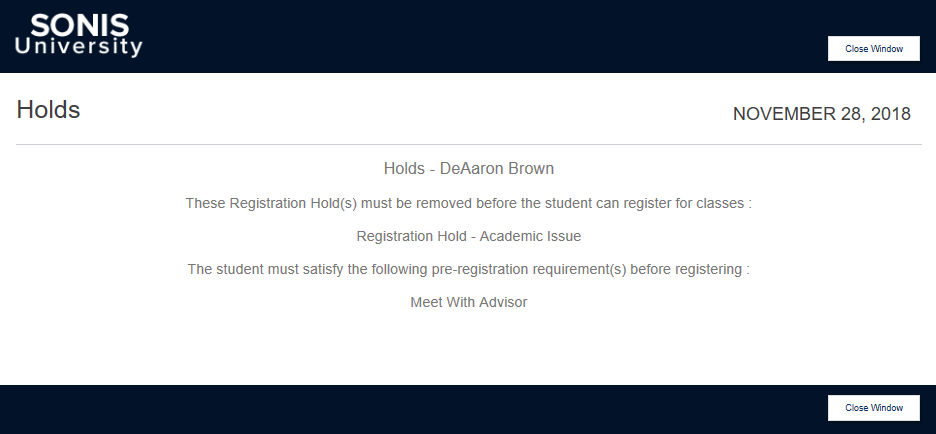
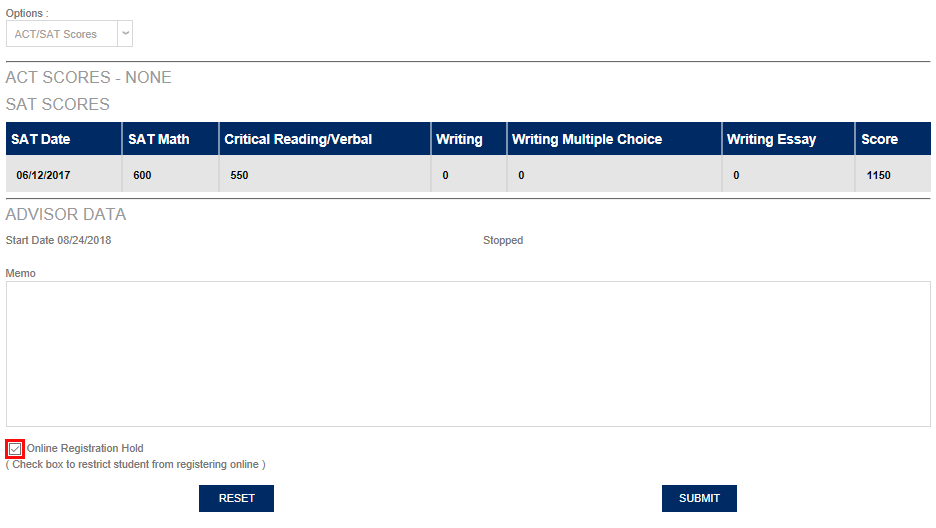
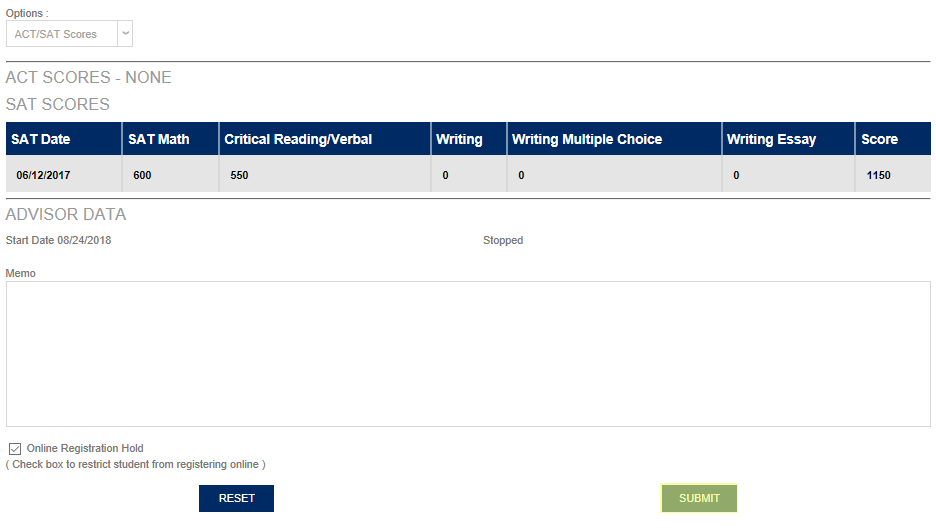
Holds can only be removed through an administrator account. However, faculty advisors can place online registration holds on an advisee's account by checking the Online Registration Hold box and clicking Submit.
Emailing Students
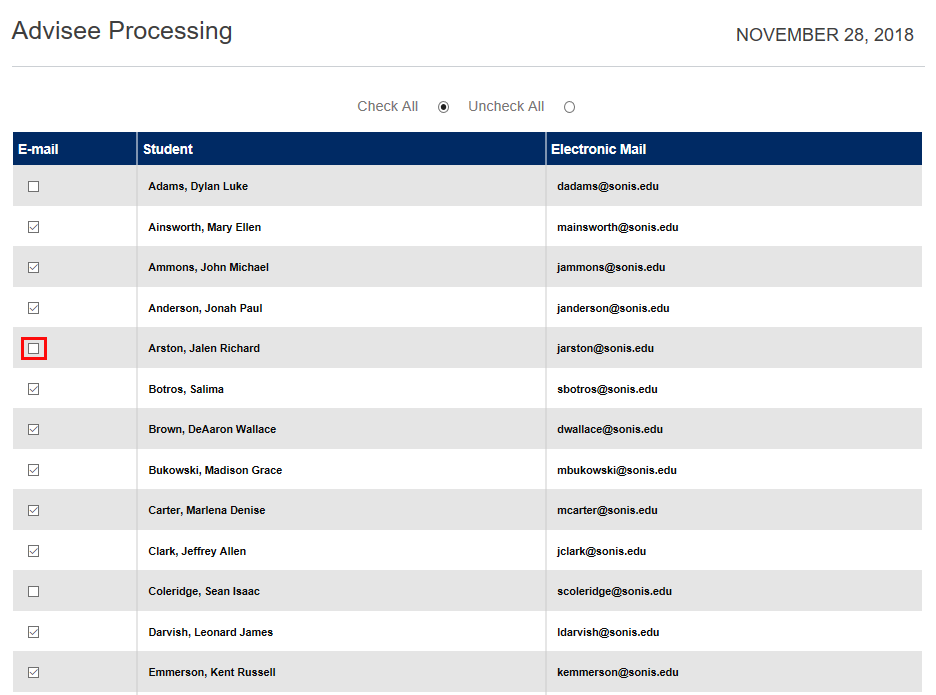
Faculty and advisors can email their advisees from the list page by clicking the Email Advisees button. On the following page, uncheck any boxes of students that should not be receiving this email and clicking Continue .
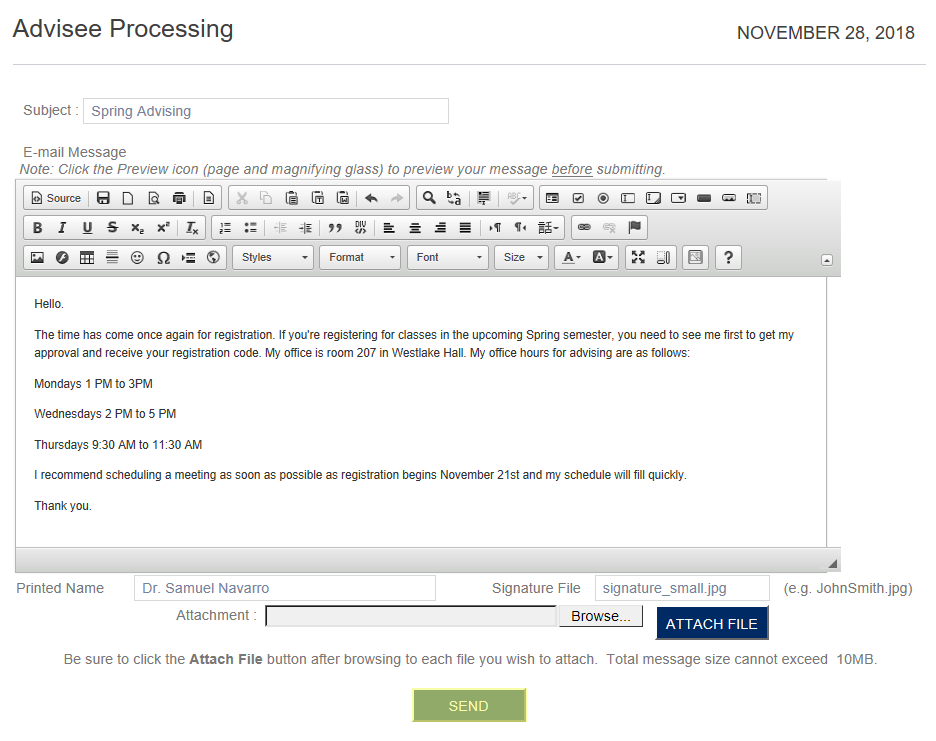
Compose the email on the following page. Traditional features of an email client are available, including: font and style options, a signature, and file attachment. Click Send when the email has been completed.
Options Menu
ACT/SAT Scores
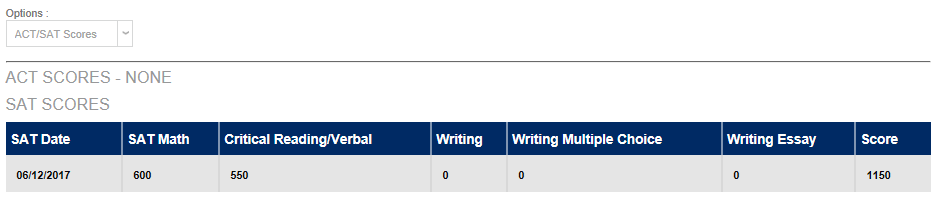
The default option when accessing a student account as an advisor is ACT/SAT Scores. The listed will vary depending on which test or tests the student took and which year they took it.
Emergency Contacts
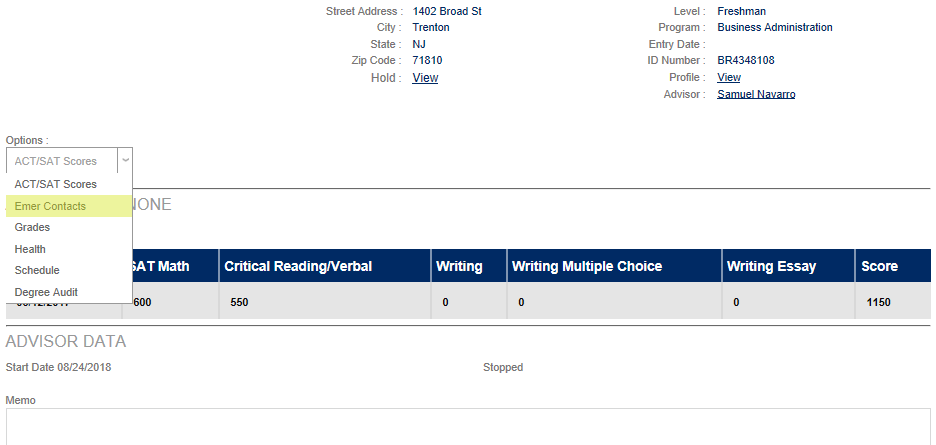
To access the advisee's emergency contact information, select Emergency Contact from the Options dropdown menu.
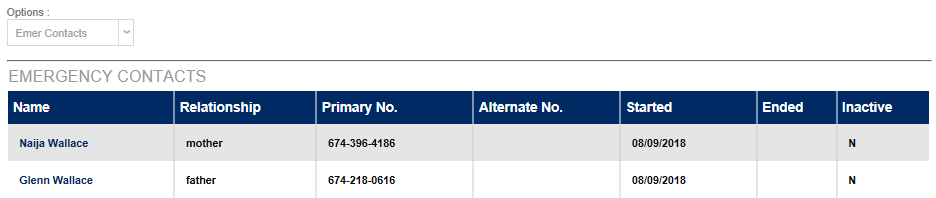
The Emergency Contact listing displays the contact's name, relationship to the student, primary phone number, alternate phone number, the start and end dates for the contact, and a Y or N designating whether the contact has been marked inactive.
For information on adding emergency contacts as an administrator, click here.
Grades
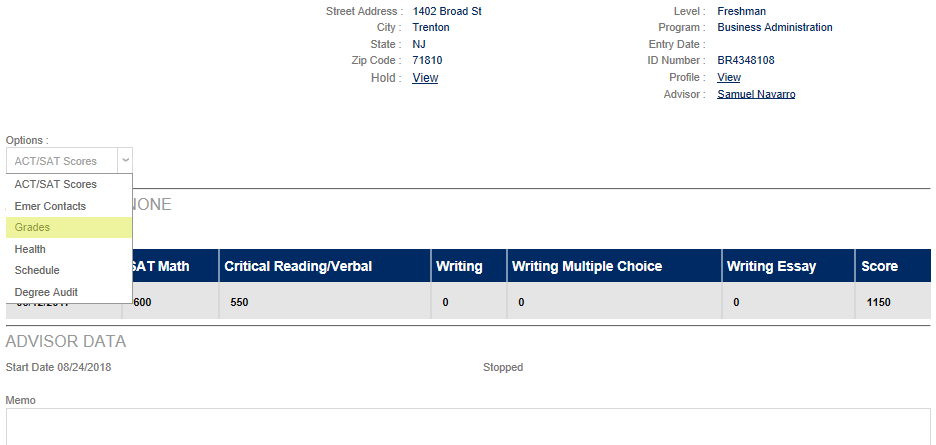
To see an advisee's grades, select Grades from the Options dropdown menu. Only grades that have been marked final will appear.
To view a copy of the student's transcript, click the Transcript button. The transcript will open in a new window and be marked "unofficial" to prevent students from circumventing transcript printing fees.
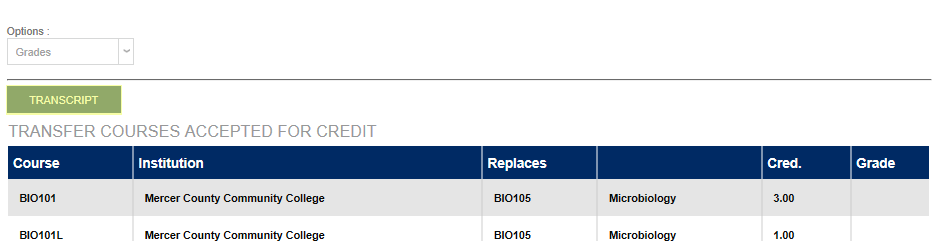
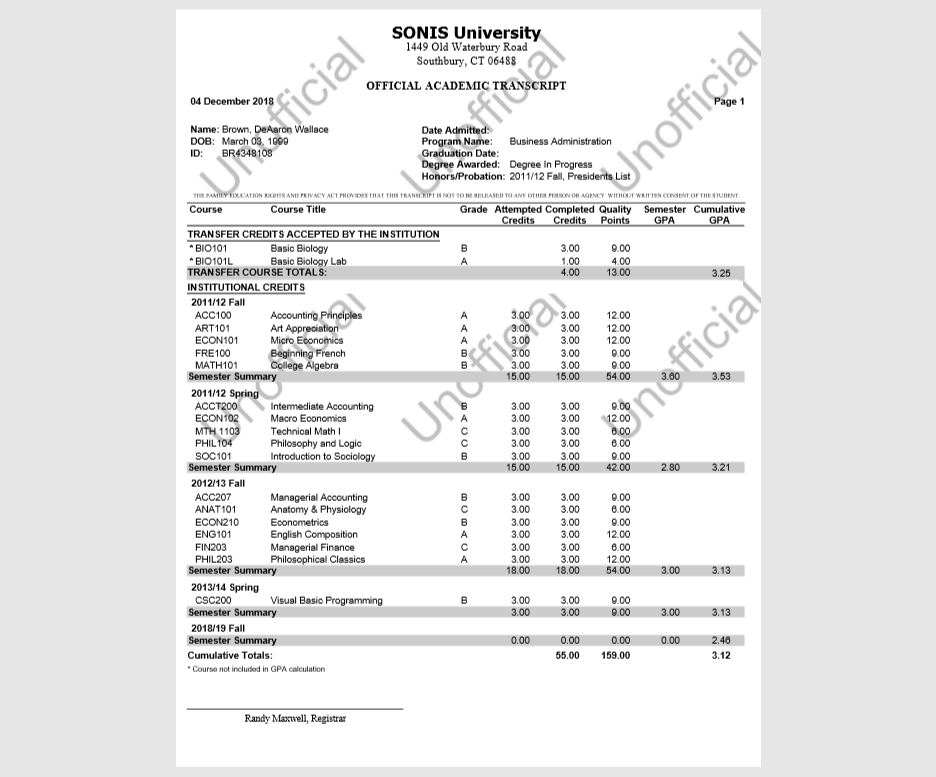
The first table of grades listed on the Grades page is Transfer Courses Accepted for Credit. Along with the course, the credit, and the grade, this table lists the institution where the course was taken and the home member institution course that it replaces.

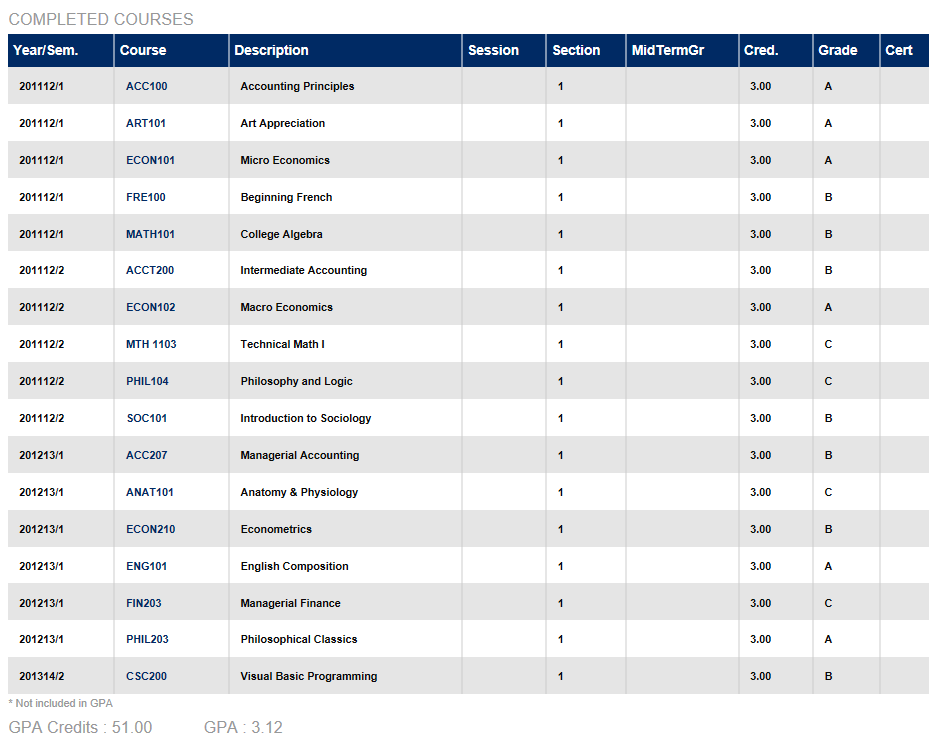
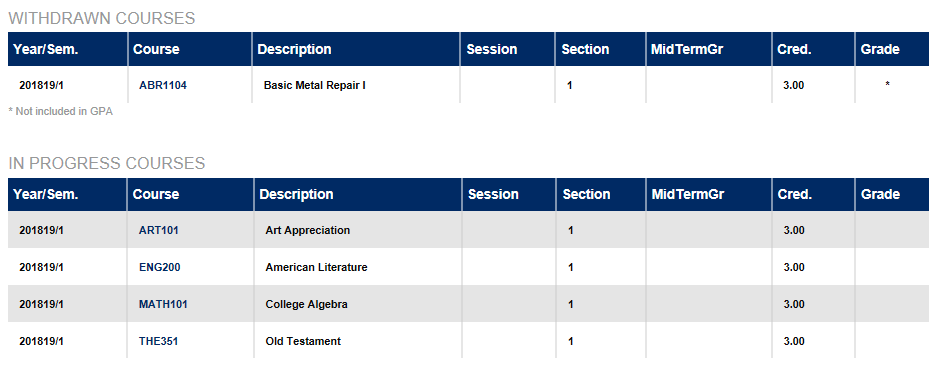
The following three grade tables: Completed Courses, Withdrawn Courses, and In Progress Courses, all have the same format. They include the year and semester when the course was taken, the course name and description, the session (if applicable), the section, the midterm grade (if applicable), the credits earned, and the final grade.
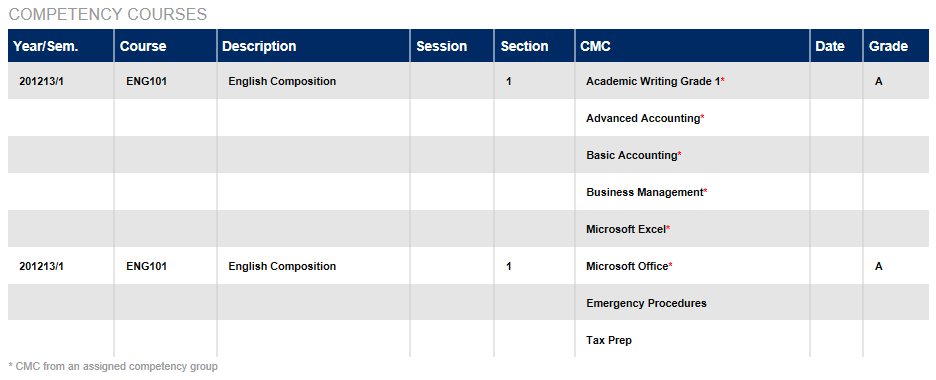
The final chart on the page lists competencies (also called CMCs) that the student is required to fulfill and any Competency Courses they've taken that satisfy those requirements.
Administrators, click here to find out more about setting up and assigning competencies.
Health
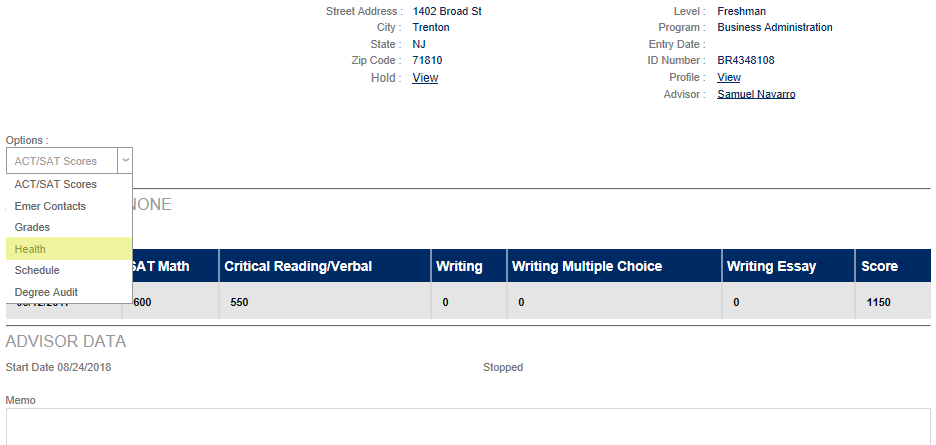
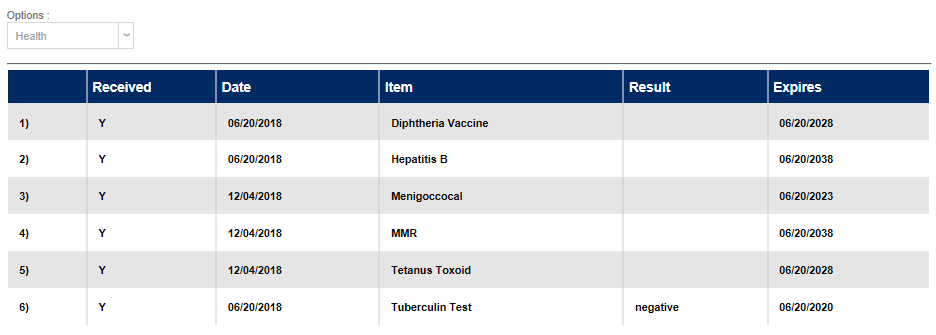
Select Health from the Options dropdown menu to view the student's list of required vaccinations and tests. The table also displays the date the tests and vaccinations were given, when they expire, and the result of the tests. The lists of required tests and the student's personal record can only be edited through administration profiles.
Schedule
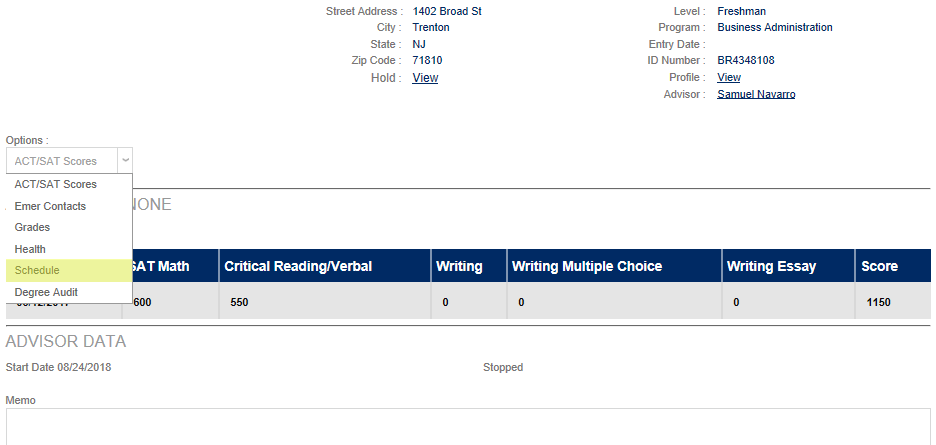
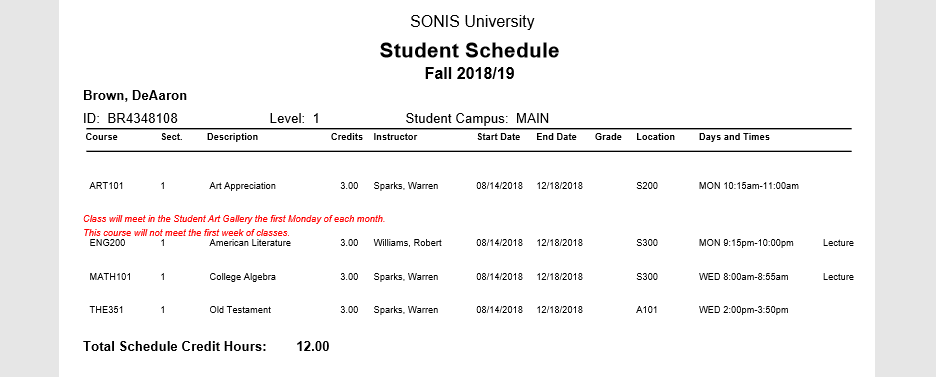
To view the student's schedule, select Schedule from the Options dropdown menu. Click Printable Version to view a PDF of the student's schedule. The PDF will open in a new window.
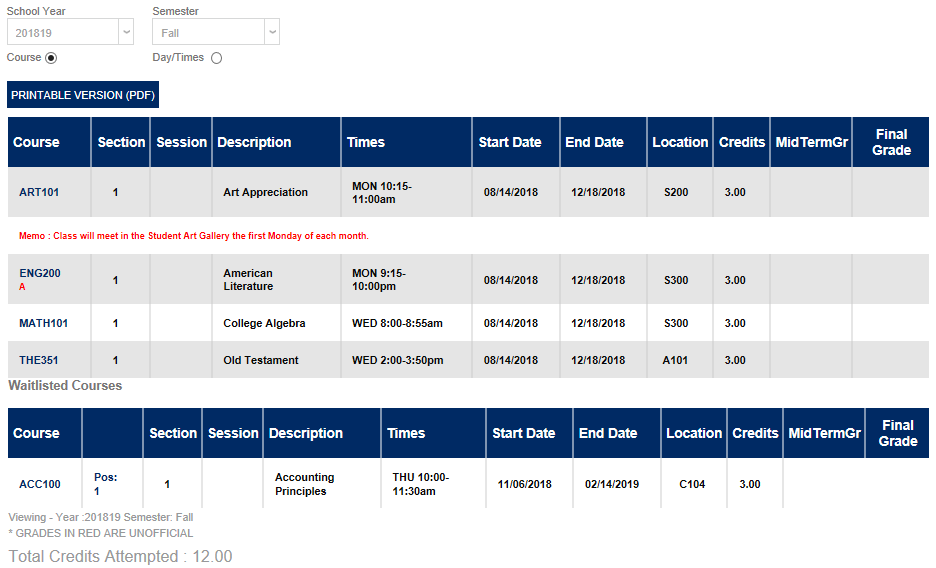
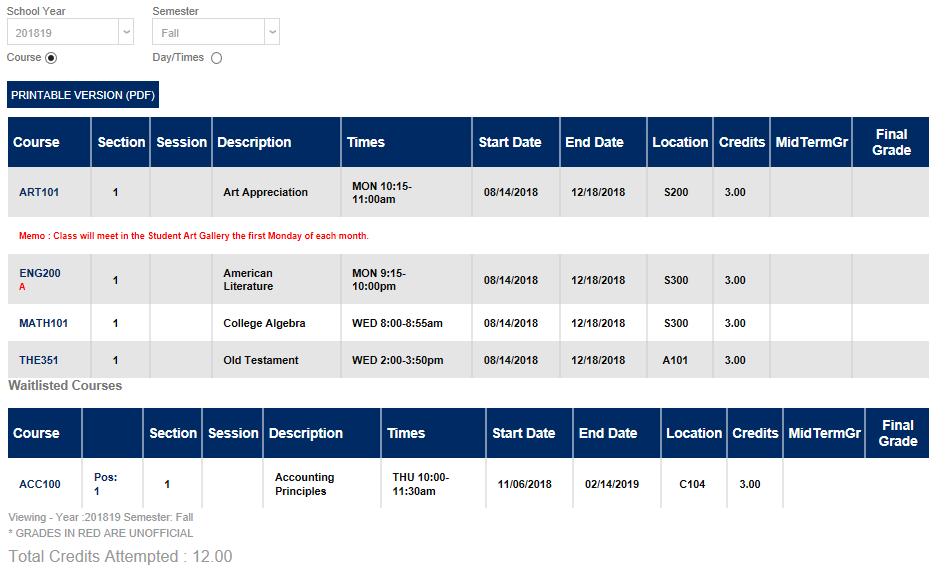
The first table lists the section, session (if applicable), description, times, start date, end date, location, credits, midterm grade, and final grade of the student's current courses. Below this table is a corresponding table of courses for which the student has been waitlisted.
Degree Audit
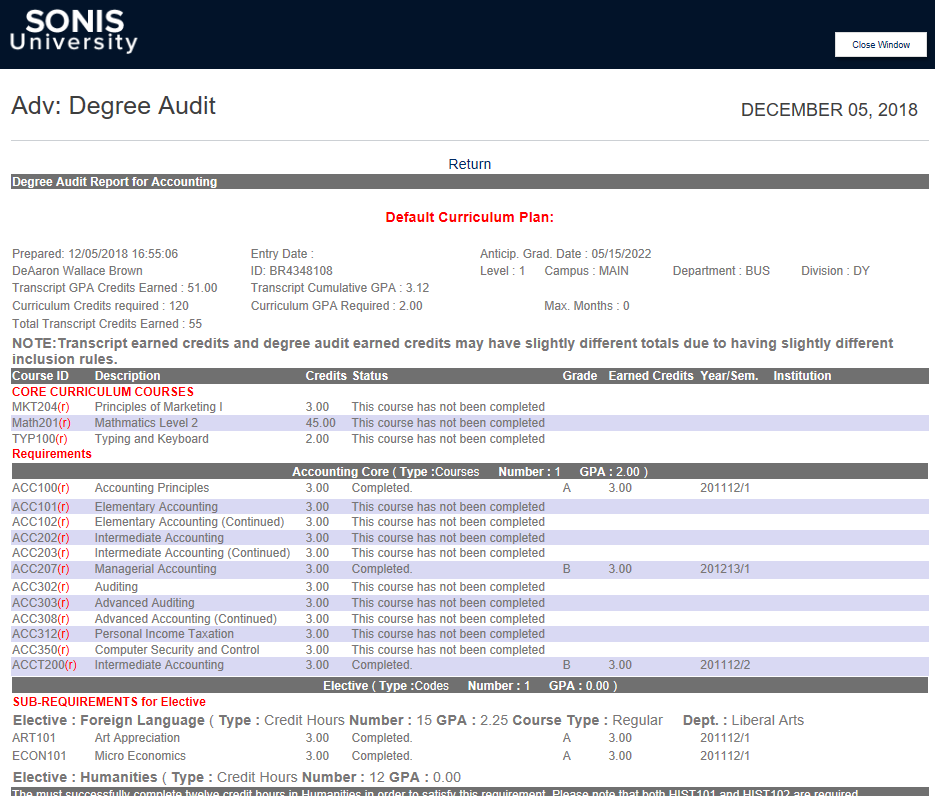
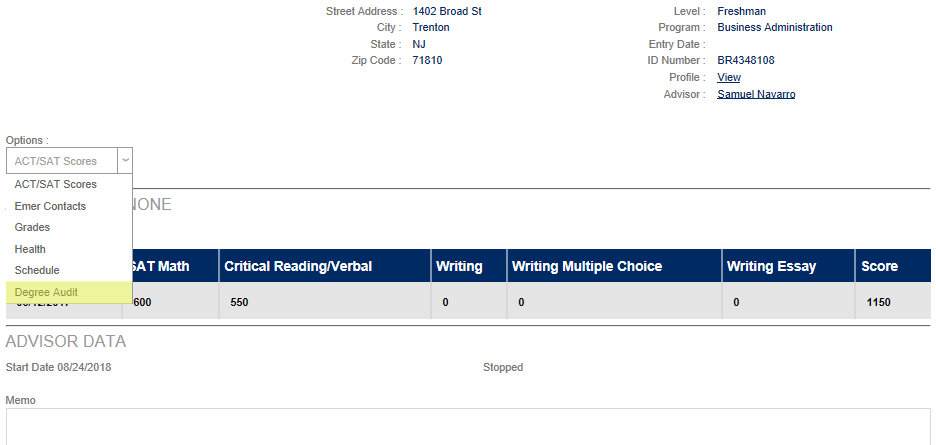
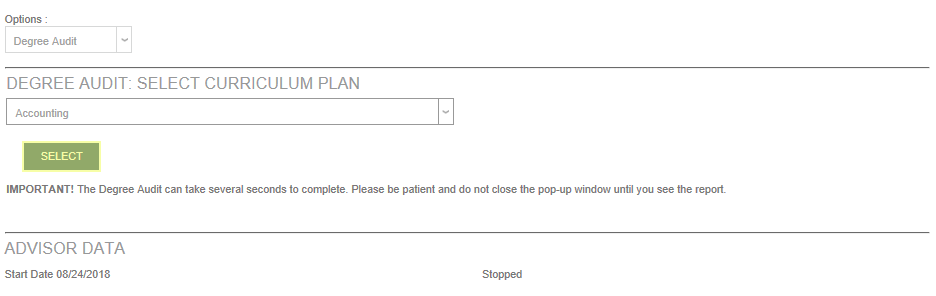
The SONIS degree audit function allows a student or advisor to view the full list of courses necessary to achieve a certain degree along with the student's progress towards that accomplishment. Select Degree Audit from the Options menu to access the degree audit page.
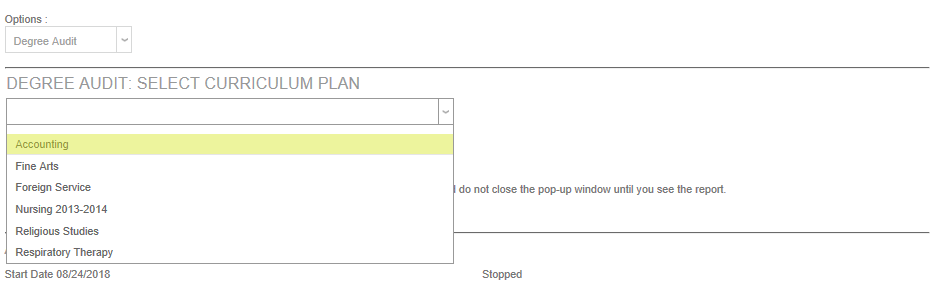
Select a Curriculum Plan from the dropdown menu. Only degrees that have a curriculum plan set up by administration will be listed here. Click the Select button to open up the audit in a new window.
Each type of courses needed to achieve this degree (i.e.: core classes for this degree, general education classes, electives, etc.) will be listed in a separate section of the audit. Classes that have been completed will include a grade. Classes in which the student is currently enrolled will be included as well.