Import Transactions
Overview
To allow customers to import financial transactions into their Jenzabar SONIS system from a spreadsheet, Import Transactions is provided in the Systems hub. There are a couple of reasons customers need to do this:
1. They have completed a data conversion and prefer the spreadsheet method to manually entering their historical financial transactions using the SONIS Post Transactions function.
2. They have a recurring need to import transactions from another system, such as their bookstore or cafeteria, so that charges & payments on the student bill are accurate.
Import File
The file being imported must be an Excel (.xls). The columns of the spreadsheet must be formatted exactly the same way as the columns in the sample spreadsheet below:

Column A should be the SONIS ID of the person the transaction is for. This is typically a student, but could be any other status.
Column B should be the date of the transaction. The date must be in a date format of MM-DD-YYYY.
Column C should be the 2-character SONIS Transaction Code (T-code) that identifies what the transaction is. Examples are: TU for Tuition, SP for Student Payment, AF for Application Fee, etc. Each school creates their own table of T-codes.
Column D should be the actual dollar amount of the transaction. It is important to note that Jenzabar SONIS T-codes are pre-defined as either a debit or a credit to the account. Therefore, if a credit T-code is used (SP for example), the dollar amount should not include the minus sign. That would be a "negative payment" and would actually result in a debit to the account, instead of a credit. Customers should be aware of this as they prepare their spreadsheet(s). To be clear: A student payment transaction of $100 should be entered as "100.00," NOT as "-100.00."
Column E is character-string field, with a limit of 30 characters. It can be left blank if not applicable.
Column F is numeric and required. It must be the same number on all rows in the spreadsheet. It is an internal control for spreadsheets already imported and should be unique for every spreadsheet the customer imports. SONIS support recommends something like 101, 102, 103, 104, etc. The customer will never see this number in Jenzabar SONIS. It is for internal use only.
Columns G and H are optional. They only need to be on the spreadsheet if multiple school years and/or semester are included.
Column G is the school year formatted with the full number of the calendar year followed by the last two digits of the second calendar year, ie. "201718."
Column H is the semester number with semester 1 corresponding to the Fall semester.
Click here to download sample files.
Importing
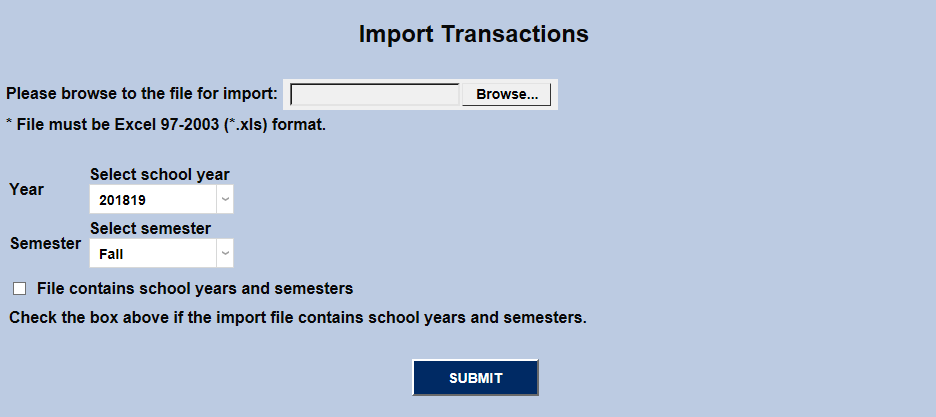
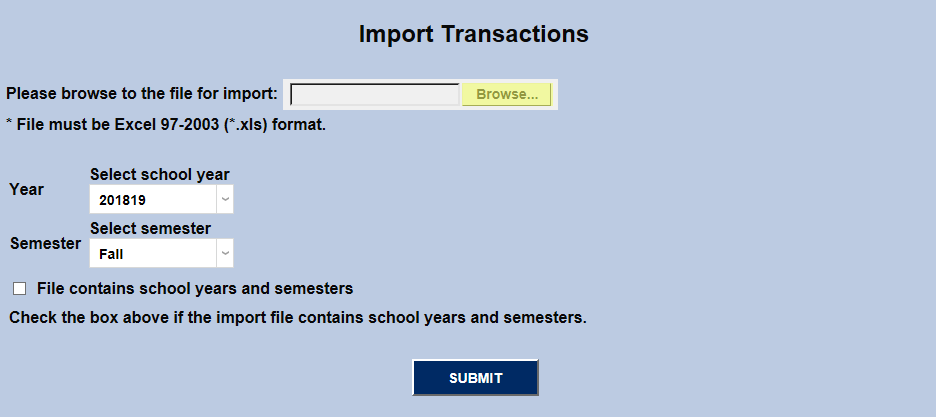
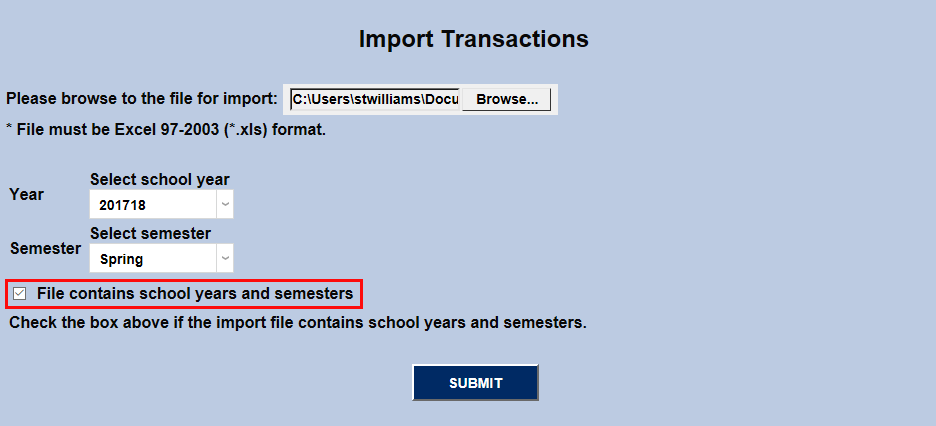
Click on the Browse button.
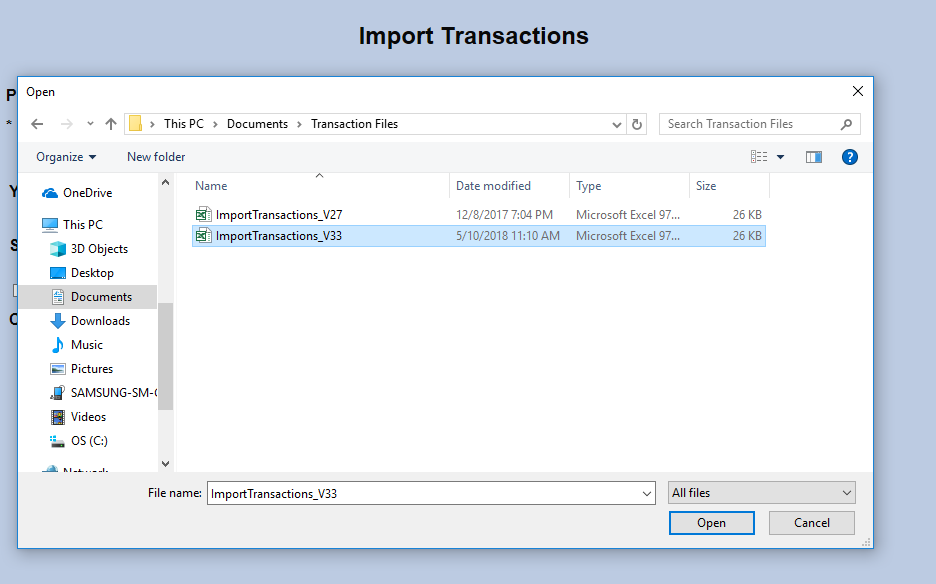
Locate the file to be imported and click Open to select it.
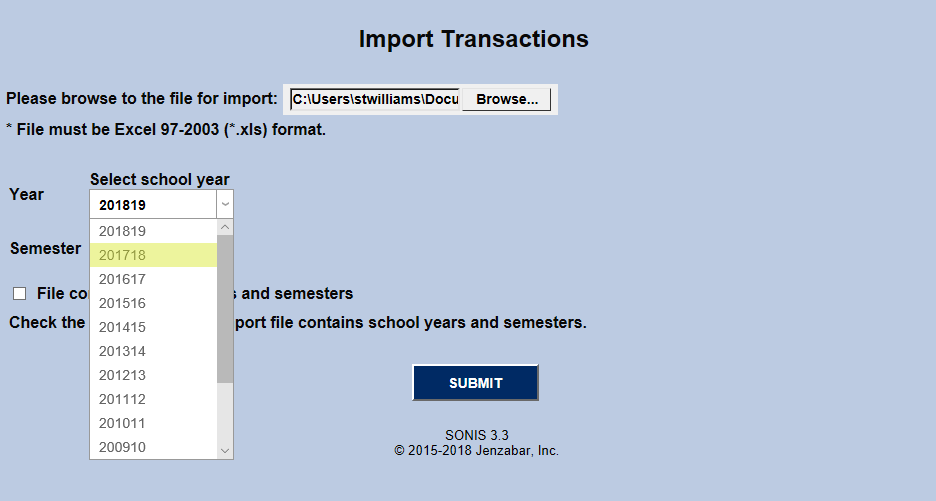
Select the appropriate School Year and Semester from the dropdown menus.
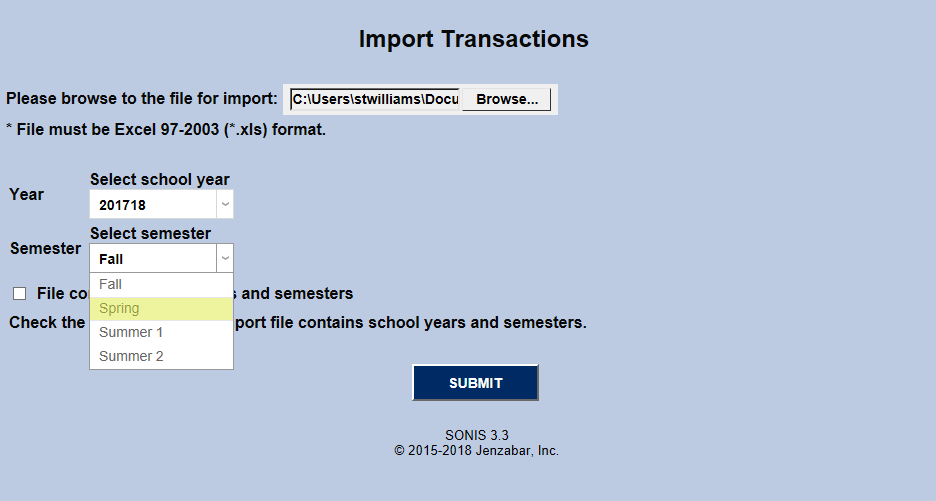
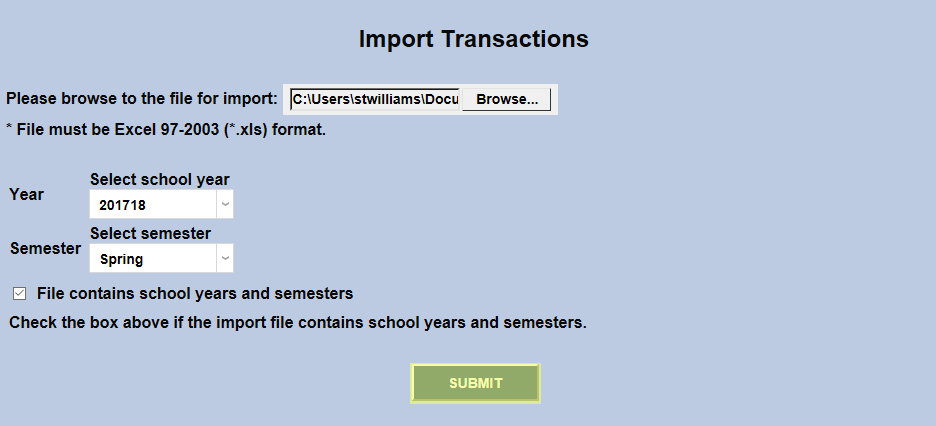
If the file contains school year and semester data (columns G & H), check the corresponding box. Once everything has been selected, click Submit to upload the file.
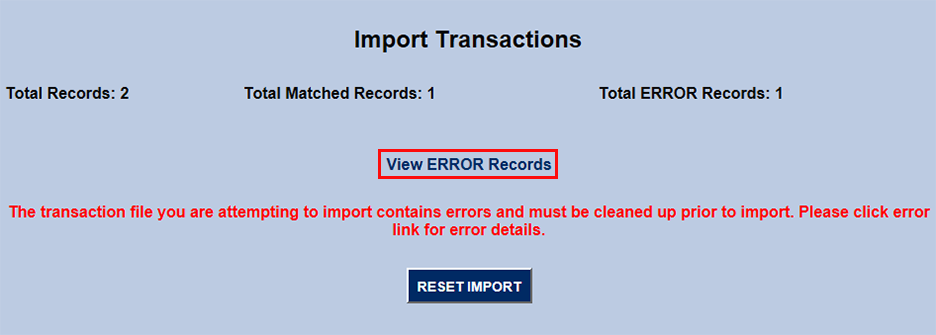
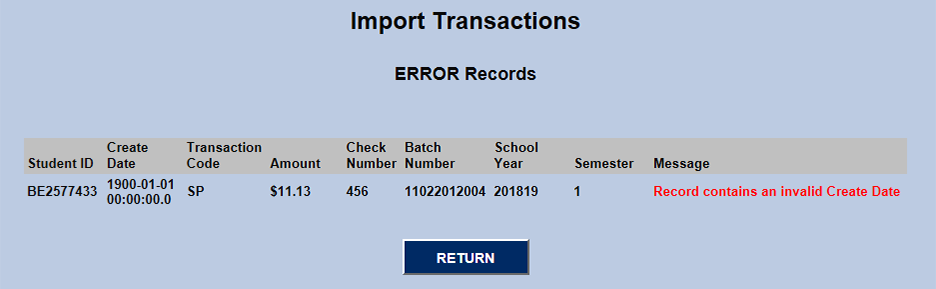
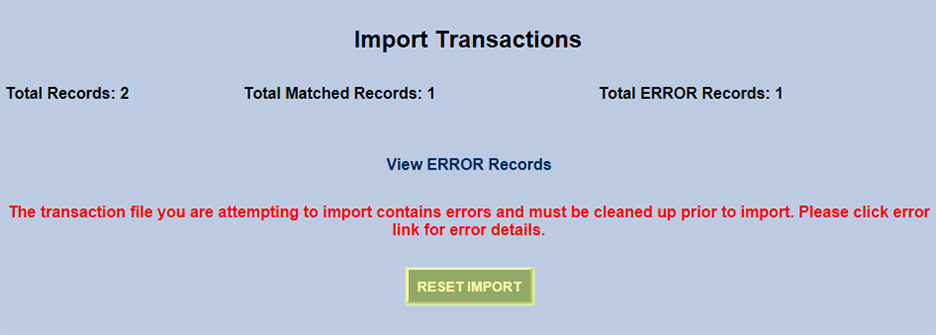
If the spreadsheet contains errors, the following page will note them. Click View Error Records to see them in more detail and Reset Import once the errors have been corrected to try again.