Post to Accounting
Overview
The Jenzabar SONIS Post to Accounting utility allows administrators to export transactions performed in SONIS to their accounting software for record-keeping and further processing. Once these transactions have been posted, they can no longer be edited in SONIS.
Accounting Software
Before payments can be posted, SONIS must be configured for whichever accounting software the institution uses. If the school has not done so, they should inform SONIS Support of which software they're using so this configuration can be loaded behind the scenes. Currently, SONIS supports Abila MIP GL, AccPac GL, Financial Edge (CSV), Great Plains/MS Dynamics (CSV), MediTech GL, MS Dynamics (tab-delimited), QuickBooks GL, QuickBooks Online, and Sage InAcct. Once SONIS Support has configured the system for the specific software being used, the file created via this process should transfer properly.
Sample Files
Creating Transactions
Before transactions can be posted, they must first be created in other parts of the SONIS system. These transactions must have the proper Transaction Codes and Campus Codes attached to them in order for the system to categorize them correctly.
Posting to Accounting
New Batch
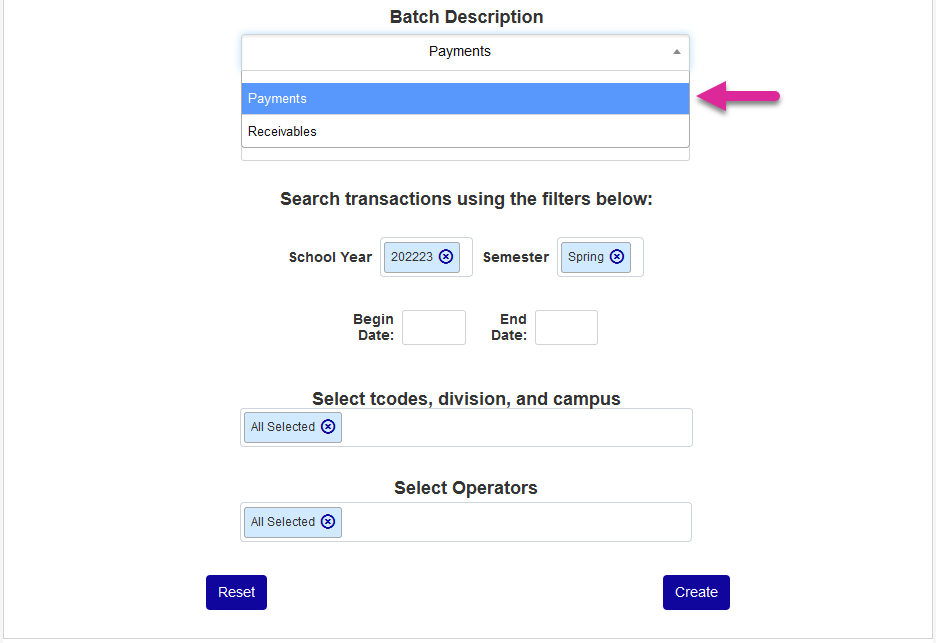
To create a new batch, first select a Batch Description, either Payments or Receivables. Leave this menu blank to include both.
Next, set the Post Date for the batch. The field defaults to the current date but can be altered to back or forward date the post.
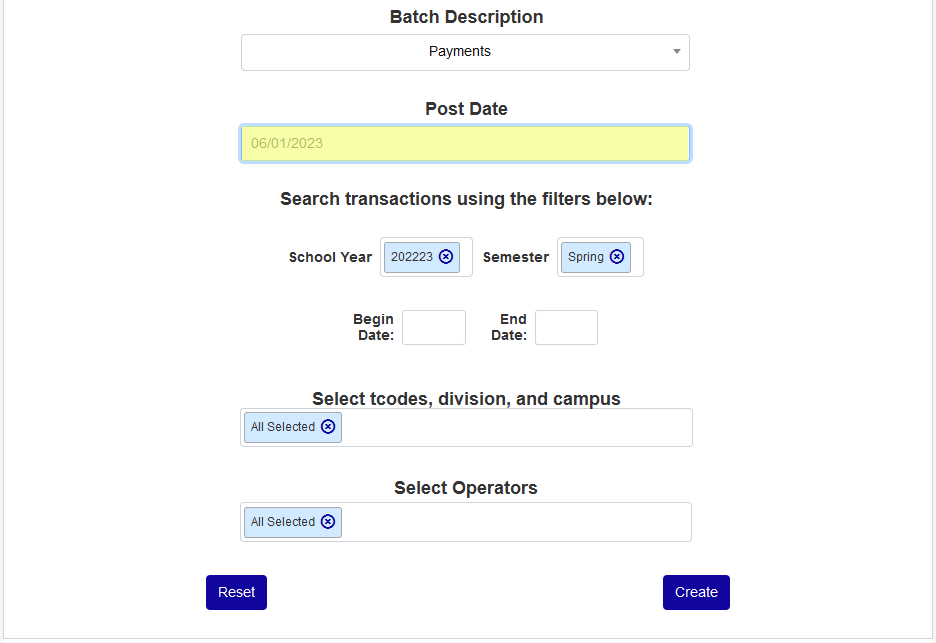
Currently, the following formats utilize the post date option and can have their date changed: SONIS Default, Blackbaud Financial Edge Nxt, Microsoft Dynamics (CSV), Sage 300 (AccPac), Sage Intacct, MIP Fund Accounting v1, MIP Fund Accounting v2, Microsoft Dynamics (Tab-Delimited), and Intuit QuickBooks Desktop.
The Meditech GL, Intuit QuickBooks Online, and PeopleSoft GL export files do not recognize post date changes at this time.
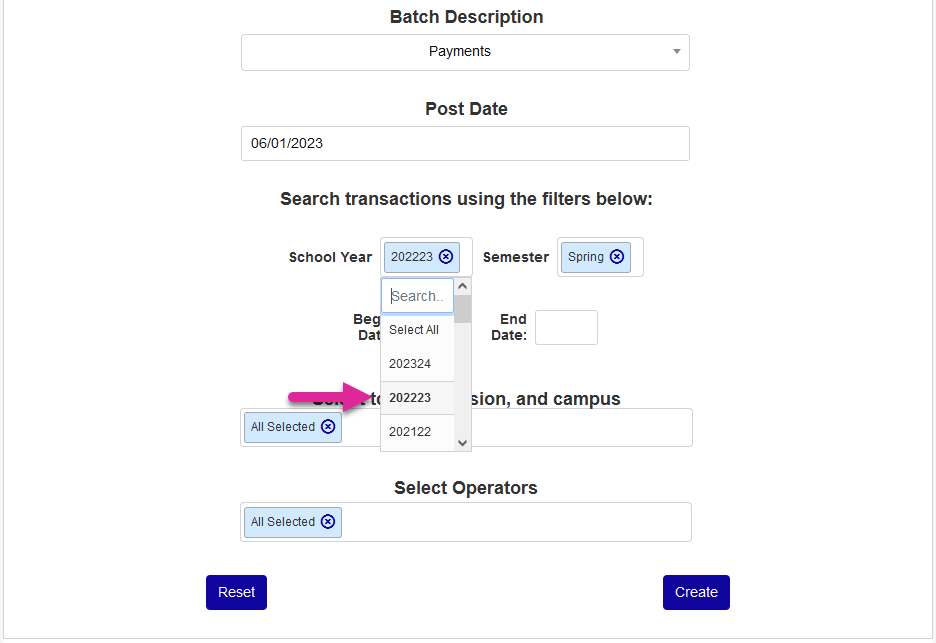
Select one or more options each from the School Year and Semester menus. This designates the school year and semester that the transaction applied to, not necessarily the school year and semester when it took place. For example, a student payment for a Spring course made during the prior Fall semester would be listed under Spring. Multi-select can be used to select multiple options from either table.
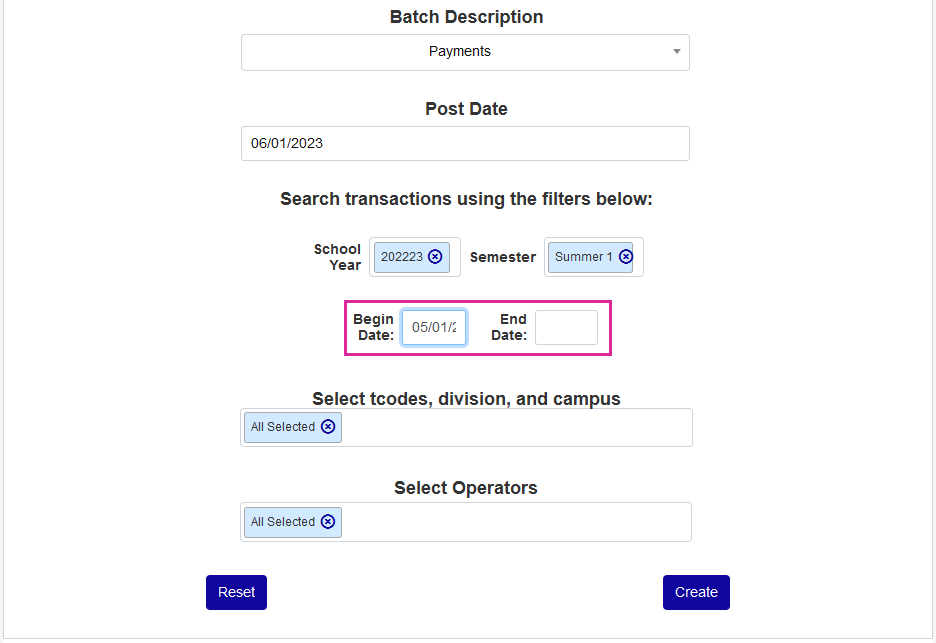
Next, choose a Begin Date and/or End Date. Only transactions performed within these dates will be listed. These fields can also be left blank to include all unposted transactions that fall within the other criteria.
Select a T-Code, Division, and Campus or leave this field blank to include all unposted transactions that fall within the other criteria regardless of the t-code, division, and campus.
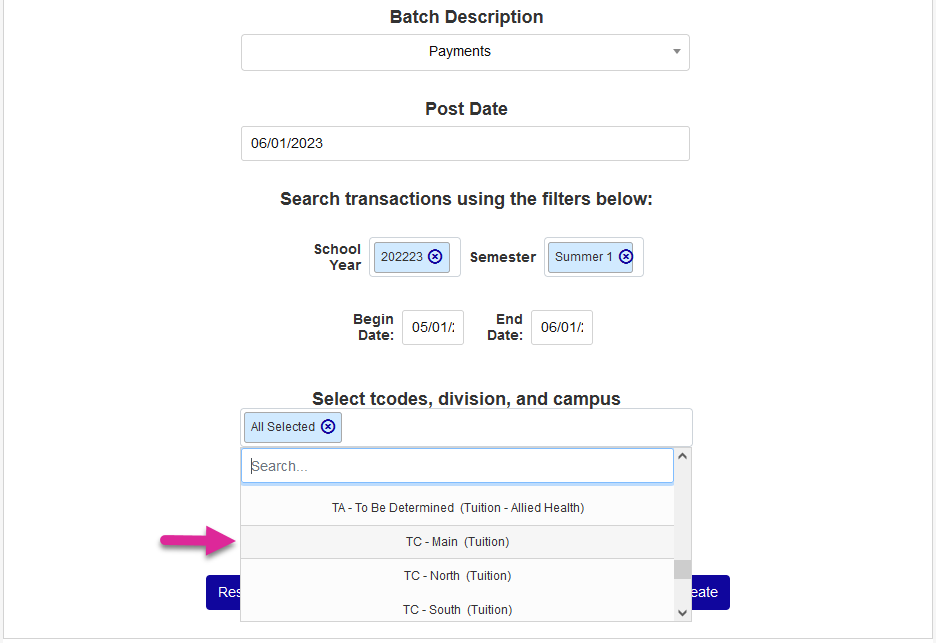
Finally, select one or more Operators. The list of operators contains every user who's performed a transaction in SONIS. Administrative level users have their name listed in parentheses while users who do not have admin accounts have a Non-Admin notation. This field can also be left blank to include all unposted transactions that fall within the other criteria regardless of the operator.
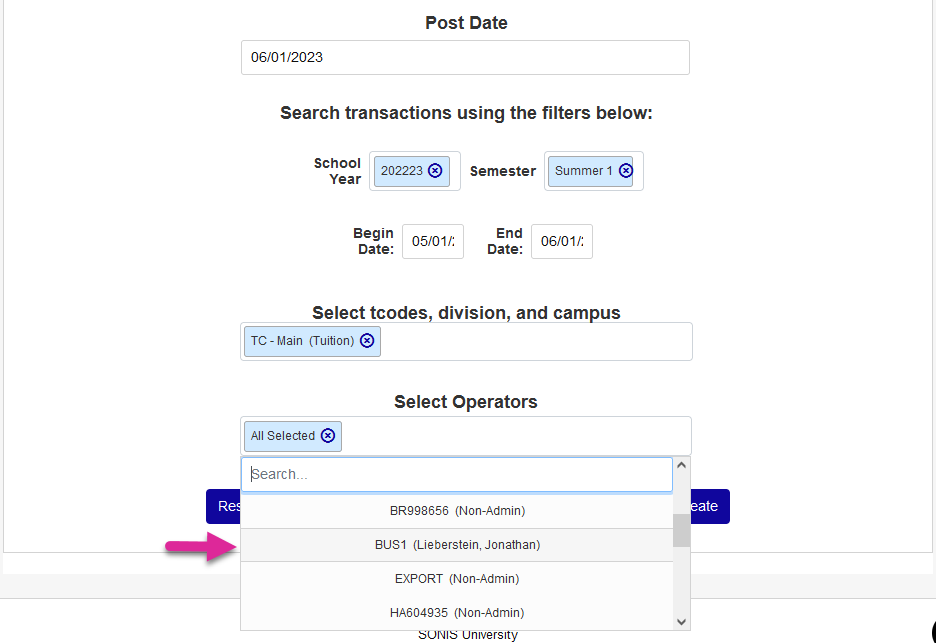
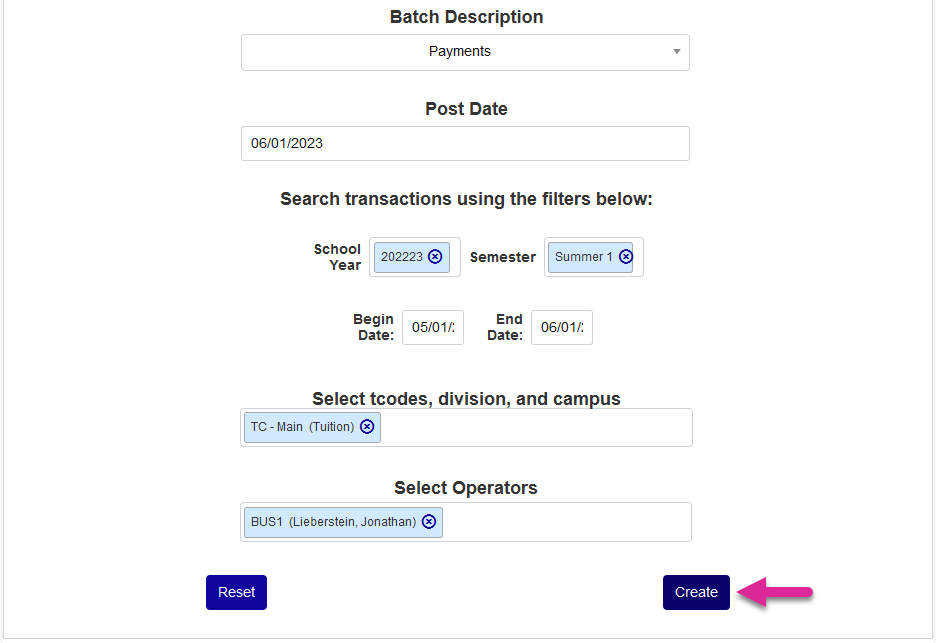
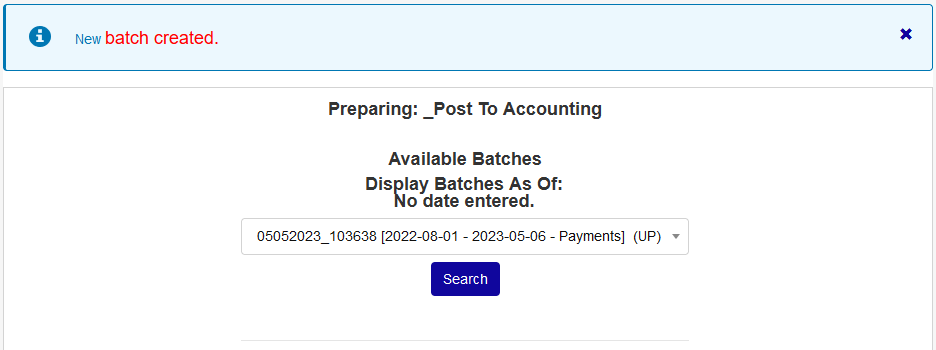
Click the Search button to continue. A New batch created notification will appear. The created batch will now be listed in the Available Batches dropdown where it can be selected for posting.
Available Batch
Administrators also have the option to select a previously created batch from the Available Batches dropdown. Batches are marked with the date they were created along with UP in parentheses for unposted batches and P for posted batches.
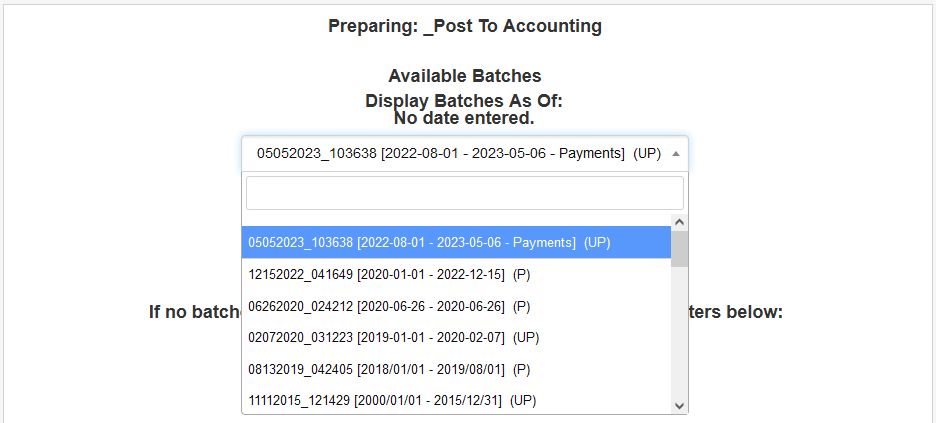
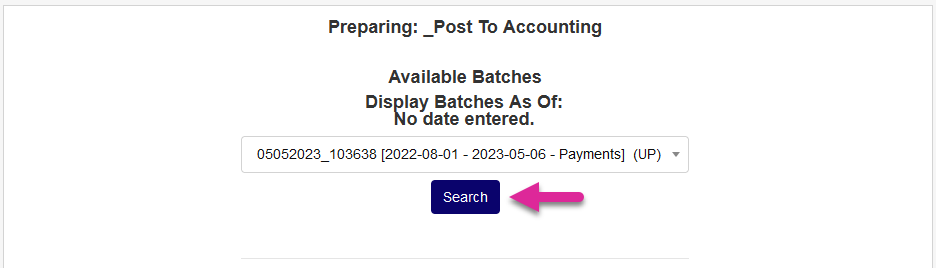
Click the Search button to display the selected batch.
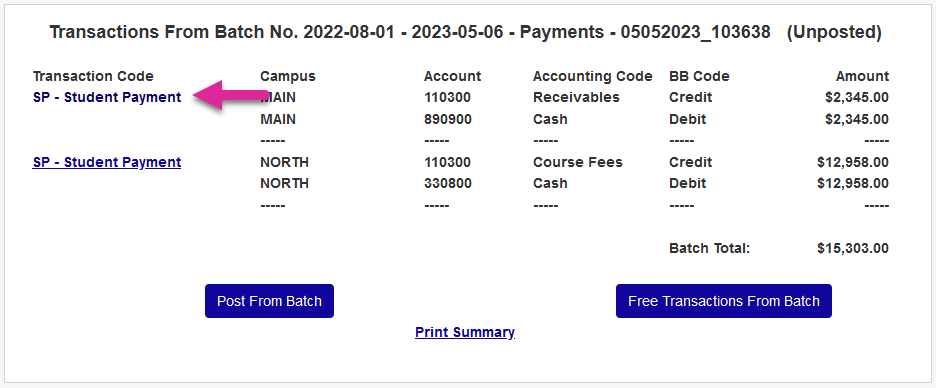
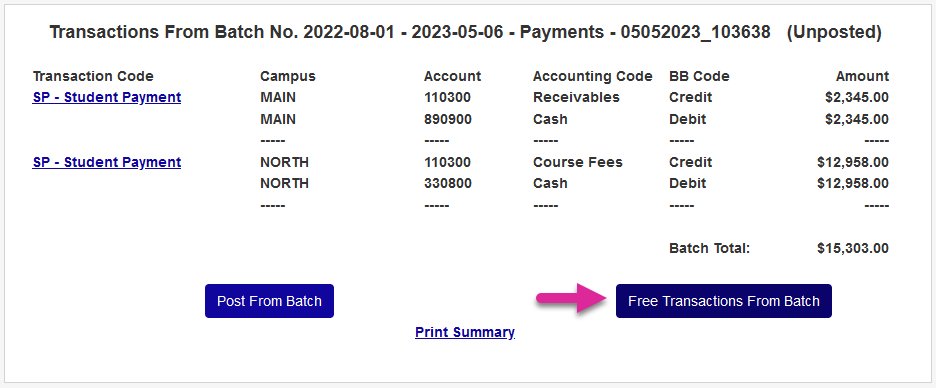
On the following page, groups of transactions are listed along with their Transaction Code, Campus, Account, Accounting Code, BB Code, and the cumulative Amount. Click on the link in the Transaction Code column to view the individual transactions that make up the specified group.
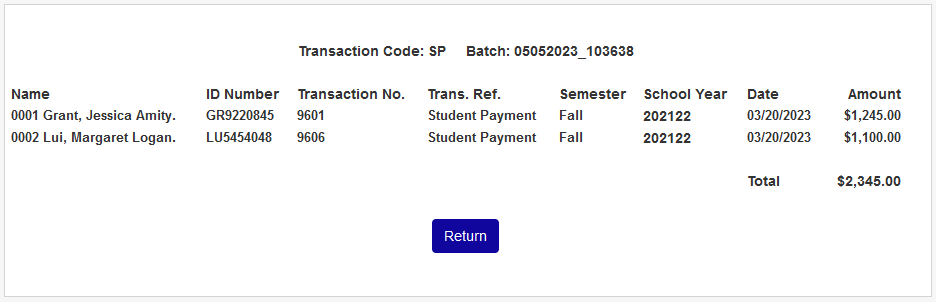
The following page lists the Name on the account that created the transaction, that user's SONIS ID Number, the Transaction Number, the Transaction Reference (which describes the transaction in greater detail), the Semester, the School Year, the Date, and the Amount. The total amount is listed again as well. Click the Return button to return to the batch.
If these transactions were batched in error, click Free Transactions From Batch. Clicking this button deletes the batch and frees the transactions listed to be part of a future batch.
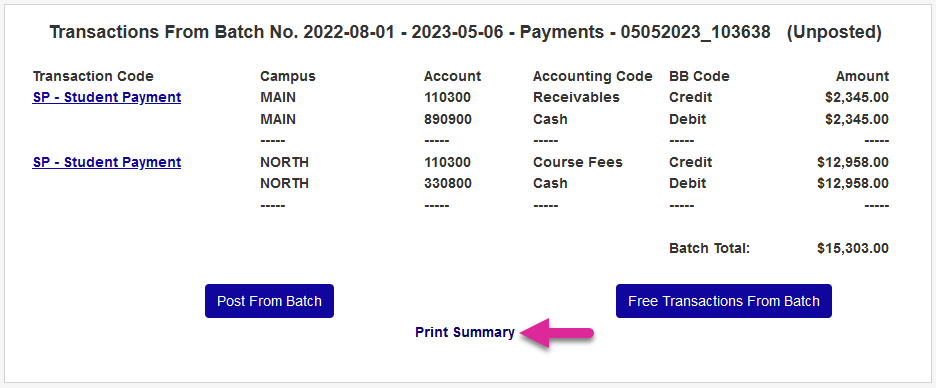
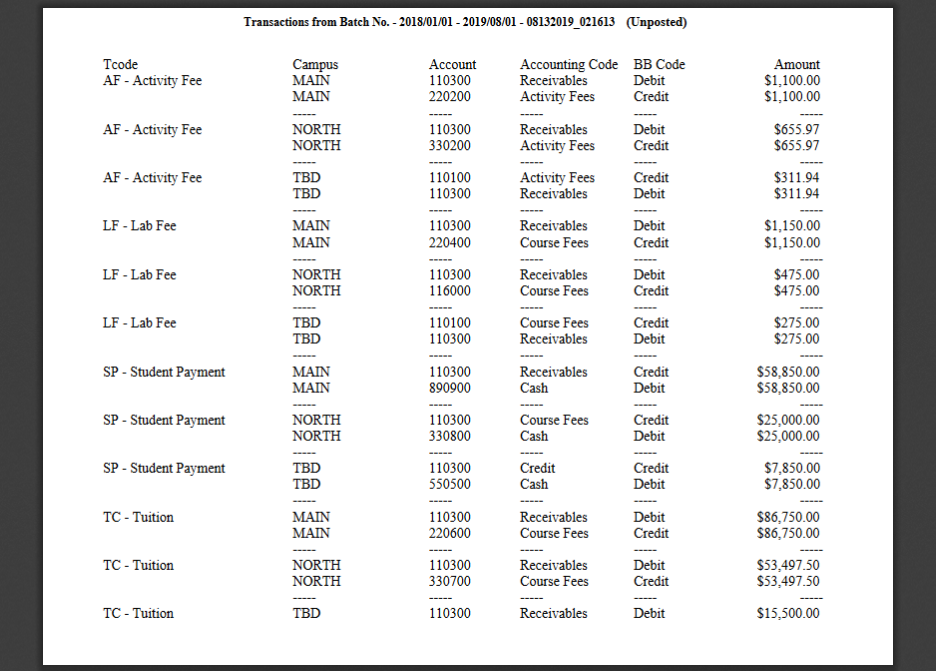
Click the Print Summary link to create a summary of the batch in PDF form in a new window. This PDF can be printed to create a hard copy or saved to create an easily readable electronic backup of the batch.
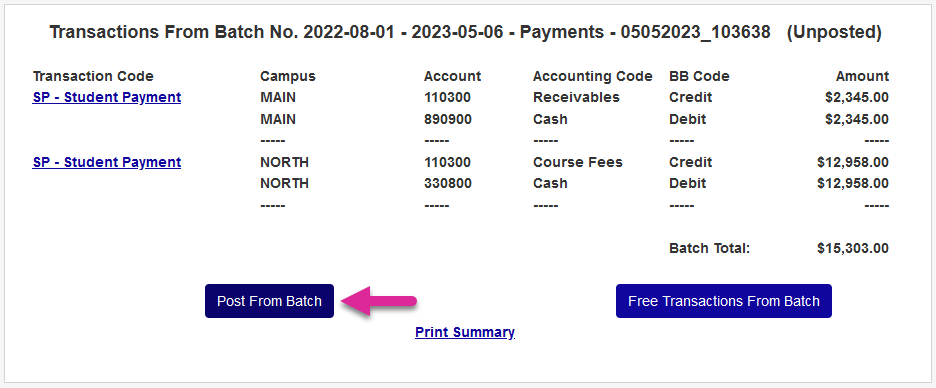
The complete the post to accounting process, click Post From Batch. Posting the batch saves a file in the specified batch folder for export and prevents the listed transactions from being edited again in SONIS.

Individual Export File Details
When an export file is created in Post to Accounting, the data included is specific to the defined third-party product. Sample files are provided on MyJenzabar.
Financial Edge
SONIS will produce a .CSV in the format required by Financial Edge. All standard Post to Accounting settings are honored and mappings must still be defined in Business: Transaction Code Mappings. The Journal and Project fields can be modified by the user. All others will populate as described in the table below.
Export Header Label | SONIS Data Source | Description |
|---|---|---|
Batch Import ID | Auto-generated by SONIS; cannot be edited. It is a unique batch number created with the date and a random number as the suffix. The format is MMDDYYxxxx. | |
Account number | Business: Transactions Code Mapping > Account | The account number associated with the transaction. |
Post Date: | Date the export is created in SONIS. The format is MM/DD/YYYY. | |
Encumbrance Status | Hard-coded to Regular. | |
Type | Business: Transaction Code Mappings > Accounting Code | If the Accounting Code is 60, C displays in the export. If it is 10, D displays in the export. This is necessary to indicate whether the transaction(s) are debits or credits. |
Journal | Business: Transaction Code Mappings > Source | |
Journal Reference | Hard-coded to be SONIS plus 6-character date: SonisMMDDYY. | |
Amount | Amount of the debit or credit transaction group. | |
Project ID | Business: Transaction Code Mappings > Project | Displays the data that is in the field. |