Welcome Page
Overview
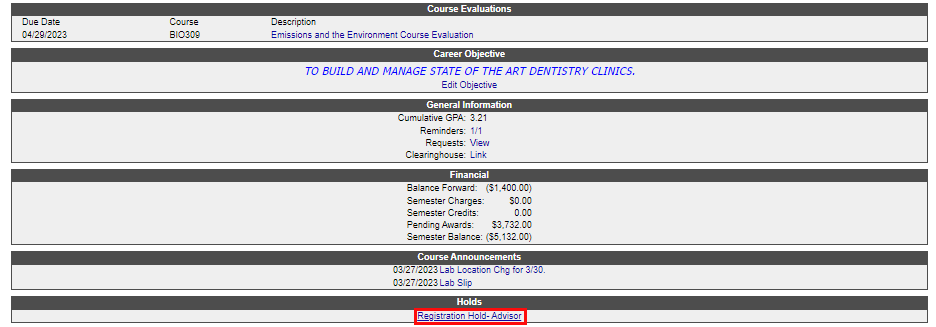
The Student portal Home, or Welcome, page is a summary page that has information from several different areas. The page will vary greatly based on what your school has instituted. In this example, only the functionality provided by default is reviewed.
The information that is displayed on the page, as well as the layout of the page, is defined using the Home and Summary Options utility.
Course Evaluations
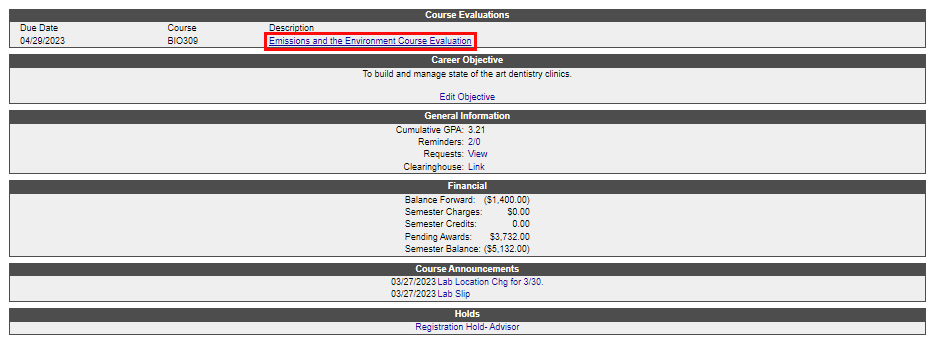
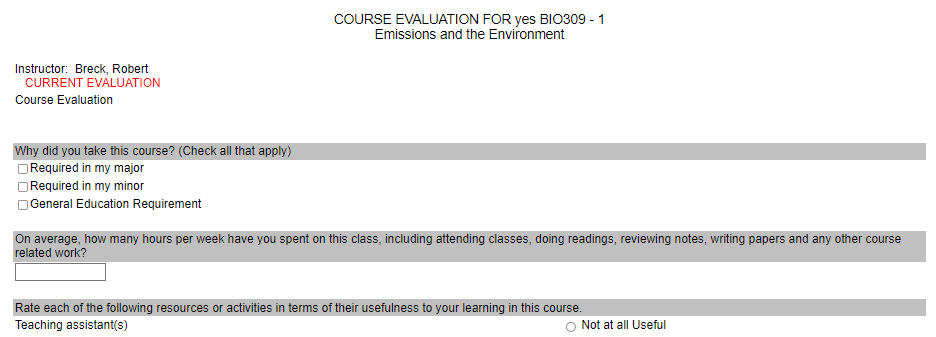
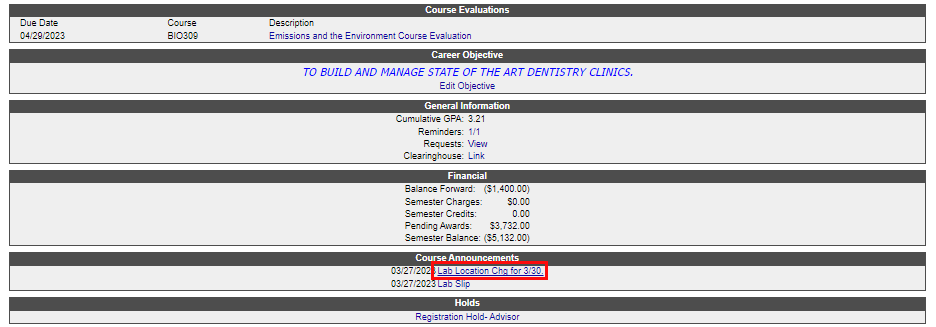
When evaluations are assigned through Jenzabar SONIS for a course the student is registered for, or completed, the link to access the evaluation is available here. Clicking the link takes the user to a new window where they will click on the faculty member's name to access the evaluation.
Administrators, see the Evaluations documentation for setup instructions.

Career Objective
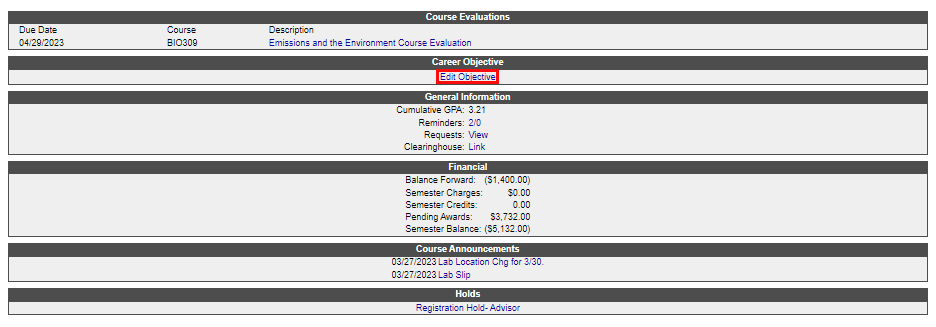
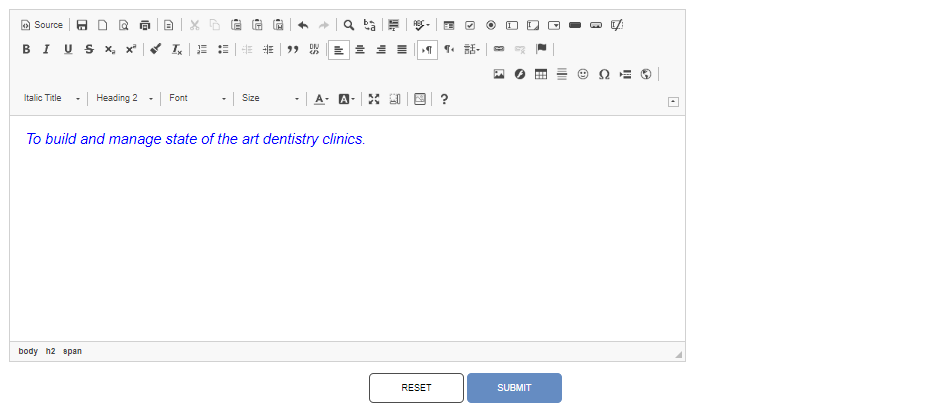
The Career Objective section is designed to keep track of future goals. To enter an objective, or edit an existing objective, click Enter Objective. Enter the desired objective statement in the editing area and click Submit to save it. Note that although many editing and style options are provided, not all types will display in the student portal or the administrative portal.
For administrators, this information can be accessed through the Summary: Career Services page.
General Information
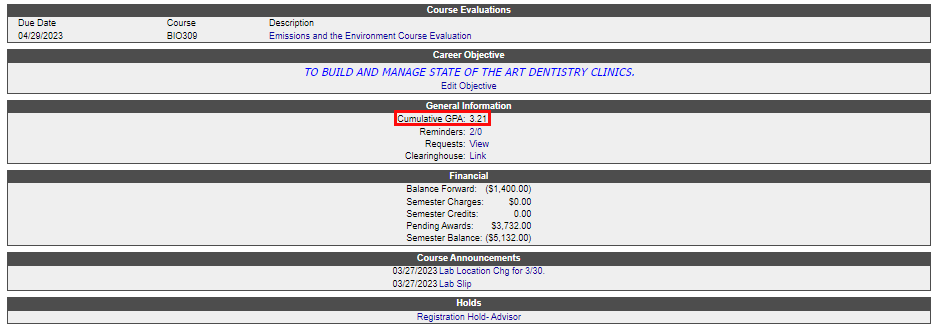
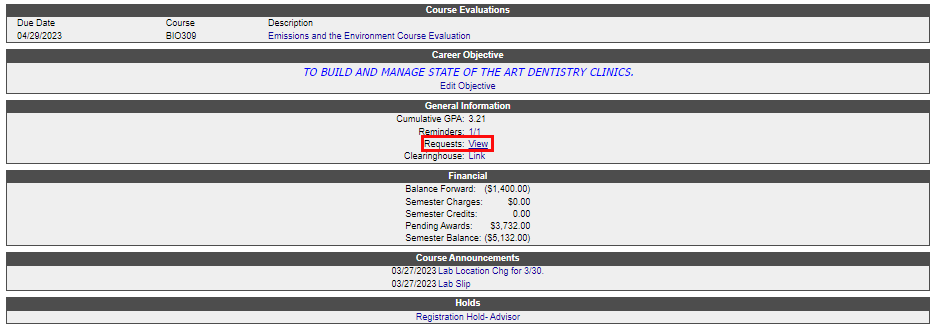
The General Information section displays the student's Cumulative GPA, Reminders, and Requests, as well as a link to the Clearinghouse.
The Cumulative GPA is calculated within the Jenzabar SONIS administrative portal and the value displayed here is the same as the value displayed in the academic information on the student's Biographic tab.
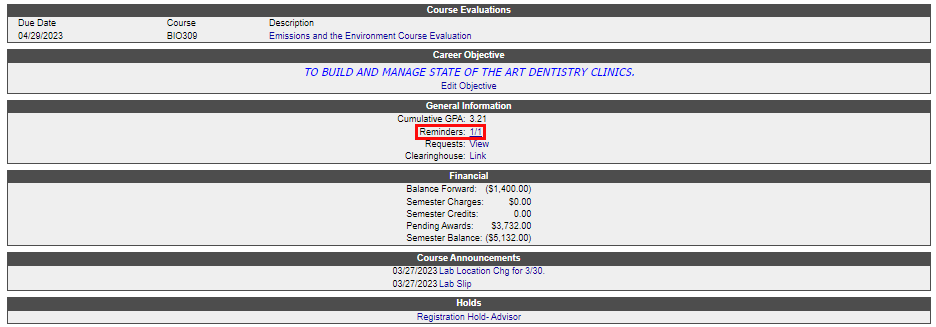
The Reminders section displays the number of unread and read . Clicking the numbers takes the user to their Reminders page in the Student portal.
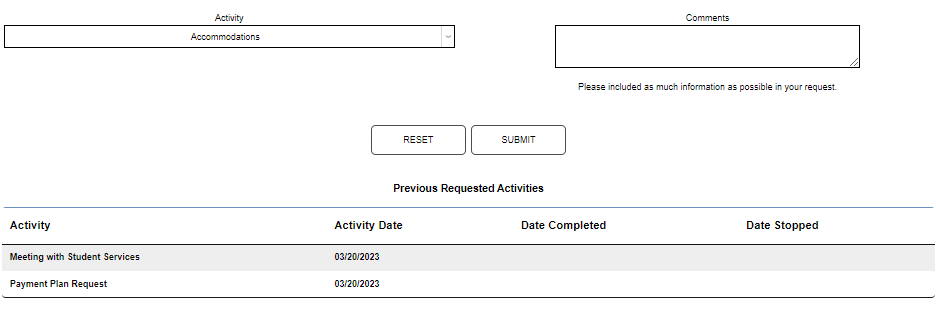
The Requests section provides the option to click View and see any requests the student has previously made and their associated status, or to submit a new request. Information on submitting requests is available here.
Administrators, visit the Activities & Requests documentation for setup instructions.
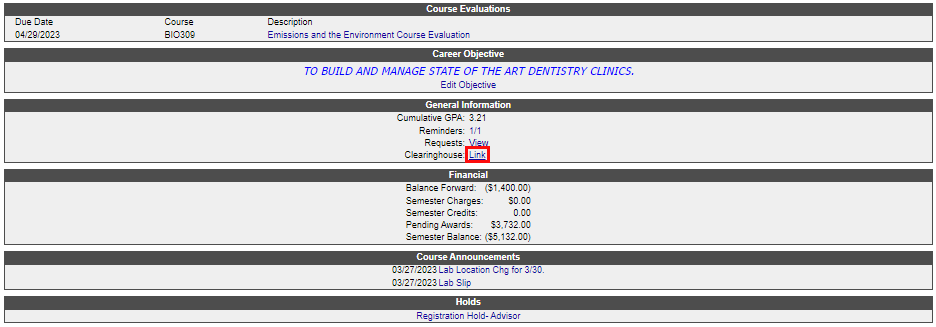
If enabled and setup within the SONIS administrative portal, the Clearinghouse link will take the user to the NSLCH Student Self-service page.
Financial
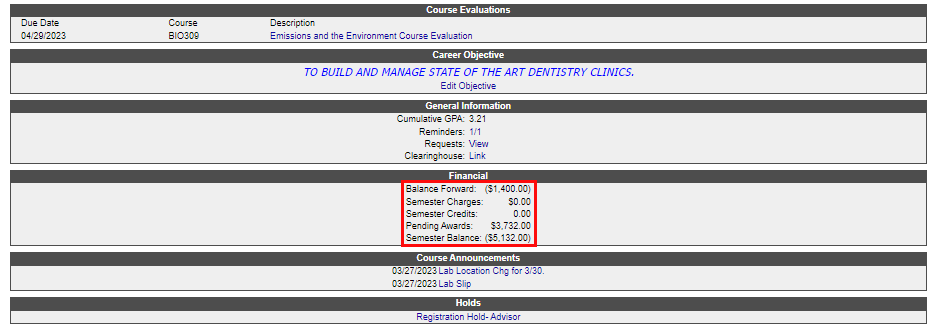
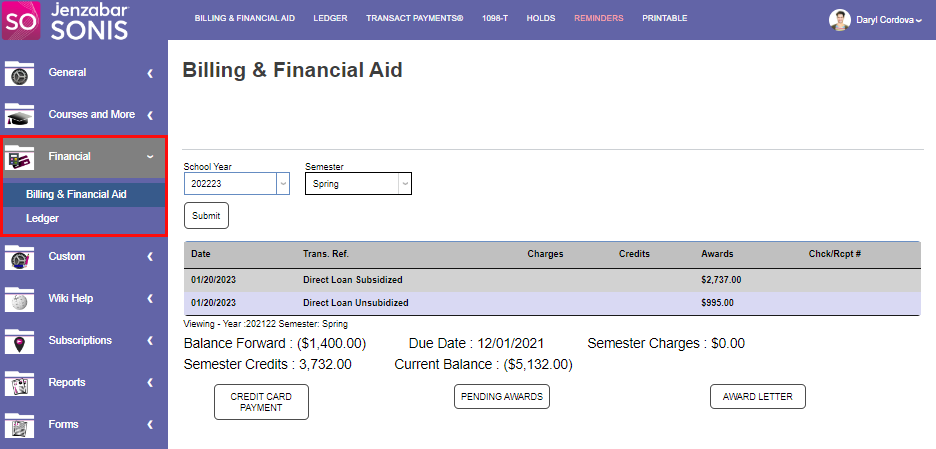
The Financial section provides a summary or snapshot of the student's current financial standing with the institution. More detailed information is available in the portal's Billing page.
Course Announcements
If an instructor has published course announcements these will display in this section and can be viewed by clicking the title of the announcement.
Visit the Faculty portal Course Announcements documentation page for more information.

Holds
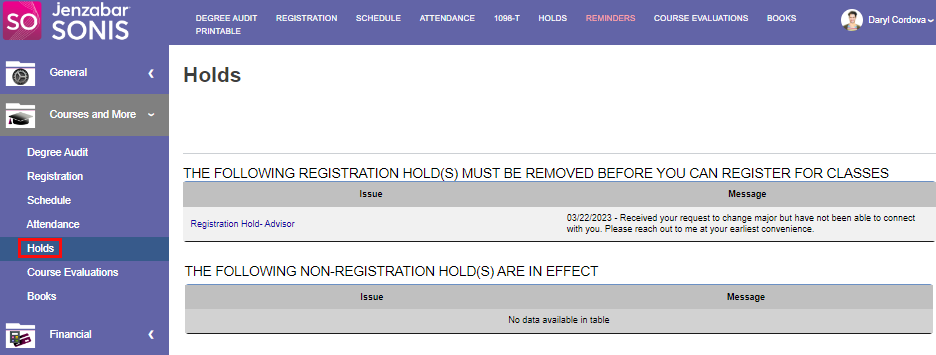
If a student has holds, the details can be viewed in is summary in this section. Clicking the hold title takes the user to the Holds tab of the Courses portal menu.
Administrators, visit the Holds documentation page to learn more about setting up and managing holds.