Bulk Registration
Overview
Bulk Registration is a Jenzabar SONIS utility that allows administrators to register a group of students for a specific set of courses based on the current course schedule of an existing student. The students to be registered must have the same division, department, level and program as the model student. Unlike individual registration there is no check for date-time conflicts, insufficient space in each section, pre- or co-requisites, etc. It does not show the cost of the courses nor does it offer immediate post-to-billing. To register a group of users to a single course section, use the Bulk Registration by Course Section utility.
Note that both bulk registration utilities ignore class size limits and will overbook courses.
Name Search
Before the utility can be used, a student who is registered for at least one course in the registration semester must be selected using the Name Search function.

Registration
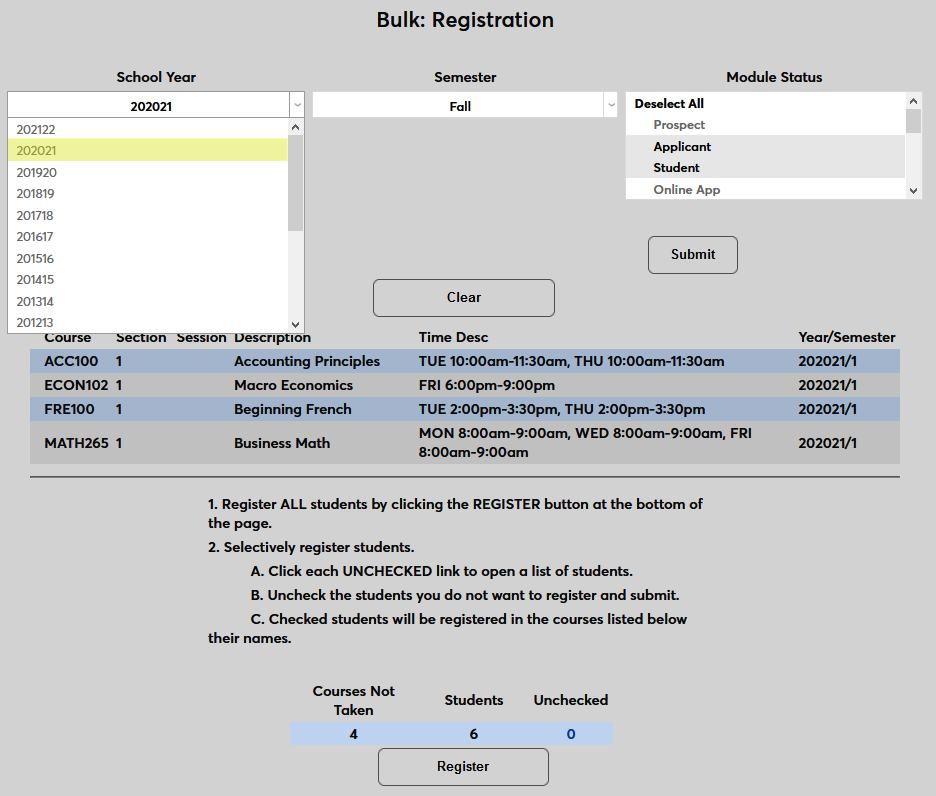
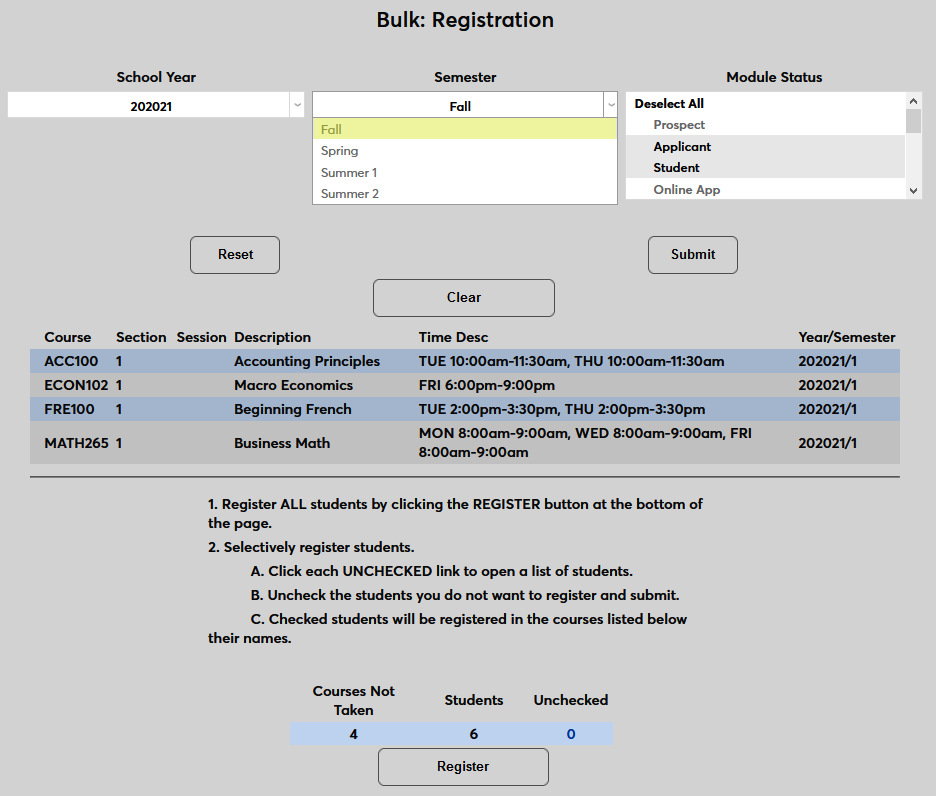
Once the model student has been selected, return to the Bulk Registration utility to begin the process. Select a School Year and Semester for the registration.
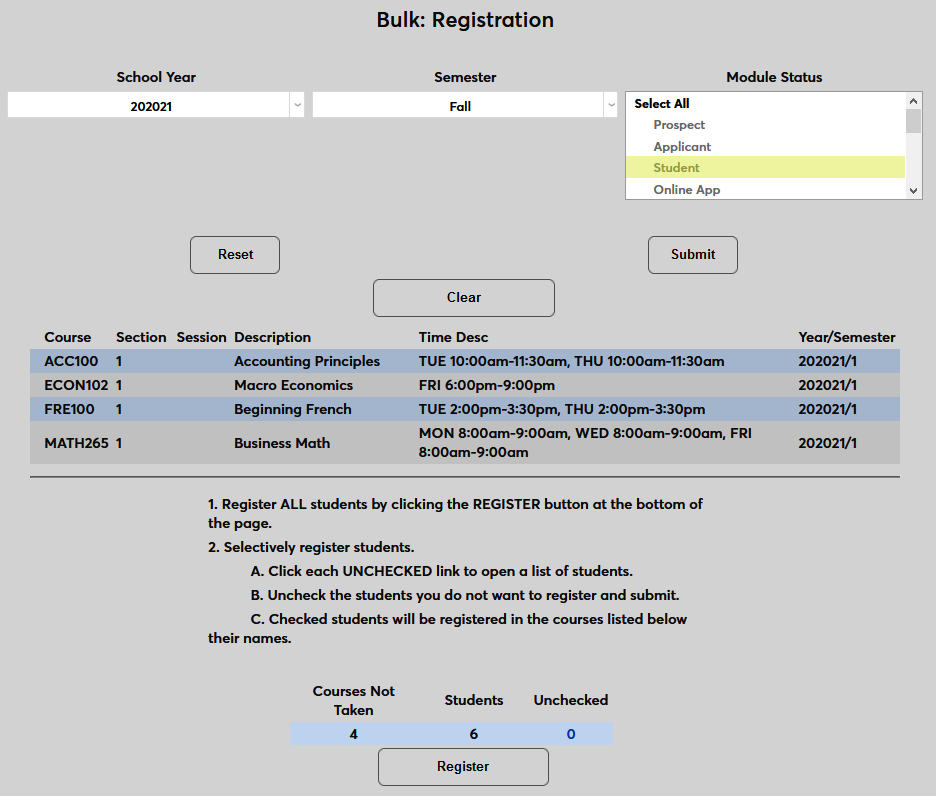
Next, select a Module Status. Only users with the selected module status will be included. Click Submit to update the list based on the selected parameters.
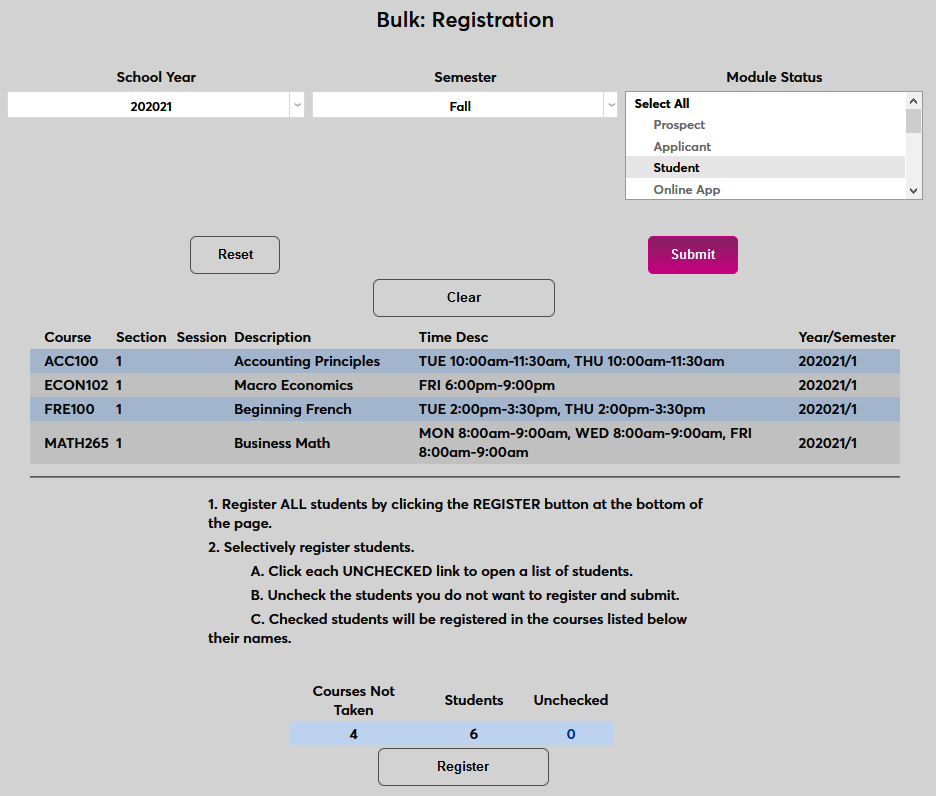
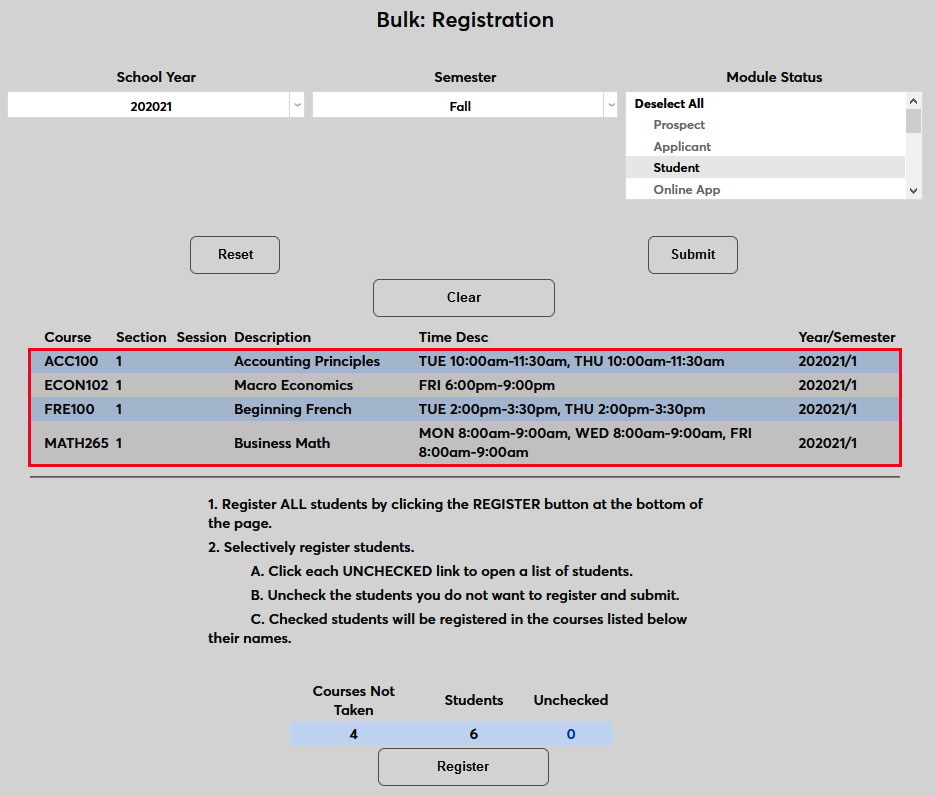
The current course schedule for the model student is displayed below selection fields. Any student registered through this process will be enrolled in these course sections.
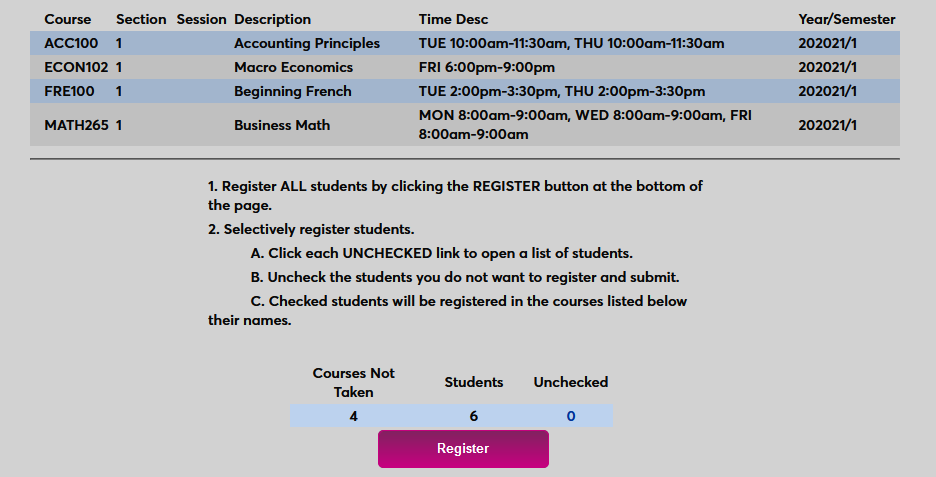
By default, all users with the selected module status and the same division, department, level and program as the model student are checked and can be registered immediately by clicking the Register button.
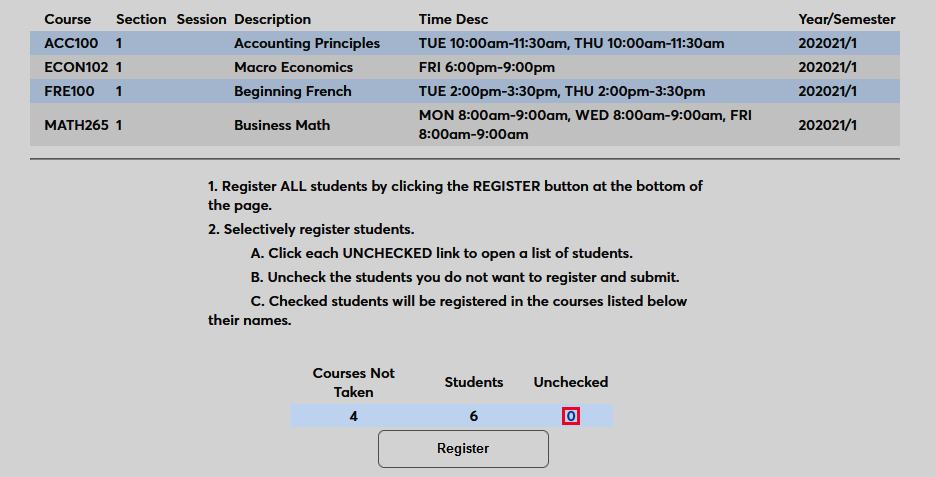
Alternately, students can be selected and deselected one by one. Click the 0 under the Unchecked column to open the list of students in another window.
Note
Note: For users who have the Override Registration Hold User Security permission, students who are on a registration hold but also qualify for Bulk Registration will show up on the list with a hold notice as well as a checkbox to allow the user to proceed with registration, overriding the hold.
To uncheck the entire list, uncheck the Check/Uncheck All Students Listed Below box and click Submit.
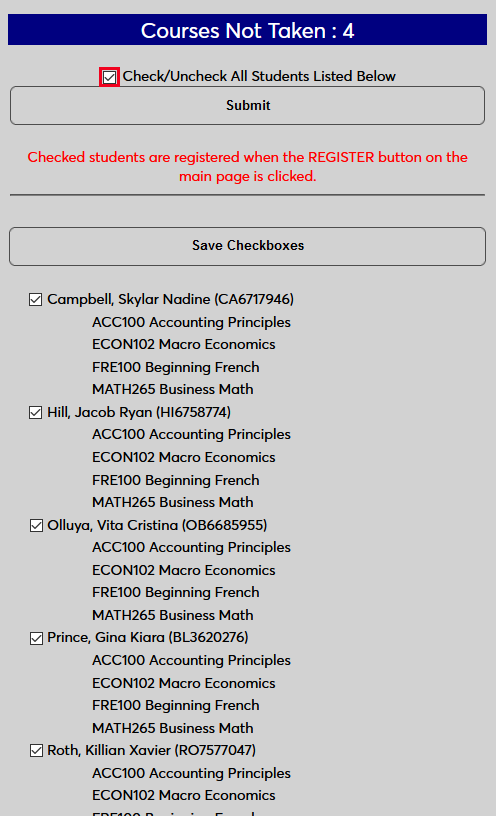
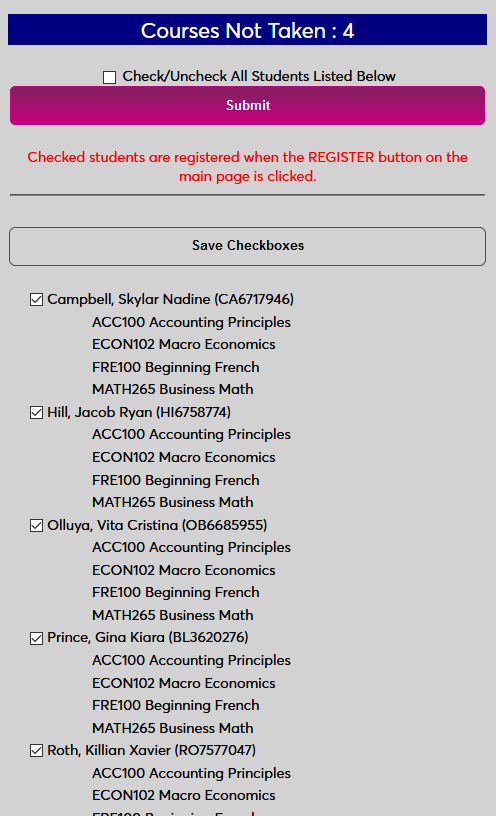
Check or uncheck the boxes located to the left of each individual to include them or not include them with the update. Click Save Checkboxes to save the changes and close the window to return to the registration page.
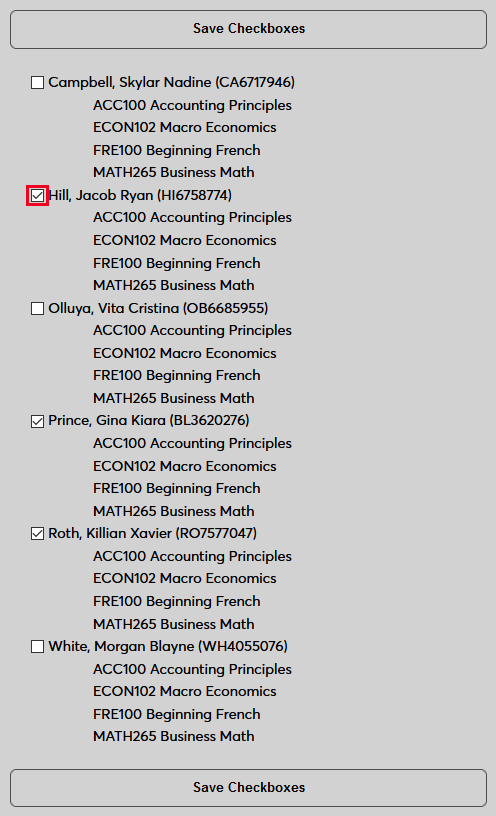
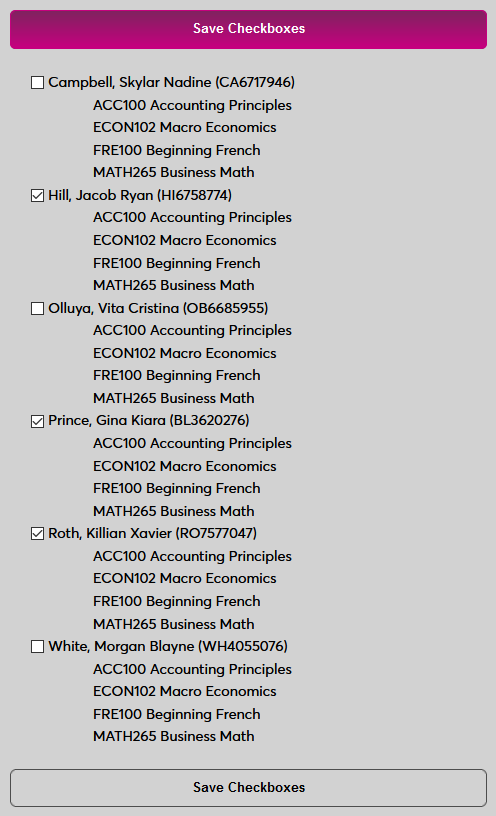
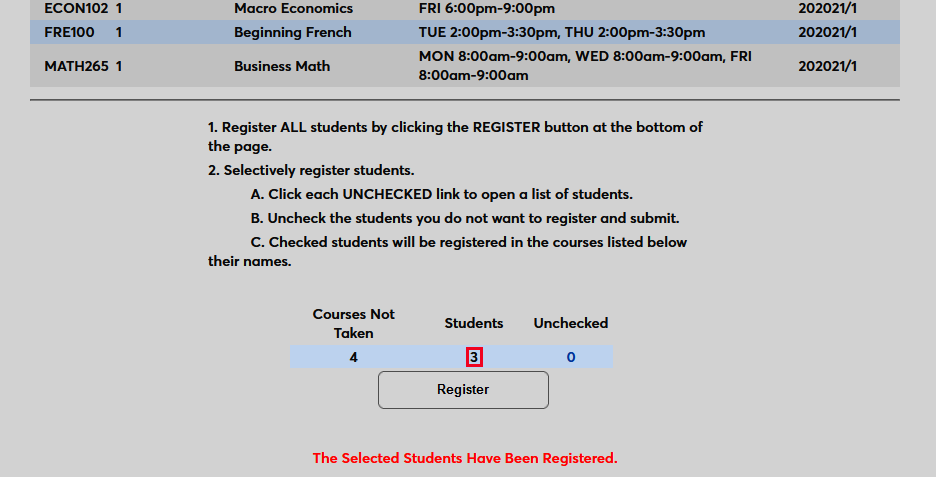
The Unchecked number will be updated to reflect the changes. Click Register to complete the registration process with the selected users.
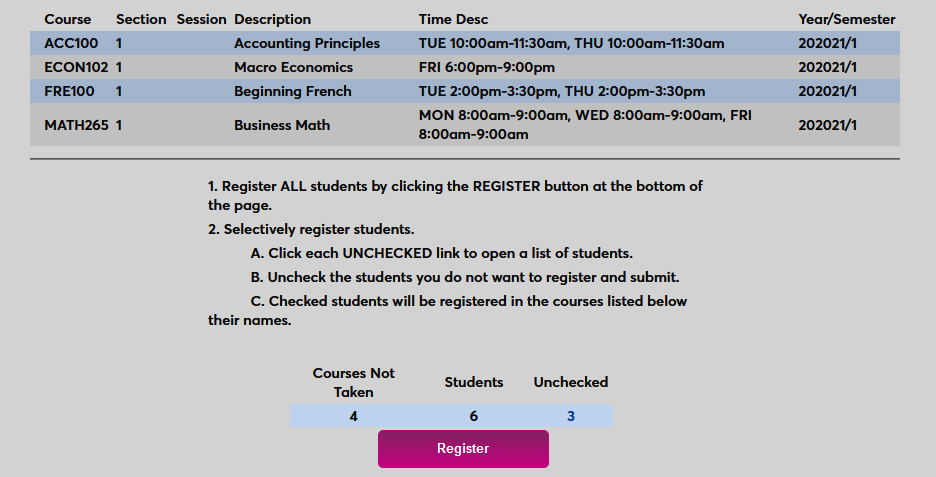
Once the process has been run, the number of available students no longer includes the students that have been registered.