Aliases
Overview
Some students may have other names that they go by in addition to their official first, last, and middle names. To accommodate this, Jenzabar SONIS offers Preferred Name and Other Name fields on each student's Biographic page. However, in some cultures and unique circumstances, a student may have more names that can be accommodated by these fields. For this reason, SONIS also offers an Aliases table where additional names can be stored. This table can be queried in Izenda, but does not output anywhere else in the SONIS system. Institutions can request to have the aliases displayed on each student's transcript for an additional fee.
Table Maintenance
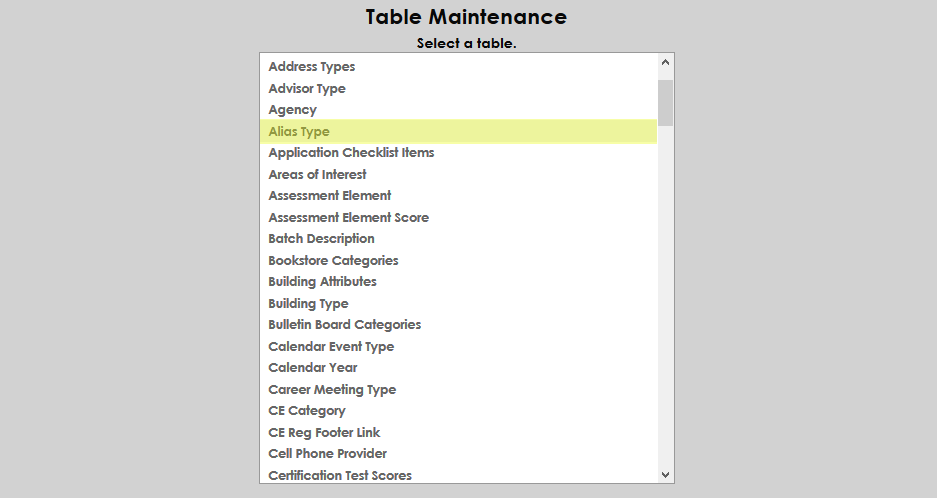
Before an alias can be assigned to a student, the institution must create a list of alias types that describe the alias being added. Navigate to Table Maintenance in the Systems hub and click on Alias Type to begin.
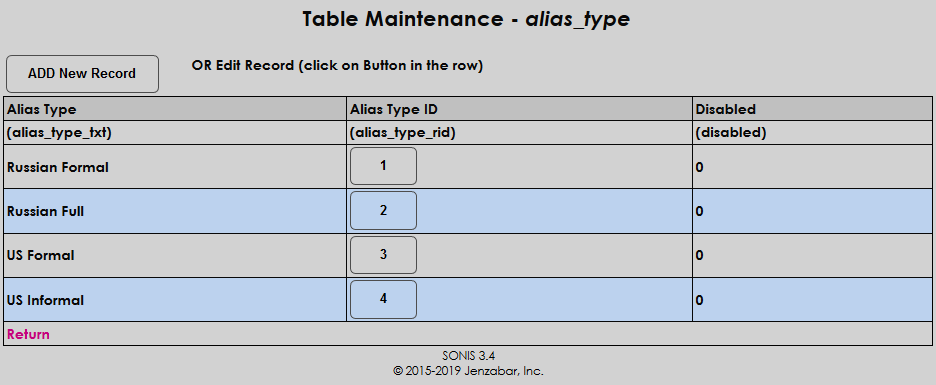
Click Add New Record to create an alias type or click on the name of an existing type to edit that type if types have been previously created.
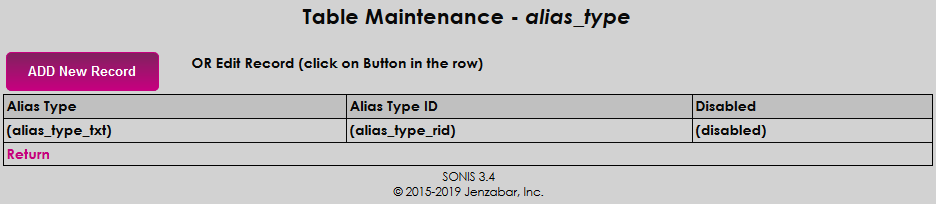
On the following page, enter a name for the alias type in the Alias Type field. This field has a 75 character limit. Leave the 0 in the Disabled column to enable the alias type or replace it with a 1 to disable it.
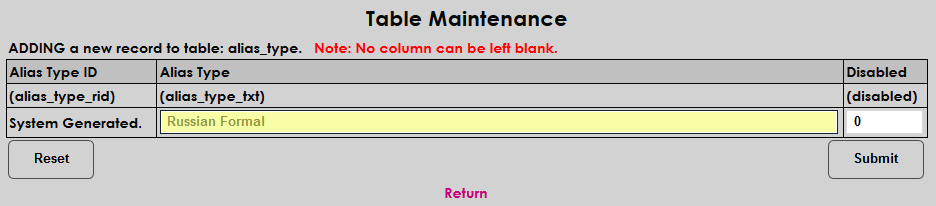
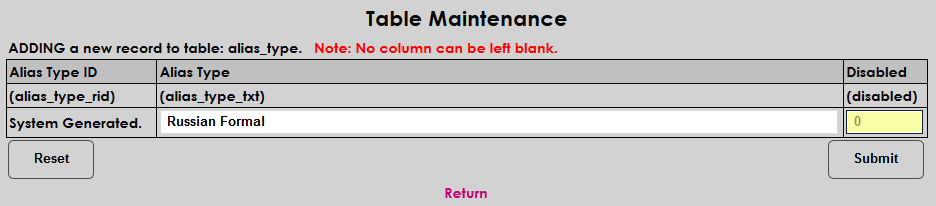
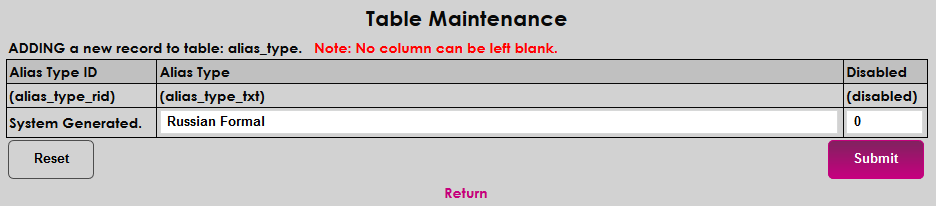
The Alias Type ID column displays the abbreviation that's automatically created by the system as each alias type is created. Click the Submit button to save the changes and create the alias type. Repeat the process until all the needed types are created.
Adding Aliases
To add an alias to a student's records, navigate to the Aliases page under their Records menu. Click Add to create a new alias.

Select an Alias Type from the dropdown menu.
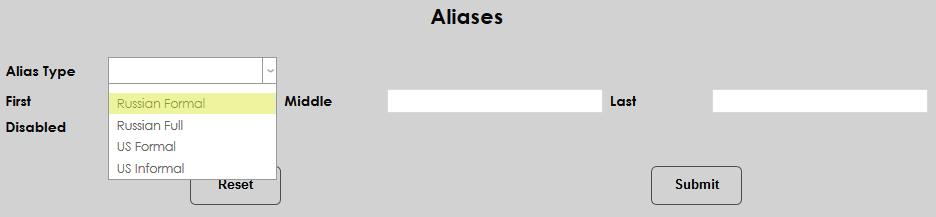
Fill in the First, Middle, and Last names of the alias. The middle name fields is optional.
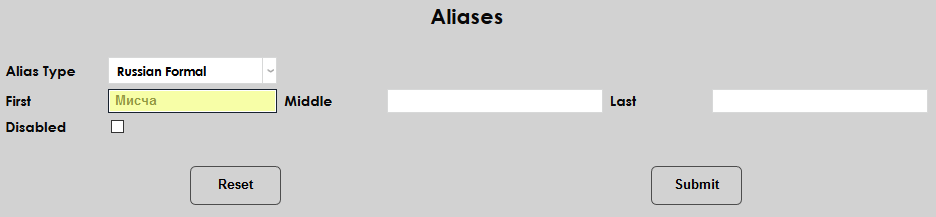
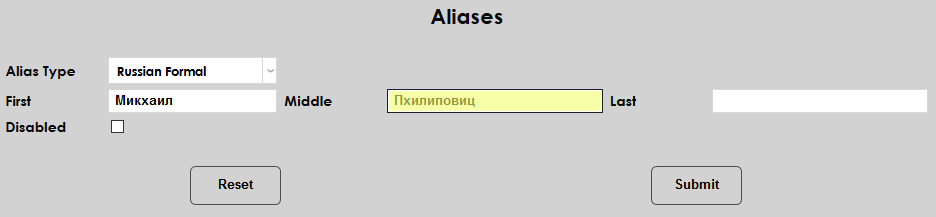
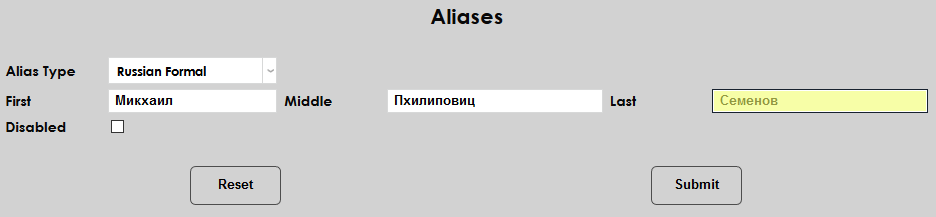
Click Submit to create the alias.
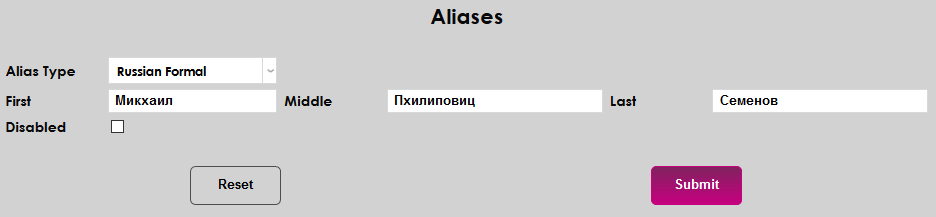
Additional aliases may be added, but each student can only have one alias of each type. Click the Alias Type on the Aliases summary page to edit an alias.
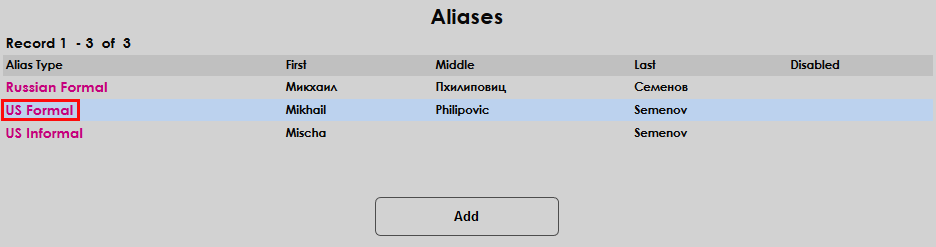
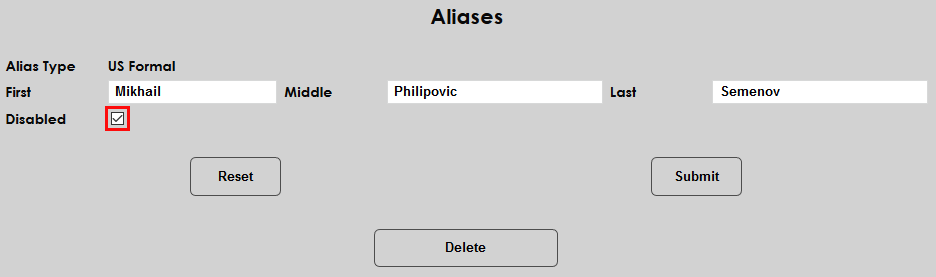
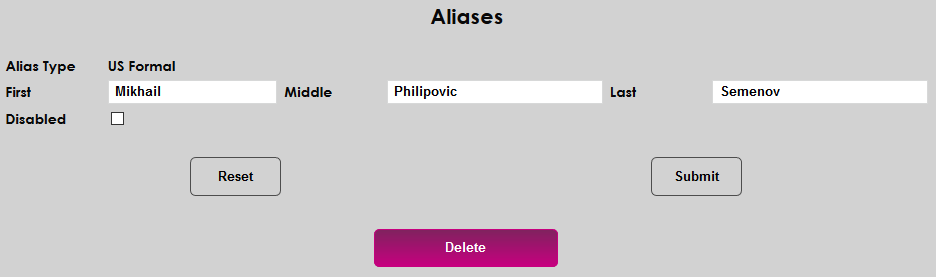
When editing an alias, the alias type can not be changed. Each of the First, Middle, and Last names can be altered and the alias can be Disabled to prevent it from appearing on transcripts or in Izenda, where applicable. In addition, the alias can be Deleted altogether.