Refund Settings
Overview
Refund Settings is a Jenzabar SONIS utility, available in the Systems hub, which allows schools to control the amount of money students can get back when withdrawing from courses. In most cases, schools prefer to refund progressively less of the total amount paid as the time between the registration date and the withdrawal grows. Refund Settings makes this easy to accomplish. In addition, schools can choose to use different refund settings based on a student's level, division, campus, and/or department.
Refund Filters
Before creating refund settings, institutions must set the filters for these settings, determining which, if any, Jenzabar SONIS module statuses they want to use. Navigate to the Refund Filter Settings utility in the Systems hub to control these filters.
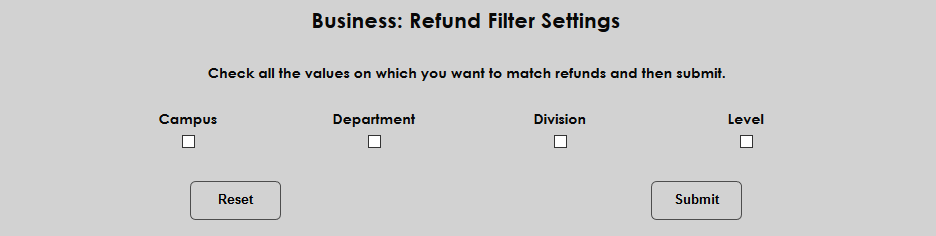
To use the filters, select one of more module statuses and click Submit to add the filter(s) to the Refund Settings page. Only schools that wish to have more than one refund schedule by module status need to activate a filter. If the same refund rules should apply to ever student, there is no need to activate any filters.
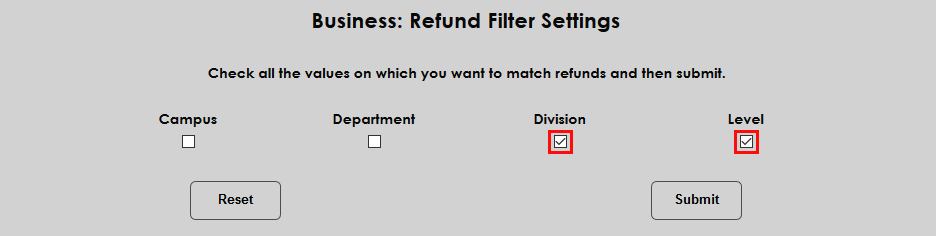
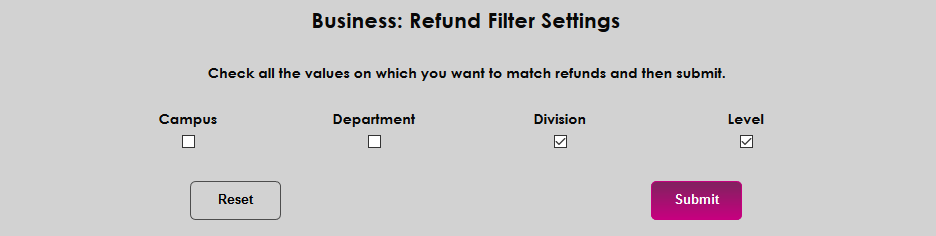
Once refund settings have been created, adding or removing filters will cause errors. Current refund settings must be completely deleted from the system before adding or removing filters.
Adding Refunds
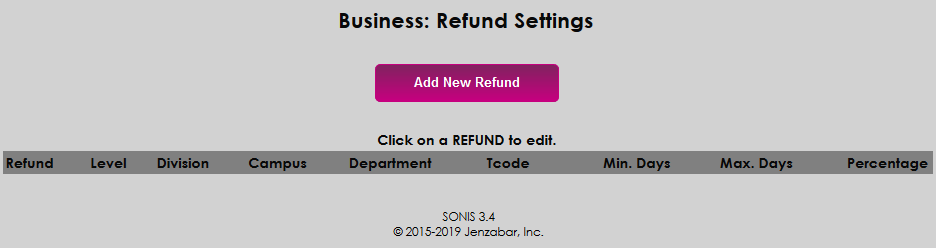
Once the appropriate filters are in place, navigate to the Refund Settings page in the Systems hub to create the refund settings. Click Add New Refund to begin.
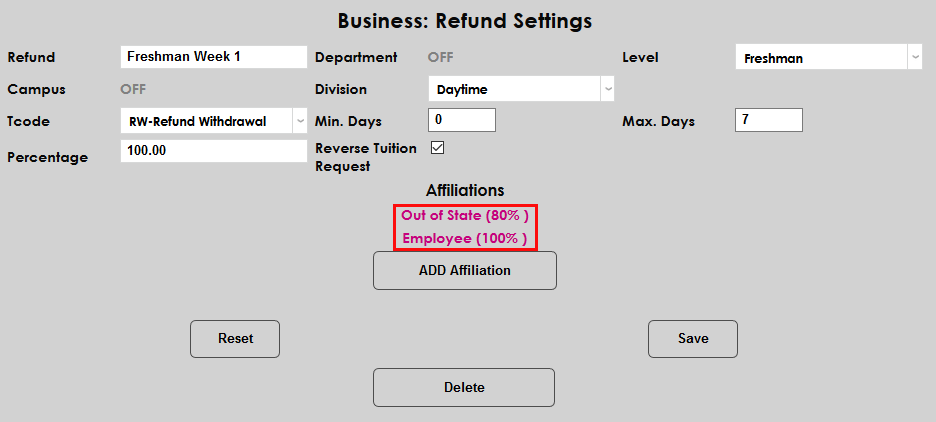
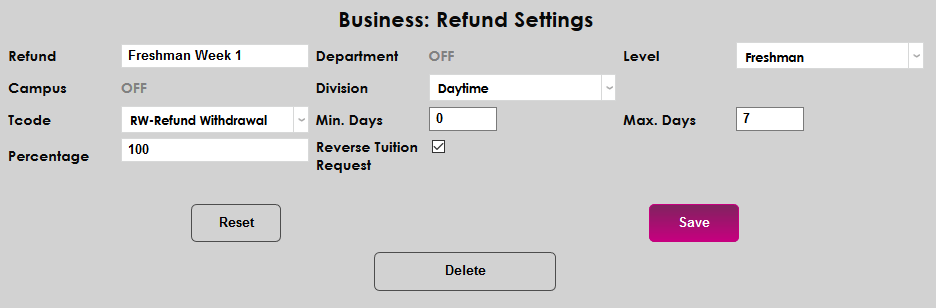
On the following page, provide a name for the refund that describes when it's used and who it applies to.
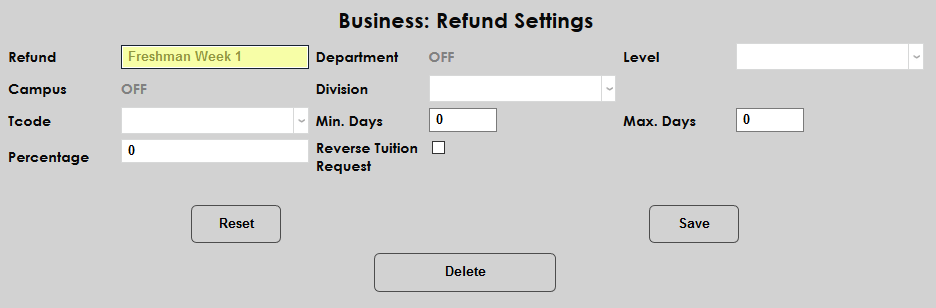
Next, select all module status categories that should be subject to the refund rule. Any filters that were not turned on from the Refund Filter Settings page will be labeled OFF. A value must be selected for each unlocked module status or an error will occur.
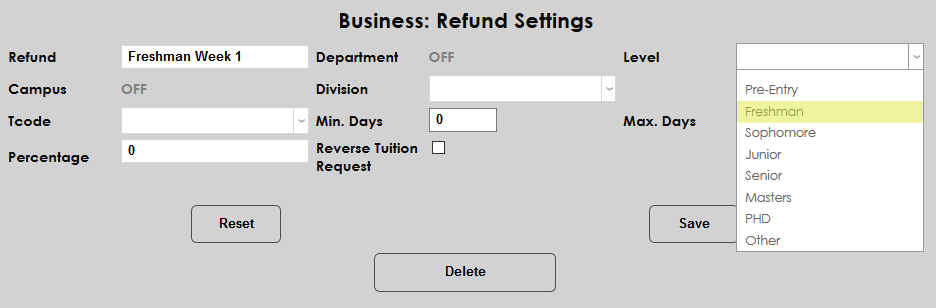
Select a T-Code for the refund transaction. This list is populated based on the refund transaction code or codes listed on the Tuition T-Codes page.
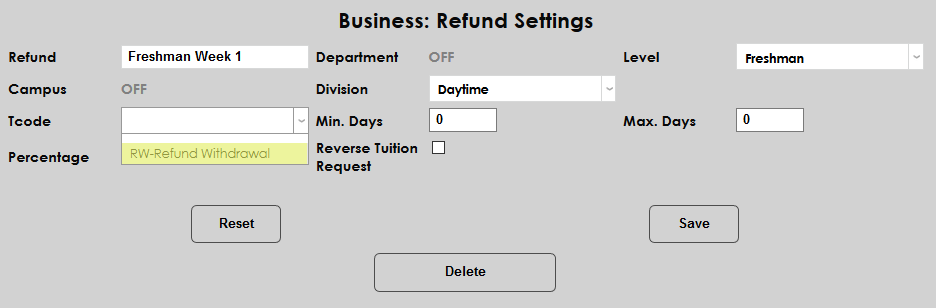
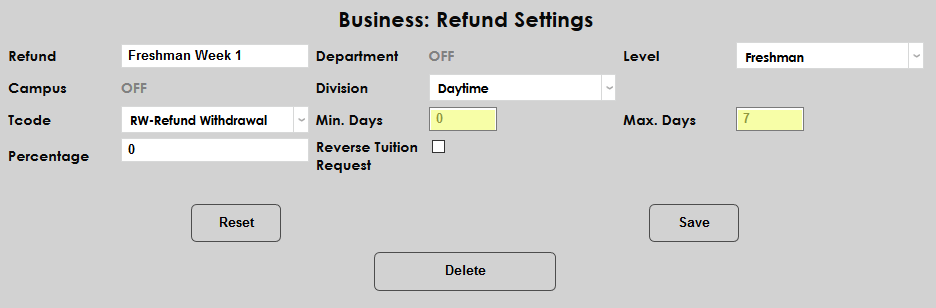
Set the Minimum Days and Maximum Days to create a date range for the refund rule. These values count up from the course start date for the course being refunded.
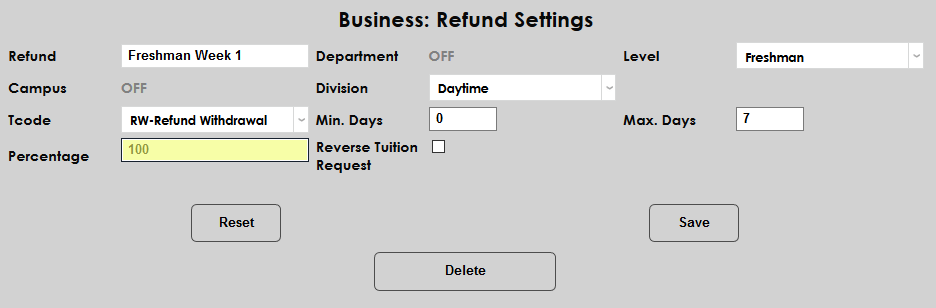
Set the percentage of the charge that the student should be awarded back during this period. This must be a numerical value between 0 and 100.
The Reverse Tuition option is primarily used for withdrawals for students who registered using the Flat Fee option. If Reverse Tuition Request is checked, when the administrator withdraws a student from a class that was part of flat fee registration, in addition to having the option to give the student a refund, they will be presented with the option to flag the course for possible reversal of the tuition instead.
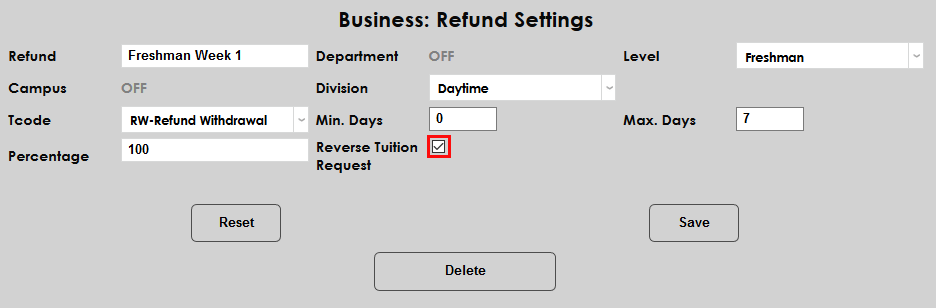
Click the Save button to create the code.
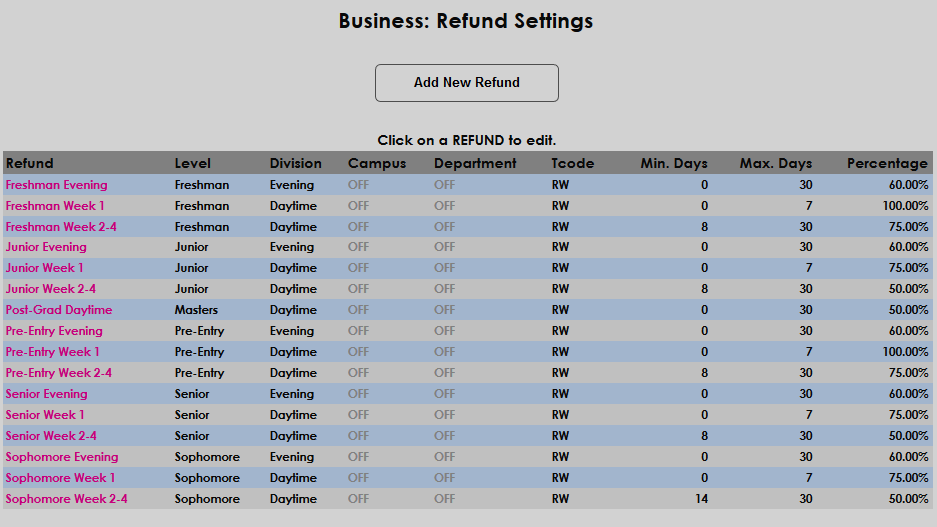
Refund rules must be created for every combination of module statuses and timeframes to avoid errors.
Affiliations
Once refund rules have been created, Affiliations can be added to create an exception to the rule for a specific groups of students. For example, schools can set different rules for in-state and out-of-state students or create an exception for employees of the school. Because the Affiliations table is built on-site, there's no limit to the type or number of groups that can be created.
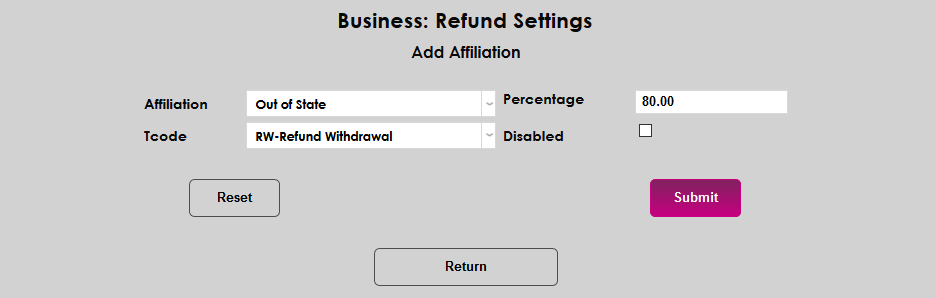
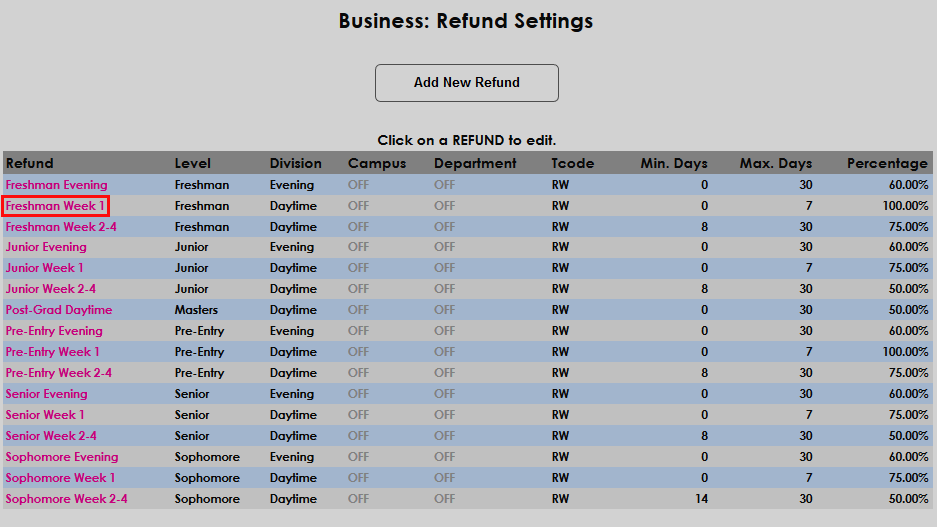
To add an affiliation, click on the title of the refund rule in the far left-hand Refund column. On the edit page, click Add Affiliation.
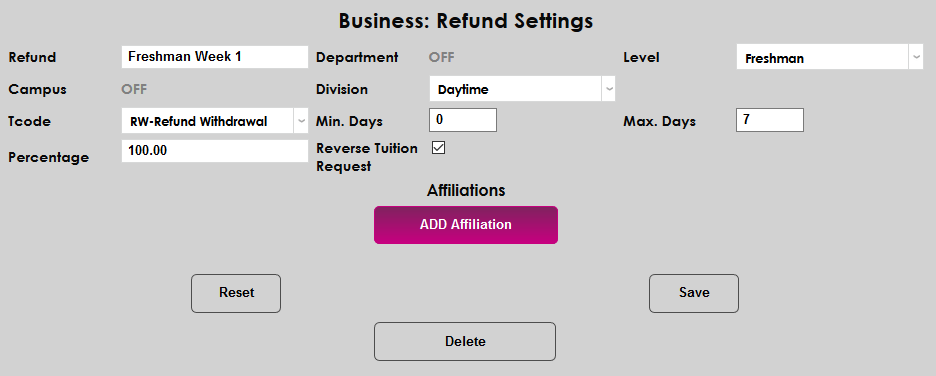
On the following page, select an Affiliation from the dropdown menu, a Percentage to refund, and a T-Code. Schools can choose to create an alternate transaction code for different types of refunds for more detailed record keeping.
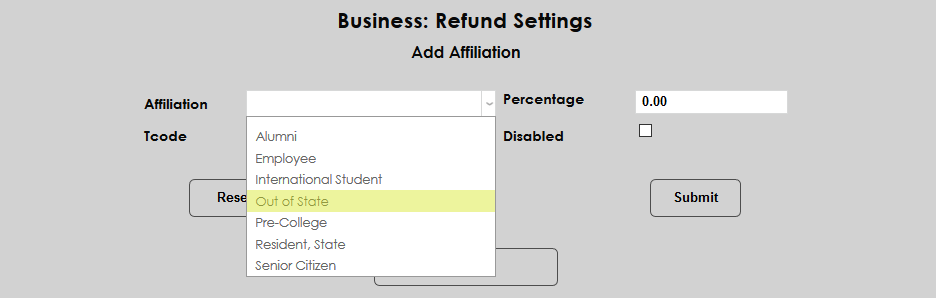
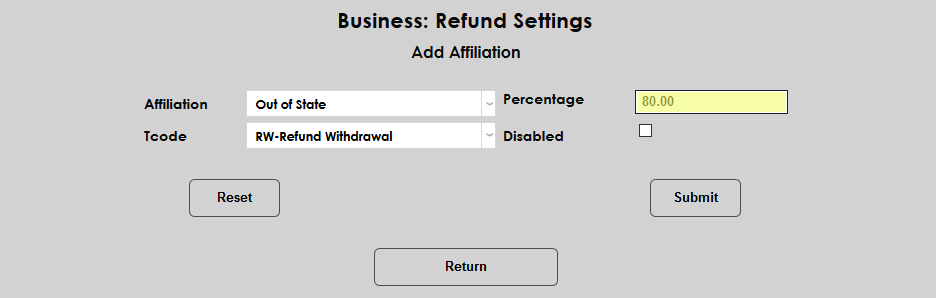
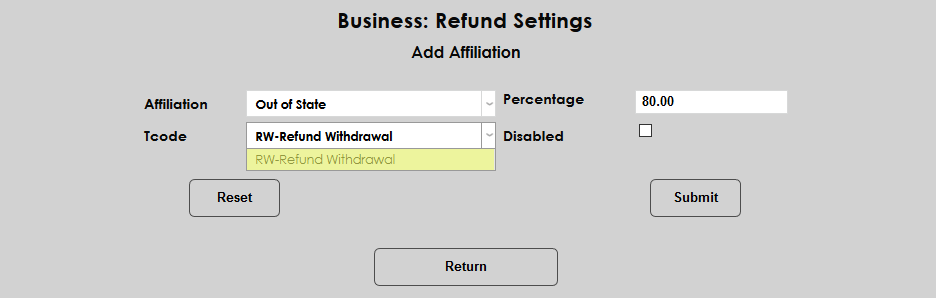
Click the Submit button to add the affiliation. All affiliations that have been added to a refund setting are listed on the edit page of the setting as a clickable link that allows them to be altered or removed.