User Summary
Overview
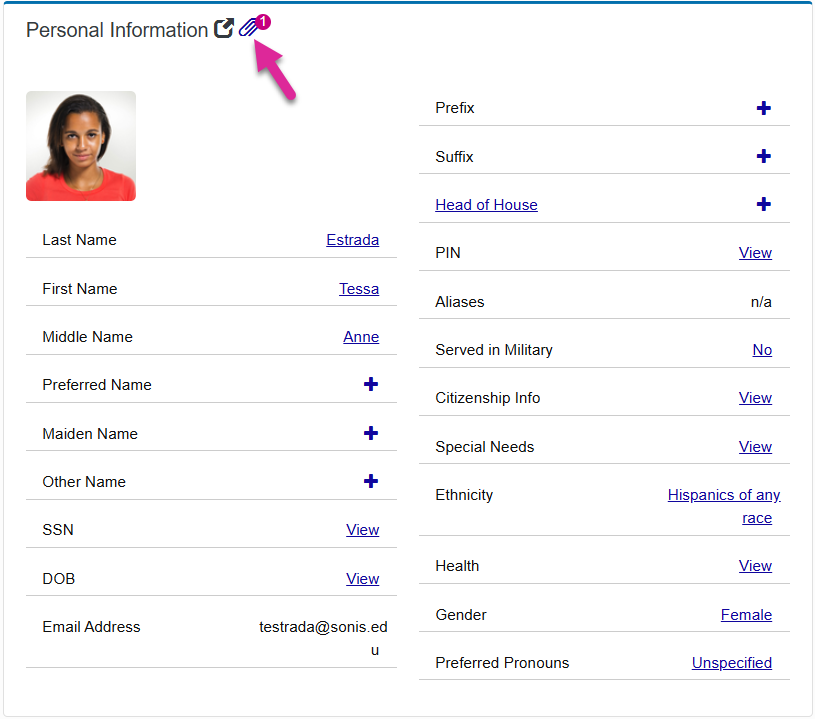
The User Summary page provides an overview of each user's core data from throughout the system. Administrators can use the User Summary page to view the key fields that define each user in Jenzabar SONIS and, with the proper permissions, make changes to this data. The User Summary page is part of the Users hub. It can also be accessed through the Admissions Hub if the user is an active applicant.
Note
The User Summary page honors all User Security permissions and access restrictions for each of the pages shown.
Editing Layout
Jenzabar SONIS staff members with the appropriate permissions can alter the layout of the User Summary to move cards around and remove cards that are not used. Each individual staff profile can have their own layout based on their needs.
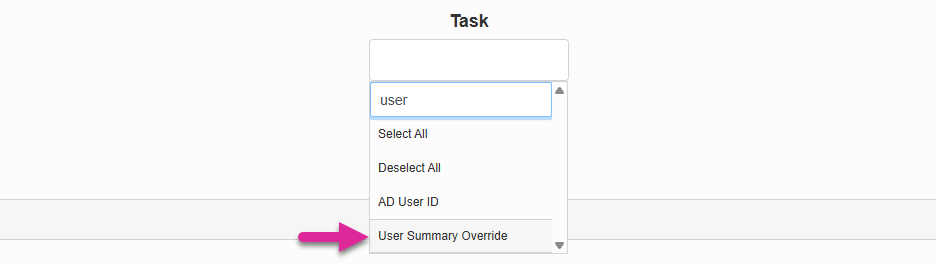
Administrative users must have the User Summary Override privilege active in their User Security profile to edit the layout.
Warning
This User Security privilege should only be given to your system administrator or another select, high-level account since it allows the user to make changes to the layout for every staff profile.
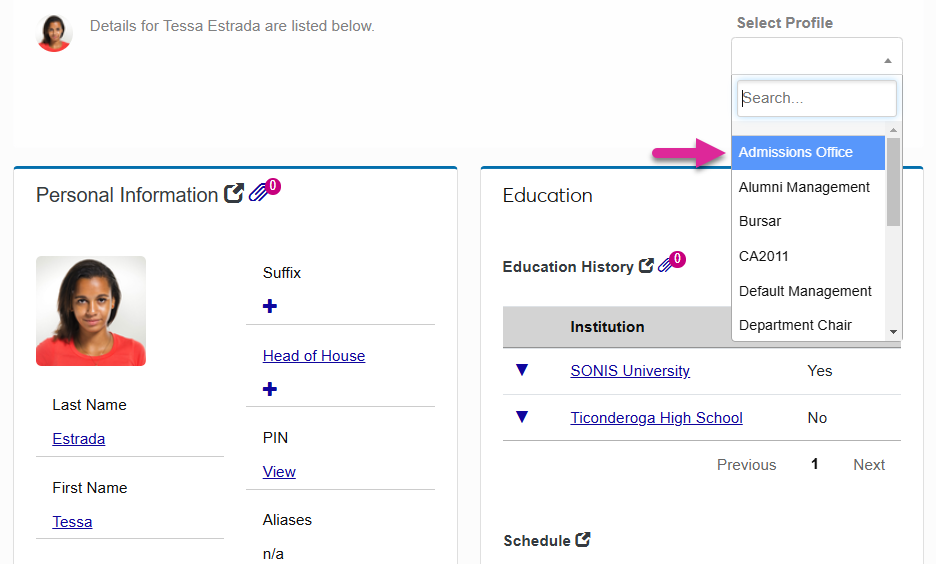
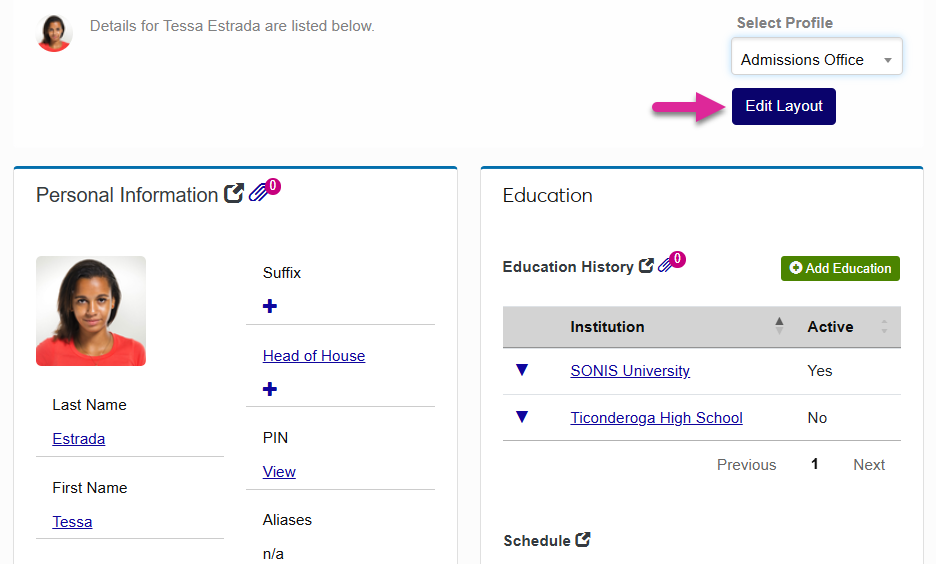
To make changes to the default layout for other staff accounts as a Jenzabar SONIS master user, select a profile and click Edit Layout.
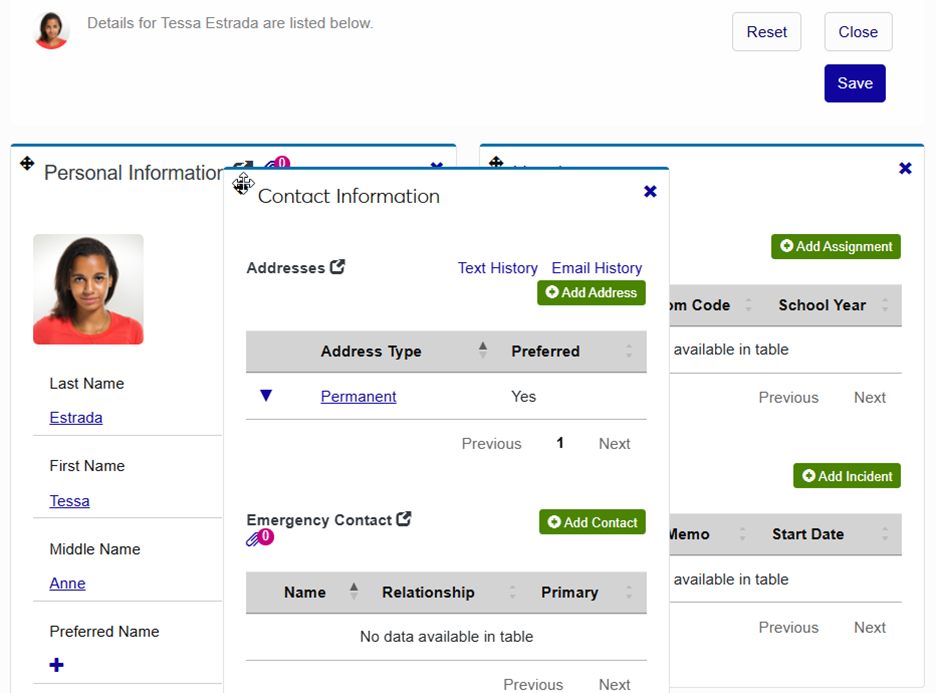
Once you're in edit mode, you can use the icon in the upper left-hand corner of each card to reorder them by clicking and dragging.
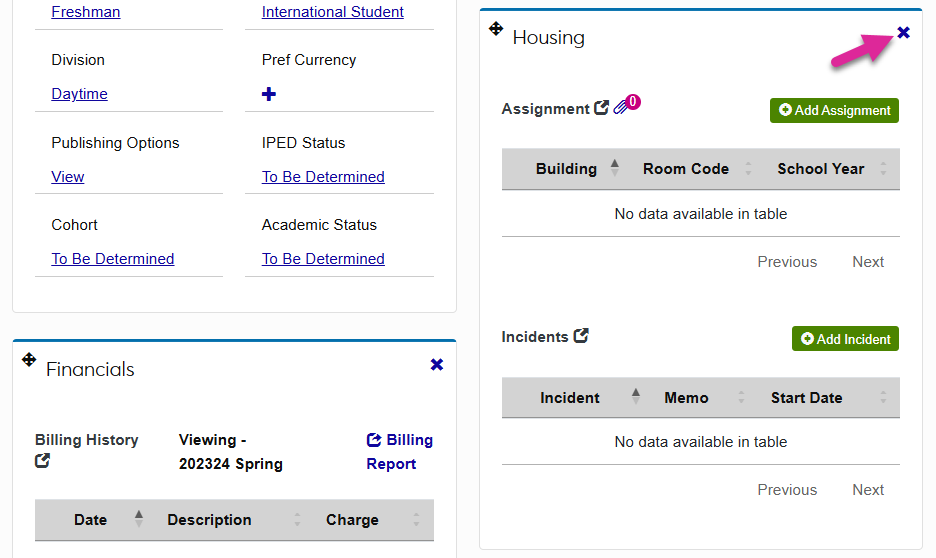
You can also use the X in the top left corner of the card to remove it altogether.
If you make changes that you'd like to reverse click Reset. You can also click Close to exit edit mode without saving the changes.
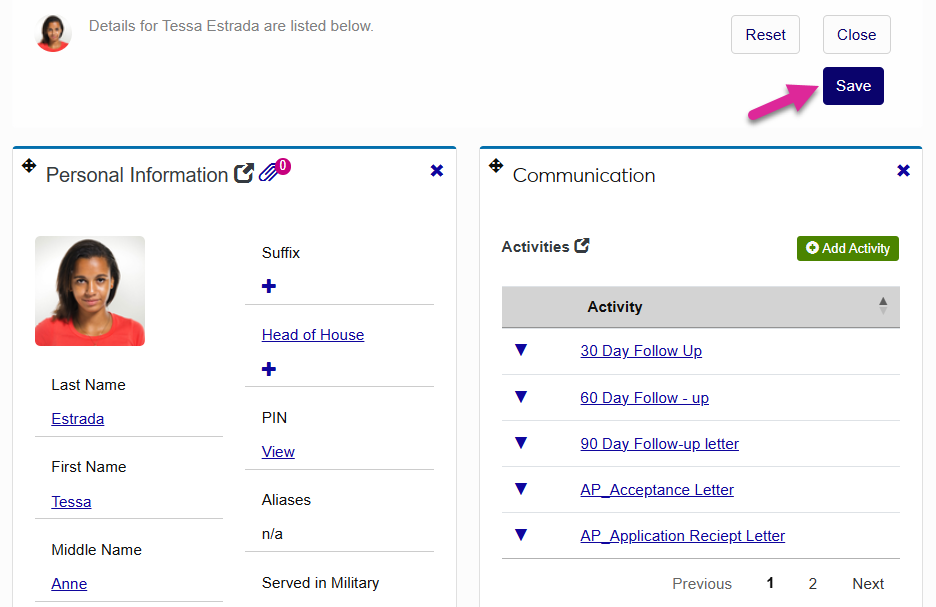
When you're done, click Save to set this as the new default layout for the selected staff profile. You make make changes again later, including restoring any cards that you removed.
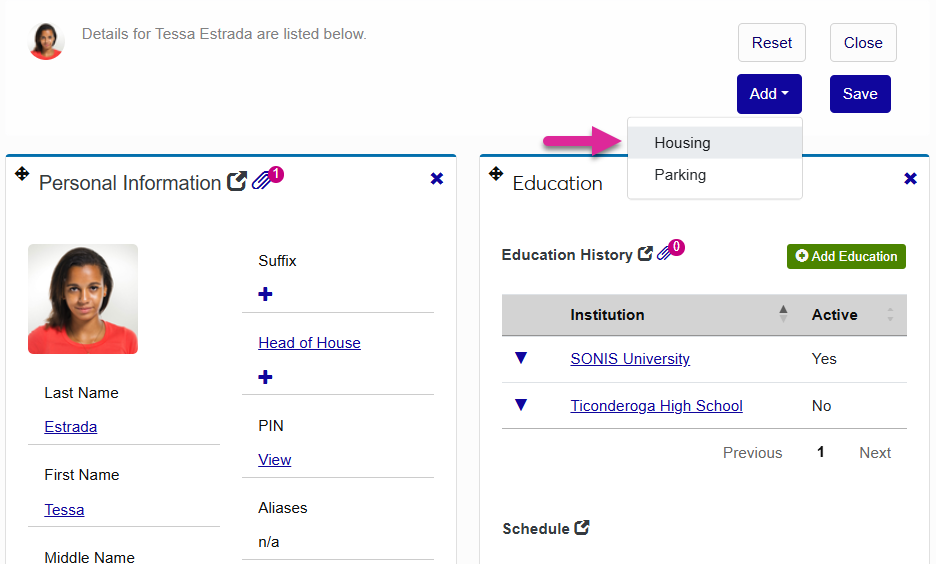
To return a card that has been removed, click Add and select the card.
Working with User Data
Viewing & Sorting
Data on the User Summary page is displayed in a variety of methods depending on the type. Much of the data is displayed in tables, which can be manipulated to display differently.
Some tables on the page may have additional data that is not displayed. To see this hidden data, click the down arrow.
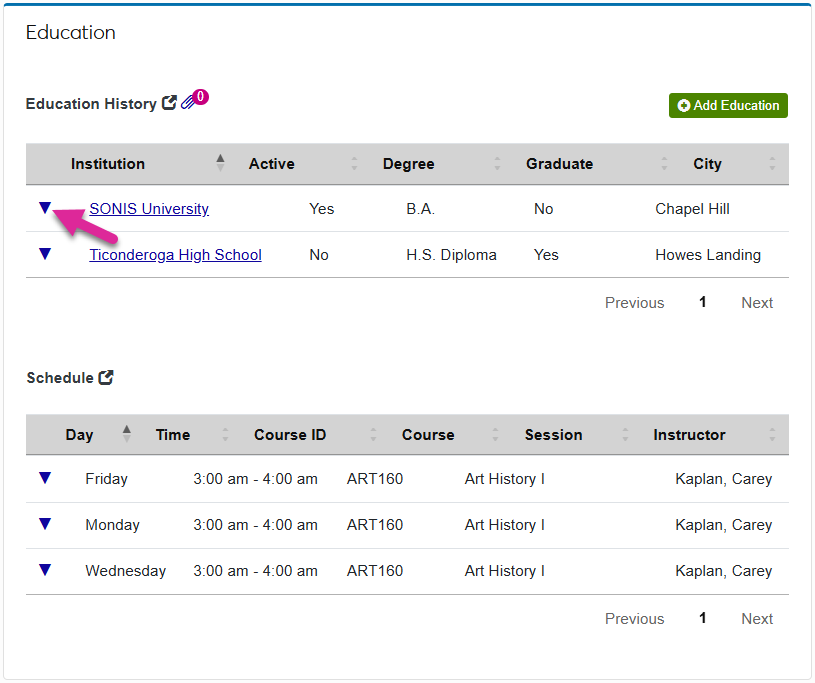
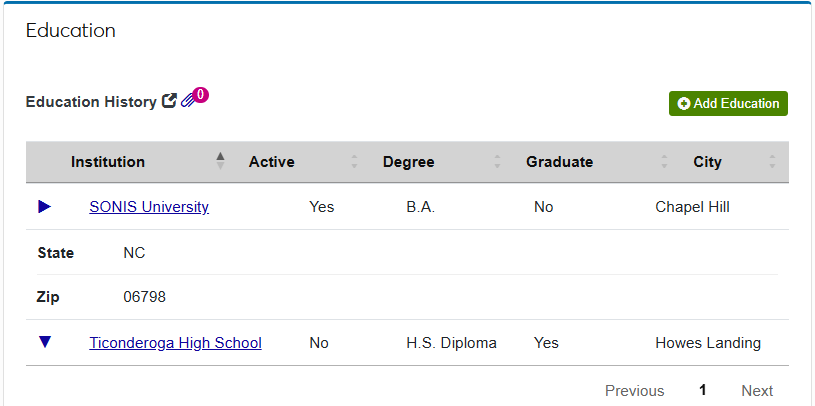
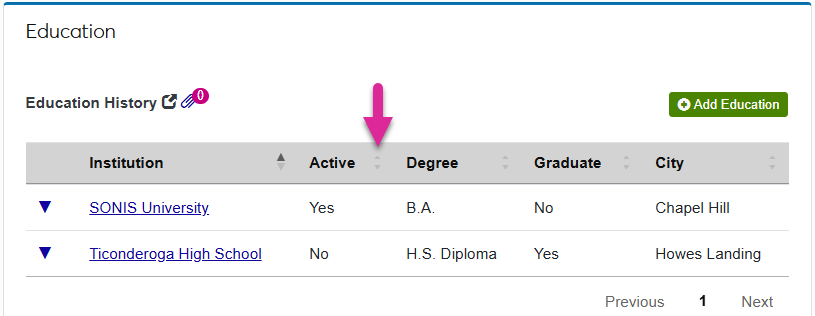
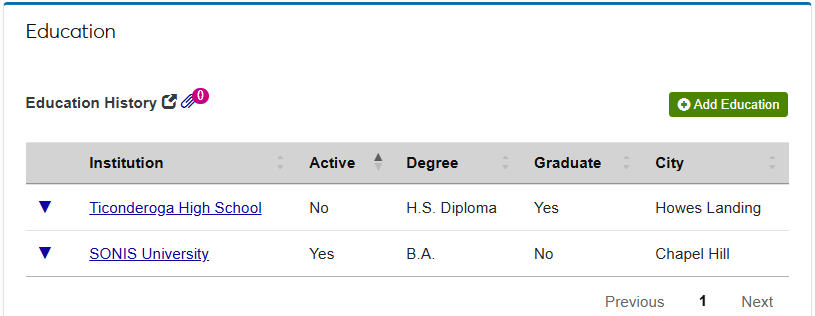
Each table can be sorted by by any column header, either in ascending or descending order. Click an up or down arrow next to any column header label to sort by that column.
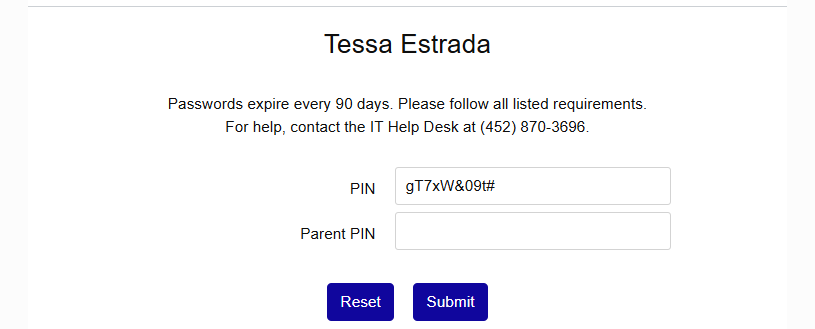
Sensitive data may also be hidden behind a View link on some cards. Click the link to view this data and, if you have the proper security permission, make changes to it.
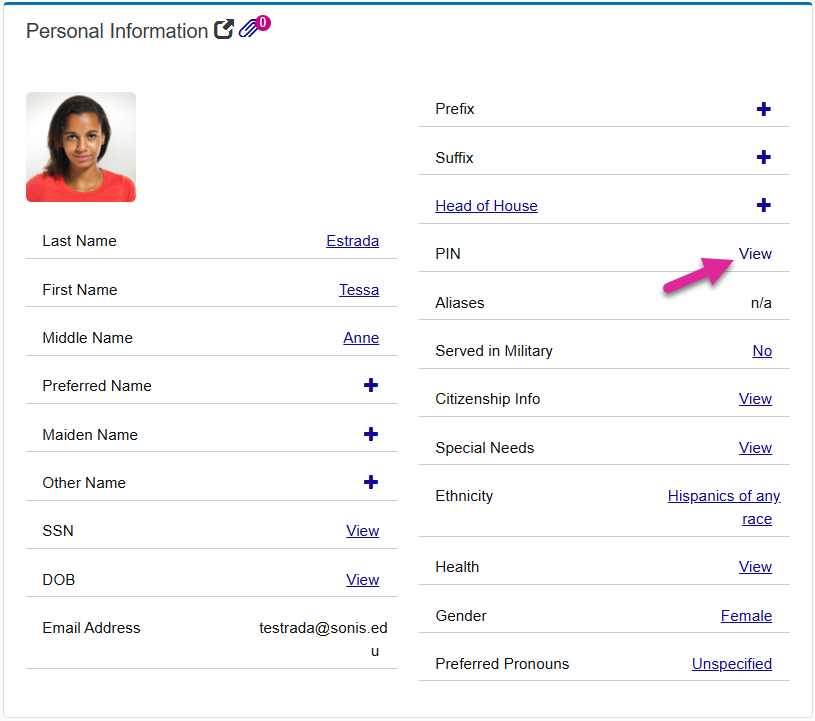
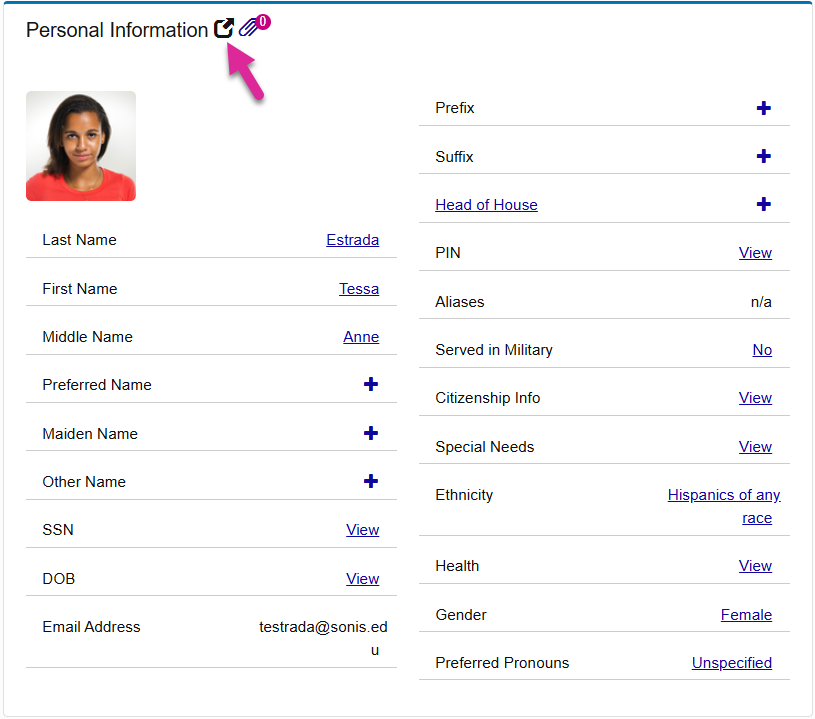
Click on the out arrow icon to navigate to the Jenzabar SONIS page where the full data for the card is stored. For example, the Personal Information is pulled from the user's Biographic page, so the out arrow links there.
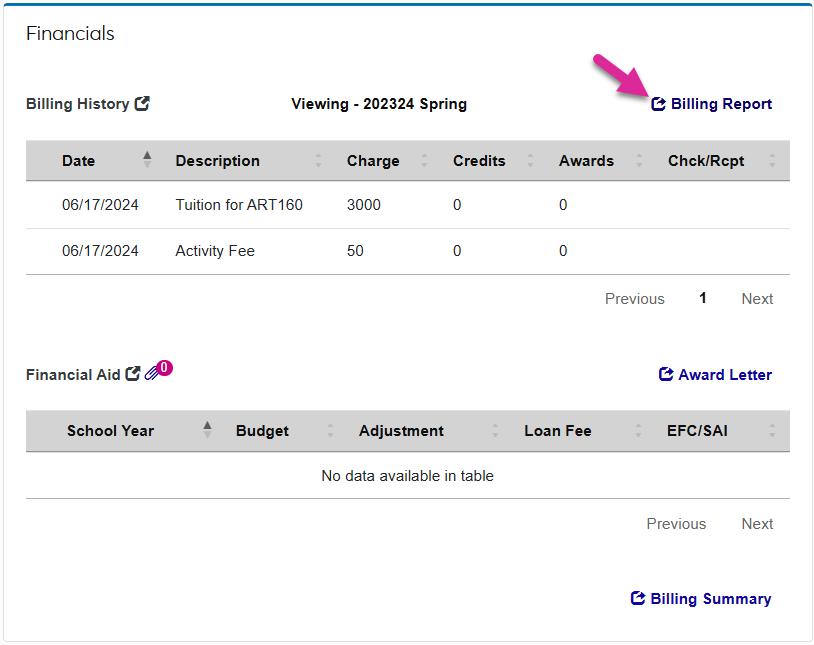
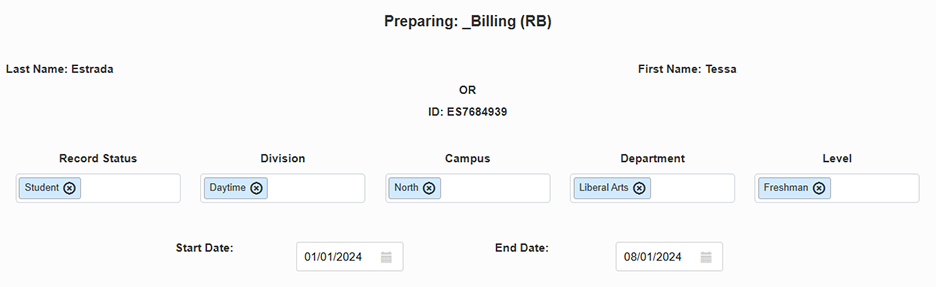
Some cards contain links to reports, either from the Reports hub or the Financials hub. Click on these links to navigate to the report build page with this user already selected.
Adding & Editing Data
As previously mentioned, sensitive data is hidden behind a link that only users with the correct permissions can view or edit. Click on these links to make changes to this data.
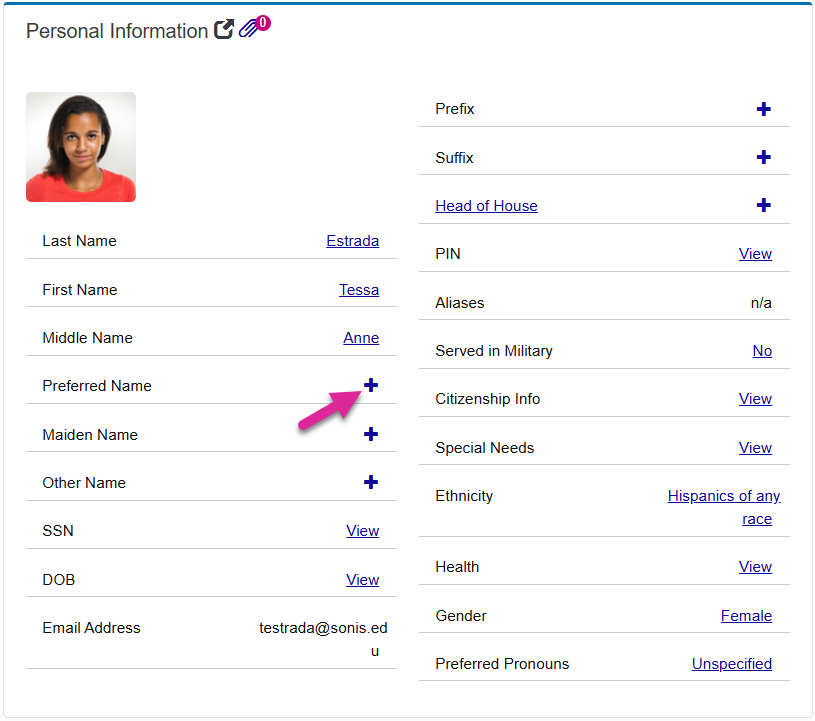
Standard data can be added using the + symbol.
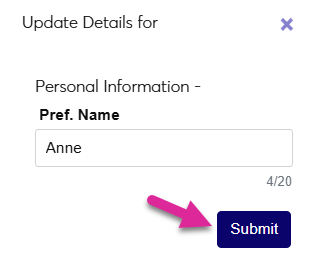
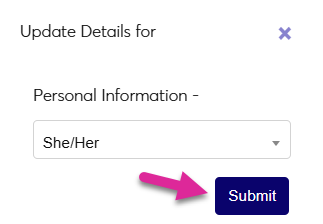
To edit existing data, click on the link and make changes in the pop-up window.
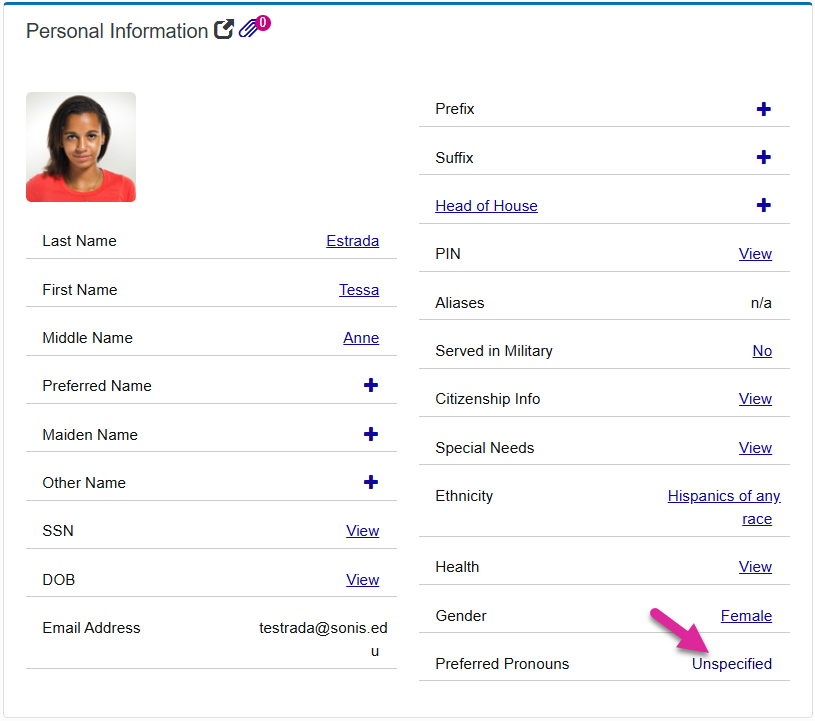
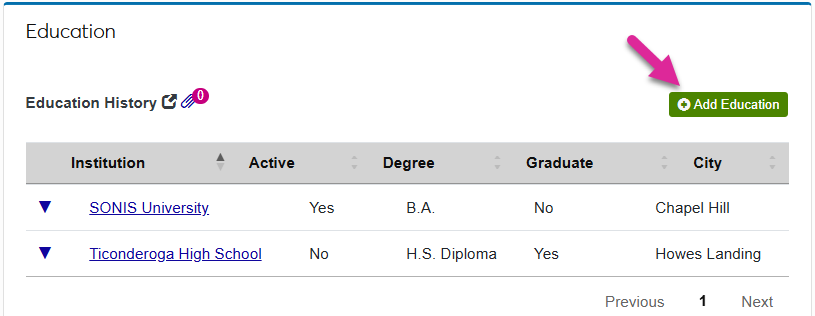
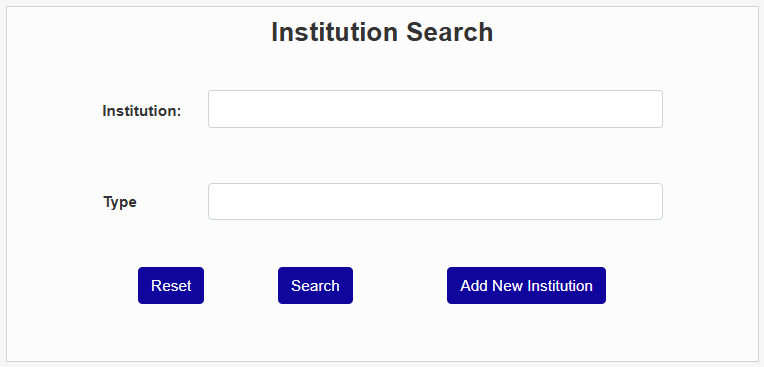
To add an all new record, click the green add button.
Attaching Files
Some cards offer the option of attaching a file. This has based on your school's Document Management System setup. Click on the paperclip icon to upload a file. Only image files such as PDFs and JPGs are accepted.
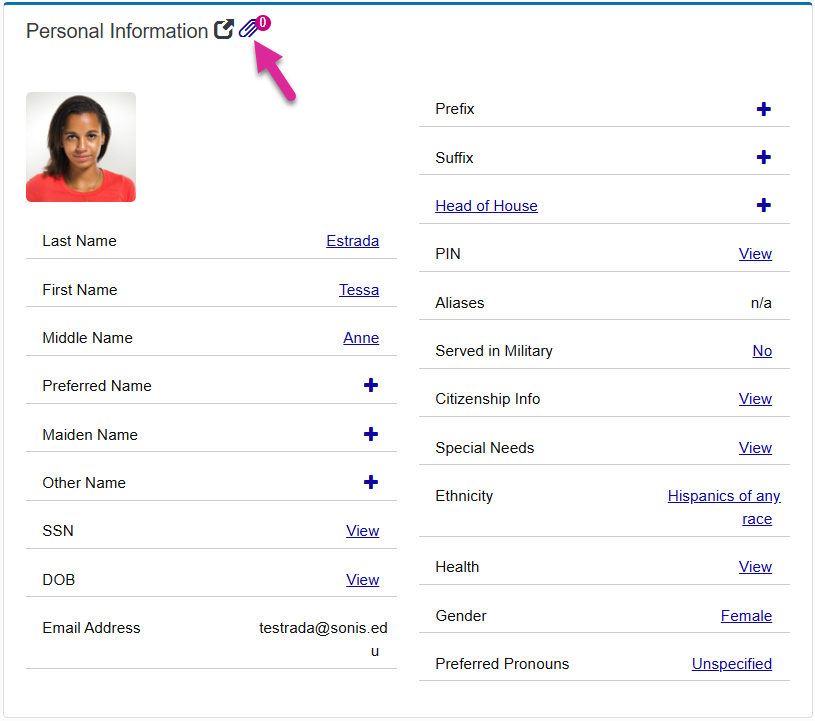
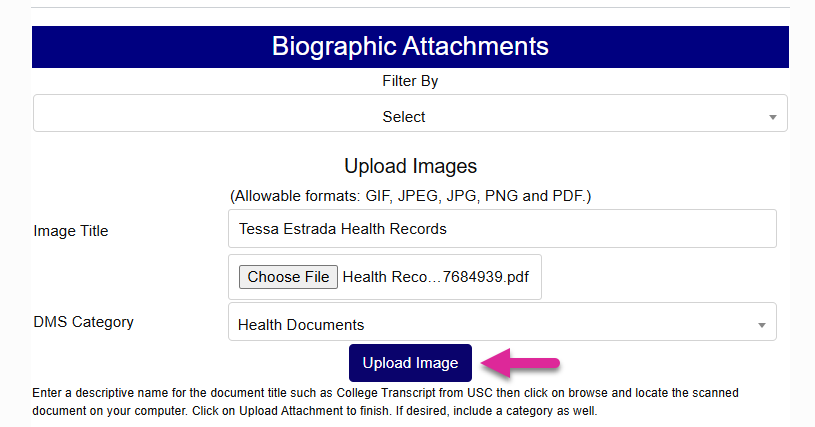
Once a file has been uploaded, the number on the icon will update. Click the paperclip again to view attached files. Keep in mind that these files are also available through the page where this data is stored.