Checklist Items
Overview
Checklist items are tasks that must be completed before an applicant can be accepted to the institution. They may include things like sending the school a transcript or a portfolio, paying an application fee, giving an admissions interview, or anything else that the institution deems necessary for admittance. The Checklist Items page in the SONIS applicant portal allows applicants to view their checklist items and track their progress towards completing each checklist. In some cases, applicants may be offered the option to upload a file that satisfies a checklist item from this page.
Administrators looking for setup instructions for this page should visit the Checklist Records wiki page.
Checklist Items
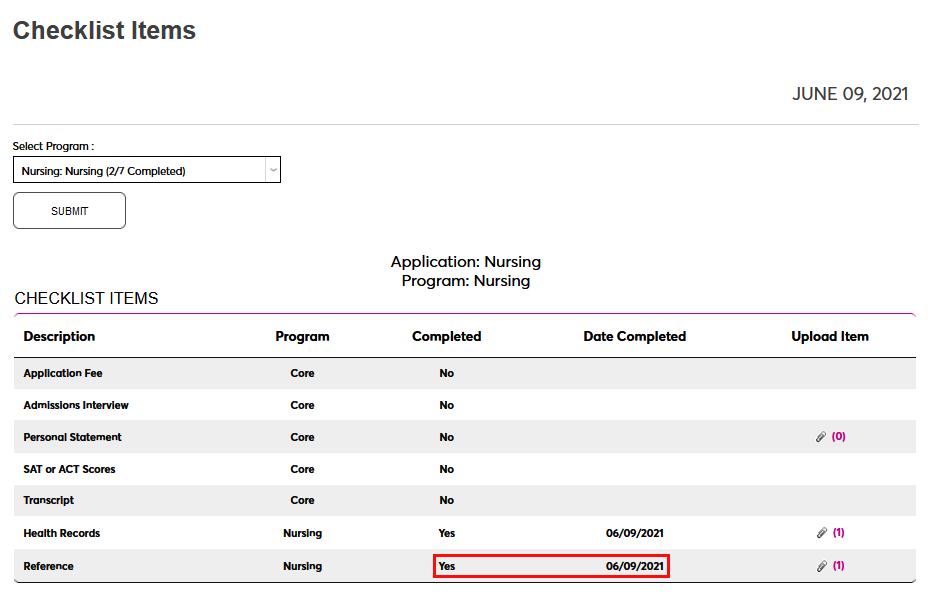
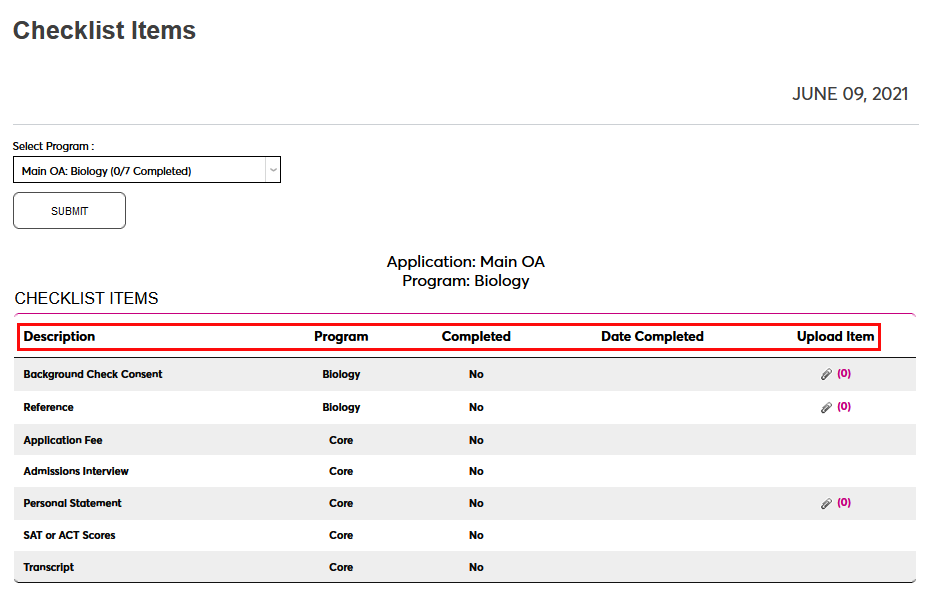
To view checklist items, click on the Checklist Items page from the left-nav menu under the General tab or click on the link under the Checklist Items column on the Bio page. Each checklist item is listed with a basic Description, the Program it's associated with, the Date Completed if applicable, and the option to Upload Item to satisfy the checklist item if this option has been activated by school administrators. Items marked Core apply to all applicants while others may be program-specific.
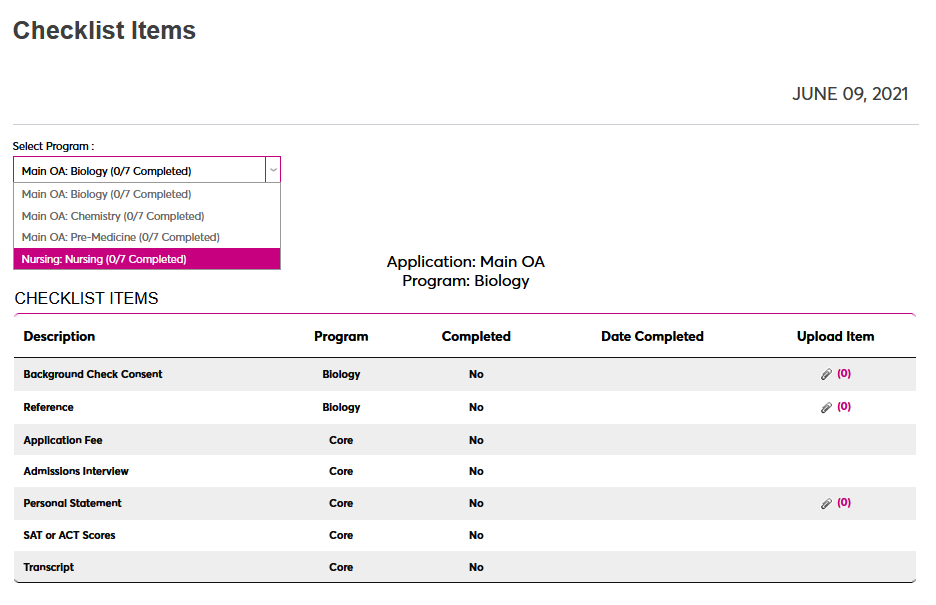
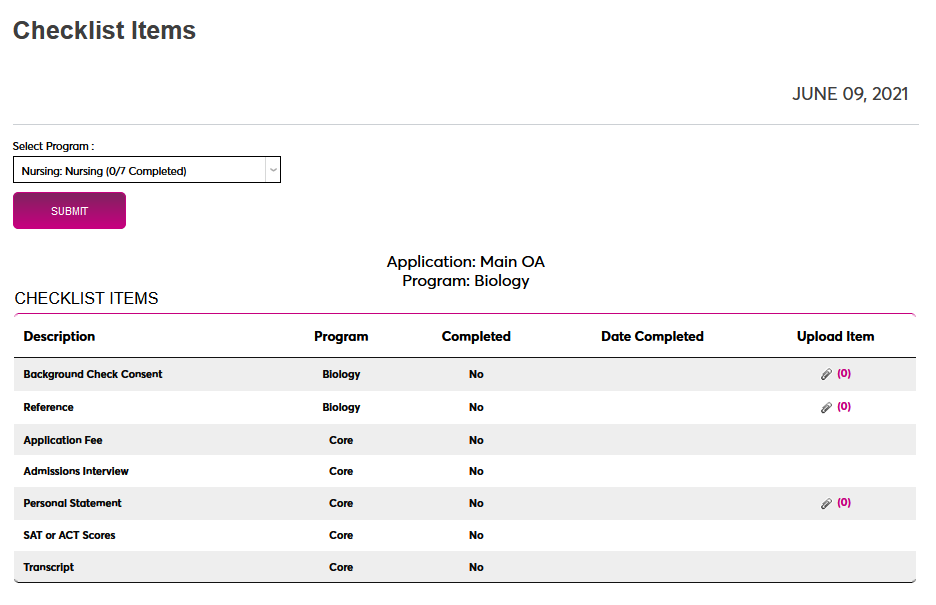
If applications for more than one program have been submitted, a Select Program menu will appear at the top of the page. To view the checklist items associated with another program, select that program and click Submit.
To upload a checklist item, if applicable, click the link in the Upload Item column. This number displays the number of files that have been uploaded so far. A new window will open where the applicant can upload their file.
From the pop-up window, use the File Title field to create a descriptive name for the document that will be used to identify it throughout the system.
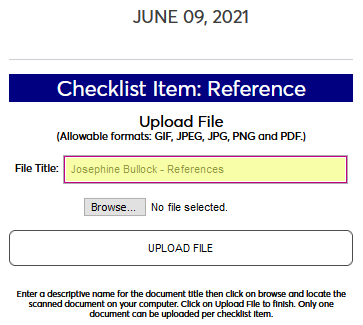
Next, click the Browse button and locate the file on the local system. All uploaded documents must be in an image format: PDF, JPG, PNG, etc.
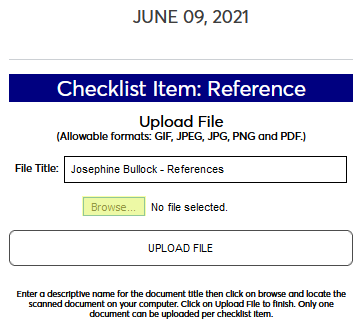
Select the correct file and click the Upload File button.
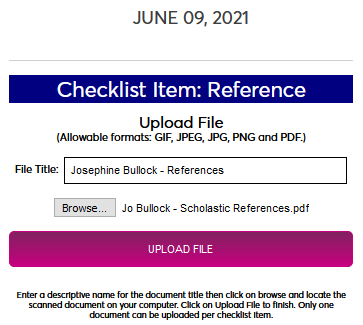
Once the file has been uploaded, it will be listed on this page where it can be viewed or removed.
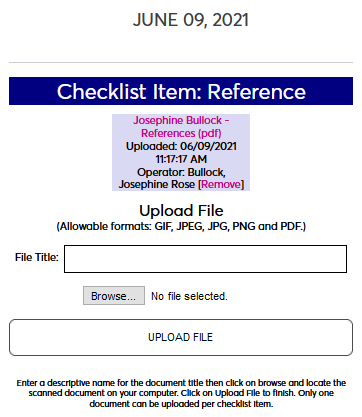
Once a file has been uploaded, the checklist item will automatically be marked as completed on the date that the file was uploaded. If the file is removed, the checklist item will no longer be marked as completed. Note that checklist items may also be returned to an incomplete status by school administrators if they feel that the uploaded document does not satisfy the requirements.