Advisors
Overview
The Advisors utility is used to assign faculty advisors to students. To access the page, select a student using the Name Search function and click on Advisors from the left-nav menu.

Students can also be assigned to advisors in bulk using the Bulk Advisor Assignment tool.
Assigning Advisor
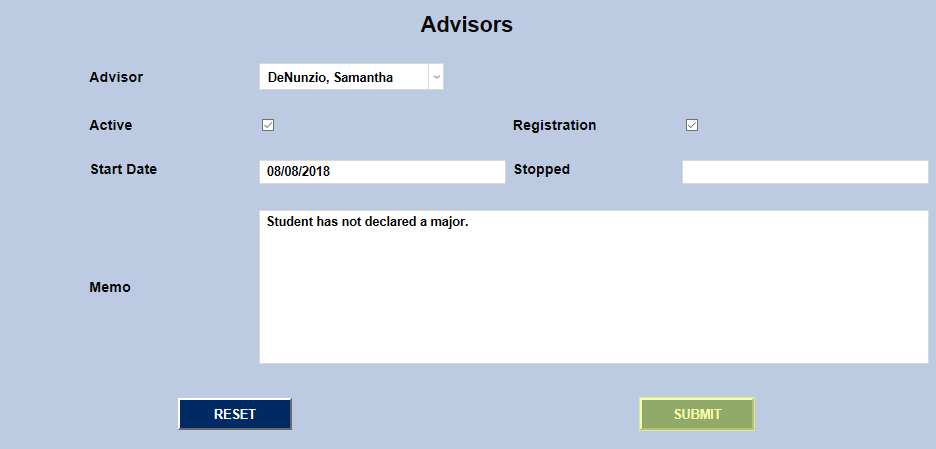
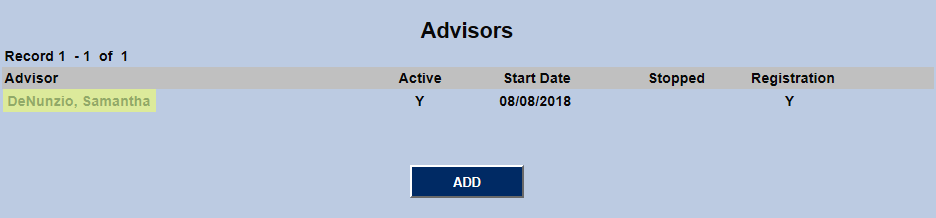
To begin assigning an advisor, click the Add button.

Select a faculty member from the Advisor dropdown menu. This list is populated based on information set up in each faculty member's Biographic page as explained below.
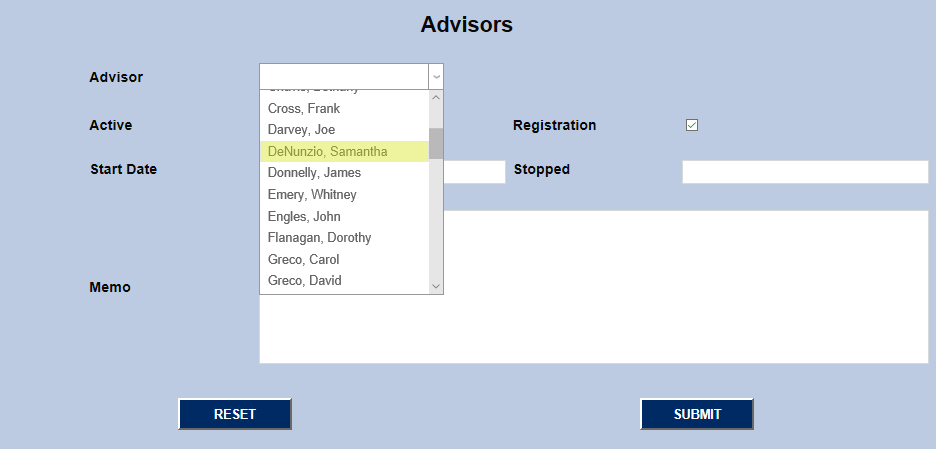
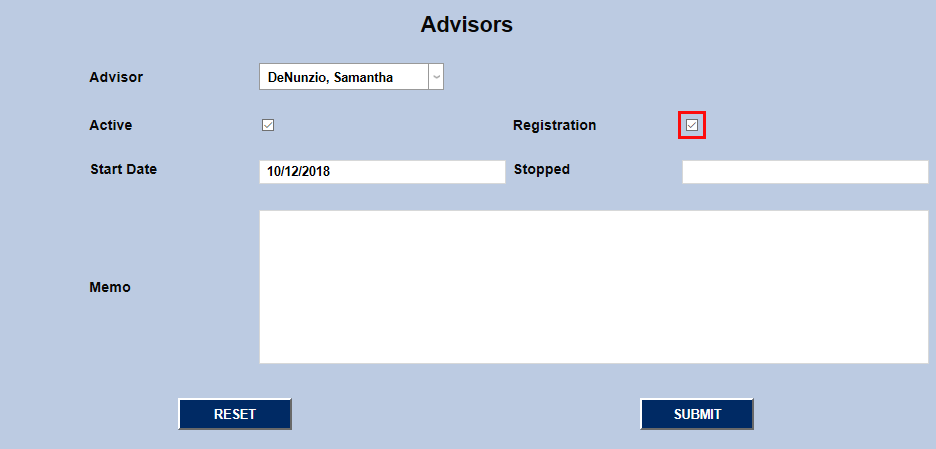
Leave the Active box checked if the faculty member should be the student's current advisor. Leave the Registration box checked if the faculty member should have access to register the student. Uncheck either or both boxes if these choices do not apply.
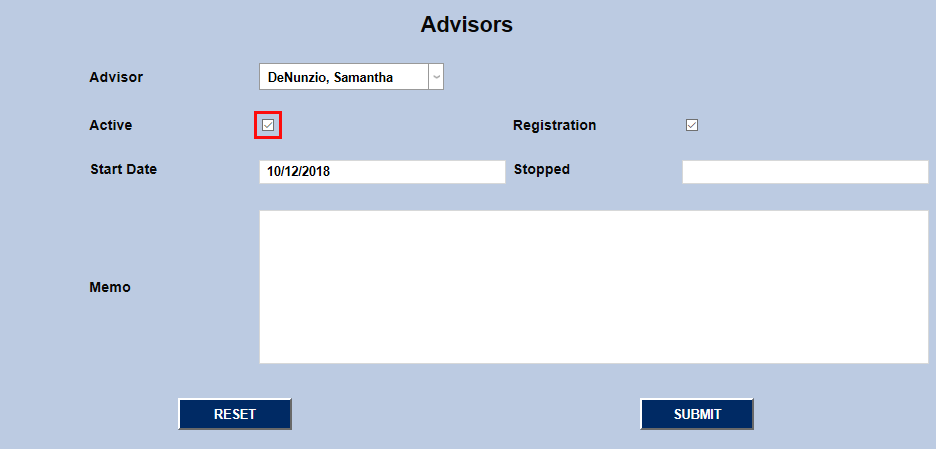
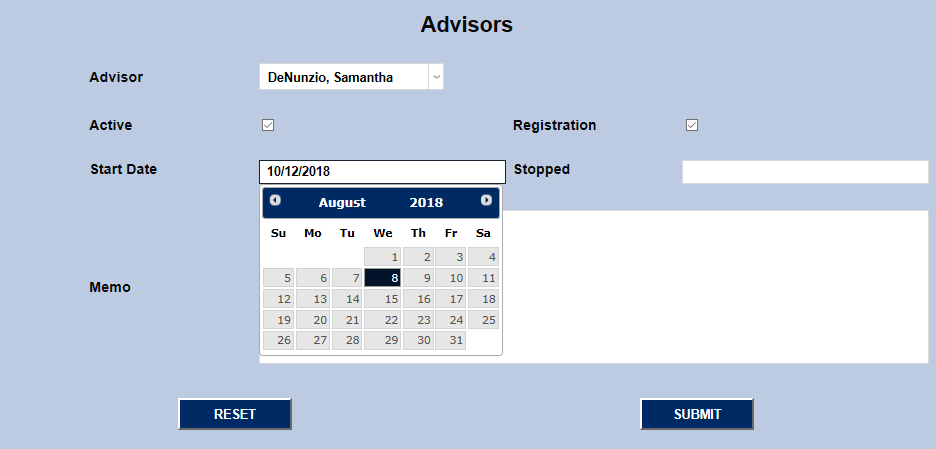
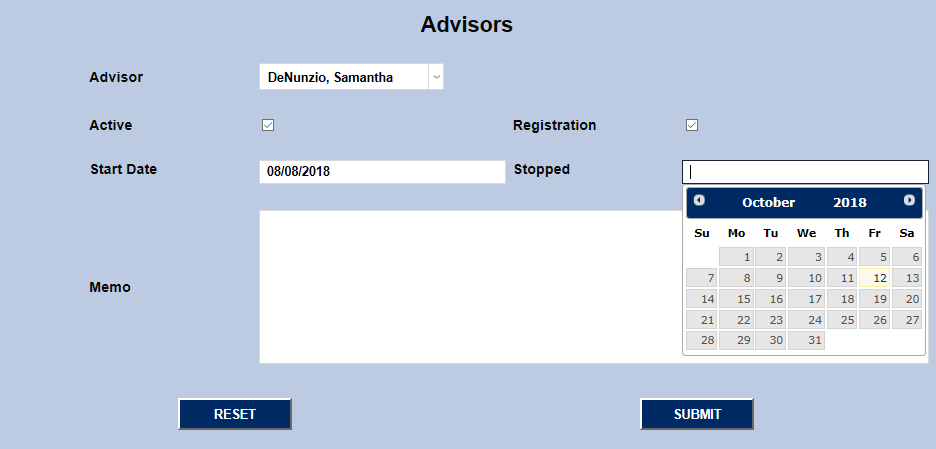
Select a Start Date for the advisor assignment and a Stop Date if this advisement period has ended.
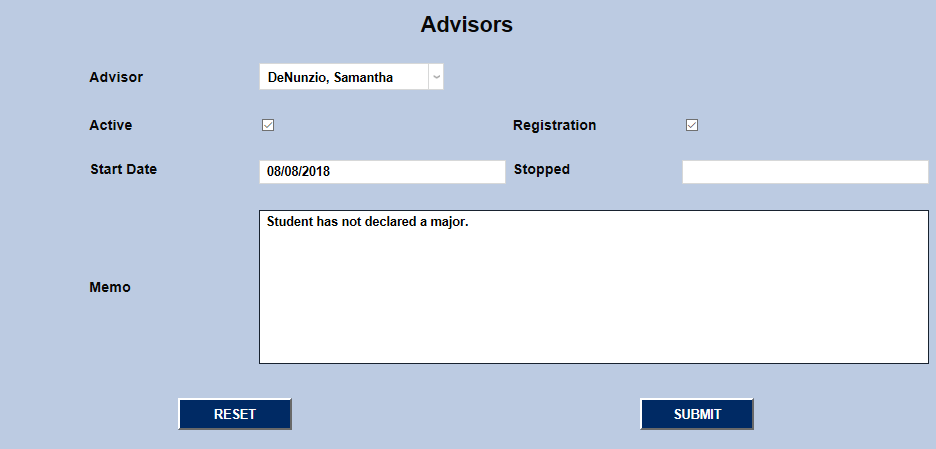
A Memo field is available for any notes about this assignment. Click Submit when finished to save the changes and activate this advisor.
Editing Advisor
To edit an existing advisor assignment, click the advisor's name in the left-hand column.
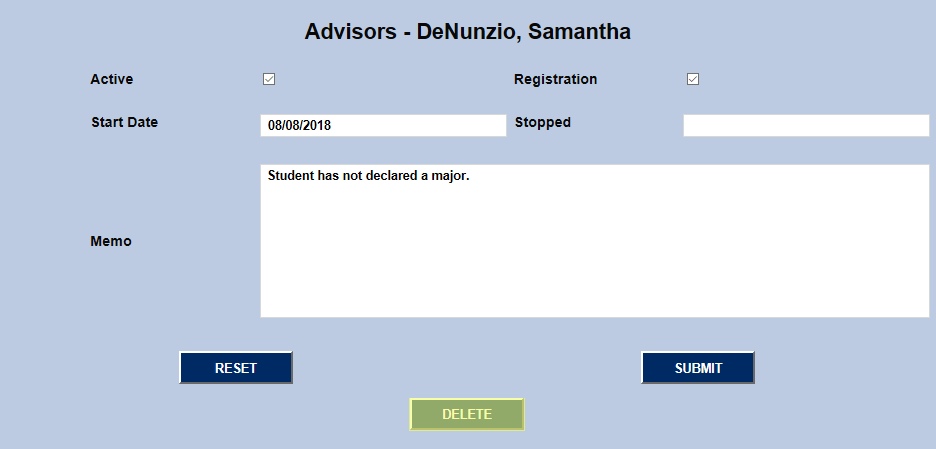
On the following page, an administrator can remove the active status of an advisor, remove them as a registration advisor, adjust the start date, add a stop date, add or change a memo, or remove the advisor assignment altogether with the Delete button.
Faculty Setup
The list of faculty used when creating advisor assignments is populated by changes made to the records of individual faculty members.
Advisor Type
The Advisor Type table is accessed through the Table Maintenance utility in the Systems hub.
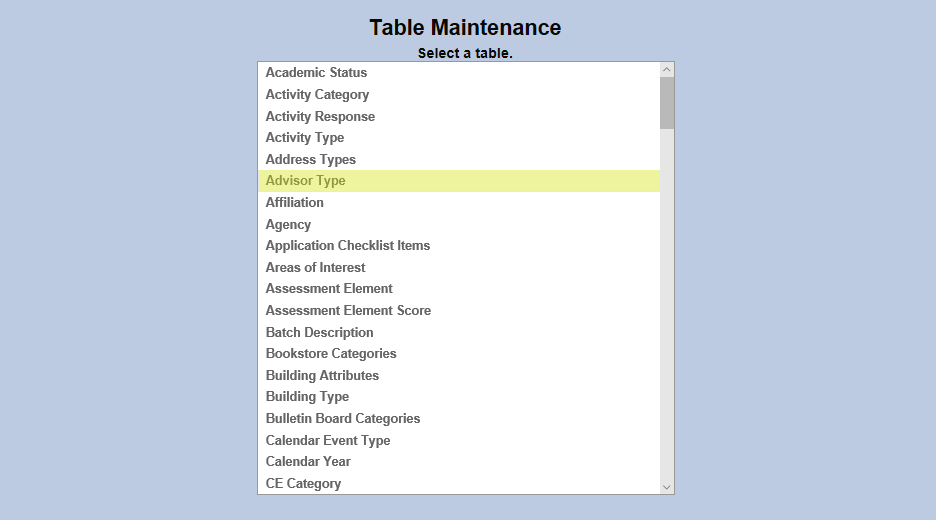
Click Add New Record to create a new advisor type or click on an Advisor Type Code button to edit an existing type.
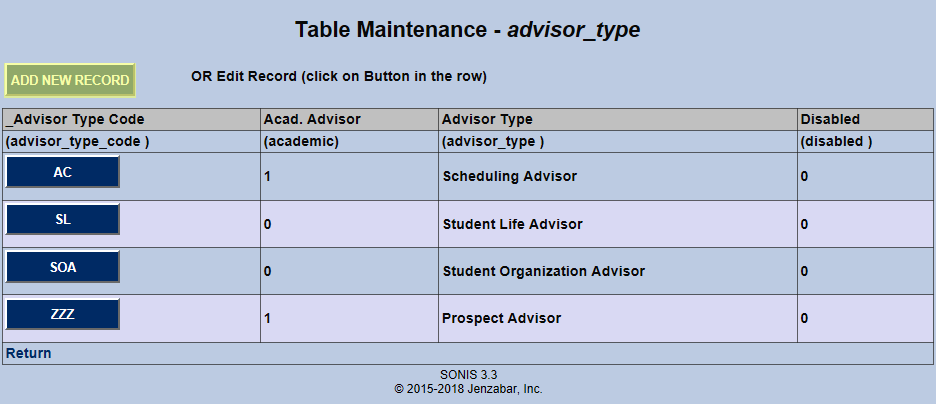
If creating a new type, fill in the Advisor Type Code field. This field has a three character limit. Pre-existing advisor type codes can not be changed.
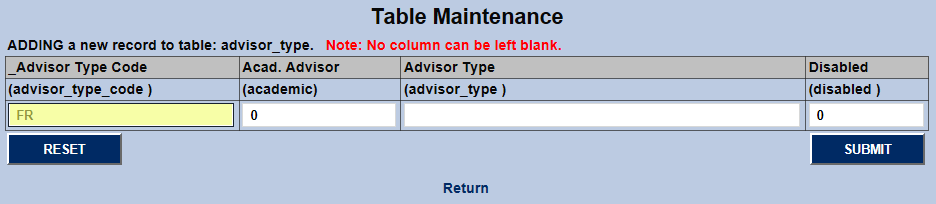
Provide a full-length name for the Advisor Type . This field has a 35 character limit.
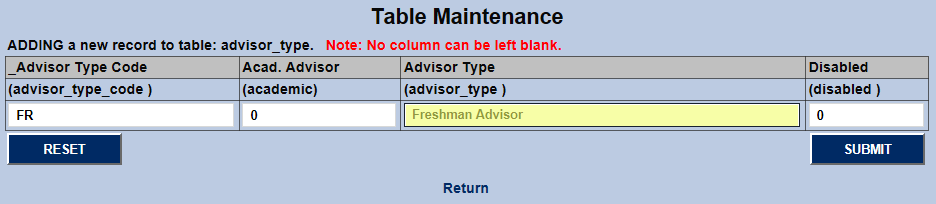
If the advisor is an Academic Advisor , change the "0" in this field to a "1" to turn it on. If the advisor type is a non-academic role such as a student life advisor or an organizational advisor, leave this bit set to "0" for an off designation.
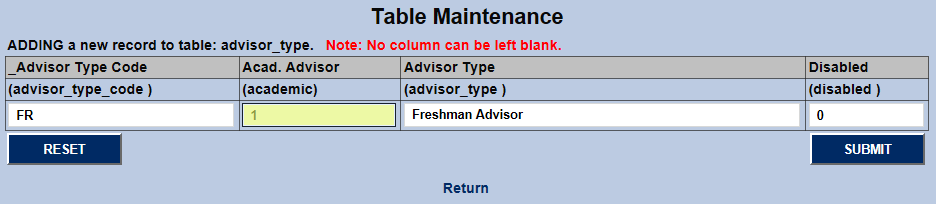
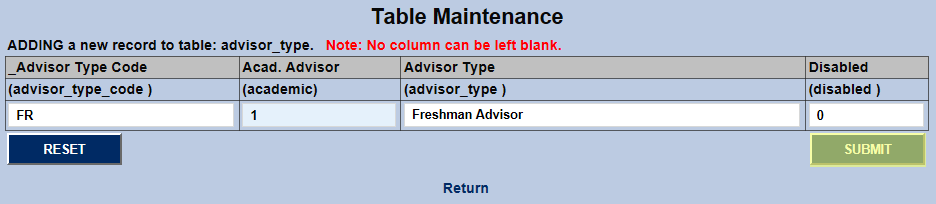
Change the Disabled bit to "1" to disable the advisor type and prevent it from being used.
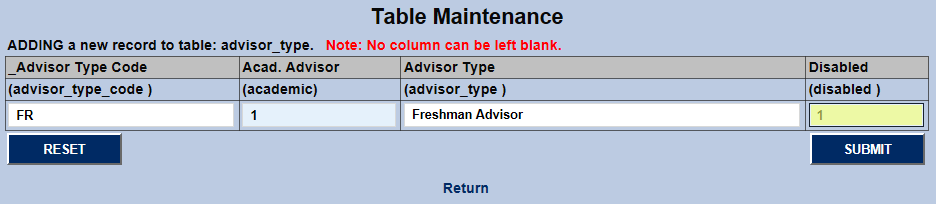
Click Submit to save the changes and complete the process.
Biographic
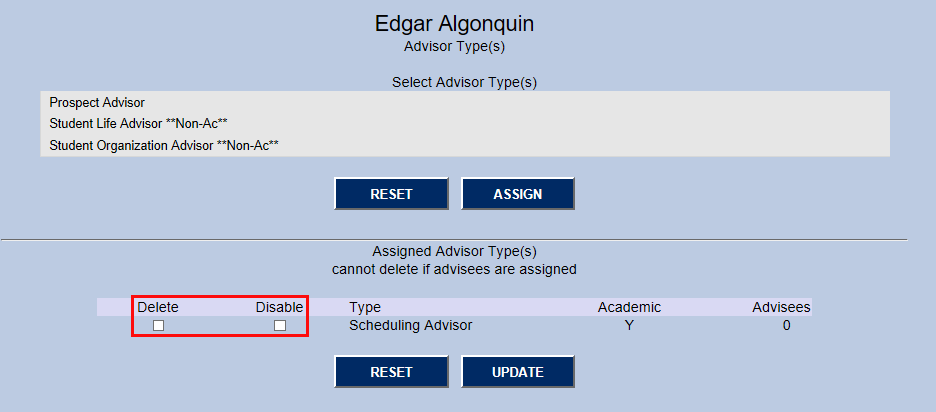
The Advisor checkbox is located on each faculty member's Biographic page. Check this box if they should be listed as an advisor and then click View under the Advisor Type heading to set the type of advisor.


The Advisor Type selection opens in a new window. Select a advisor type from the list and click Assign to set this faculty member as an advisor.
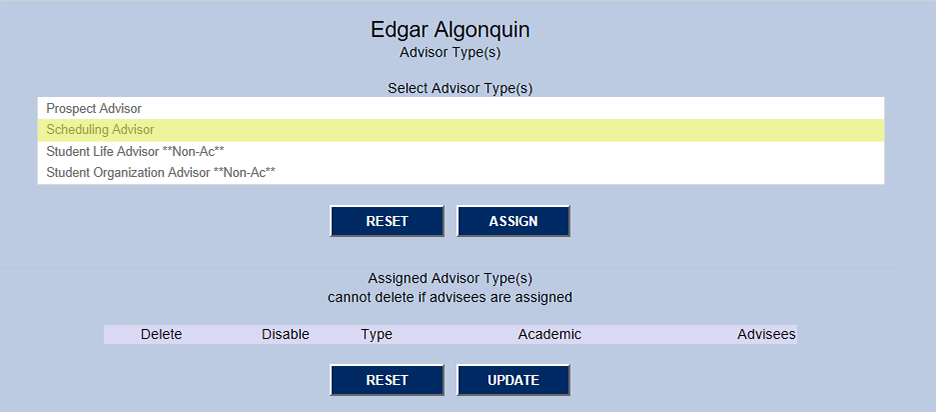
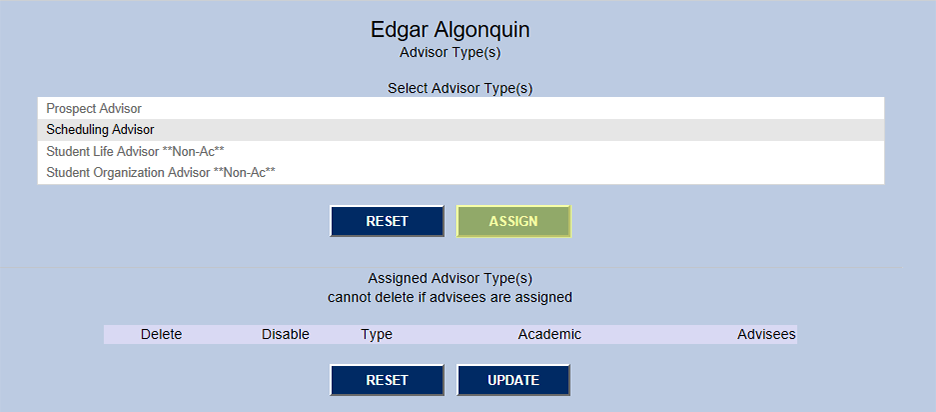
Once the appropriate changes have been made, close the window and click Submit at the bottom of the Biographic page to save the changes.

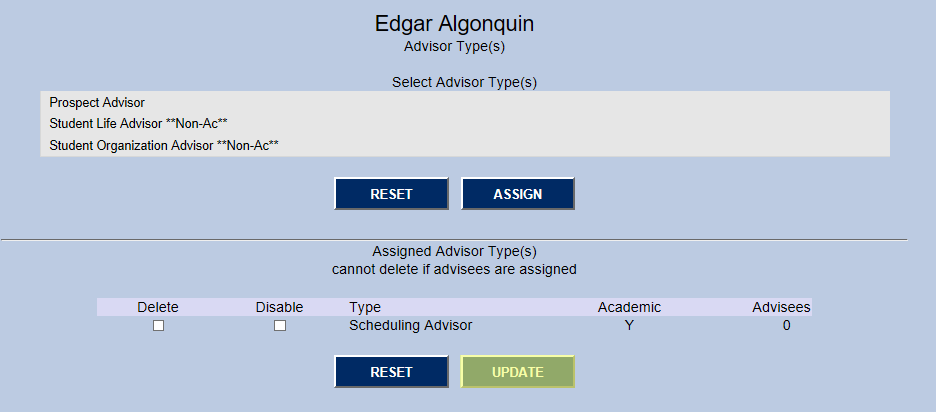
Faculty members who already have an assigned advisor type will have that type or types listed at the bottom of their Advisor Types page. Check the Delete or Disable boxes and click the Update button to make changes. Once advisees have been assigned, advisor types can not be deleted.