Grade Sheet
Overview
The Grade Sheet utility allows instructors to load an Excel spreadsheet or text file of assignments to use for grading. It is associated with a course section and is not visible to anyone but the instructor. The grade sheet is not integrated with the Gradebook functionality. Generally, institutions will choose to turn the Grade Sheet function off if the Gradebook is being used.
Use
To add a grade sheet, enter the Course Management menu of the Faculty portal and click Grade Sheet. Select the needed School Year, Semester, and Course Section if they are not already populated.
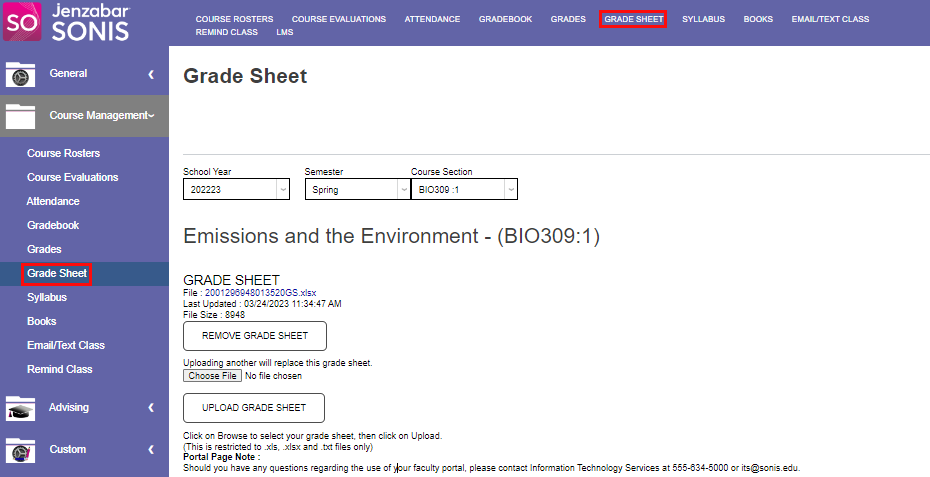
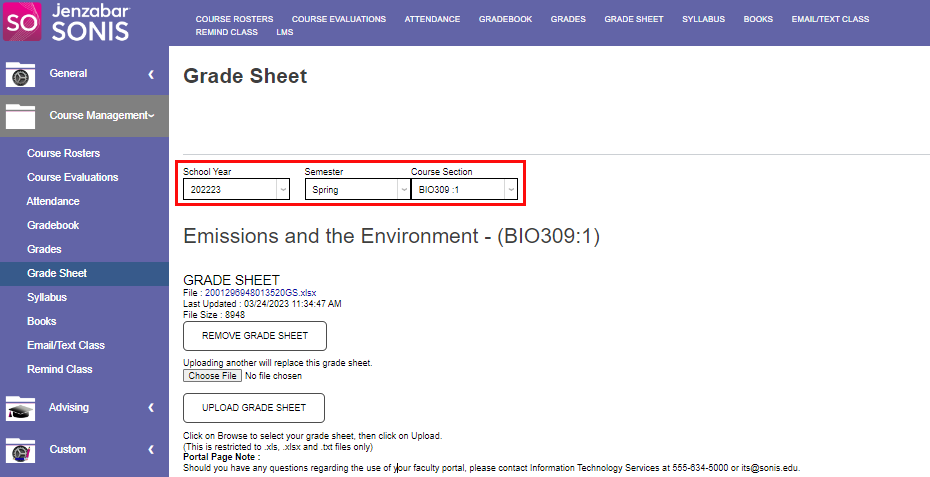
If a grade sheet has already been added, it displays below the Grade Sheet heading and includes details about when it was uploaded and the file size. Clicking the File link displays the existing grade sheet. Clicking Remove Grade Sheet removes the current grade sheet.
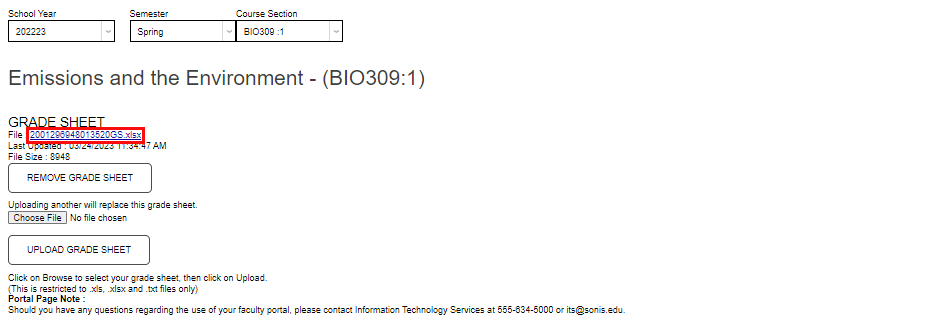
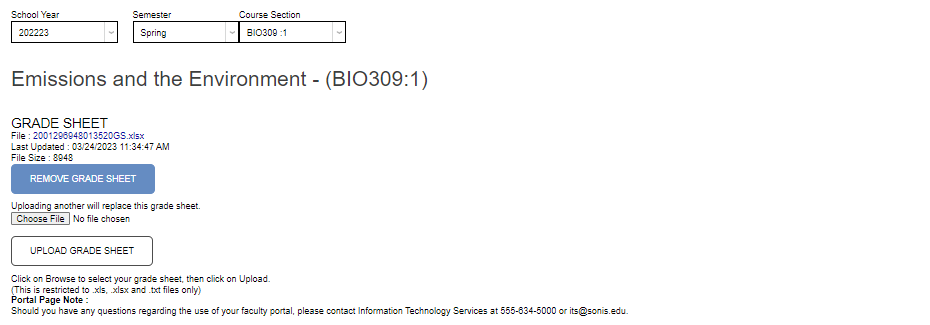
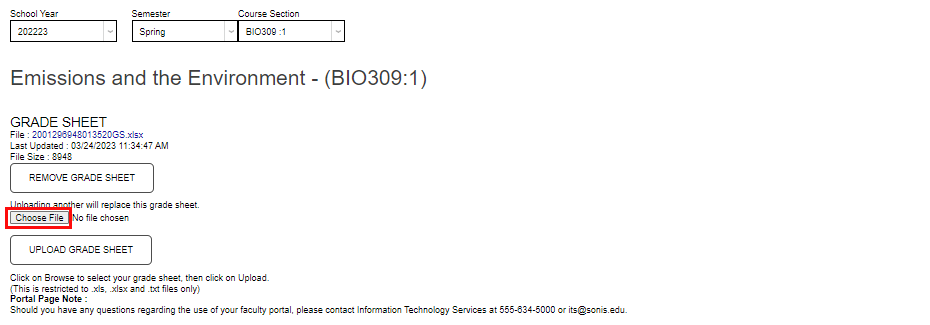
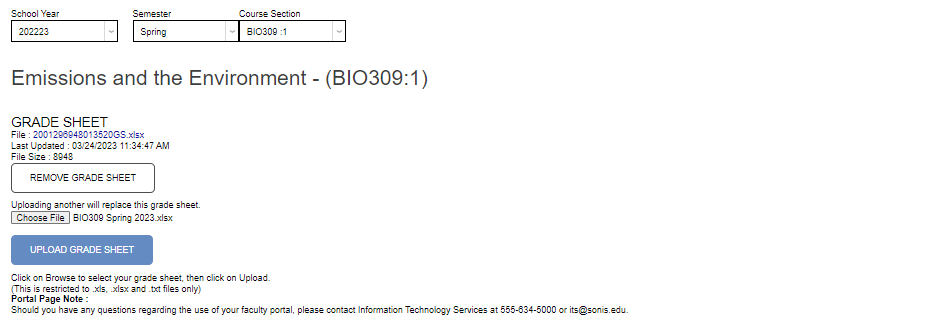
Adding a new grade sheet using the Upload Grade Sheet button replaces the existing grade sheet, so it is not necessary to remove an existing grade sheet to replace it. Click Choose File to select the new sheet. It must be in an .xlsx, .xls, or .txt file format. Click Upload Grade Sheet to finalize loading.