Textbooks
Overview
Jenzabar SONIS allows you to enter textbook information into the system for use by faculty and students. SONIS uses Amazon search functionality and ISBN numbers to allow books to be located and added. Once these books have been added to the system, they can be accessed by faculty members as well as students.
Setup
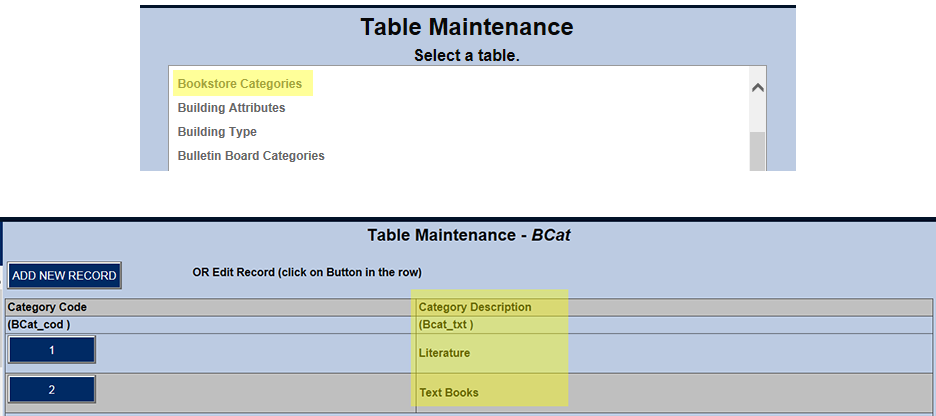
Books can be assigned a category, and those book categories are entered using Bookstore Categories.
In order to activate the ISBN search, the Use Admin Textbooks ISBN and Use Faculty Textbooks ISBN boxes in System Variables must be checked.

Functions
The Textbooks utility offers three different functions:
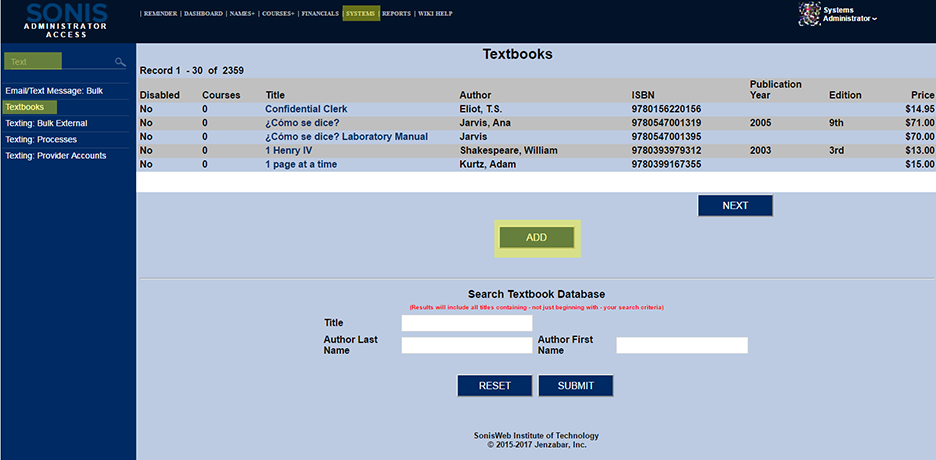
A list of existing books, the title being a link to the book's full record,
An Add button that starts the process of adding books, and,
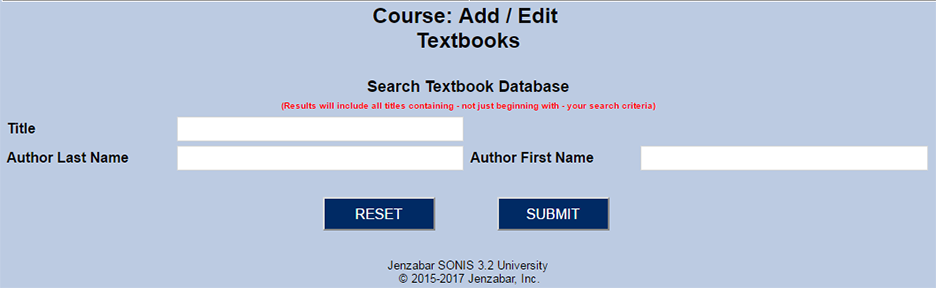
A template for searching for previously added books.
Searching for Books Within SONIS
Before adding a book to Jenzabar SONIS, a search for that exact book should be completed. Because the search does a substring search to see if the entered information is part of a larger string, for example a search for "Biology" would return titles that include Biology as a stand alone word and as part of other words, such as "Microbiology", the results are likely to be large and include items far from the book being searched for. Multiple words from the title and other information pieces such as last name should be used in combination to narrow the results and improve the likelihood of accurate and manageable results. Searching can also be used to find books that need to be edited. For example, it may be necessary to change the price of a book. The title in the list is a link to the full record of that item for editing or selection.
Adding Books Without Using the ISBN Template
If Use Admin Textbooks ISBN is not checked within System Variables, the Add template looks like the image below. The ISBN textbox is for entry only. There is no search capability on this page beyond duplication checking.
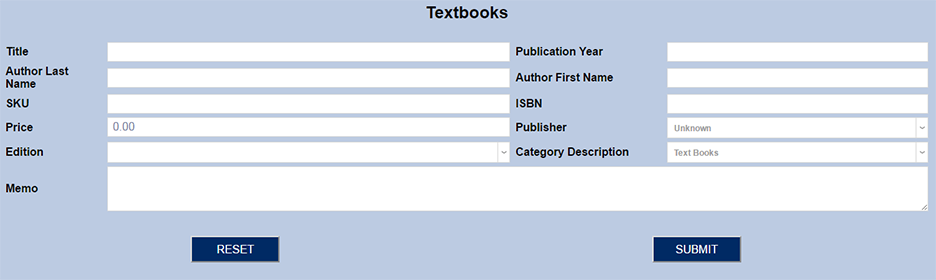
Faculty Portal Books
The Textbooks table can be used to add books to Jenzabar SONIS, only the Faculty portal's Books function can assign the textbooks to specific course sections. A search template is provided in both the portal and the Systems page, and it is important to conduct a thorough search for a book before adding it to the textbook listing.
System Variables
The ISBN options must be selected in System Variables for the Faculty Books module to display the option to search by ISBN number in either the Faculty portal or the Tbl: Textbooks page. The book search will only allow Title and Author Names if it is not enabled. When enabled, the Add template will include an ISBN and Title search. The ISBN search requires a complete match. There is no substring searching.
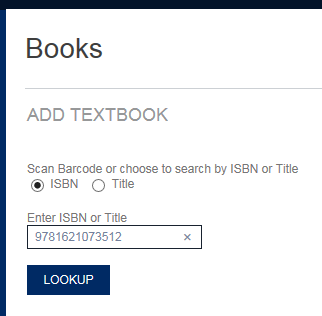
The result will either be a single item, as shown below, or the ISBN will not be found, in which case, there is an option to add it manually.
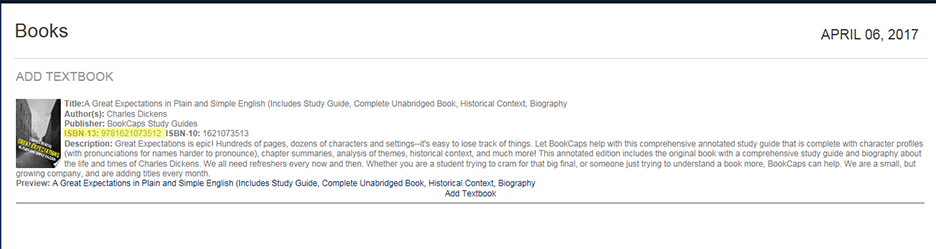
If the Add Textbook link is clicked the following page appears. It confirms the title and allows a category to be assigned to the item. Clicking the Add Item button opens the following page.
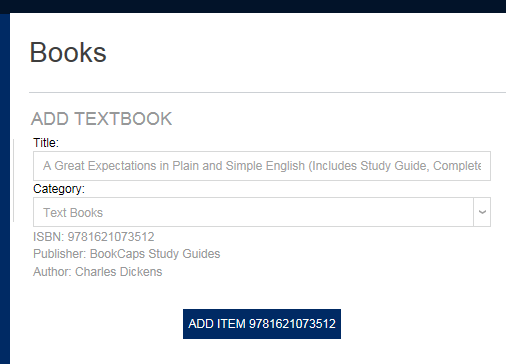
The book can be added as-is or edited and then added. The Submit button saves the item to Jenzabar SONIS. The highlighted buttons will only appear to Faculty. They are used to assign the item to the specific course section indicated on the button (i.e. Counseling Psych) once it has been saved to Jenzabar SONIS. In addition, the second button flags the assigned item as Required.
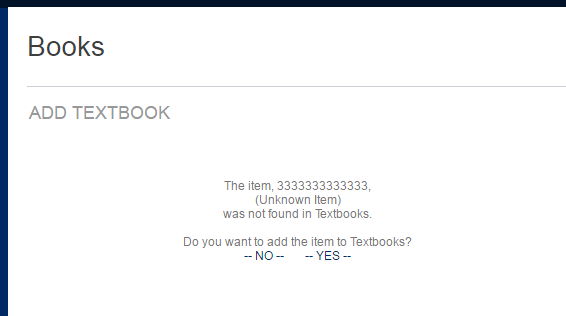
Below is the Add template that displays when Yes (above) is selected.
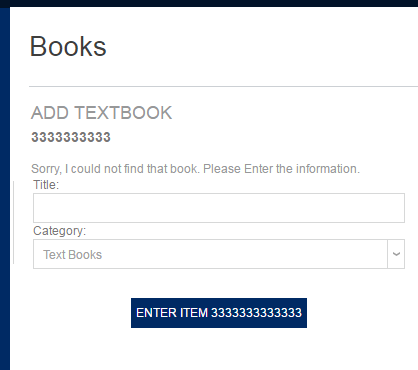
Title Searches
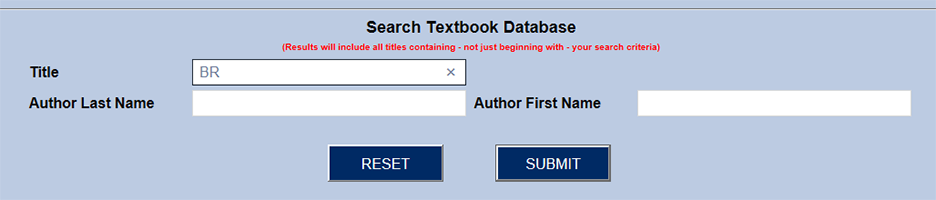
Title searches perform substring searches, so it is very easy to get titles in the results that are irrelevant to the desired book. For example, if the user entered br as the title being searched, they would get any titles that have a "br" together anywhere in the title. Therefore, it is wise to use more information when performing the search. Remember that the third-party database of books being used returns 40 results. This is less of an issue if the title is not common, such as "Raven Girl."
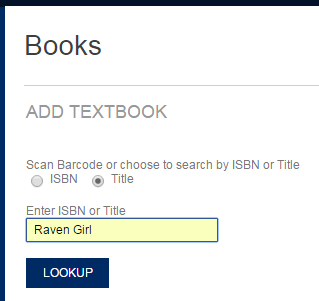
The item desired is more likely to come up in a 40-item result set (as shown below) when the title is uncommon. Notice how the return set is ordered when more than one word is in the search string. The adjacency of the two words "Raven Girl" are displayed first. Next are the items containing both words in the title but not next to one another, then the items containing the first word alone in the title (i.e. "Raven"), and finally the items containing the second word alone in the title (i.e. "Girl").
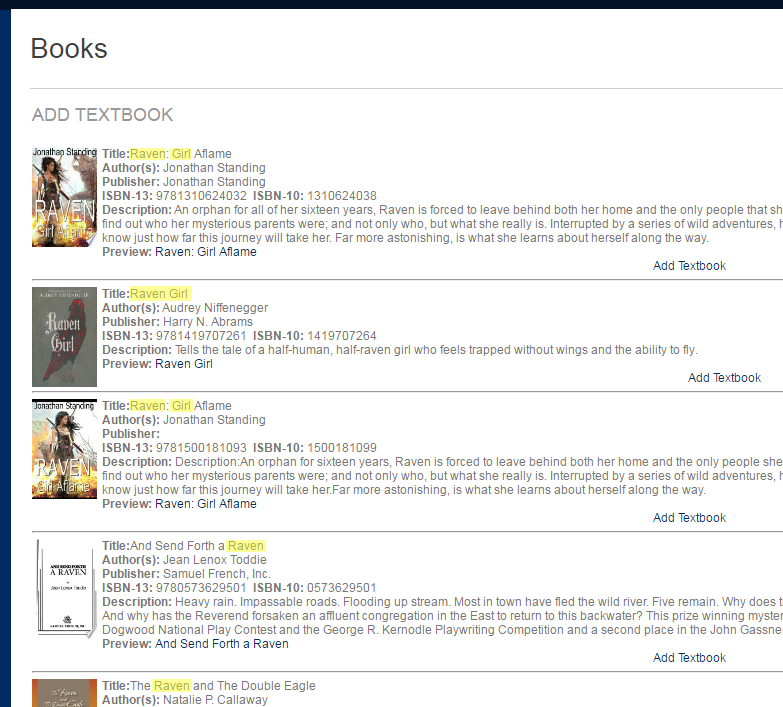
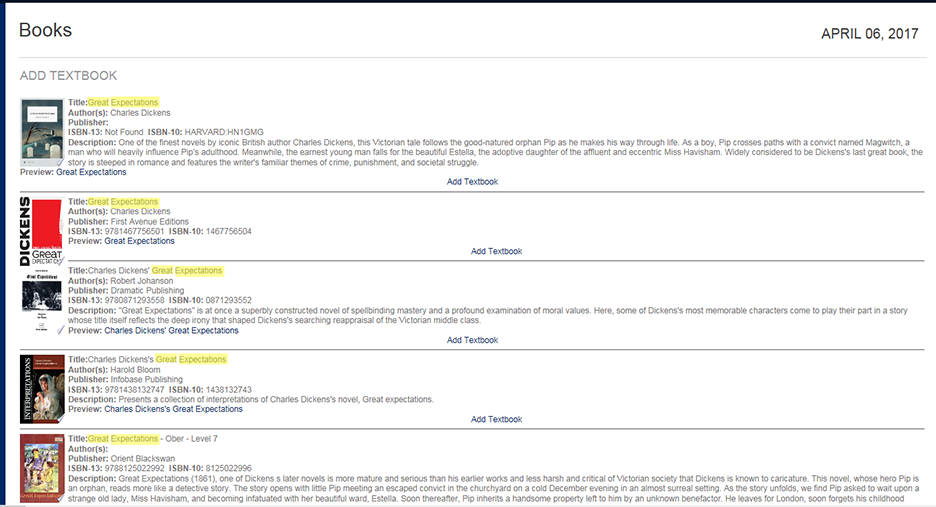
When the title is common (ex. "Great Expectations"), the odds are against a specific edition showing up in the 40 items displayed.
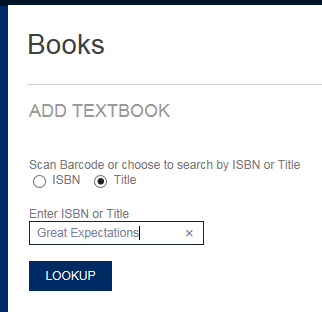
In the results below, items that are not the actual novel show up. If it's the novel desired, books ABOUT the novel reduce the likelihood of a specific edition of the novel returning. When looking for a specific edition, it is recommended that the ISBN search be utilized. If the ISBN is unknown, it can usually be found by searching websites that sell books.
Course and Course Section Searches
Items that have already been added to Jenzabar SONIS have search templates similar to the ones already shown. The Course Add/Edit, Course Section List, and Bookstore pages have more information regarding books being associated with sections.