Page Instructions & Buttons
Overview
Specific information on Jenzabar SONIS pages can be changed to something more suitable for a member institution's processes. The Systems hub utility, Page Instructions & Buttons, allows users to locate the current information and then change it.
Searching
When searching, it is possible to enter either a portion of text or a page's .cfm name and to search existing page instructions (including explanatory text on the page) or the buttons and radio button labels on the page. Examples are provided below of each search style.
Searching in Text
Imagine that the Student portal's PIN button has the default label of "PIN" but is called the "Assigned Access Number (AAN)" in institutional language. In the Search field, an administrator would enter a portion of the text currently on the button. This example uses PIN. Enter the text being searched for in the Search field and select the Search in Text radio button.
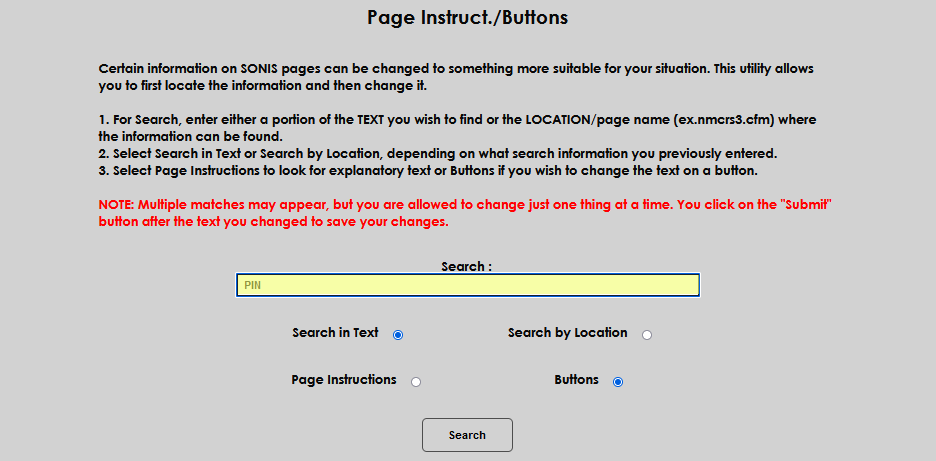
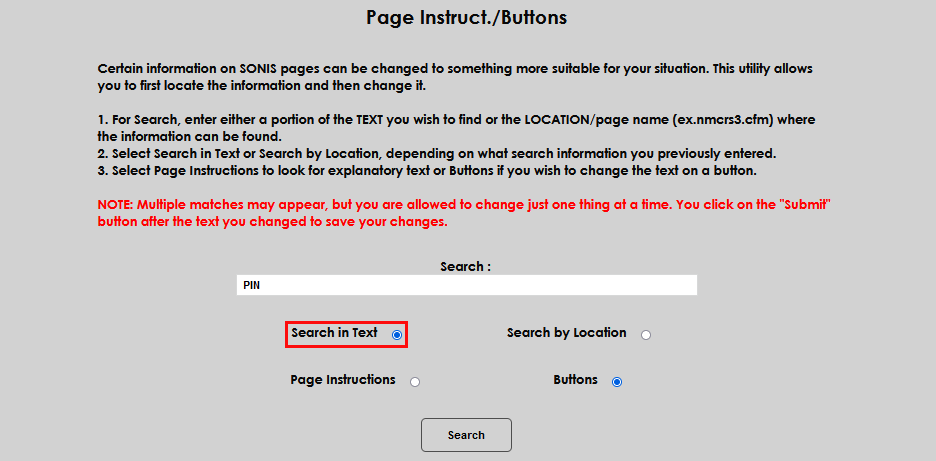
Next, select the Buttons radio button and click Submit.
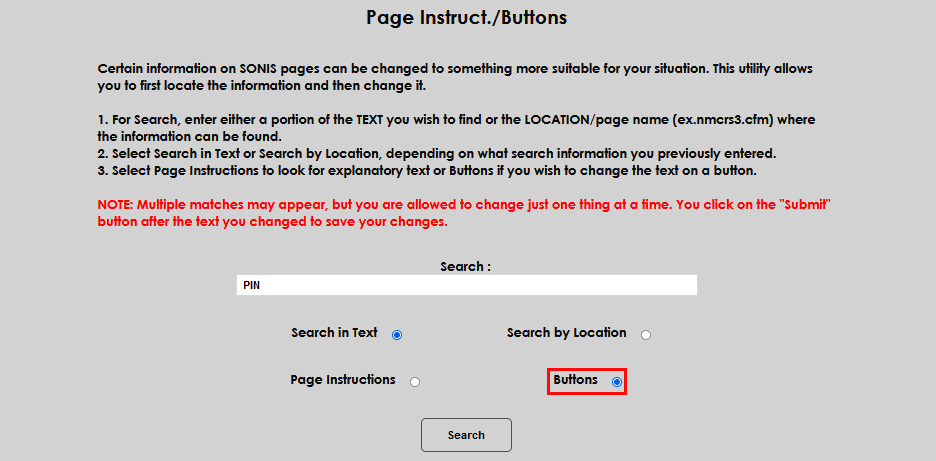
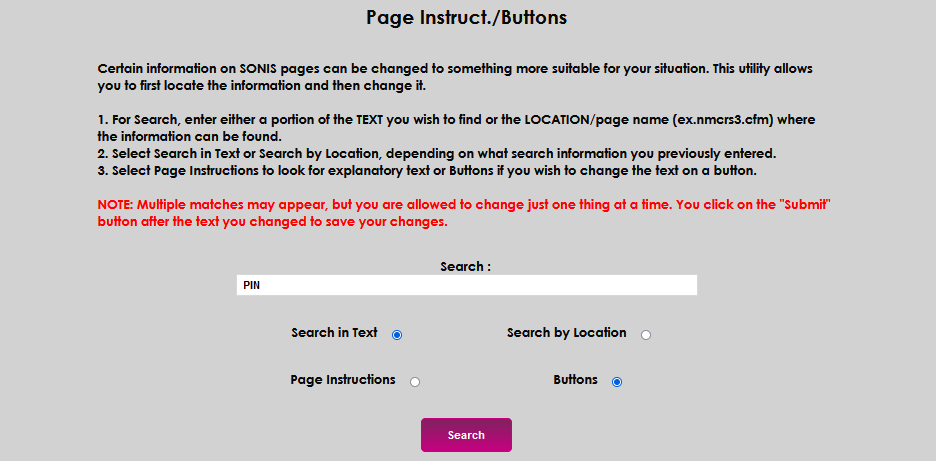
The Search results are displayed below the search button. An error message will display if the search did not yield results. Enter the new label that will display on the button in the Text box. There is no character limit to this field, but do keep in mind the amount of space on a button. Click Submit to save the updated button label.
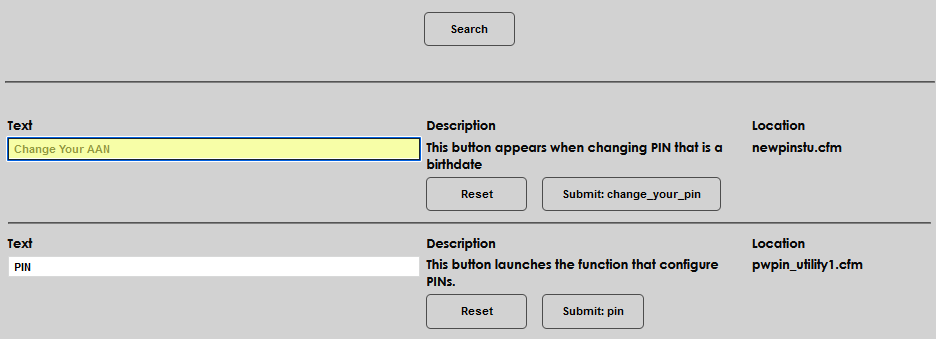
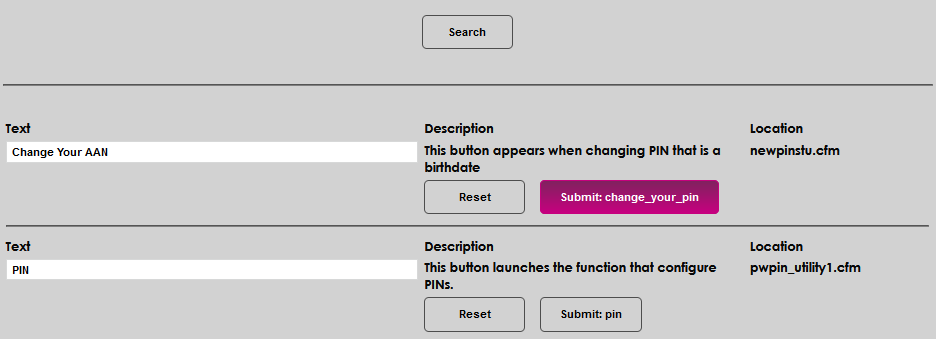
Note that a confirmation message displays after submitting the update and all other results remain displayed. This allows both the confirmation of the submitted update and the ability to make further updates without having to search again.
Searching by Location
In this example, imagine that a member institution wants to update all of the Financial Search pages to include instructions about ensuring any system changes are made in their external, third-party system . In the Search field, an administrator would enter financialsearch1.cfm and select the Search by Location radio button.
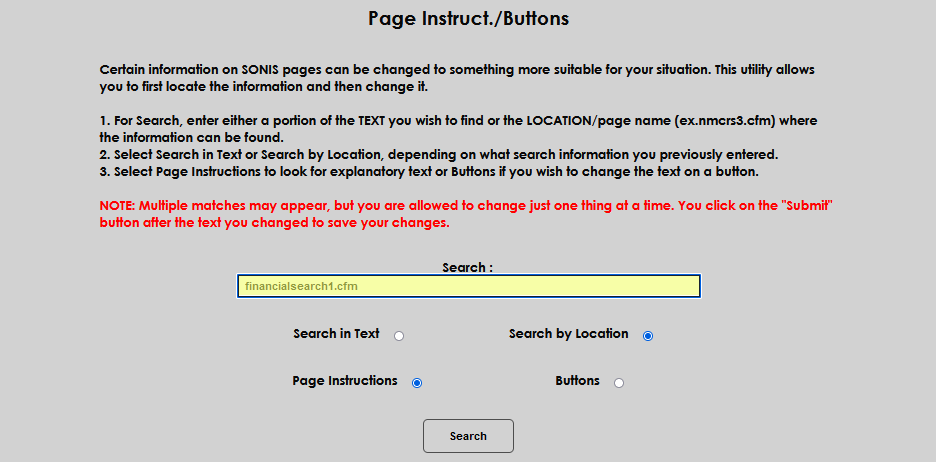
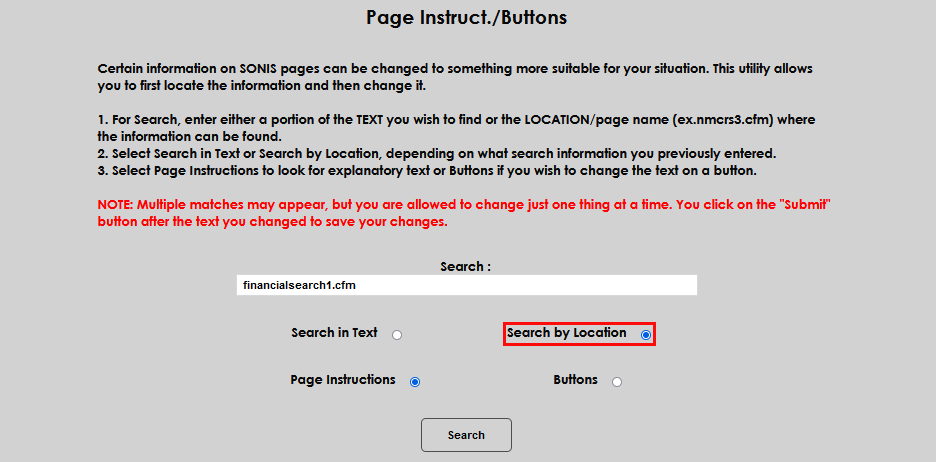
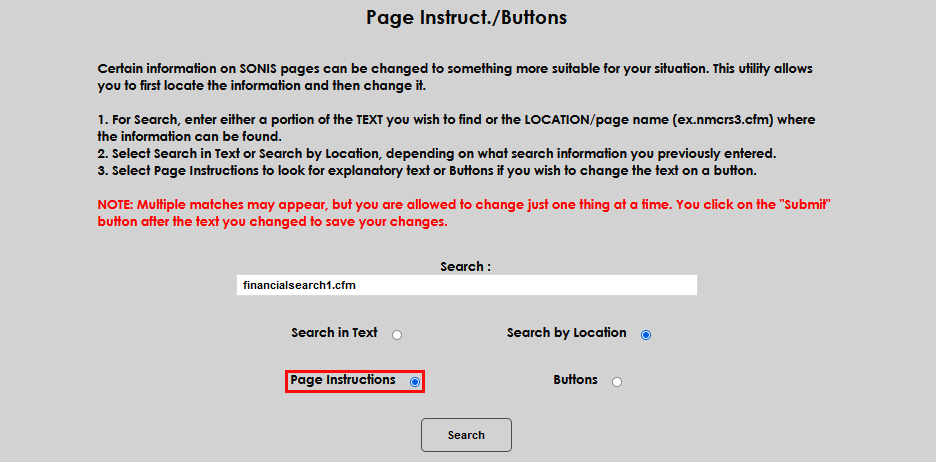
Next, select the Page Instructions radio button and click Submit.
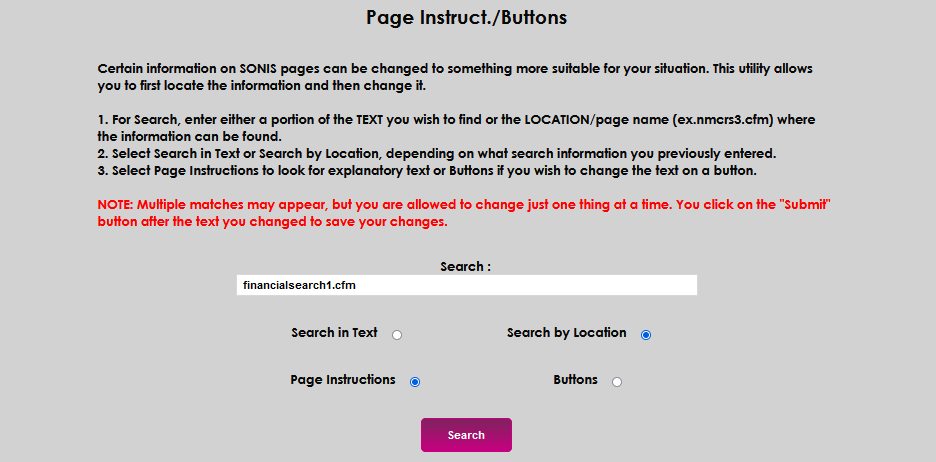
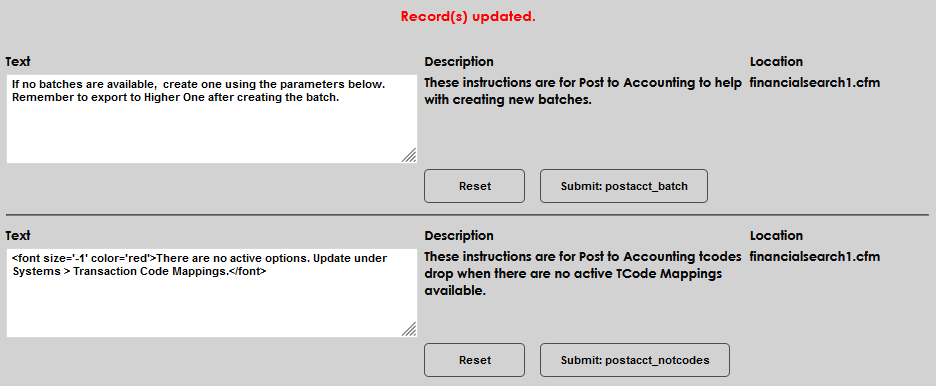
The Search results are displayed below the search button. An error message will display if the search did not yield results. Enter the desired text in the Text box. There is no character limit to this field, but do keep in mind the amount of space on a page. Click Submit to save the updated instructions.
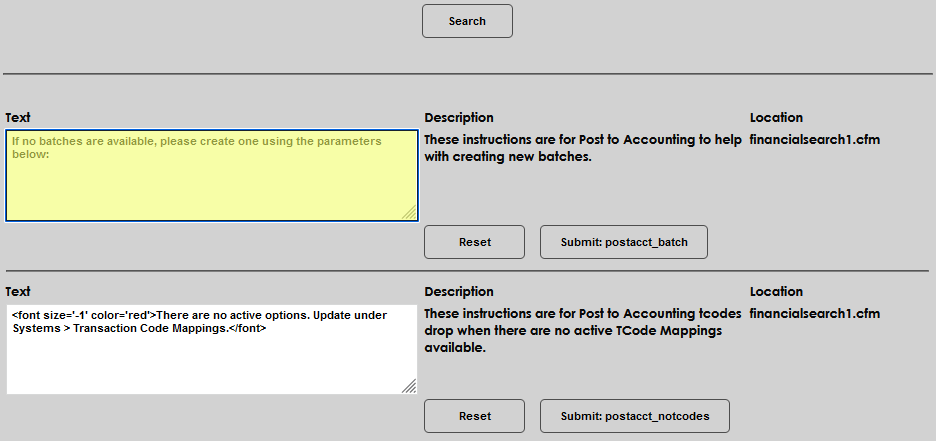
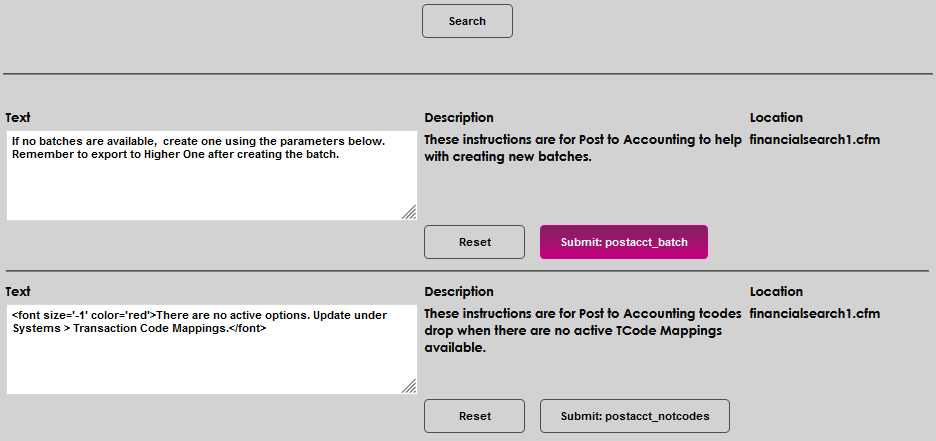
Note that a confirmation message displays after submitting the update and all other results remain displayed. This allows both the confirmation of the submitted update and the ability to make further updates without having to search again.