Tuition T-Codes
Overview
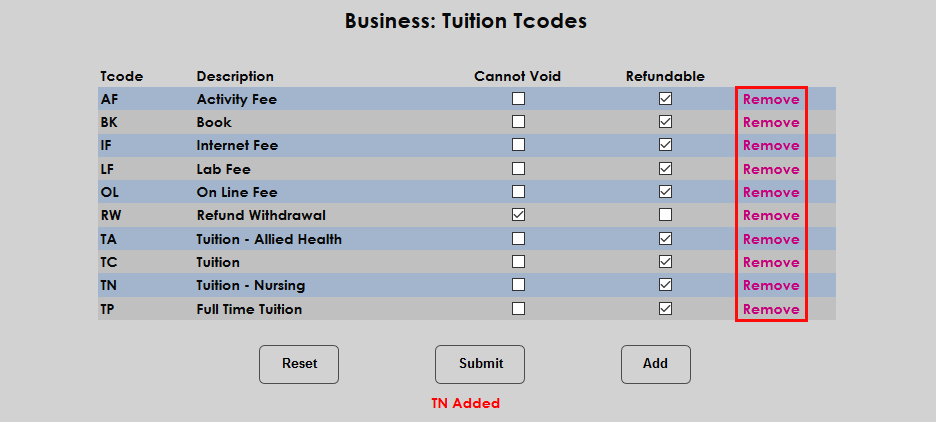
The Jenzabar SONIS Tuition Codes utility allows institutions to specify which Transaction Codes will be used as part of the registration process. Designating these codes makes the registration process easier to manage and adds an additional layer of security. Some personnel may have the need to access and alter the t-codes associated with registration, but do not need access to the full Transaction Code table with its additional functions. The Tuition Codes page can be turned on for these users without giving them additional access.
Adding T-Codes
Before a transaction code can be added to the list of Tuition T-Codes, the t-code itself must be created. T-codes are created through the Transaction Codes function in the Systems hub.
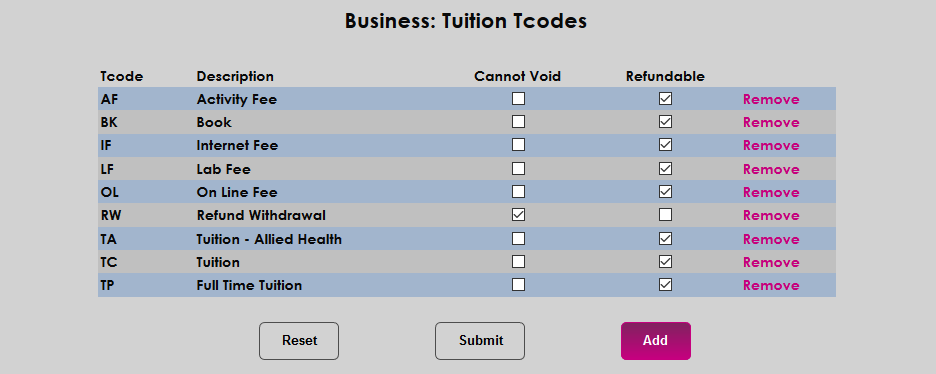
Once t-codes have been created, navigate to Tuition T-Codes under the Systems menu and click Add to add a new code to the list of tuition t-codes.
On the following page, select a transaction code or code(s) from the list. All active t-codes are listed.
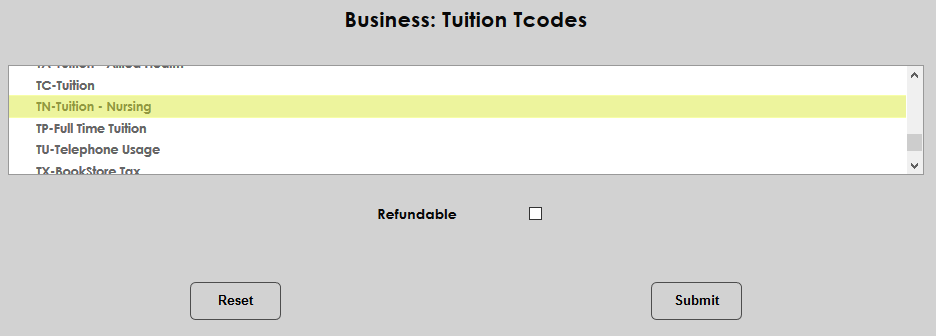
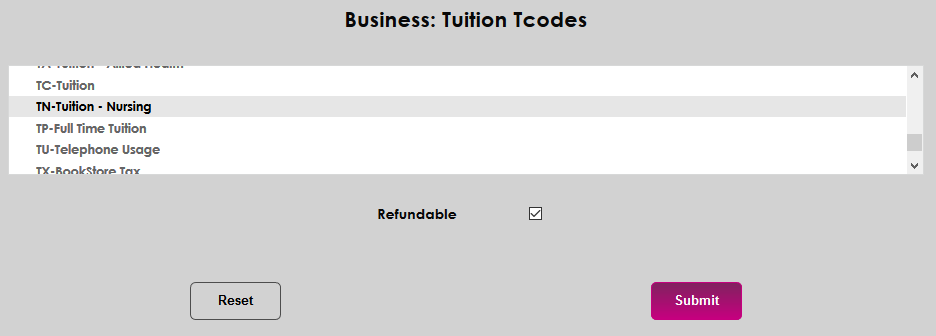
If students should be able to obtain a refund for transactions made on the code, check the Refundable box. Some schools prefer to make tuition fees nonrefundable, which would ensure that the student is still charged those fees even after withdrawing from the course. Click Submit to add the code to the list.

Once codes have been added to the list, they can be edited by checking and unchecking the Cannot Void and Refundable boxes. The Cannot Void checkbox is used to prevent transactions made with the code from being voided. Many institutions prefer to use offsetting charges instead to ensure proper record keeping.
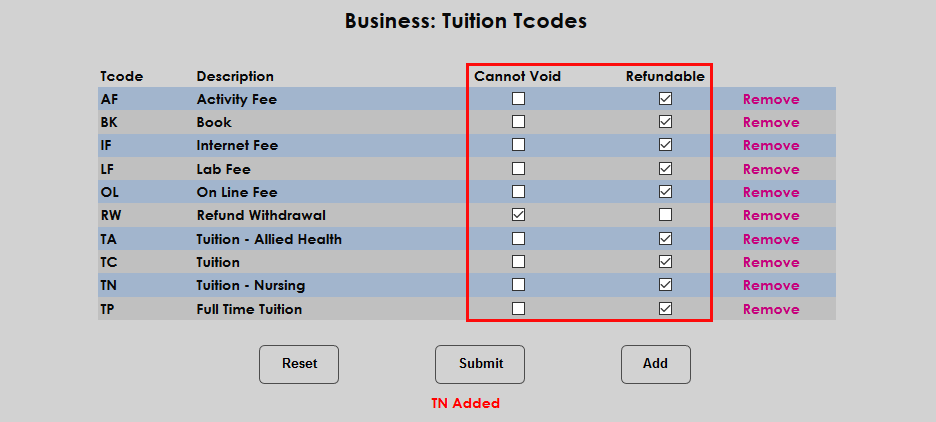
In addition to the tuition charge t-codes, all institutions should have at least one refund code listed among their tuition codes. These codes are used in the withdrawal and Reverse Tuition process. The code(s) should have the Refundable box unchecked.
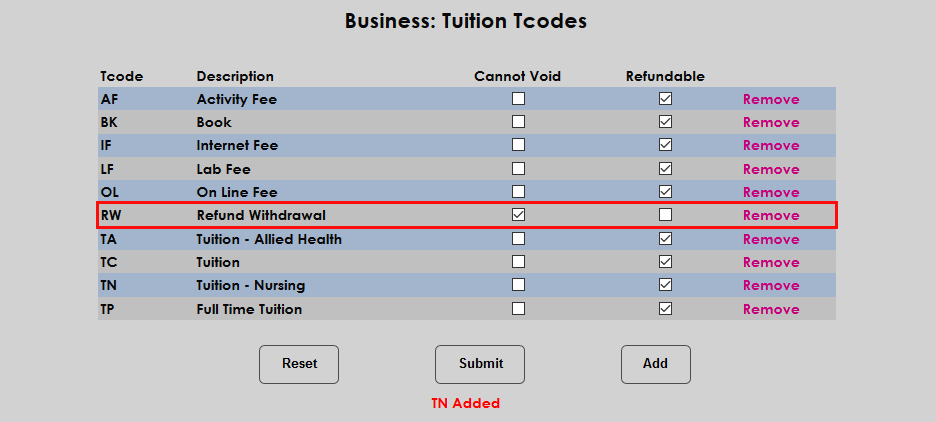
Once codes have been added to the list of tuition t-codes, they can be removed at any time by simply clicking the Remove button in the far left-hand column.