Regent Award Integration
Overview
Regent Award, formerly known as Regent 8, is a software program that helps institutions manage and automate their financial aid implementation. Schools can pass data back and forth between Regent Award and Jenzabar SONIS through import and export files. Files should be exported at various points during the term to keep Regent Award updated. At the time of publishing, the Jenzabar SONIS integration with Regent Award is designed for compatibility with Regent Award Version 5.3.
Note that the Regent Award disbursement process does not adhere to the No Post To Billing nor Post Transactions on or before date setting in System Variables.
Click here to download a sample of the Regent Award Demographic & Enrollment Data file created by SONIS.
Setup
There are pieces of data that are required by Regent Award that may not be used elsewhere in SONIS. Before Regent Award can be used, each of these data points must be configured to be provided.
Institution Abbreviation
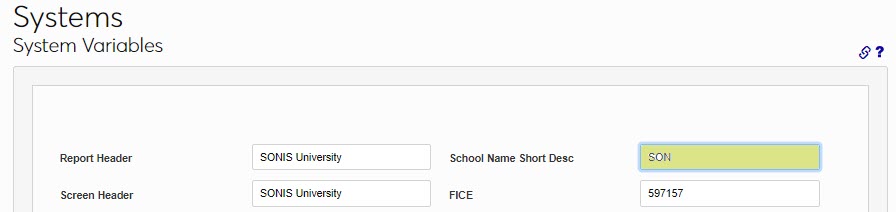
The first piece of data needed by Regent Award is a three-letter abbreviation for the institution that will be used to identify the school in the Regent Award system. To enter this abbreviation, navigate to the System Variables page under the Systems hub. Enter the three-letter abbreviation in the School Name Short Description field and click Submit to save the change.
Financial Aid Year
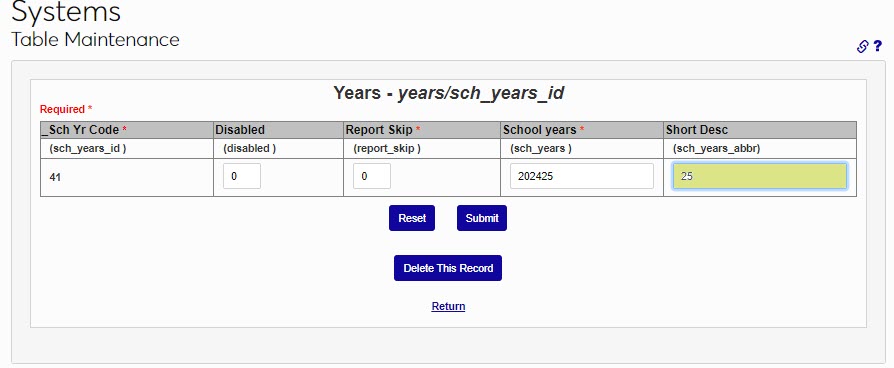
The next unique piece of data required by Regent Award is a two-digit abbreviation of the financial aid year. To enter this abbreviation, navigate to Table Maintenance in the Systems hub and select the Years table. Create a new year or select an existing year. Create a two-digit abbreviation for the year in the Short Description field. Click Submit to save the change.
Semester Abbreviation
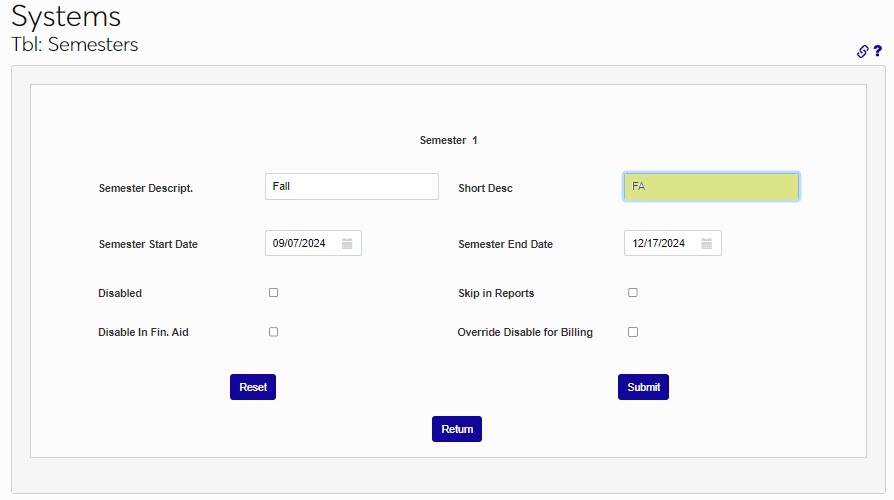
Regent Award accepts three semester codes, and each must be a two-letter abbreviation: FA for fall, SP for spring, and SU for summer. To create these abbreviations in SONIS, navigate to the Semesters table in the Systems hub. Select a semester by clicking the link in the Semester column. Enter the appropriate semester code in the Short Desc field and click Submit to save the change.
Housing Status & User Defined Fields
As part of the 2024-2025 FAFSA Simplification changes, potential housing status is no longer captured on the FAFSA. Regent has created a user-defined field (UDF) on the SBL for the housing status. All schools integrating with Regent will need to submit an initial demographic SBL for their active population with the housing UDF defined and all SBLs submitted thereafter must include the UDF. Two additional UDF fields have been added to the SBL export for institutional use and Regent will accept up to two of these data points:
UDF Description | SONIS Location | SONIS Table | SONIS Field |
|---|---|---|---|
Affiliation | Users > Biographic >Affiliation | name | affiliation_cod |
Anticipated Graduation Date | Users > Education > Anticipated Graduation Date | nmedu | ant_grad_date |
Cohort | Users > Biographic > Cohort | nmedu | cohort_cod |
Module Status | Module Status | nmmodstat | mod_stat |
Preferred Name | Users > Biographic > Preferred Name | name | nickname |
SONIS has been prepopulated with the required housing status values, as provided by Regent. These values cannot be changed. Housing status is assigned to each student in the Users hub page, Financial Aid.
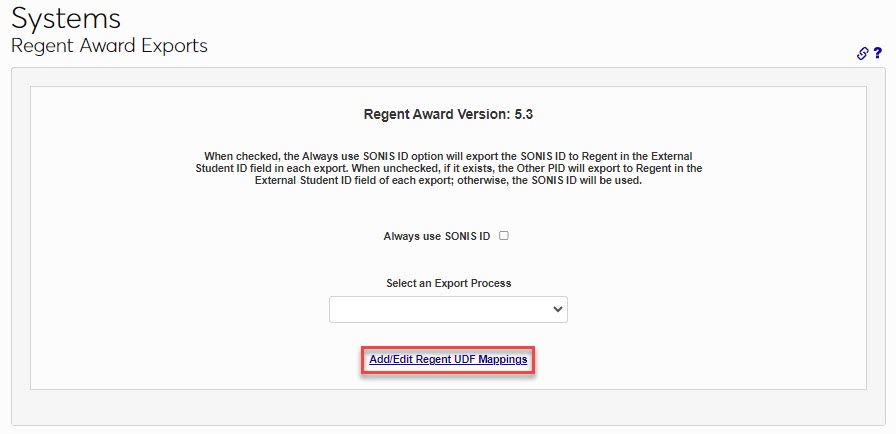
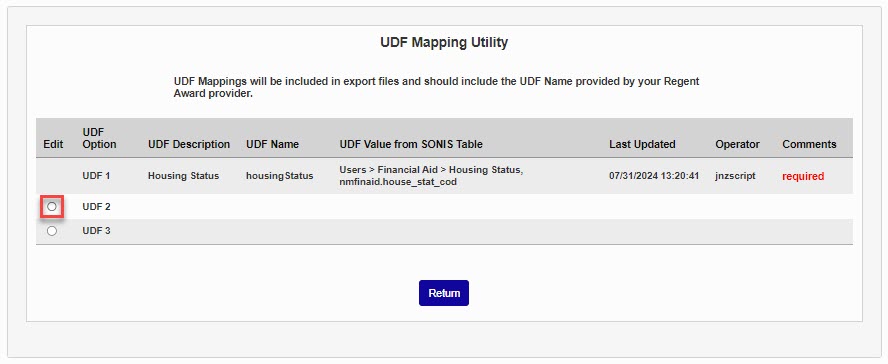
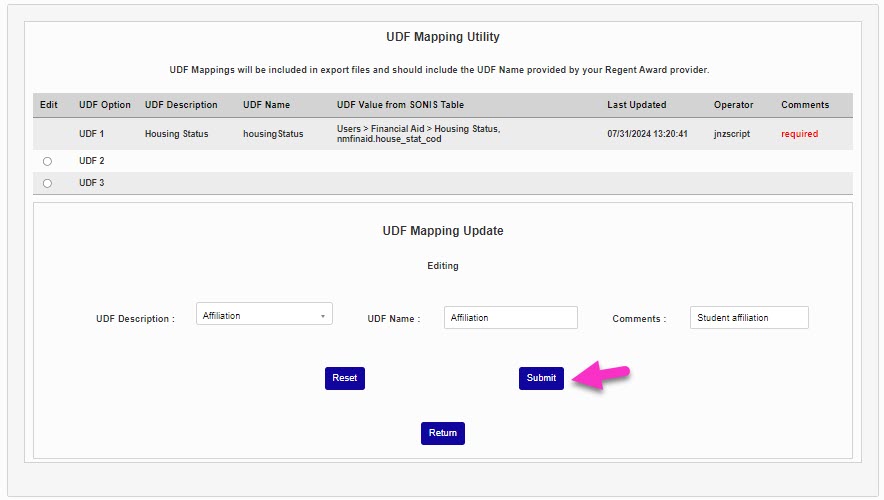
In SONIS, enter the Regent Award Exports page, in the Systems hub, and click Add/Edit Regent UDF Mappings to configure an additional UDF for use in the export. When the link is selected, a page opens where the UDF 2 and UDF 3 mappings can be reviewed and managed. Select a radio button to begin editing.
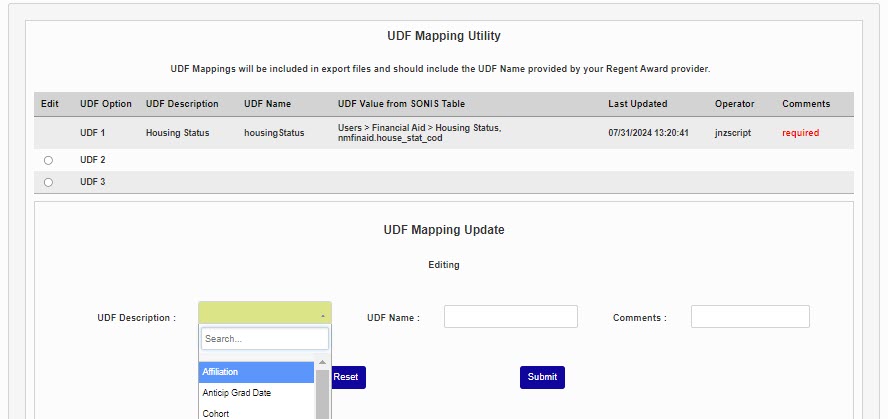
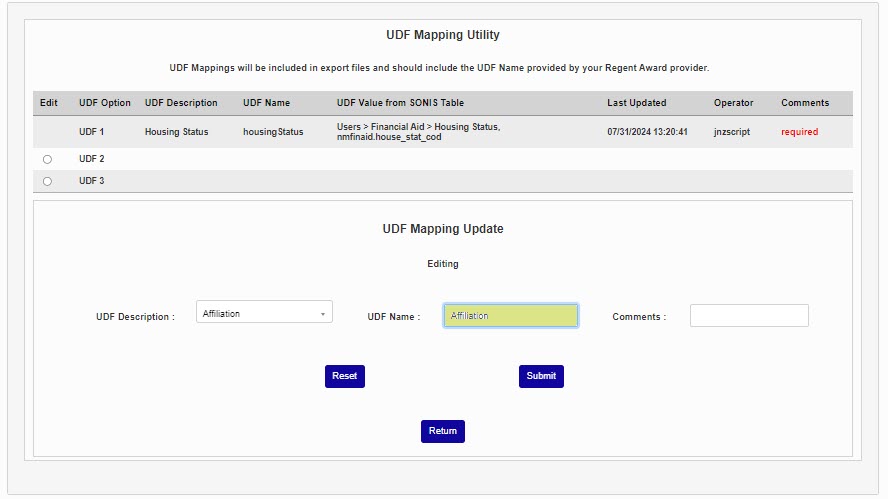
Select a UDF Description from the drop down menu. Enter a name for the UDF in the UDF Name field. This field accepts up to 50 alphanumeric characters.
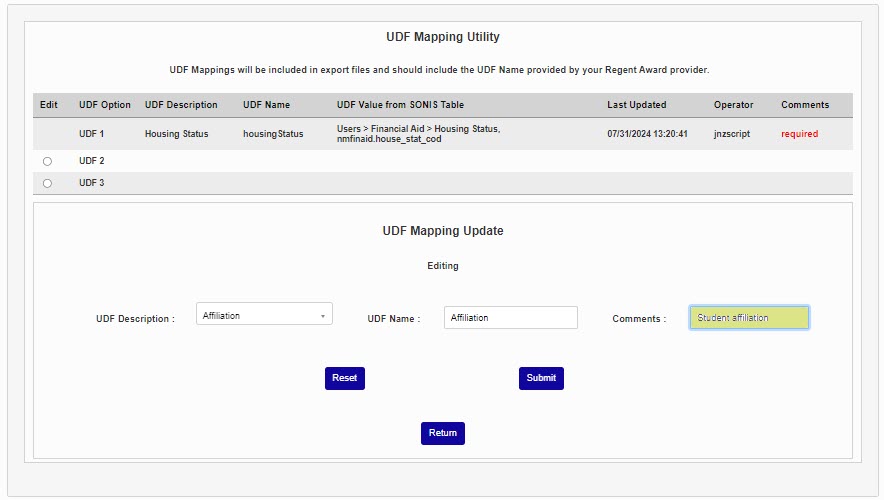
Enter any necessary Comments. This field has no character limit and will not be included in the export; it is informational for the next SONIS user to work with UDFs. Click Submit to save the configuration and include the UDF in the next SBL export.
Exports
Before using Regent Award for the first time, most institutions will want to export student and course data from Jenzabar SONIS to the Regent Award system. This process should be repeated periodically to capture new data and keep Regent Award up to date. Four types of exports are available:
• Demographic & Enrollment Data - Includes students’ biographic, address, and course enrollment information, including course number, name, credits, grades, attendance, drop/add dates, and start/end dates.
• Drop & Add Enrollment Data - Includes changes in students’ course enrollments for dropped and withdrawn courses. Course drops or withdrawals are based on course withdrawal and course drop dates or the withdrawn date on an active leave record. The file also contains unchanged entries from previous exports.
• Enrollment as of Census Date - Includes the same information as the Demographic & Enrollment export, but updated based on the date the export is run. The file also contains unchanged entries from the previous export.
• End of Term Grades & SAP Data - Closes out the semester. Includes end-of-term course enrollment and grades information. The students’ SAP status is determined by recorded information on the Honors/Probation record.
Each type of export should be performed at the appropriate point in the semester to ensure fidelity.
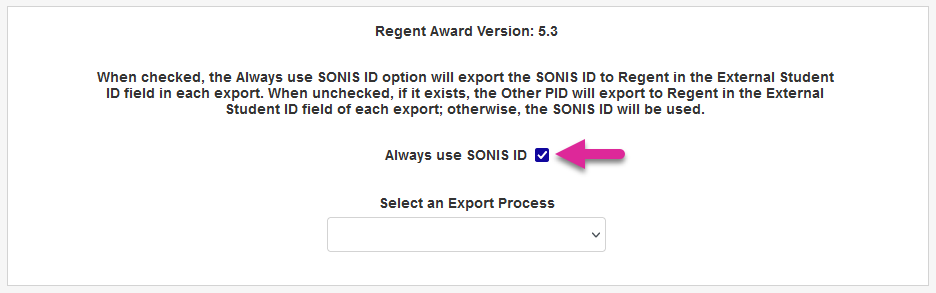
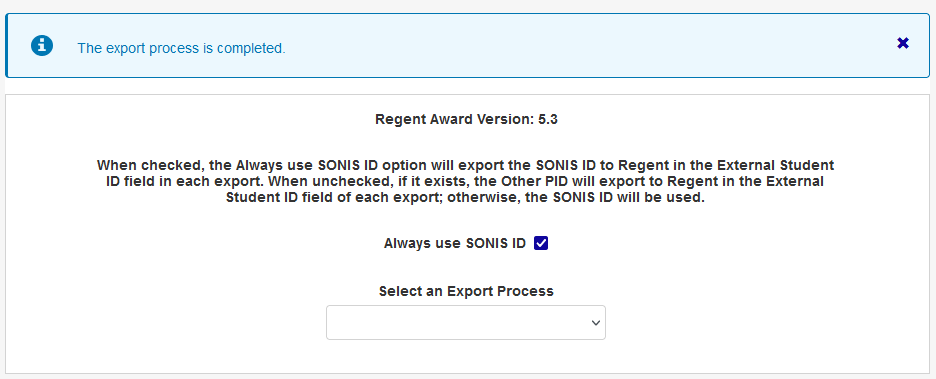
To run exports, navigate to the Regent Award Exports page under the Systems menu. Check the Always use SONIS ID box to export each user's SONIS ID to Regent Award as the External Student ID. Uncheck this box to export the Other PID as this value instead.
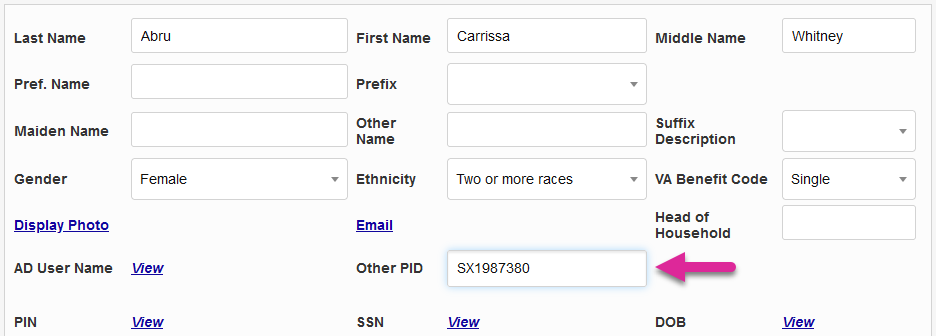
The PID field is stored on each user's Biographic page and is used to store the user's ID number from a legacy SIS that precedes Jenzabar SONIS and may used for Regent Award identification.
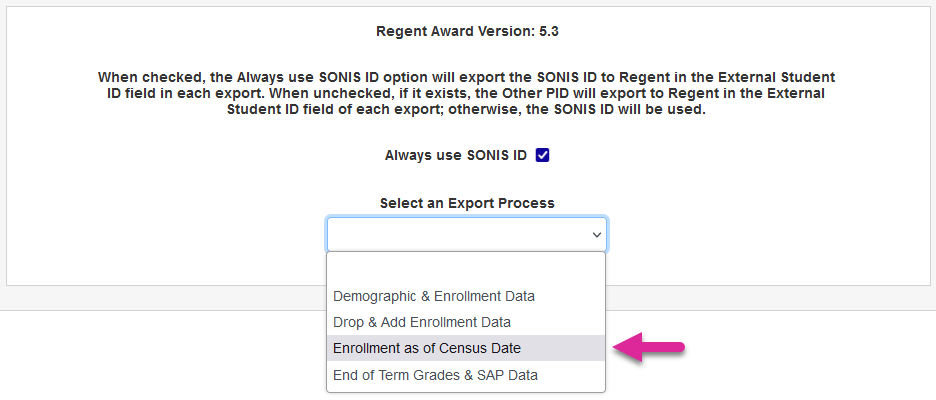
Next, select an Export Process from the dropdown menu based on the options listed above.
On the following page, select the appropriate School Year and Semester for the export.
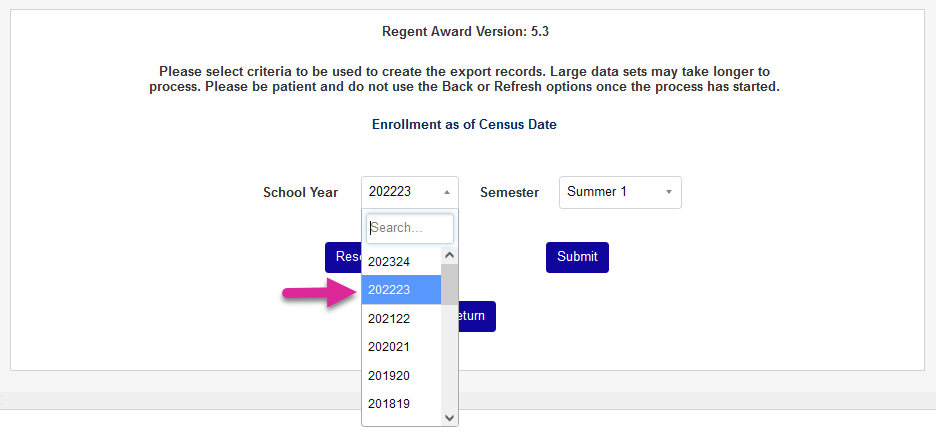
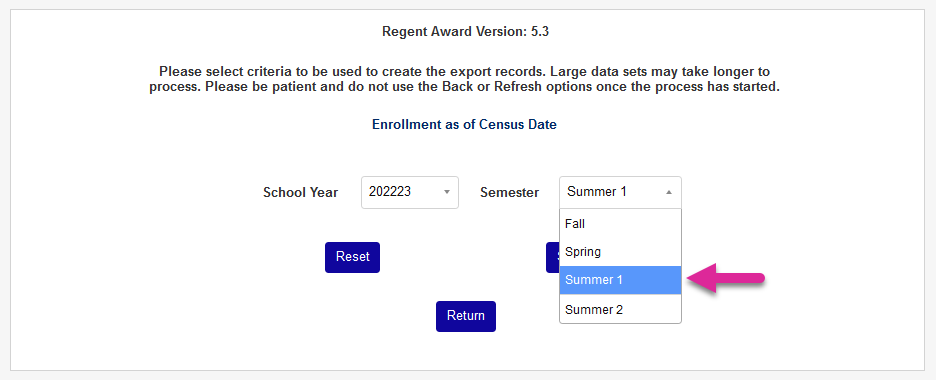
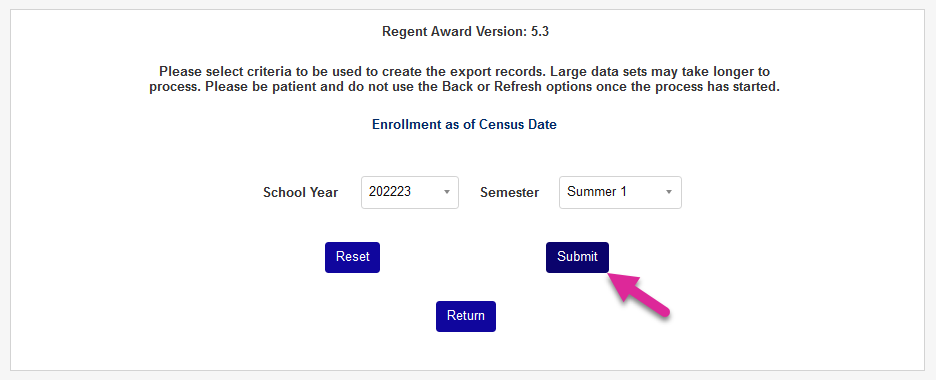
Click Submit to complete the export process.
Once the export is complete, a message appears on the screen noting that it was successful. Each file is automatically saved to the batch folder designated in Web Options. All exported files are accessible to users via the Batch Folder File Downloader in the Systems hub. Once created, they can be imported to Regent Award using the Regent Award interface.
Imports
Transaction & Award Codes
External ID
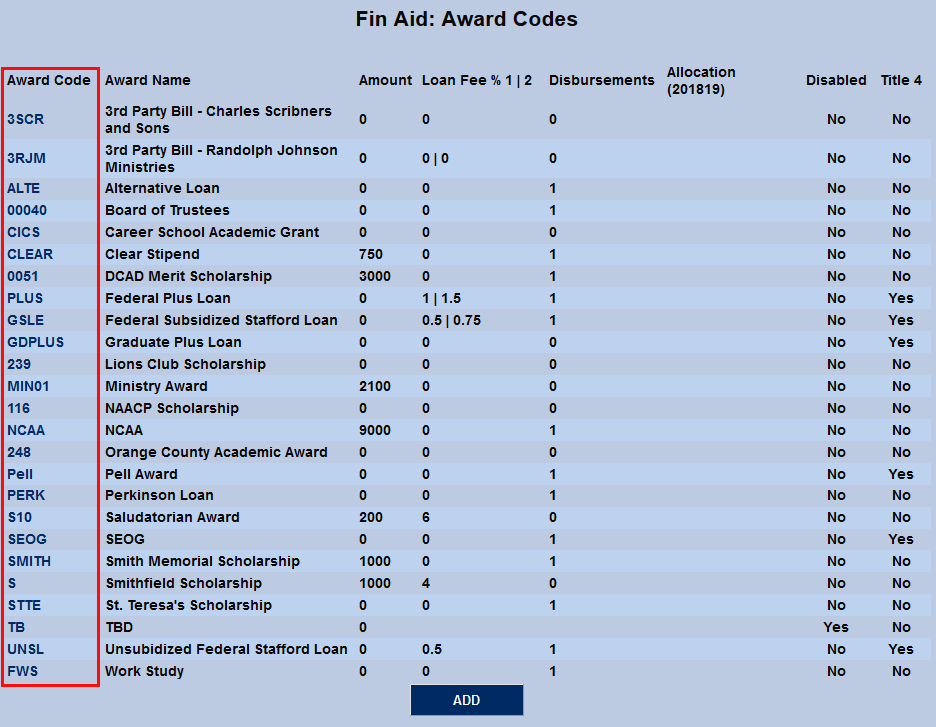
Before award data can be imported from Regent Award, administrators must modify the internal settings of Regent Award to match their institution's SONIS award codes. Award codes are created and edited via the Award Codes page in the Systems hub. Once an award code has been created, the code itself is listed in the far left-hand column. Administrators should ensure that this code matches the corresponding External ID 2 code in Regent Award. This code will be used to SONIS to recognize the award type.
Import T-codes
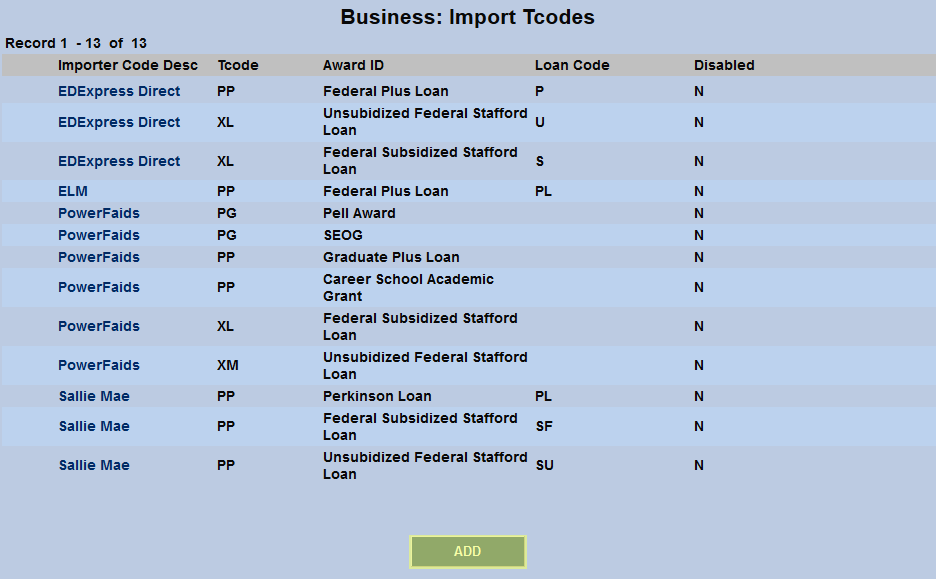
On the Jenzabar SONIS side of things, awards to be imported from Regent Award must have corresponding import T-codes. To create these codes, navigate to the Import T-codes page in the Systems hub. Click Add to create a new import T-code.
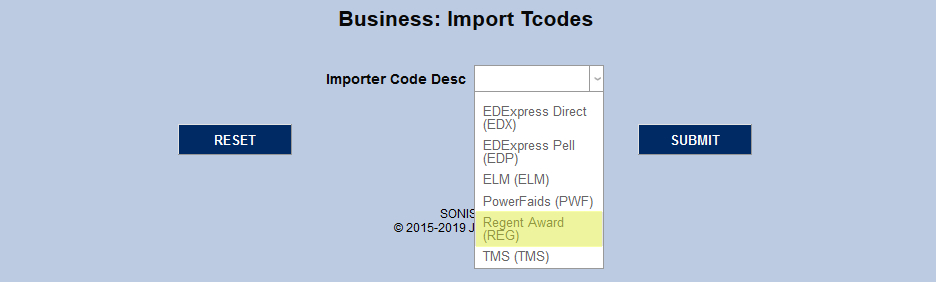
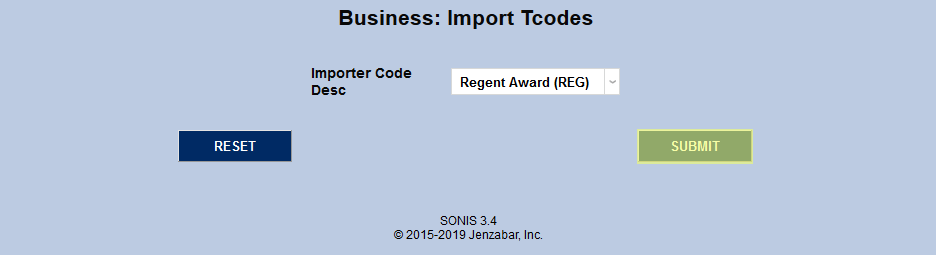
On the following page, select Regent Award from the Importer Code Description dropdown menu and click Submit.
Select the a T-code from the T-code menu. These system-wide transaction codes are created and edited via the Transaction Codes table in the Systems hub.
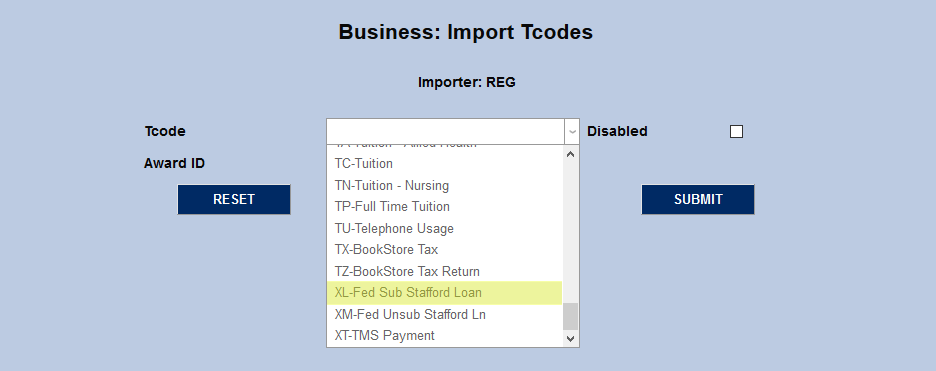
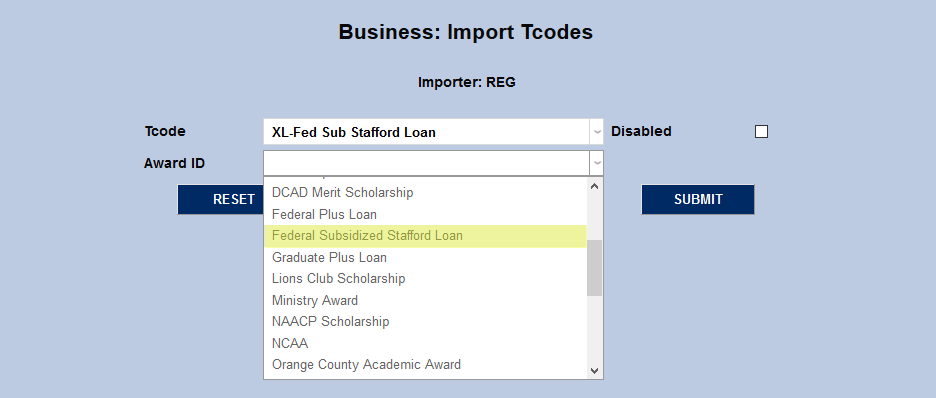
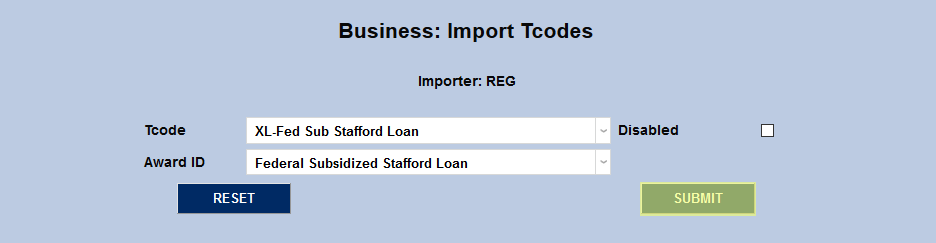
Next, select a corresponding award from the Award ID menu and click Submit to save the change and create the association. Repeat the process as necessary for each award type that will be imported from Regent Award.
Manual Import
To manually import a disbursement file from Regent Award, navigate to the Import: Regent Award Disbursement page under the Financials menu. Select the appropriate School Year and Semester for the import.
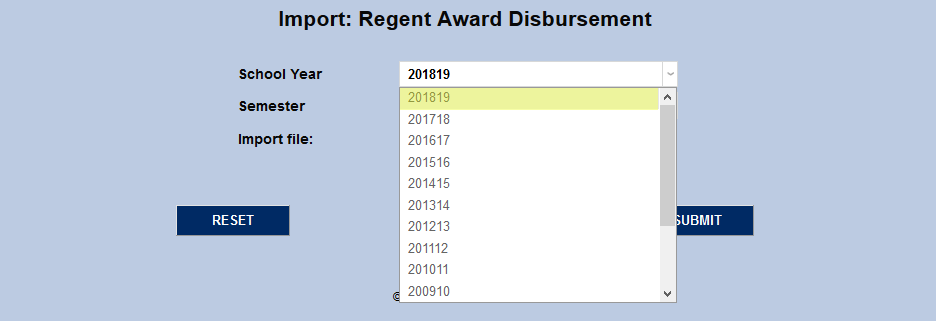
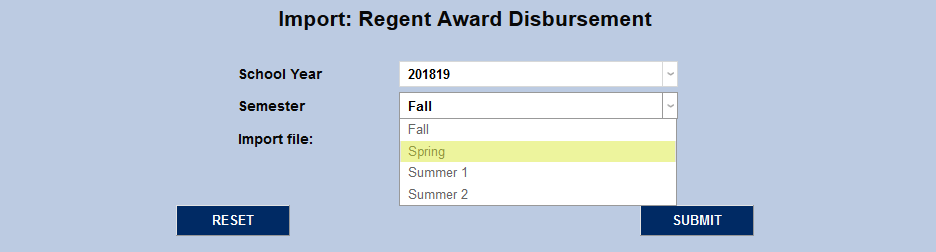
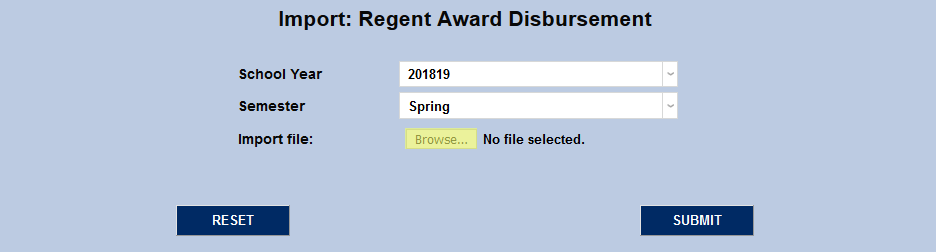
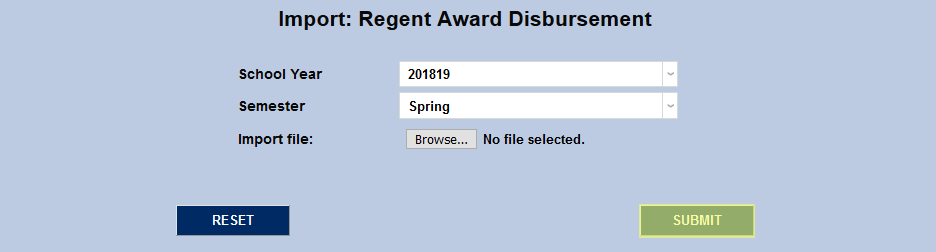
Next, click Browse to locate the XML file that's been exported from Regent Award. Once the proper file has been selected, click Submit to import the data.
The following page lists each each award ID and amount along with the student's name, social security number, and SONIS ID number. Uncheck the box in the Import column if any of the disbursements should not be brought in. Click Submit to import the disbursements that remain checked.
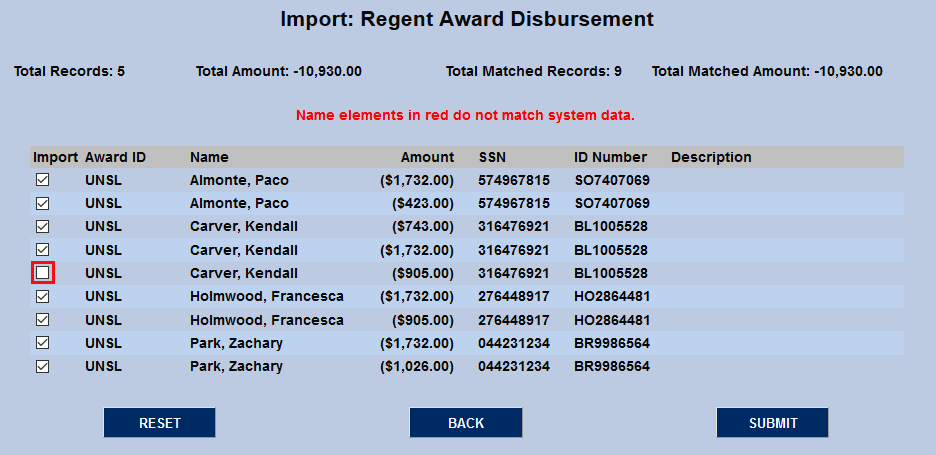
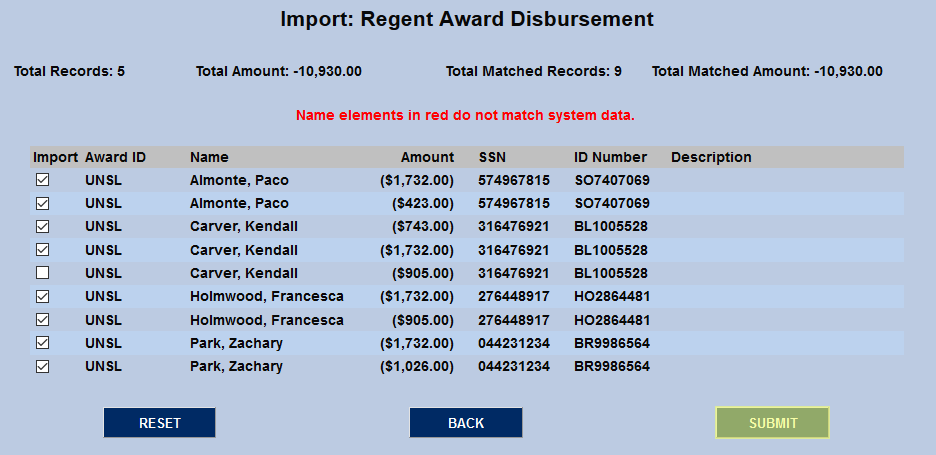
A results page displays the total number of records and dollar amount of the disbursements.

Automatic Import
Institutions can also set SONIS to import disbursement XML files from Regent Award at a regular interval. This is accomplished using the Jenzabar SONIS Notification Assignments and Timed Task utilities.
Notification Assignment
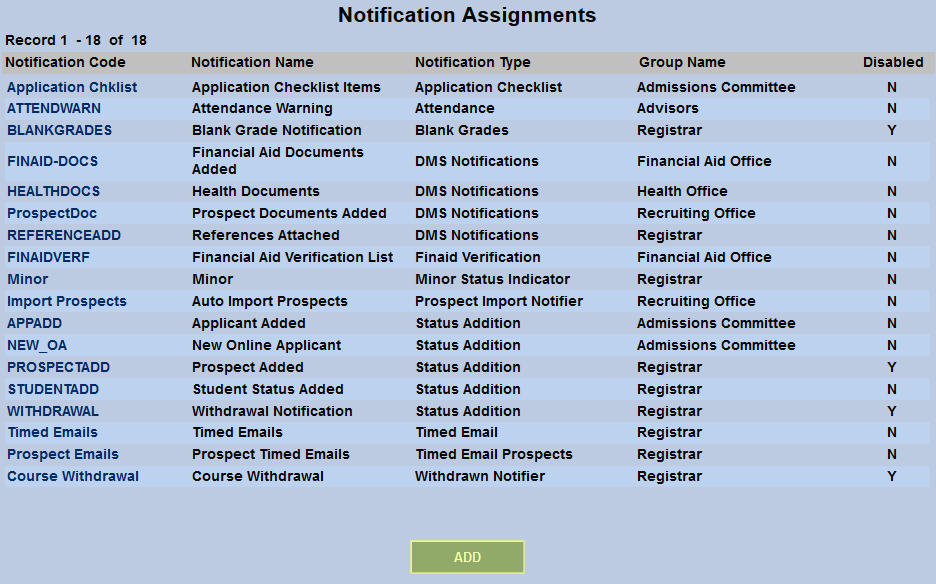
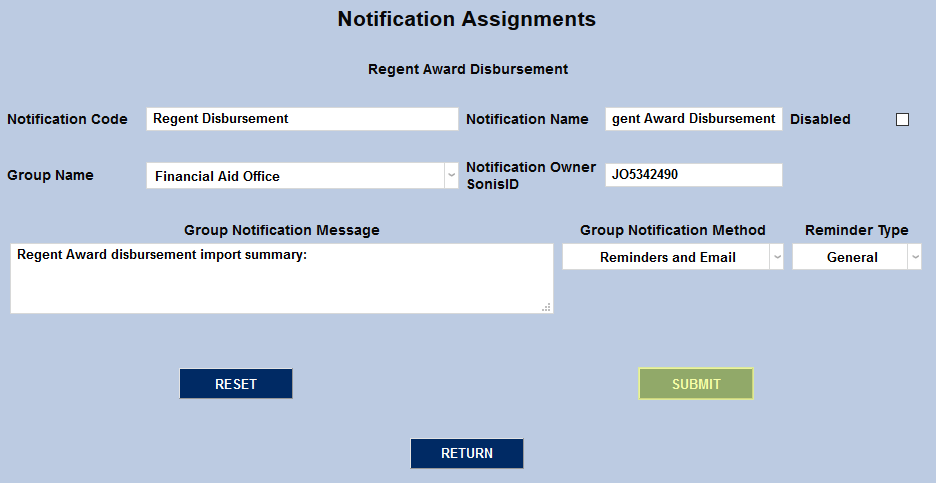
To begin setting up the automatic import, navigate to the Notification Assignments page in the Systems hub and click the Add button to create a new assignment.
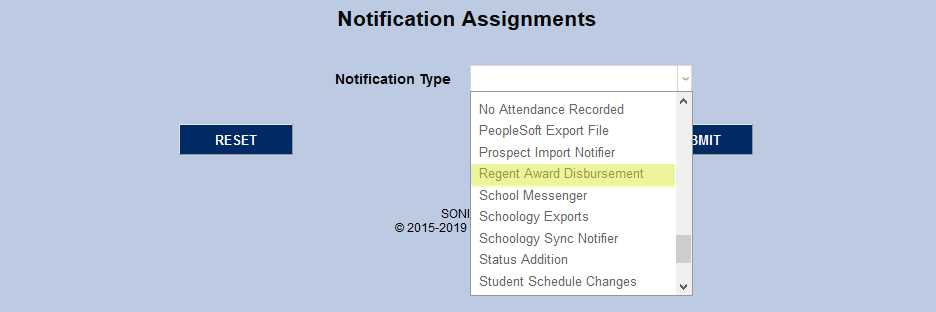
On the following page, select Regent Award Disbursement from the Notification Type dropdown menu and click the Submit button.

Next, create a Notification Name, a descriptor of the notifier's purpose with a 50 character limit, and a Notification Code, a shorter version of this name with a 20 character limit that the SONIS system will use internally to identify the notifier.
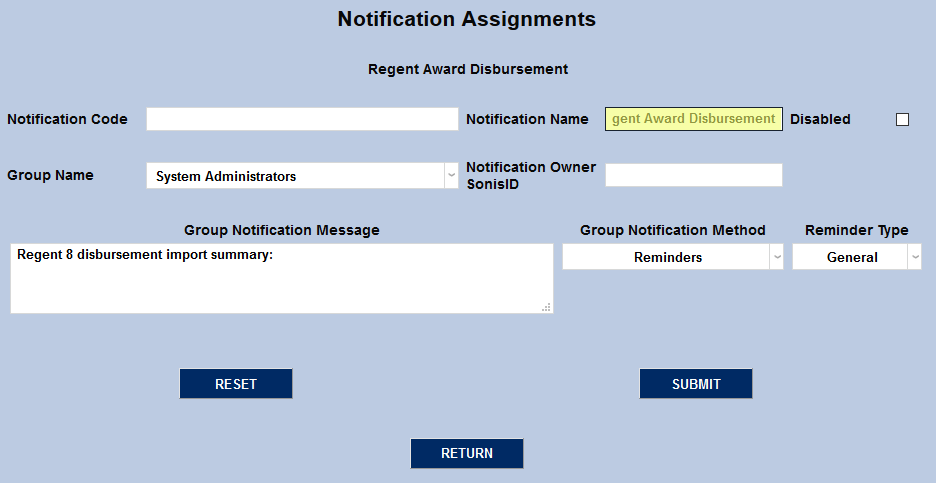
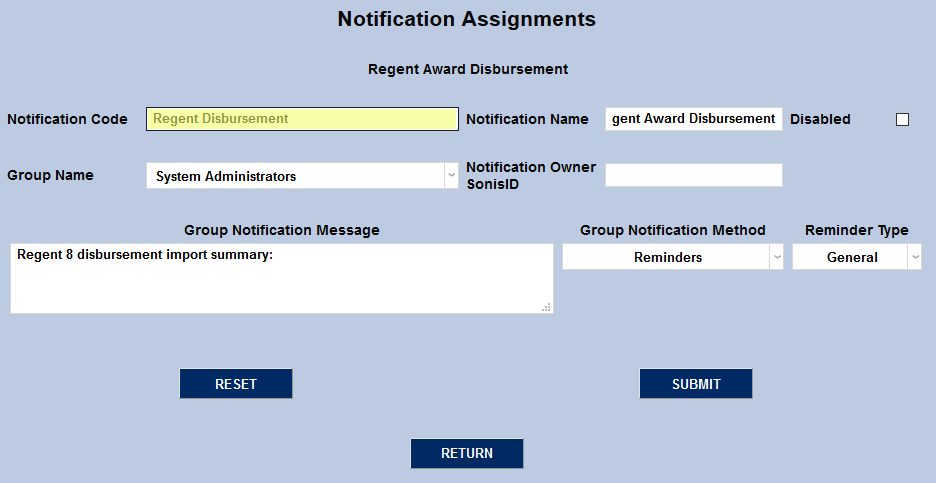
Select a group of staff/faculty to receive the notification from the Group Name dropdown menu. Groups can be added and edited through the Table Maintenance utility.
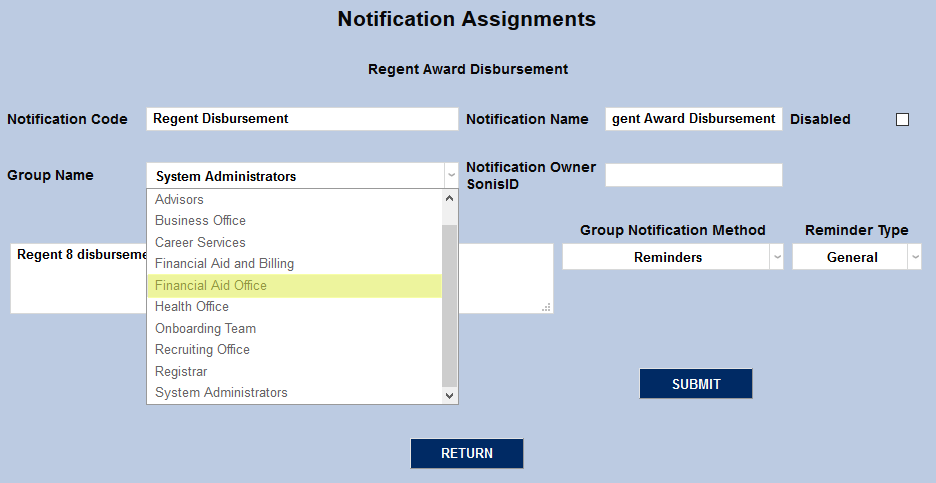
Enter the ID of the staff or faculty member who will be managing this notification in the Notification Owner SONIS ID field.
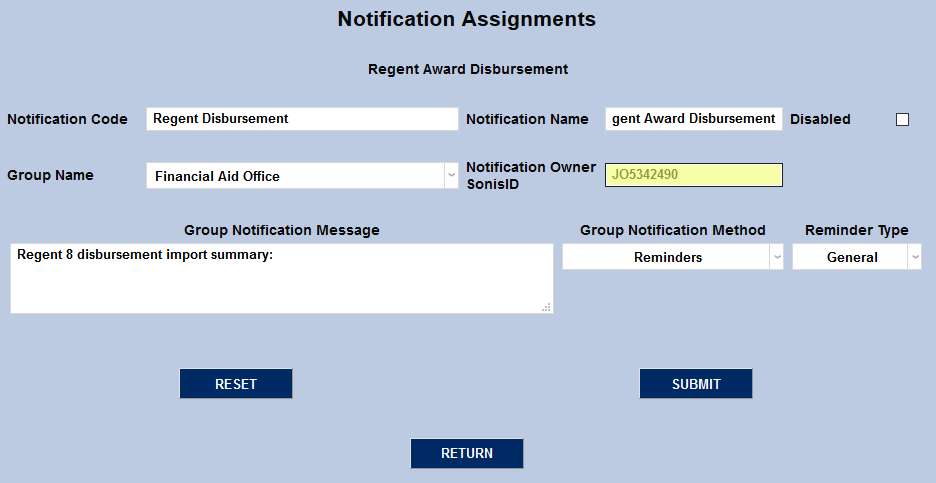
Create a Group Notification Message that will be sent to the group members when the task takes place.
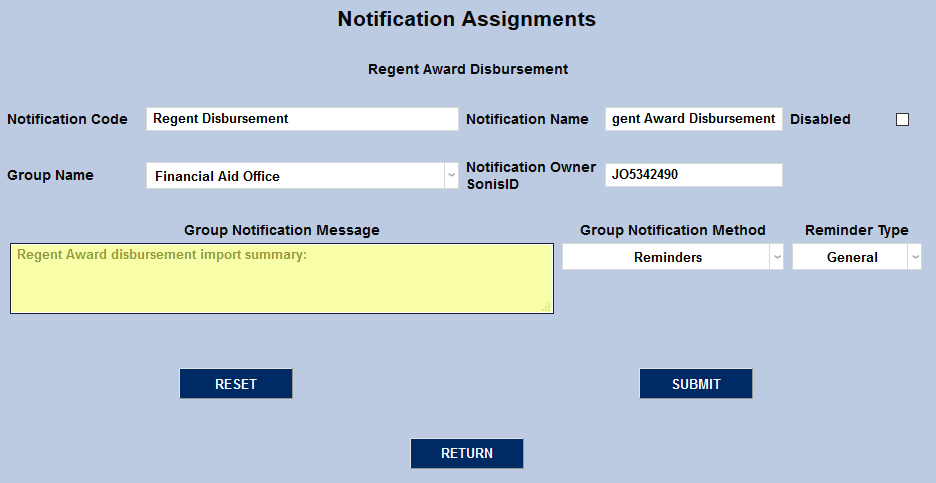
The Group Notification Method dropdown menu designates whether the group and individual users will receive an in-system reminder, an email, or neither when the notification is triggered. The Reminder Type dropdown can change how the in-system reminder displays. This list can be created and edited via the Table Maintenance utility.
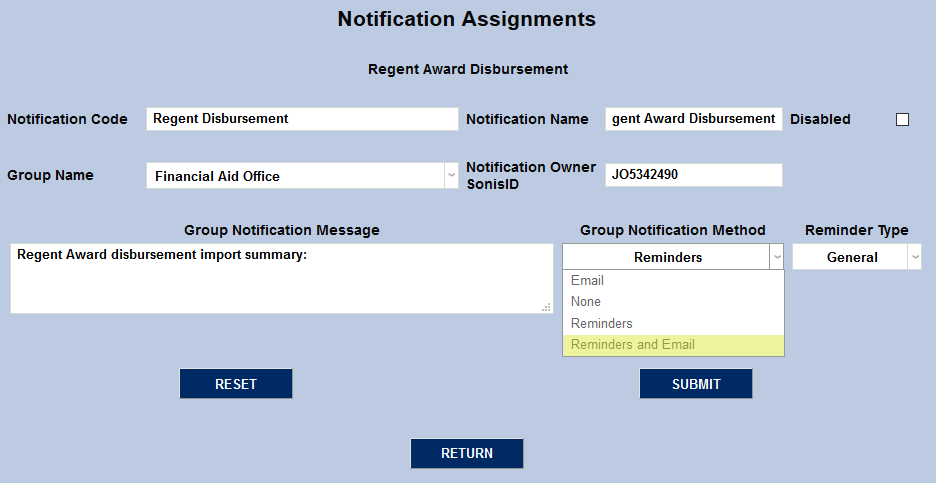
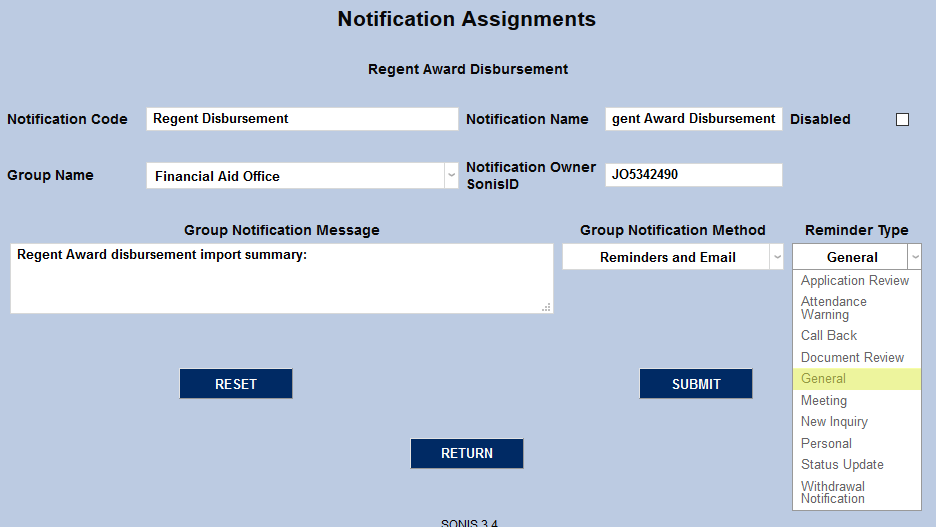
Click Submit to activate the notification assignment.
XML File Directory
Before the timed task can be created, the location of the Regent Award XML files must be set. Navigate to the Web Options page under the Systems hub and scroll down to find the Regent Award Imports (XML) Directory field. Fill in the directory where Regent Award files will be stored and submit the page to save the changes.

Timed Task
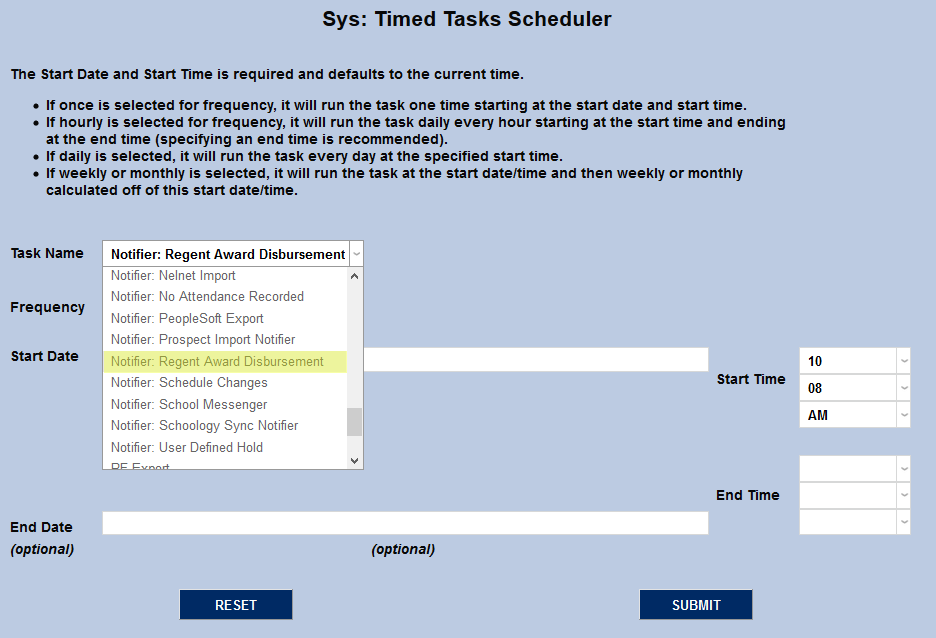
Once the notifier has been created, the task must be scheduled to take place. Navigate to the Timed Task Scheduler in the Systems hub and click Add to begin.
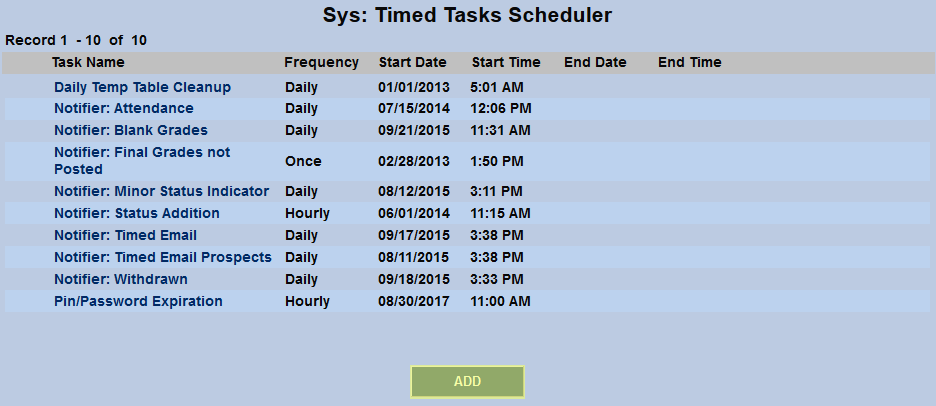
On the following page, select Regent Award Disbursement Import from the Task Name menu.
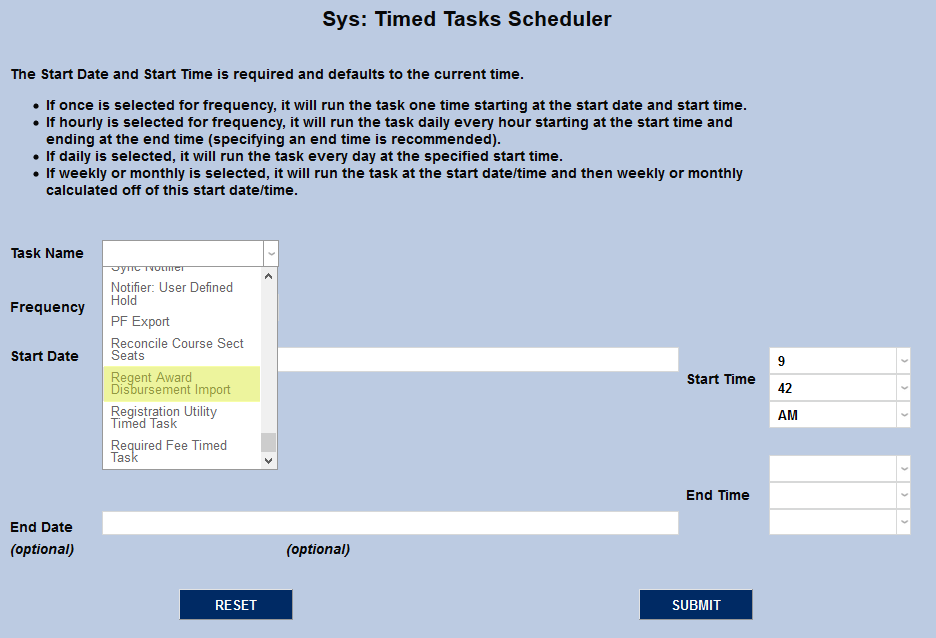
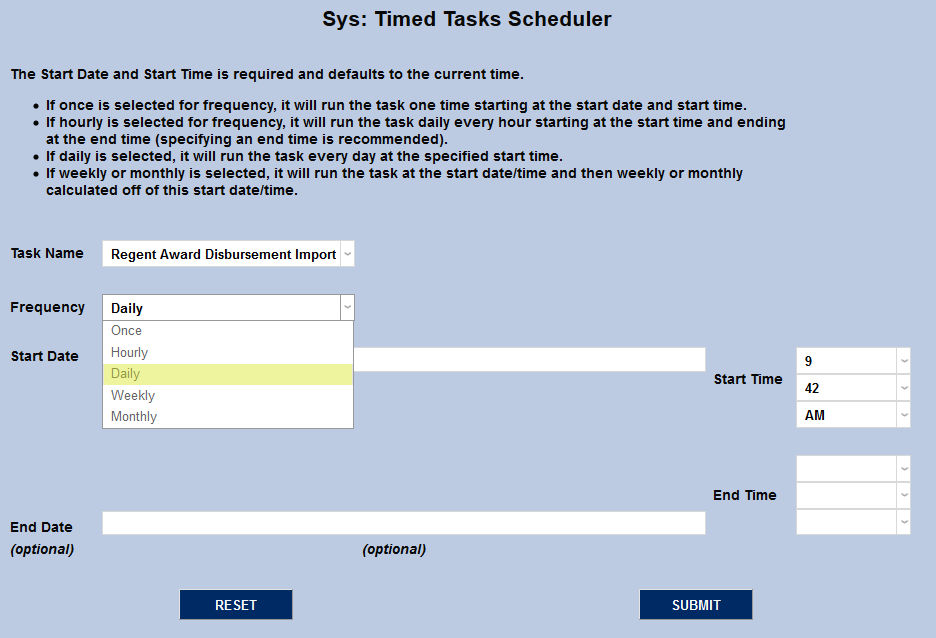
Select how often the task should occur with the Frequency dropdown.
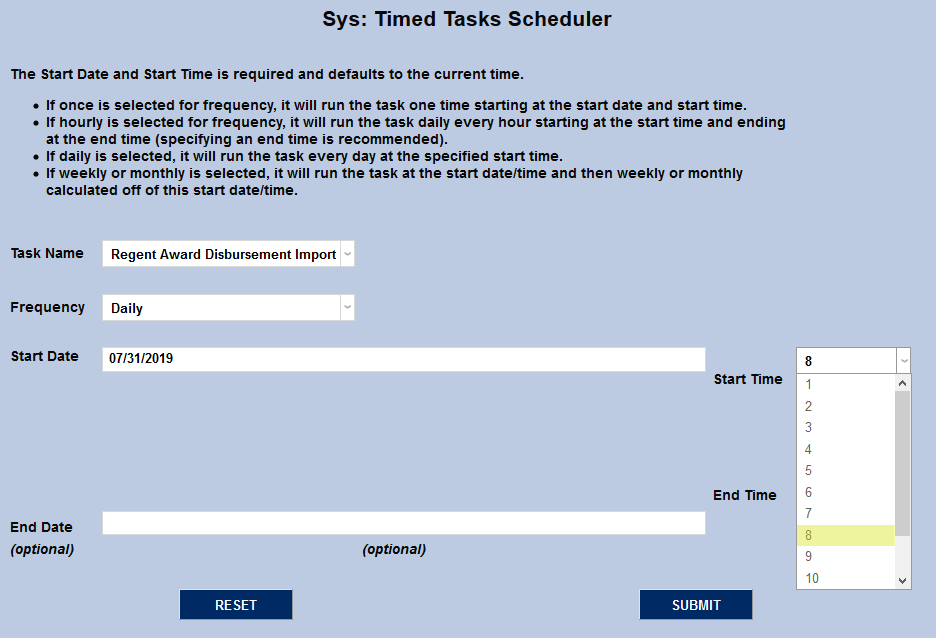
The Start Date and Start Time will automatically be set to the current date and time but can be changed to suit individual preferences. The End Date and End Time are optional and will not be used by most institutions.
Click the Submit button to create the scheduled task.
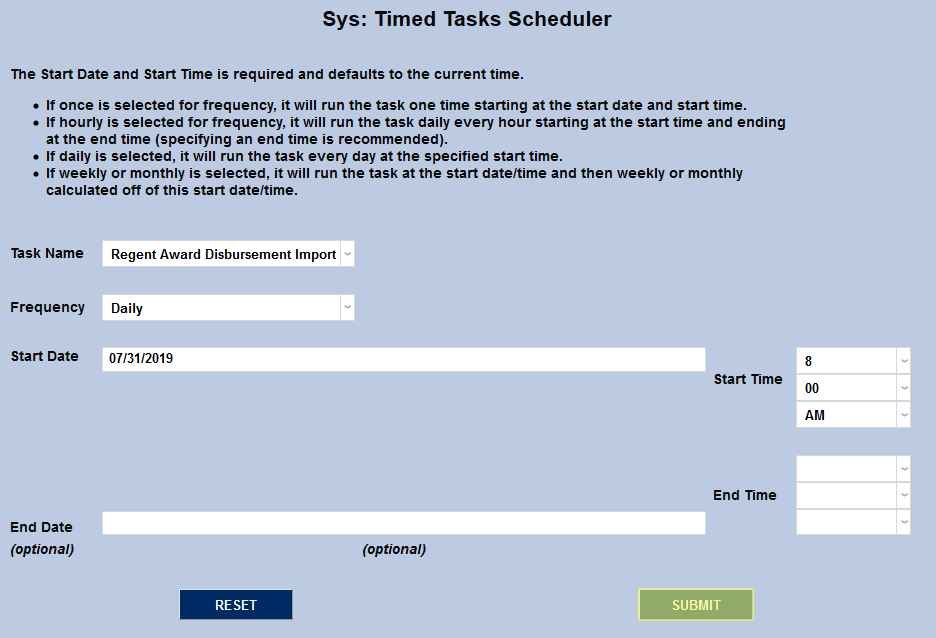
Once this task has been created, repeat the process to create an interval for the notifier. Select Notifier: Regent Award Disbursement from the Task Name dropdown menu and set the frequency, start date, and start time as before.
Report
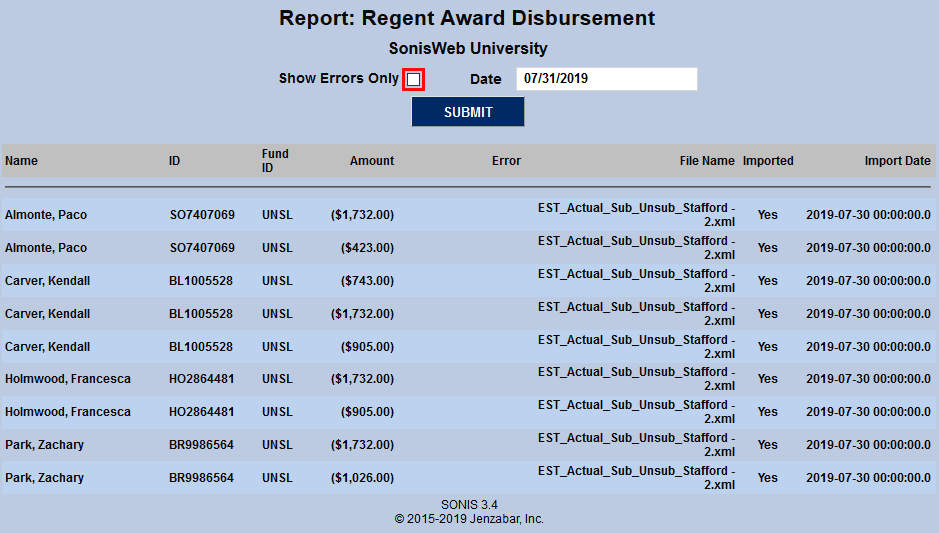
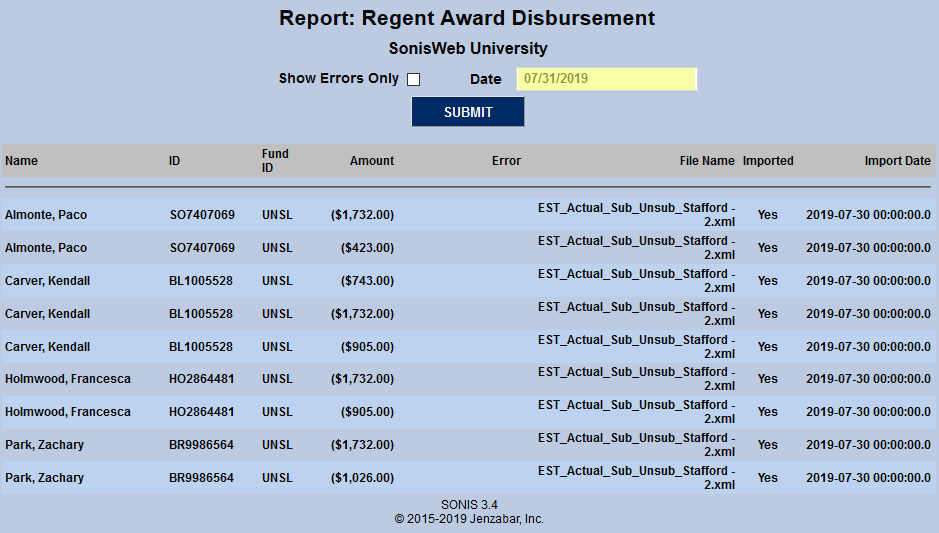
Once disbursements have been imported from Regent Award, this data is available to be viewed in the form of a report. Navigate to Report: Regent Award Disbursement under the Financials menu. By default, every disbursement that's been imported from Regent Award will be shown, but users can also check the Show Errors Only box to display only imports with errors or change the Date field to show only imports made before that date. Click the Submit button to update the page.
Exports: Fields & Data Sources
The following table provides details about what fields are provided in each Regent Export file and the source area or location that is used for the data included in the export.
Export Header Label | SONIS Data Source | SONIS Table.DataField | Description |
|---|---|---|---|
Record Type | StudentData or CourseData | Explains the type of data that is included in the row. | |
External Student ID | Records > Biographic > Integration ID | nmIntegrationID.Integration_ID | Uses SONIS ID if Other PID is blank. |
SSN | Records > Biographic | name.SSN | Must be text formatted to avoid losing leading zeroes. |
Birth Date | Records > Biographic | name.birthdate | |
Last Name | Records > Biographic | name.last_name | |
First Name | Records > Biographic | name.first_name | |
External Campus ID | Systems > System Variables > OPE ID | sysvar.ope_id | Column is formatted as text to retain leading zeroes, if appropriate. |
Matriculated Flag | Defaulted to blank. | ||
Cum UG GPA | Defaulted to blank. | ||
Cum GR GPA | Defaulted to blank. | ||
Ethnicity | Defaulted to blank. | ||
Race | Defaulted to blank. | ||
Gender | Defaulted to blank. | ||
State of Legal Residence | Defaulted to blank. | ||
Residency Date | Defaulted to blank. | ||
Admitted Date | Records > Application Or Education (From) | approg.app_date OR nmedu.enter_date | If there is no application date the From date on the Education record is used. |
External Program ID | Records > Program | nmprg.prg_cod | Code for the active program record. |
Program Start Date | Records > Program | nmprg.start_dt | Uses the start date on the active program record. |
Program Complete | Records > Program | nmprg. grad_prog | True/False. If program Stop Date is not blank AND Graduated is checked value is True. If not, it is False. |
Program Completion Date | Program Completion Date Program Stop Date from active program. | If no Stop Date exists, this field is left blank. | |
Course ID | Records > Courses | course.course | SONIS Course Number for courses student is enrolled in for the semester. |
Course Name | Records > Courses | course.crs_txt | Course text associated with the SONIS Course Number in the previous column. |
External Course ID | Records > Courses | course.course | Courses student is enrolled in for the semester. |
Course Start Date | Records > Courses | crssect.start_dt | Start Date from the course section record. |
Course End Date | Records > Courses | crssect.end_dt | End Date from the course section record. |
Registered Units | Records > Courses | nmcrs.cred_rec | Credit value from the student course record. |
Completed | Records > Courses | nmcrs.officialg & nmcrs.qlty_pnts | True/False. If Quality Points are greater than zero value is set to True. If not, set to False. |
Counts Toward Progress | Defaults to True. | ||
Quality Points | Records > Courses | nmcrs.qlty_pnts | If none are earned for the course yet, defaults to blank. |
Repeat | Records > Courses | nmcrs.rpt_grd | True/False. Repeat flag Yes = True, No = False. |
Transfer | Records > Courses | nmcrs.transfer | If Transfer = True, then the field is set to External. Otherwise, left blank. |
Enrolled Date | Records > Courses | nmcrs.enrol_date | Enroll Date from student course record. |
Last Attended Date | Records > Courses > Attendance | nmattend.date_of_cl | The Last/Most Recent Attendance Date. This will require taking attendance in SONIS for active enrollments. If no attendance records, then blank. The format is YYYY-MM-DD. |
Withdrawal Date | Records > Courses | nmcrs.with_date | Withdrawal Date from course record or active leave record, otherwise blank. The date format is YYYY-MM-DD. |
External Program ID | Records > Program | nmprg.prg_cod | Uses the code from the active program record. |
Program Applicable | Defaults to True. | ||
External ID | Records > Biographic > Integration ID | nmIntegrationID.Integration_ID | Other PID on Biographic; if blank, uses SONIS ID. |
Letter Grade | Records > Courses | nmcrs.grade | Letter grade received for the course. Blank if not yet graded. |
R2T4 Date of Determination | Defaults to blank. | ||
SAP Status | Records > Honors - Probation | NMHONPROB.Honors_Prob_txt | Satisfactory, Probation, or Warning from the Honors-Probation Records. Use Bulk Honors Probation Utility to apply values in bulk. |
SAP Date | Records > Honors - Probation | NMHONPROB.NMHONPROB_dt | |
SAP Review Period End Date | Systems > Table Maint > Semester History | semester_history.smend_dt | Uses end of semester date. |
SAP Review Period Frequency Code | Defaults to PP2Step. | ||
Maximum Time Frame Percent | Defaults to blank. | ||
Forecasted Maximum Time Frame Percent | Defaults to blank. | ||
SAP Review Period Pace | Defaults to blank. | ||
Cumulative Pace | Defaults to blank. | ||
SAP Review Period GPA | Defaults to blank. | ||
Cumlative GPA | Defaults to blank. | ||
Address Type | Records > Address | address.type | Uses the SONIS preferred address type, which will probably be Primary. |
Address Line 1 | Records > Address | address.st_addr | Preferred address line 1. |
Address Line 2 | Records > Address | address.add_add | Preferred address line 2. |
City | Records > Address | address.city | Preferred address city value. |
State | Records > Address | address.state | Preferred address state value. |
Postal Code | Records > Address | address.zip | Preferred address postal/zip code. |
Preferred Phone | Records > Address | address.cell_phone OR address.phone | Uses preferred address record Cell Phone number; populates the column as Mobile. |
Phone Number | Records > Address | address.cell_phone OR address.phone | Uses the cell phone number on the preferred address record. If there is no cell phone number, uses the Telephone field. |
Preferred Email | Defaults to School. | ||
Active | Records > Module/Status | nmmodst.mod_stat | If SONIS status = ST the value is True. Any other value sets the field to False. A value is only displayed on StudentData rows. |
External UDF Name 1 | Defaults to NSLDS. | ||
External UDF Value 1 | New and returning students = 3; continuing = 0. Student is new if there is no previous enrollment. Student is returning if they enrolled previously but had a break in enrollment of a full semester or more. Student is continuing if enrolled continuously. | ||
External UDF Name 2 | Defaults to blank. | ||
External UDF Value 2 | Defaults to blank. | ||
External UDF Name 3 | Defaults to blank. | ||
External UDF Value 3 | Defaults to blank. | ||
Attendance | Records > Courses | nmcrs.enrollcode AND nmcrs.officialg | Always FALSE in the Demographic & Enrollment export. Always TRUE after enrollment/attendance established for Drop/Add, Census, and End of Term exports. |
Vendor Provided School Code | Systems > System Variables > School Name Short Desc | sysvar.school_name_abbr | |
School Years Abbreviation | Systems > Table Maint > Years | years.sch_years_abbr | |
School Semesters Abbreviation | Systems > Semesters | semester.sem_abbr |