Bio
Overview
The Biographic Information page, available within the General folder or from the top menu, contains selected information from the student's demographic and academic records.
Biographic Information
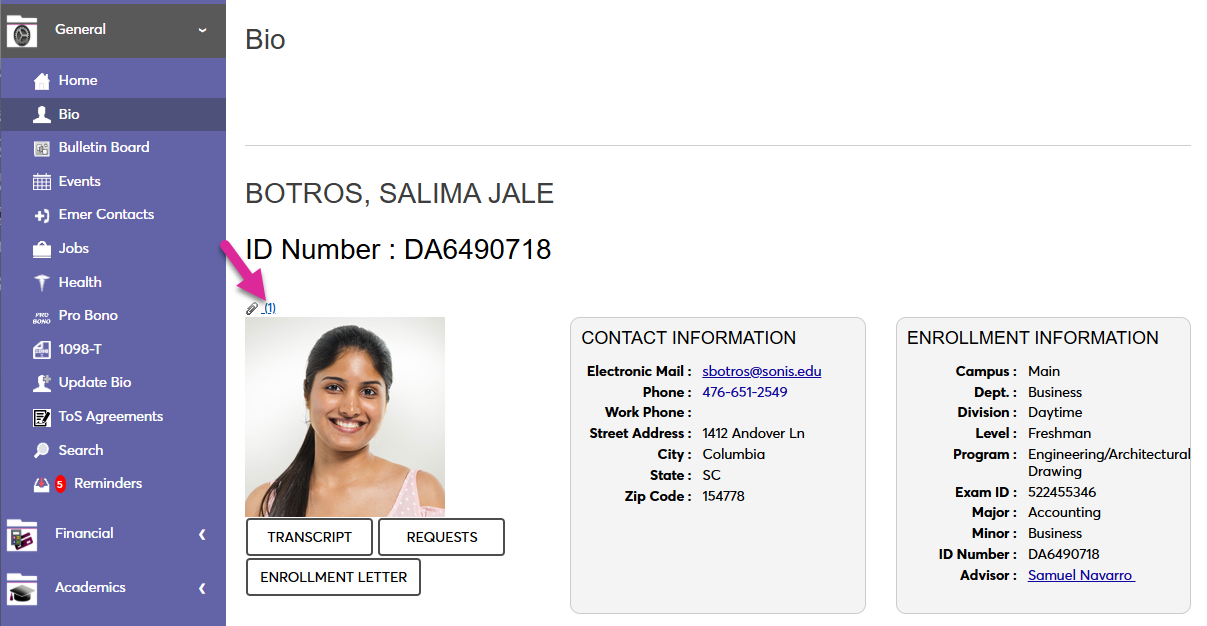
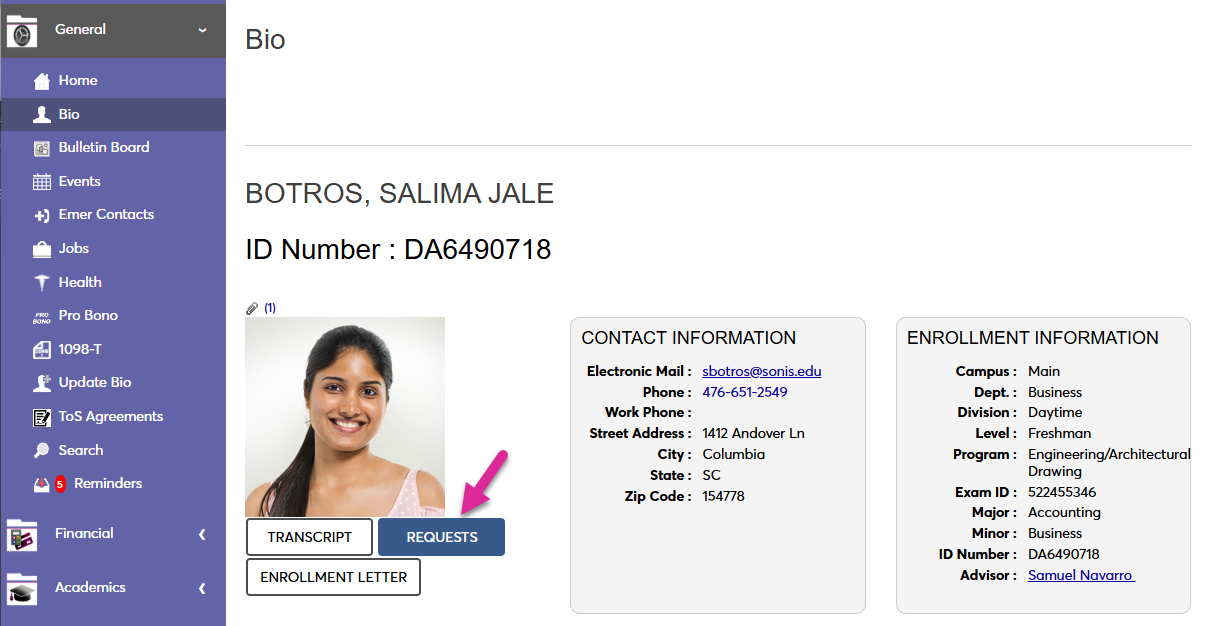
The first section of the Biographic Information page displays the student's name of record, a photo if one is on file, the SONIS ID Number, a paper clip, and a number within parentheses. Click the paper clip to upload documents. Click the number to view any attachments previously submitted throught his page or attached to the student record by an administrator.
Note
In order for students to view and upload files, categories must be added to the Student portal in the DMS settings.
Transcript
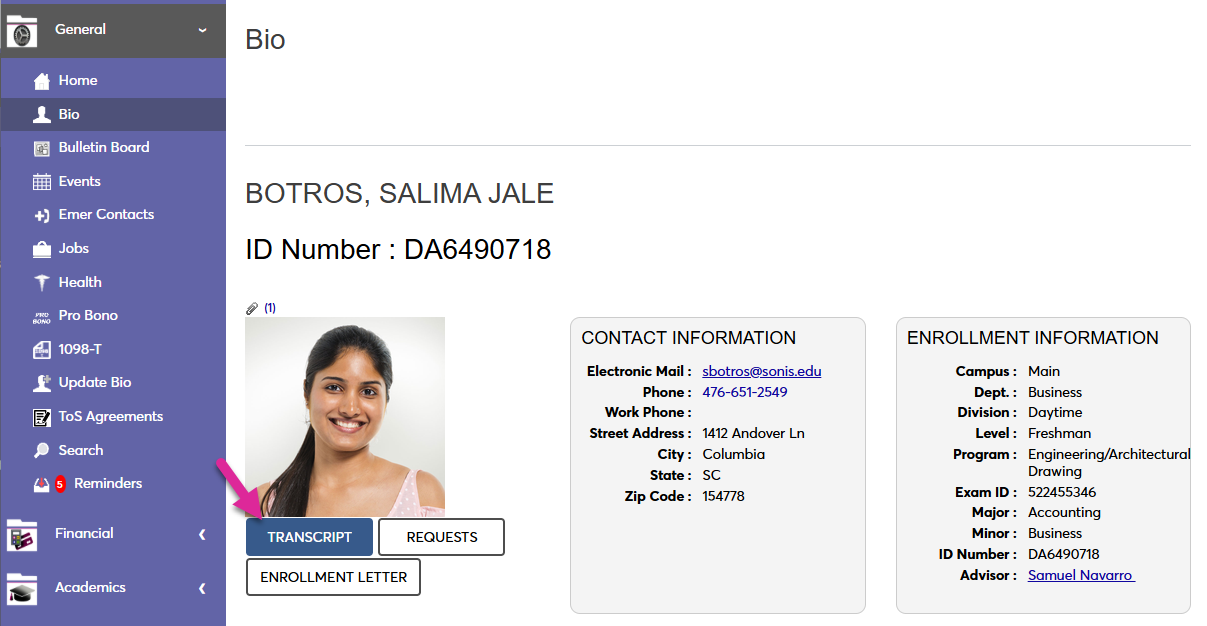
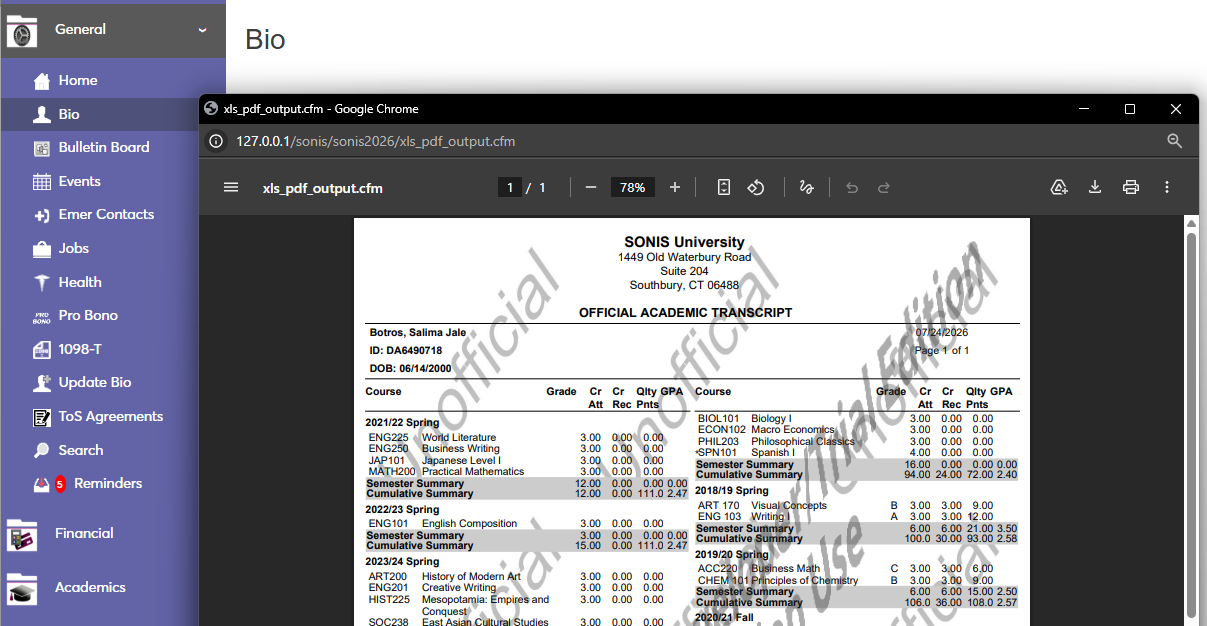
The Transcript button allows the student to view an unofficial transcript on demand.
Requests
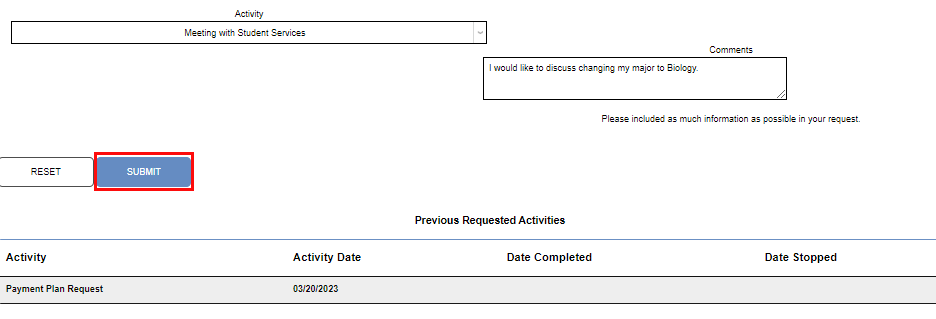
Click the Requests button to make a request for the school. A pop-up displays. Select the Activity dropdown to select a request type.
Administrators, see Activity request types for more information.
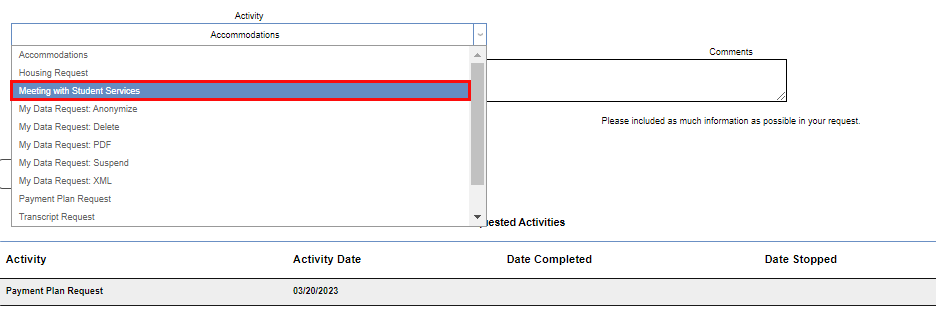
A Comments box is available to add any additional information that would assist in the completion of the request. At the bottom of the page, any previously submitted requests are displayed.
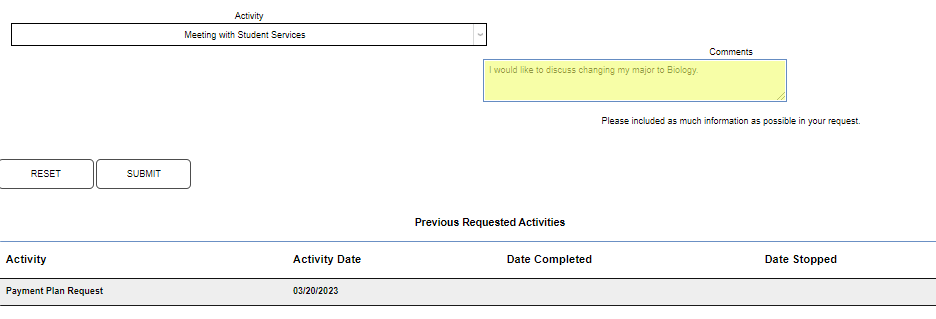
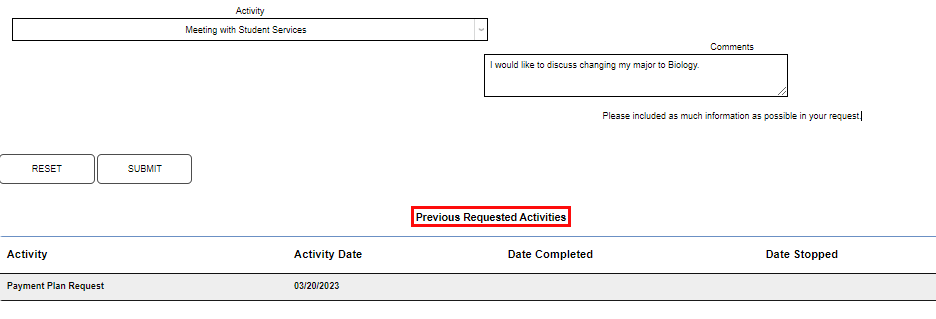
Click Submit to enter the request and send it to the Jenzabar SONIS Administrative portal.
The user's request will display on their Activities page.

Enrollment Letter
The Enrollment Letter displays verification of enrollment within the student portal. Each student who is enrolled can click the Enrollment Letter button and view proof of their enrollment hours in each school year and semester.
See the Reports page for more information on creating enrollment letters.
Contact Information
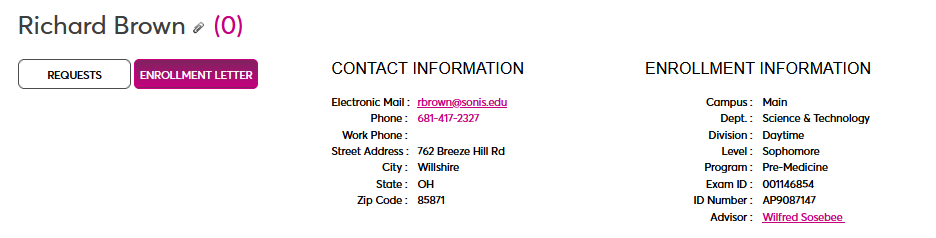
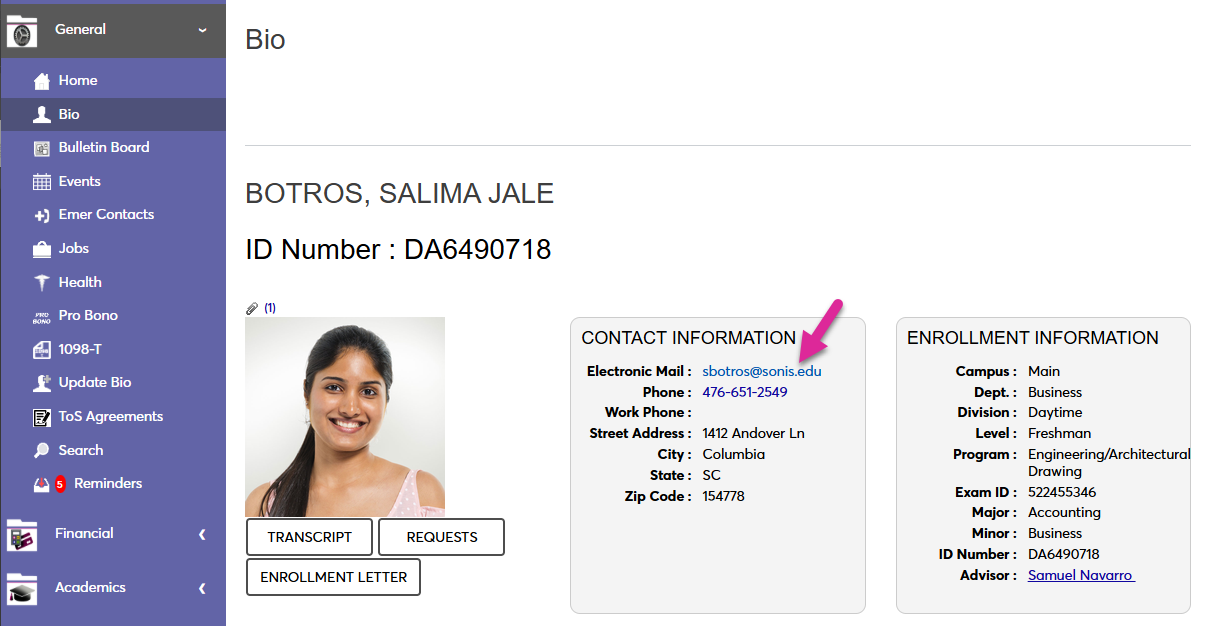
This section of the portal displays some of the biographic information on record for the user. The data is display-only, except for the email address. When the Electronic Mail address is clicked, the user's email client should open and allow the composition of an email to this address. Students can update some of their personal details from the Update Bio page, if it's active.
If the data displayed here is incorrect, administrators can updated it from the Users hub Biographic and Address pages.
Enrollment Information
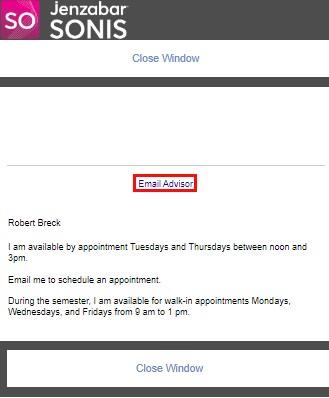
The Enrollment Information section displays a summary of information associated with the student's program of study and enrollment. The information is display only, except for the Academic Advisor link, which displays the name of the advisor assigned to the student. Clicking the name of the advisor opens a pop-up that displays the advisor's office hours.
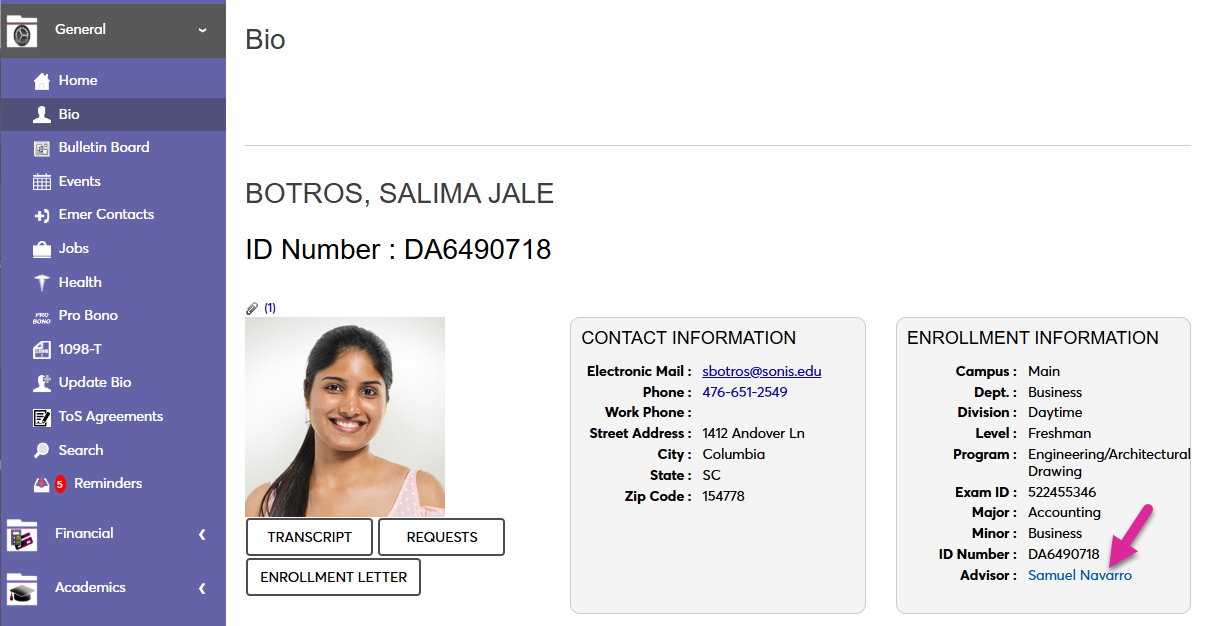
An option to email the advisor is provided, as well.
Transfer Courses Accepted for Credit
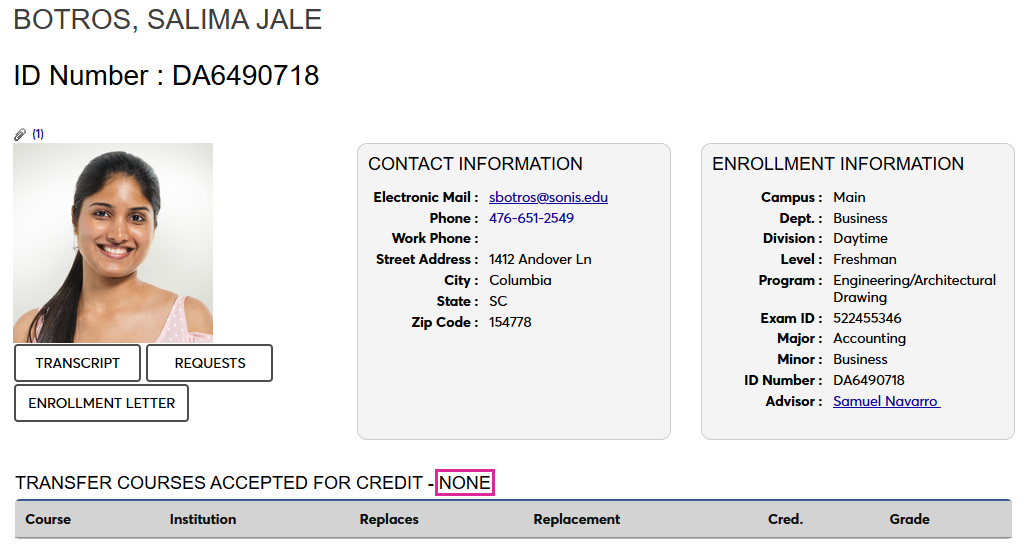
This section shows a user any transfer courses that have been accepted for credit. This information allows a student to monitor the progress and status of the transfer credits they are hoping to count toward graduation. If there are no accepted courses, the word NONE displays.
Courses that have been accepted display the name of the course taken, institution the course was taken at, the course number and name being replaced, and the number of credits earned by the replacement. If a grade is automatically given for the replacement course, it displays in the grade column.

Completed Courses
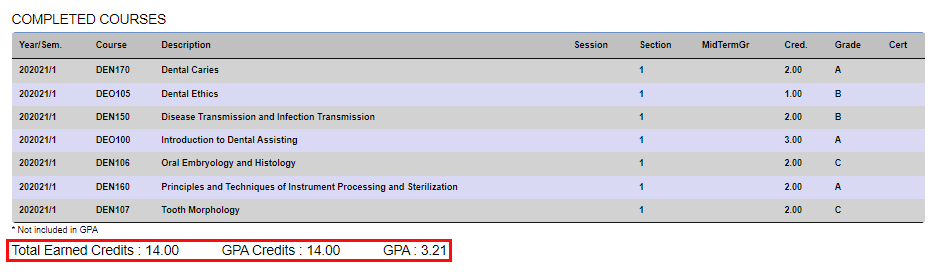
This section lists the courses that the student has officially completed. It displays midterm and official grades and serves as a means for the student to monitor their progress towards degree completion. A summary of credits earned, and the current GPA, are displayed below the list of courses.
Withdrawn Courses
This section shows any courses from which the student has officially withdrawn. It is common for students to believe they have withdrawn from a course when they haven't. If the withdrawal is not officially completed within the school's add/drop period, that course could have an adverse effect on the student's GPA and academic progress. If the student has not officially withdrawn from any courses, the word NONE is displayed.

In Progress Courses
This section shows the courses the student is currently enrolled in. The student should monitor this section during the registration period to confirm that the course sections for which they believe they registered are listed.

Competency Courses
If a student is enrolled in a course with Competencies associated with it, the name of the competency and any associated grading information are displayed in this section.
See the Career Major Courses & Competencies overview page for more information on how competencies work in Jenzabar SONIS.

Holds
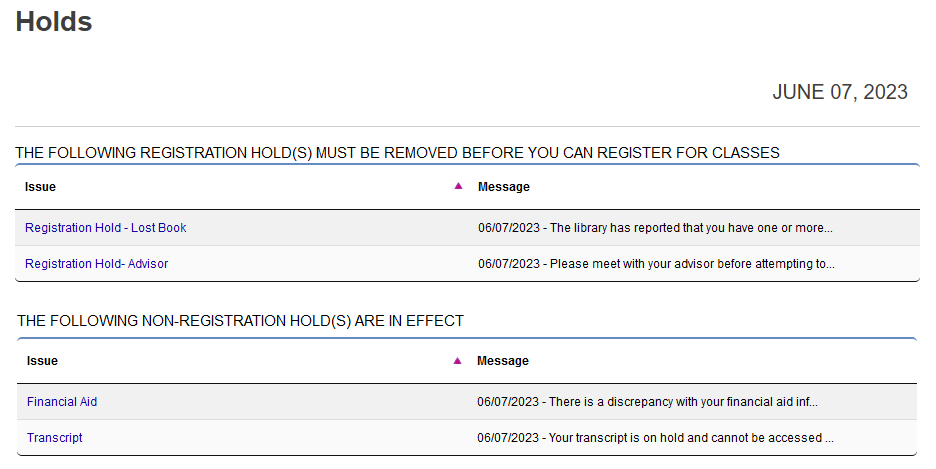
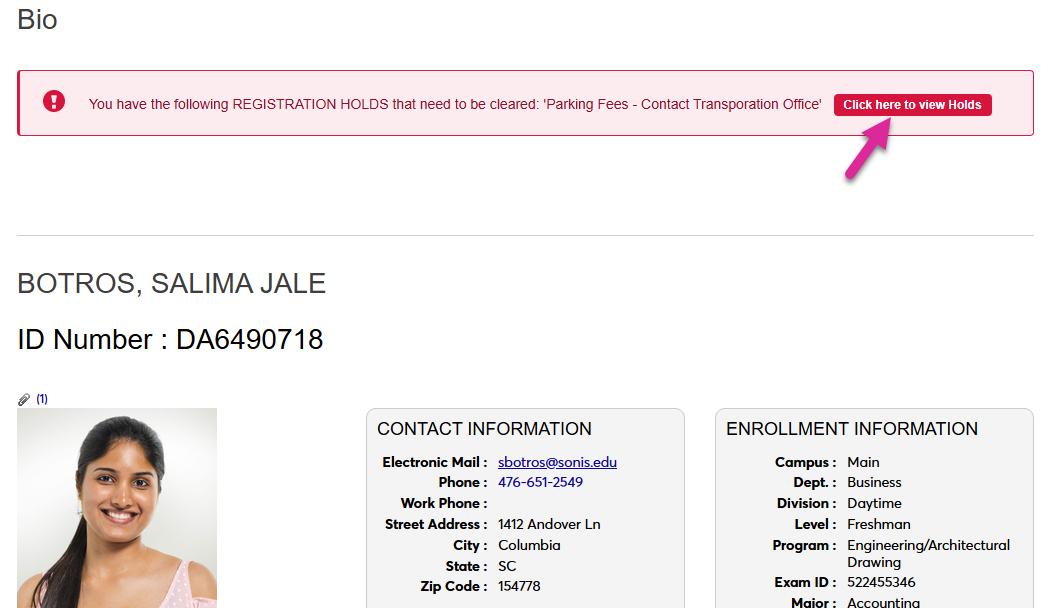
If a student has any holds on their account, with the exception of course evaluation holds, a red holds indicator will appear at the top of the Bio page. Students can click the button to be taken to the holds page and see the specific holds on their account.
The Student Holds page is organized to display registration holds, preregistration holds, and non-registration holds separately. A student can click on a hold to view the full text of the hold message in a pop-up window.