Search Results
Overview
The Search Results page, available from QuickSearch Results or from the User and Courses Hubs, provides administrators the ability to search using filters and keywords. It also provides access to the Create User and Create Course wizards. The displayed results honor existing User Security Profiles.
The Jenzabar SONIS Global Search pulls results from the following fields: First Name, Last Name, ID Number, Exam ID, Exam ID History, Maiden Name, Other Name, Nickname, Primary Email, Secondary Email, Phone, Cell Phone, Work Phone, Current Disposition, Course Name, Course Description, Page, and Page Name. The search also pulls results from the Birthdate and Social Security Number fields, but only for users who have the User Security privileges to view these fields.
Searching
More Results
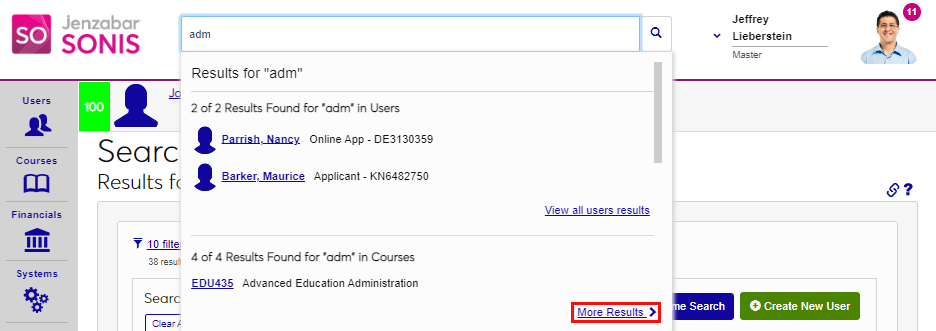
After searching for something in the QuickSearch, the administrator is given the More Results option if there are results other than those shown. Click More Results to open the Search Results utility.
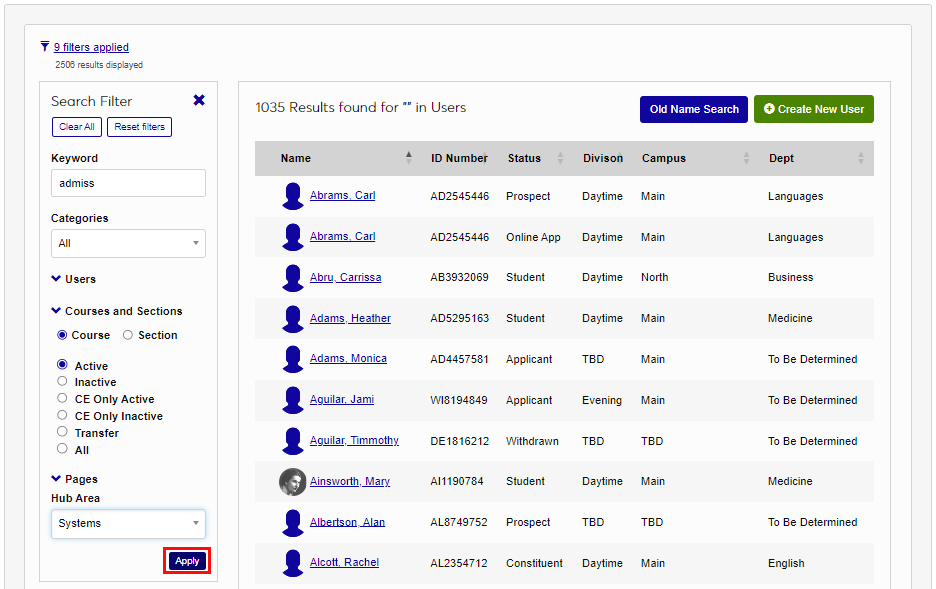
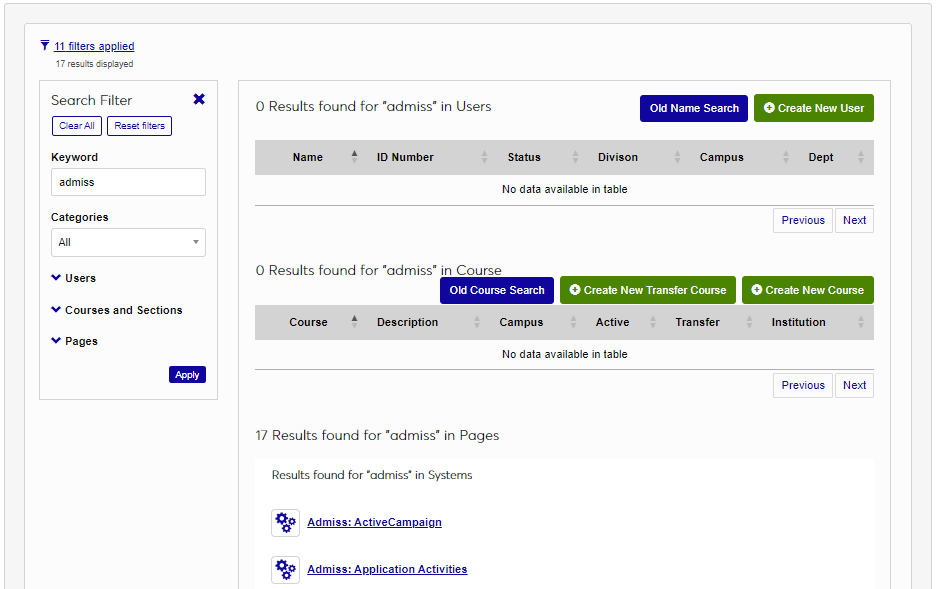
When the page opens, filters are applied automatically based on the criteria entered in the QuickSearch. Clicking the link collapses the filter menu. Clicking it again reopens the filters for use.
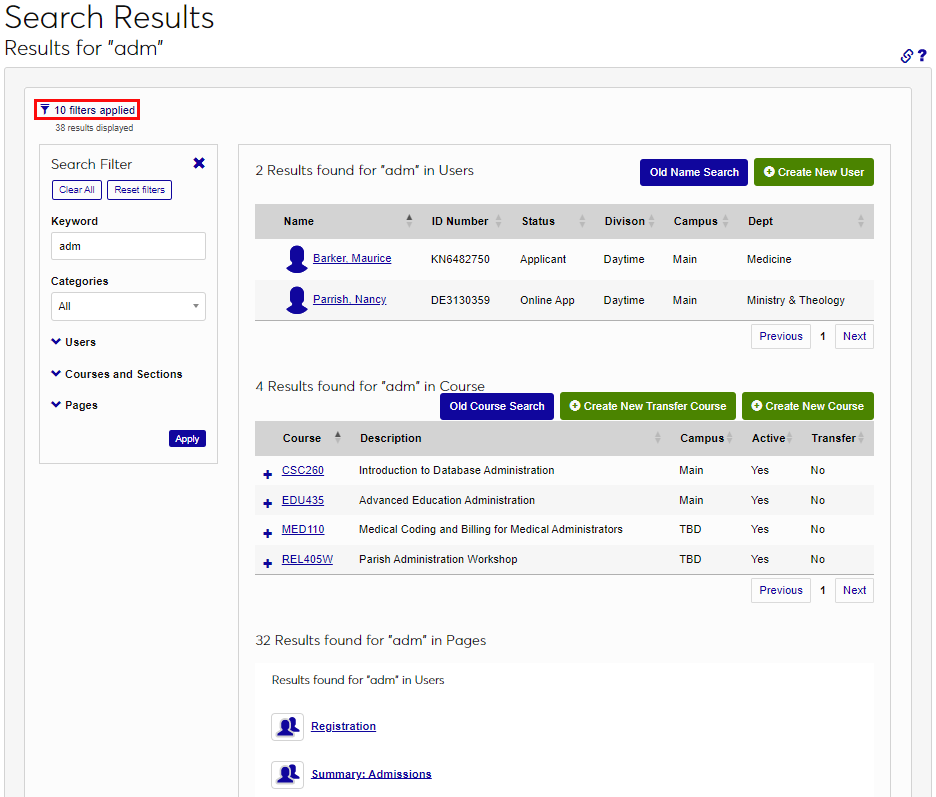
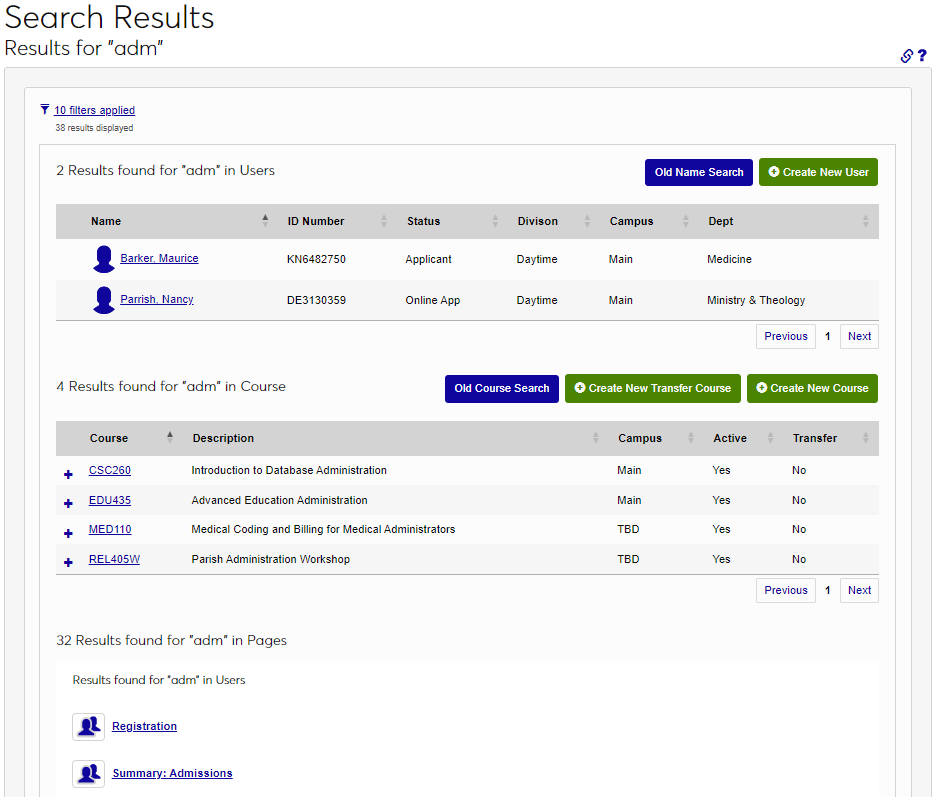
Click Clear All to remove the search term and Reset filters to remove all filters.
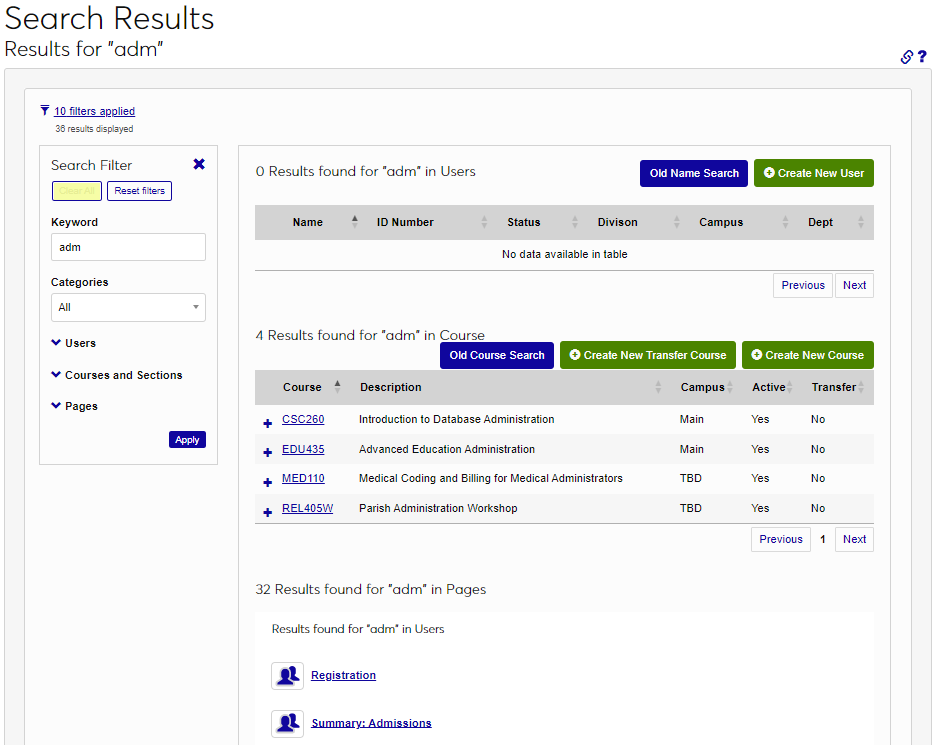
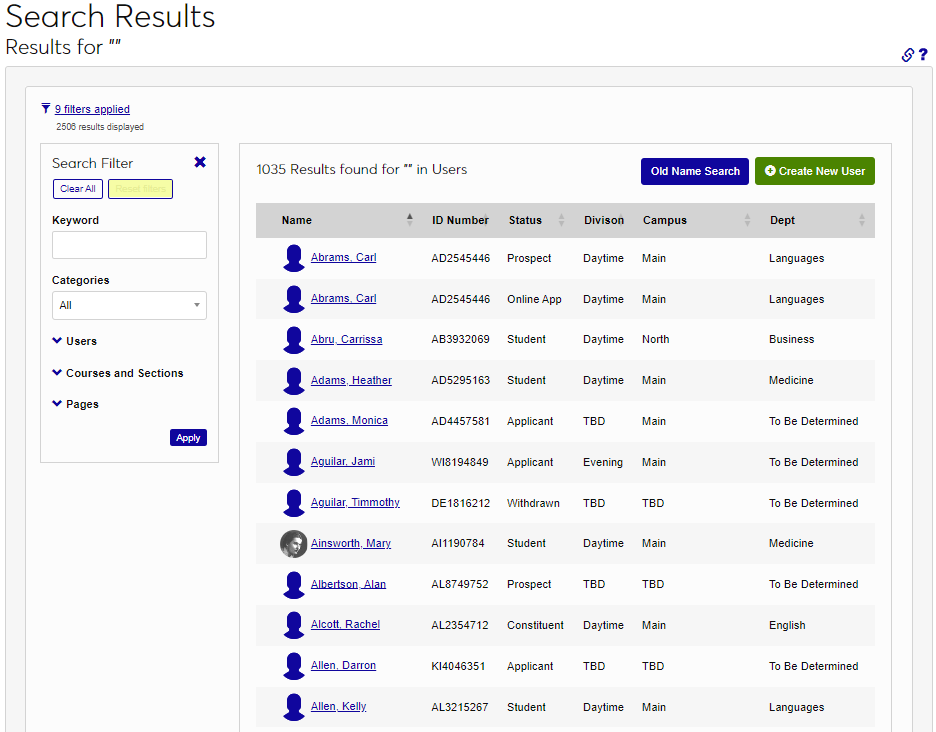
Enter the desired search term in the Keyword field. If the Category is known, select it from the dropdown.
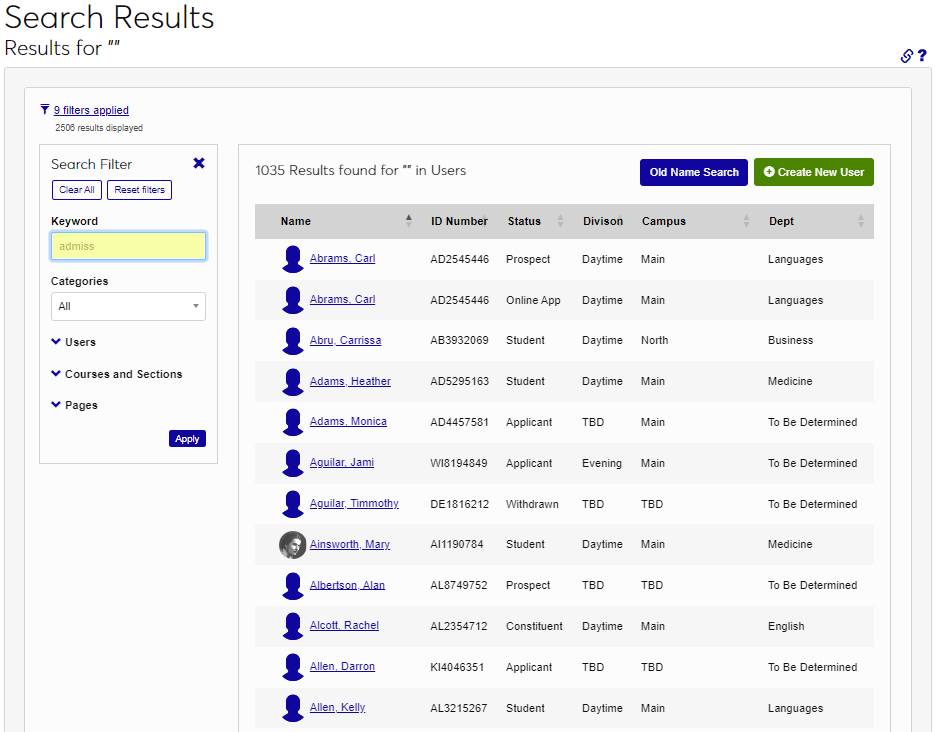
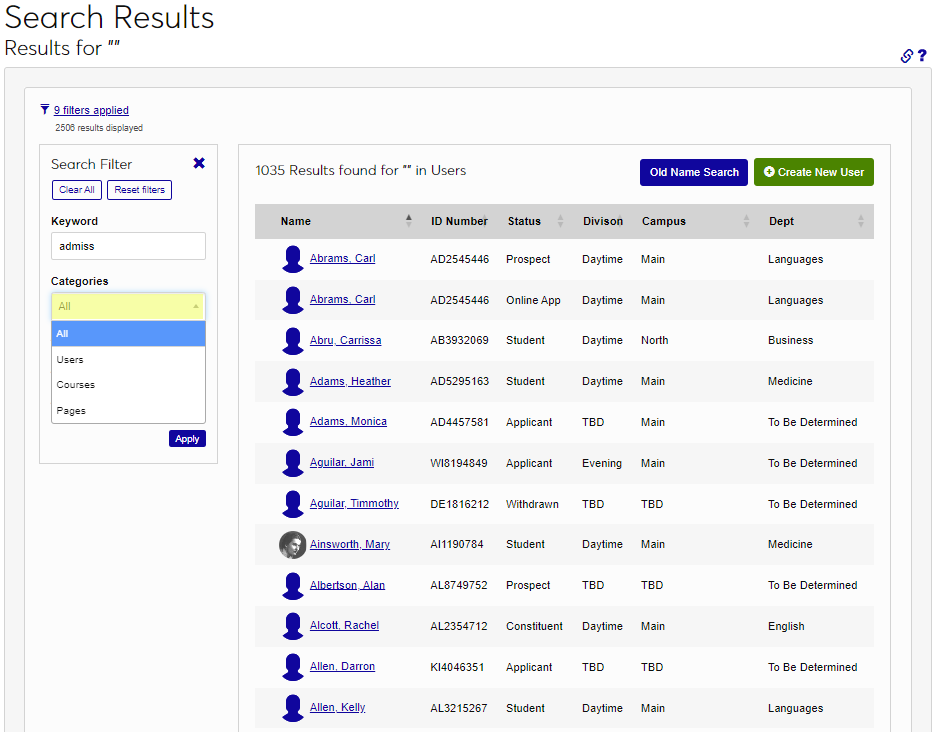
The down arrows next to Users, Courses and Sections, and Pages open a robust set of additional filters, when clicked.
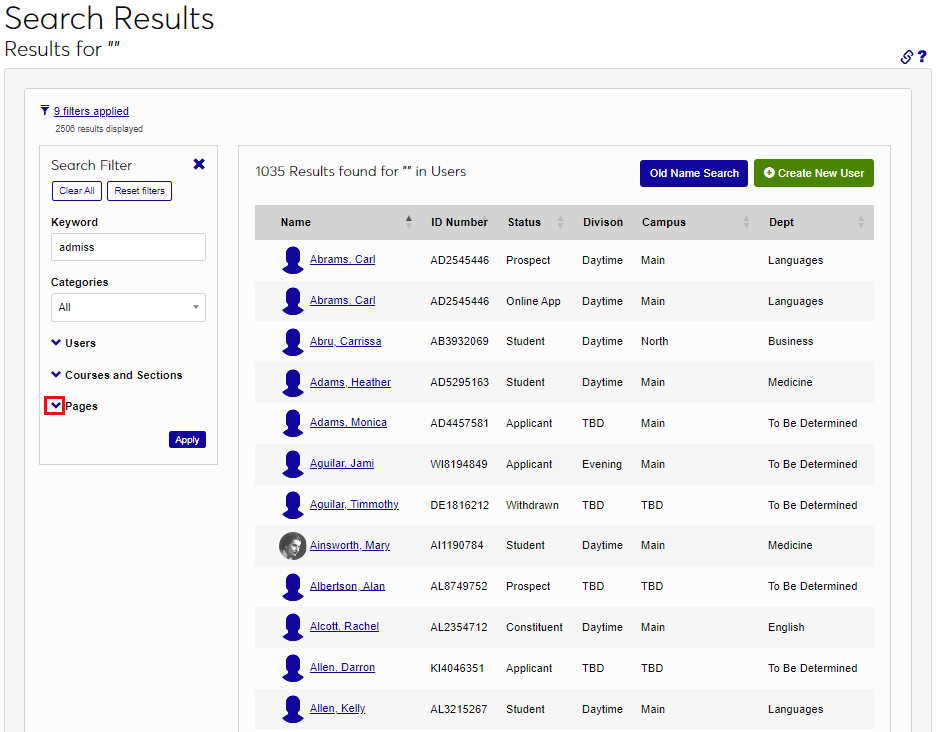
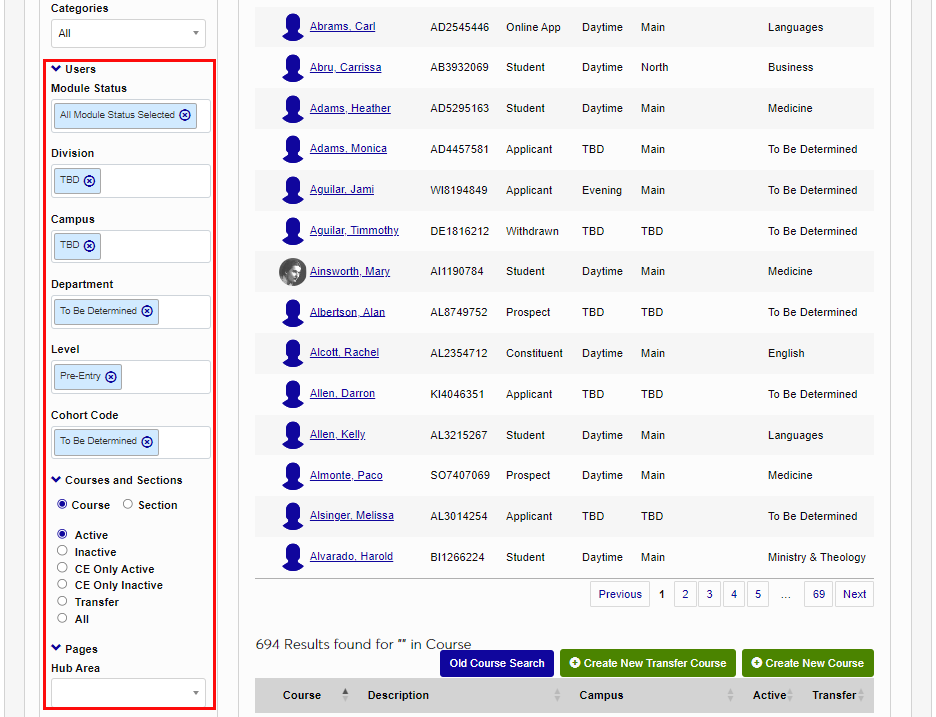
After selecting the desired additional filters, click Apply.
User Search
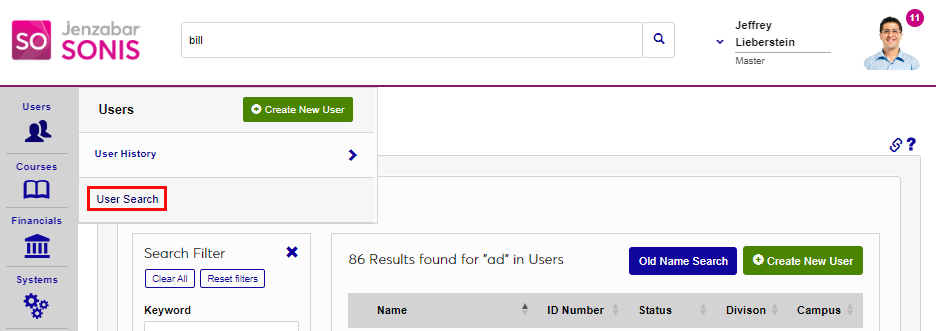
The User Search is displayed after clicking View All Users Results or by selecting it from the Users hub.
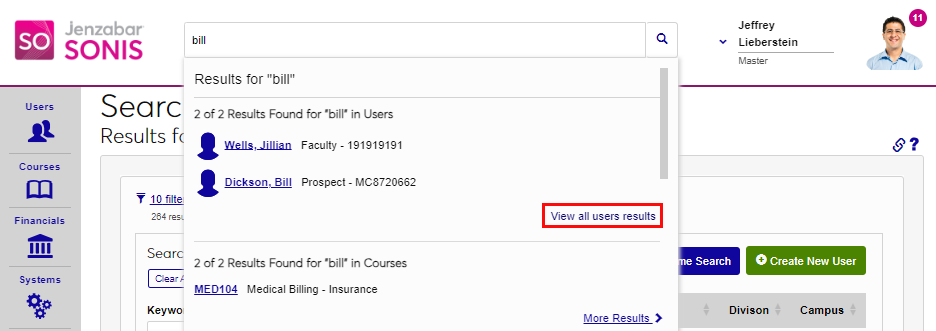
If accessed from View All Users Results, the search term entered in the QuickSearch bar is carried to the search filters and all the results are displayed. Search results can be narrowed by using the filters, as discussed above.
The Keyword field pulls results from the following system fields: First Name, Last Name, ID Number, Exam ID, Exam ID History, Maiden Name, Other Name, Nickname, Primary Email, Secondary Email, Phone, Cell Phone, Work Phone, and Current Disposition. The search also pulls results from the Birthdate and Social Security Number fields, but only for users who have the User Security privileges to view these fields.
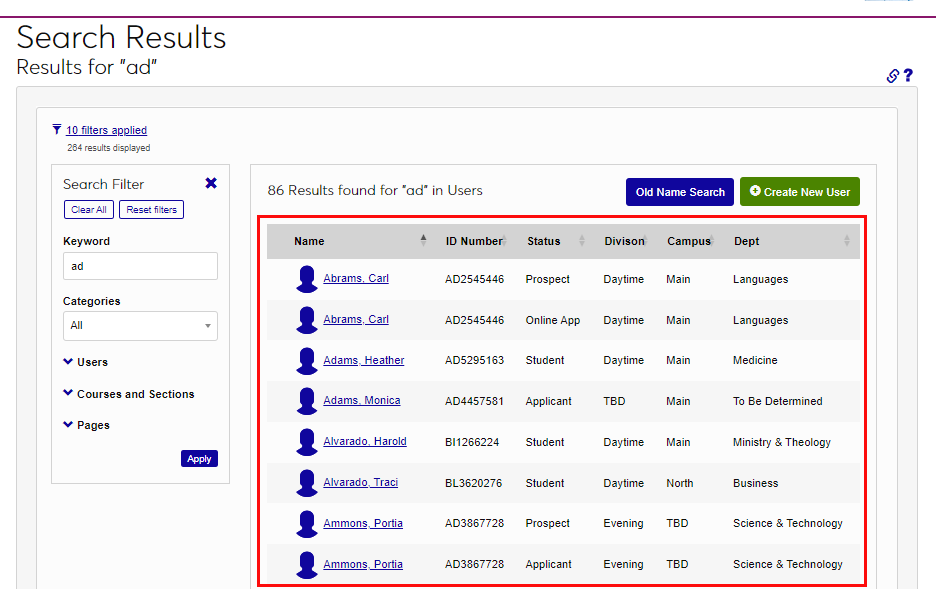
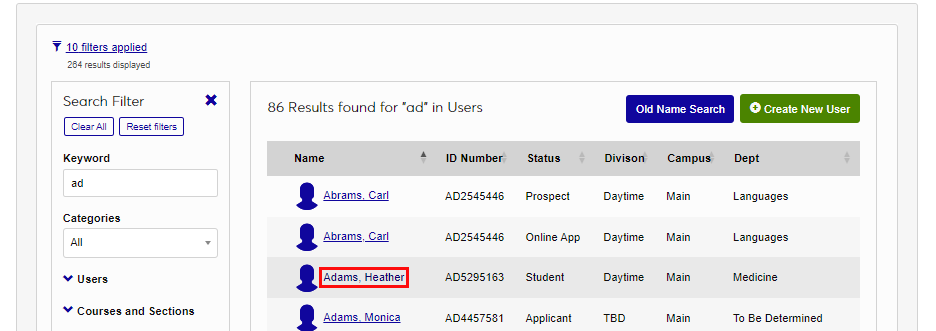
Once the desired user is located, click the name to view their records.
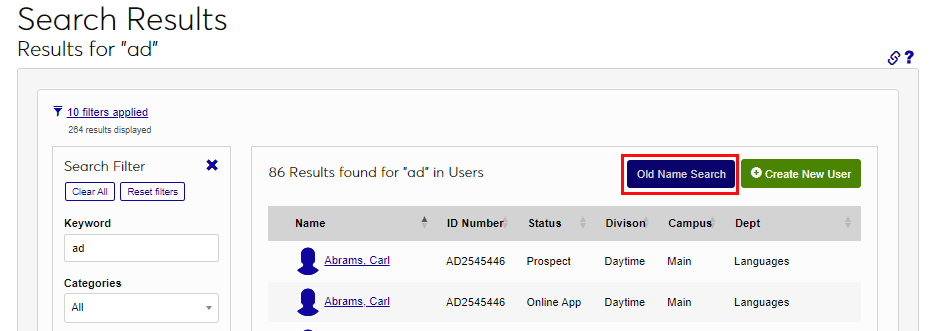
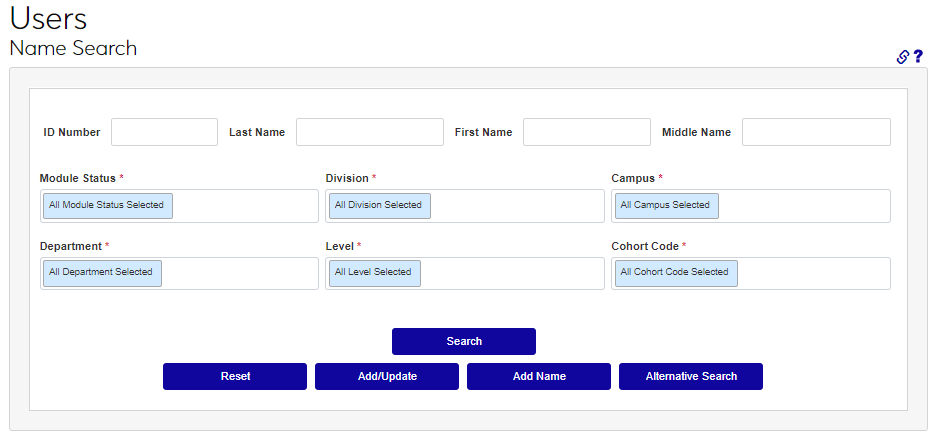
If the needed user record doesn't display, the Old Name Search button can be used to search with a different set of filters, as shown.
Course/Section Search
The Course/Section Search is displayed after clicking More Results or by selecting it from the Courses hub.
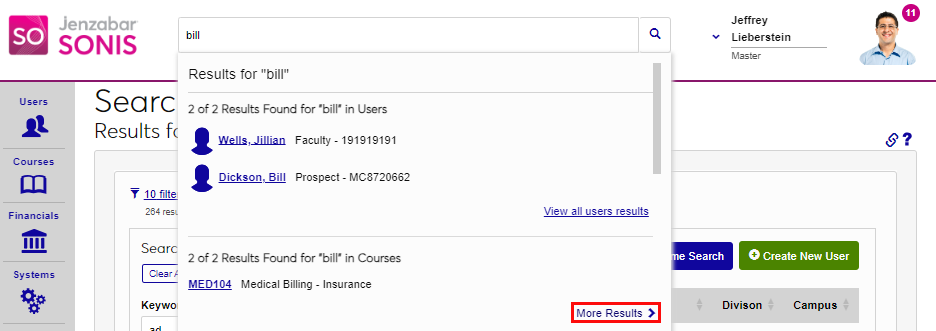
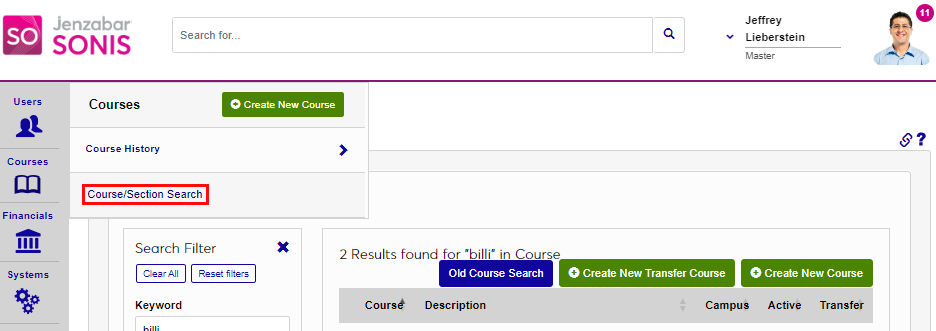
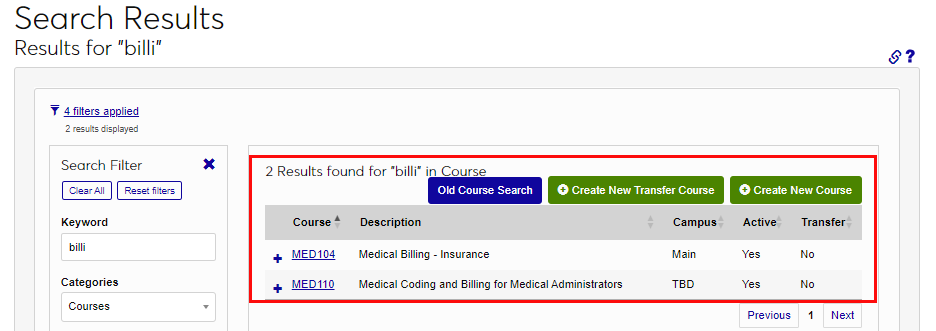
If accessed from View All Courses Results or More Results, the search term entered in the QuickSearch bar is carried to the search filters and all the results are displayed. Search results can be narrowed by using the filters, as discussed above.
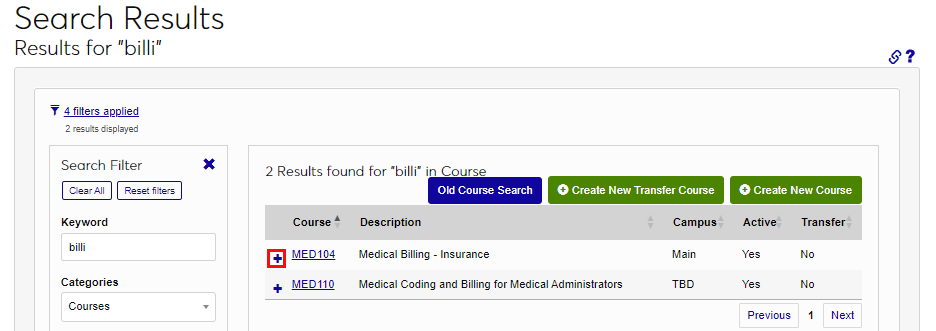
Click the plus icon to view more details about a course.
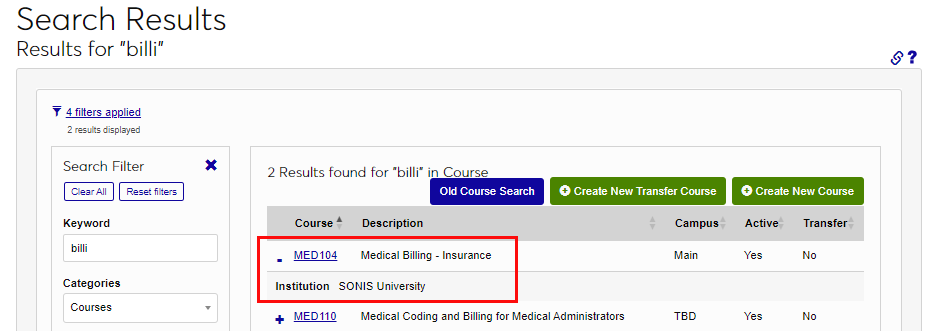
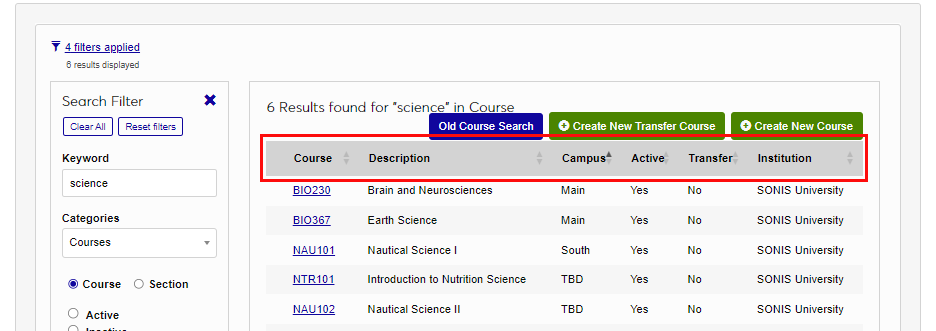
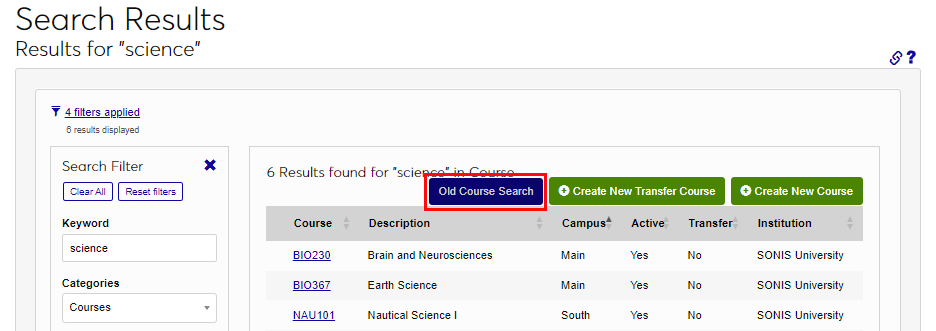
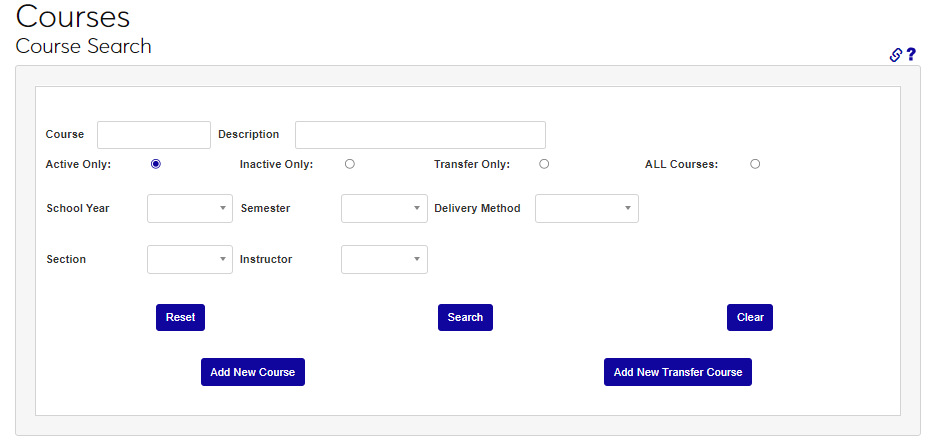
The Course, Description, Campus, Active, and Transfer toggles can be used to change the sort order of the displayed results. If the needed course record doesn't display, the Old Course Search button can be used to search with a different set of filters, as shown.