Course Add/Edit
Overview
The Course Add/Edit page is a record for the course master. It is where the courses offered at the school are defined. Specific attributes such as credits, class hours, tuition rate, prerequisites, corequisites, eligibility for continuing education and more; are defined on this page. Course Sections inherit most (but not all) of their attributes from this record.
The majority of the options on this page are created when adding the course. For a detailed breakdown of each option and its function, navigate to the Adding Courses section of the Course Search wiki page.
Primary Course Options
These options appear both when creating a new course and editing an existing course. Note than when making edits, the Course and Institute are locked and cannot be changed.
The Description is the longform name of the course. Every course should have one. The field has a 100-character limit.
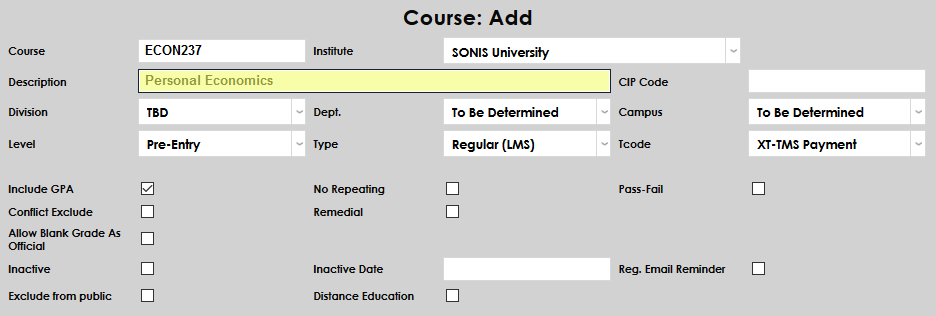
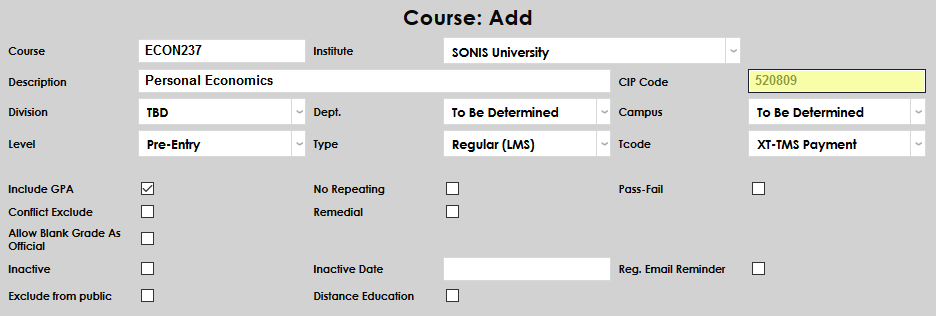
To ensure that course data is transferred to the National Student Clearinghouse, enter the CIP Code for the course. CIP codes, where needed, can be obtained through the National Center for Education Statistics website.
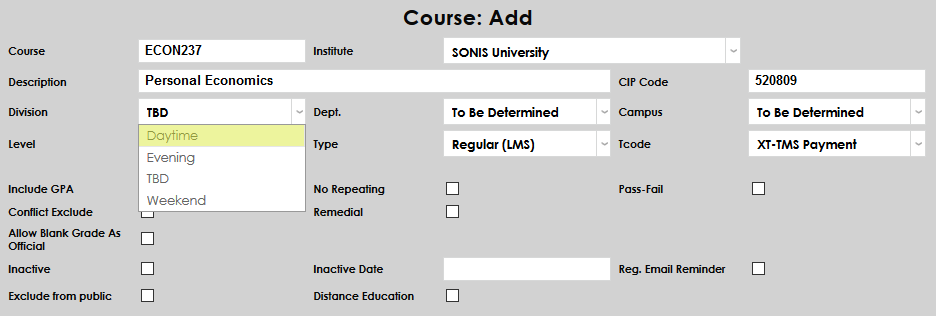
Select a Division for the course. The Division module status is applied to students and was originally designed to separate students who take classes at different times such as daytime, evening, and weekend. However, SONIS member schools can customize this status to separate students into whatever categories suit their needs. For example, a school could have separate divisions for in-person students and distance learners. If the course can be taken by students in multiple divisions, or divisions are not being used, stick with the default TBD. Students are not prohibited from taking courses associated with other divisions.
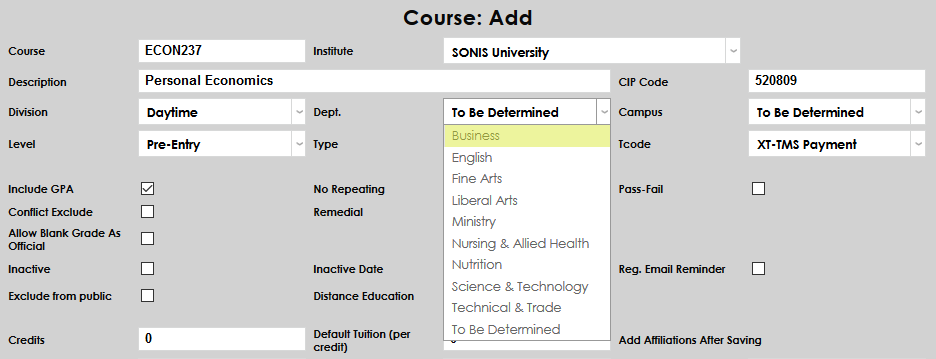
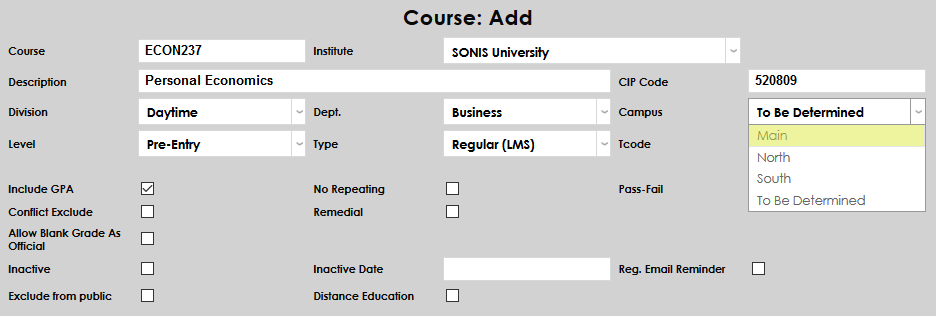
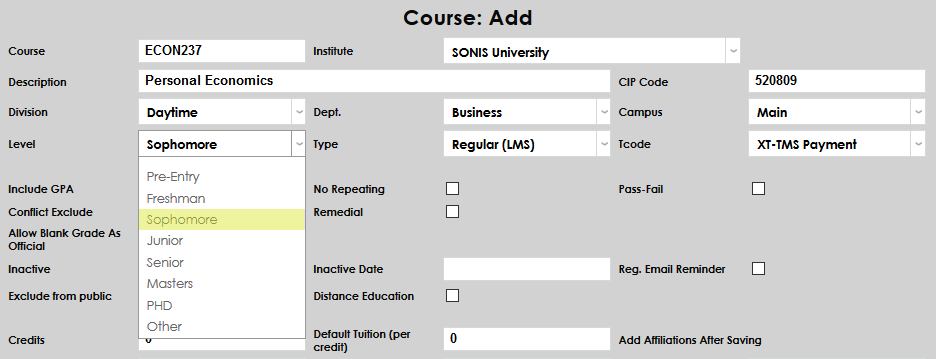
Next, select a Department, Campus, and Level for the course. The department refers to the academic department of the course. The campus is the location where the course will take place. The level is the level of student (freshman, sophomore, junior, senior, etc.) who the course is intended for. Schools that do not have academic departments and/or who only have one campus can leave these selections blank or as TBD. These settings do not restrict students associated with other departments, campuses, or levels from taking the course.
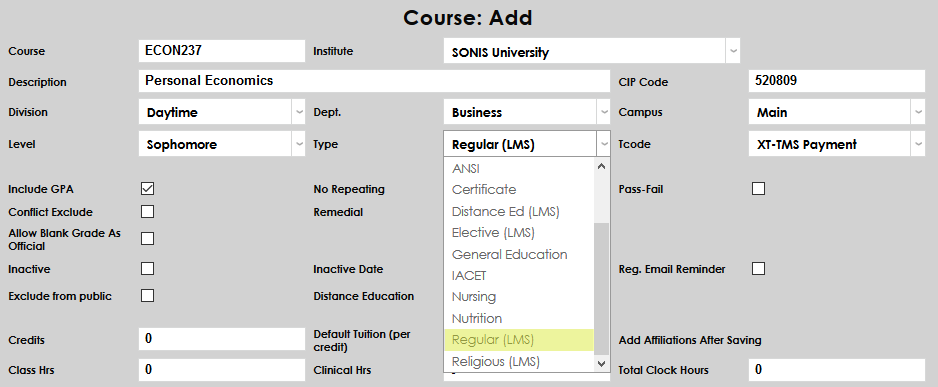
Select a Type for the course. Course types can be used in various ways by schools to label and separate courses. Some schools may wish to tie a course type or types to a different Grading Index, altering the way final grades and GPAs are calculated.
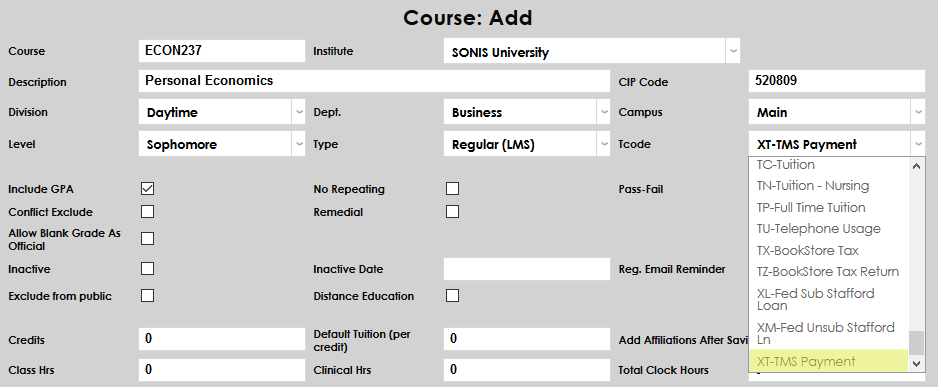
Select a T-Code for the course charges.
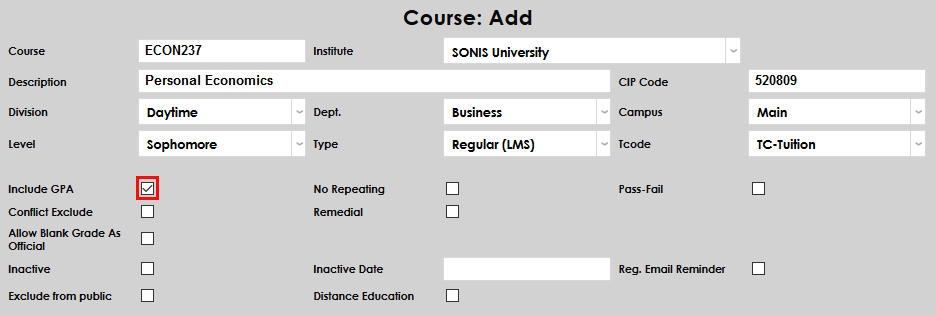
Leave the Include GPA box checked if grades for the course should be included in each student's GPA calculation. Uncheck the box if the course should be excluded from GPAs.
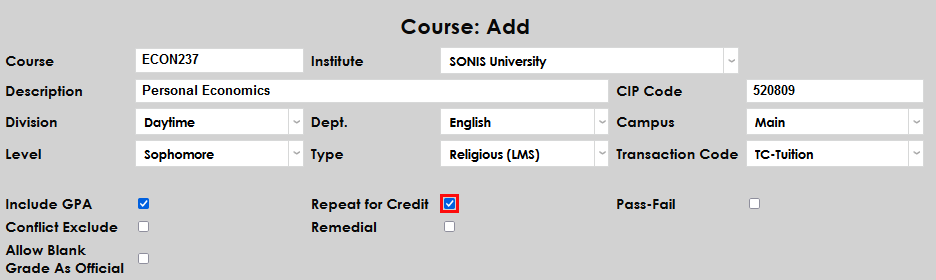
The Repeat for Credit box is used to determine if a course may be repeated for credit. If the box is checked, each time a student takes the course, they will receiver a fresh grade and every grade will be counted towards their GPA. If the box is left unchecked, each new grade will replace their previous grade. Keep in mind that students may be limited in the number of times they can take the course at all based on the global repeat settings in Web Options.
Some schools may wish to allow repeats but limit the number of times a course can be taken for credit. To set this limit, navigate to the in Web Options page under the Systems hub and edit the field labeled Number of Times A Course Can be Enrolled in and Passed. If the value is set to zero (0), students can complete courses an unlimited number of times.

Jenzabar SONIS offers a User Security option, which allows administrators to override the repeat limit when registering students for courses.


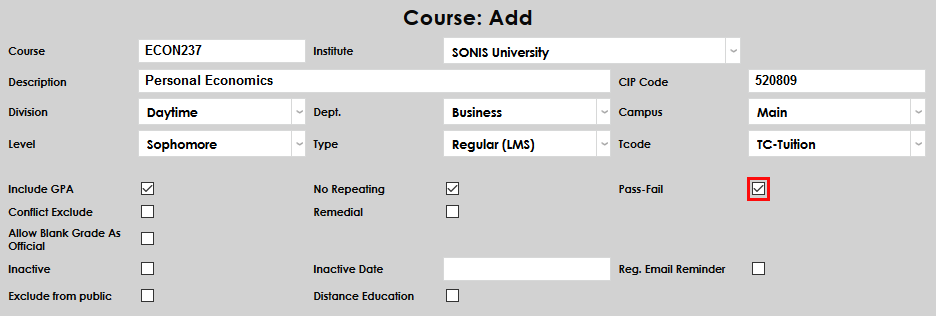
Check the Pass-Fail box if the course can only be passed or failed and does not offer a letter grade. Schools can provide the option to register for courses as Pass/Fail to students and/or advisors even if the Pass-Fail box for the individual courses is unchecked. Click here to learn more about this option.
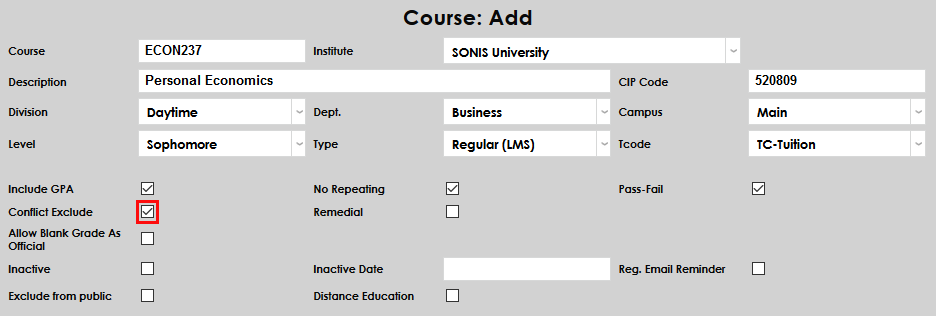
If the Conflict Exclude box is checked, all conflicts — including program and level conflicts, date, and time conflicts, etc. — will be ignored when registering a student for the course.
Check the Remedial box if the course should be labeled as a remedial course. Additionally, checking the Remedial option excludes the course from the student's GPA calculation, regardless of whether the Include GPA box is checked or not.
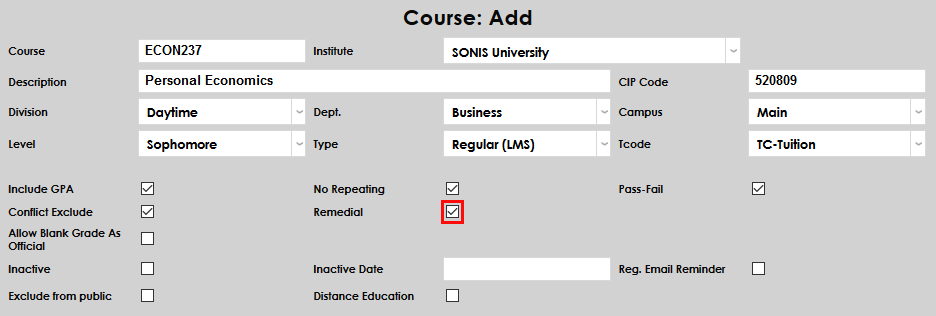
If the Allow Blank Grade As Official box is checked, a student can be given a blank grade and that blank grade can be marked as Official. Generally, this is not allowed. A school may want to check this option if the course is a lab with the grade tied to the primary course or another course type that doesn't give out a grade. Marking the blank grade as official prevents a completed course from being confused with an active course.
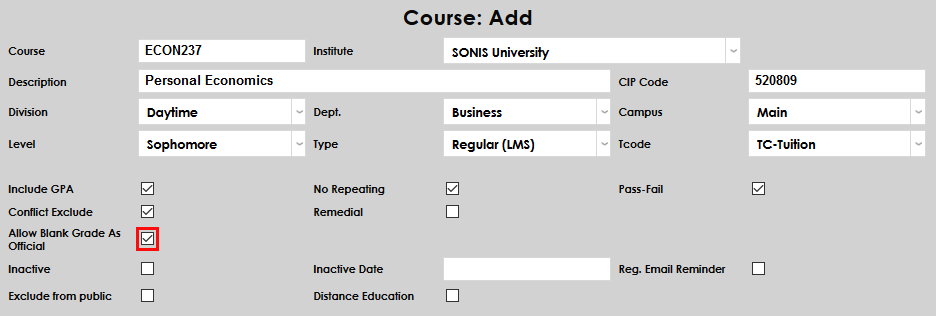
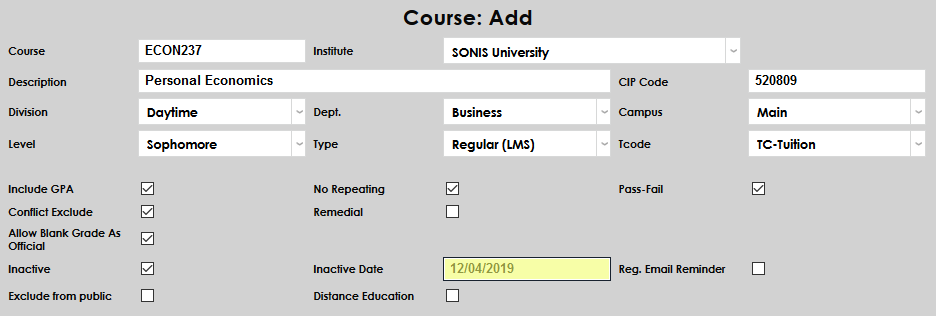
The Inactive box is a way to disable the course and prevent new sections from being created. When the course is marked as inactive, enter an Inactive Date for record-keeping purposes.
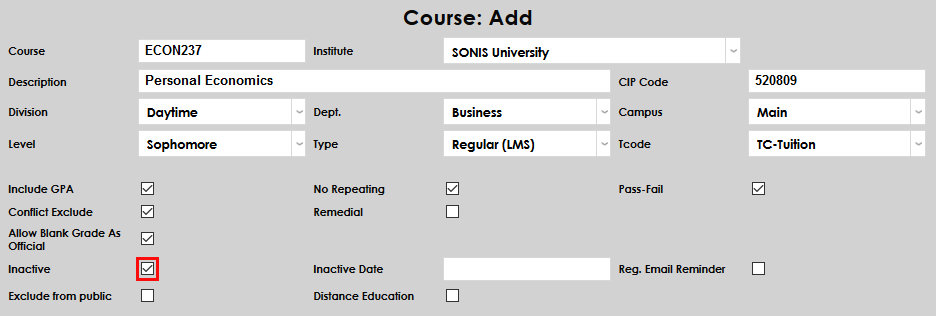
If the Registration Email Reminder box is checked, students who register for the course will receive a reminder. These reminders can be set to occur a given number of days before the course begins, depending on school preferences. The number of days before a course begins that the reminder will be sent is created using the Registration Email Reminders utility under the Systems hub.
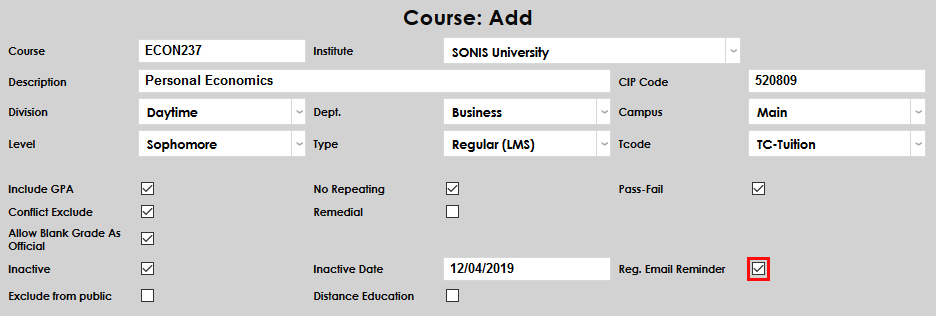
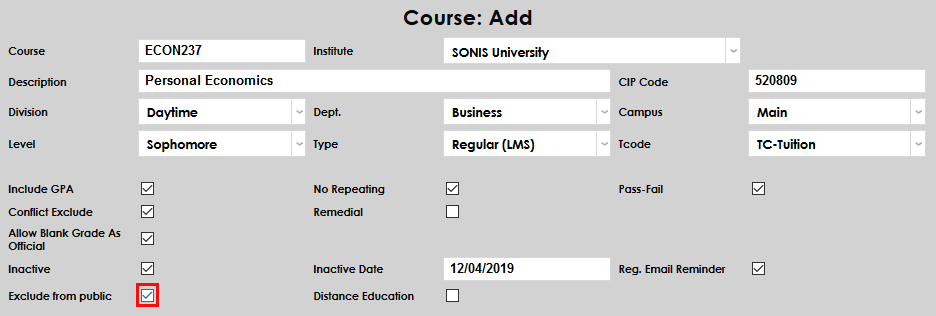
If the Exclude from Public box is checked, the course will not appear on external Jenzabar SONIS pages such as the Courses by Semester page.
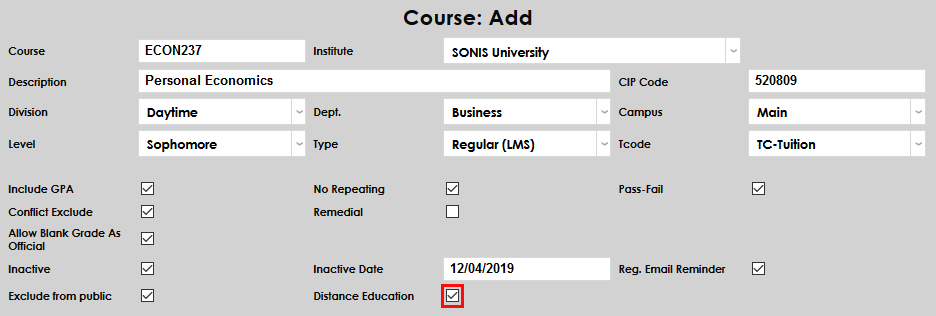
Check the Distance Education box to label the course as a distance education course for reporting purposes.
Enter the number of Credits that will be earned for the course. While most courses have a designated number of credits, some may use Total Clock Hours instead. This field has a seven-character limit and can hold decimals.

The Default Tuition Per Credit is the amount that the student will be charged for taking the course. The amount entered in this field is multiplied by the number of credits in the Credits field to determine the tuition. For example, if 100 is entered in this field, a 3-credit course would charge the student $300.00. Schools that use a flat tuition amount per course, instead of per-credit charges, can leave this field blank. This field has a seven-character limit and allows decimals.

Class Hours is an informational field designed to store the total number of hours a student will spend in the class per semester. The field holds seven characters. This field can be used for an alternate purpose if needed, as it doesn't display on the student's transcript.

If the course has clinical hours required, enter the number of hours into the Clinical Hours field. This field has a seven-character limit and allows decimals.

Clock hours can be used with, or instead of, Credits. Total Clock Hours is the total amount of time that the student will spend in the course. This field has a seven-character limit and allows decimals.

The CE Credits field is used to designate the number of credits that a student will receive for taking the course as a continuing education course. Some courses may be available as a standard course and a CE course while others may be only available as one or the other. This field has a five-character limit and allows decimals.

CE Per Credit is the amount that the student will be charged for taking the course. The amount entered in this field is multiplied by the number of credits in the CE Credits field to determine the tuition. Schools that charge a flat tuition amount instead of per-credit charges can leave this field blank. This field has a seven-character limit and allows decimals.

Audit Cost is the amount charged to a student who chooses to audit the course. This is the total amount charged and not a per-credit fee.

Check the Show in CE Registration box to allow continuing education students to view the course in the CE course schedule and register for the course.

If the Attendance Record Checking box is checked, the lead faculty and other group members will be alerted when daily attendance is not submitted. This notifier is set up using the Jenzabar SONIS Timed Task Scheduler. The box is also used by the Bulk Attendance process.

Check the Advisor Specified Credits box and/or the Student Specified Credits box to allow Variable Credit Registration.


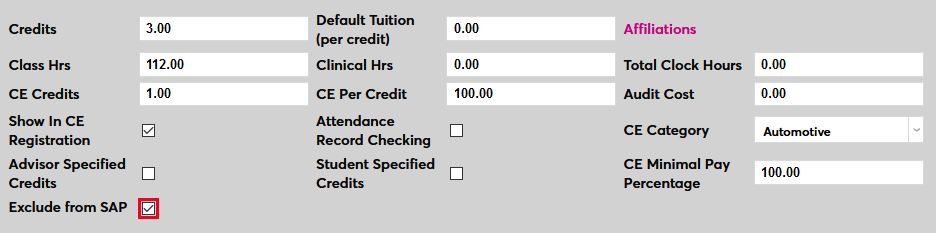
Check the Exclude from SAP box to exclude the course from Satisfactory Academic Progress calculation. Courses marked exclude from SAP will be excluded when calculating both attempted credits and completion percentage. This option does not affect GPA calculation or transcripts.
Administrators can designate a Prerequisite or a Corequisite for the course. Prerequisites are courses that must be completed before a student can register for the course. Corequisites are courses that must be taken during the same semester or time period, for example, a lab or an internship.
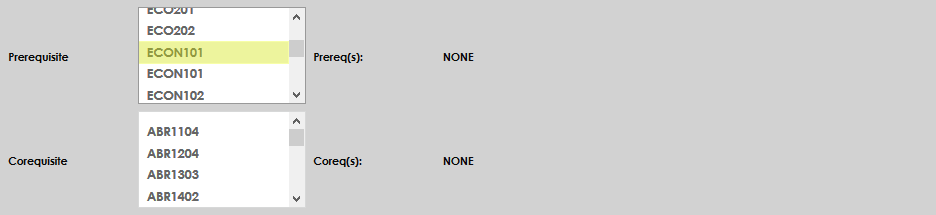
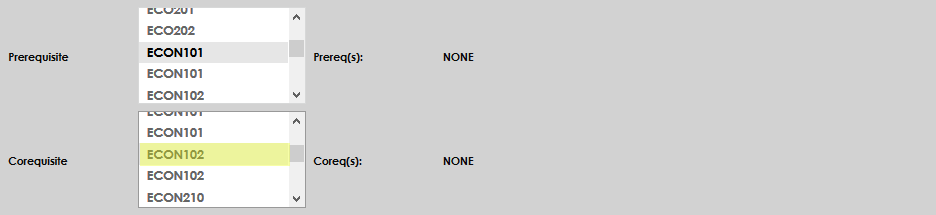
When there are multiple prerequisites for a course that must be taken in sequence (for example, ENG400 requires the successful completion of ENG300, ENG200, and ENG100), it is recommended that users set up the SONIS prerequisites for each separately. Using the same example, the user would make ENG100 the prerequisite for ENG200, make ENG200 the prerequisite for ENG300, and make ENG300 the prerequisite for ENG400. This will ensure all that prerequisites are met without adding unnecessary processing overhead to the system, which would be the case if ENG100, ENG200, and ENG300 were all made prerequisites for ENG400.
The following system logic applies to all prerequisites and corequisites:
• If a student is currently enrolled in the prerequisite and no failing official grade exists, SONIS will allow registration in the next course in sequence in both student and admin registration.
• If a student has failed or not taken the prerequisite, SONIS will not allow registration in the student portal and will alert the student that the course has a prerequisite.
• If a student has failed or not taken the prerequisite, SONIS will prompt an admin user with appropriate override permissions to allow the registration anyway or to cancel the attempt. Note that a failing grade is identified on the grade Records, where Passing Grade is unchecked.
• If a student has registered for the next course in sequence while currently enrolled in the prerequisite and subsequently fails the prerequisite, it is the responsibility of administrative staff to use the Registration Prerequisite Verification utility under the Systems menu to identify those students, notify them, and unenroll them.
As mentioned above, administrators can bypass prerequisite and corequisite requirements with the correct User Security additional privileges.


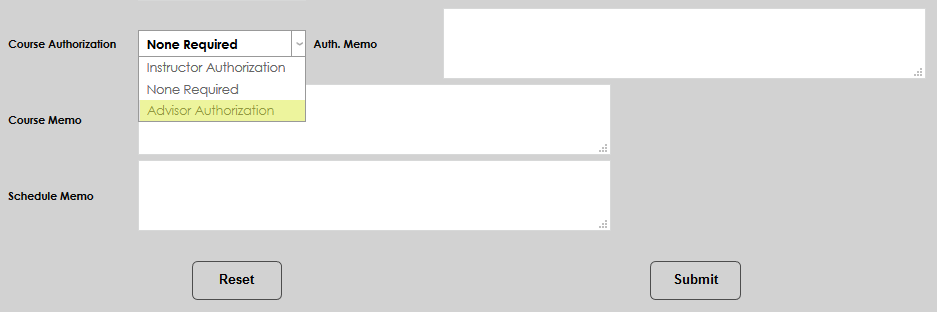
Courses can be set to require authorization before registering. Select Advisor Authorization to require the student's advisor to provide approval. Select Instructor Authorization to require that the instructor of the course approve each registration.
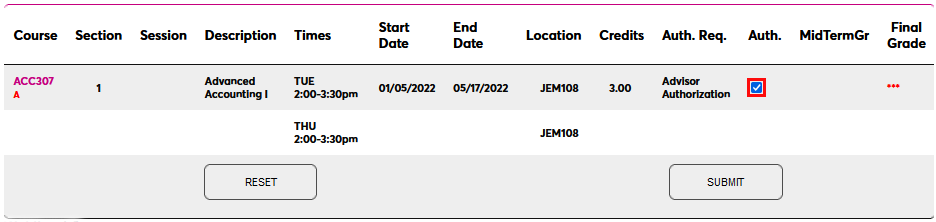
To approve a course marked for advisor authorization from the Faculty portal, select an advisee using the Select Advisee or Advisee Listing pages and navigate to that student's Advisee Schedule page. Once the correct school year and semester has been loaded, check the Advisor Authorization box and click Submit.
To approve a course marked for instructor authorization from the Faculty portal, select the appropriate course from the Courses page under the Course Management section. The complete list of students who've registered for this course so far will be listed. Check the Instructor Authorization box for each student who should be approved and click Submit.

Administrators can include an Authorization Memo that describes who the course is intended for to assist an advisor or instructor in deciding when to provide authorization. This memo will appear when registering a student for the course.
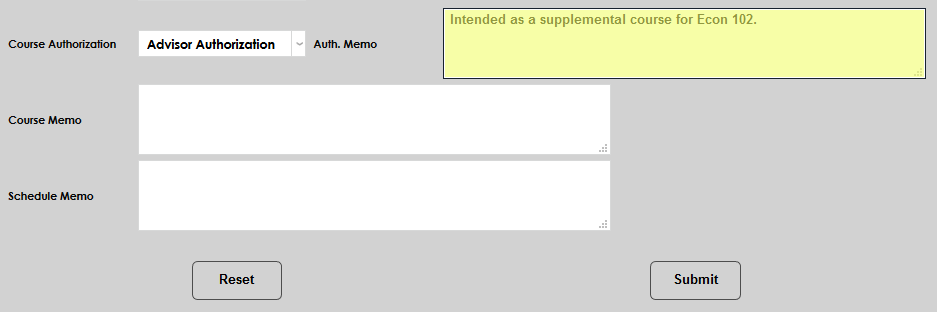
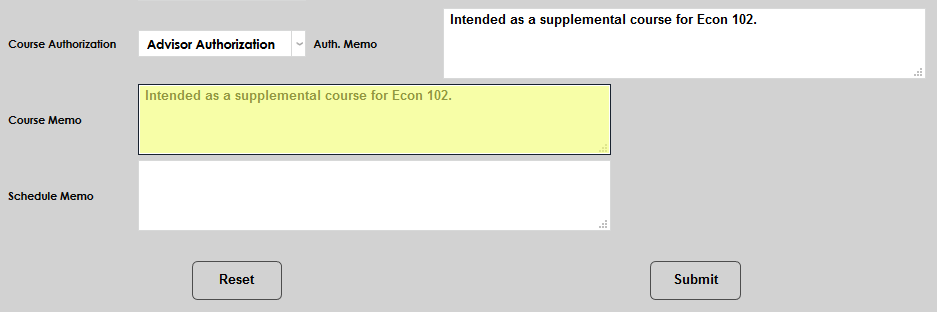
Course Memo and Schedule Memo fields are included to provide additional information.
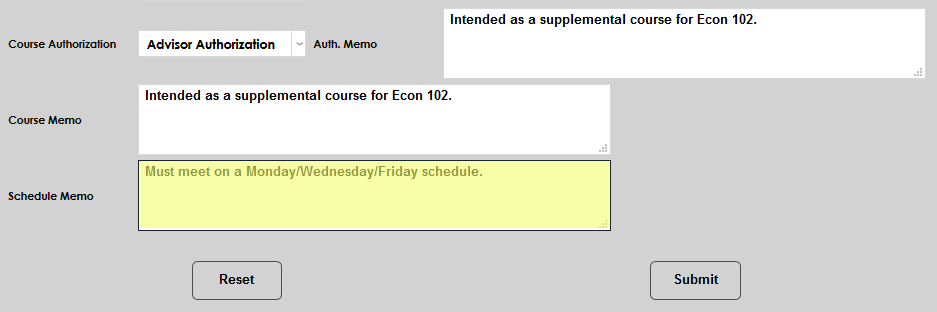
Once all necessary fields have been completed, click Submit to save the page and create the course.
Additional Options
These options are only available when editing an existing course.
Textbooks
In addition to the other options, the Course Add/Edit page includes a Textbooks link. This link takes you to a page that lists all the course's assigned books and/or where authorized users enter that information.

The top of the page lists the items already assigned to the course. These can be checked to Remove the item assignment from the COURSE.
The bottom half of the page is where the database can be searched (substrings) for items to assign to the course. There is a Textbooks table on the Systems menu where textbooks are entered. If the table is unused, there will be no search results.
Visit the Textbooks page to learn more about this process.
CE Options
Once the course has been created, additional Continuing Education options are available. The course can be placed in a CE Category that's used to label the course to current and potential students.
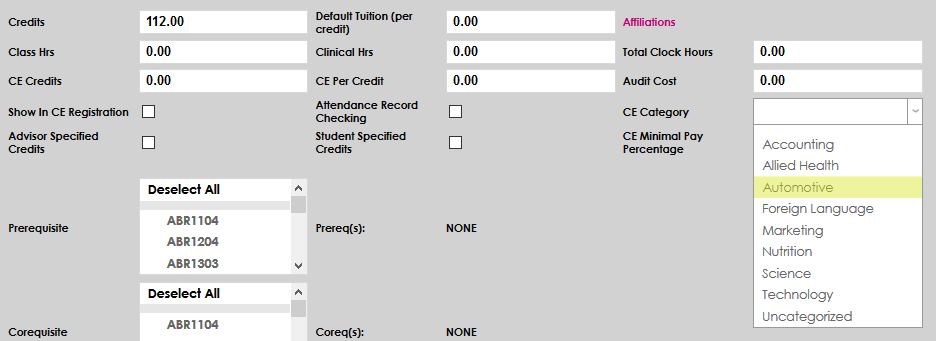
Administrators can also choose how much of the total price of the course must be paid at the time of enrollment. Some schools may wish to allow students to fully enroll for a course while only paying a portion of the tuition. By default, the CE Minimal Pay Percentage is set to 100. Edit this field to allow students to pay only a portion of the cost when registering.

The amount to be paid can be displayed during registration by activating the Display Minimal Pay % option offered by the CE Registration Utility.

SAP Exclusion
The Exclude from SAP box allows schools to prevent courses from being used as part of the SAP calculation process. To exclude a course, check the Exclude from SAP and click Submit to save the changes. The course will be excluded when calculating both attempted credits and completion percentage.
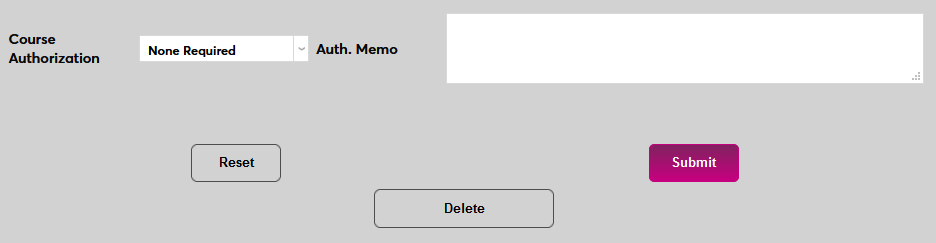
This option does not affect GPA calculation or transcripts.
Affiliation Tuition
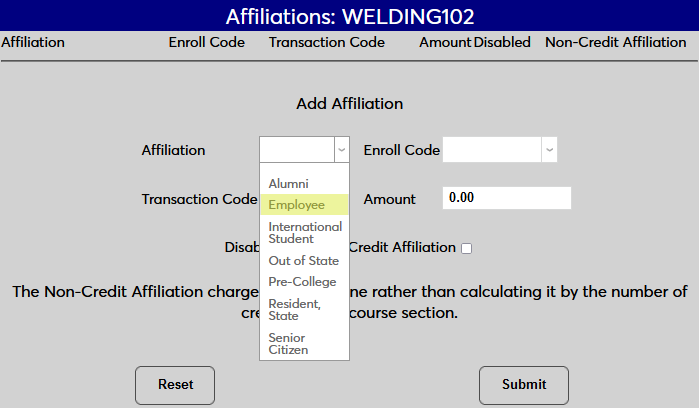
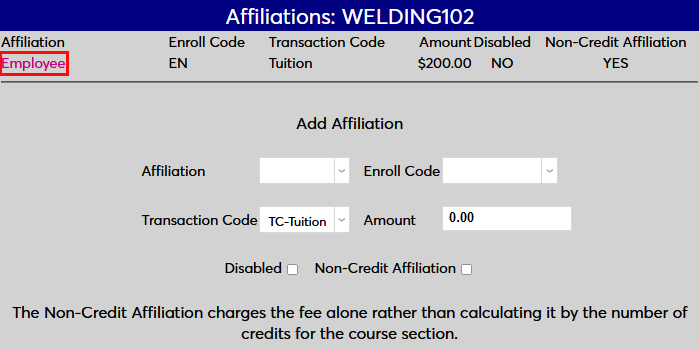
Some institutions may wish to charge their students different a different tuition based on the student's Affiliation. For example, students could receive a discount for being a staff member or an alumnus or could be charged more for having an out of state residency. To add affiliation-based fees, click the Affiliation link. A pop-up window will open.

In the new window, begin by selecting an Affiliation. Affiliations are created through the Affiliations utility under the Systems menu and assigned through the Biographic page.
Next, select an Enroll Code for the students who will be paying the affiliation rate. The affiliation rate can either apply to students who are auditing the course, who are taking it as a continuing education course, or who are enrolled in the course for the standard credit.
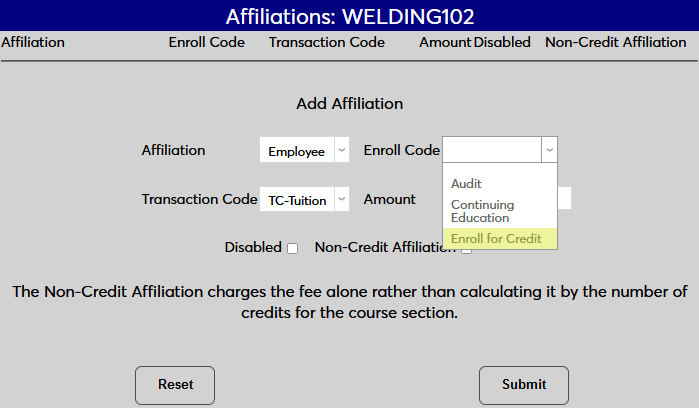
Select a Transaction Code that will apply to tuition payments received by students with this affiliation. Some institutions may wish to use a standard tuition T-code while others may create a T-code just for this kind of transaction.
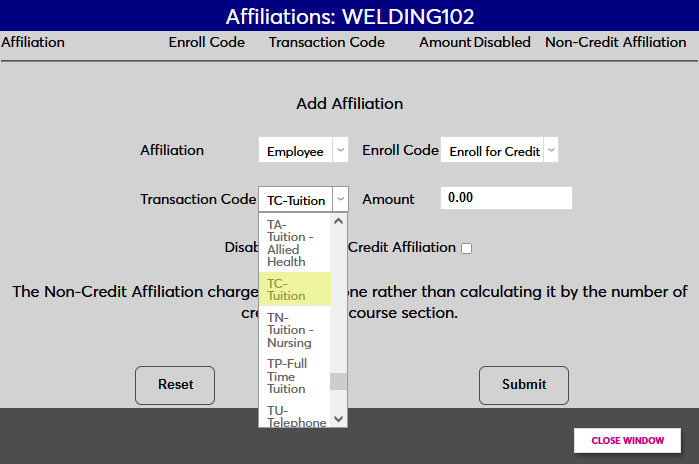
Set a dollar amount for the tuition using the Amount field. Check the Non-Credit Affiliation box if this amount will be the total amount paid for the course or leave it unchecked to charge the amount entered for each credit.
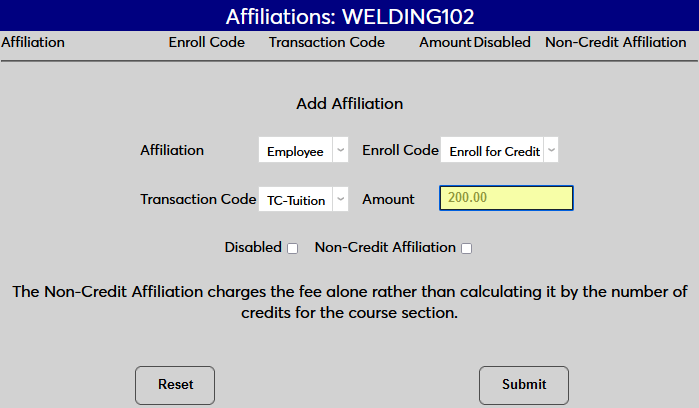
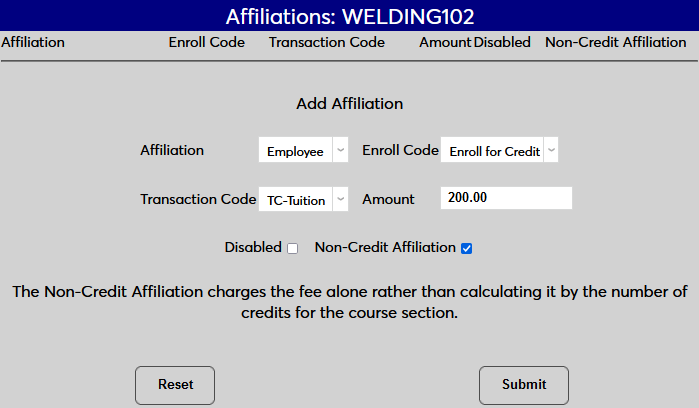
Click Submit to save the changes and activate the tuition.
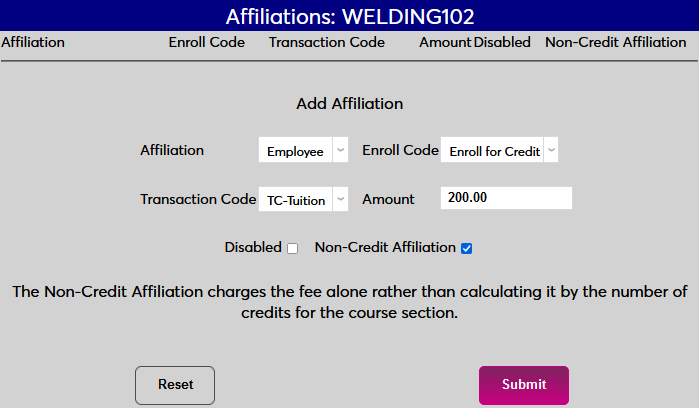
Once an alternate tuition has been added, additional affiliation-based tuitions can be added using the same method. Click on the affiliation name to make changes to an existing setting.
Prerequisites & Corequisites
Administrators can designate a Prerequisite or a Corequisite for the course. Prerequisites are courses that must be completed before a student can register for the course. Corequisites are courses that must be taken during the same semester or time period, for example, a lab or an internship.
When there are multiple prerequisites for a course that must be taken in sequence (for example, ENG400 requires the successful completion of ENG300, ENG200, and ENG100), it is recommended that users set up the SONIS prerequisites for each separately. Using the same example, the user would make ENG100 the prerequisite for ENG200, make ENG200 the prerequisite for ENG300, and make ENG300 the prerequisite for ENG400. This will ensure all that prerequisites are met without adding unnecessary processing overhead to the system, which would be the case if ENG100, ENG200, and ENG300 were all made prerequisites for ENG400.
The following system logic applies to all prerequisites and corequisites:
• If a student is currently enrolled in the prerequisite and no failing official grade exists, SONIS will allow registration in the next course in sequence in both student and admin registration.
• If a student has failed or not taken the prerequisite, SONIS will not allow registration in the student portal and will alert the student that the course has a prerequisite.
• If a student has failed or not taken the prerequisite, SONIS will prompt an admin user with appropriate override permissions to allow the registration anyway or to cancel the attempt. Note that a failing grade is identified on the grade Records, where Passing Grade is unchecked.
• If a student has registered for the next course in sequence while currently enrolled in the prerequisite and subsequently fails the prerequisite, it is the responsibility of administrative staff to use the Registration Prerequisite Verification utility under the Systems menu to identify those students, notify them, and unenroll them.
As mentioned above, administrators can bypass prerequisite and corequisite requirements with the correct User Security additional privileges.
Courses can be set to require authorization before registering. Select Advisor Authorization to require the student's advisor to provide approval. Select Instructor Approval to require that the instructor of the course approve each registration.
Oklahoma Options
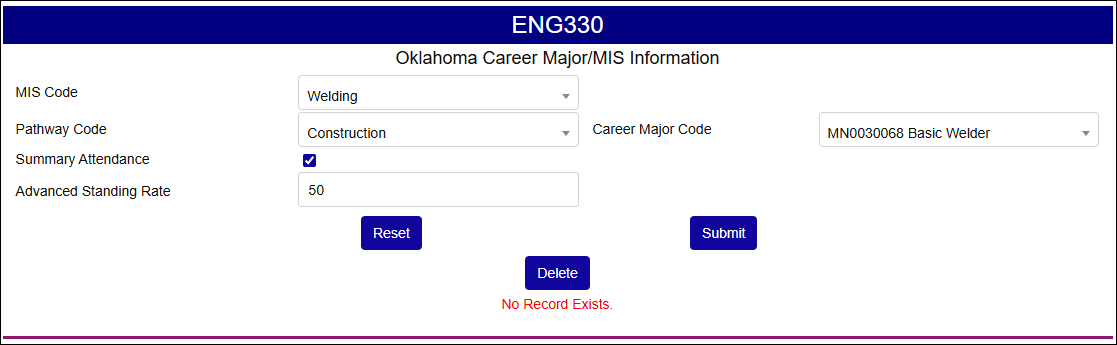
Oklahoma Technology Centers have additional course management and reporting needs that are solved by a menu that's hidden from other schools. If you're a staff member at an Oklahoma Technology Center, you should see a link labeled Oklahoma State Info. Click this link to access additional options.
On the pop-up page:
Select an MIS Code from the drop-dop menu. These options are created and maintained using the OK MIS table in Table Maintenance.
Select a Pathway Code from the drop-down menu. These options are created and maintained using the OK MIS table in Table Maintenance.
Check Summary Attendance if the course will be using summary attendance or leave it unchecked to use traditional attendance.
Enter a numerical Advanced Standing Rate to set the tuition for high school students if it varies from the standard tuition.
Select a Career Major Code to associate a CMC with the course.
JFA Financial Aid Eligible Courses
SONIS bases a student's financial aid eligibility on the course hours they are taking, but not all courses are eligible for Title IV financial aid. Every home institution course in the Jenzabar SONIS system includes a Financial Aid Eligible checkbox. By default, this box is checked. If a course is not financial aid eligible, uncheck the Financial Aid Eligible box and click Submit to save the change. SONIS will not use courses marked as ineligible when calculating a student's financial aid eligibility for export to JFA.
