Below Full-Time Notifier
Overview
Below Full-Time is one of the available notification types in the Jenzabar SONIS Notification Assignments utility. It sends out an automated alert to staff members when a student who was previously enrolled in enough courses to be considered a full-time student drops below that threshold.
Creating Notification
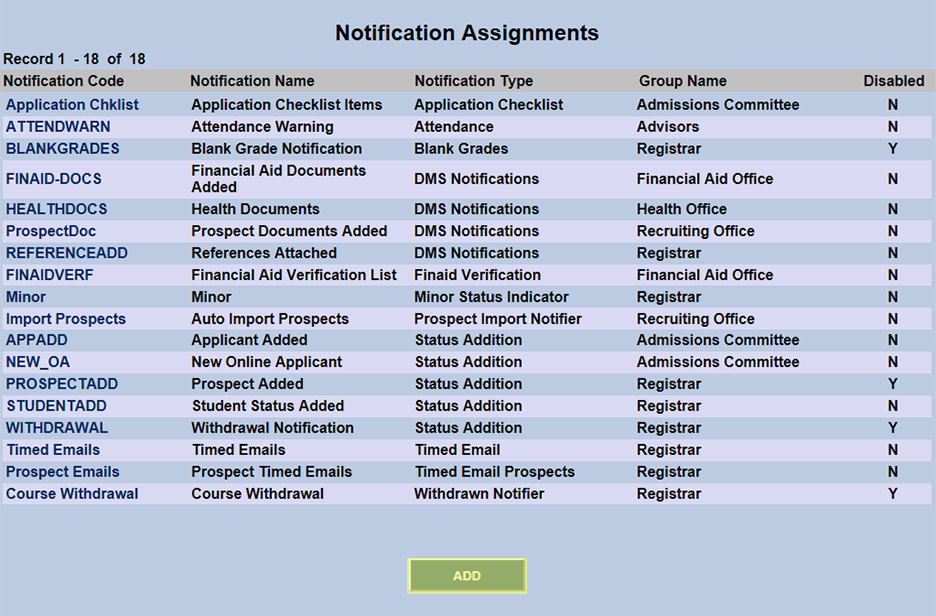
To create a Below Full-Time notification, navigate to the Notification Assignments utility under the Systems menu and click Add.
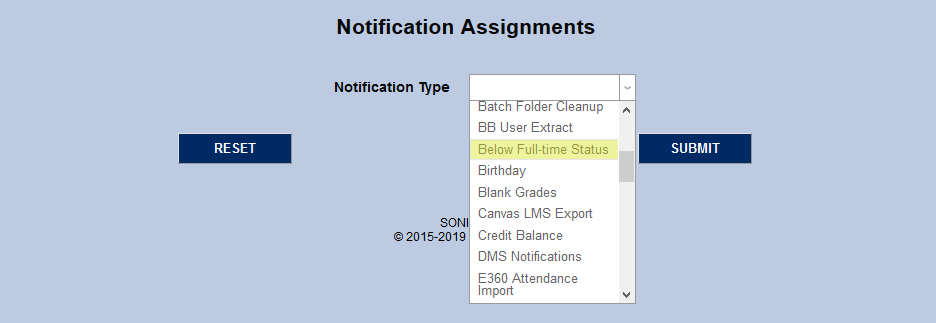
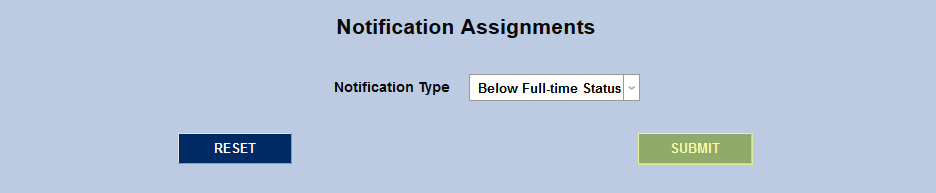
On the following page, select Below Full-Time Status from the Notification Type dropdown menu and click Submit.
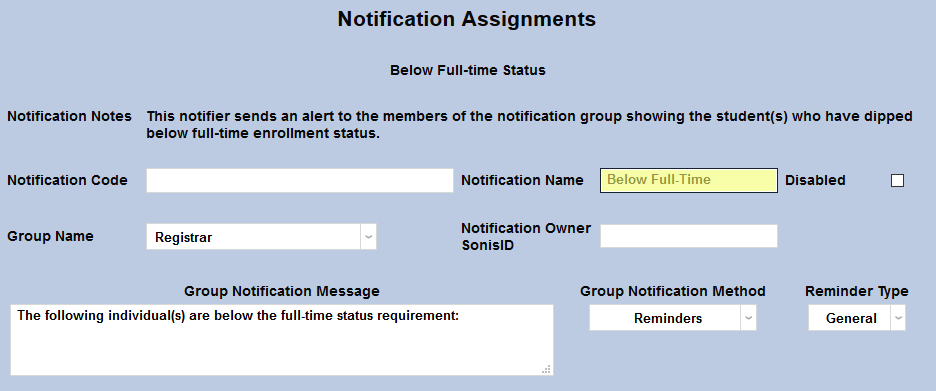
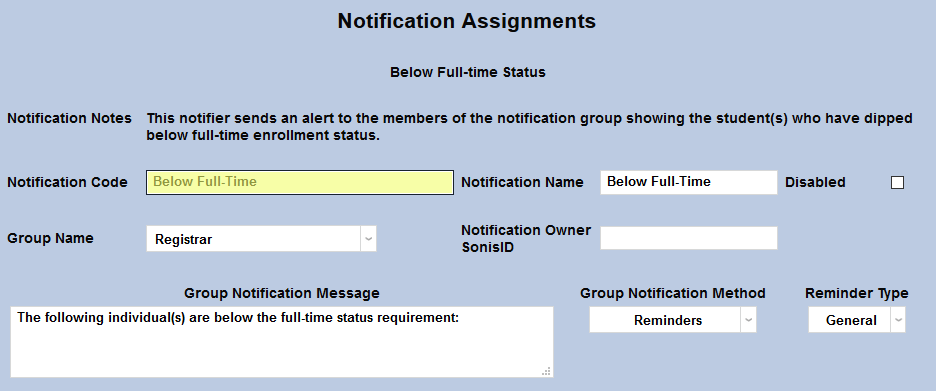
Next, create a Notification Name, a descriptor of the notifier's purpose with a 50 character limit, and a Notification Code, a shorter version of this name with a 20 character limit that the SONIS system will use internally to identify the notifier. While most users will simply use "Below Full-Time" as the name, some institutions may want to set up more than one below full-time notification with each notifier sent to different groups of faculty or staff. In these cases, the name should provide more details to help differentiate the various notifiers.
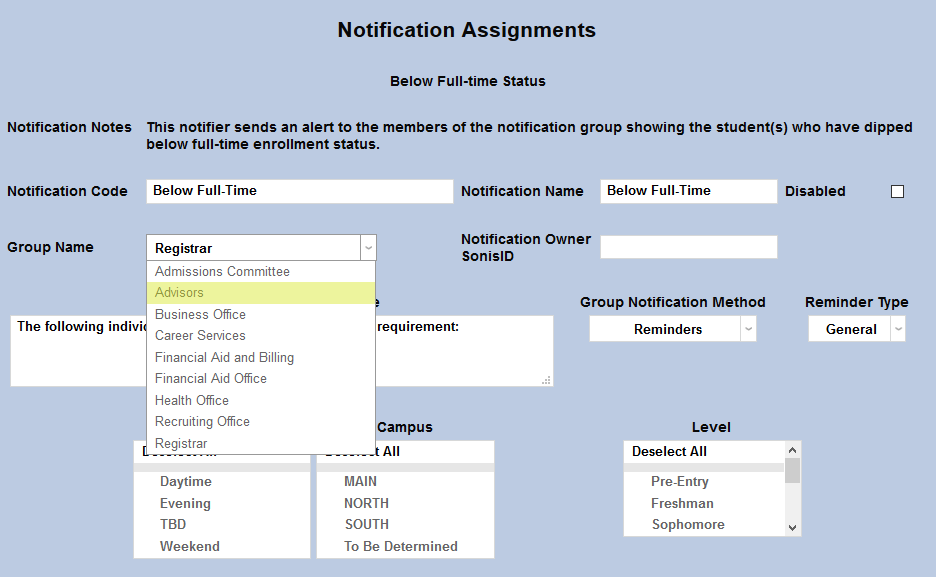
Select a group of staff/faculty to receive the notification from the Group Name dropdown menu. Groups can be added and edited through the Table Maintenance utility.
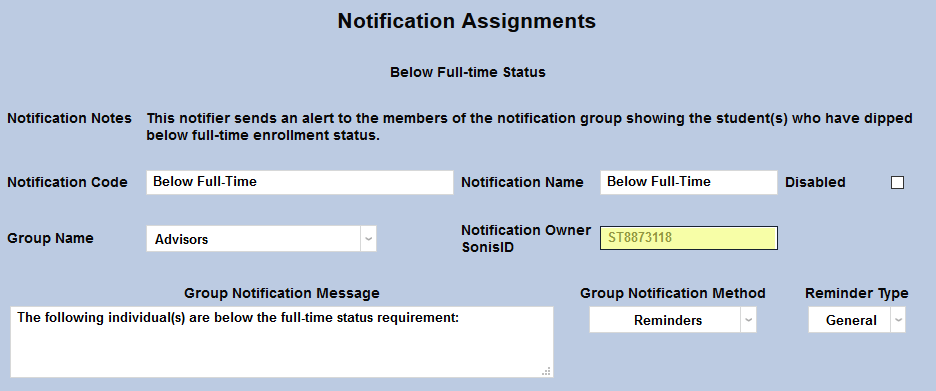
Enter the ID of the staff or faculty member who will be managing this notification in the Notification Owner SONIS ID field.
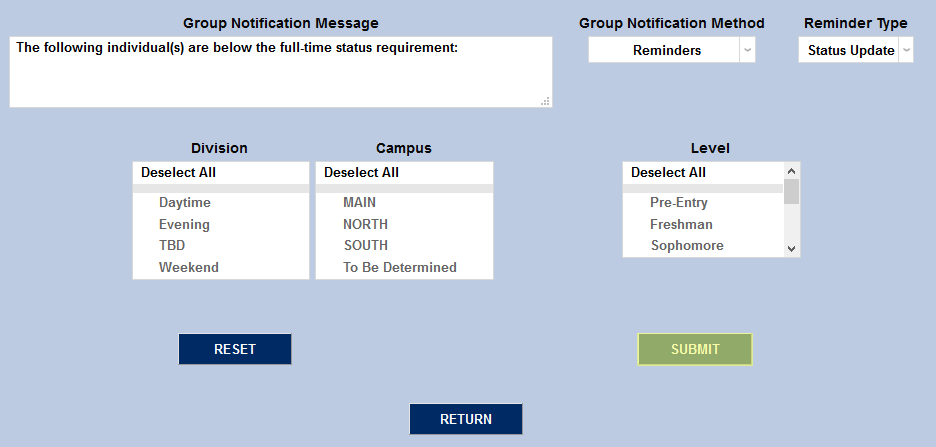
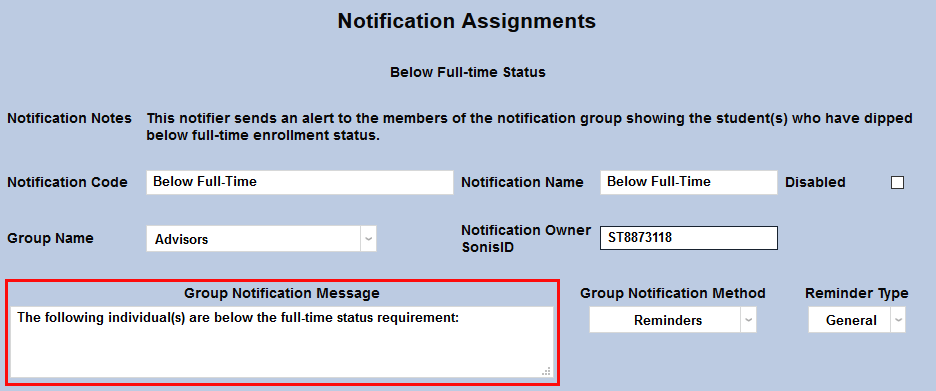
The default Group Notification Message for the Below Full-Time notifier is "The following individual(s) are below the full-time status requirement:" with a list of those students included. This message can be edited to further clarify or provide additional information.
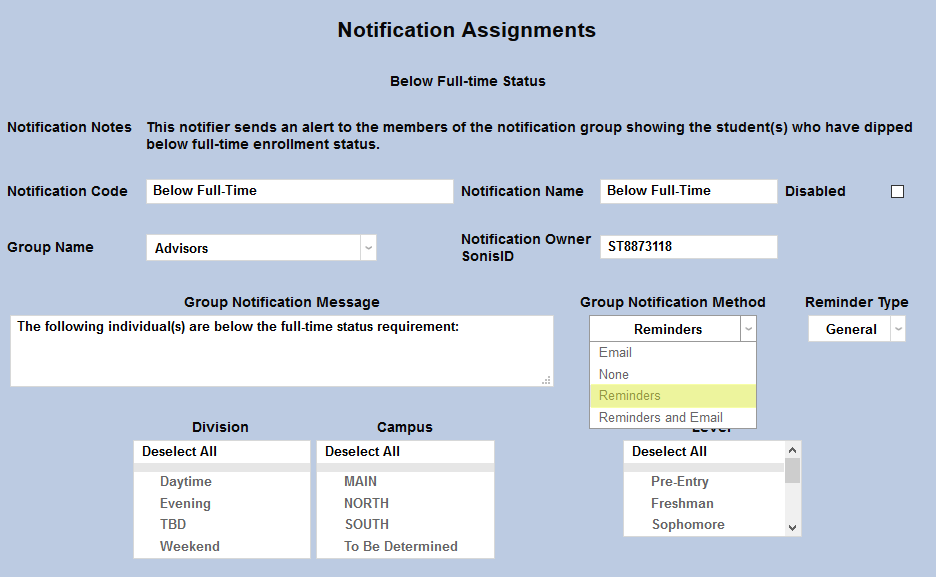
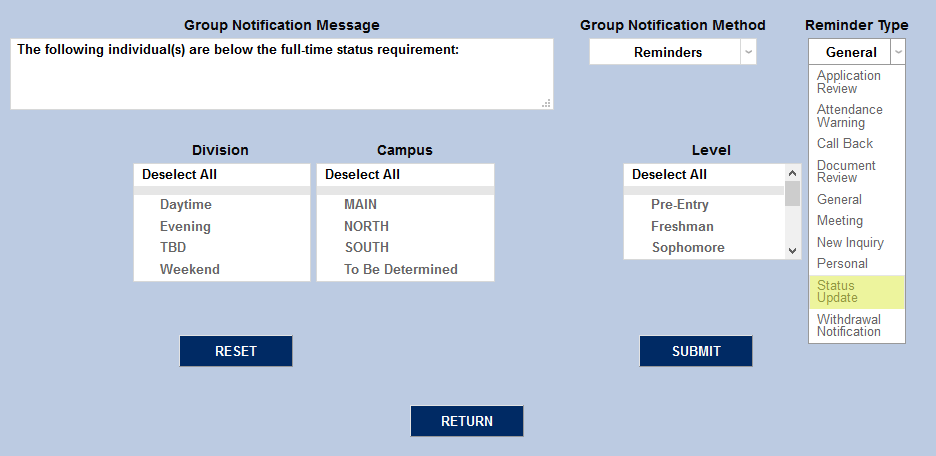
The Group Notification Method dropdown menu designates whether the group and individual users will receive an in-system reminder, an email, or neither when the notification is triggered. The Reminder Type dropdown can change how the in-system reminder displays. This list can be created and edited via the Table Maintenance utility.
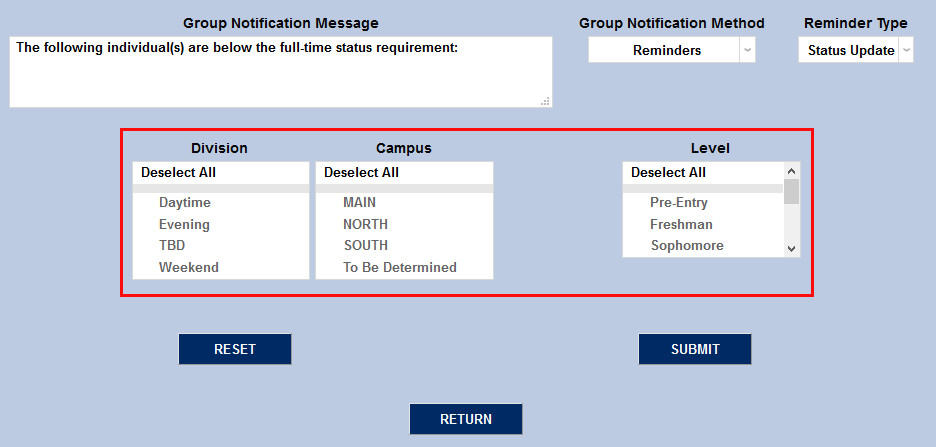
The Division, Campus, Department, and Level menus can be used to narrow down the list of students included in the notification.
Once the fields for this notification have all been set up properly, click Submit to save and activate the notifier.