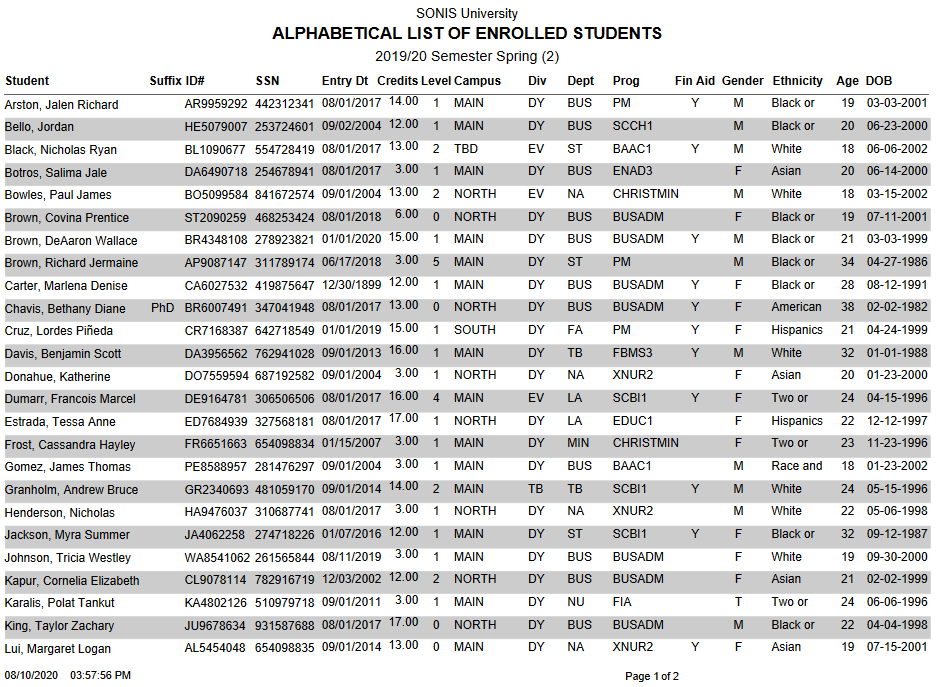
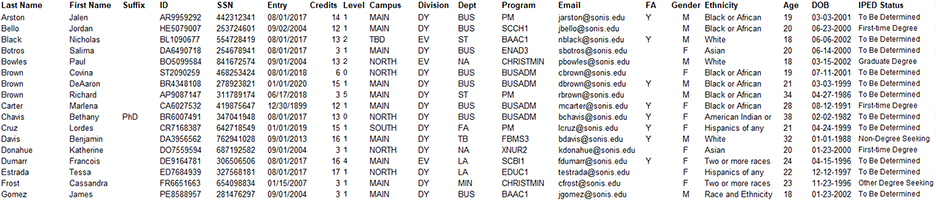
Enrolled Student Listing Report
Overview
Enrolled Student Listing is a Jenzabar SONIS report that displays all students enrolled in courses at the home university. The report outputs one school year and semester at at time and can be filtered by: campus, division, department, program, level, and entry date.
User Security
When building the report, the option is presented to include each student's date of birth. In order for an administrator to select this option, they must have the Birthdate Access User Security privilege enabled. Otherwise, the Display DOB on report checkbox will not appear on the page.

Building Report
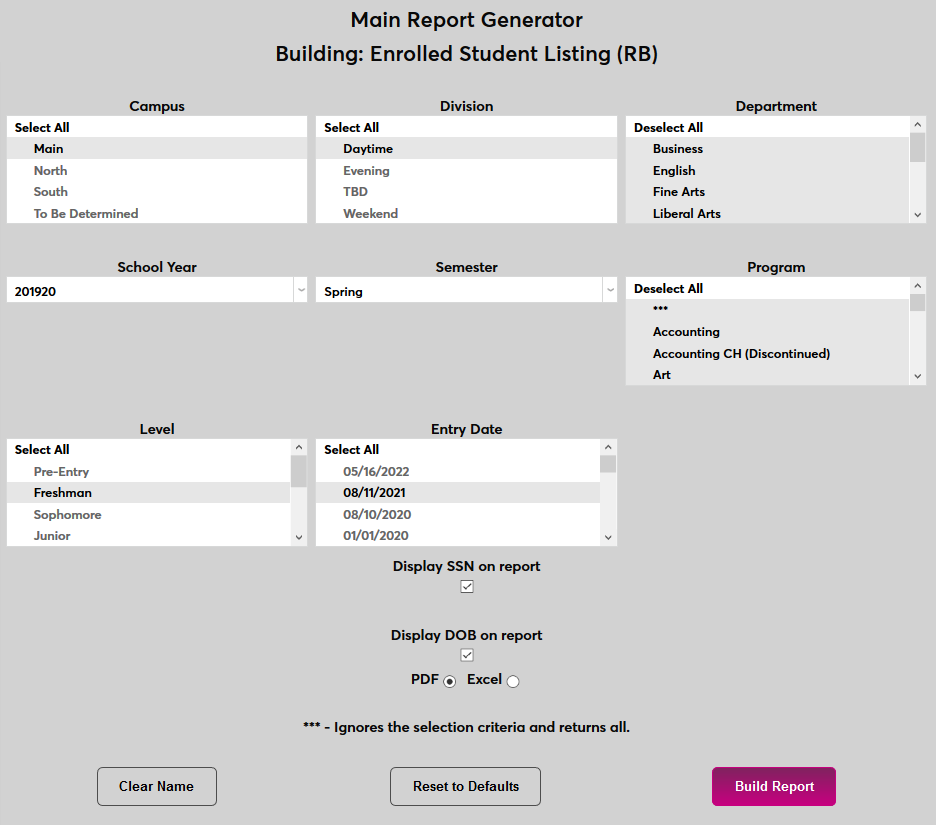
To begin building an Enrolled Student Listing, navigate to Enrolled Student Listing (RB) under the Reports tab. Select the appropriate School Year and Semester from the dropdown menus in the middle of the page.
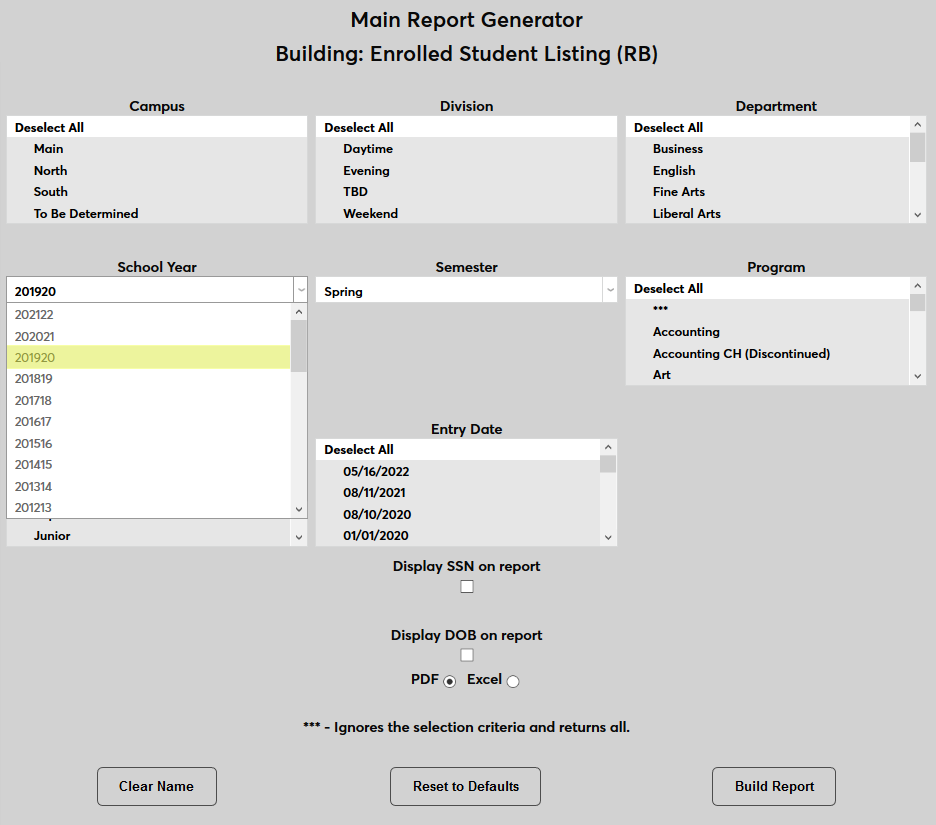
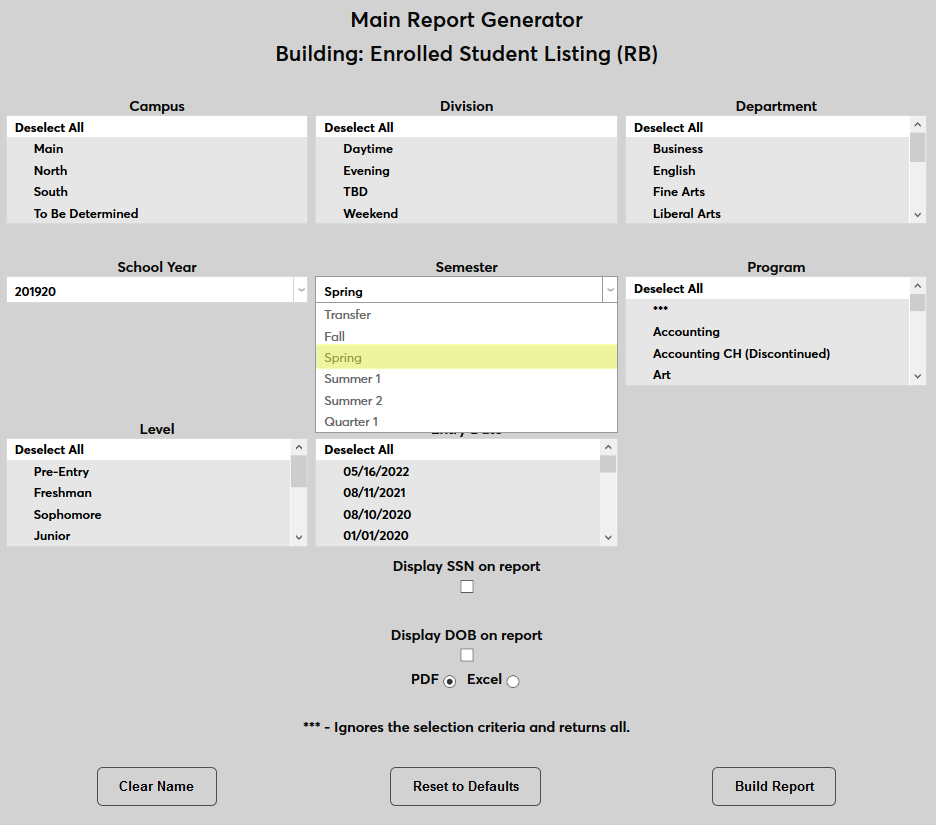
The list can be filtered using the Campus, Division, Department, Program, Level, and Entry Date menus. The items in each menu are all selected by default. Leaving them selected will return the largest list of results.
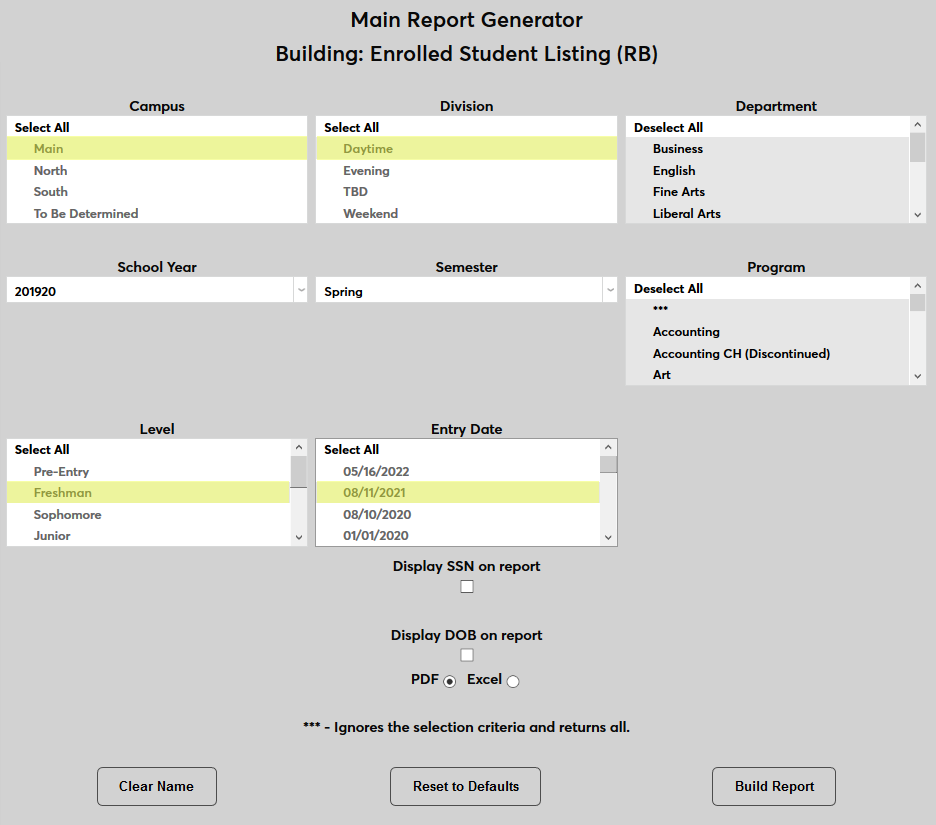
After choosing the proper filters, check the Display SSN on report to include each student's social security number or leave it unchecked to omit it.
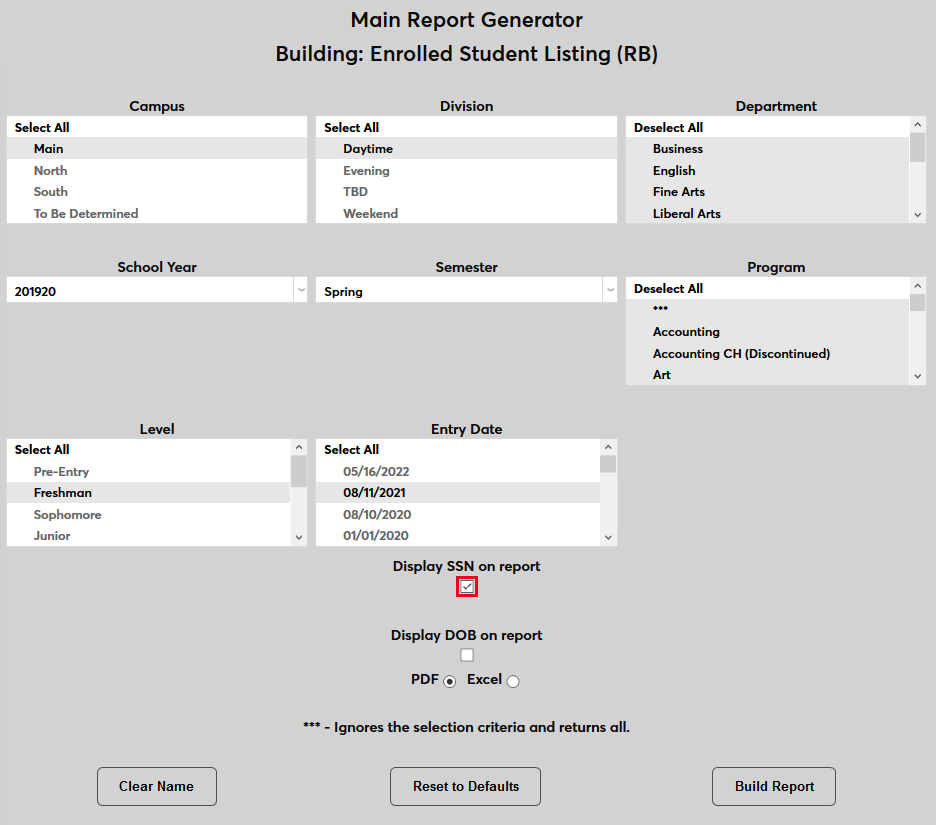
Check the Display DOB on report to include each date of birth or leave it unchecked to omit it.
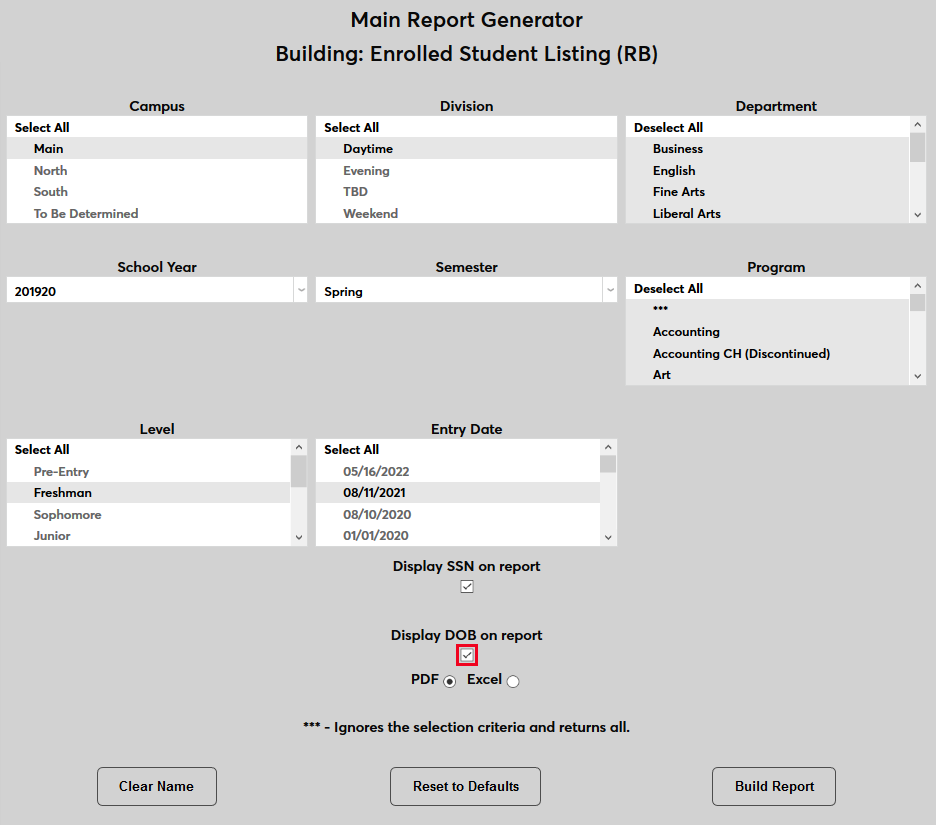
Finally, choose PDF or Excel format and click the Build Report button to continue.
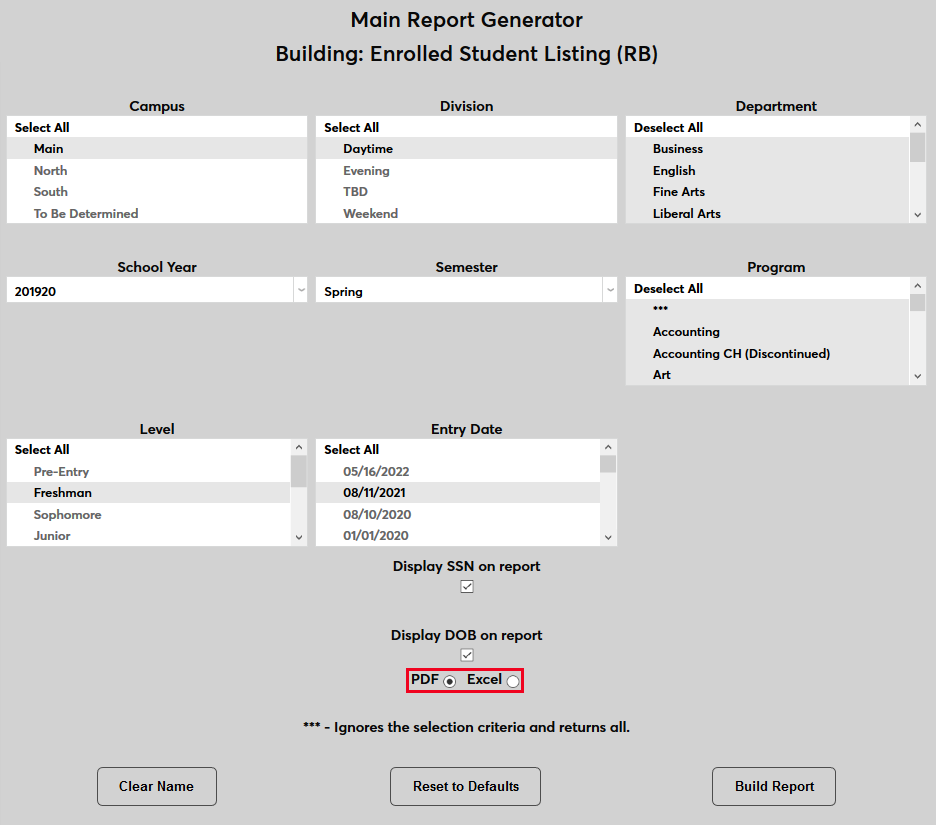
On the following page, click the Preview Report text to continue. If PDF was selected, the report will open in a new window. To save the report, right-click on it and choose Save As. If the report is being exported as an Excel file, the administrator will be promoted to Open or Save the file.