Messenger
Overview
Jenzabar SONIS Messenger is a live chat client built into the system. It allows instant communication between Jenzabar SONIS users of any module status and across portals. Alumni cannot create group chats and cannot complete administrative actions with chats, such as removing participants or archiving a chat.
Visit the Messenger documentation for more details on chat functions and settings for administrators.
Student Portal Chat
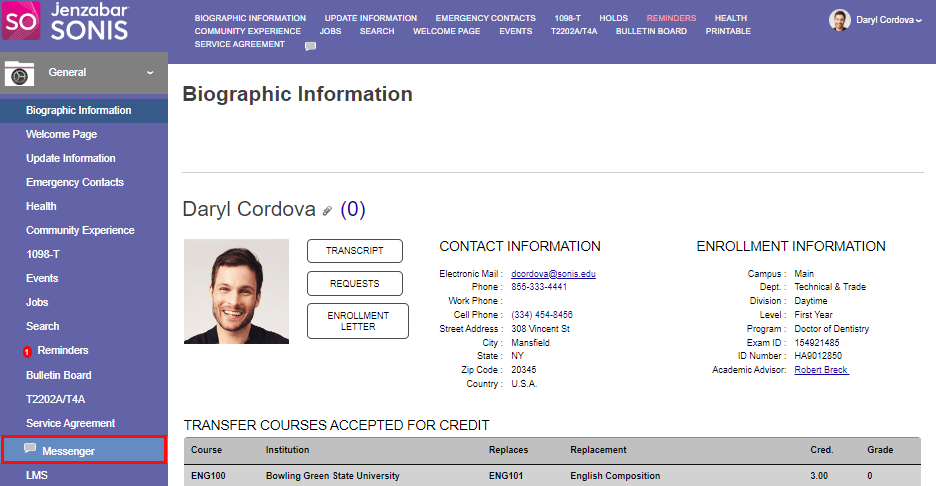
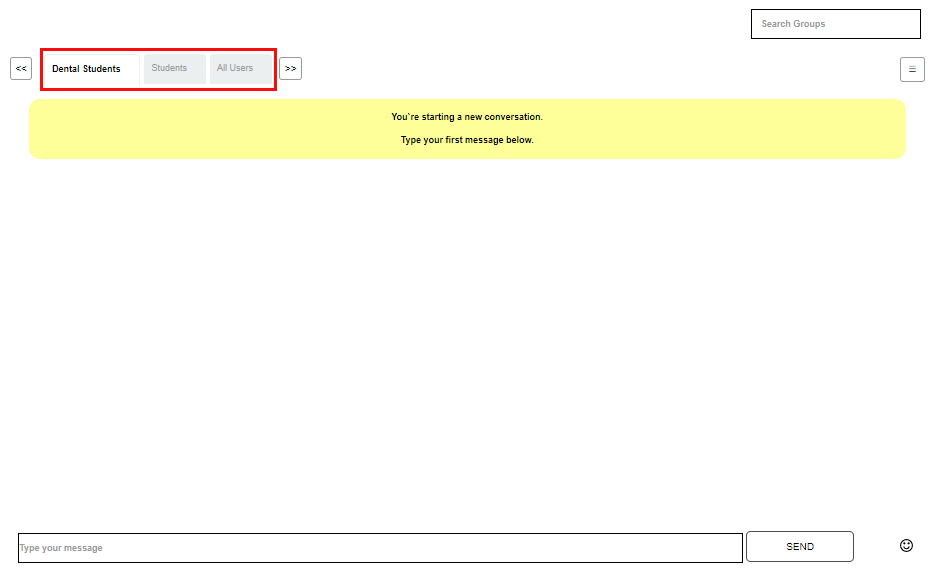
To access Messenger, enter the General menu and click Messenger. Upon entering the page, the Chat Groups the user is a member of will display in tabs. These are the groups the user can message with.
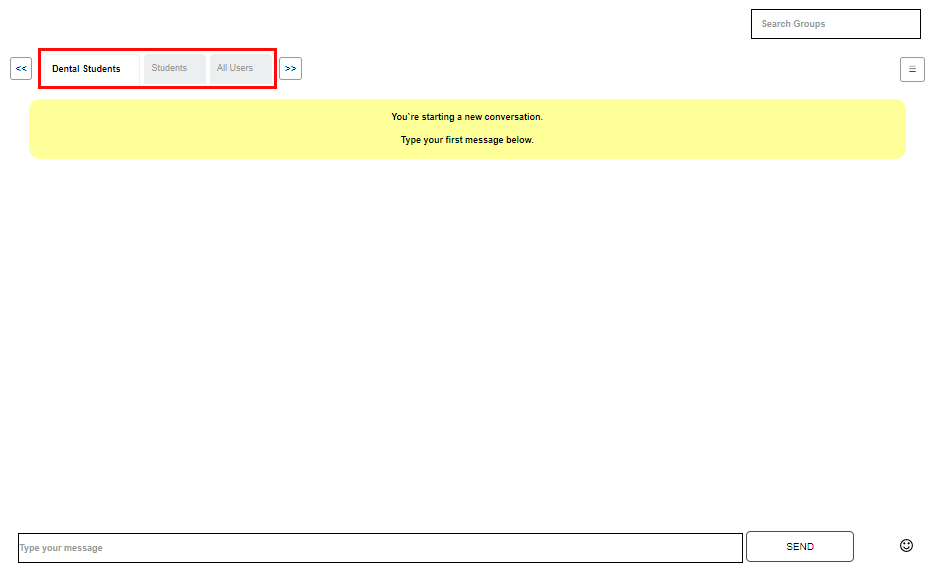
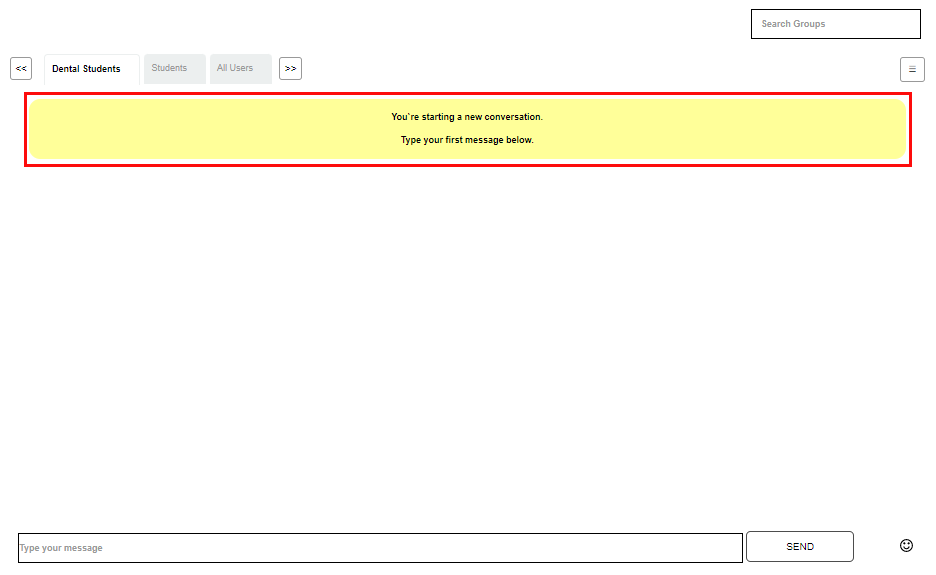
The arrows can be used to navigate between groups. If no messaging conversations have occurred in a group, the yellow banner displays. This will be replaced by chat history if conversations have occurred in the displayed chat group.
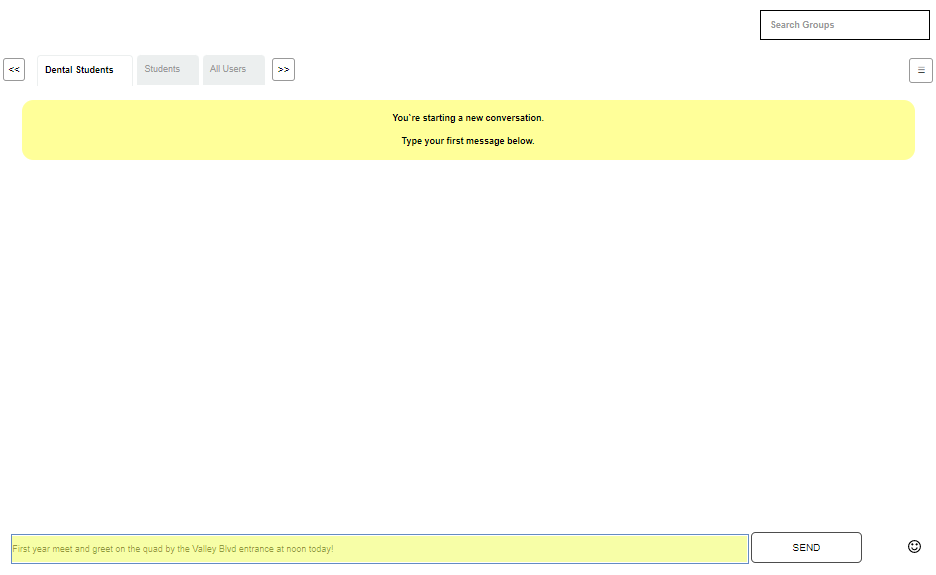
To send a message, select the desired audience, enter the message in the Type Your Message field. Click Send to share the message with the group.
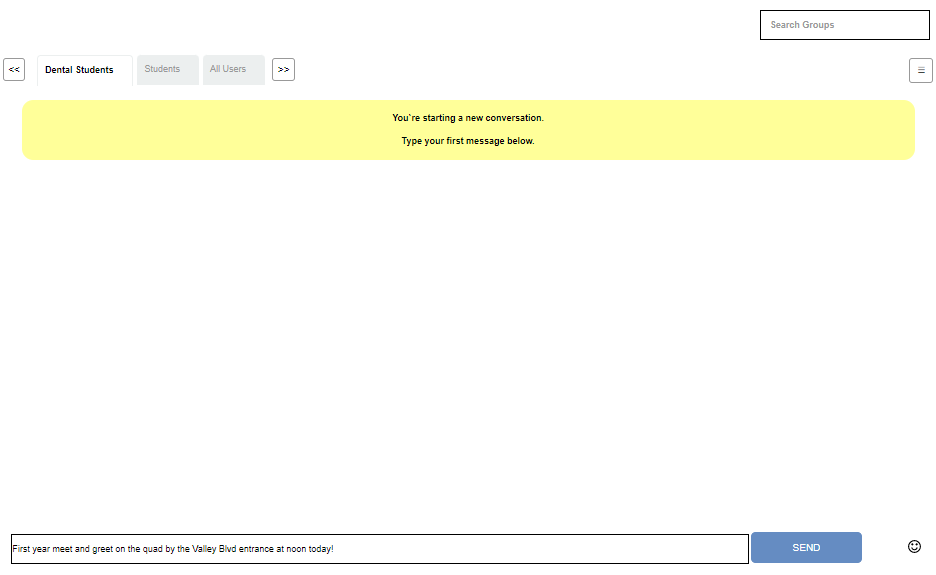
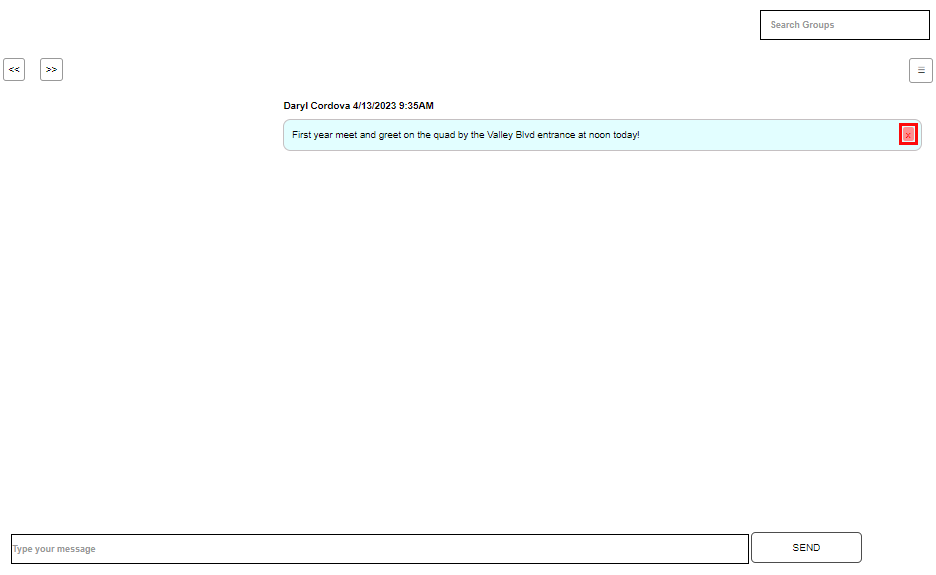
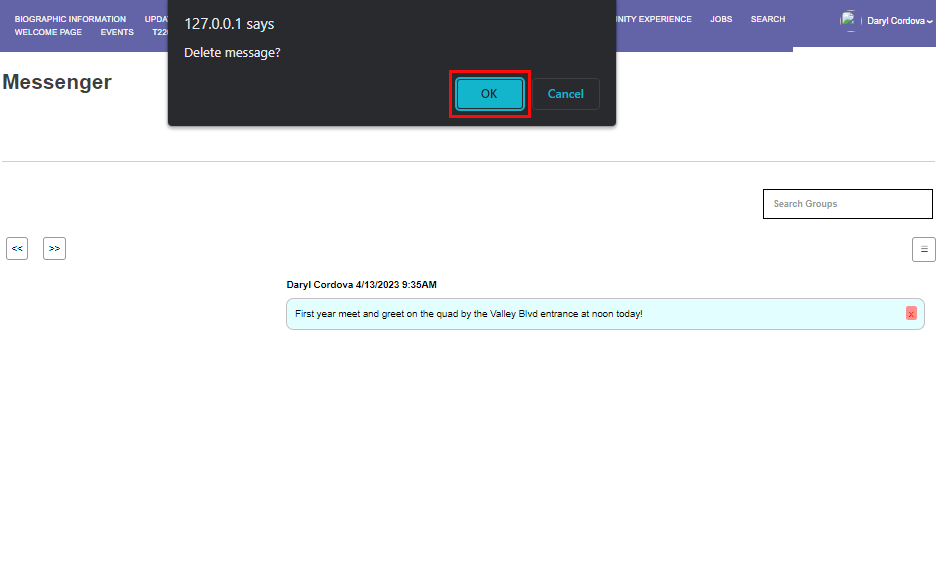
When the message is sent, the author's name is displayed to all recipients, along with the date and time it was sent, just above the message. The sender may remove the message by clicking the x at the end of the message bubble and confirming Delete in the popup.
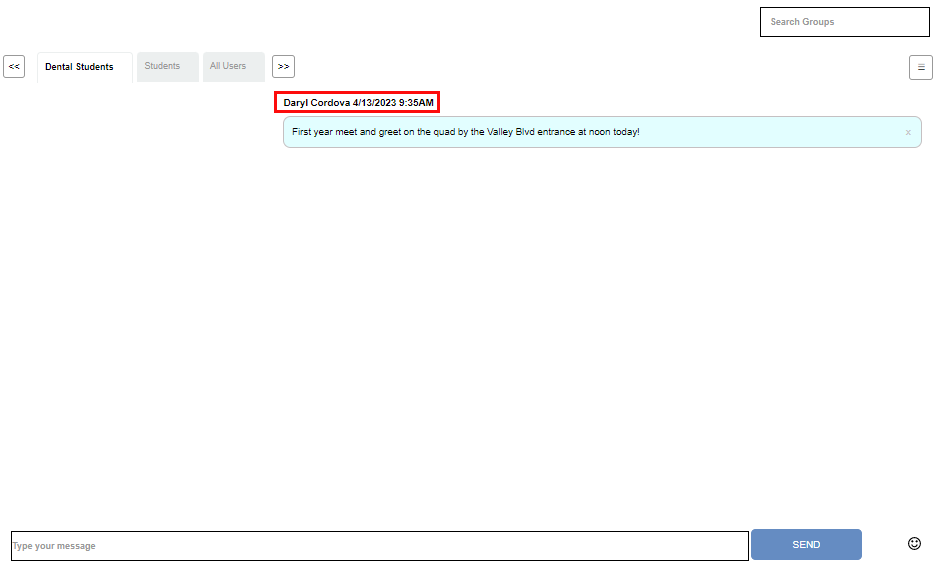
When a message is received, a red dot will display on the tab for the group the message was sent to. Click the tab to view the message.


When a group or user-to-user chat is received, a notification will also display in Reminders. The notification will be a red icon with a count of unread chat and/or reminder notifications. Clicking into Reminders will provide a Chat Notification type, the date received, the group sent to, the author, and a preview of the chat message. Click View to see the full message.
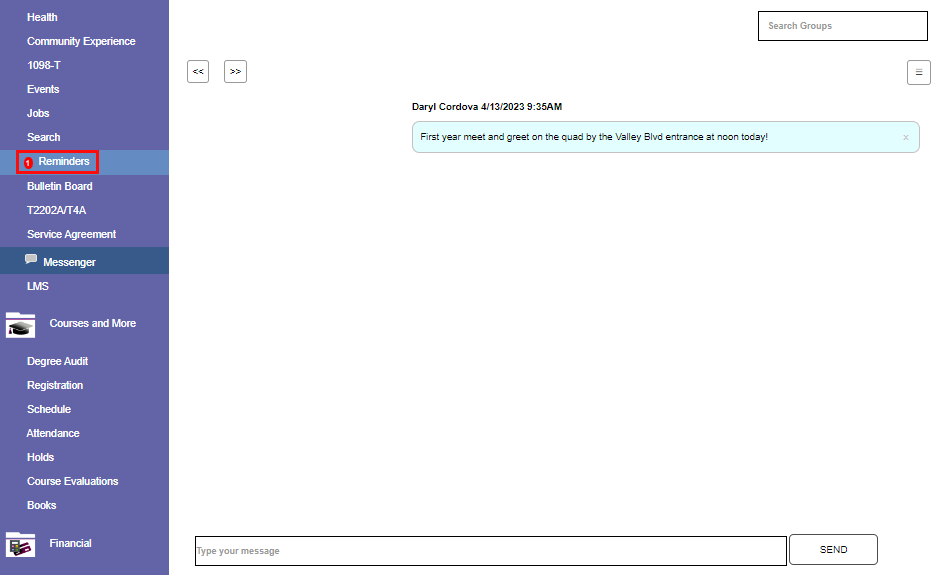

The Search Groups field allows the user to search for a particular group amongst the groups they are a part of by typing the name of the group. The search is responsive and only tabs that meet the search criteria will be displayed. The box below the search box allows the user to view details of the chat group.

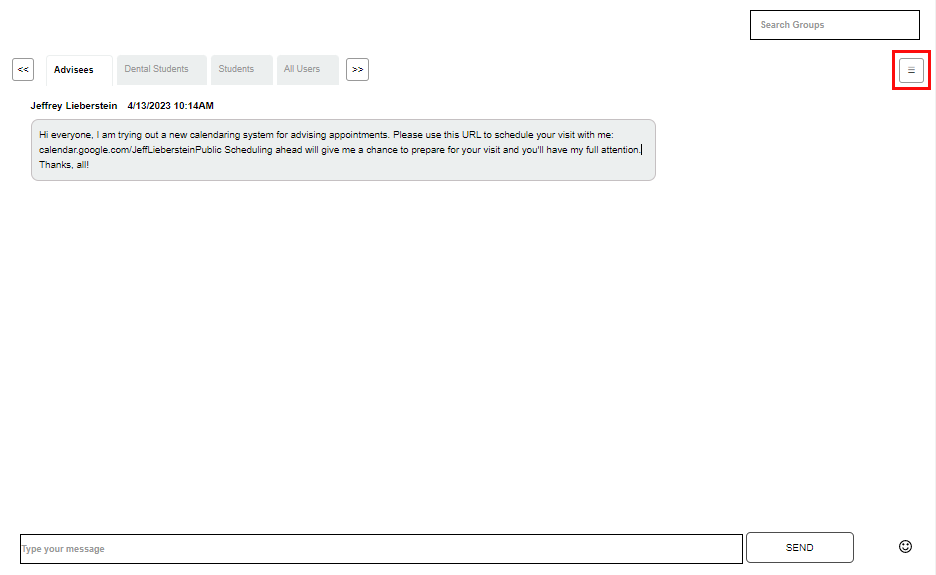
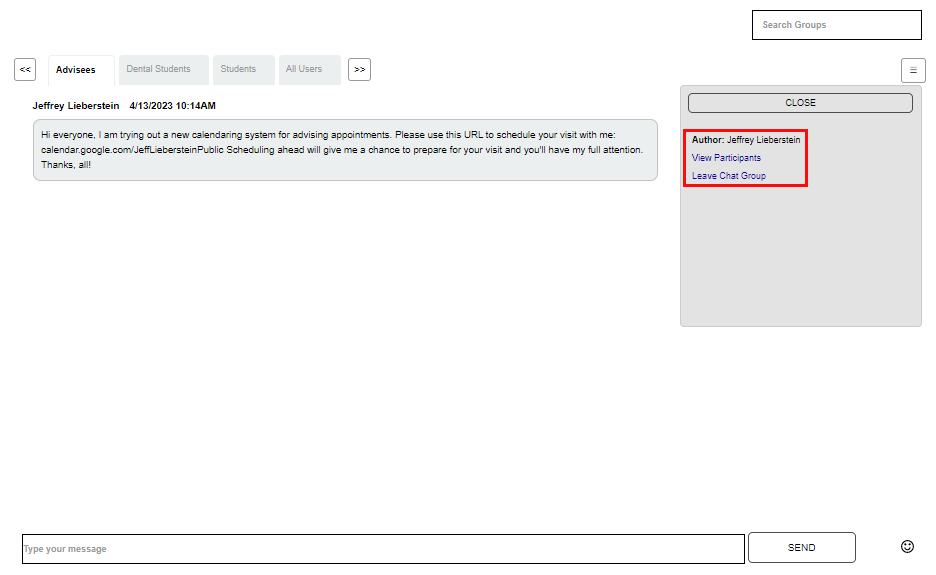
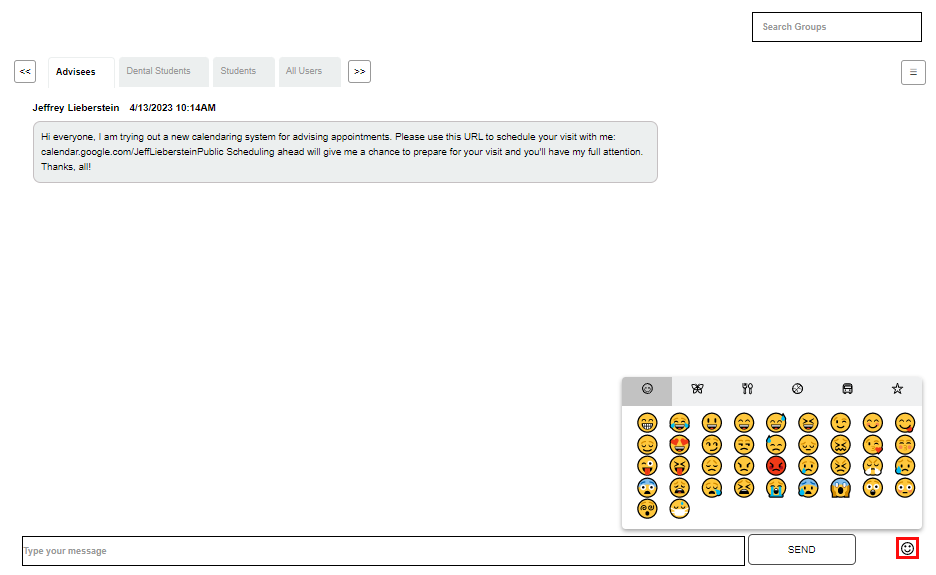
Clicking the box displays the group author's name and links to View Participants or Leave Chat Group. Clicking the smiley face to the right of the send button allows the user to add emoticons to the message being composed.