Courses
Overview
The Student Courses page in the administration portal allows administrators to view and edit the details of a student's past and present courses. To access the page, select a student using the QuickSearch function and click on Courses in the left-nav menu.
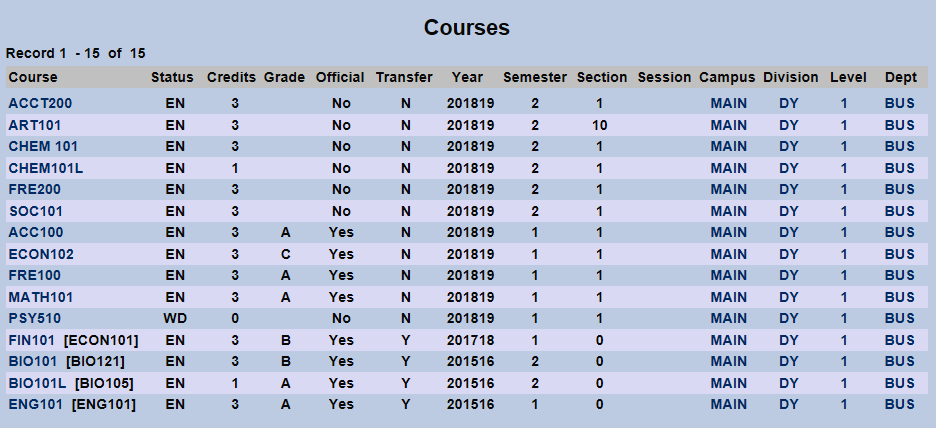
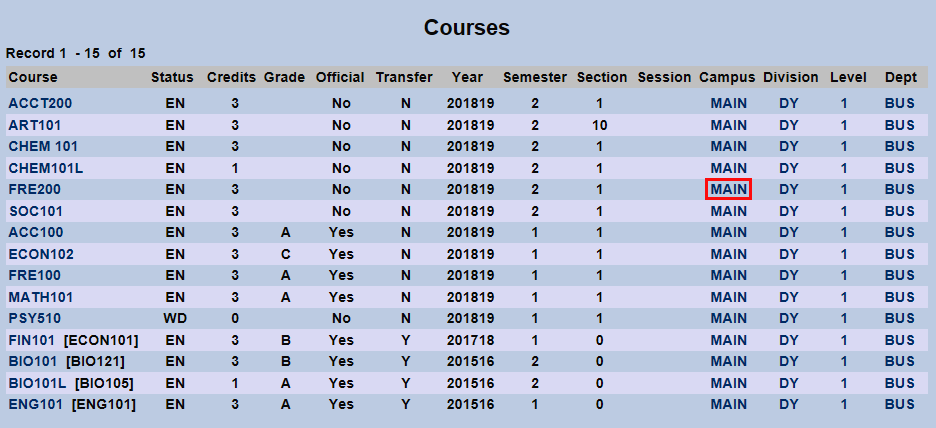
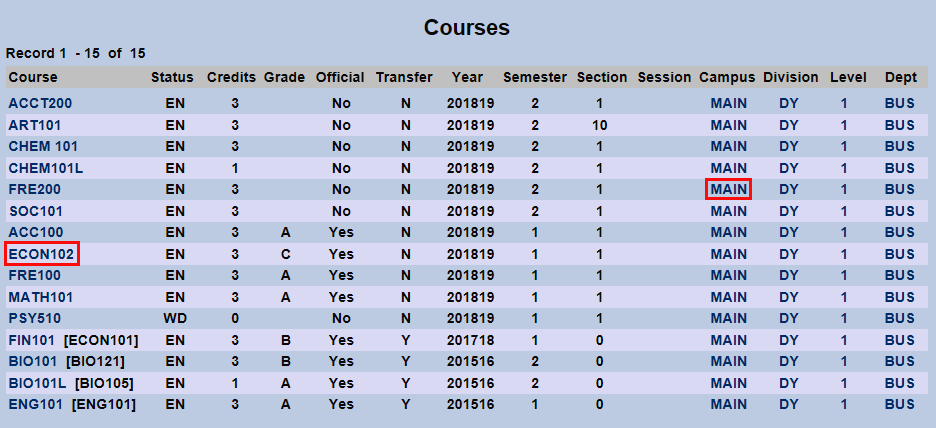
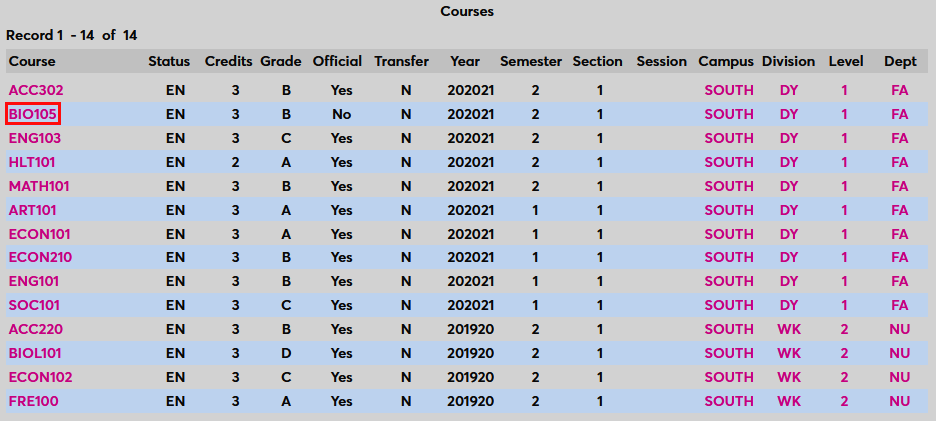
The Student Courses launch page lists the name of each course, the student's current status in that course, the credits earned, the grade earned, whether the grade is official or not, whether the course is a transfer or not, the school year, the semester, the section, the session (if applicable), the campus, the division, the level, and the department that the student was enrolled in when completing the course.
Enhancement Options
There are also two display settings in Web Options that can be used to alter the appearance of the Courses summary page.
Display Withdrawn Course Credits
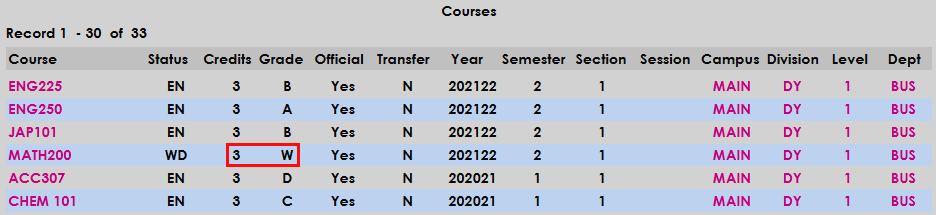
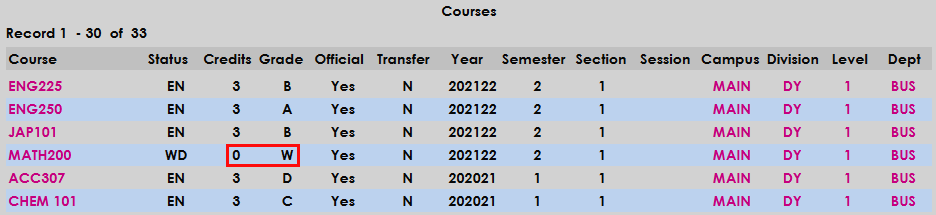
By default, the Courses summary does not display the credit hours for courses that have an enroll code of withdrawn. To change this, navigate to the Web Options page under the Systems tab. Find the Student Courses Summary options and select Display WD Credit Hours. Click Submit at the top or bottom of the page to save the change.

If this box is checked, courses listed on the Courses summary page that have an enroll code of withdrawn will have the attempted hours listed. If the option is left unchecked, the hours for these courses will display as 0, the actual credits that the student received.
Display By School Year/Semester
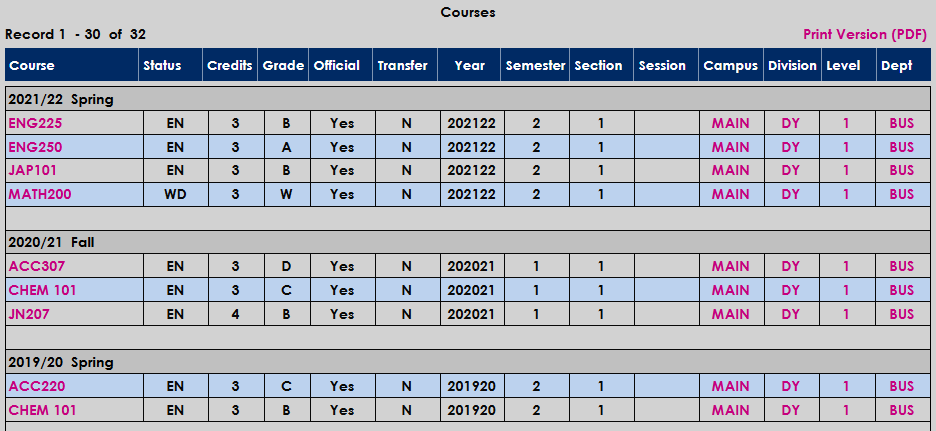
The Web Options page also has a second option to change the display of the Student Courses summary page. Select the Display By School Year/Semester option to change the way the summary page is organized. Click Submit at the top or bottom of the page to save the change.

The page will update to separate the courses by school year and semester rather than displaying them in one long list. This updated page operates the same as the default page and offers the same editing options.
Display Numeric Grades
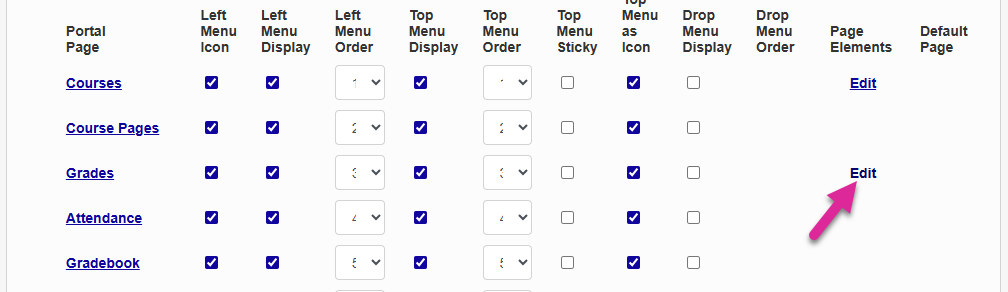
Some schools prefer to have instructors give their students a numerical final grade rather than a letter grade. To turn this feature on, navigate to the Faculty page of the Portal Menu Utility. Click the Edit button for the Grades page.
On the next page, check the Use Numeric Grades Display Element box and click Submit.
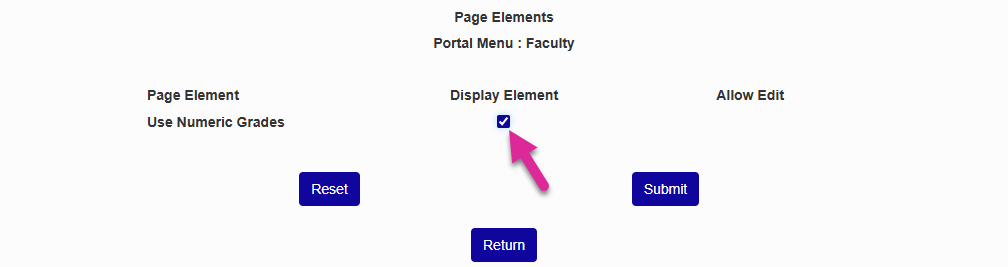
Once this setting has been changed, faculty members will be asked to enter numeric grades rather than letter grades. Though the system will still calculate the appropriate letter grade based on the information in the Grades table. See Faculty Grades for more information on how this works in the Faculty portal.
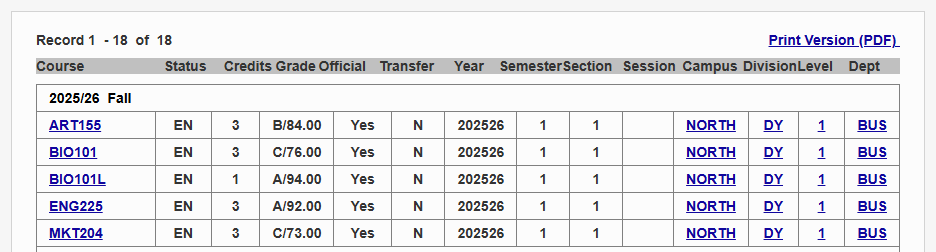
On the Courses page, the numeric grade displays next to the letter grade with a slash in between each value.
If you drill down into a course, you can change both the Numeric Grade and the Midterm Numeric Grade. Changing these values will not recalculate the letter grade.

Once the grade has been made official, these values are locked in and can't be changed until the grade has been made unofficial.

Editing Campus, Division, Level, & Department
The campus, division, level, and department of each course can be edited directly from the launch page by clicking on the corresponding listing. A new window will open up, summarizing the current information and allowing changes to be made.
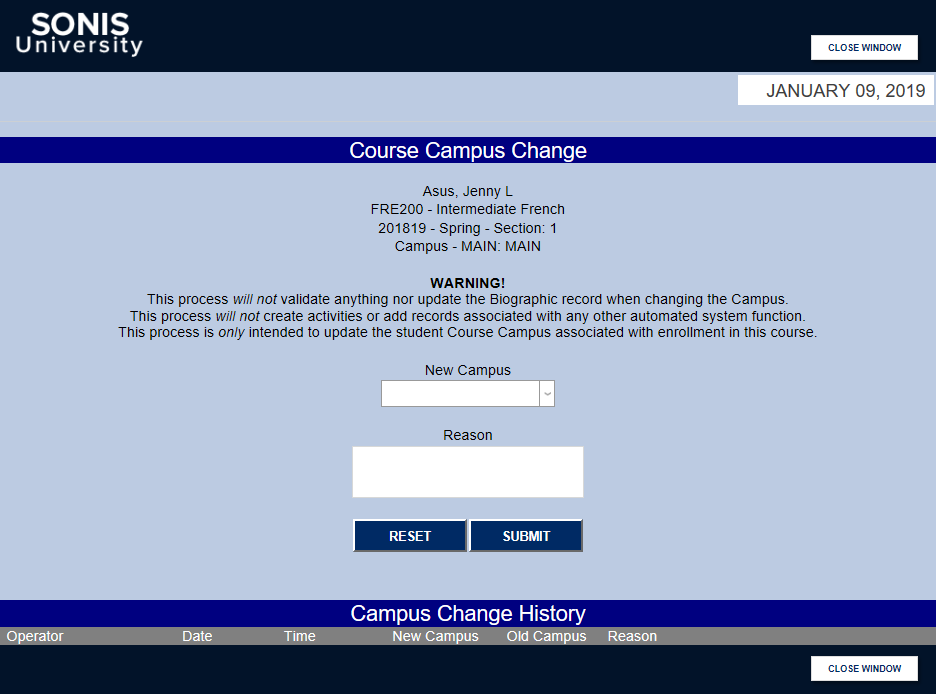
To make a change, select a New Campus (or New Division, New Level, or New Department depending on the value being changed) from the dropdown menu. Enter a Reason in the box below to explain the change.
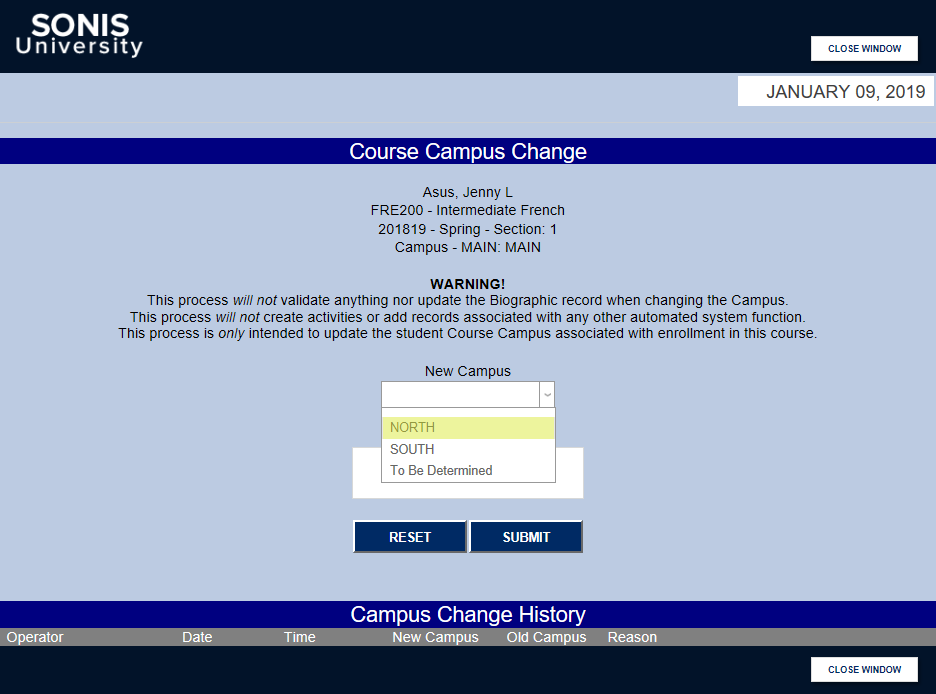
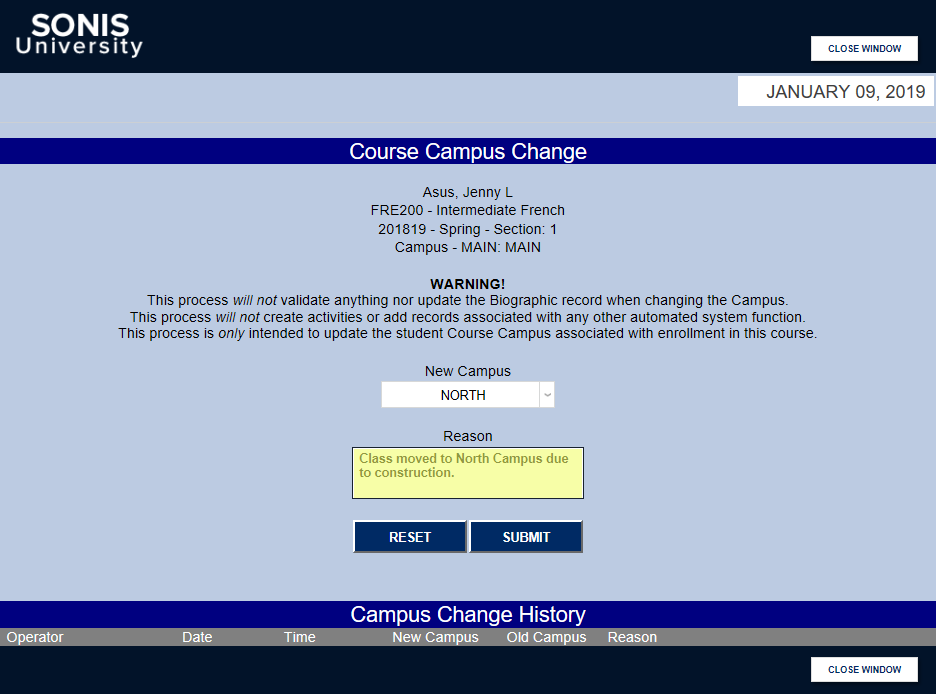
Click Submit to save the changes. The changes that have been made will appear in the Change History log below with the operator, date, and time all listed.
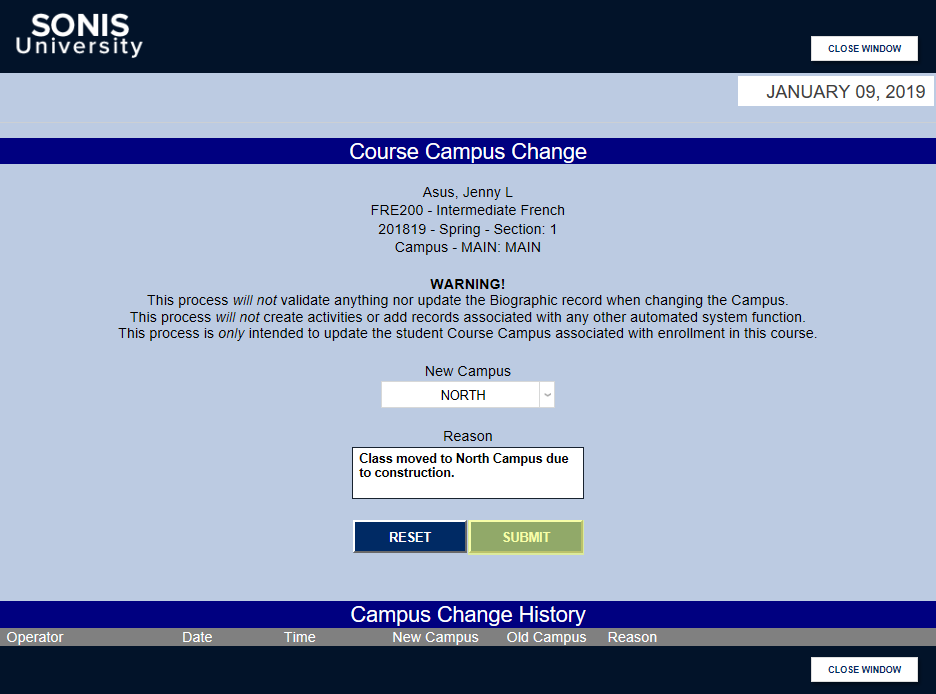
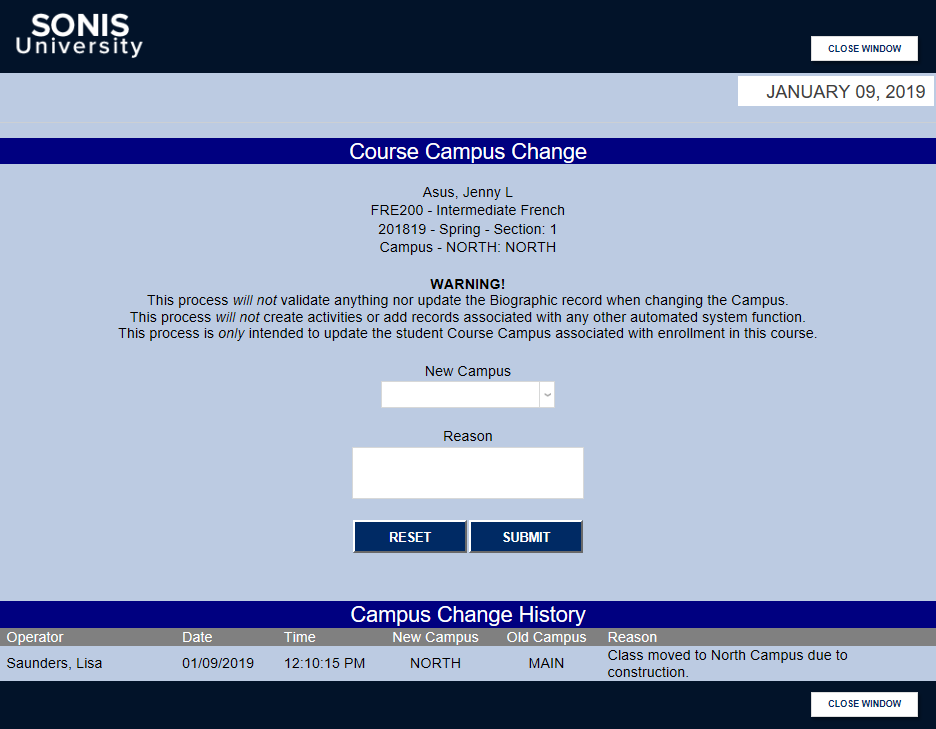
Note that changing the campus, division, level, or department of a course in this manner will not validate anything nor update the student's Biographical record. It will not create activities or add records associated with any other automated system function.
Editing Course Information
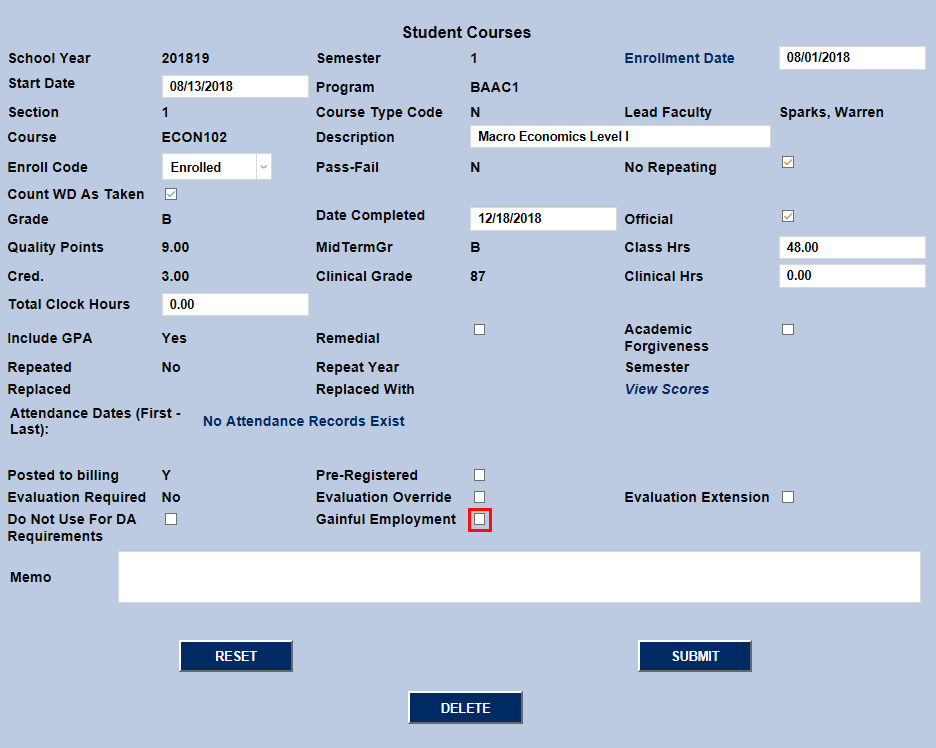
To change the details of a particular course record, click on the name of the course. Much of the data on the following page will be locked in and must be changed elsewhere, but other fields can be edited.
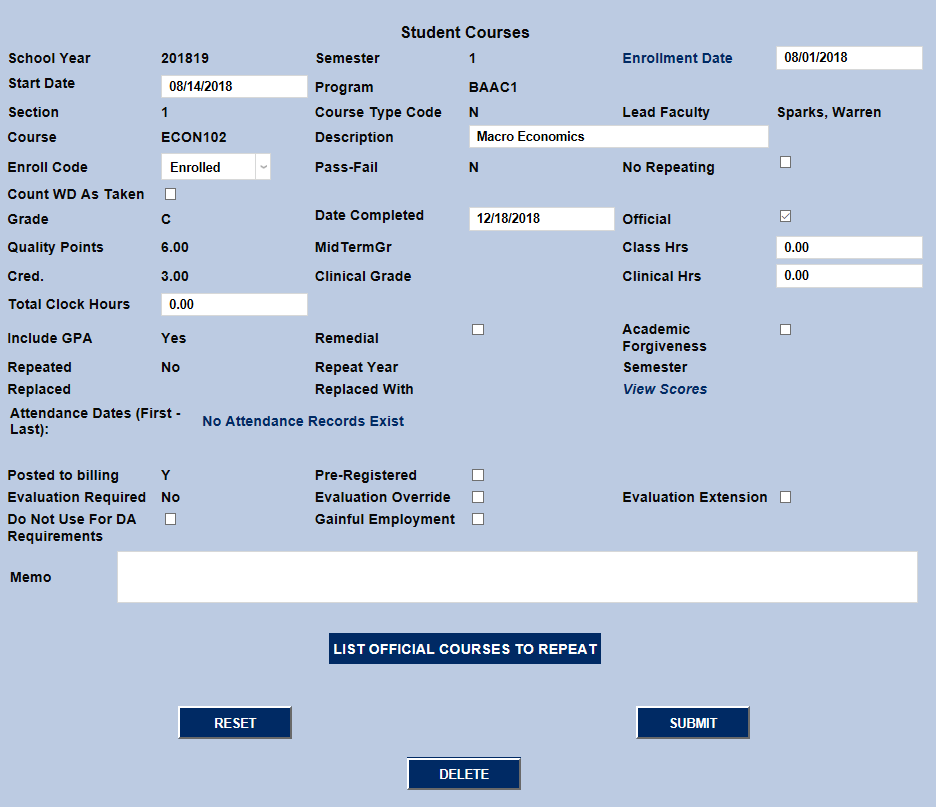
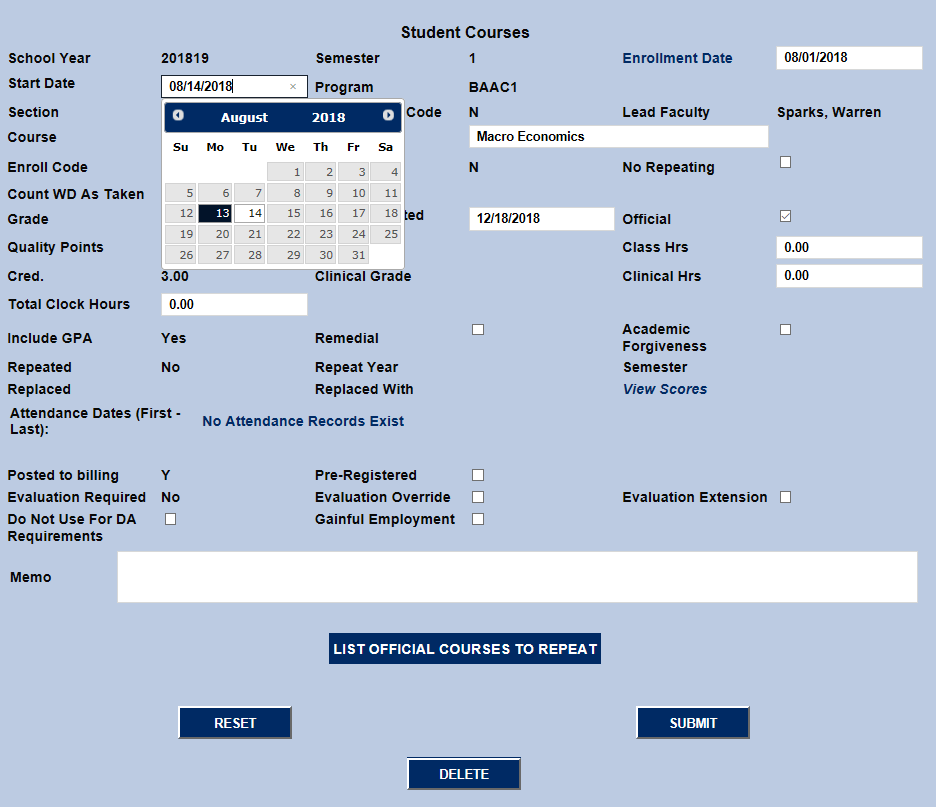
The School Year and Semester semester for the course can not be changed through this page. However, the Enrollment Date, Start Date, and Date Completed can be changed by clicking on the corresponding field and either typing in a new date or selecting one from the calendar.
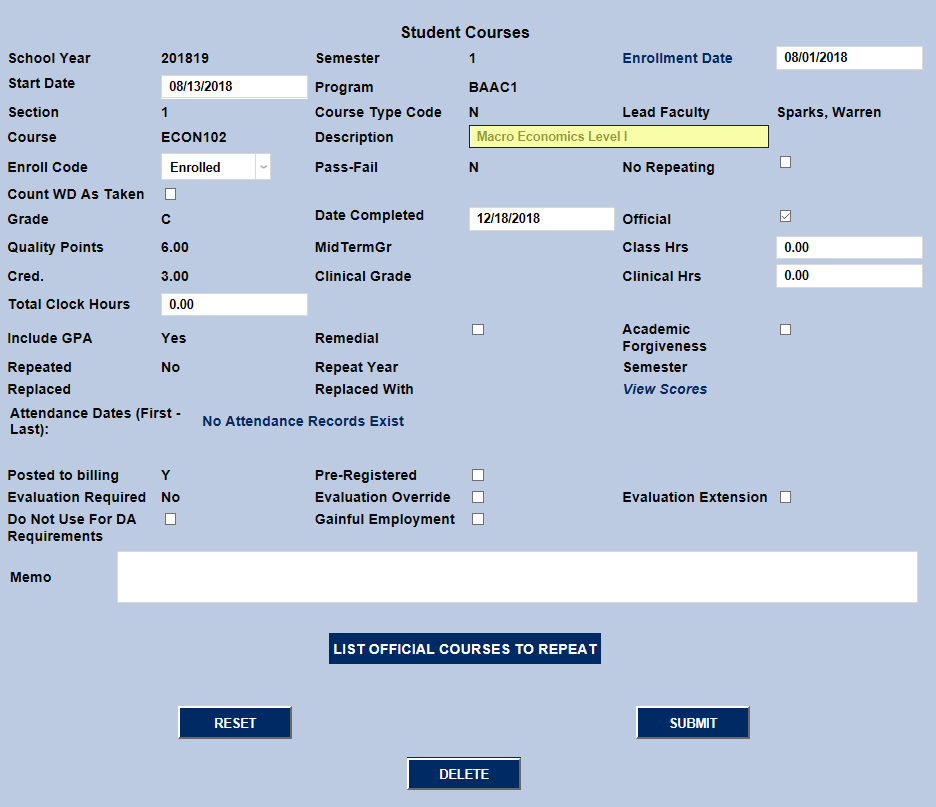
The Section, Course Type Code, and Lead Faculty are also set elsewhere. The Course Type and Lead Faculty can be changed by editing the course itself. The Course Title can not be changed here, but the Description can be changed in those location. The change will only apply to this particular student's records and will not change the course data or the records of other students.
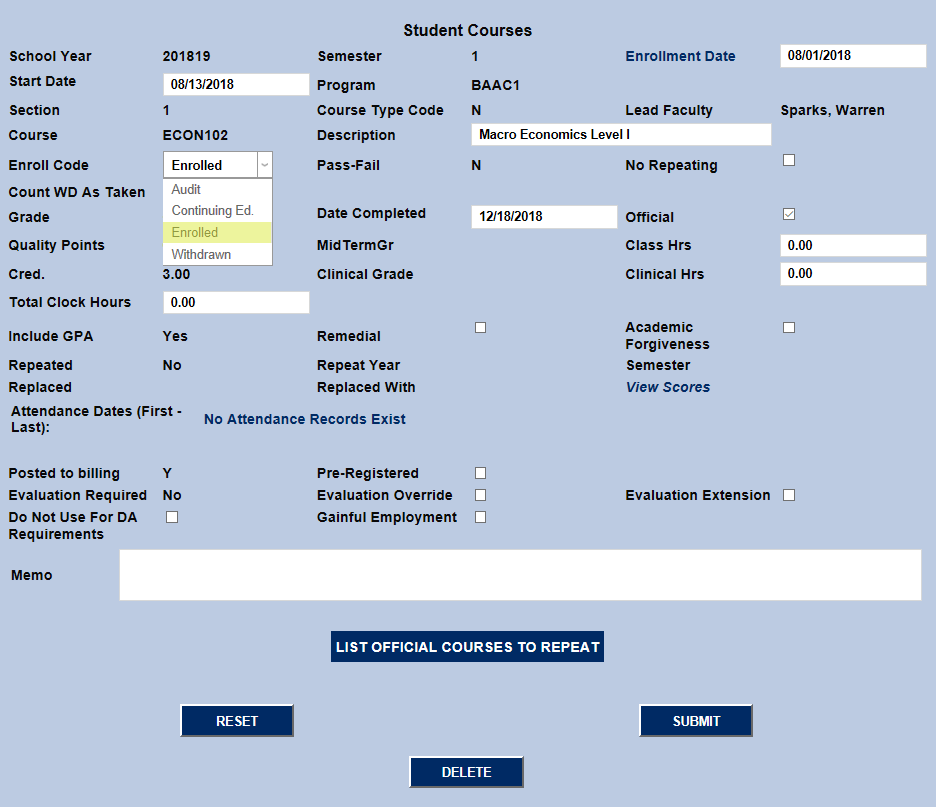
The student's status in the course can be changed using the Enroll Code dropdown. Standard courses either completed or not completed should have an enroll code of Enrolled. Select the Audit code if the student is just auditing the course and Withdrawn if they've left the course. Grades received in audited and withdrawn courses will not be included in the student's GPA or degree audit and the student will not get credit for these hours. The Continuing Ed. enroll code is automatically selected in this menu if the student registers for a course through the CE Registration system, but may need to be selected manually if a student is registering for both CE and standard courses during the same semester.
• EN (Enrolled) – Student was enrolled through the end of the term/class.
Clearinghouse – The credits will be included in the export for determination of full-time, quarter-time, half-time, or less than half-time enrollment.
Transcripts – The course and credits will be shown on a transcript, unless the custom transcript excludes certain course types.
Billing – The student will be billed for the course based on either Flat Fee or Per Credit rates.
• AU (Audit) – Student audited or is auditing the course.
Clearinghouse – Audit courses are sent to Clearinghouse, but they do not count towards the determination of full-time, quarter-time, half-time, or less than half-time enrollment.
Transcripts – Many schools use a grade of AU to identify a course that was audited. AU courses are not included in the standard SONIS GPA calculation, but could potentially be used in a custom transcript.
Billing – The student is billed for the flat amount entered in the Audit Cost field of the course master record.
• WD (Withdrawn) – Student withdrew (or was withdrawn) from the course before or at the very end of the term.
Clearinghouse – SONIS excludes the credits for any WD courses in the export file for the determination of full-time, quarter-time, half-time, or less than half-time enrollment. In the case of a total withdrawal from school, SONIS reports a W status with the date of withdrawal for a status start date.
Transcripts – Most schools include courses that were withdrawn after the add/drop period and do not include courses dropped during the add/drop period. The custom transcript is coded to the requirements of the school.
Billing – Depending on the withdrawal date, many schools refund all or part of the tuition and fees associated with the course. Those refund transactions should appear on the billing report.
• CE (Continuing Education) – Student is enrolled in a continuing education course OR in an academic course for continuing education credit (if the school allows).
Clearinghouse – The Clearinghouse uses CE credits included in the export for determination of full-time, quarter-time, half-time, or less than half-time enrollment.
Transcripts – Most schools exclude CE coursework from the academic transcript, but it is up to the school.
Billing – Courses are billed using the CE Per Credit rate on the course record.
More on the withdrawal process can be found below.
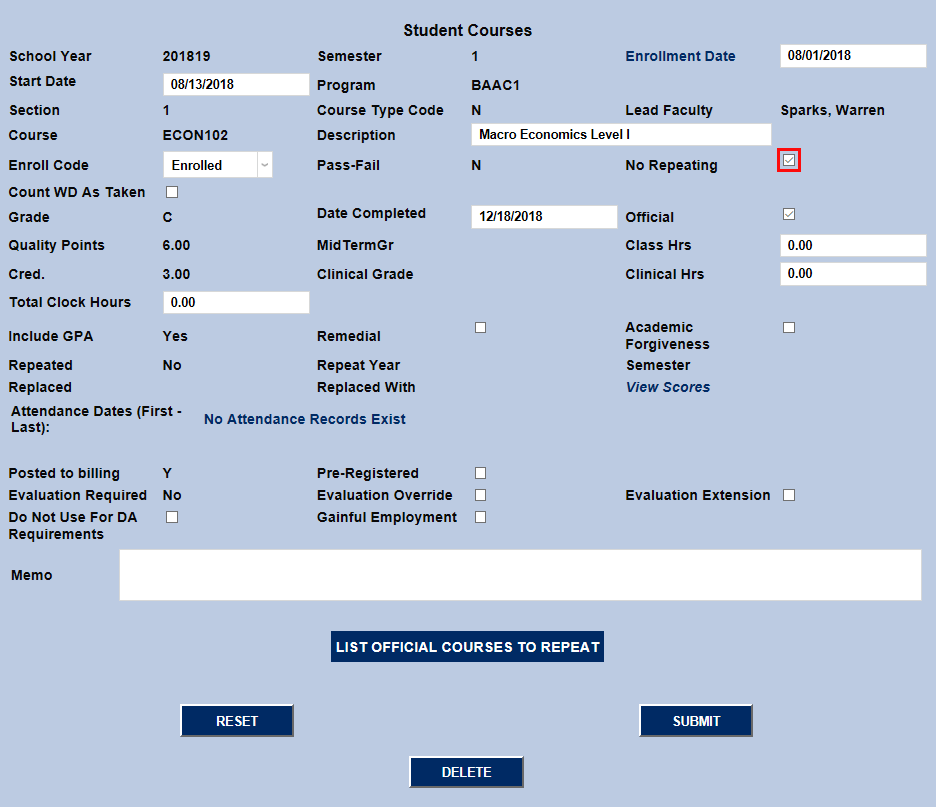
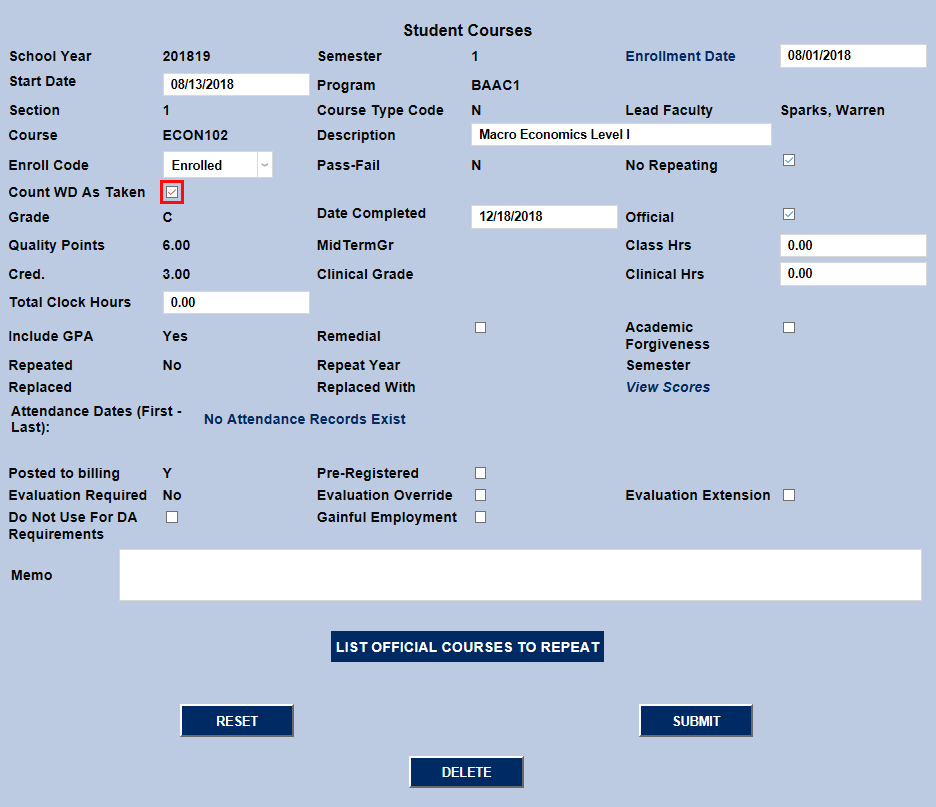
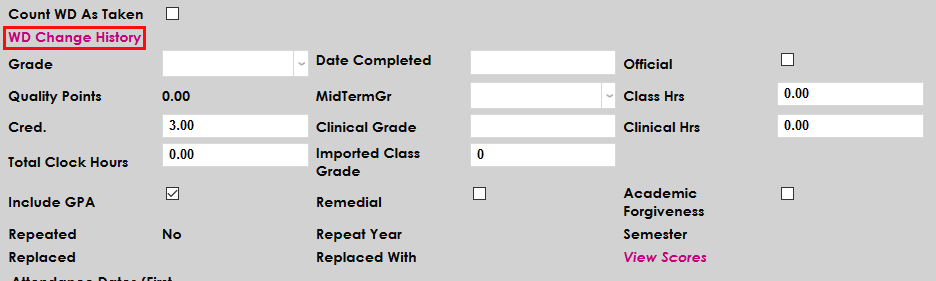
The No Repeating checkbox prevents the course from being taken again for credit by this student. A course can also be set as "no repeating" for all students via the Course Add/Edit page. Checking the Count WD As Taken box will ensure that the class will be listed as taken on the primary Student Courses page even if Withdrawn is selected from the Enroll Code dropdown.
Withdrawing from Course
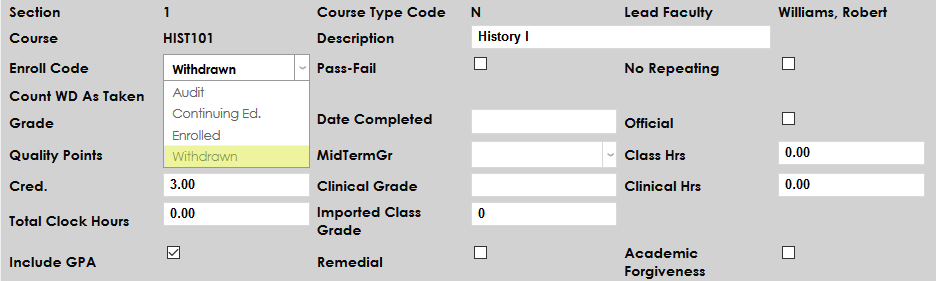
To withdraw a student from a course, select Withdrawn from the Enroll Code dropdown menu.
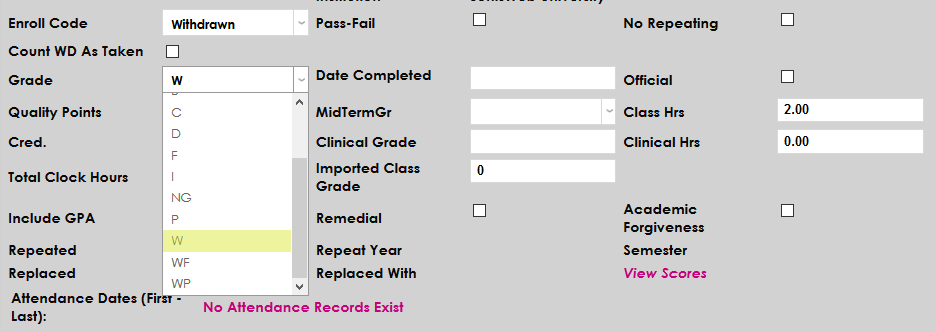
Next, select a Grade for the student. The grade can be left blank, but the blank grade will appear on the student's transcript. For this reasons, most schools create one or more "withdrawn" or "incomplete" letter grades when setting up their Grades.
Check the Official box to make the grade official.

If the Count WD As Taken box is checked, SONIS will treat the course as if it has been taken. The course displays the same initially, but if the student enrolls in the course again, SONIS will treat the enrollment as a repeat. If the course is completed in the second attempt, the student's transcript will show that the initial attempt was replaced. For more on repeat and replacement rules, see the No Repeating section of the Courses page.

Click Submit to save the changes.
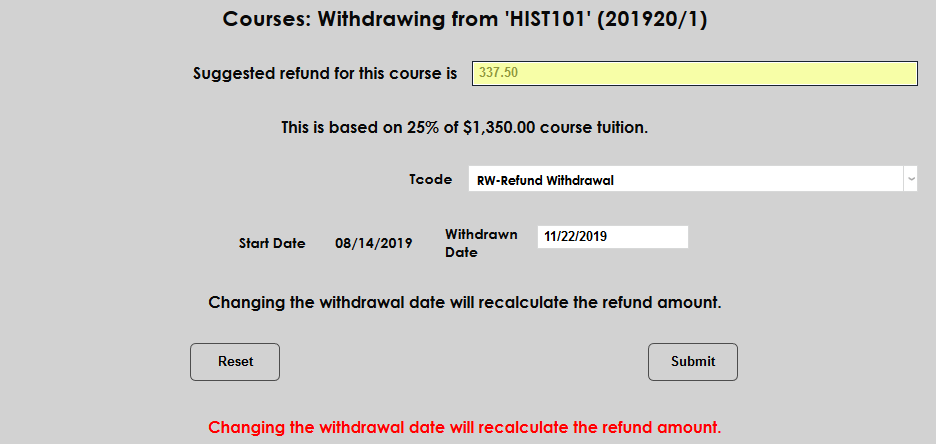
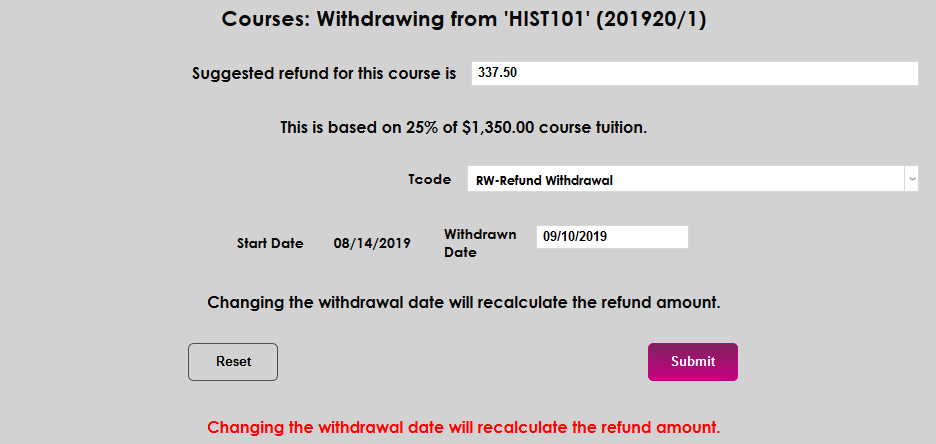
On the following page, the Suggested Refund field will be filled in automatically based on the institution's Refund Settings. Generally, the amount of money can be refunded goes down based on the time it's been since the course start date, but schools can offer refunds however they want, including offering different refund amounts based on the student's module status and/or Affiliation. If there are extenuating circumstances, the refund amount can be edited from this screen. The text below explains how the amount was calculated.
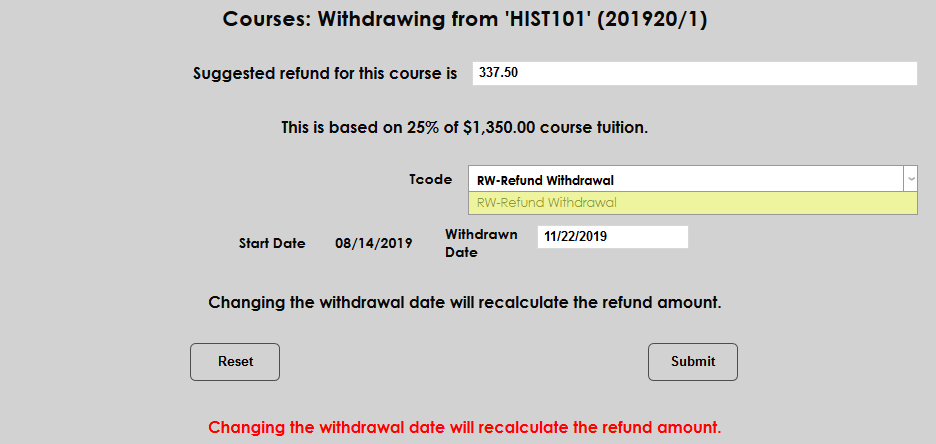
Next, select a T-Code to be used for the refund transaction. Only transaction codes included in the Tuition T-Codes list will be offered as an option. Most institutions use a single refund code for tuition refunds but some schools may wish to set up more than one to use for various situations.
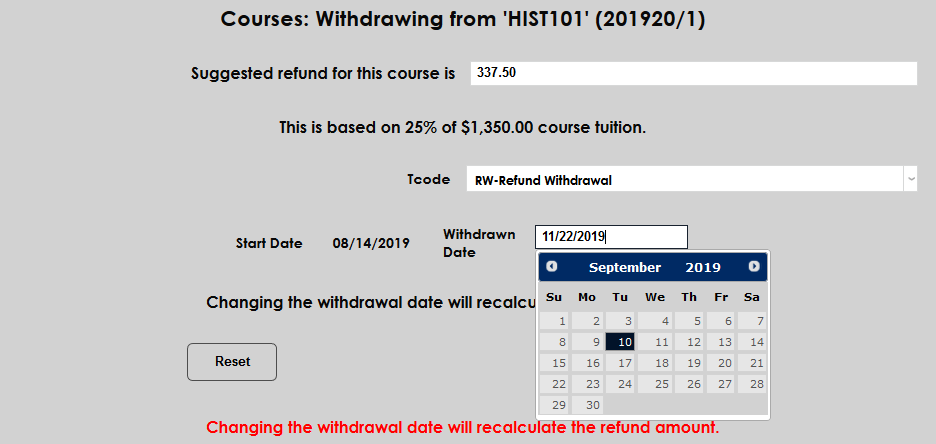
The Withdrawn Date will be listed in the student's records. It's automatically set to the day that the change is taking place but can be edited if the actual withdrawal occurred on a different date. As noted on the page, changing the withdrawal date will recalculate the suggested refund.
Once any needed changes have been made, click Submit to withdraw the student from the course.
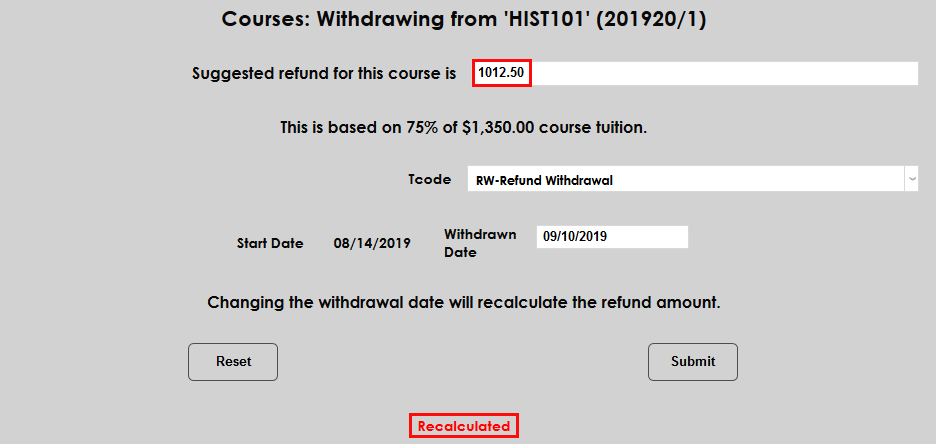
If the date has been changed and the change affects the suggested refund amount, the page will reload with the new total and a Recalculated message at the bottom of the page. Click Submit again to continue.
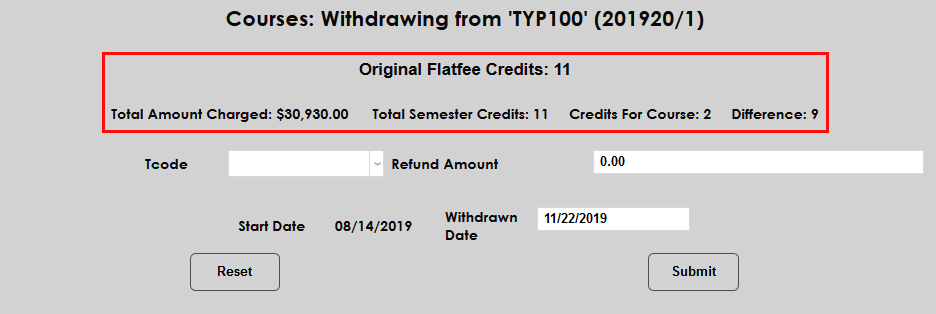
If the student registered for the course with a flat tuition fee, the amount that the student paid along with their credits before and after withdrawing are listed at the top of the page.
After the initial withdrawal has been submitted, the administrator will have the option to Give a Refund immediately or to Mark for Reverse Tuition.

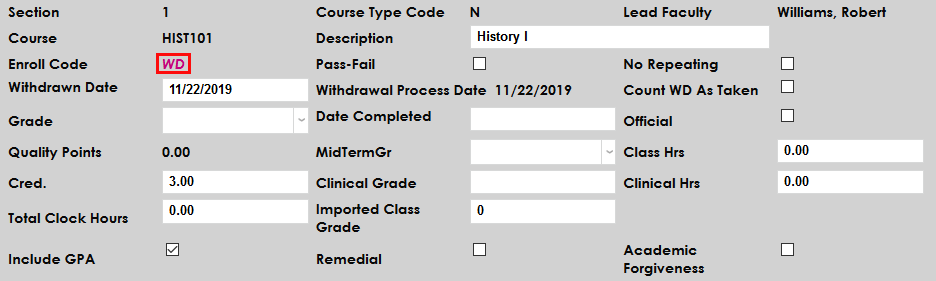
Once a student has been withdrawn from a course, the Enroll Code dropdown is replaced by a WD noting that the student has been withdrawn with a Withdrawn Date that can edited below it.
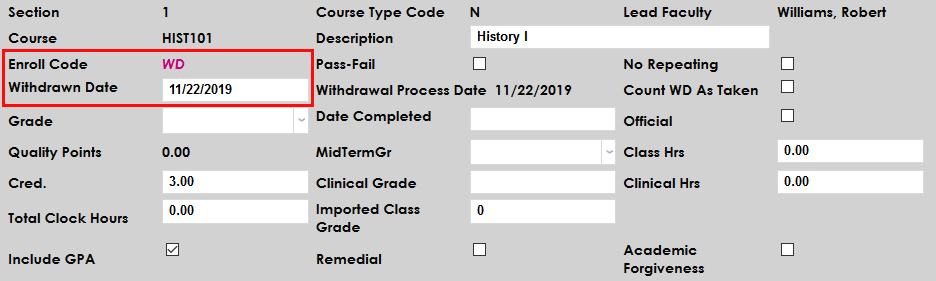
If a student has been withdrawn in error, click the WD link to re-enroll them in the course.
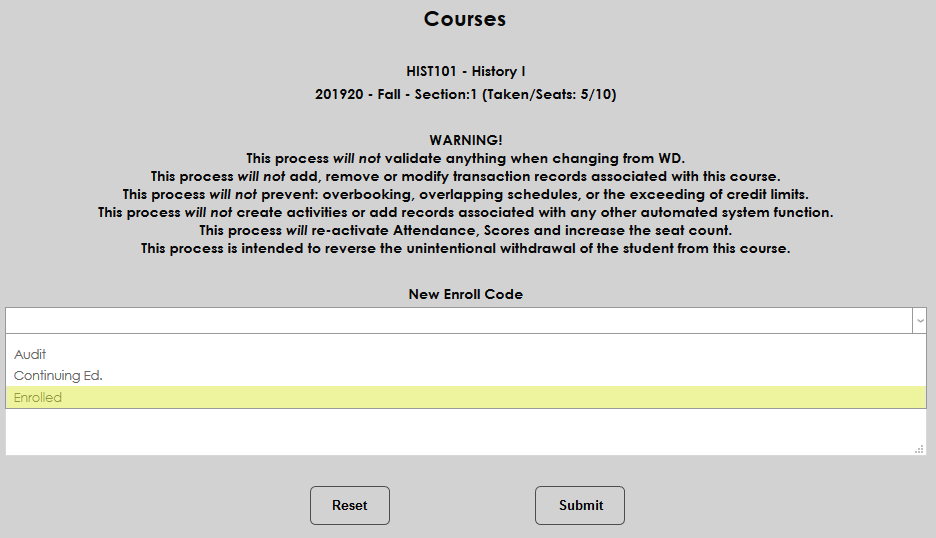
The withdrawal reversal page includes the following warning:
This process will not validate anything when changing from WD.
This process will not add, remove or modify transaction records associated with this course.
This process will not prevent: overbooking, overlapping schedules, or the exceeding of credit limits.
This process will not create activities or add records associated with any other automated system function.
This process will re-activate Attendance, Scores and increase the seat count.
This process is intended to reverse the unintentional withdrawal of the student from this course.
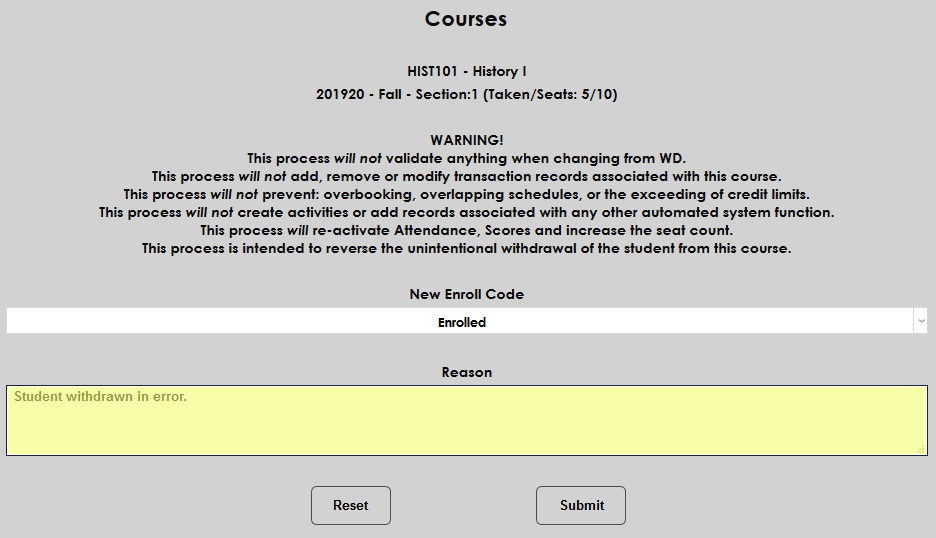
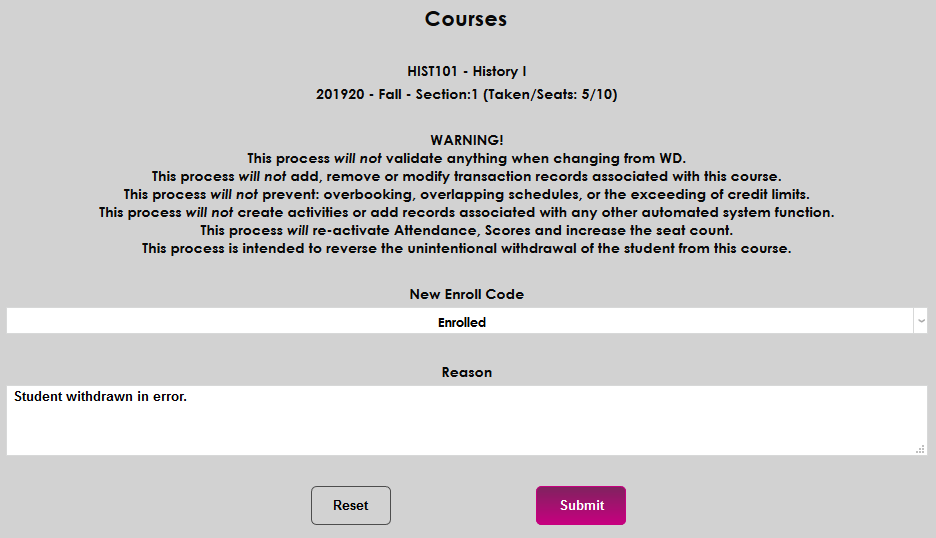
Select a New Enroll Code, enter a Reason for the change, and click Submit to re-enroll the student.
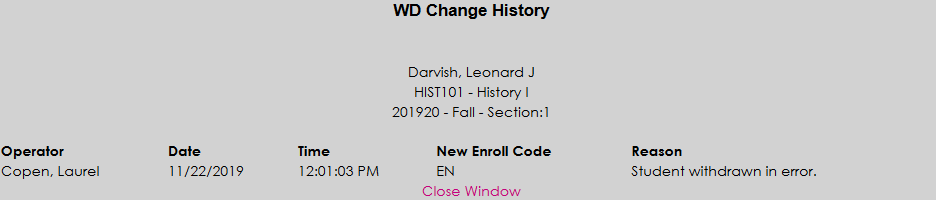
When a withdrawal has been reversed, a WD Change History link is added to the student's page that tracks past withdrawals. Click the link to view the history in a new window.
Dropping a Course
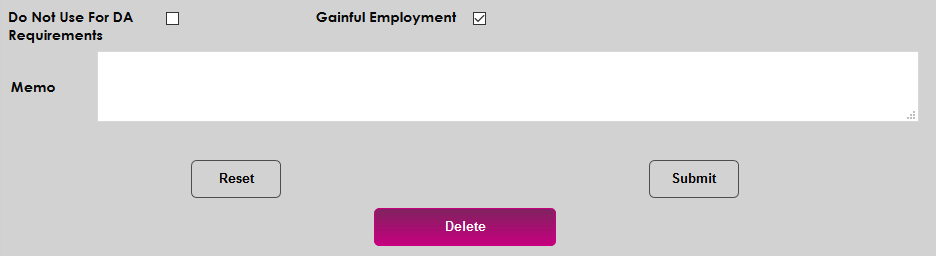
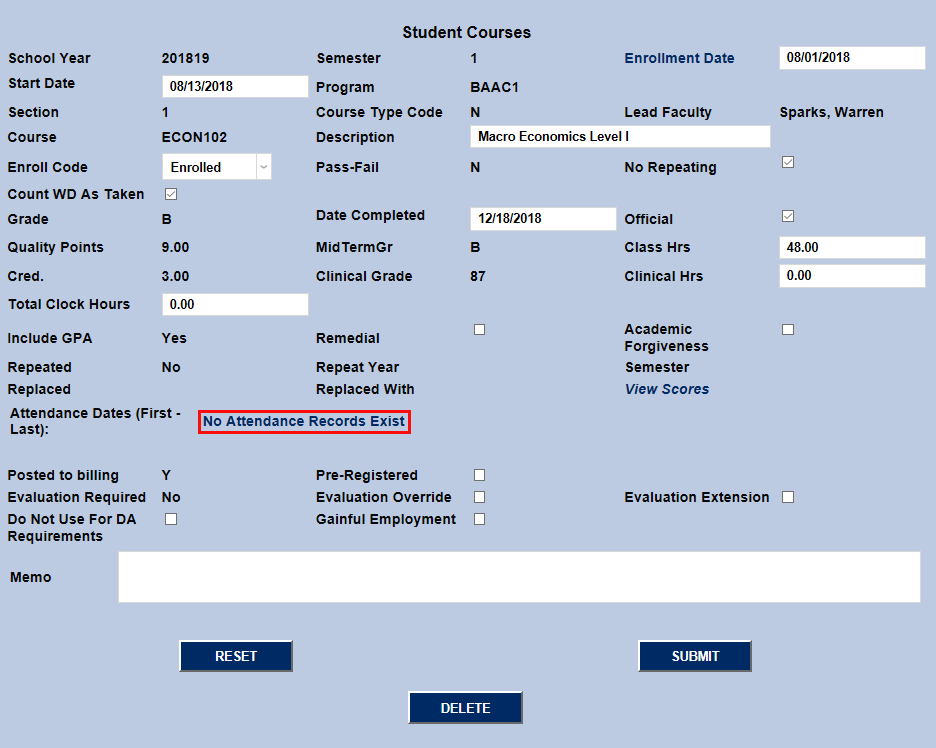
As shown in the previous section, when a student is withdrawn for a course, the course stays in their records. Alternately, courses canned be dropped by removing them from the student's records altogether. At the bottom of the page, click the Delete button. Note that a course can only be deleted from a student's records when there are no attendance records.
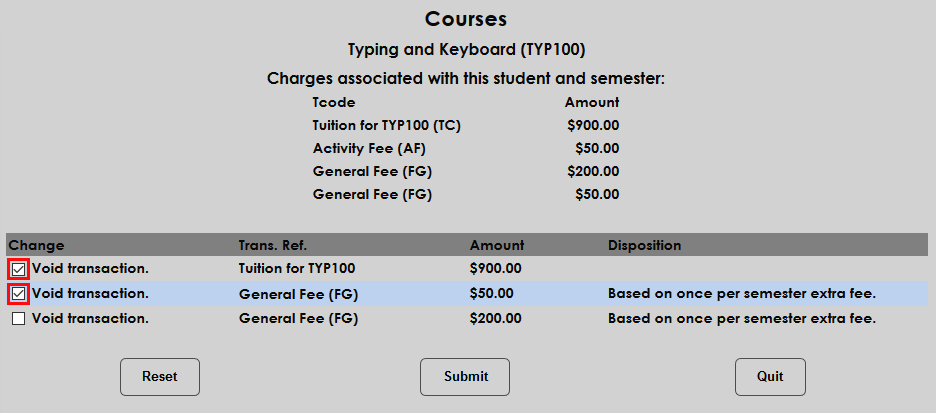
The following page lists the charges that the student has accrued for the course. It's assumed that the student will receive a full refund for the course rather than a partial refund, but any additional course fees are listed separately in case one or more of these charges are nonrefundable. Check the Void transaction box for any charge that should be voided and click Submit.
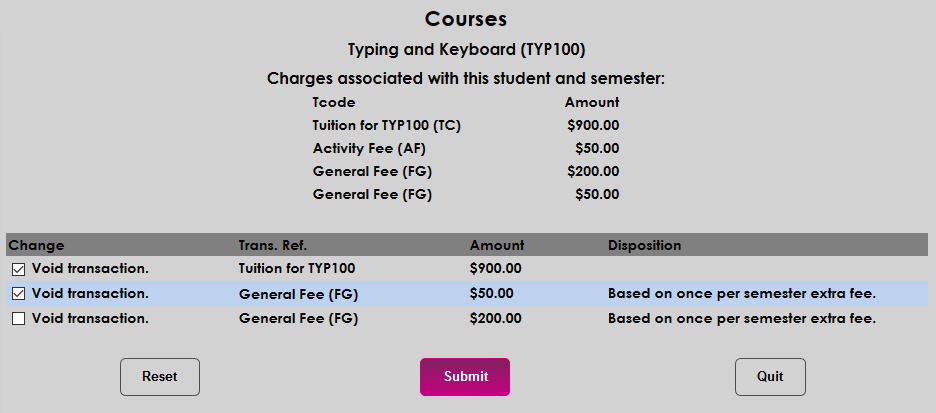
Not that while this is the standard procedure to drop a course in SONIS, some schools prefer to create a Dropped grade and leave the course in the student's records. In this case, the student's tuition would be voided through another process.
Editing Grade Information
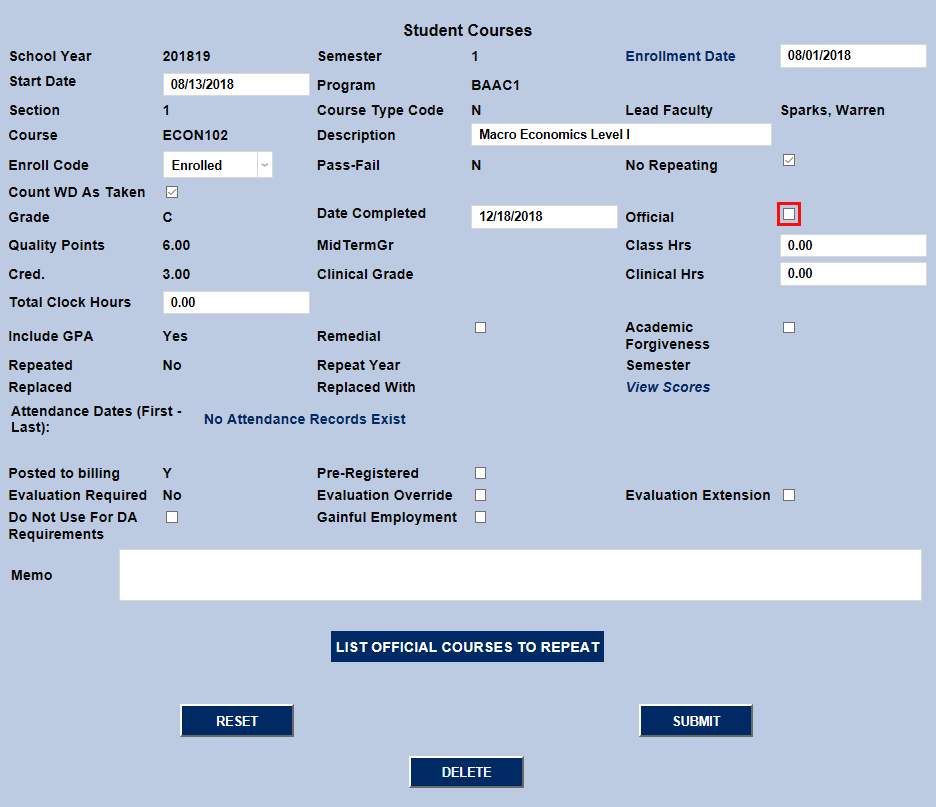
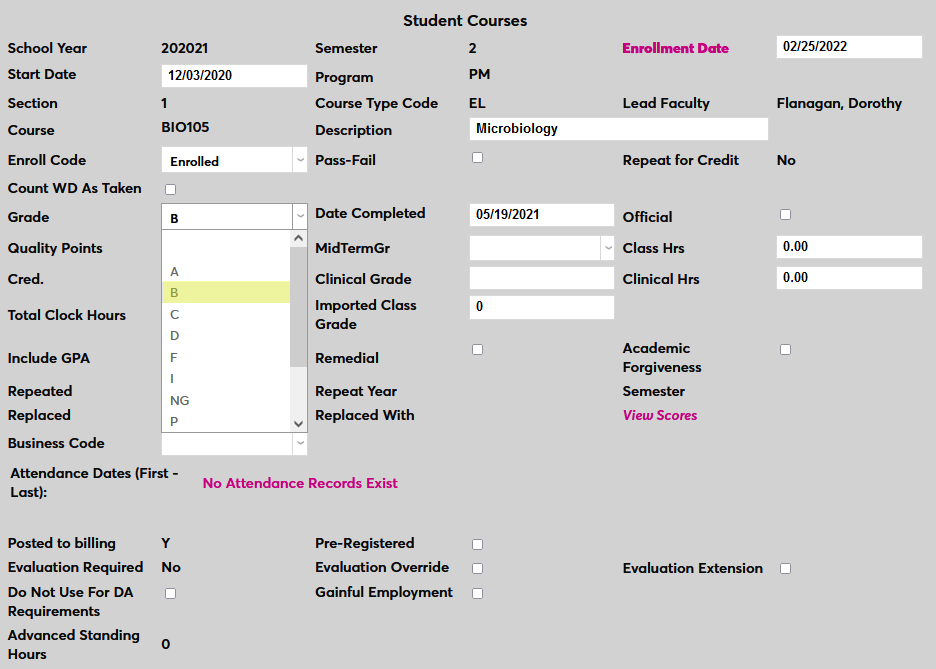
Once a grade has been made official, it can not be edited. If an official grade needs to be changed, uncheck the Official box and click Submit. This opens up six new editing options on the page.
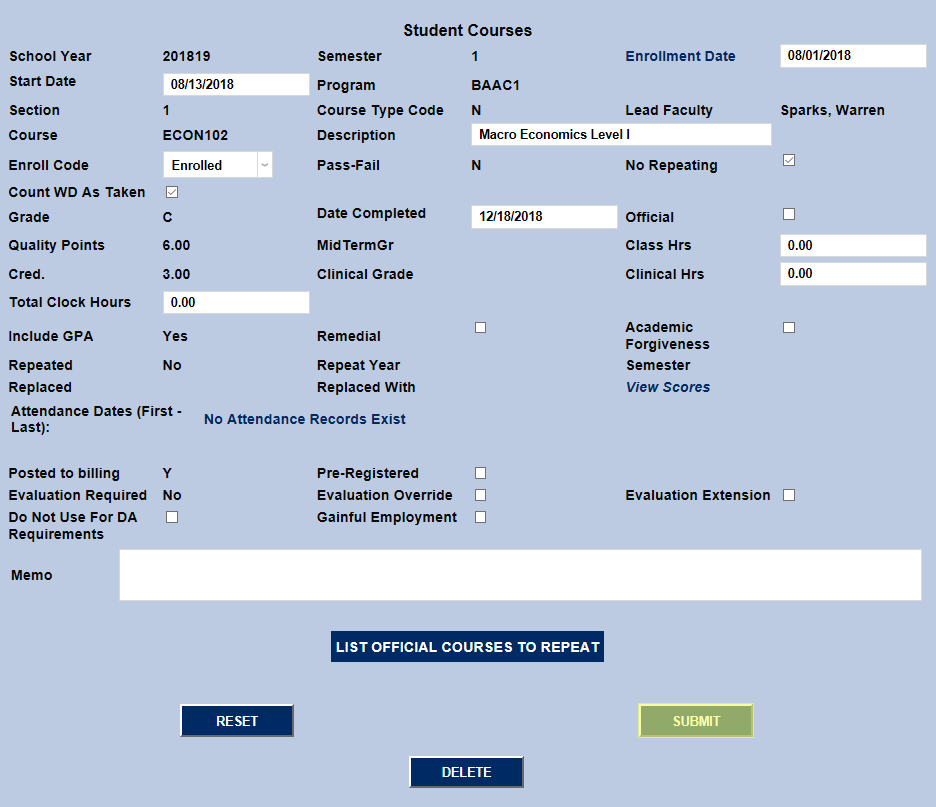
To change the student's grade for this course, simply select a new grade from the Grade dropdown menu. The MidTerm Grade and Clinical Grade can also be changed if applicable along with the Credits received for taking the course.
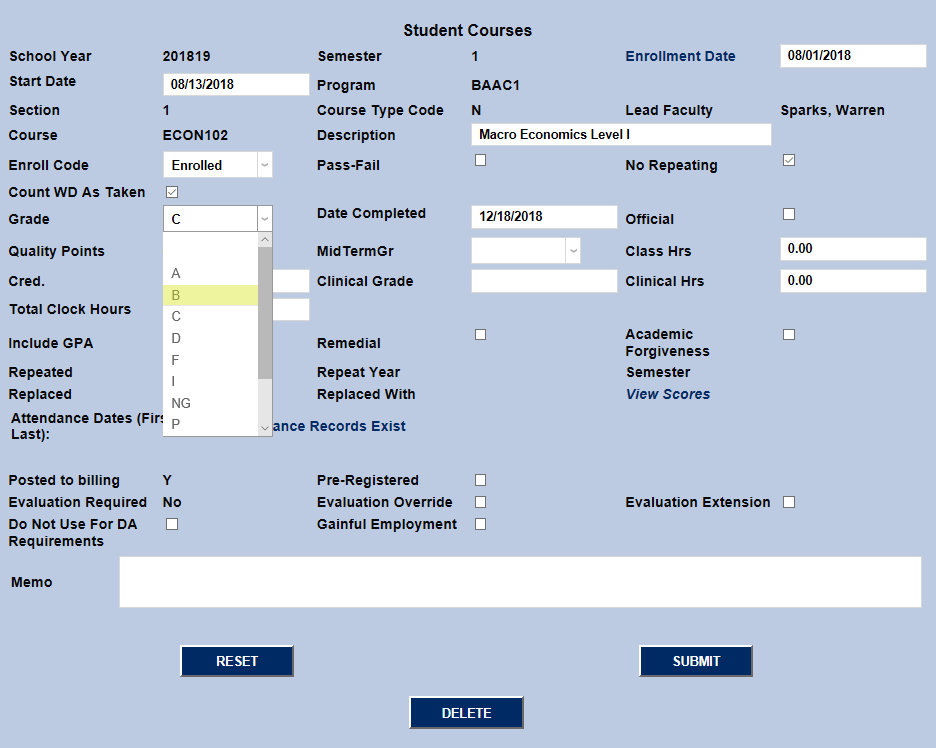
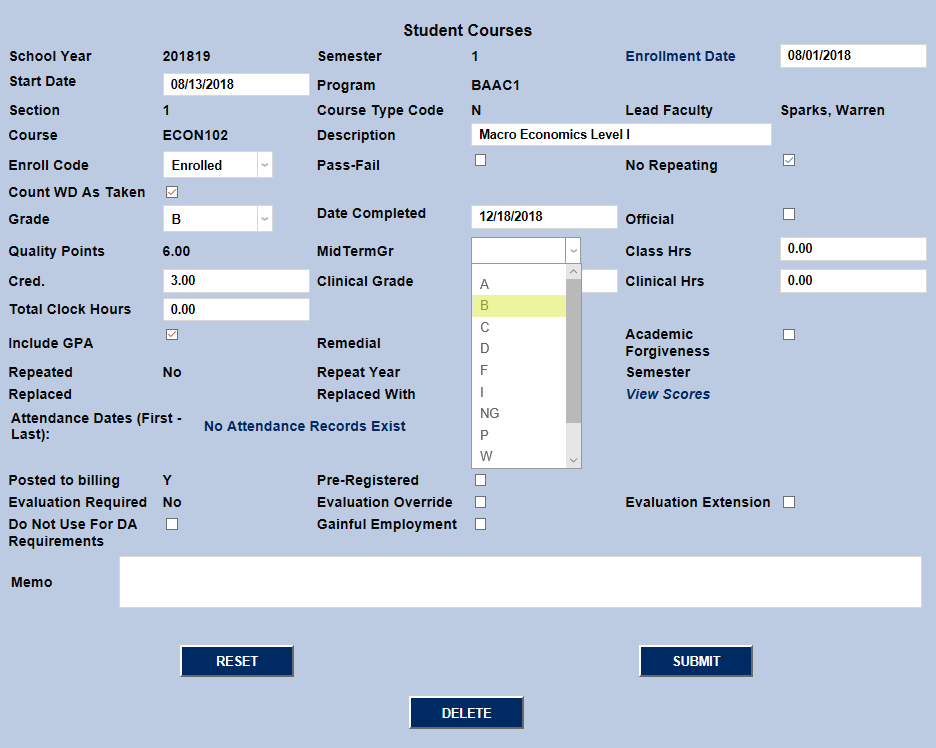
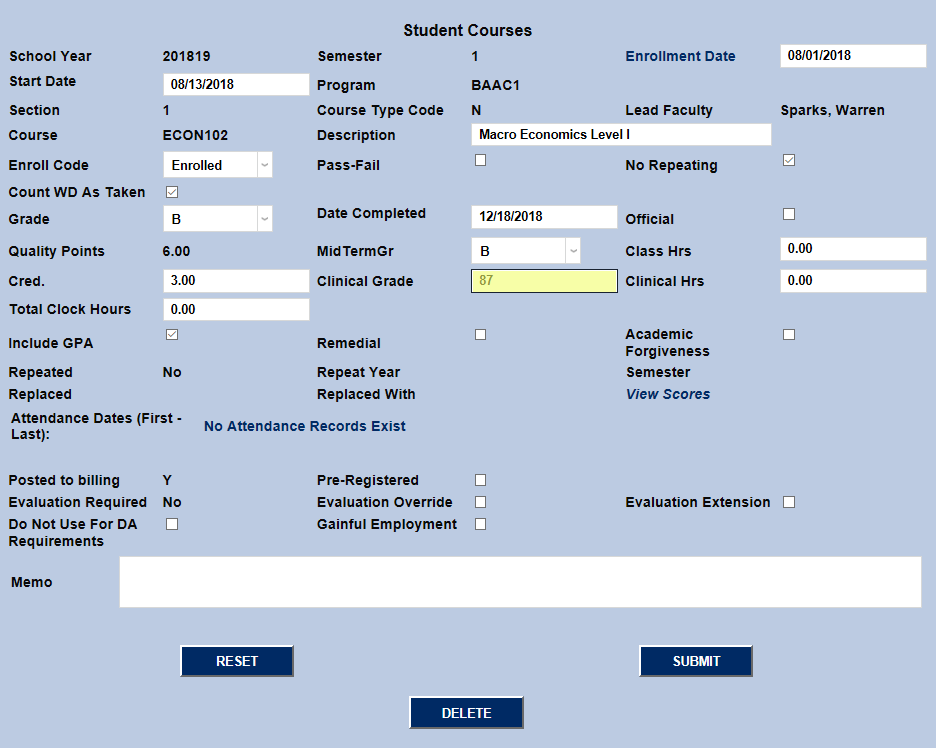
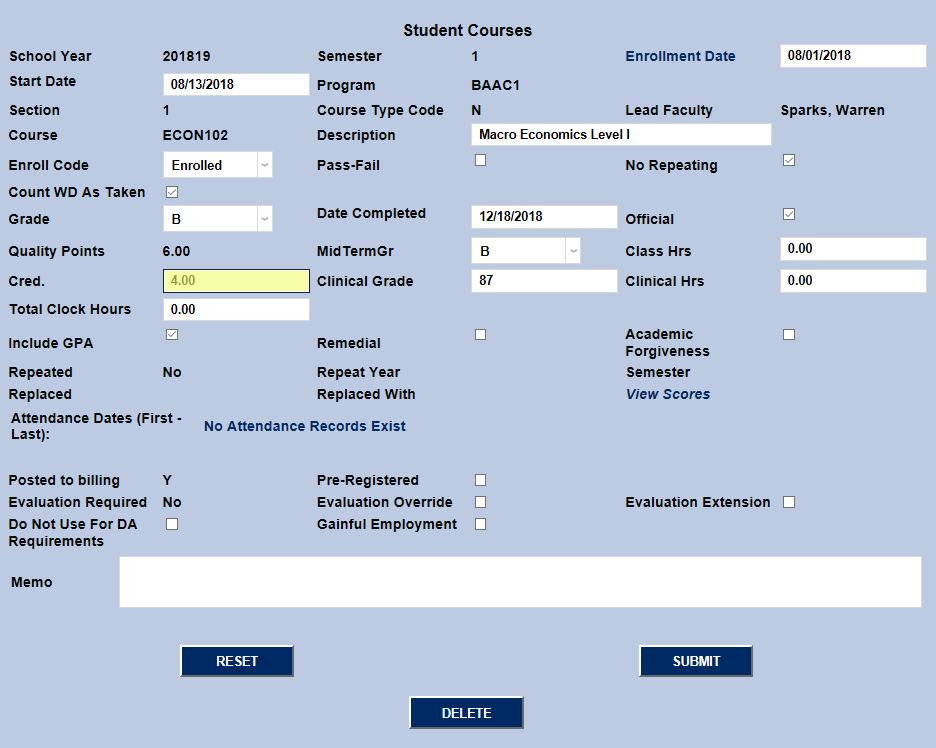
Leave the Include GPA box checked if the class should be included in the student's GPA or uncheck the box if it should not.
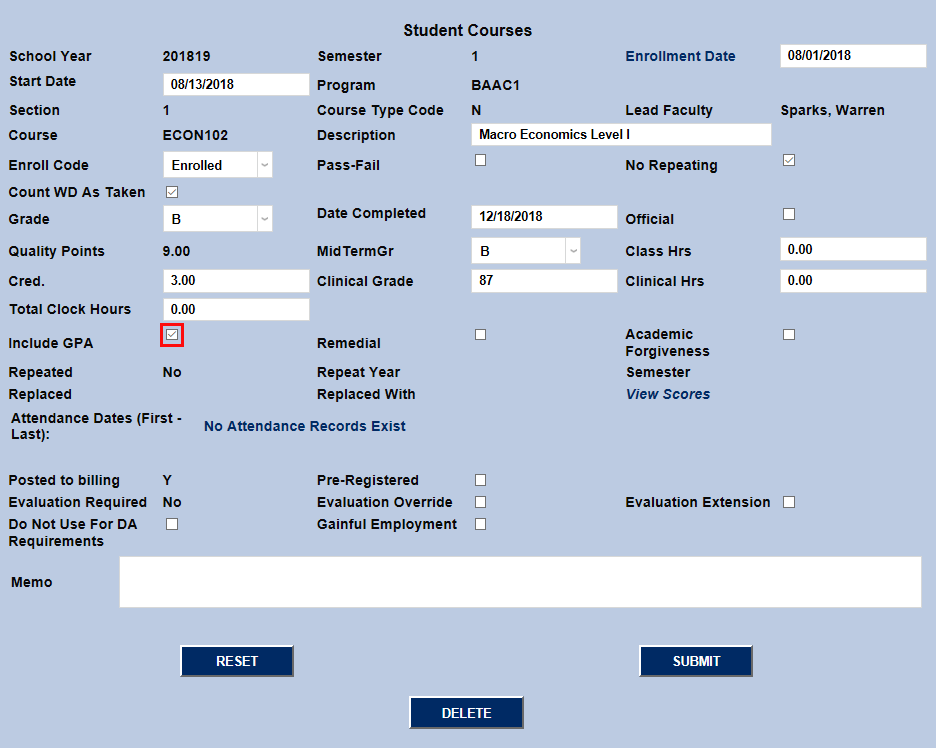
Recheck the Official box and click Submit to lock these values in again. Only official grades will be shown in transcripts.
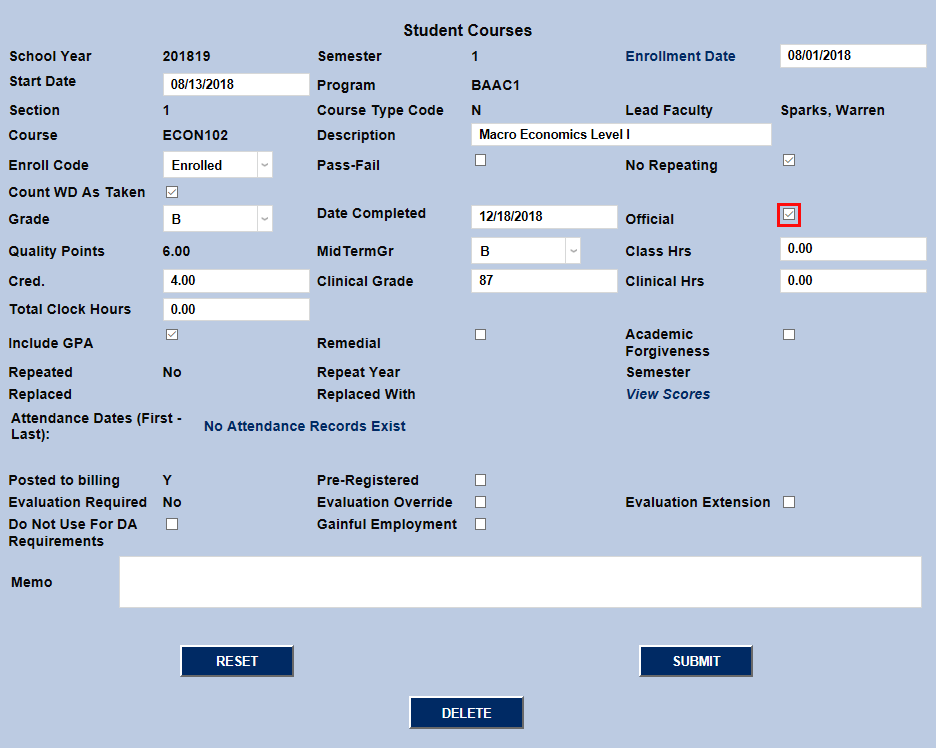
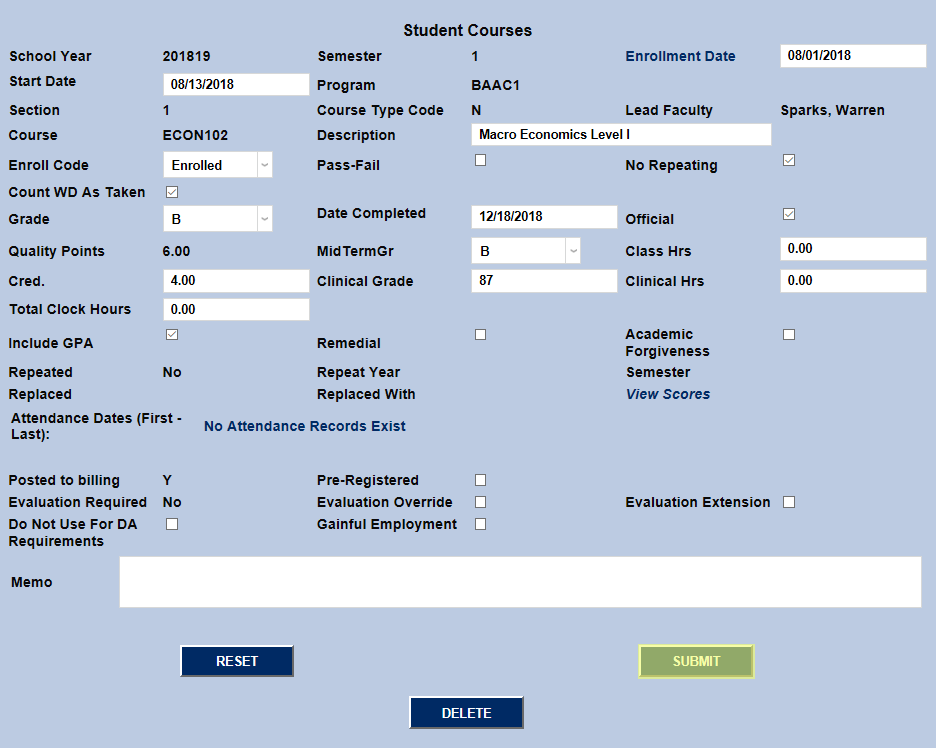
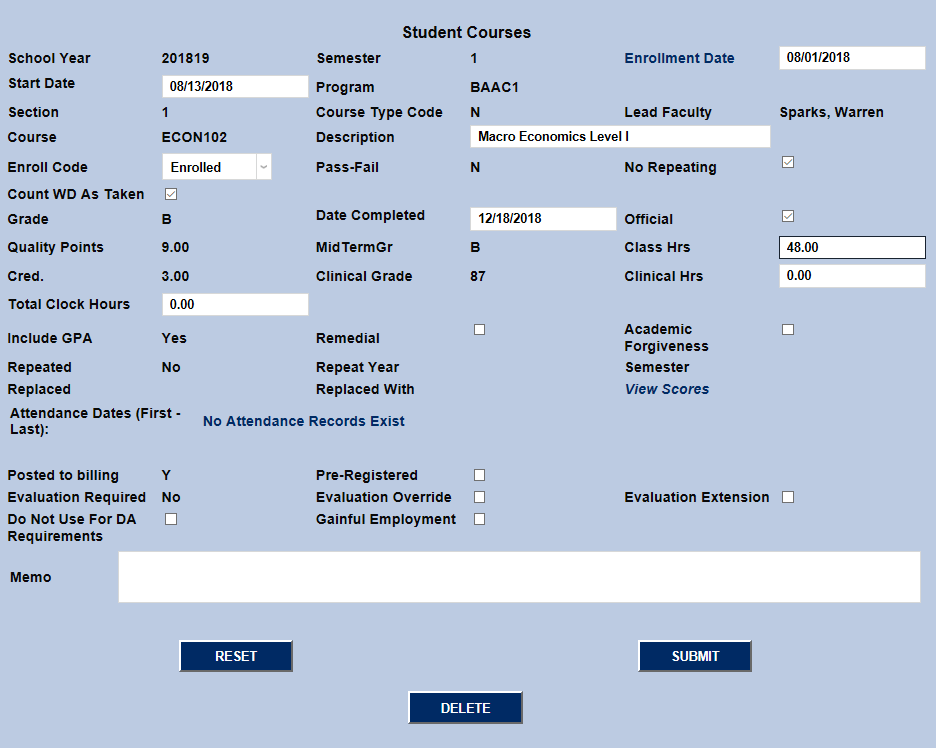
The Class Hours, Clinical Hours, and Total Clock Hours that the student earned in this class can be edited from this page as well.
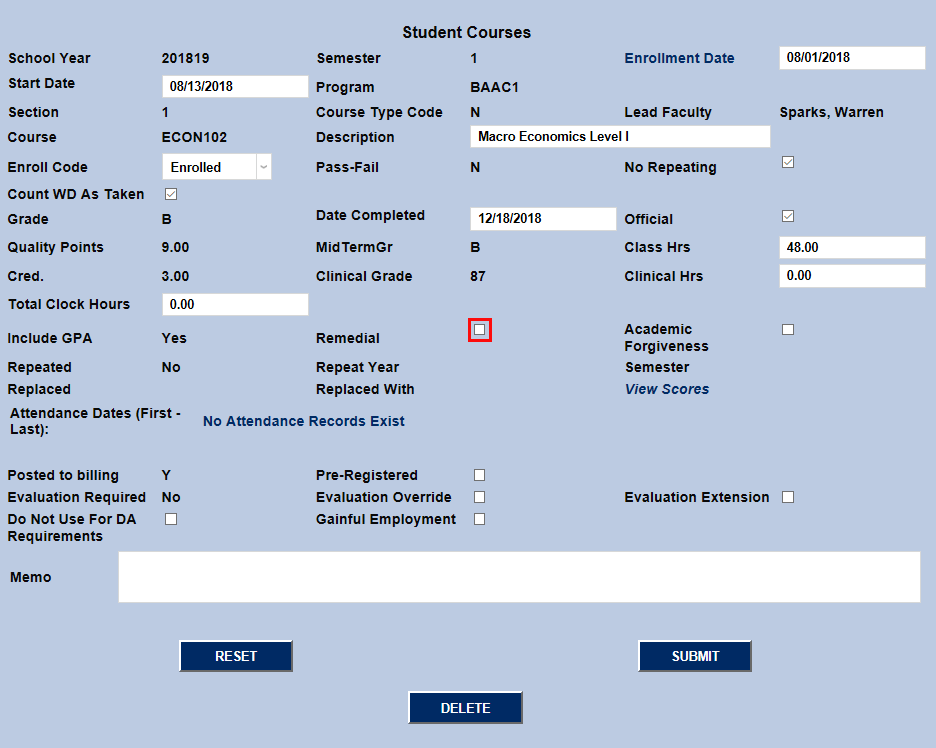
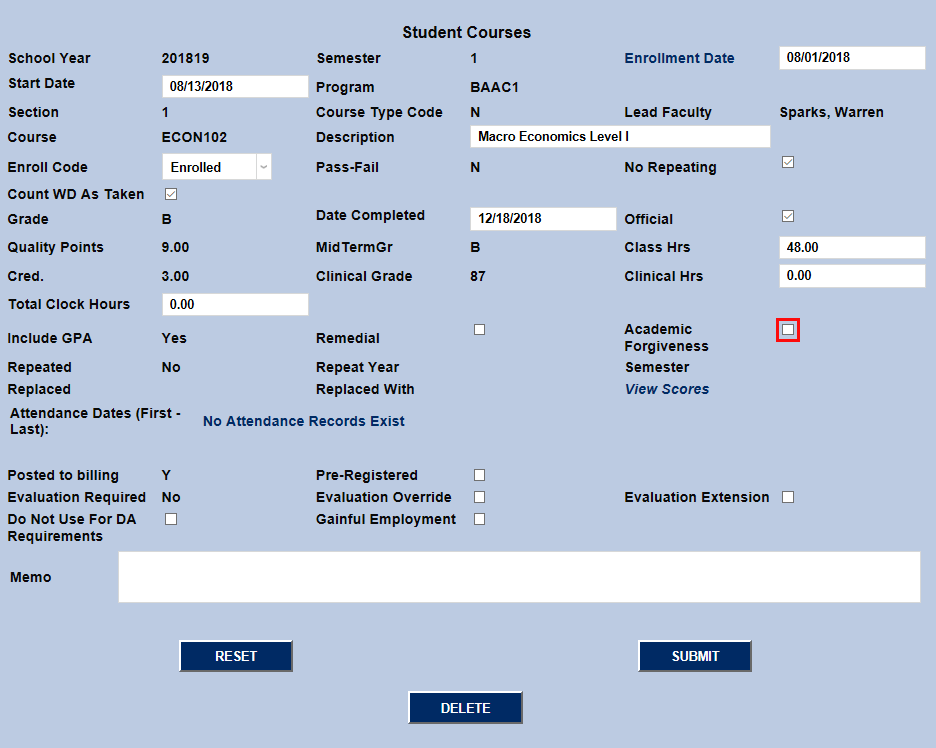
Check the Remedial box if this course is being taken at a remedial level. Check the Academic Forgiveness box if the course is being taken for academic forgiveness. These values are only used for reporting and will not change the student's GPA or other records.
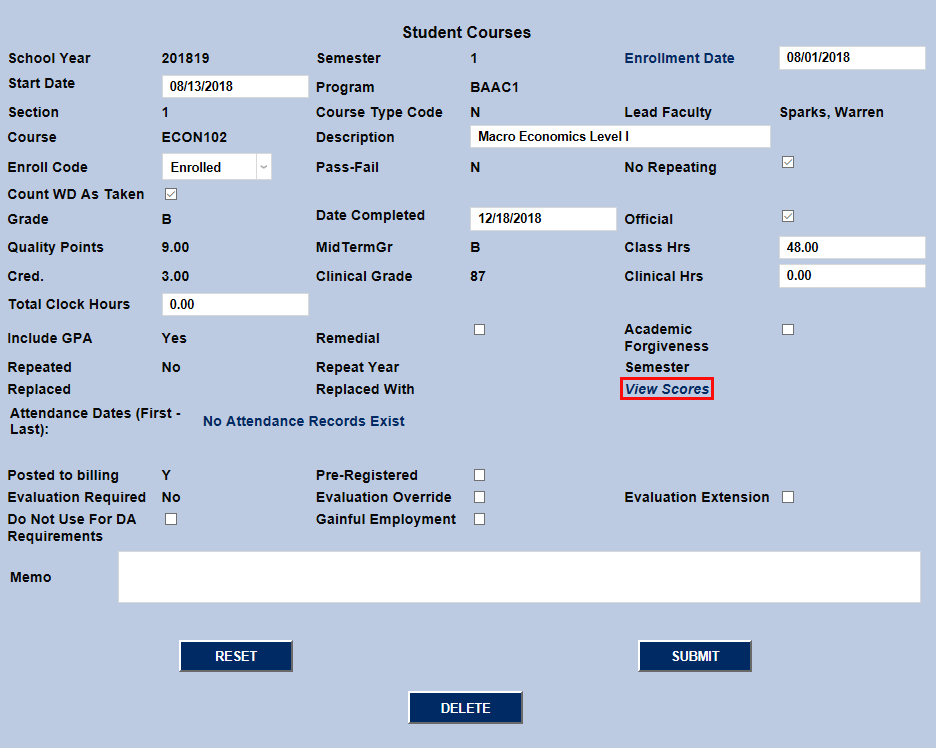
If the course has been repeated or is replacing another course, that information will appear in the next section. Click on "View Scores" to view the scores that make up this student's grade if they've been entered into SONIS. Click on the "Attendance Records" link to display attendance records if available.
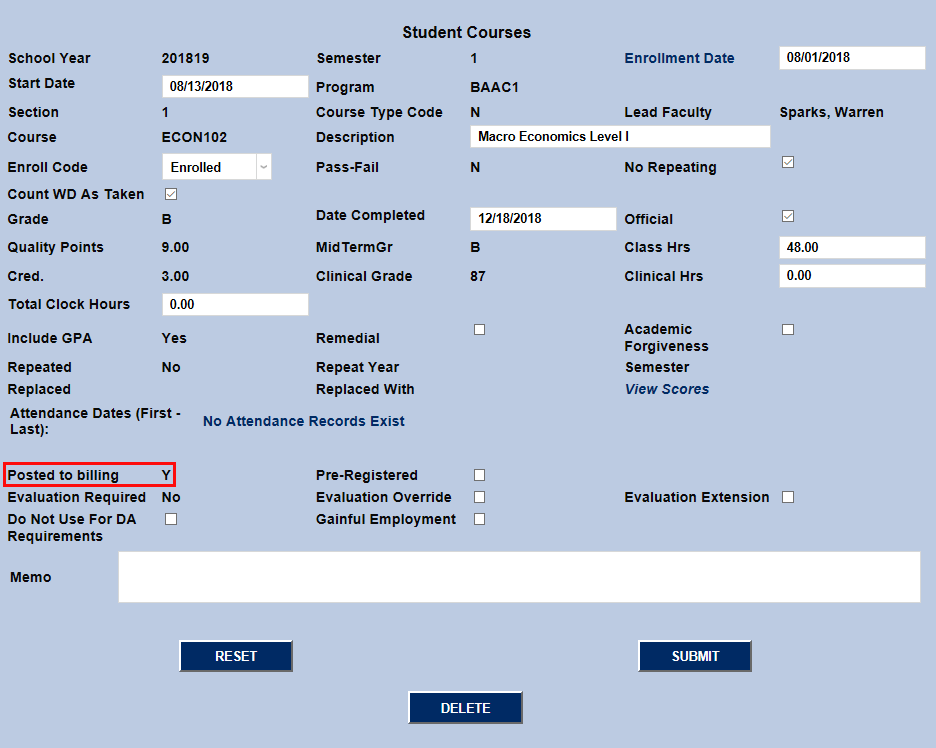
The Posted to Billing notation should display either a Yes or a No depending on whether the class has been posted or not. It can not be changed from this page.
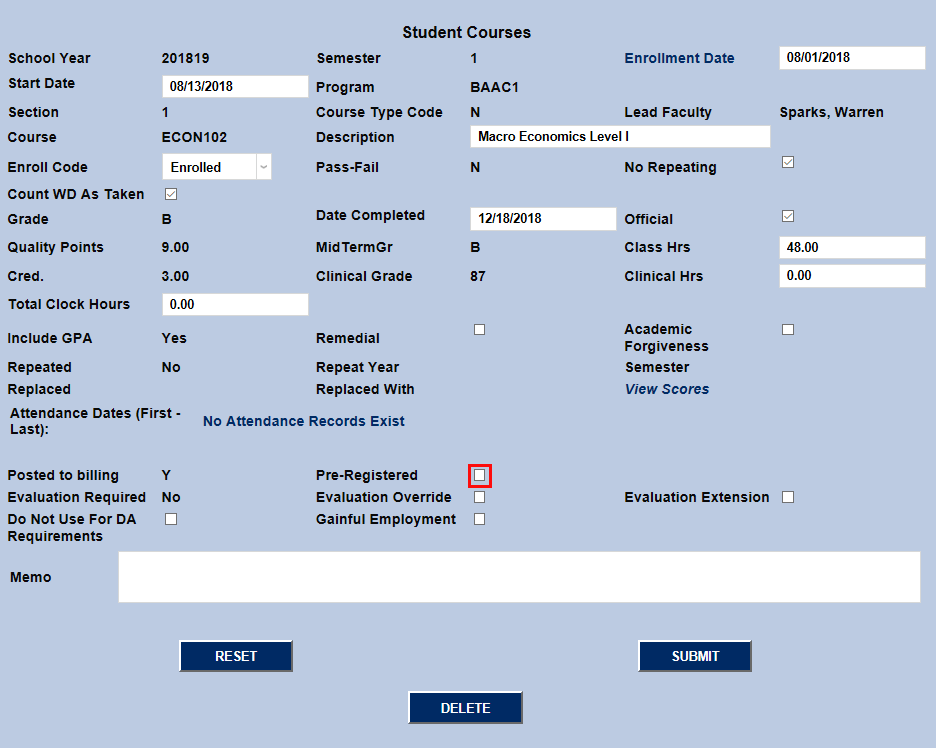
Students can be pre-registered for courses one of two ways. If the Pre-Register All box is checked on the System Variables page, then all students who register for courses will be put in a pre-registration queue rather than being fully registered. Students can also be pre-registered for courses through the Pre-Registration Utility under the Systems tab. Pre-registered courses will show up on rosters and appear on the schedules and a seat in the course will be taken, but they will not post to billing. If a student has been pre-registered for the selected course, the Pre-Registered box will be checked. Unchecking it will remove the student from this course.
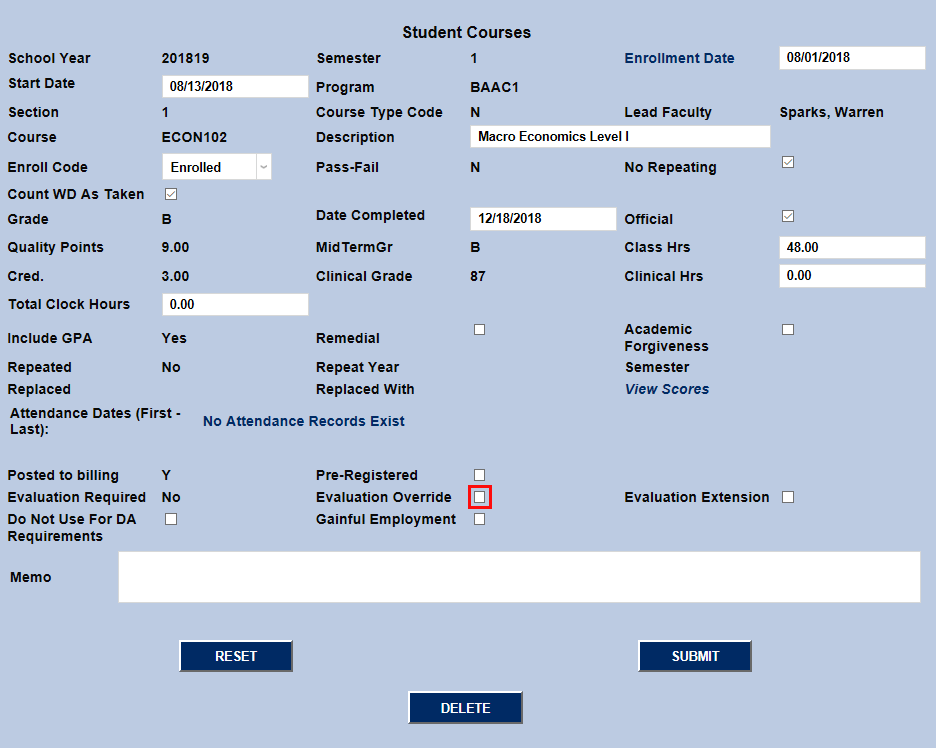
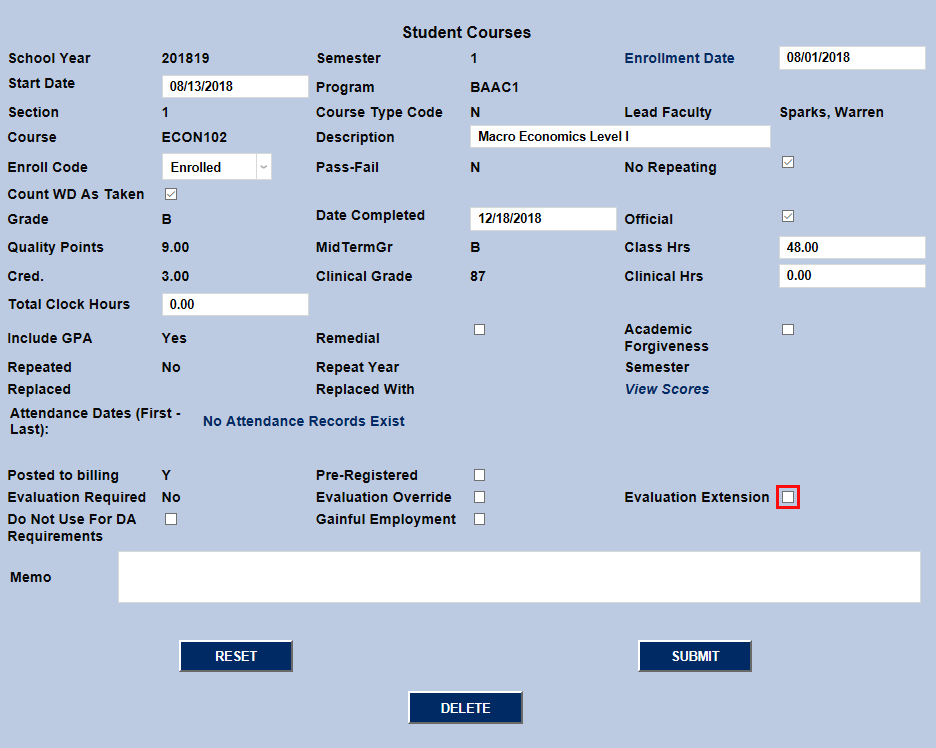
Whether an Evaluation is required or not is controlled from the primary course page. Check the Evaluation Override box to remove the requirement to pass an evaluation for this student. Check the Evaluation Extension button to extend the due date for the evaluation past the end of the term.
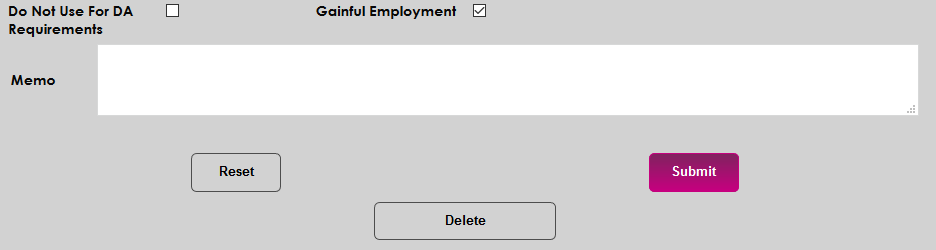
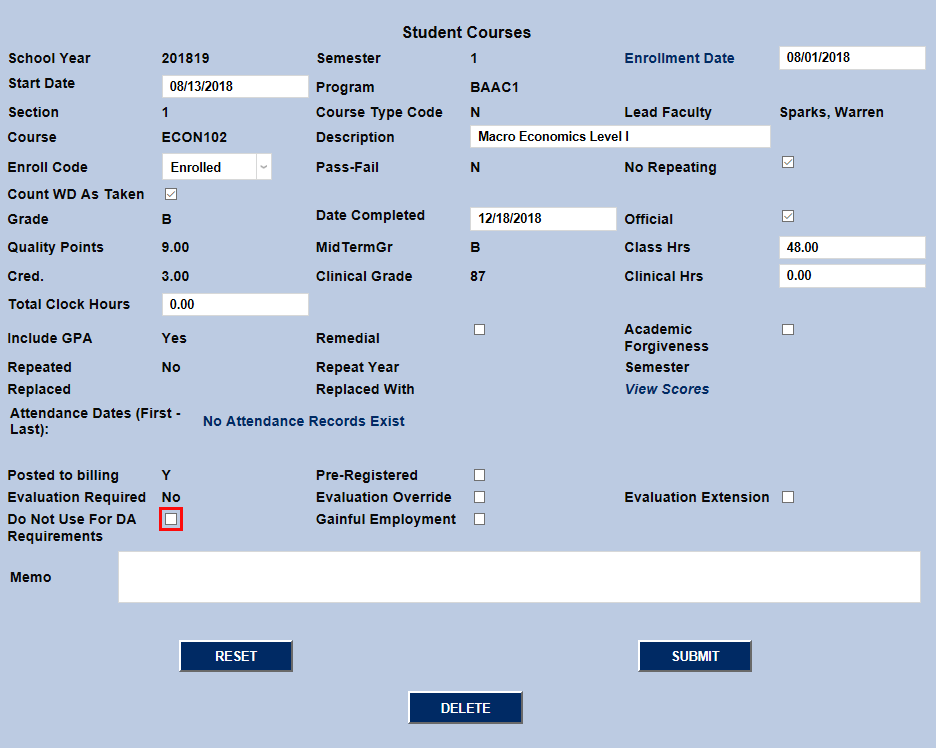
If the Do Not Use For DA Requirements box is checked, the course will not be included in the student's Degree Audit. If the Gainful Employment box is checked, the course will be counted towards the student's gainful employment requirement.
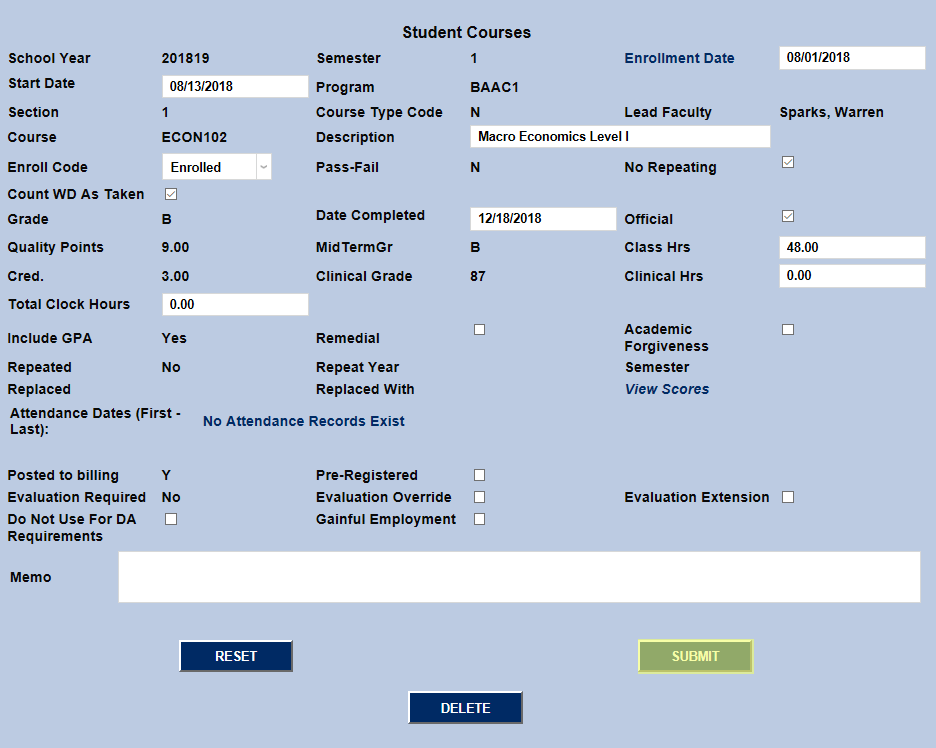
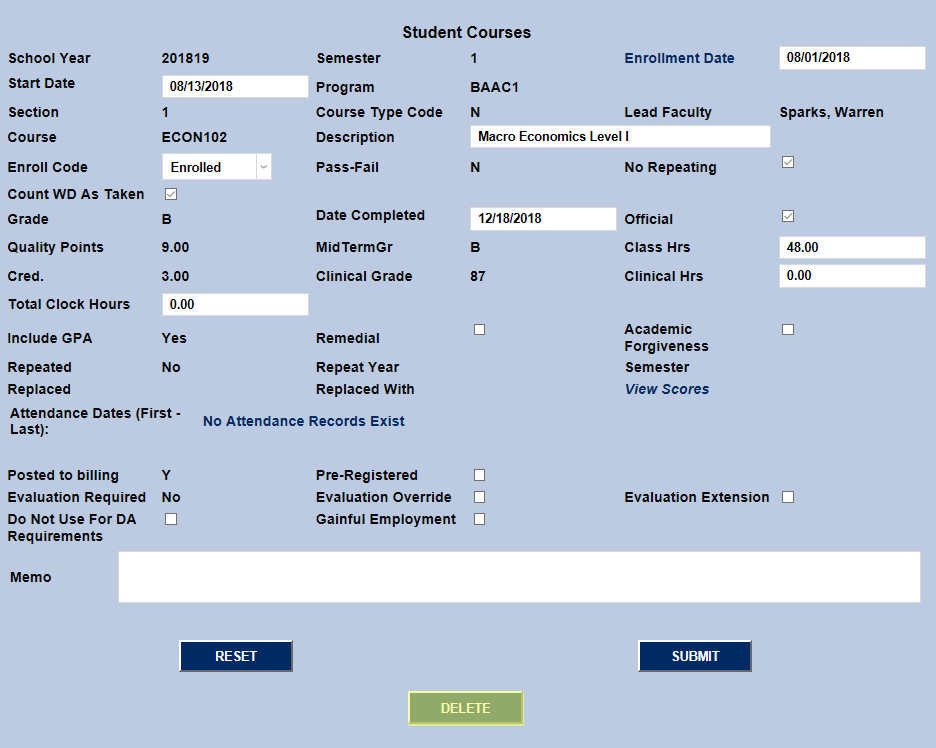
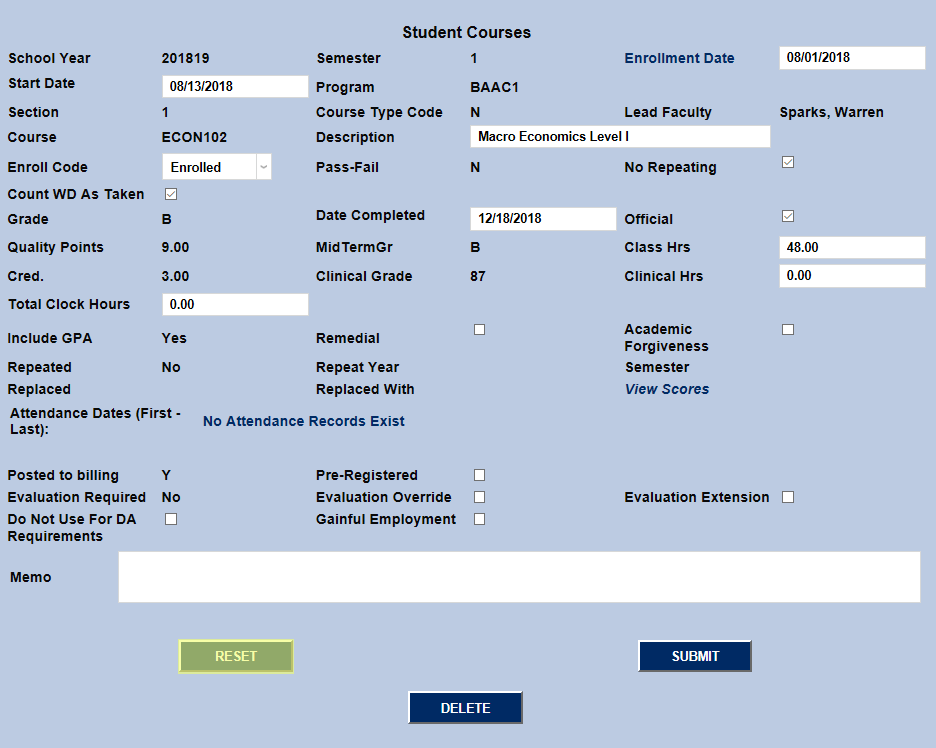
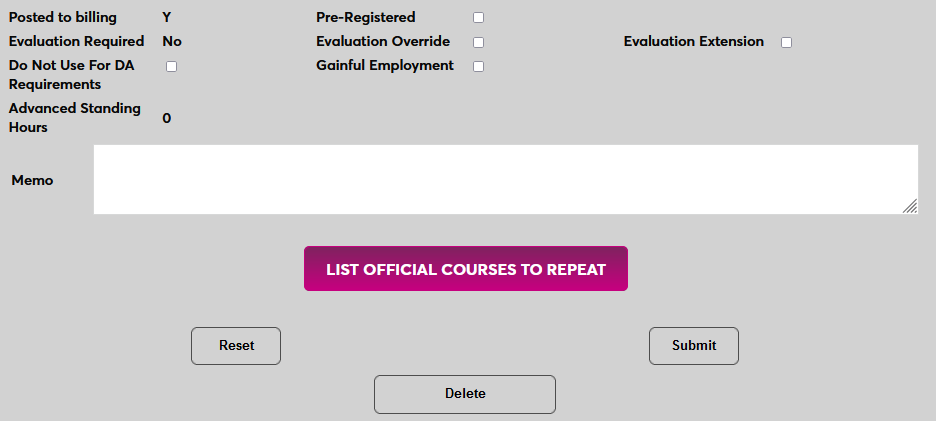
Click Submit to save any changes that have been made. The Delete button can be used to delete the course from the student's records and the Reset button can be used to reverse any changes that have been made since the last time the page was submitted.
Manual Course Replacement
SONIS member institutions can select courses as replacements for required courses, to include grade replacement. Additionally, administrators with the proper permissions can manually replace the grade a student received in a previously taken course with the grade earned in a different, but generally related, course.
To begin this process, navigate to the student's Courses Records page and select the newer course that will be replacing the old course.
Next, ensure that the course has an official grade. The List Official Courses to Repeat button will only appear when a grade has been entered and marked as Official.
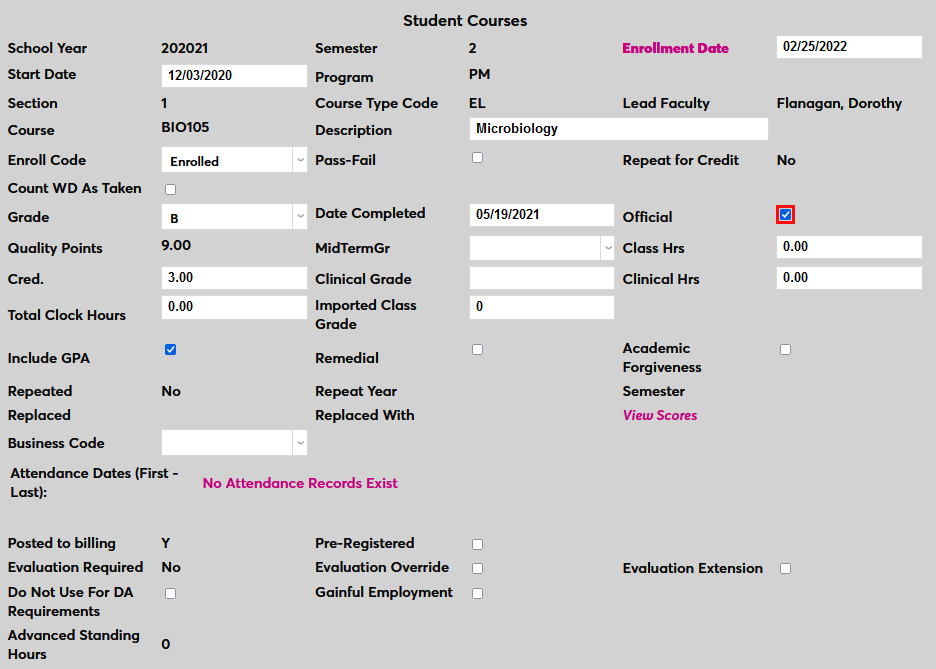
Once the course has an official grade, click the List Official Courses to Repeat button to continue.
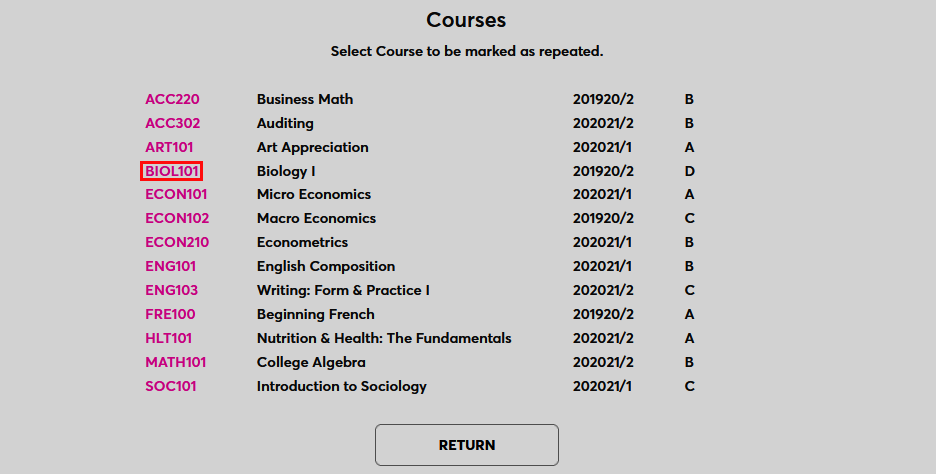
The following page lists all courses that have been completed prior to or alongside to the selected course, including courses from the same semester. Click on the course that will be replaced to select it.
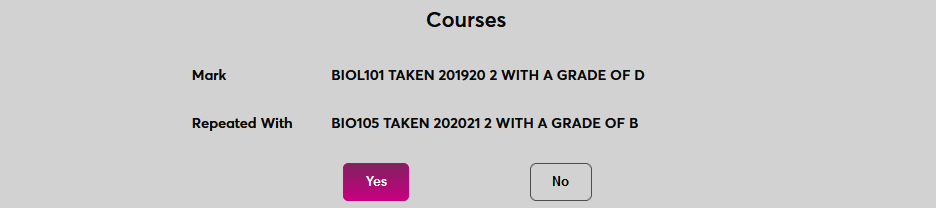
Click Yes to complete the process and replace the prior grade with the new grade. Note that this process will alter the student's GPA, Degree Audit, SAP calculation, and anything else based on grades. The replacement cannot be reversed once it's completed.
When a course replacement has been performed, the replacement is noted on both the replacement course and the replaced course.


Program Specific Courses
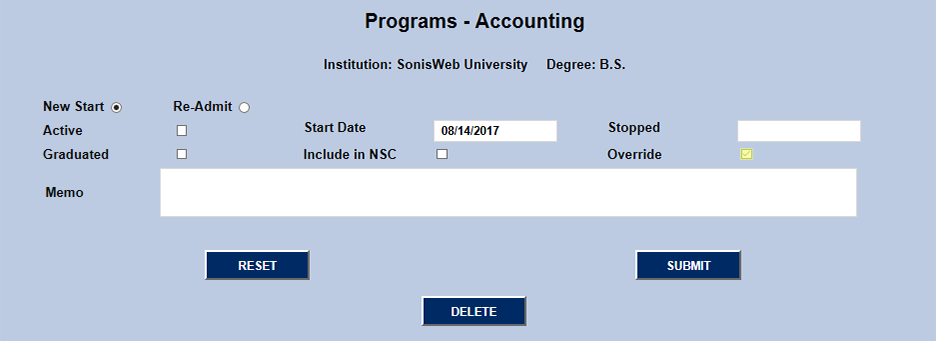
Registration for specific courses is often restricted to students within a program or education plan. Generally, a student must have the course's program as their active program. This can cause problems, however, for students who have double majors, are seeking more than one degree concurrently, or have an education plan that requires a course outside of their active program. The solution is to check the Override box on the student's inactive program.
Setup
To give a student program override privileges and allow them to register for the course(s), first navigate to the Program page after selecting the student using the QuickSearch. The page will display the student's programs with a column showing which one is active.
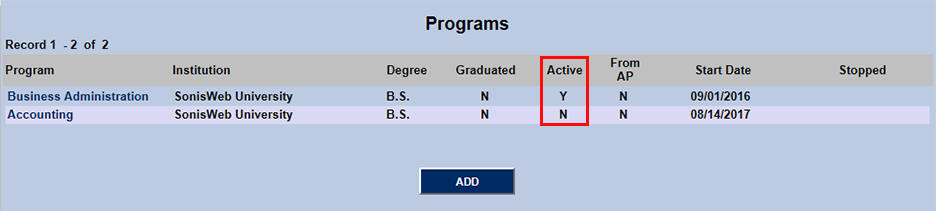
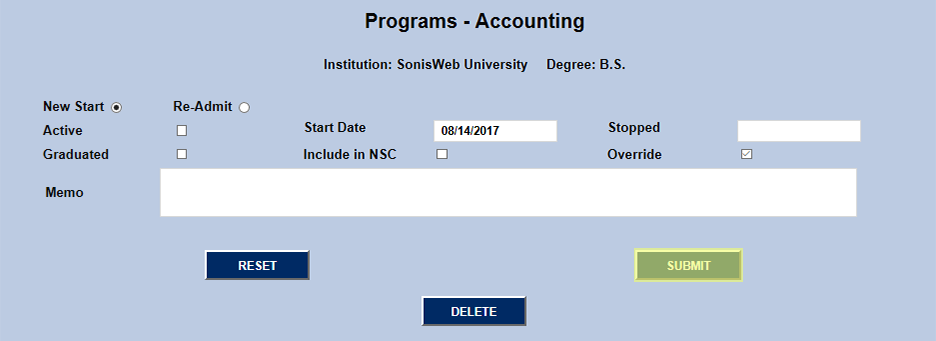
Click on the inactive program and check the Override box in the second line. Submit to save the changes. The student will now have access to register for classes previously restricted by their inactive program. The process can be repeated for any additional inactive program(s) with remaining requirements.