Flat Fees
Overview
Flat fees or fixed charges are an alternative to credit-hour fees. Rather than incurring a separate charge for each course based on the number of credit hours in the course, the student simply pays one flat tuition for the term. Flat fees are optional and not all institutions use them. In order to qualify, students must meet certain requirements created by the institution using the Flat Fees utility.
If a student has met the flat fee threshold but withdraws from a course and drops below that threshold, their fees will be automatically recalculated if they're still in pre-billing. If their bill has already been posted, reversing the tuition is the easiest way to solve the issue and charge the student the proper amount. In these situations, the Reverse Tuition function reverses the posting of all of the student's courses from Billing and PreBilling. When the charges are posted to Billing again, the student is charged the per course rate. Any school that's offering flat fees should familiarize themselves with the Reverse Tuition function.
Visit the Fees overview page to learn more about the various types of fees that Jenzabar SONIS offers.
Setup
System Variables
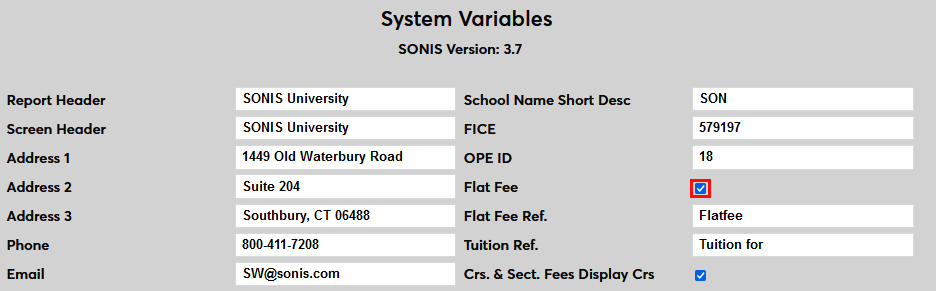
Before flat fees can be used, they must be activated on the System Variables page. Check the Flat Fee box to turn this feature on.
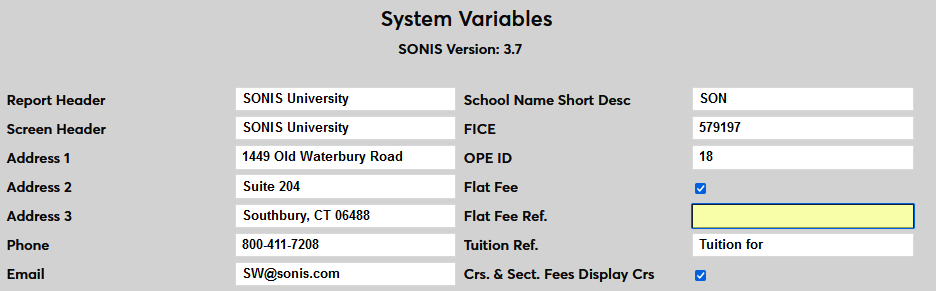
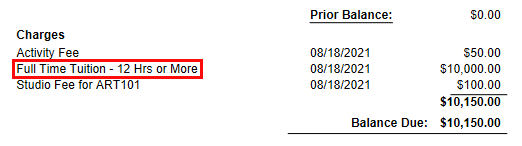
The System Variables page also offers the option to change the default display option for flat fees. Clients who have created a T-code to use for flat fees only can replace the default "Flatfee" text with text of their choice. Delete the "Flatfee" text from the Flat Fee Reference field and Submit the page to save the changes.
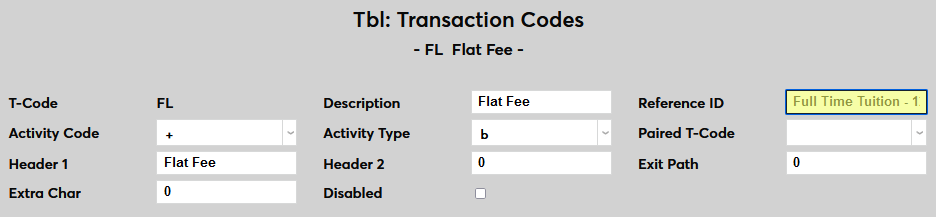
Once the text has been removed and the page has been saved, flat fee transactions will be labeled with the text from the Reference ID of the flat fees T-code on student bills.
Flat Fee Filter Settings
Before creating flat fees, the client must determine the filters that can be used to determine eligibility for flat fee tuition. To do this, navigate to Flat Fee Filter Settings under the Systems menu. Select the appropriate module status filters and click Submit.
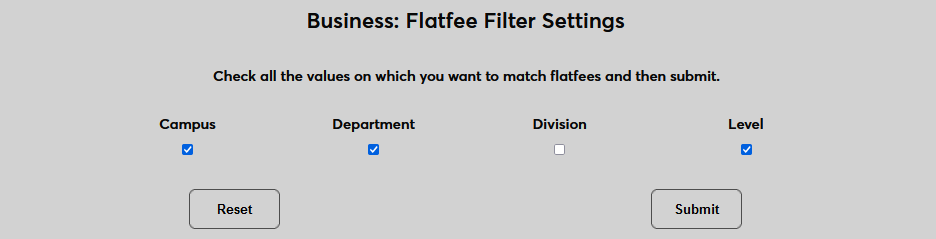
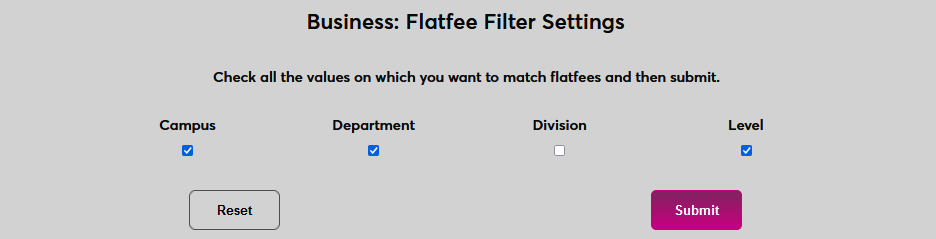
Keep in mind that the filters are single-select dropdown menus and do not allow for multiple choices to be selected. However, multiple flat fees can be created to account for all needed categories.
Creating Flat Fees
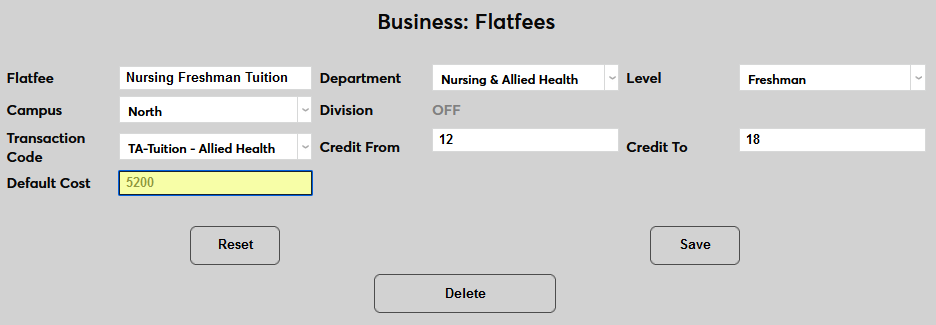
To create flat fees, navigate to the Flat Fees utility in the Systems hub. Click Add New Flat Fee to begin.
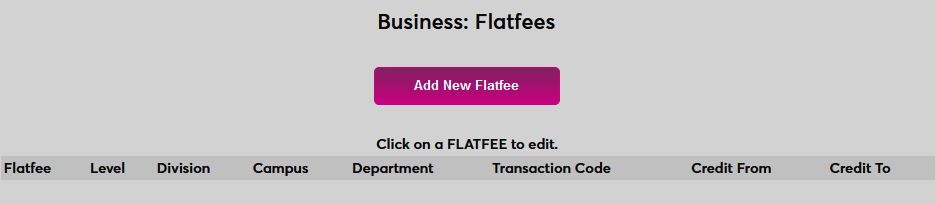
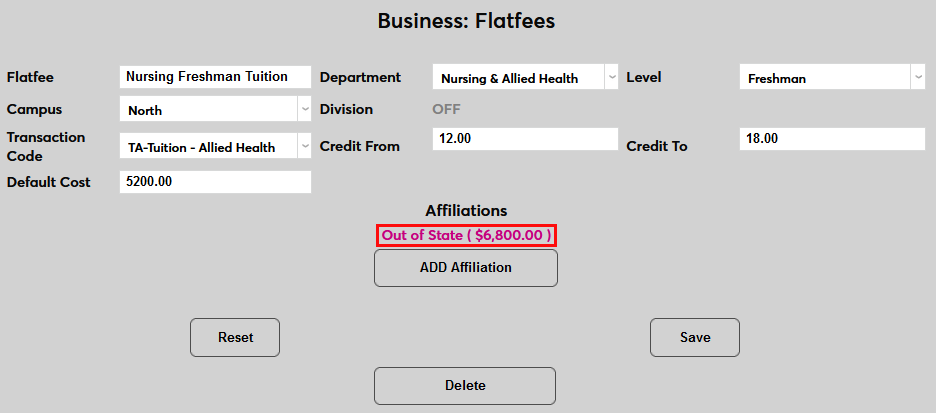
On the following page, create a descriptive name for the fee that will allow administrators to differentiate it from flat fees that may be offered other students.
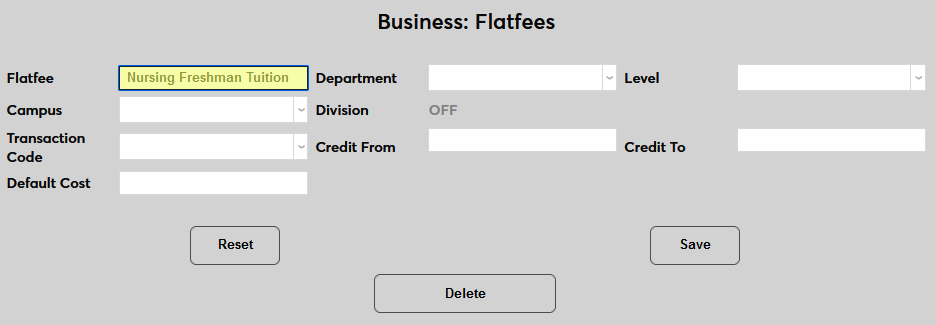
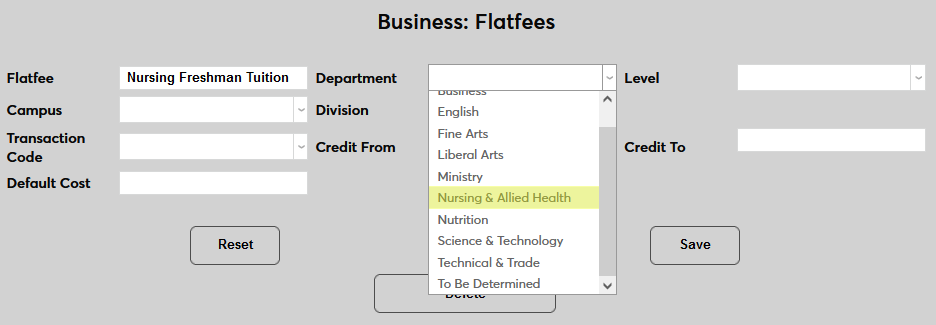
Next, select the appropriate module status filters for the fee. Only the filters that were turned on from the Flat Fee Filter Settings page will be available. All other filters will be marked OFF. If the filter is turned on, select a Department for the flat fee.
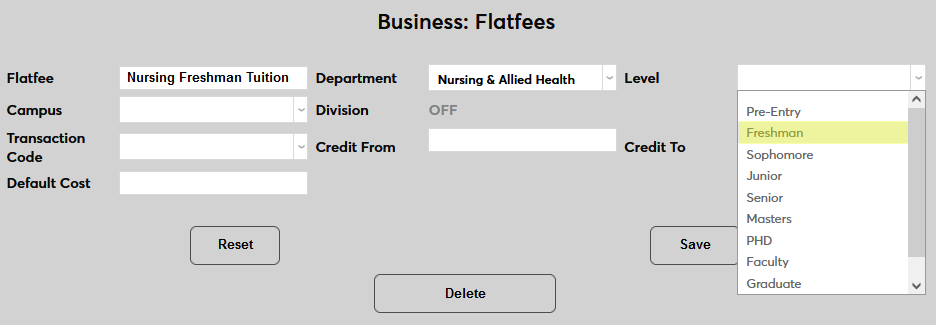
If the filter is turned on, select a Level for the flat fee.
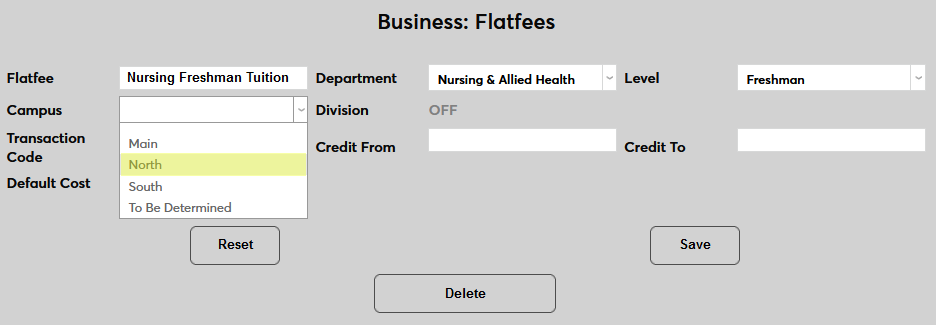
If the filter is turned on, select a Campus for the flat fee.
If the filter is turned on, select a Division for the flat fee.
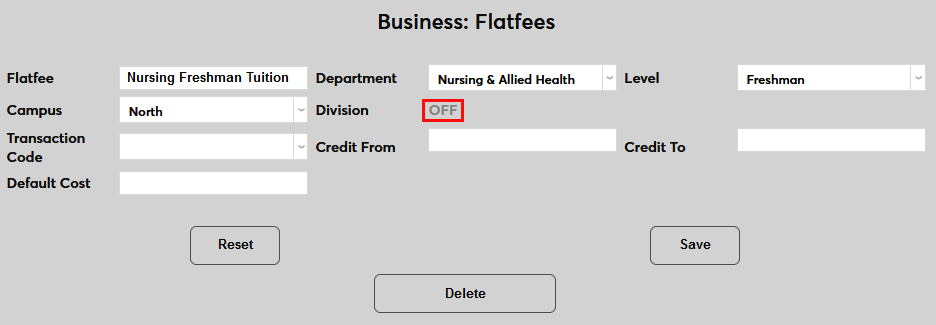
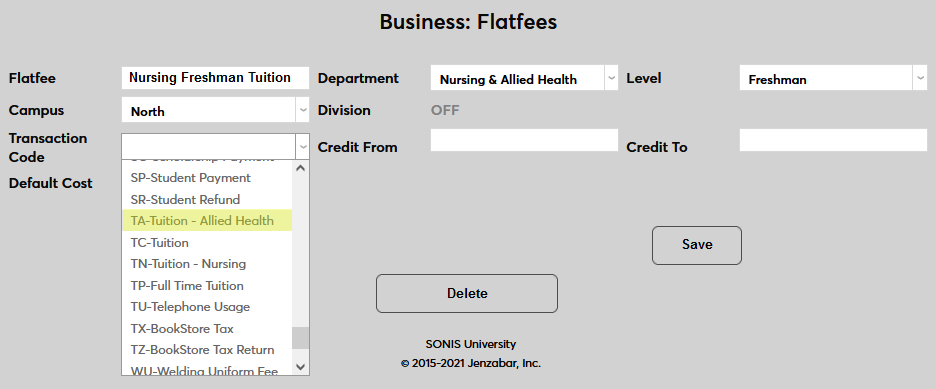
Once the module status filters are in place, select a Transaction Code for the fee. This can be a general tuition T-code or a T-code specifically for flat fees or even more granularly, a T-code specifically for the flat fee being offered to the specified group.
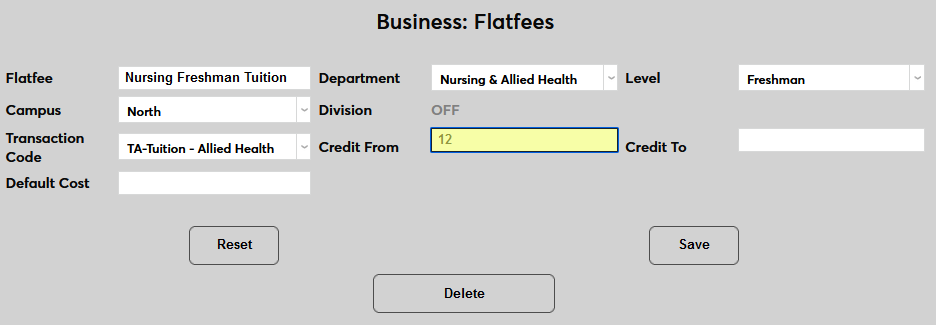
Next, set the range of credits that this fee will apply to using the Credit From and Credit To fields. Only students signed up for credits within the specified range will be charged this flat fee and anyone who drops a course and goes below this range will be charged the per course charge.
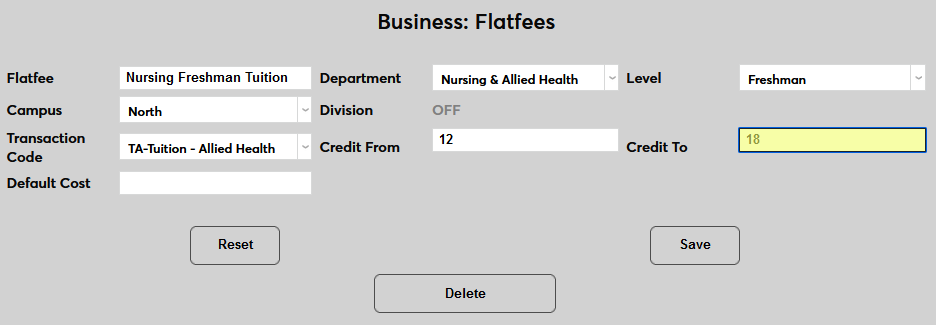
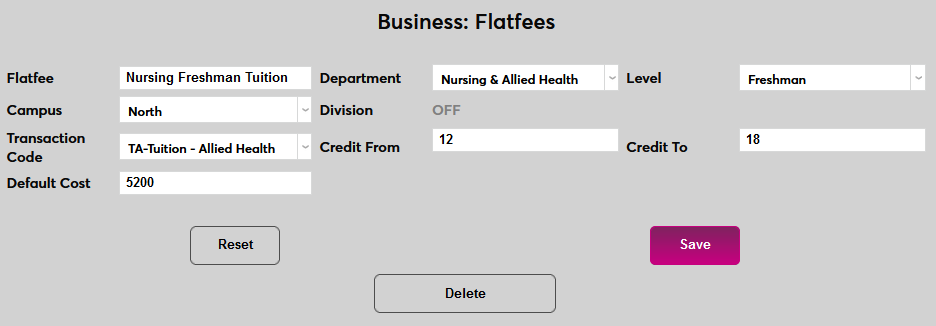
Finally, set a Default Cost for the fee. This will be the standard tuition that students who meet the criteria will pay unless they belong to an affiliation that's set to pay a different amount. Click Save to create and activate the fee.
Adding Affiliations
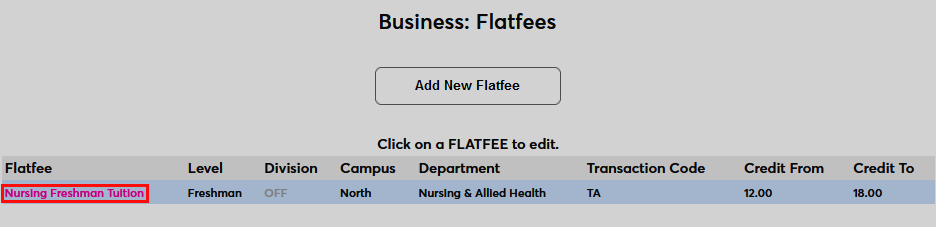
After setting the default fee amount, institutions can create exceptions to that fee based on the student's Affiliation. For example, schools may wish to offer a lower tuition price to staff or a higher price to out-of-state students. To edit an existing flat fee, click on the name of the fee.
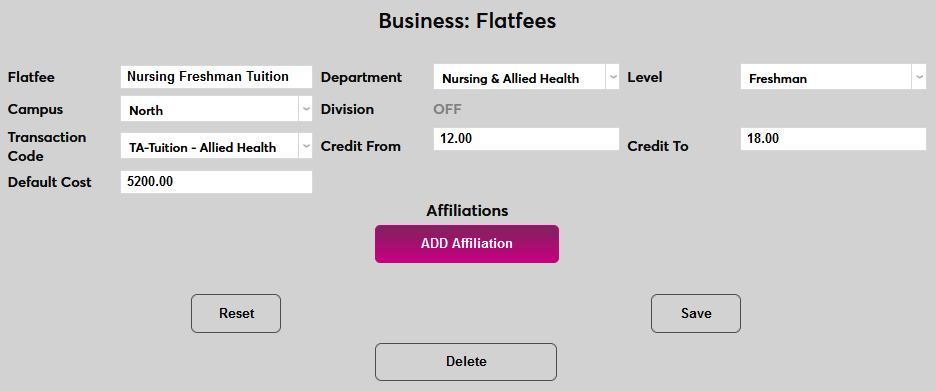
On the following page, click Add Affiliation.
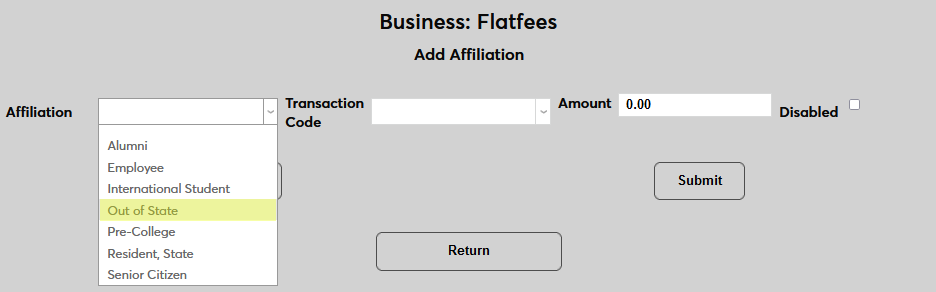
Select the Affiliation that will be charged an alternate fee.
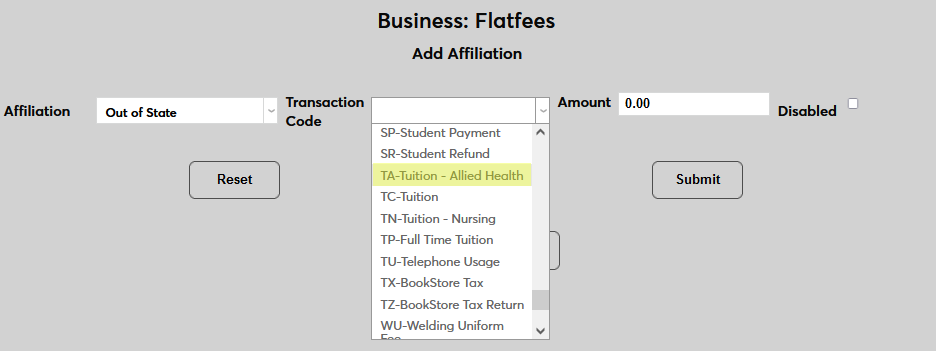
Select the Transaction Code that we be used for charging this fee. This can be a code created specifically for this fee or a more general code.
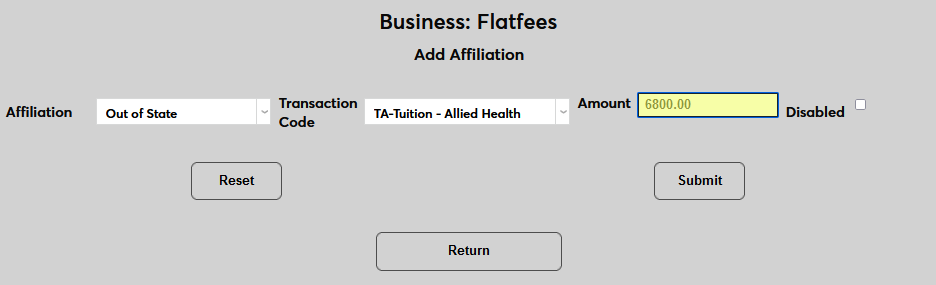
Set the Amount that students with this affiliation will pay as their flat fee for the term. This number replaces the Default Cost for all students in the affiliation.
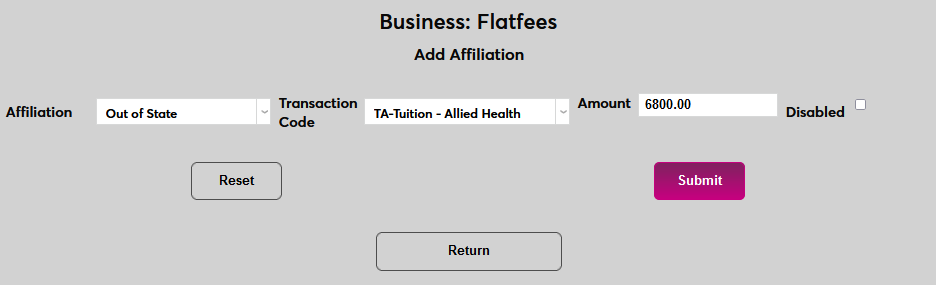
Click Submit to save the changes and create the affiliation exception.
Click on an existing affiliation to make changes or click Add Affiliation again to add an additional affiliation.