GDPR Compliance
Overview
The General Data Protection Regulation (GDPR) is a European Union law designed to ensure data protection and privacy. The goal of the regulation is to allow individuals to control their personal data. Jenzabar SONIS complies with GDPR by providing easy solutions for institutions to manage and respond to data-protection requests.
Setup
User Security
In order to utilize the GDPR utilities, an administrator must first be granted access to those utilities through their User Security profile. Navigate to and edit the administrator's profile. Click Yes on the Do you wish to add additional privileges? screen, select GDRP Processing from the list, and click Submit.

Activities
Students and alumni can make GDPR requests through their portal menus, but in order for this option to be available, it must first be turned on through the #activities-608500Activities utility. Select the GDPR activities (GDPR1, GDPR2, and GDPR3) from the Activity Code dropdown menu and click Submit to edit them.
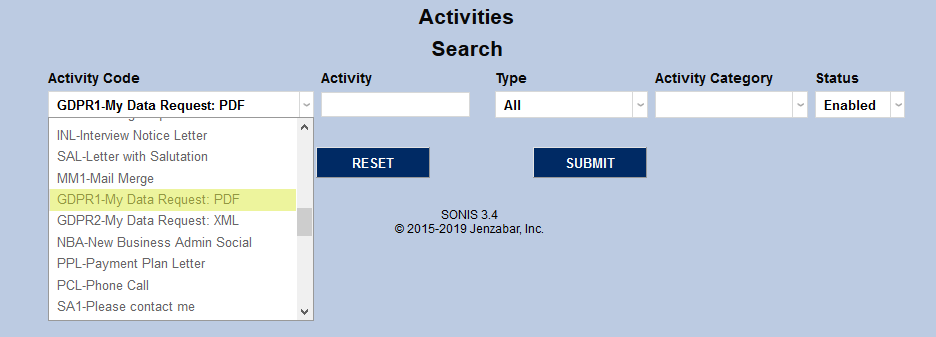
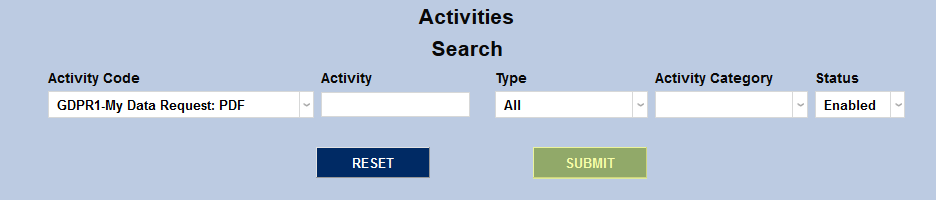
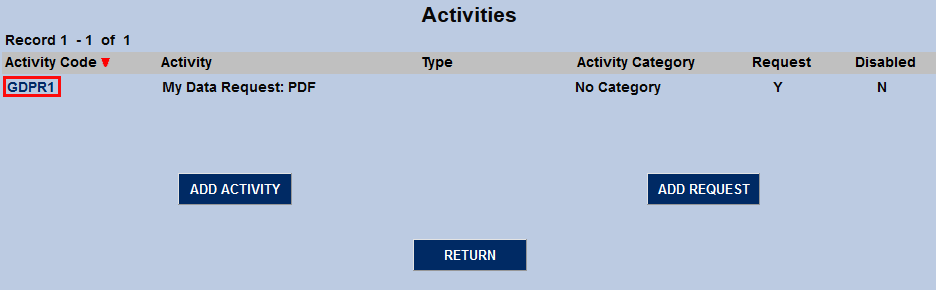
On the following page, click on the Activity Code to continue.
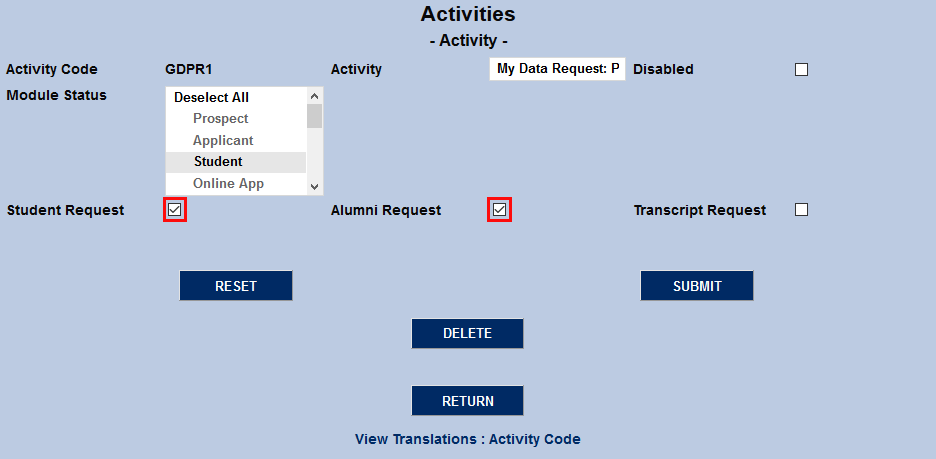
Check the Student Request and Alumni Request boxes and click Submit to turn the request on for those portals.
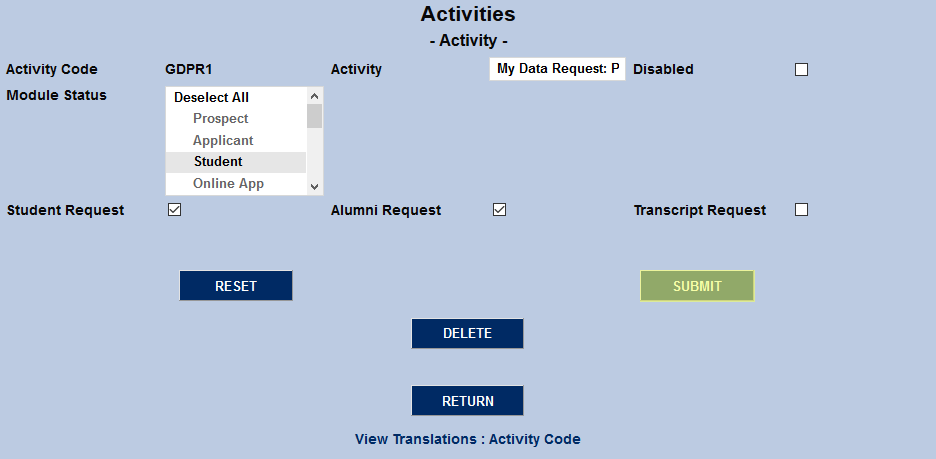
In addition, it's recommended that schools set up an Activities Notifier to alert faculty of GDPR-related requests made through the SONIS system.
Data Consent
Under GDPR, users must consent to their data being used before logging into the system for the first time. Institutions under GDPR can create a GDPR Consent form using the SONIS Terms of Service Agreements utility. It's recommended that institutions falling under GDPR relabel the utility as GDPR Consent using the Page Add/Edit utility.
Data Request
Citizens in the EU have the right to request a report detailing all of the personal data that an institution has collected from them.
User Request
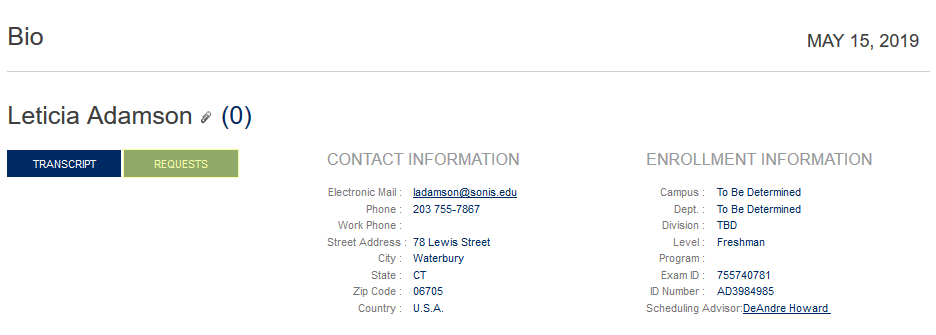
Students and alumni can request their data through the Student Portal and Alumni Portal. The student should click the Requests button on their Bio page to begin the process.
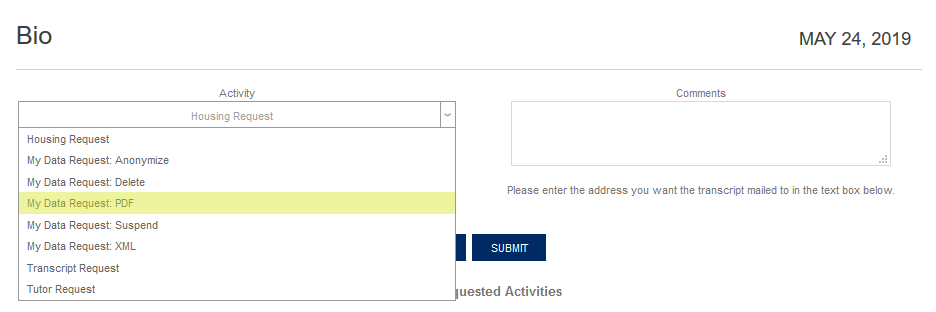
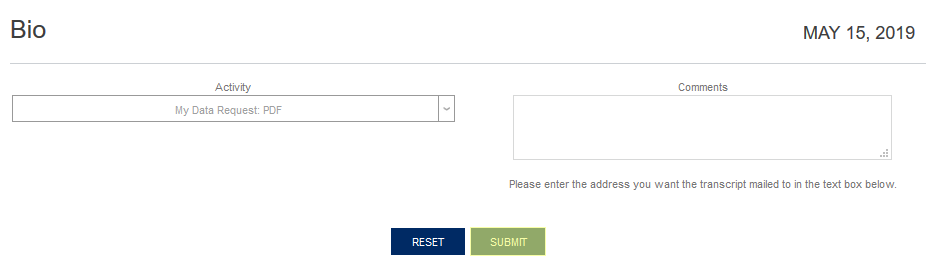
A new window will open up with a request form and a list of previous requests. The student should select either My Data Request: PDF or My Data Request XML depending on which file format is desired. Click Submit to finalize the request.
Fulfillment
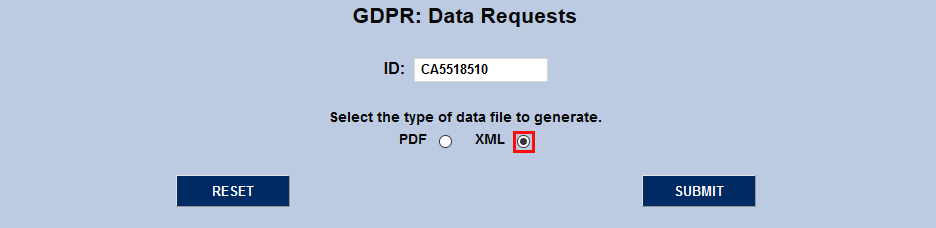
To fulfill a data request, navigate to the GDPR: Data Requests page under the systems menu and enter the user's SONIS ID number.
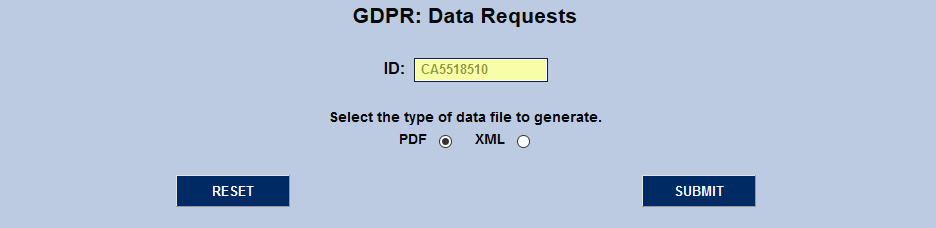
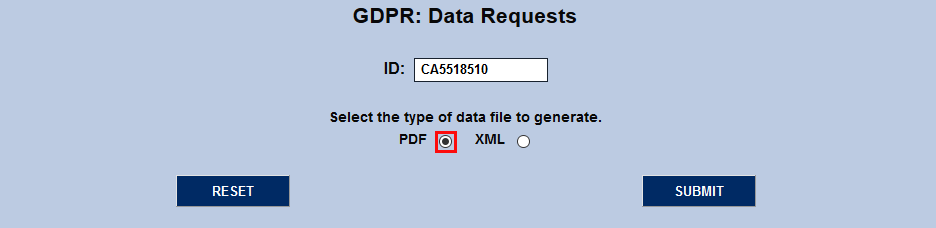
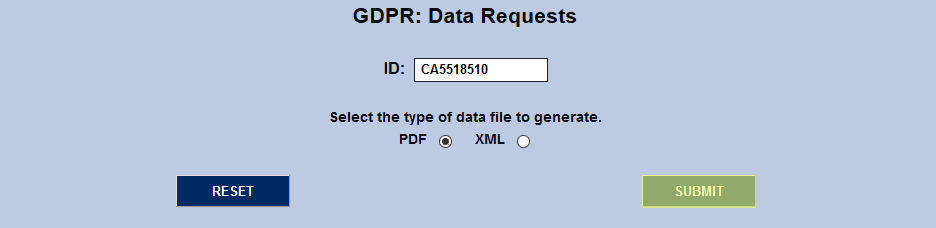
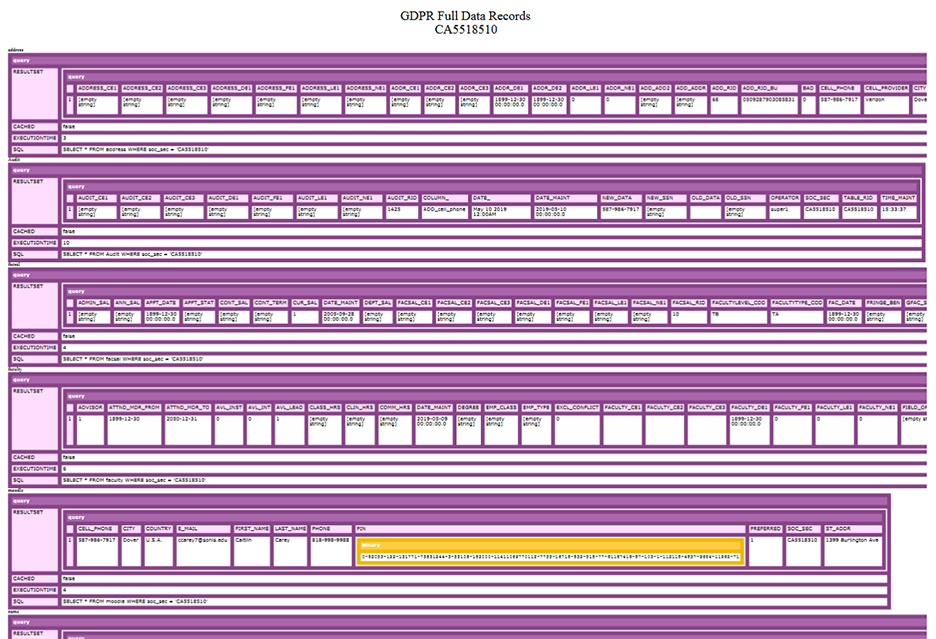
To deliver the report in a PDF format, select the PDF option and click Submit. The report displays every system table where the user's SONIS ID is found, including empty fields.
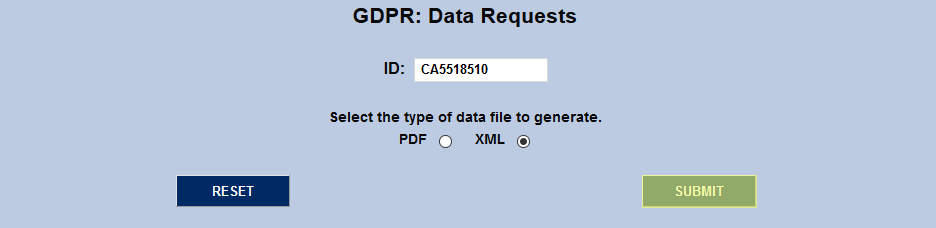
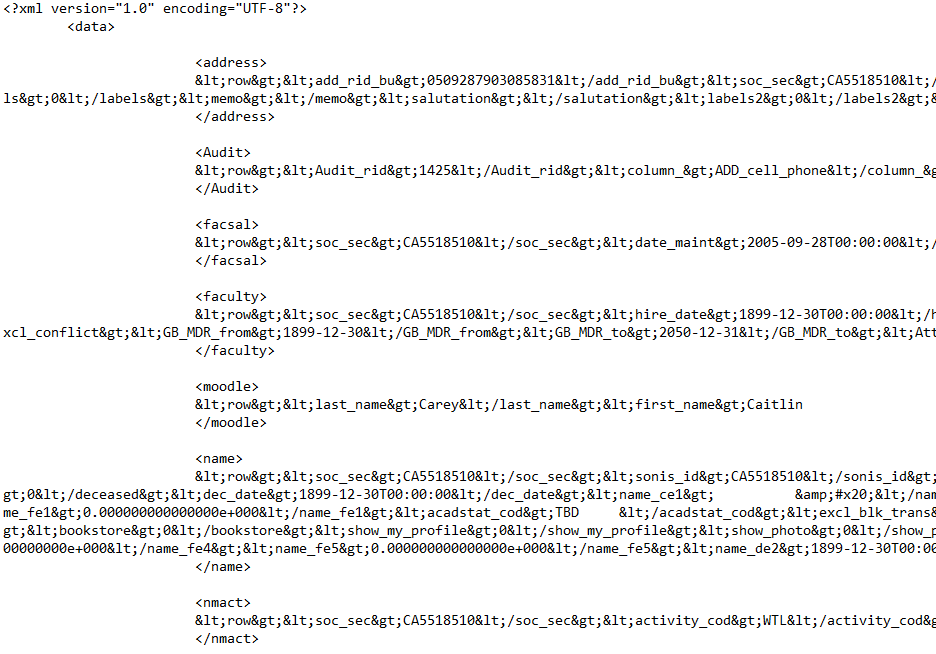
The other option is to deliver the report in a machine-readable XML format. Select the XML option and click Submit.
Data Suspension/Resumption
User Request
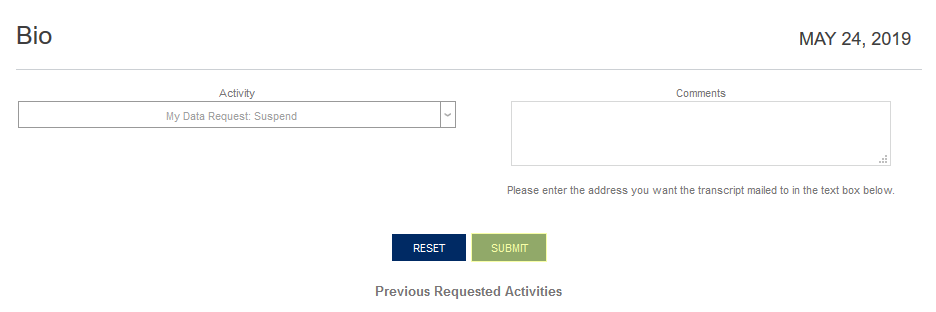
Another right granted by the GDPR is the right to suspend processing of a user's data. Users can request that their data be suspended through the student or alumni portals. The student should click the Requests button on their Bio page to begin the process.
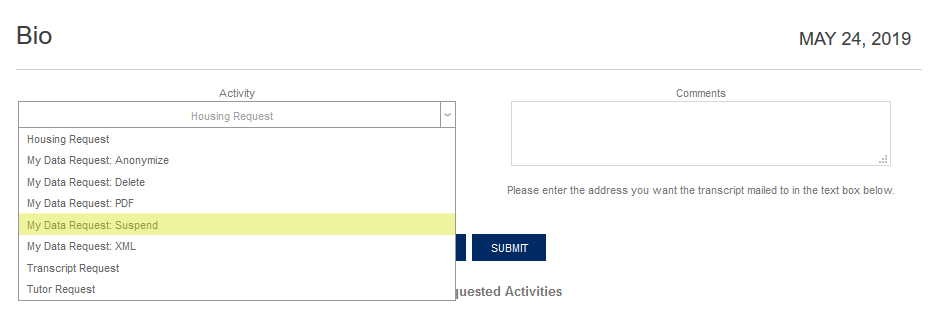
A new window will open up with a request form and a list of previous requests. The student should select My Data Request: Suspend from the Activity dropdown menu and click Submit to finalize the request.
Suspension
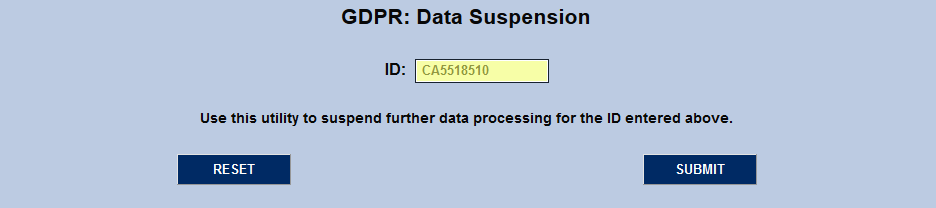
If a user requests that their data be suspended, navigate to the GDPR: Data Suspension utility and enter the user's SONIS ID number.
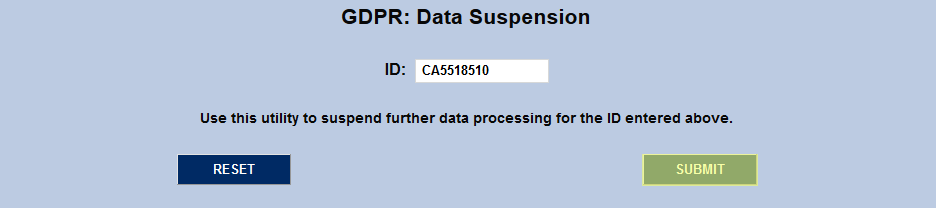
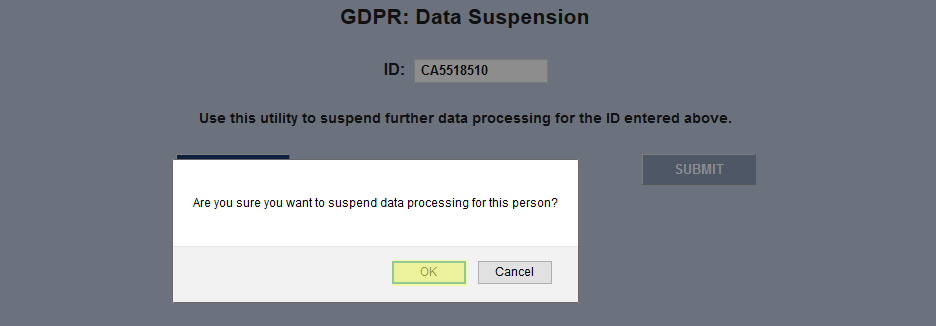
Click the Submit button. An alert will pop up asking the administrator if they're sure they want to suspend the data. Click OK to complete the process.
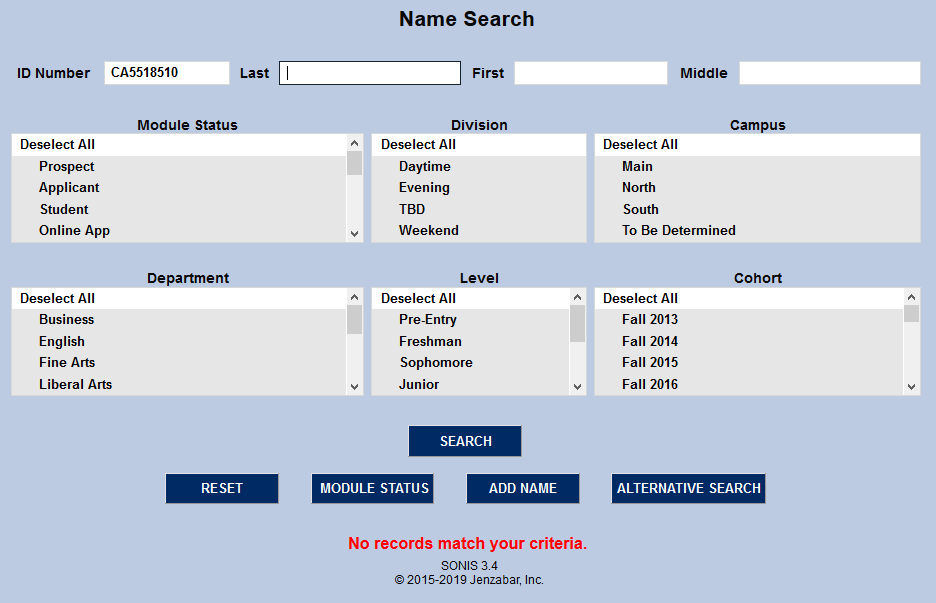
If an administrator searches for a suspended user via the function, a No records match your criteria response will be delivered.
Resumption
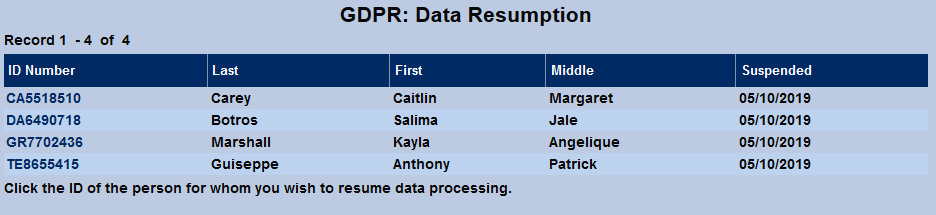
If the SONIS user decides to undo the process and allow their data to be used again, navigate to the GDPR: Data Resumption utility to reverse the suspension. All users who have had their data suspended will be listed along with the date their account was suspended.
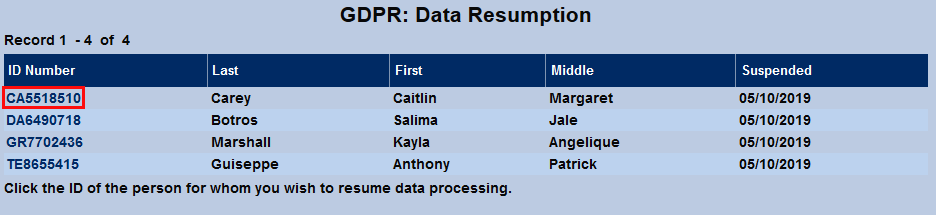
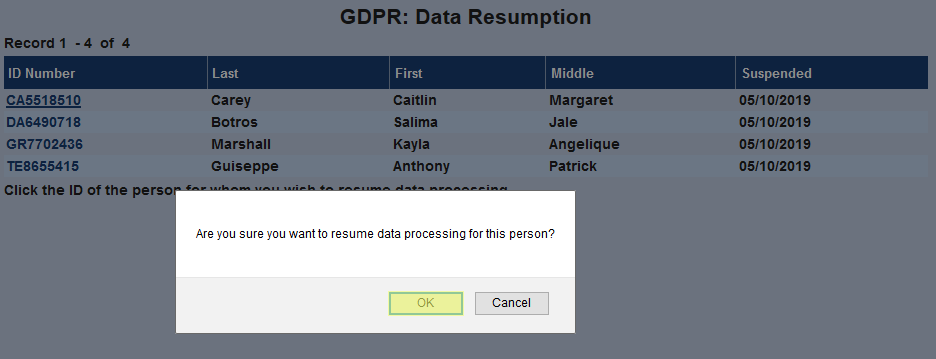
To unlock student data, click on the student's ID Number. An alert will pop up asking the administrator if they're sure they want to resume data processing. Click OK to complete the process.
Data Anonymization/Restoration
User Request
Jenzabar SONIS users under GDPR guidelines can also request to have their data anonymized. Anonymized data will remain in the SONIS system and can still be used for reporting, but all identifying information is removed. The process for a user to request that their data be anonymized
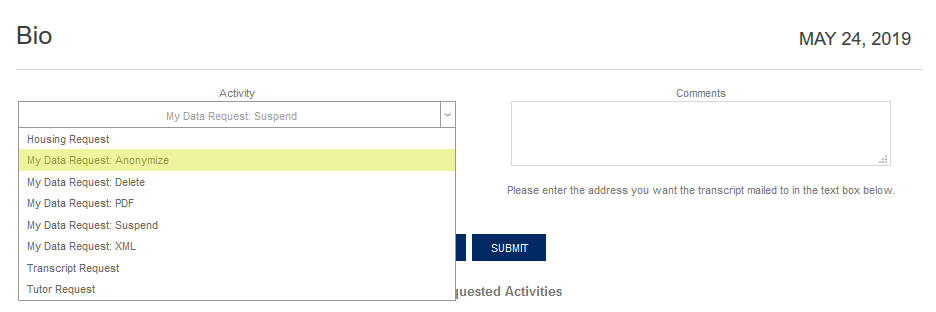
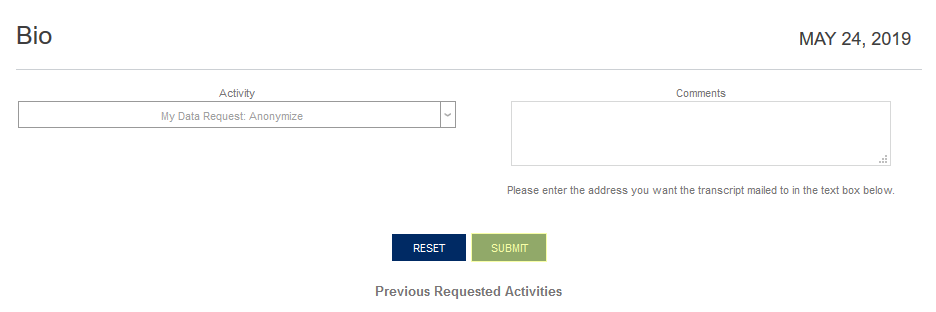
When the new window opens, the user should select My Data Request: Anonymize from the Activity dropdown menu and click Submit to finalize the request.
Anonymization
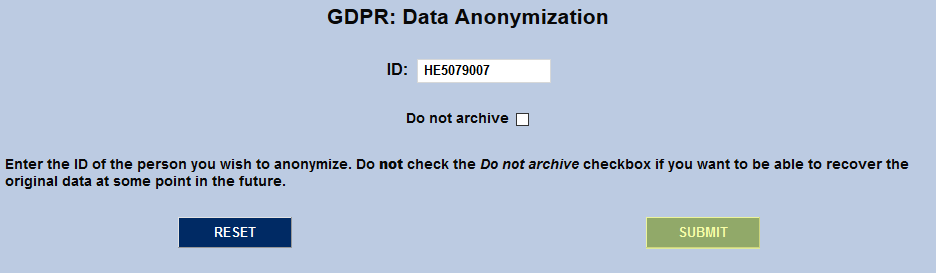
To anonymize a user's data, navigate to the GDPR: Data Anonymization utility and enter the user's SONIS ID number.
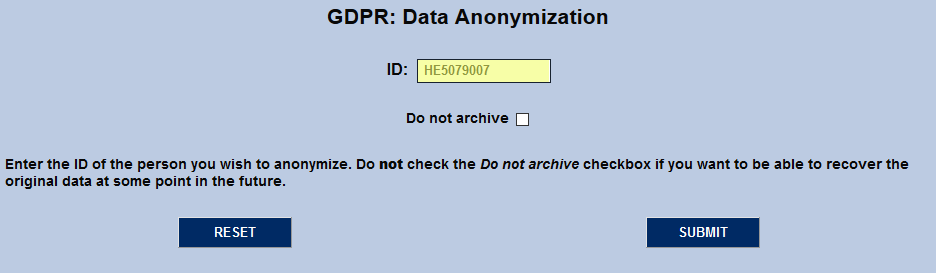
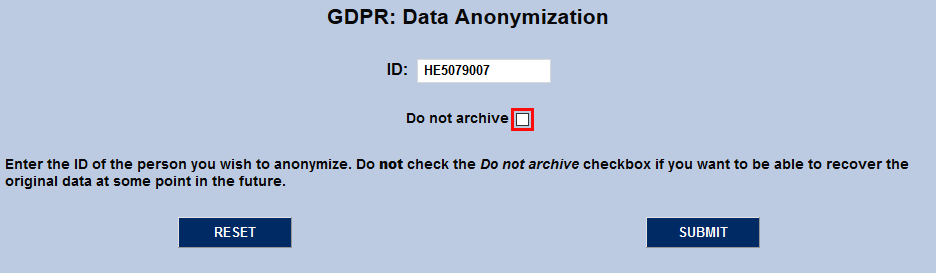
If the Do not archive box is left unchecked, then the process can be reversed. Click Submit to continue the process.
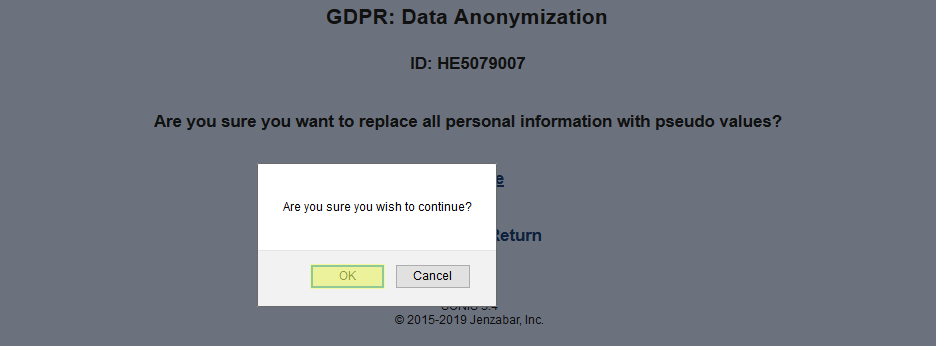
On the following page, click Continue and then OK to compete the process.

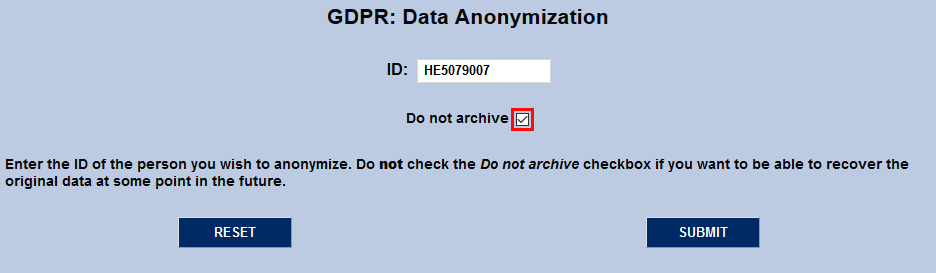
The process is the same with the Do not archive box checked. The difference is that it cannot be reversed.
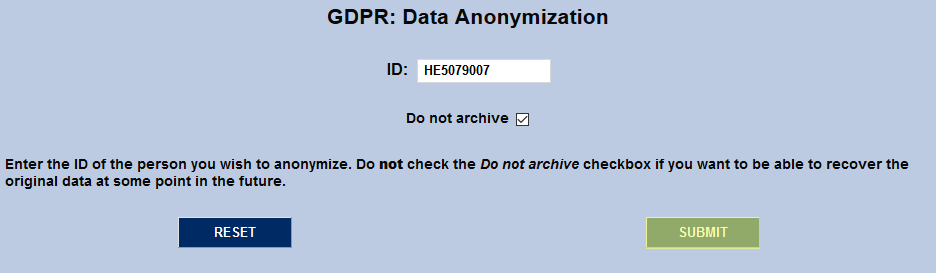
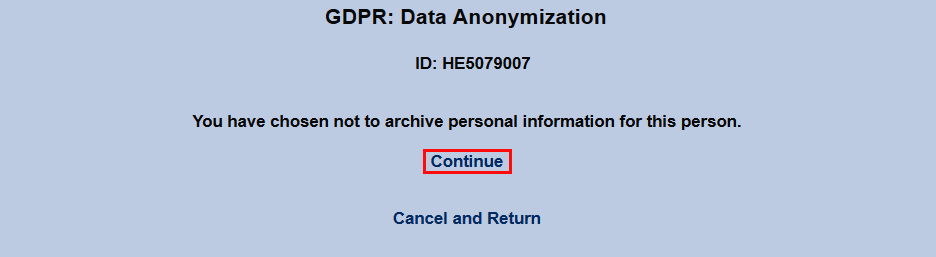
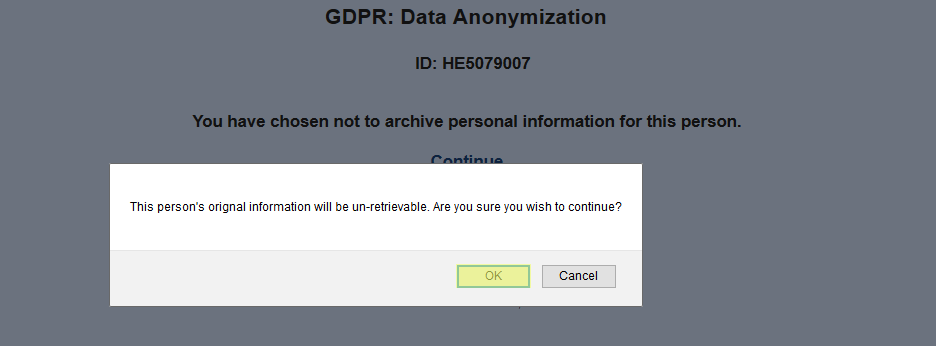
In addition, records that have been archived for future reversal can be changed to unarchived through the same process.

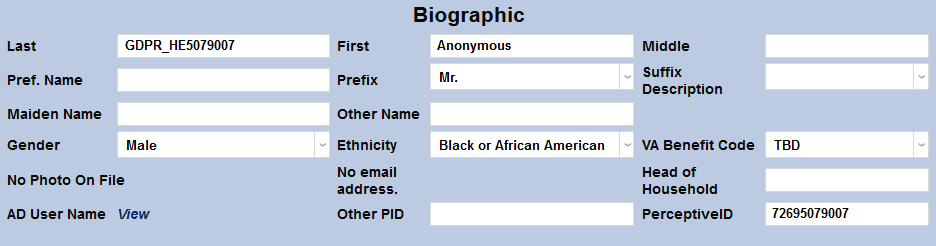
When a user's records have been anonymized, their last name appears as "GDPR_User ID" and their first name becomes "Anonymous." Demographic data will remain viewable.
Restoration
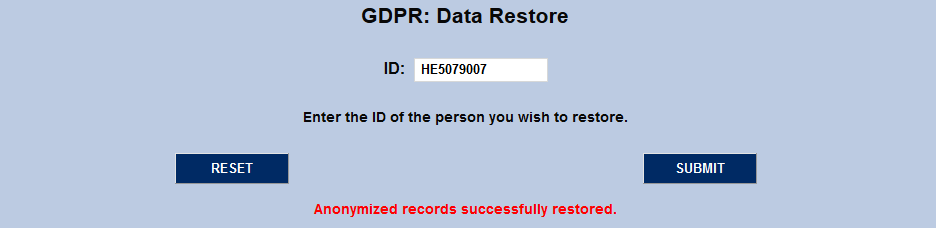
To restore anonymized data, navigate to the GDPR: Data Restore utility. Enter the user's SONIS ID and click Submit.


Delete User
User Request
If a user is not satisfied with data suspension or anonymization, GDPR also gives them the right to have their data. The process to make a request is the same as the other GDPR rights. Begin by clicking the Requests button.
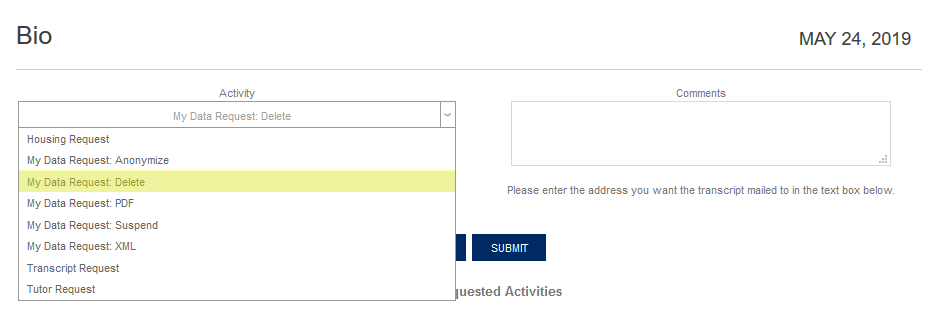
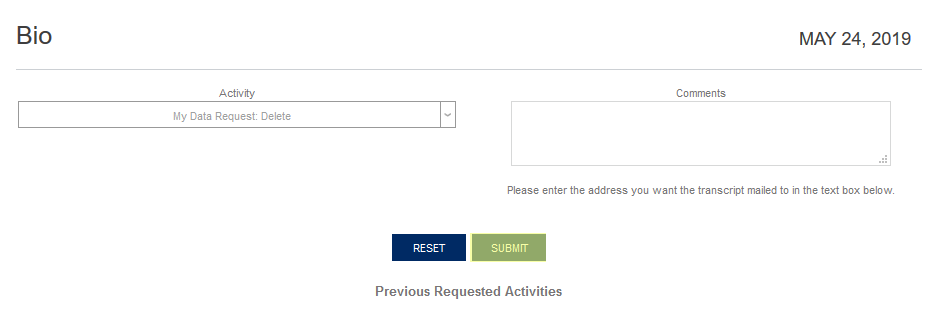
A new window will pop up. Select My Data Request: Delete from the Activity dropdown menu and click the Submit button to send the request.
Records Deletion
To fulfill deletion requests, SONIS offers the ability to delete a user's records from their Biographic page, but all other records associated with the user must be deleted first. These include: financial transactions, attendance records, course records, activities, additional statuses, relative history, and instruction history.
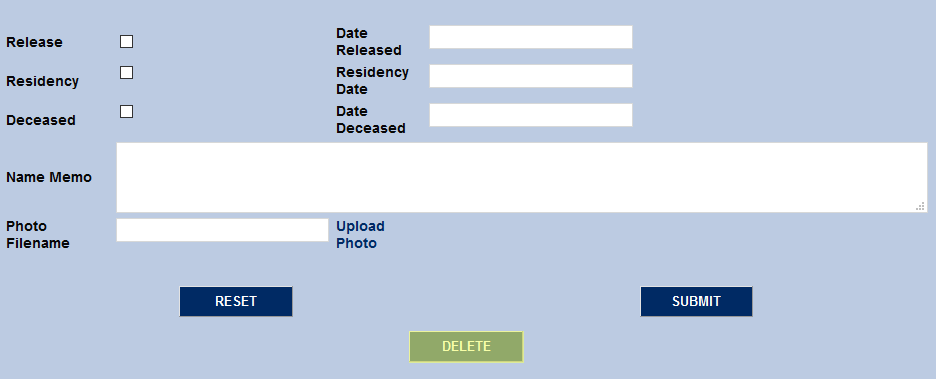
Trying to delete a user whose records have not been deleted will result in an error listing the records that must first be deleted.

WARNING
The GDPR deletion process is permanent and cannot be reversed.