Schedule
Overview
The Schedule page in the Student portal provides user's the ability to view the courses they are registered for. If the student has a registration hold, the schedule will not display.
Use
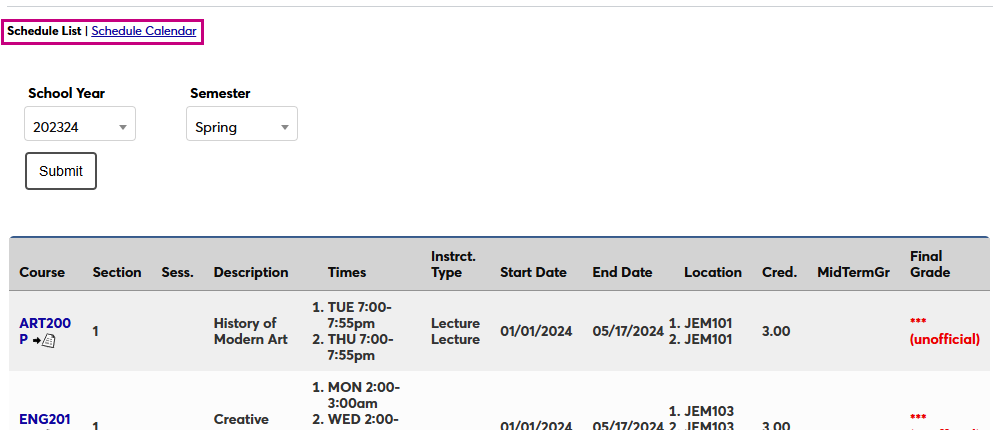
There are two options to view your schedule, Schedule List view and Schedule Calendar view. Use the links at the top of the screen to toggle back and forth between the two.
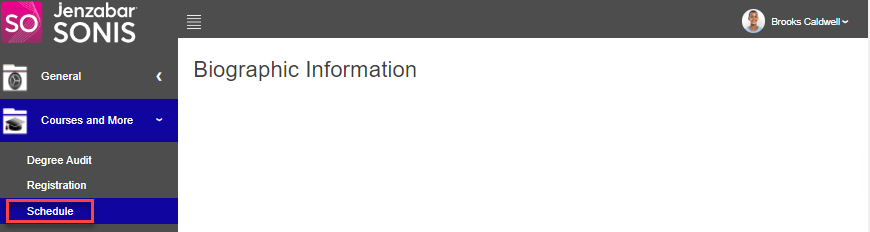
To view the Schedule, click the Courses menu, and click Schedule. When the page populates, the registered courses for the current School Year and Semester display.
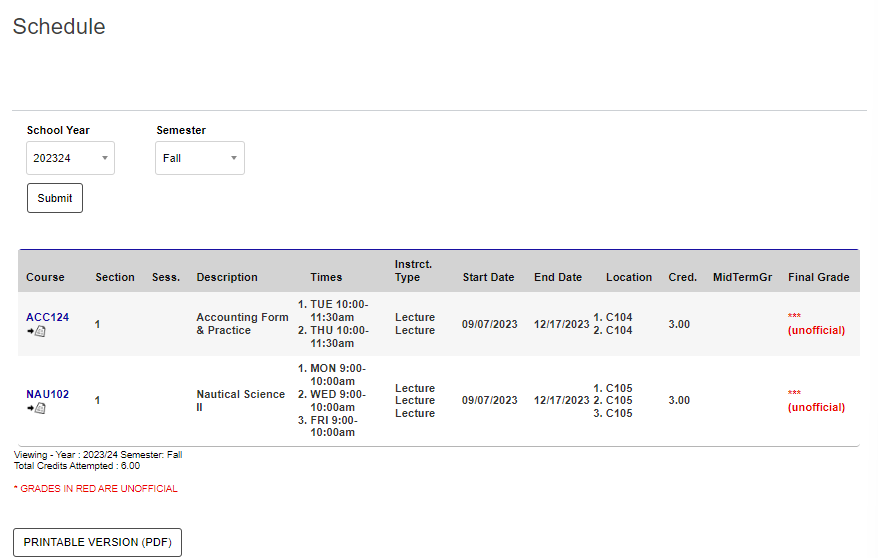
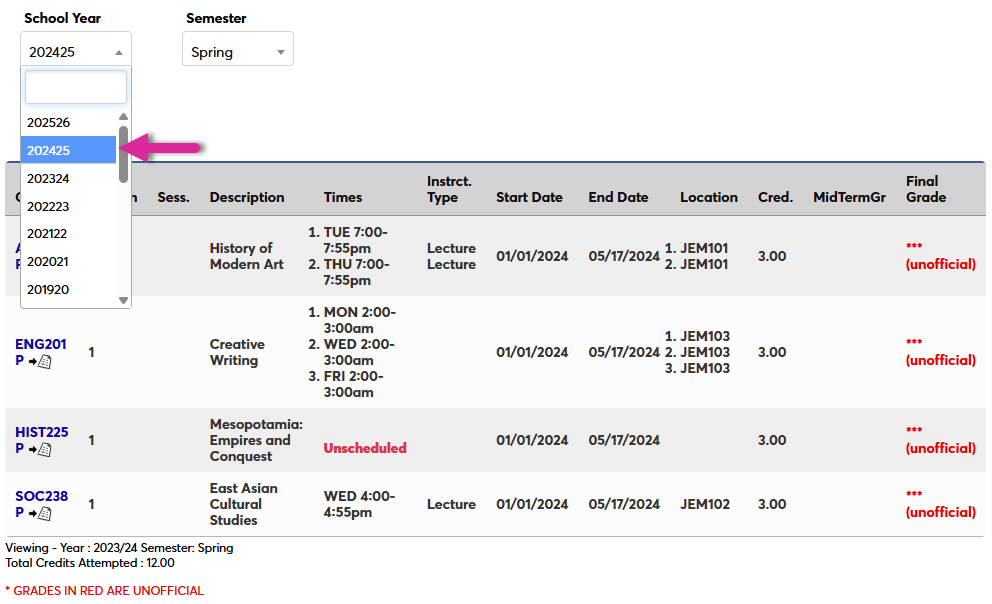
The display can be changed by selecting a different School Year and/or Semester, and clicking Submit.
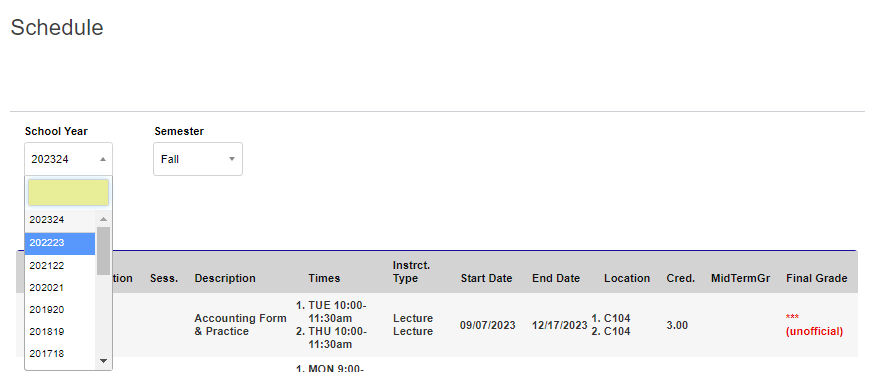
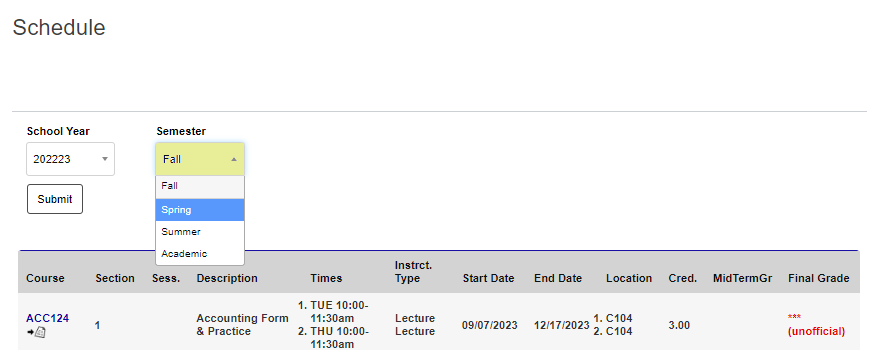
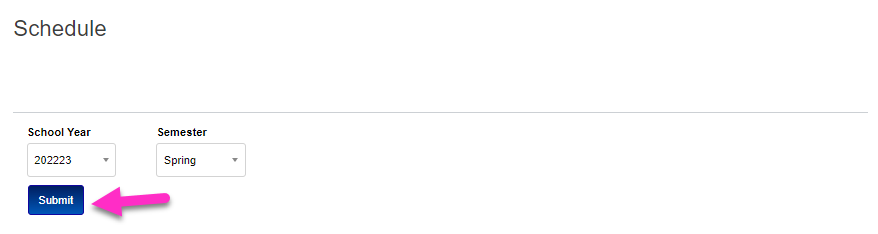
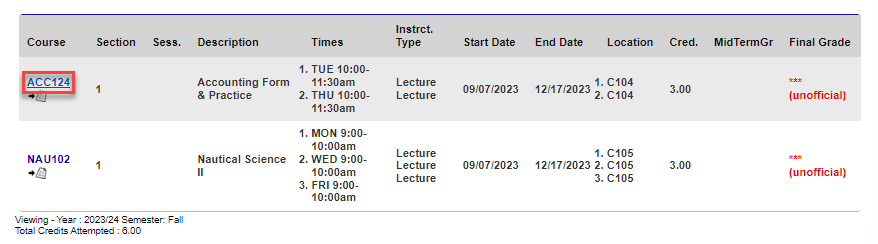
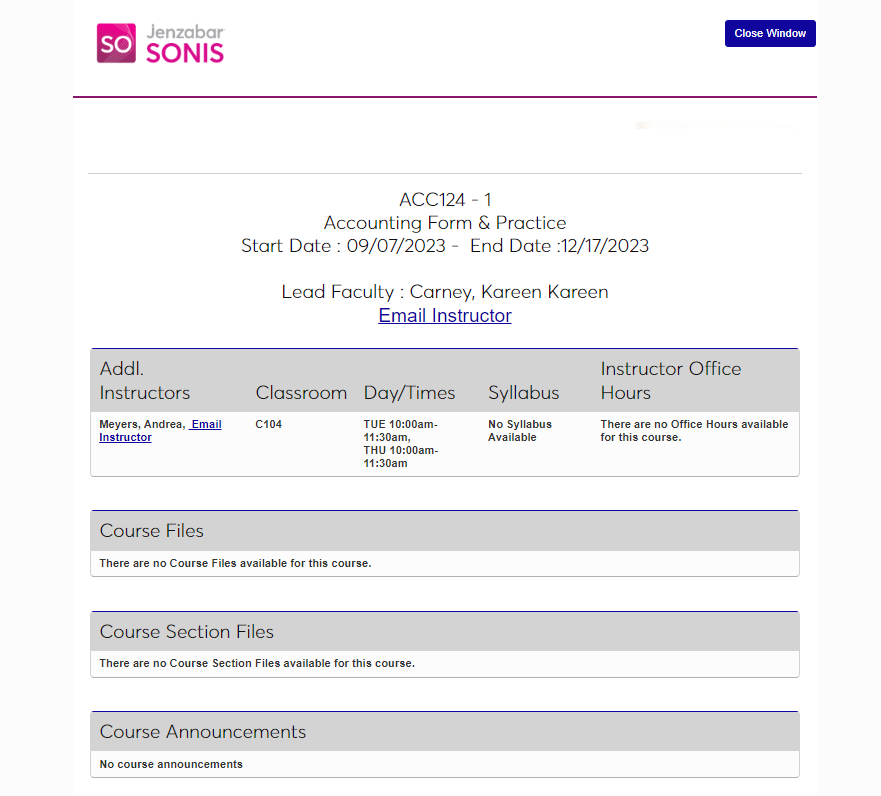
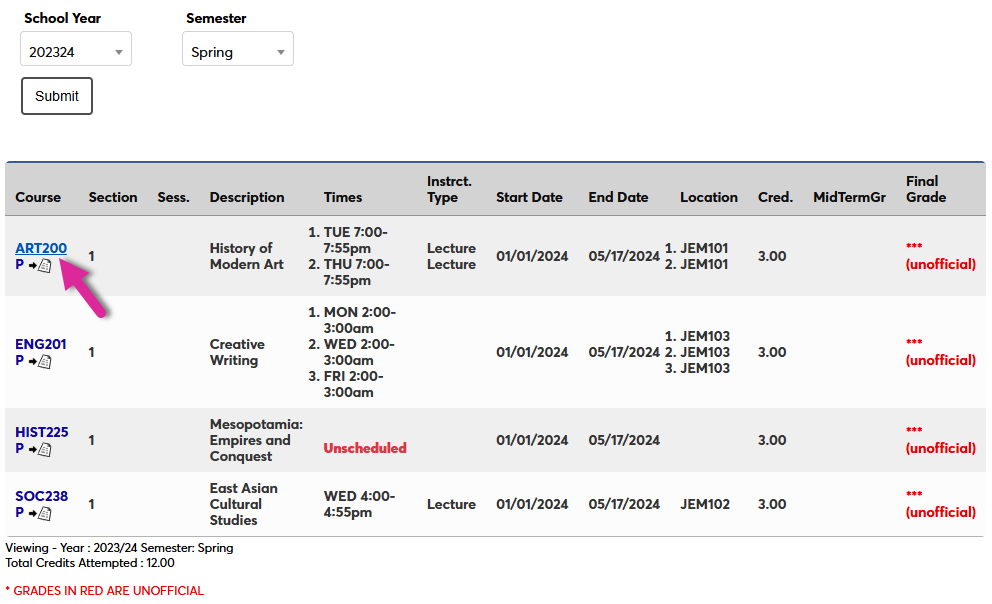
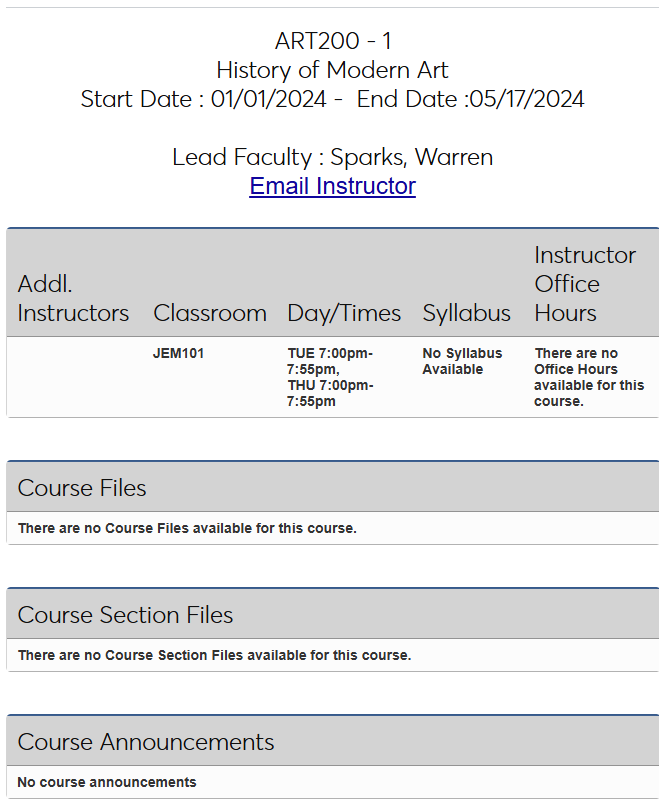
In the displayed schedule, clicking the course number opens a new page with course details.
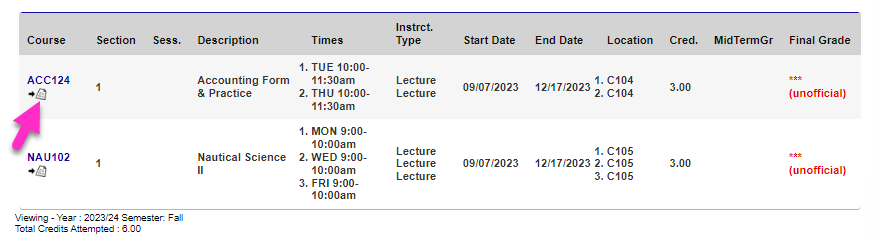
Click the note icon to open the course discussion/forum page.

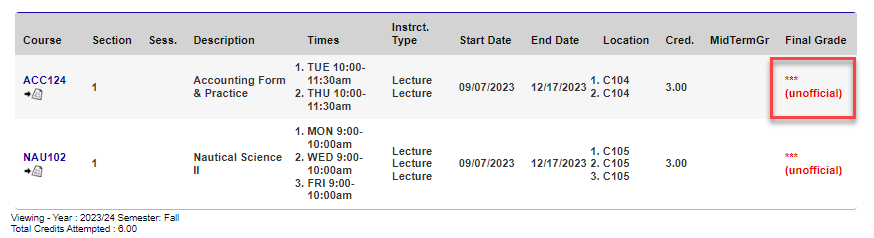
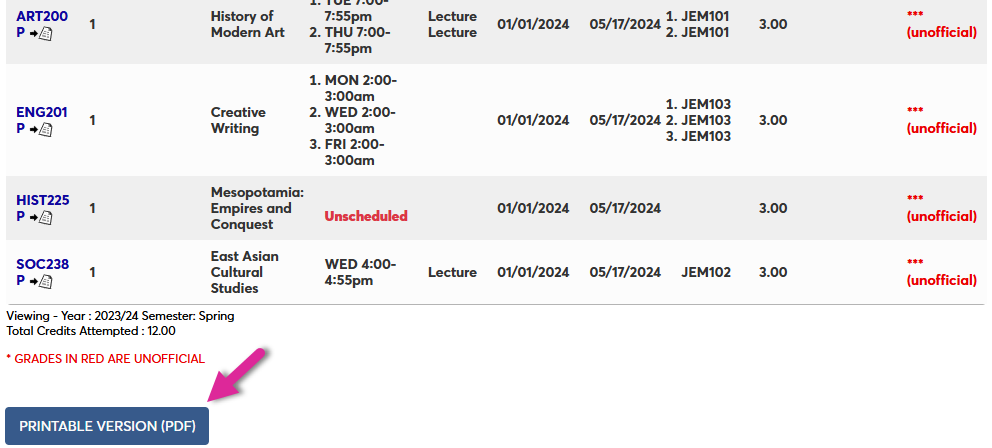
When final grades have been entered, they display in red until they are official. A PDF of the schedule can be generated for printing by clicking the Printable Version (PDF) button.
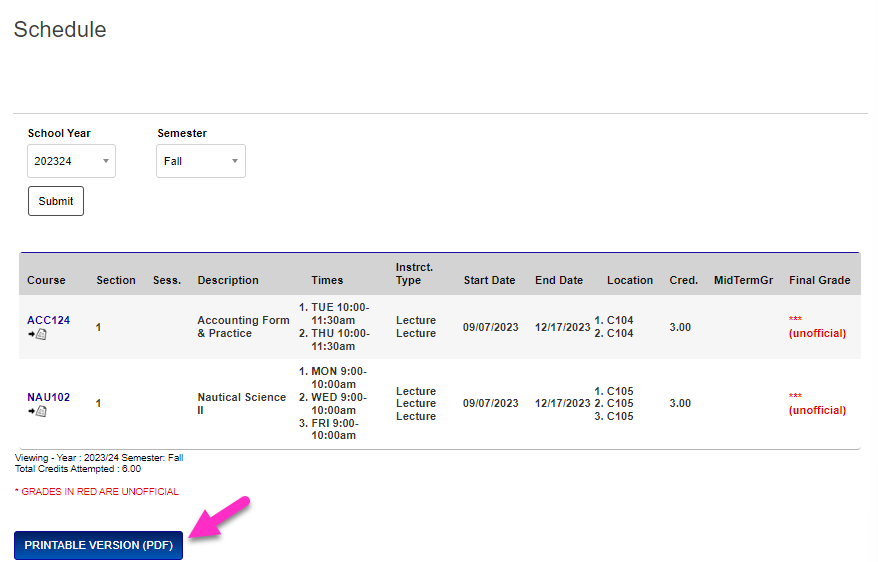
List View
When you first arrive on the page, the schedule for your current school year and semester will display by default. The display can be changed by selecting a different School Year and/or Semester, and clicking Submit.
Click the course number opens a new page with course details.
Click the note icon to open the course discussion/forum page.
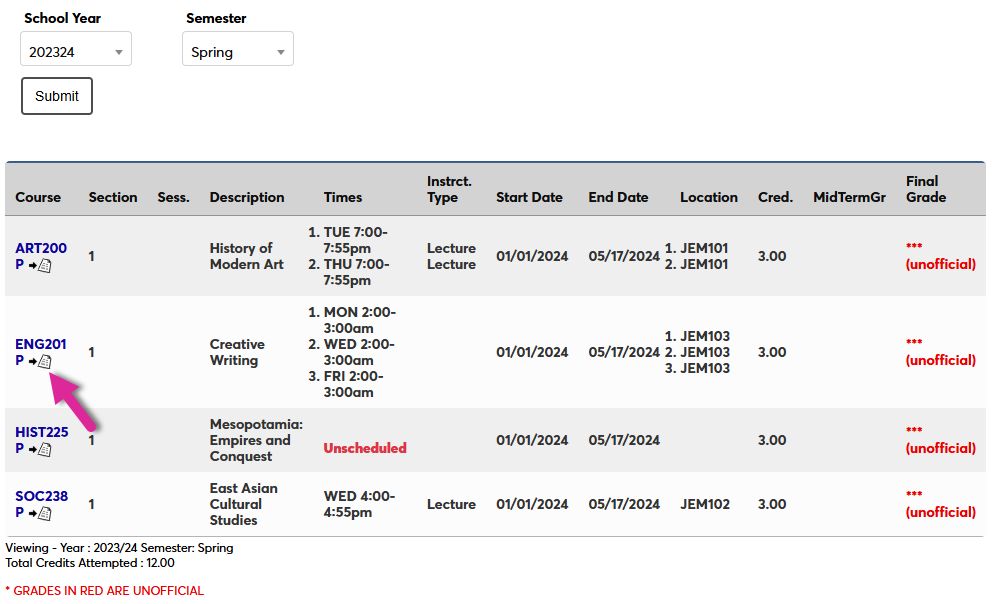
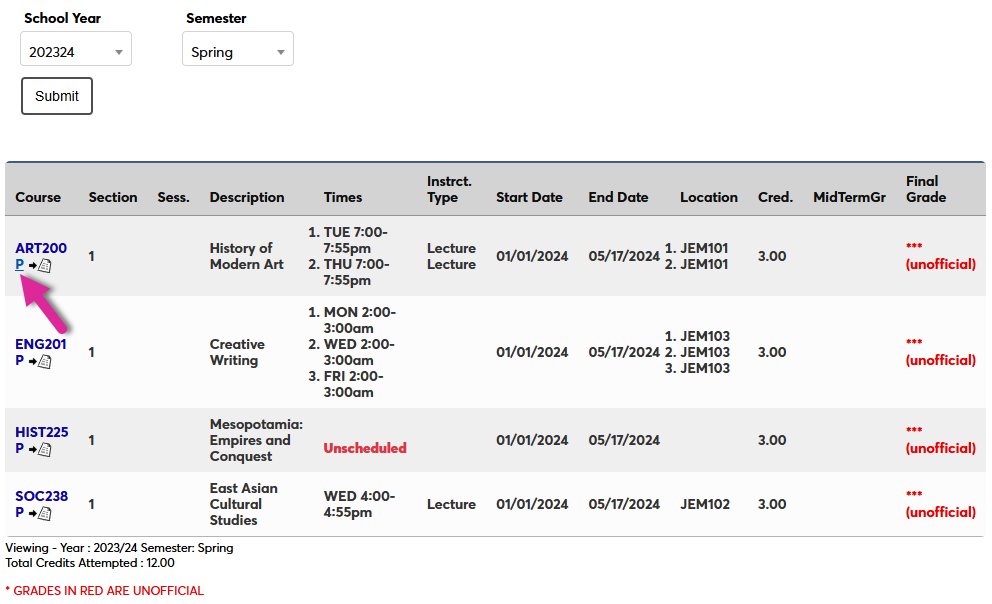
If you have tasks you need to complete before the semester begins, a P will display next to the course name. Click the P to open the list of tasks in a pop-up window.
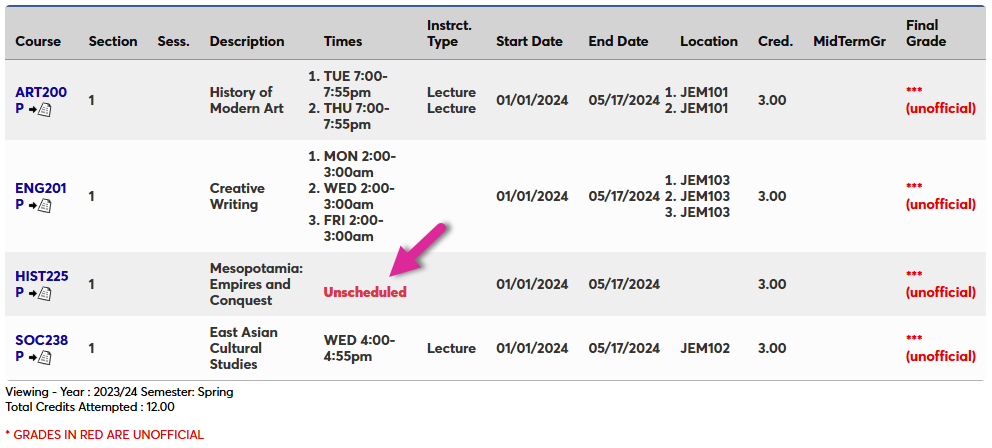
Courses that do not take place at specified times and dates are marked as Unscheduled. These courses do not show up in Calendar View.
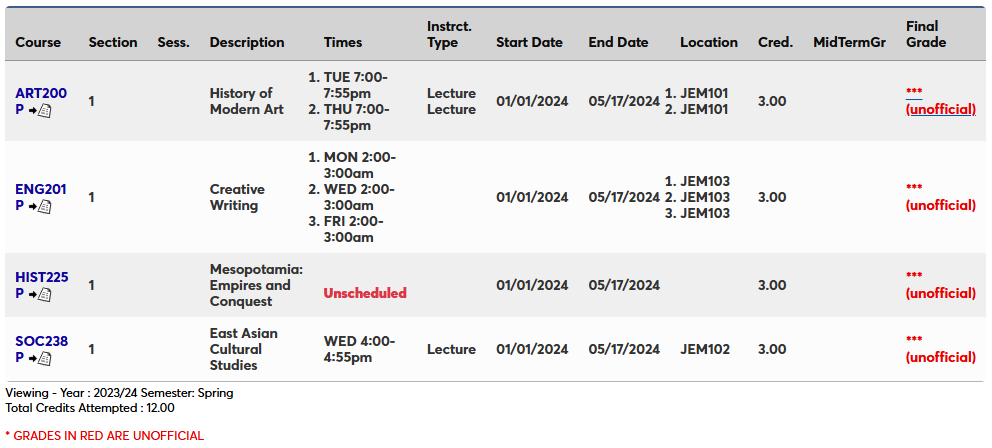
Grades are listed in the final column on the left. You can click on a grade to see a list of your scores.
Note
Grades displayed in red text are unofficial.
Administrators, visit the Grades Utility and Bulk Official Grades documentation pages for more details on how grades work in Jenzabar SONIS.
Click the Printable Version button to view your schedule as a PDF.
Calendar View
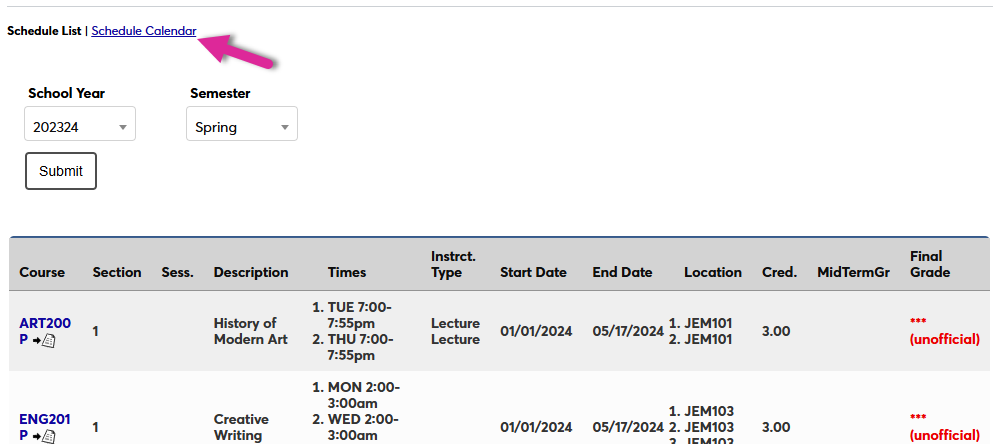
To switch to Calendar View from List View, click the Schedule Calendar View link at the top of the page.
Note
Unscheduled courses do not display in Calendar View.
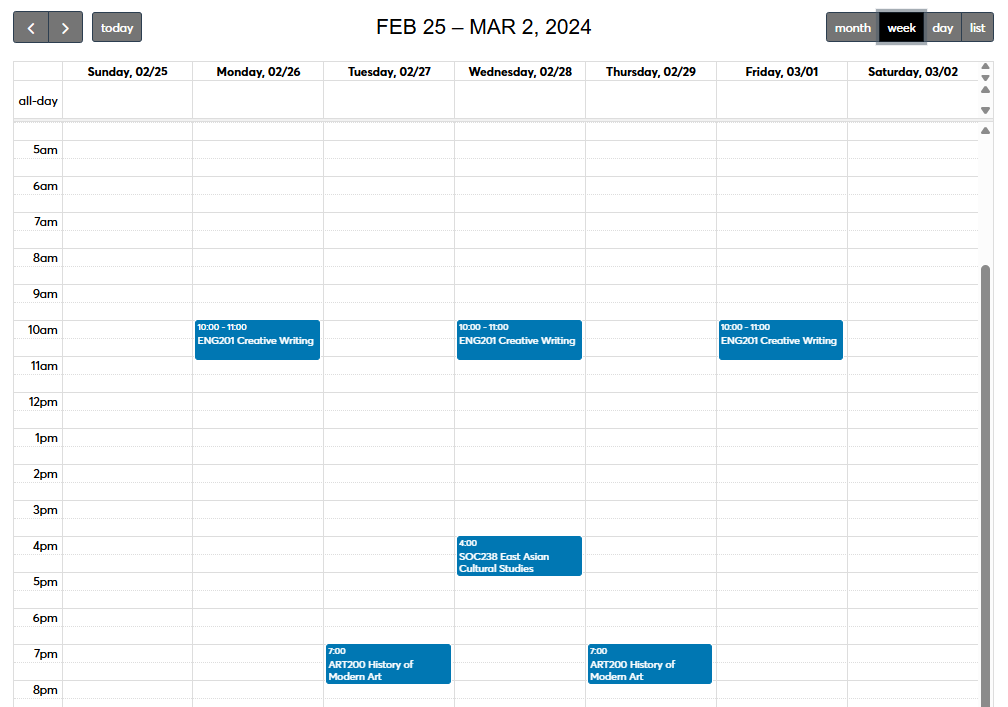
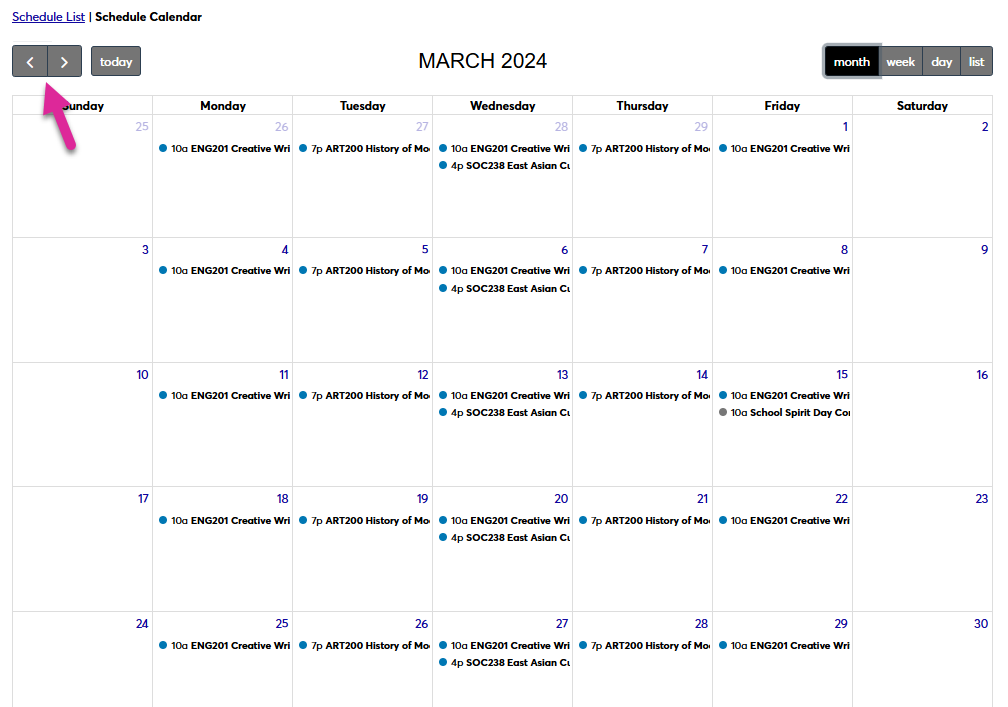
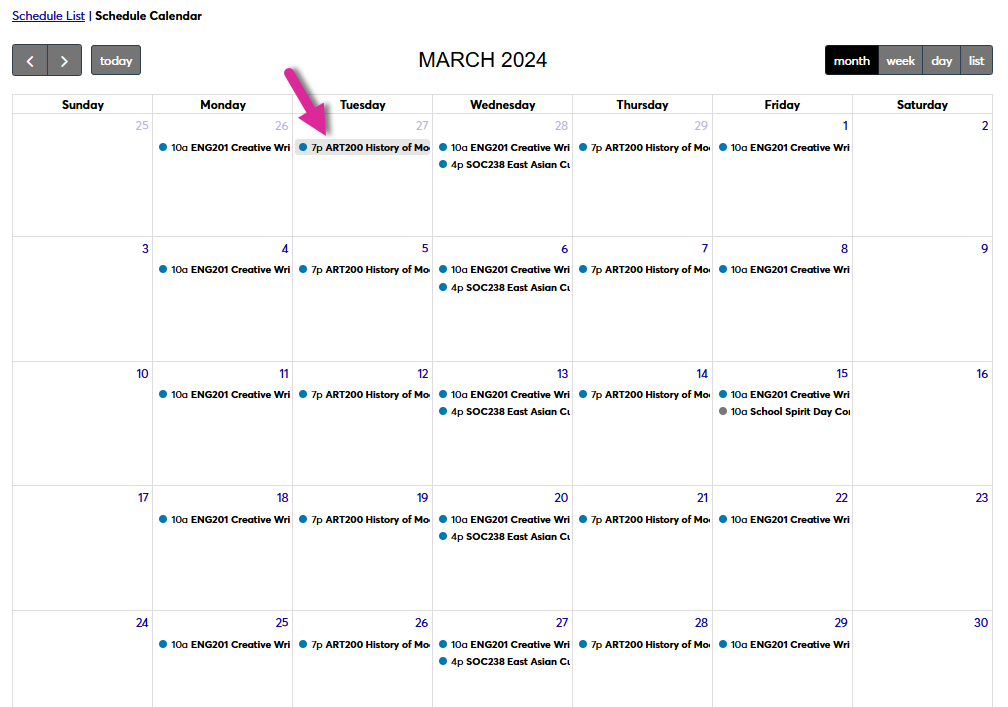
By default, the Schedule Calendar displays in Month view. You can use the left and right arrows to change the displayed month and the today button to jump to the current date.
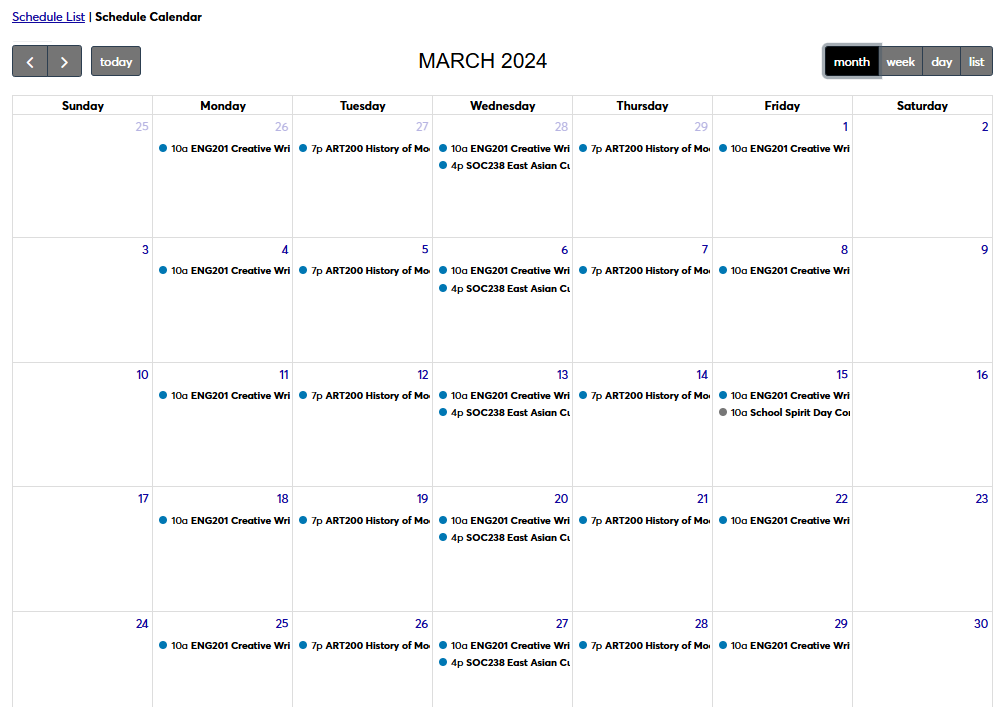
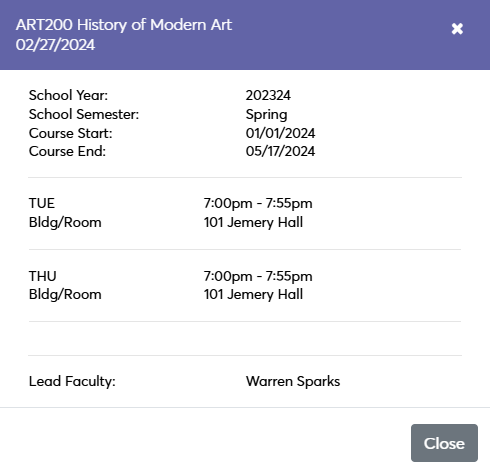
Click on a course or other event to see more details.
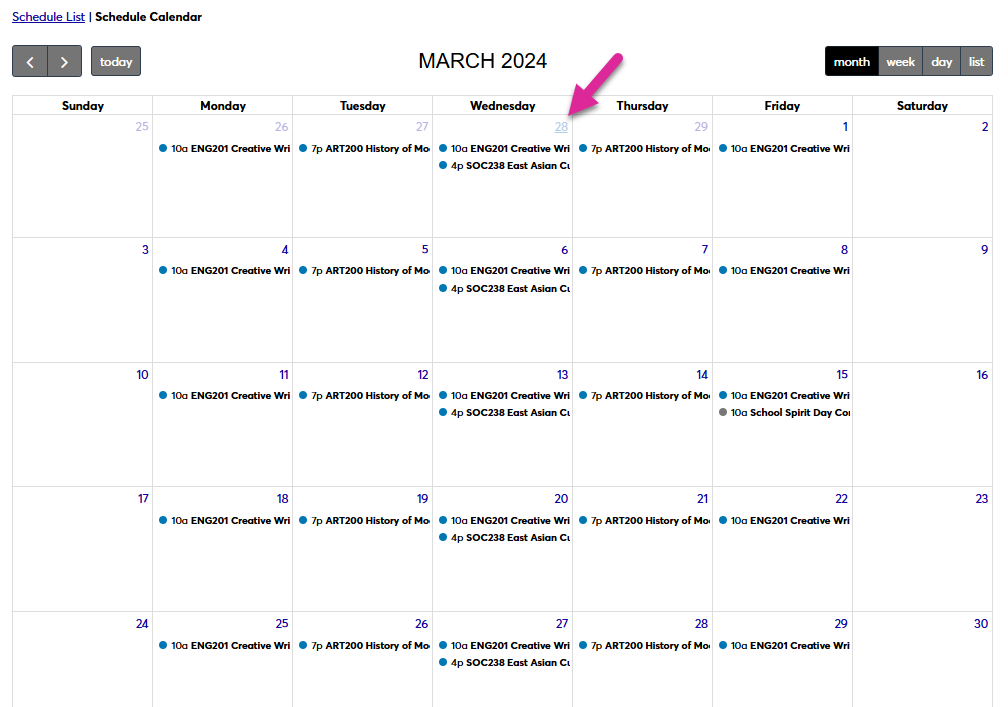
You can also click on a date to view that day's schedule.
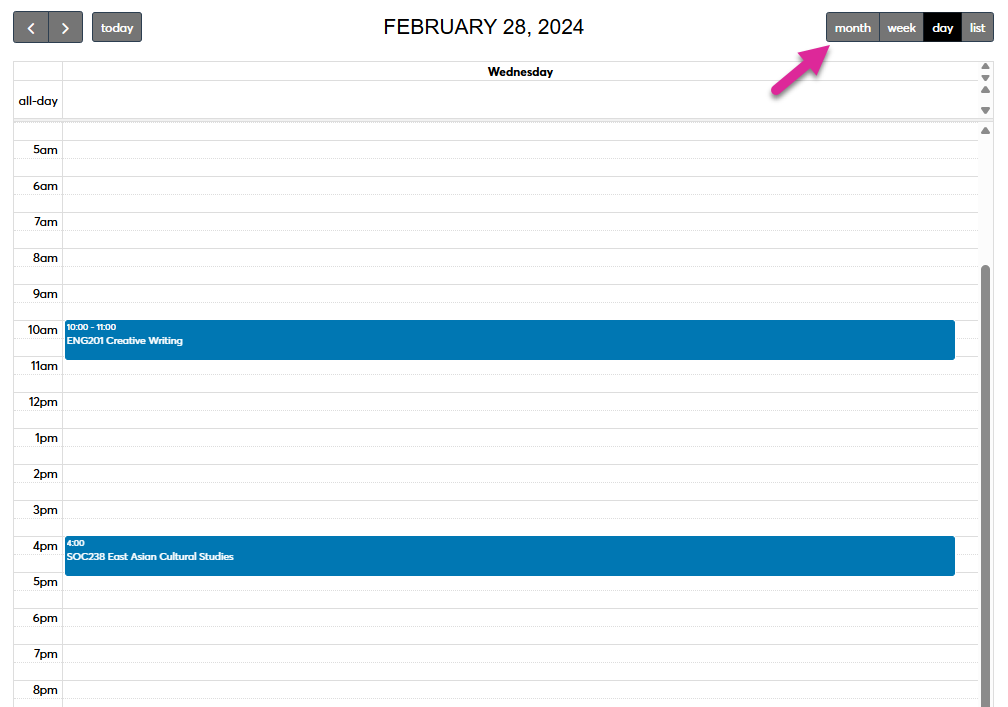
Click on Month in the top right corner to return to the full calendar view.
Note
The Day view will always display either the current day or the last day selected.
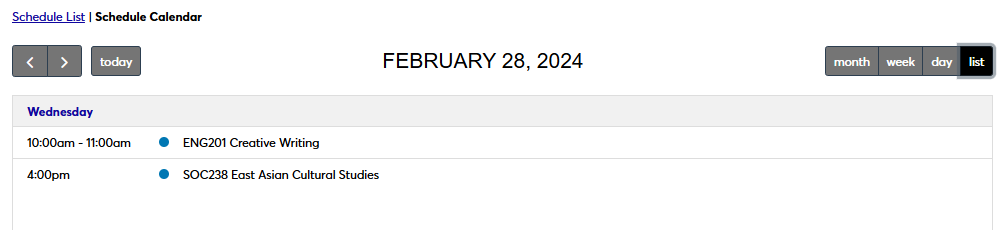
You can also use these controls to view a weekly calendar or to view your daily schedule as a list of courses and other events.