Password & PIN Utility
Overview
The Jenzabar SONIS Password & PIN Utility allows institutions to set rules and limits for the passwords and PINs that users create. The utility can be used specify the required length of the password, the types characters that must be included, and how long the same password can be used before it expires. Additionally, the utility can be used to create a list of forbidden phrases that cannot be used as part of a password. When configured correctly, the utility should ensure that all SONIS users have a secure PIN or password that's difficult to hack. We recommend that system administrators keep up to date on the latest password standards and return to the utility to institute new requirements when these standards change.
In SONIS, passwords are used to log in to the Admin portal with accounts created via the User Security utility. PINs are used to log in to all other portals. While the acronym PIN stands for identification number, SONIS PINs can and should include letters, numbers, and special characters. If a setting is changed that makes a current user's PIN or password noncompliant, the user will be prompted to change their PIN/password the next time they log in.
New PIN Settings
Separate from the Pin & Password utility, but closely related, is a setting in Web Options, which allows schools to choose how the initial PIN for each user added to the system is created.
Scroll down to the New PIN Setting option and choose from one following:
No PIN - With this choice, users do not have PINs and log in with their IDs only. This is not recommended.
Random - With this choice, PINs are generated automatically to comply with the PIN rules. This is the most secure method.
Birthdate - With this choice, PINs are generated to conform with the individual's birthdate in the mmddyy format. (Ex. 010396)

Regardless of the method chosen, users will be asked to create their own unique PIN when they log in for the first time.
Setting Requirements
As both sections of the Password & PIN utility are identical, only screenshots from the Password section will be used. All instructions relayed below apply to the PIN section as well.
Launch Page
To set password and PIN rules and restrictions, navigate to Password & PIN Utility in the Systems hub. Select Password to set the rules of admin accounts or PIN to set the rules for all other accounts.
Character Requirements
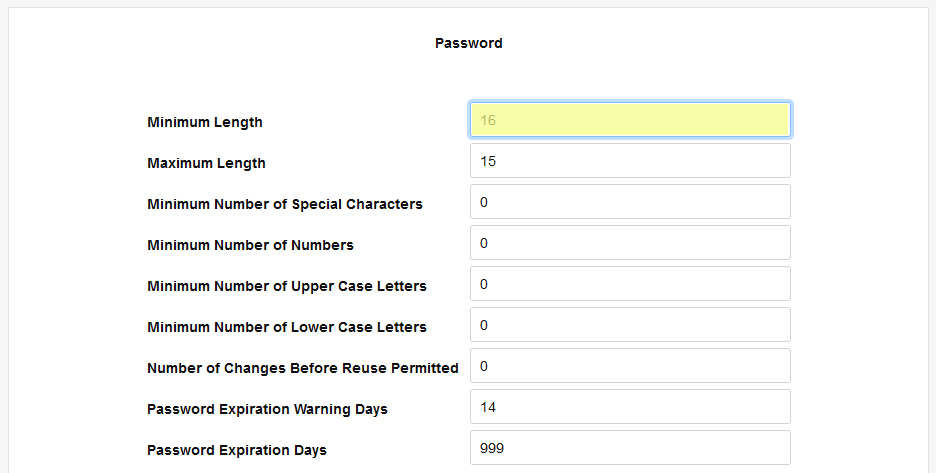
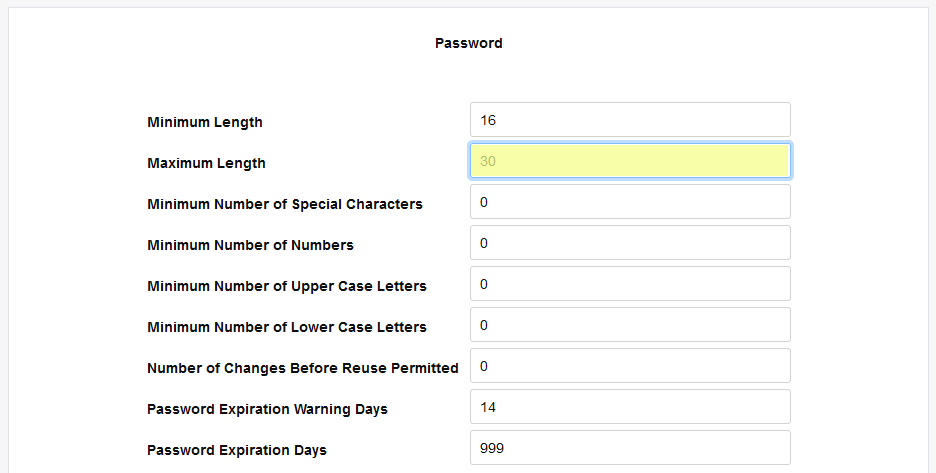
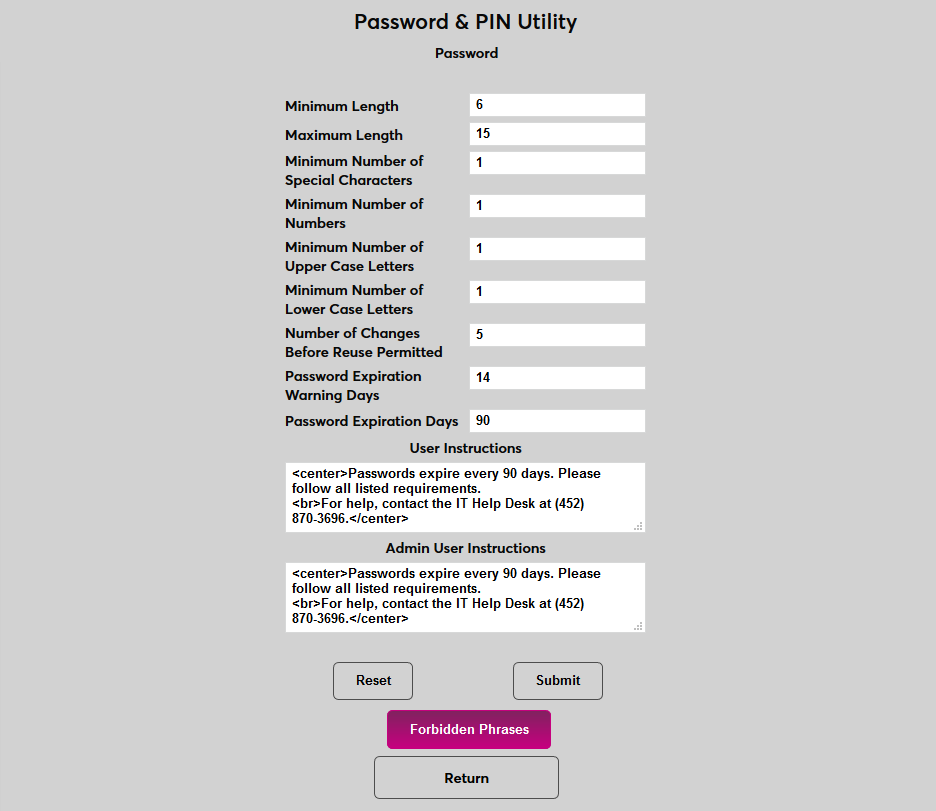
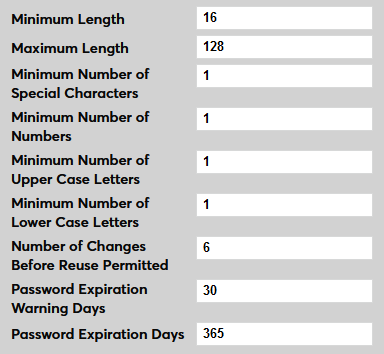
To begin, set the minimum characters required for each password with the Minimum Length field and the maximum number of characters allowed in a password with the Maximum Length field. SONIS allows a minimum of 6 characters, and a maximum of 15, but the best practice is to use a minimum of 16 and a maximum of 30.
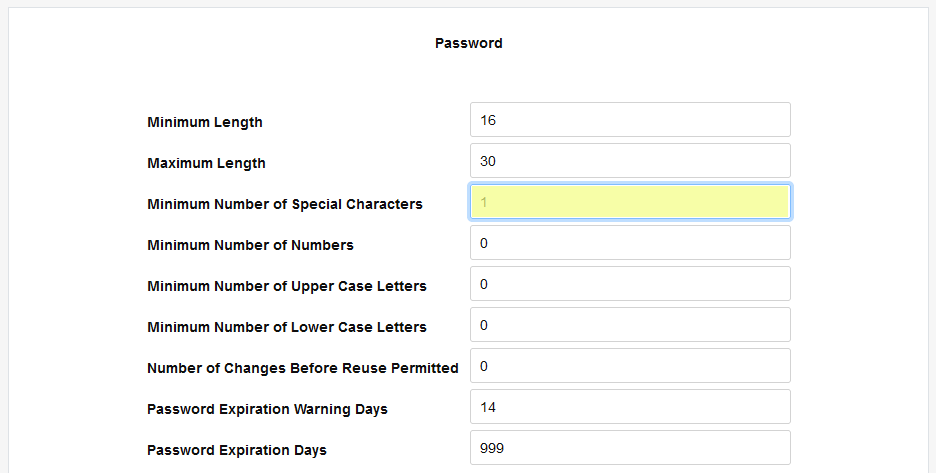
Next, set the Minimum Number of Special Characters (@%^&*=!?#~$+, etc.) and Minimum Number of Numbers that must be included in each created password. It's recommended that all institutions require at least one of each.
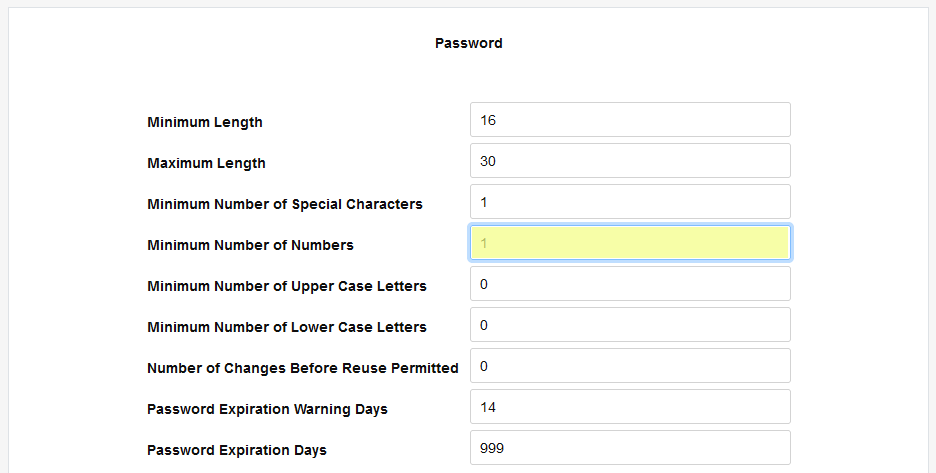
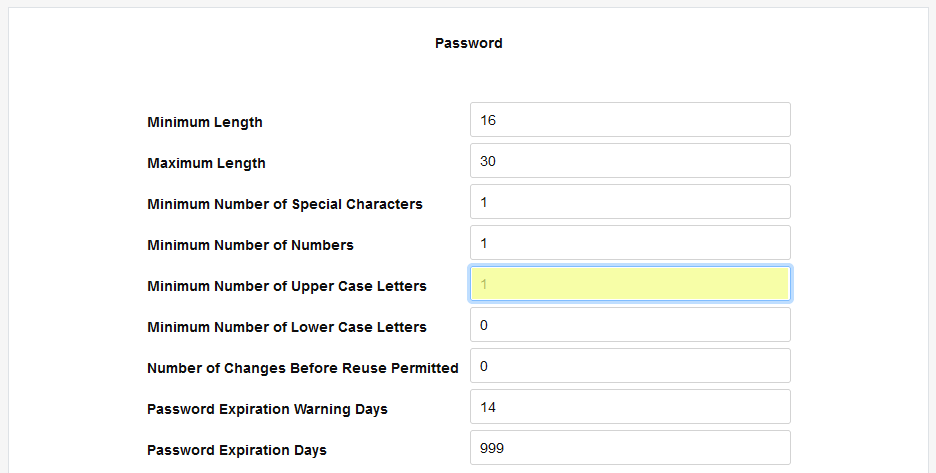
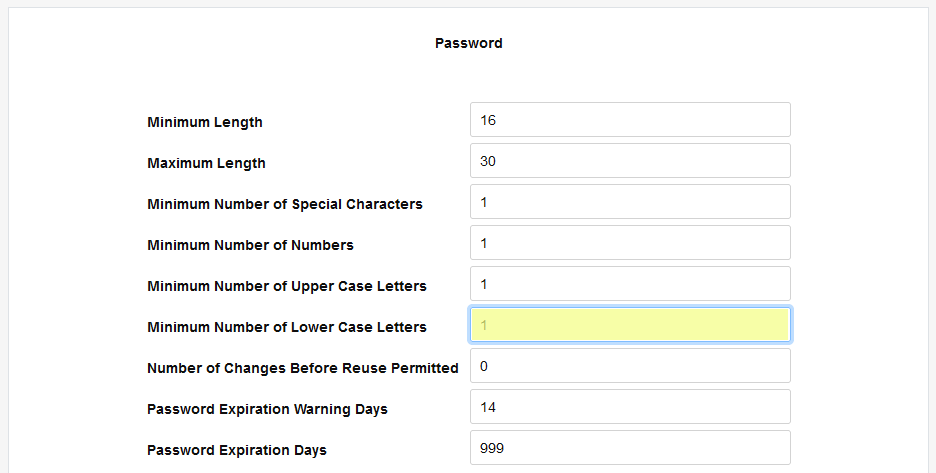
Set a Minimum Number of Uppercase Letters and a Minimum Number of Lowercase Letters for each password. By most standards, a strong password should have at least one of each.
Change Requirements
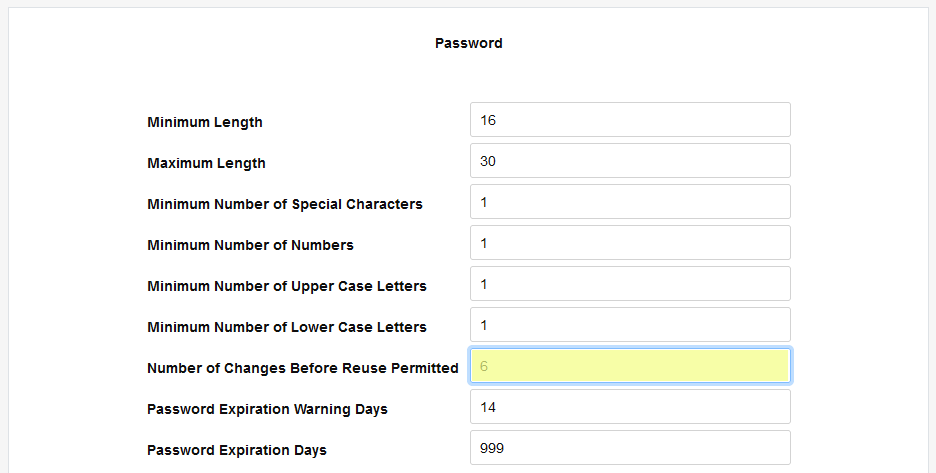
The Number of Changes Before Reuse Permitted field controls when a user can recycle a previously used password. If the number is set to six, for example, the user would be required to create six unique passwords before reusing a previous password. Recommended best practice is a minimum of six unique passwords.
The Password Expiration Warning Days field sets the number of days before expiration that the user will be warned of their pending password expiration when they log into the system.
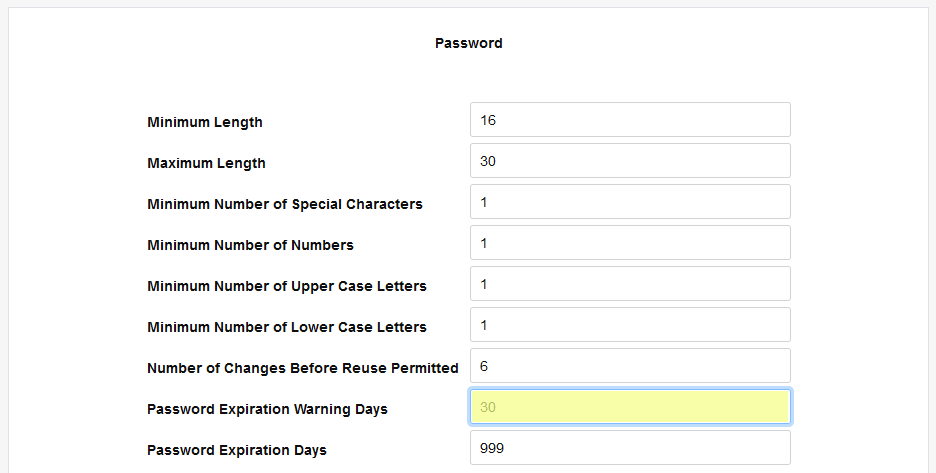
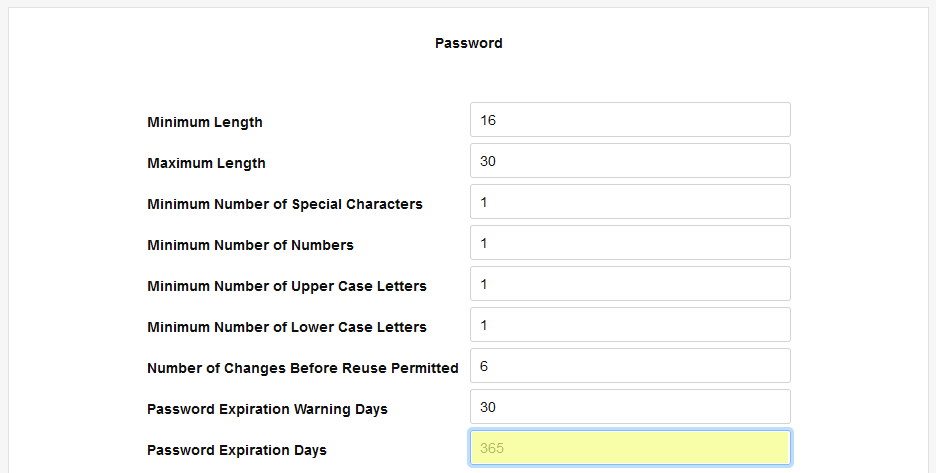
Use the Password Expiration Days field to set the number of days between when a password is created and when it expires. Generally, this number should be large enough to not be overly burdensome to the users but not so large that passwords stay in service for very long periods of time.
User Instruction
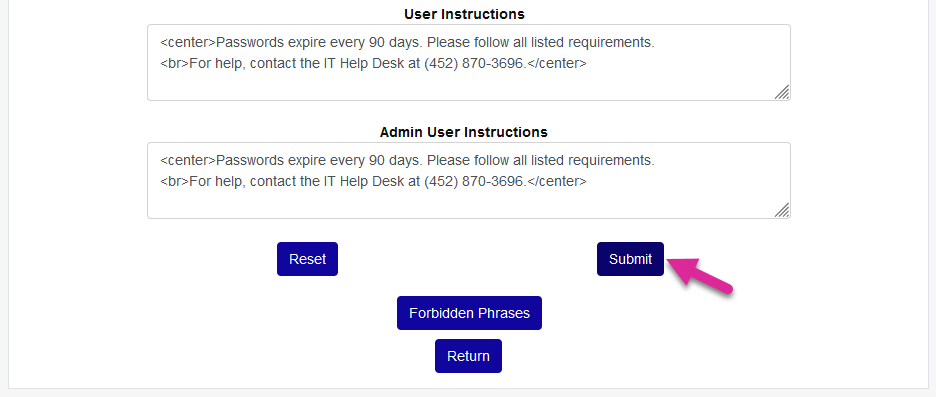
The requirements created in the previous steps along with any that have been set will automatically appear on the page when a SONIS user is prompted to change their password. The optional User Instructions and Admin User Instructions fields are used to display any additional text that the user will see when creating a new password. As the field names suggest, the Admin User Instructions will appear for Admin portal users regarding password rules or issues while the User Instructions are for users of the other portals and describe the PIN rules. The fields accept basic HTML tags.
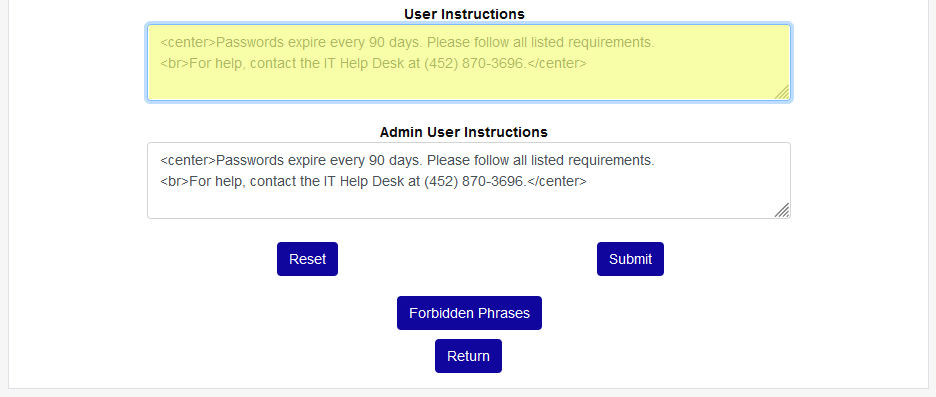
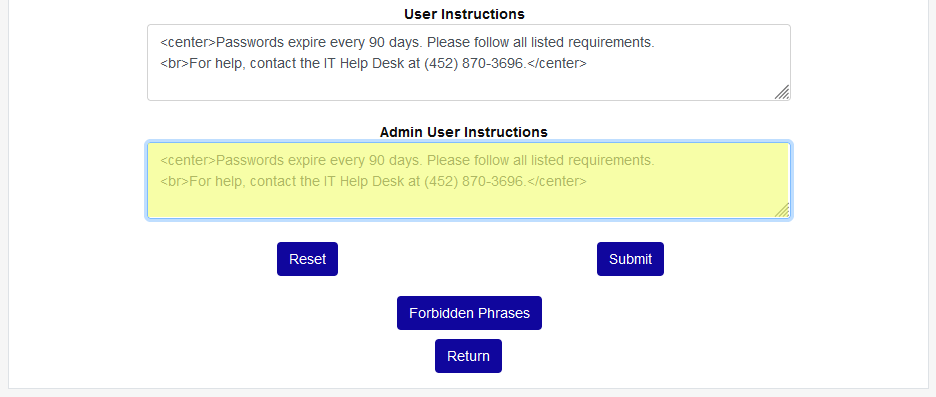
Click Submit to save the requirements and instructions.
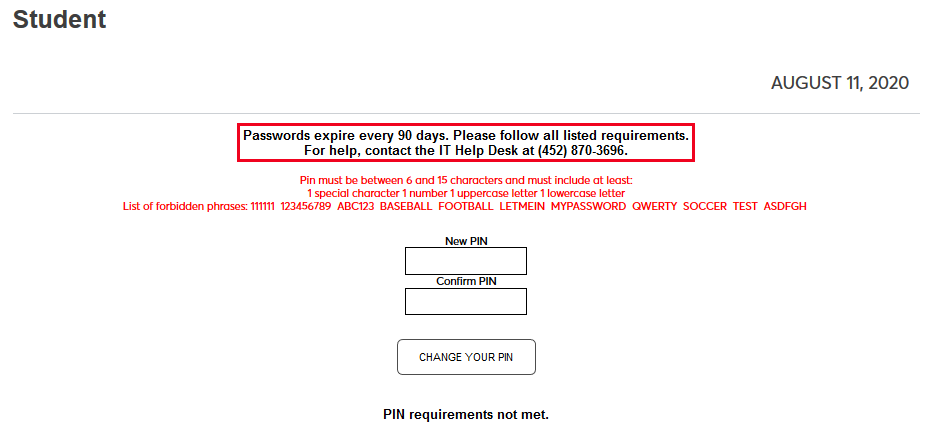
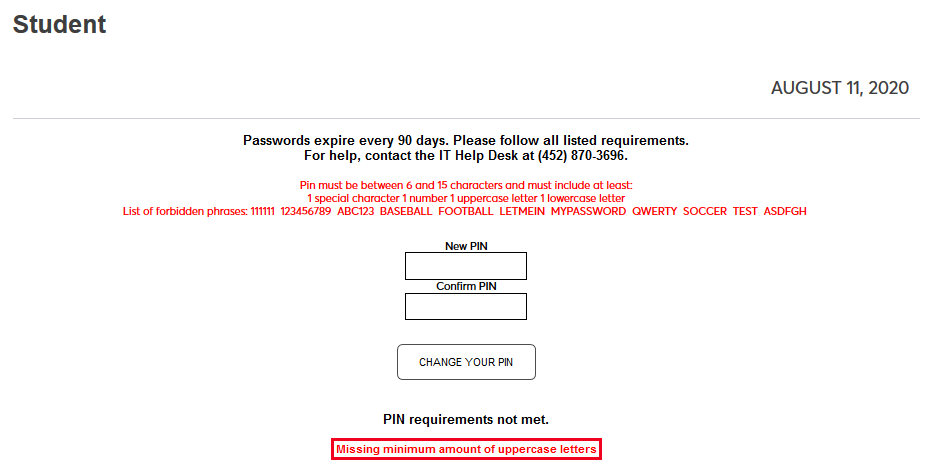
These instructions appear when the user is prompted to create a new password.
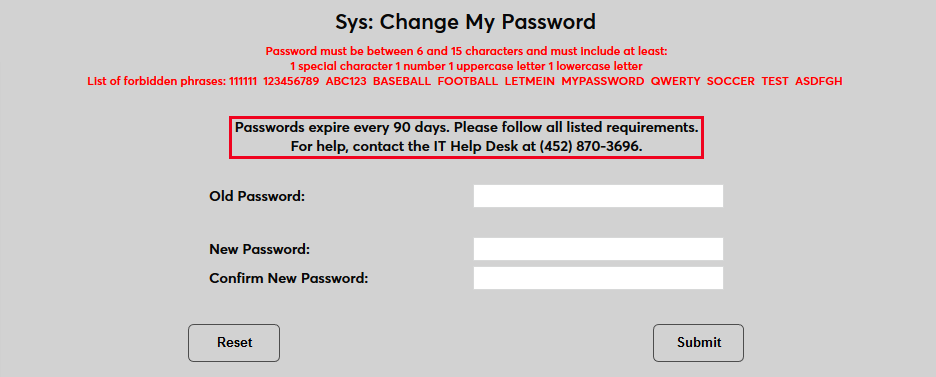
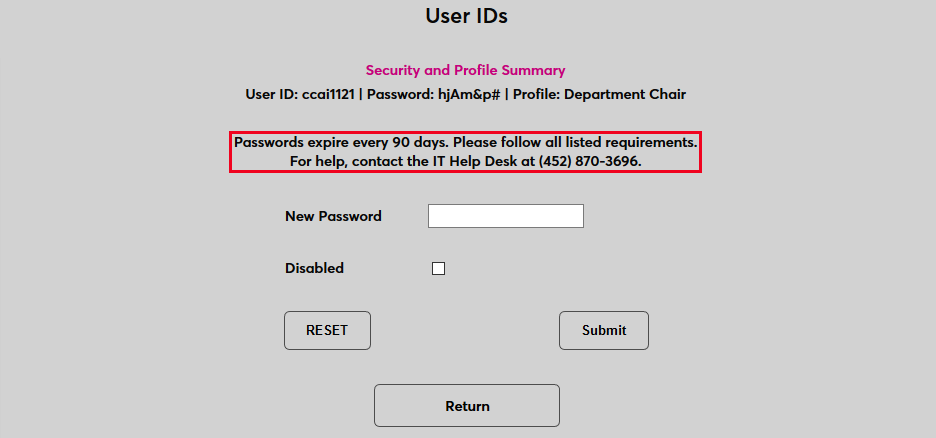
The instructions also appear on the User IDs page.
In addition to the password requirements and the user instructions, red error text appears on the screen when a user enters a password that does not meet the requirements. The text specifies which requirement has not been met.
Forbidden Phrases
To create a list of words and phrases that cannot be used when creating PINs and passwords, click the Forbidden Phrases button.
On the following page, click Add to add restricted words and phrases.

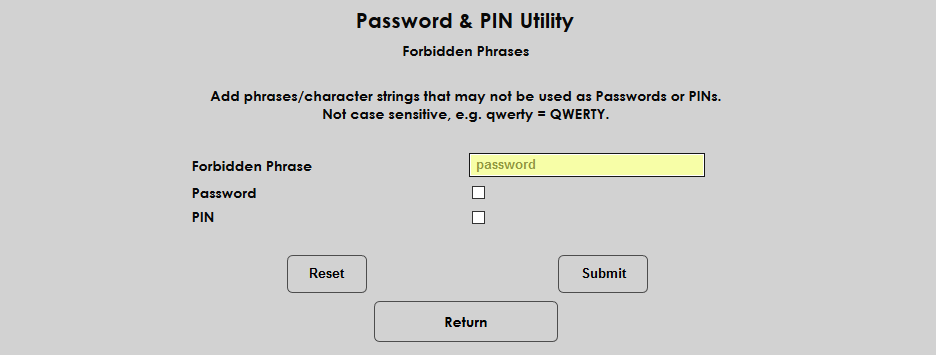
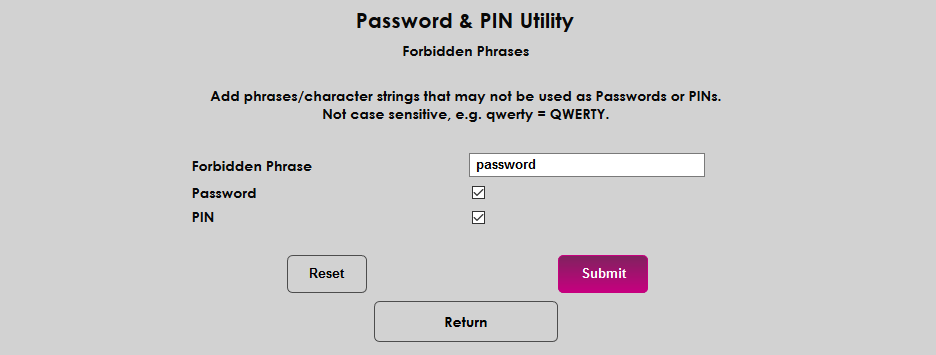
On the following page, type the forbidden word or phrase in the Forbidden Phrase field and check the Password and or PIN box to set which set of users the restriction should apply towards. These forbidden phrases should typically be words or phrases that could be easy for a hacker to guess. They could be generalized to the public at large or specific to the home institution. System administrators may wish to consult a list of commonly used passwords when constructing this list.
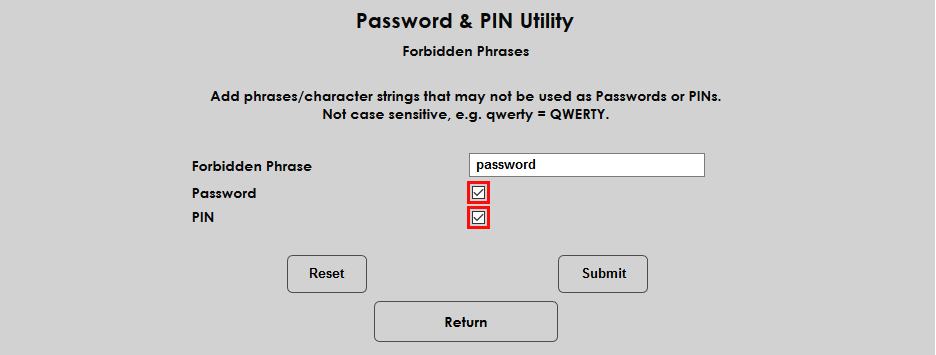
Click the Submit button to save the forbidden phrase.
Once forbidden phrases have been created, they will be displayed in a list on the Forbidden Phrase landing page. Check or uncheck the Password or PIN box to change where the rule applies. Check the Delete box to remove the phrase altogether. Click Submit to save the change.
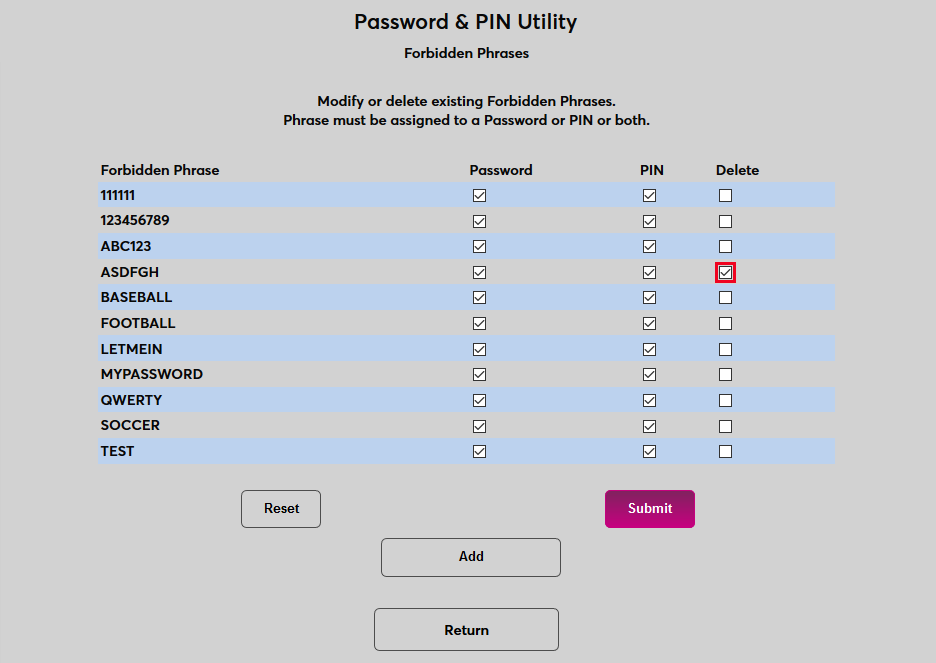
Note that the Forbidden Phrases list only applies to password creation and does not prevent these words and phrases from being used elsewhere in the system.
Hosted Client Requirements
Jenzabar SONIS Hosted Services has created a minimum PIN/password settings guideline. This guideline is designed to protect sensitive data and must be adhered to by all hosted clients. Clients can enact stricter requirements if desired, but their requirements must be at or above this threshold.
Timed Task
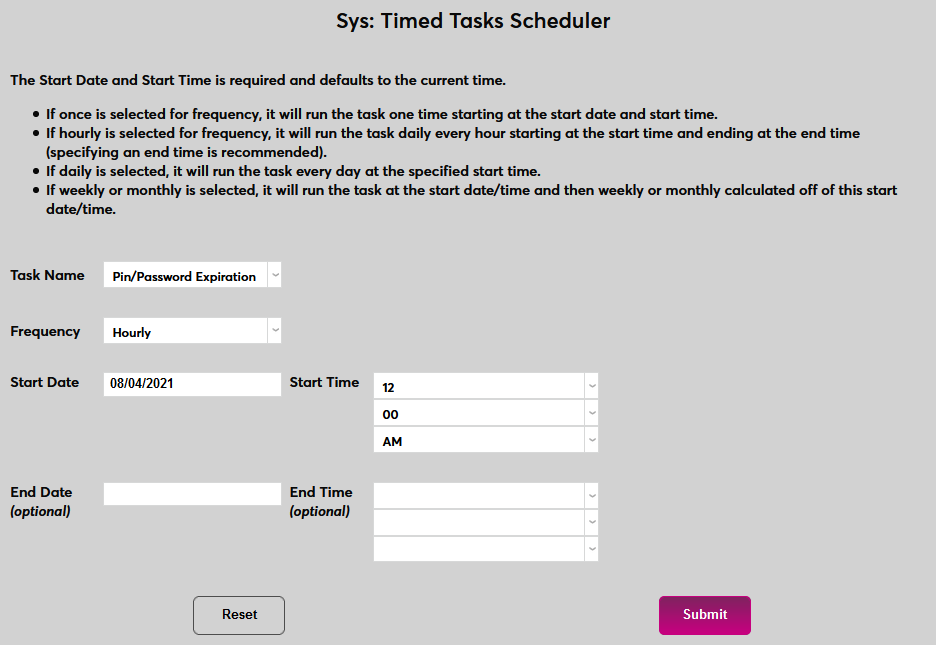
In order for passwords and PINs to expire, a must be created to trigger these expirations. To begin, navigate to the Timed Task Scheduler in the Systems hub and click Add.
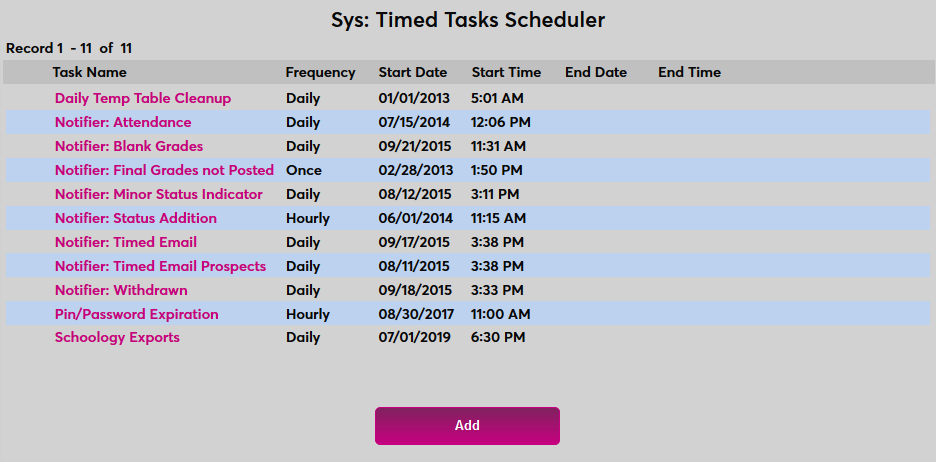
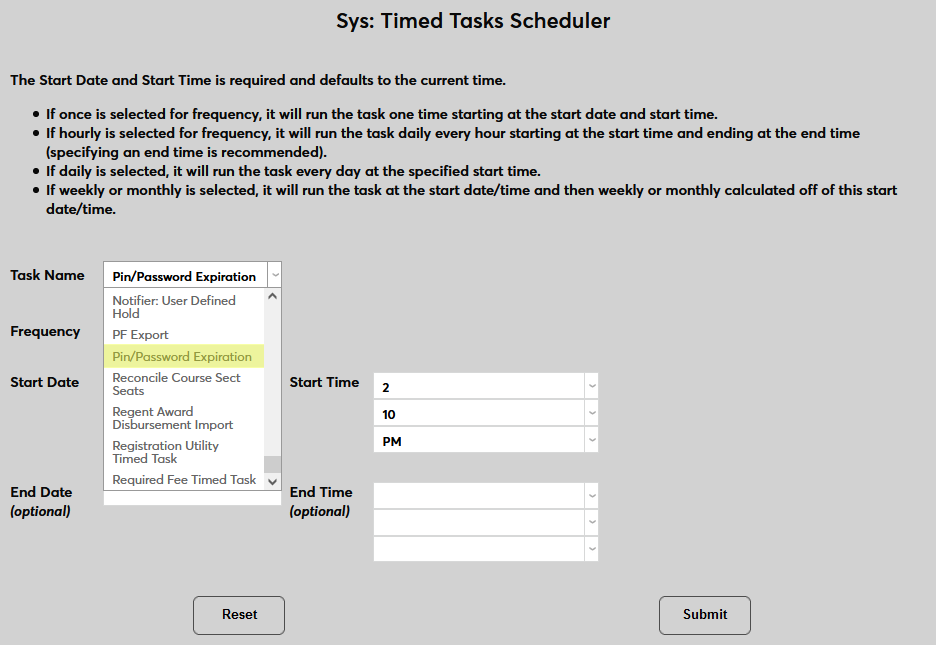
Select PIN/Password Expiration from the Task Name dropdown menu.
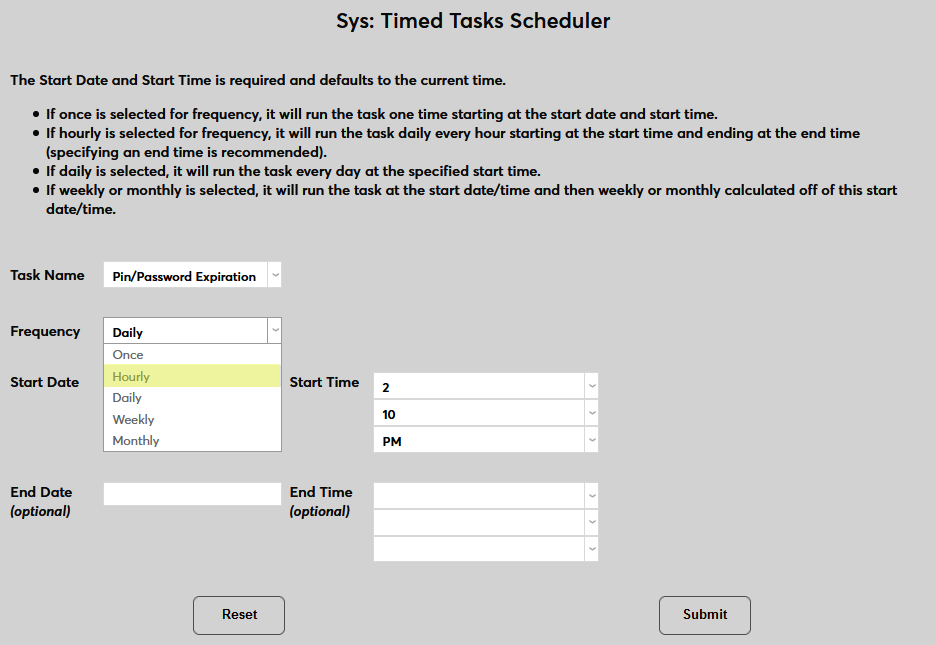
Next, set how often the task will run using the Frequency menu. The task should run at least daily and can be run more frequently if needed.
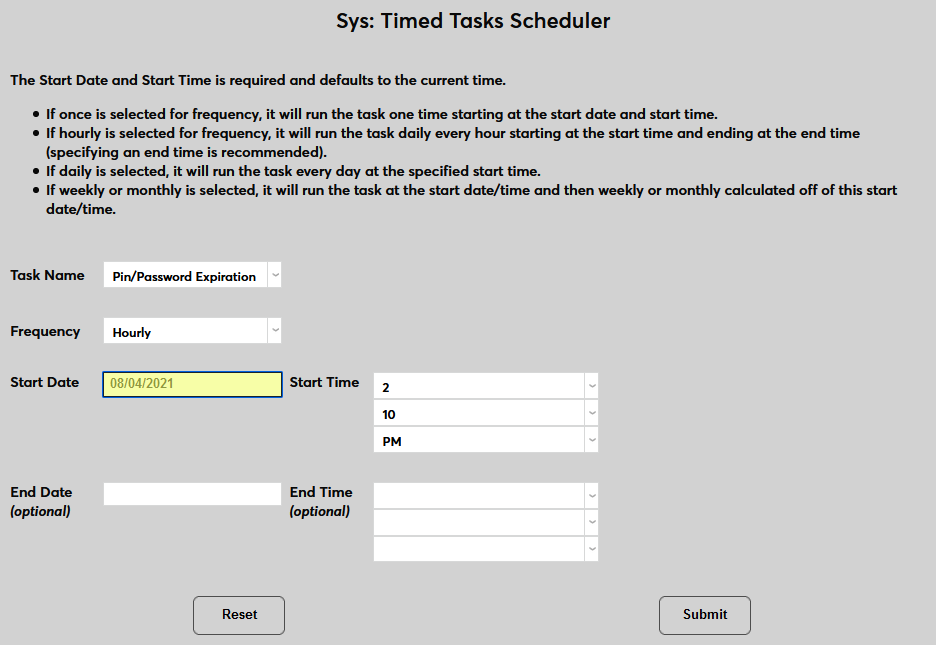
Set a Start Date and Start Time for the task. The End Date and End Time are optional and should not be used for this task in most cases.
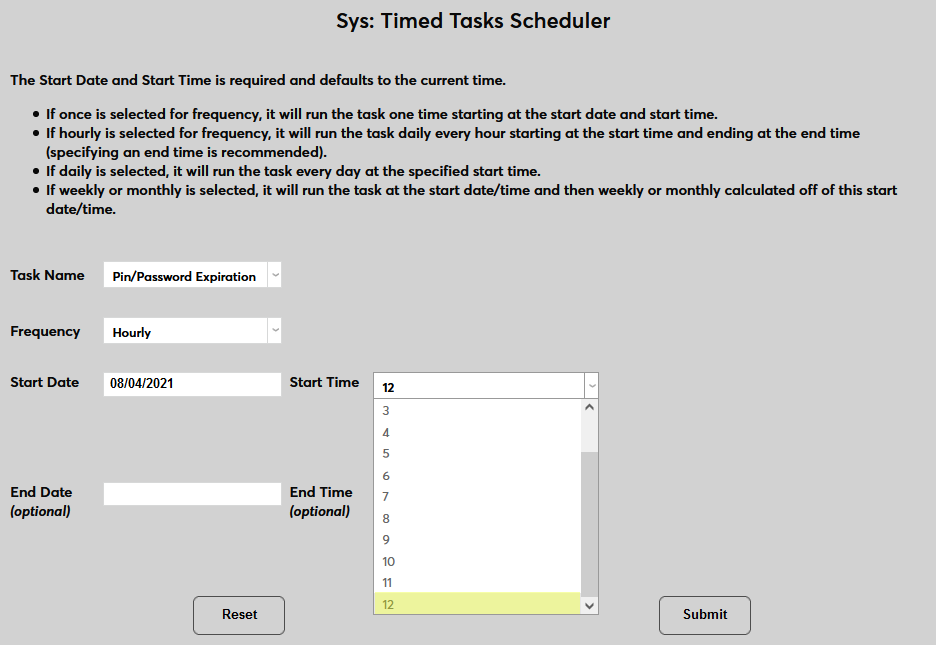
Click Submit to save the changes and create the timed task.