Evaluation Questions
Overview
The Academic: Evaluation Questions utility allows administrators to create a bank of questions that can then be used in various evaluations and questionnaires. These are most commonly used as course evaluations and reference requests. The questions are divided into four types: Text, Numeric, Multiple Choice, and True/False.
Adding and Managing Questions
Multiple Choice
Multiple choice questions allow responders to select from a predefined list of responses. These response sets are created using the Academic: Evaluation Responses utility.
To add a new multiple-choice question or edit an existing multiple-choice question, begin by clicking on the Multiple Choice question type.

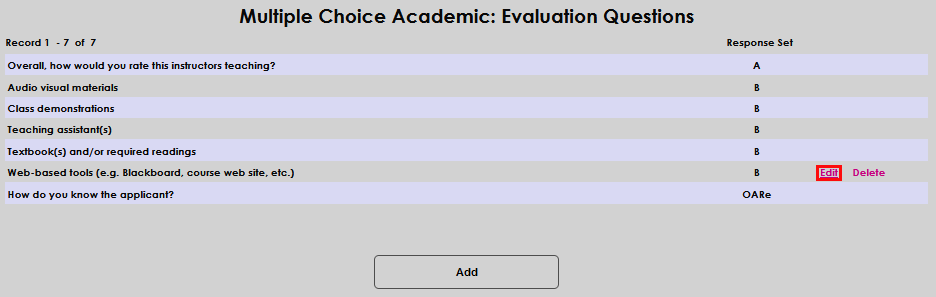
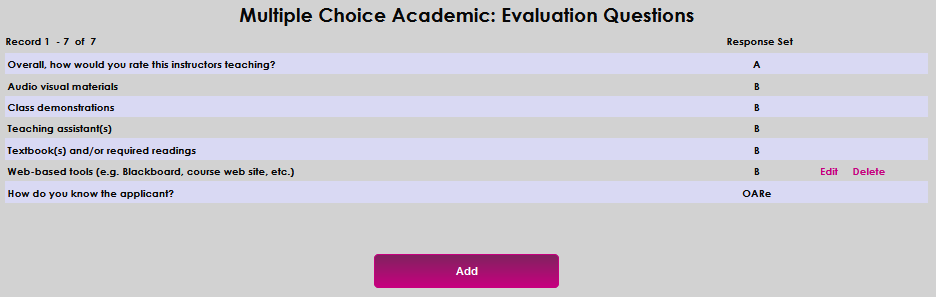
If questions have previously been created and are not assigned to an in-progress evaluation, click the Edit button to edit an existing question. Click the Add button to add a new question. Note that only questions that are not being used in an evaluation can be edited.
Enter a question in the Question field.
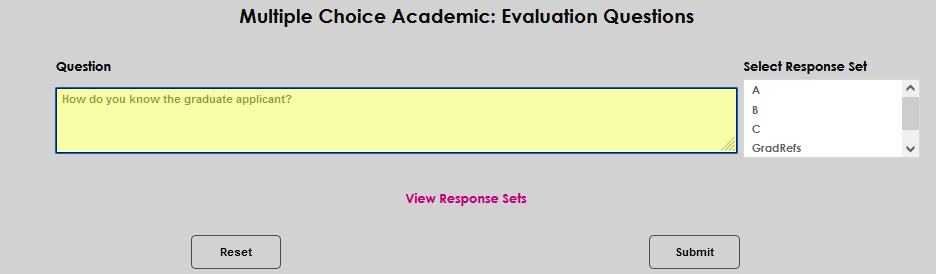
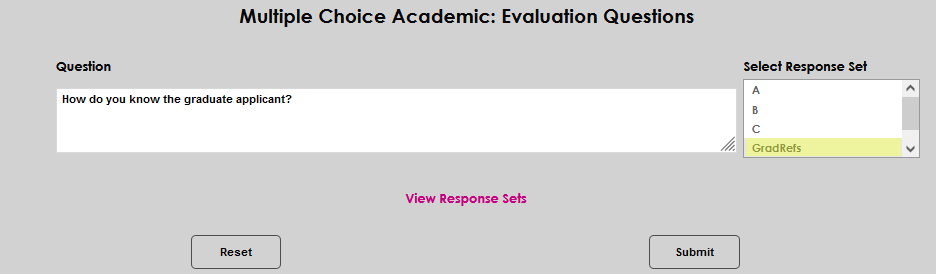
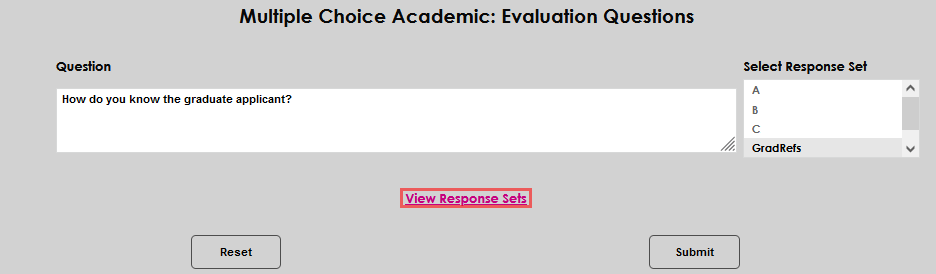
Select a Response Set of potential answers. Administrators who are unsure of which response set to select can click the View Response Sets link to display these sets in a pop-up window.
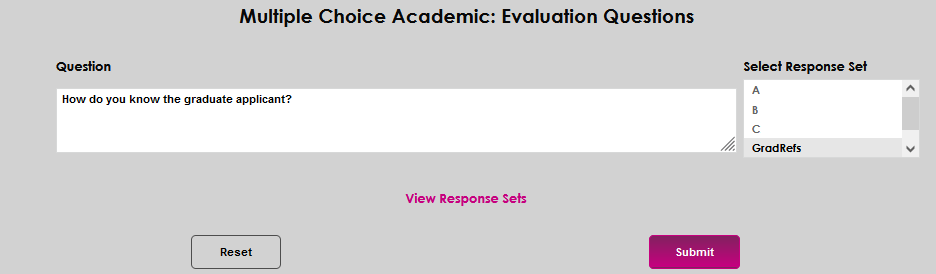
Click Submit to create the question or save the edit.
All Other Question Types
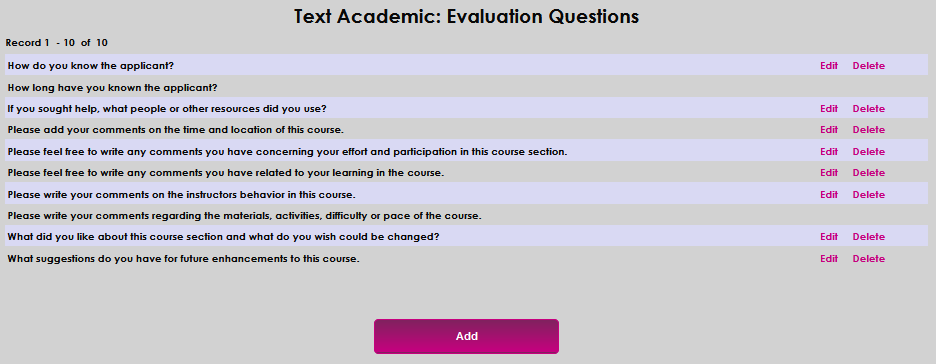
For all other question types, the setup has one less step since there are no response sets needed. Text questions allow responders to enter freeform text. Numeric questions allow responders to enter whole numbers only. True/False questions allow users to select either true or false. Click on a question type to create a new question or to edit existing questions of this type that are not assigned to an evaluation. As with multiple-choice questions, a question that is part of an existing evaluation cannot be edited.

On the following page, click the Add button to create a new question or the Edit link to edit an existing question. A reminder that only questions that have not yet been used in an evaluation can be edited.
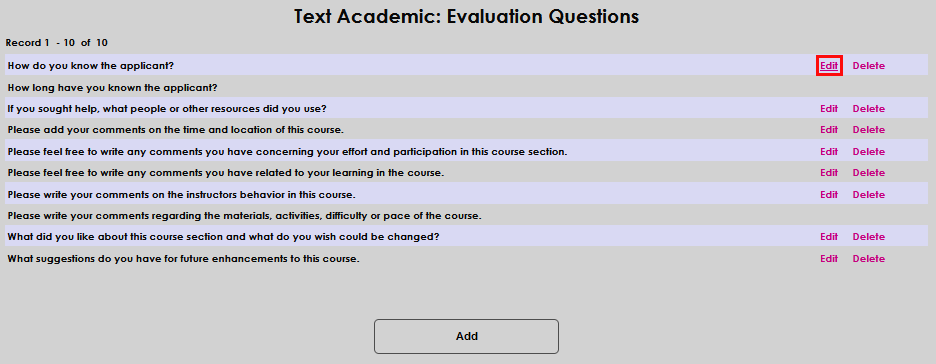
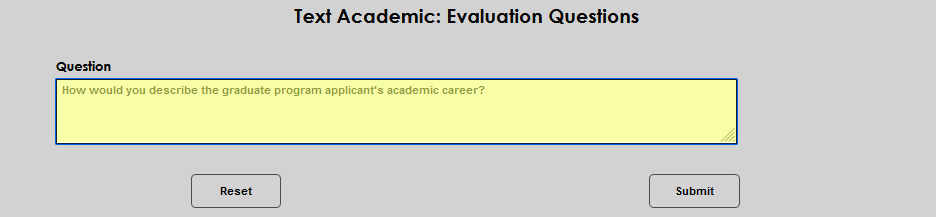
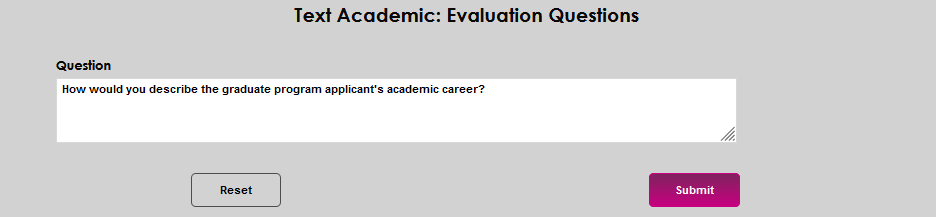
Next, simply type a new question or edit an existing question in the Question field and click the Submit button to save the update.