Search
Overview
The Faculty portal Search feature allows users to search for students, alumni, faculty, and/or staff who have published their information on the Update Bio page. The user can search by first name, last name, state, and/or graduation year.
Searching
To search, enter the Search page by selecting it from the General menu. Each of the search fields may be skipped. Only one selection or field entry must be made to execute the search. Select the type of person. The choices are: Student, Alumni, Faculty, or Staff. Only one option may be chosen at a time.
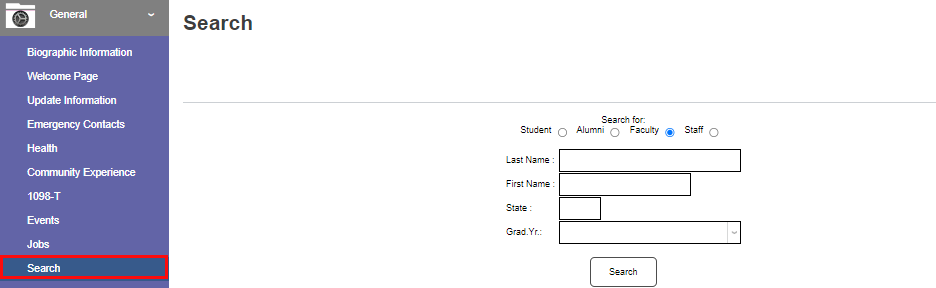

Enter some or all of the Last Name. If the exact spelling of the last name isn't known, a wildcard of % may be used to execute a broad search. In this example, the letter B and a % are used to search for every faculty with a last name beginning with B. The First Name search functions the same way as the Last Name field. In this example, Ro and a % wildcard are used.


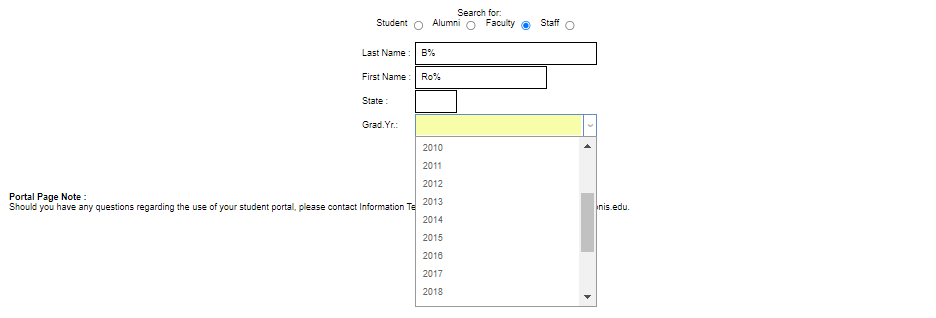
If the person being searched for is associated with a specific state, enter the two-character abbreviation in the State field. As with each of the fields, this can be skipped. If the person being searched for is an alumnus of the school, and the graduation year is known, select it from the Grad. Yr. dropdown menu. The dropdown is populated with all years for which degrees have been conferred within the school's SONIS administrative portal.

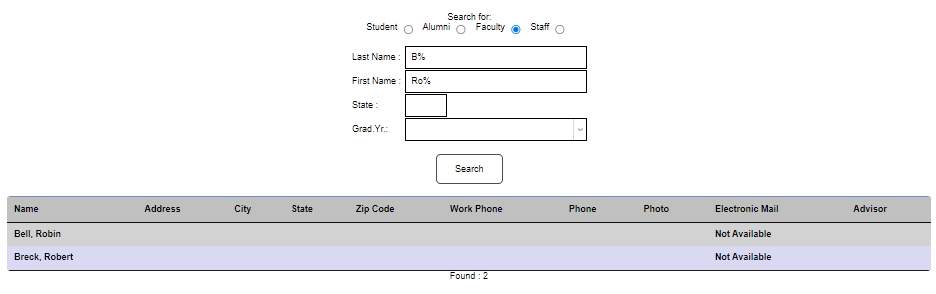
Click Search to execute the search. The search results are displayed below the search button. For each name that met the search criteria, the associated details will depend on the values the individual chose to publish.