Assessment Courses
Overview
The Systems hub page Academic: Assessment Courses provides the ability to select specific courses for assessment grading. Administrators define the questions that will be asked and the allowed scores, then select the courses to be graded using assessment of learning. Faculty will have access to grade the course using the defined elements and scores.
SONIS member institutions who wish to use this feature must have it enabled by Jenzabar SONIS Support.
Setup
The only setup required is to define the Assessment Elements required for faculty to evaluate the student's mastery of the course and the assessment scale that will be utilized to score the level at which the student met that evaluation point.
To add an assessment element, enter the Assessment Element table and click Add New Record.
The Assessment Element ID is system-generated. Enter the question or assessment statement in the Element field. This field accepts up to 85 alphanumeric characters and symbols. Click Submit to save the entry and create the new assessment element.
To add a new Score, enter the Assessment Element Score table and click Add.
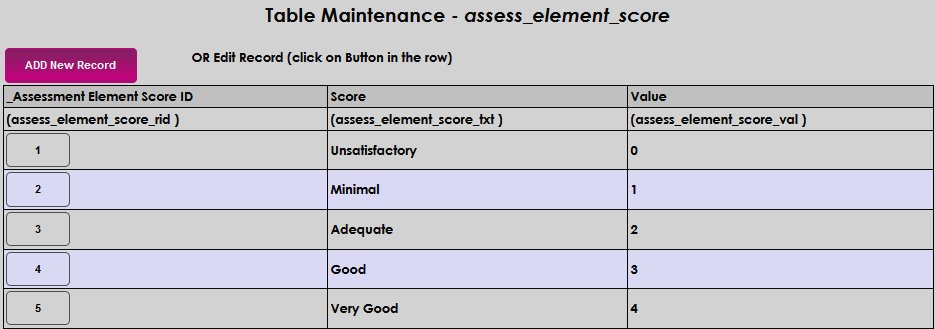
The Assessment Element Score ID is system generated. Enter up to 15 alphanumeric characters that describe the score in the Score field.

Enter the Value of the score. The value may be up to four digits. Assigned and scored assessment elements will be used to create the overall score in the course being assessed. Click Submit to save the entered information and create the element score.


Creating an Assessment Course
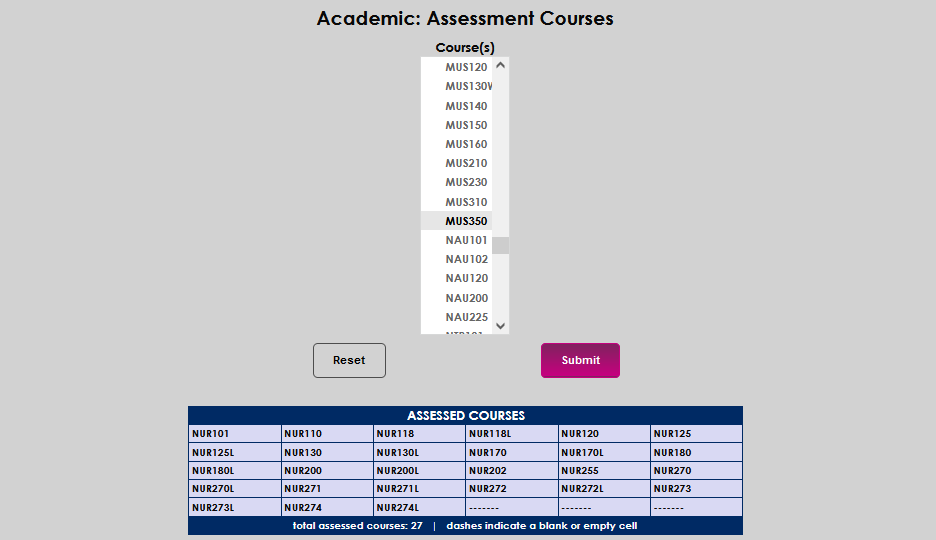
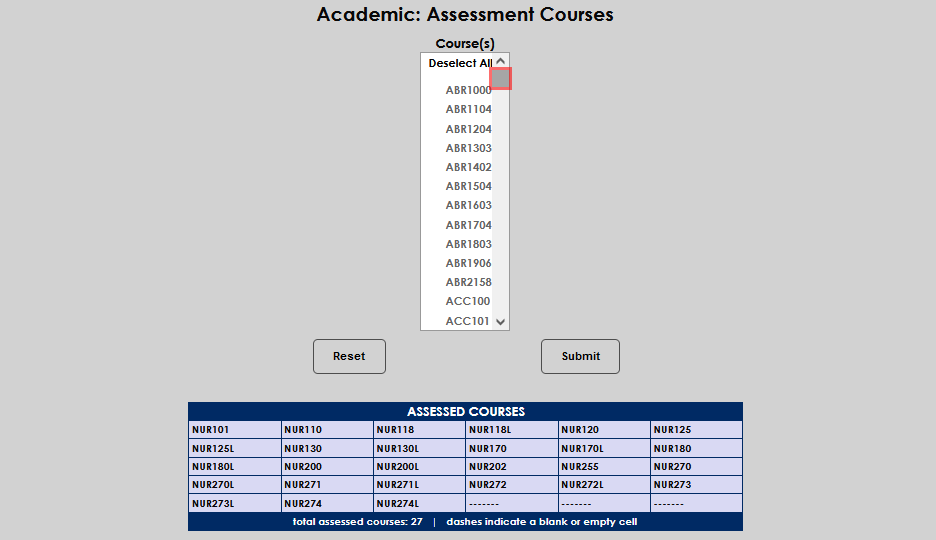
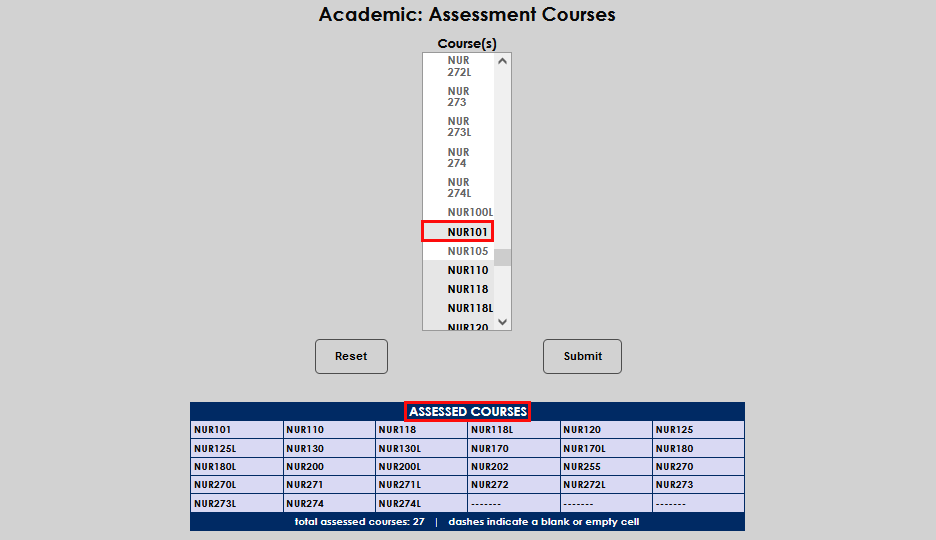
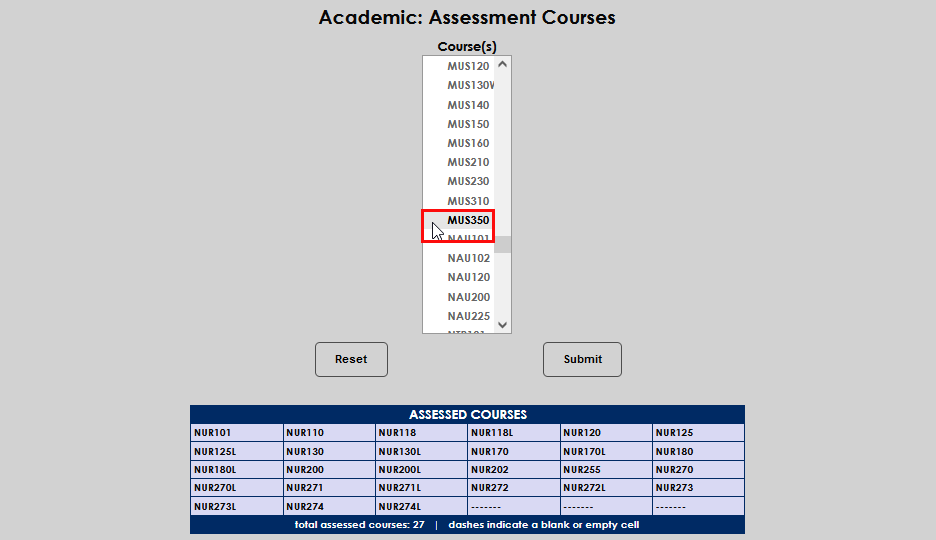
Prior to assigning assessment-style grading to a course, the course must be created. Ensure the course creation steps have been followed. If the course has been created, and is active, it will display in both the Course(s) menu and the Assessed Courses grid on the Academic: Assessment Courses page. Using the sliding bar, locate the desired course. Note that if the course is shaded in grey, it is already defined as an assessment course.
To select the course, simply click the name, and then click Submit.