Course List Utility
Overview
The course list utility is a tool that allows administrators to create lists of courses that are associated with a specific Program. Once these lists have been created, you can use the report function to see which students enrolled in the program have taken the courses in your lists. This function can be helpful in scheduling future courses.
Creating Lists
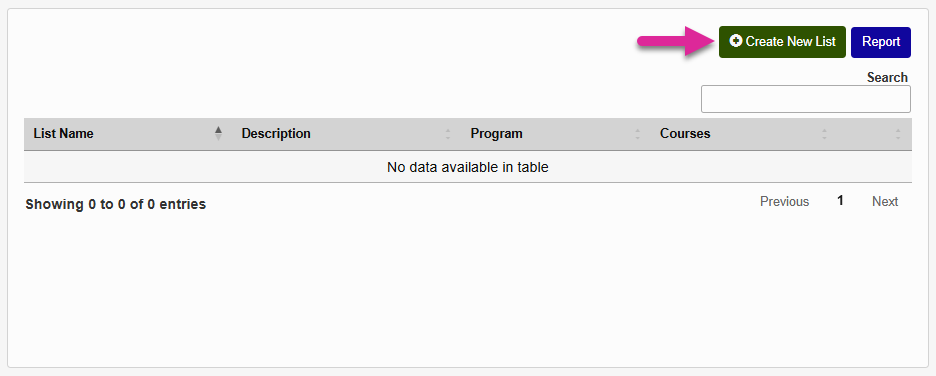
To create a course list, navigate to the Course List Utility under the Systems hub. Begin by clicking the Create New List button.
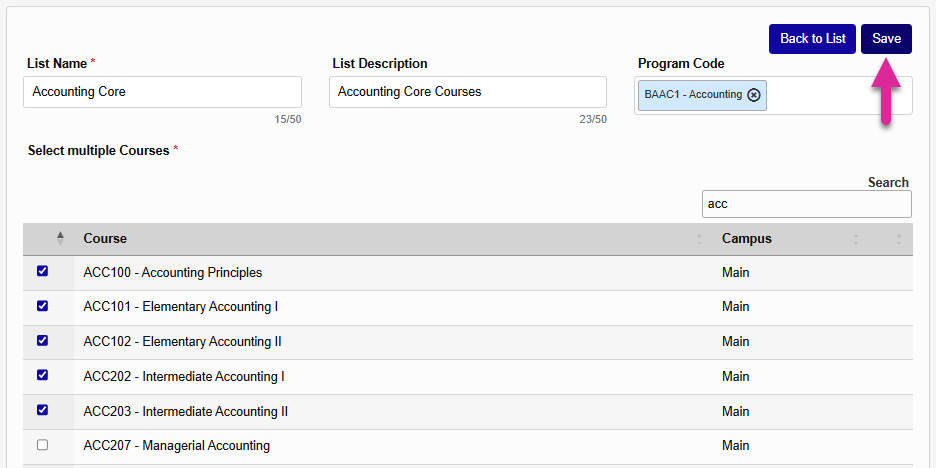
On the next page, create a List Name and an optional List Description. Both fields have a 50 character limit.
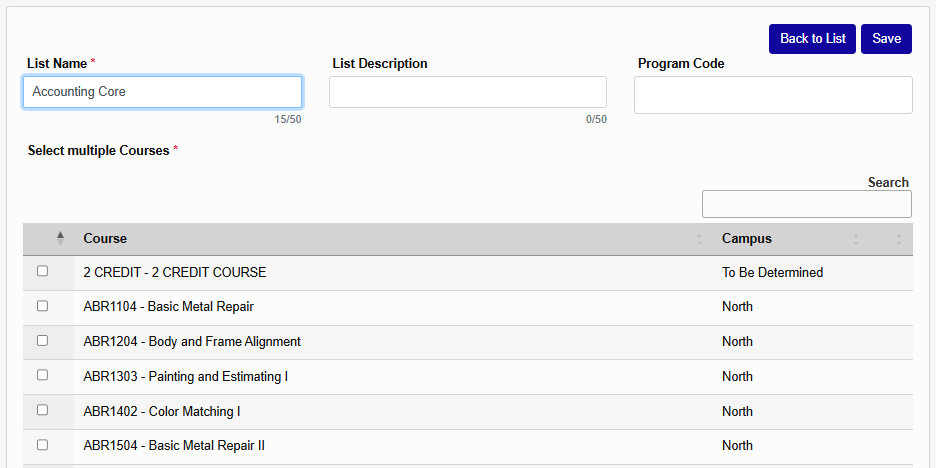
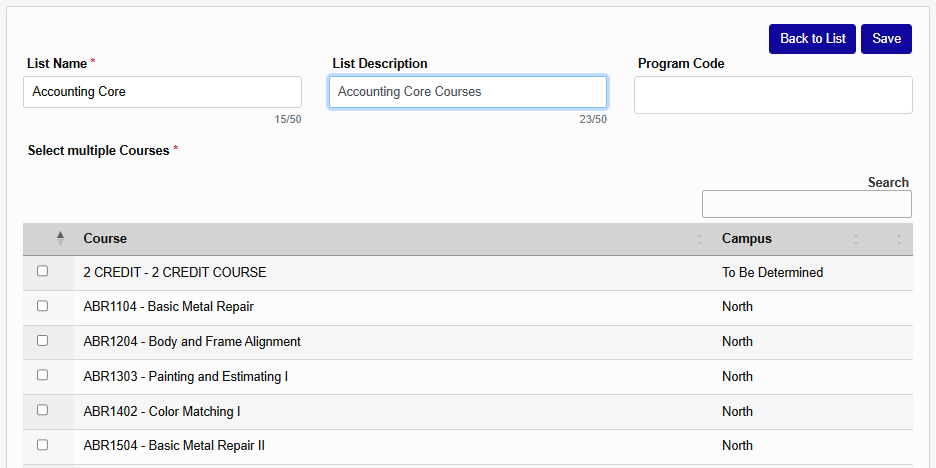
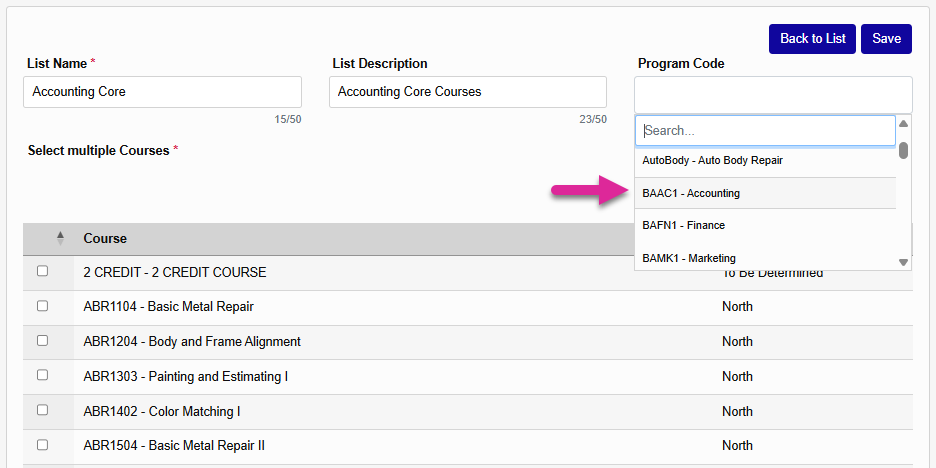
You can also select one or more Program Codes to associate with this list. This association is purely informational and won't affect other parts of the system. But only programs that have been associated with at least one course list can be used in the report.
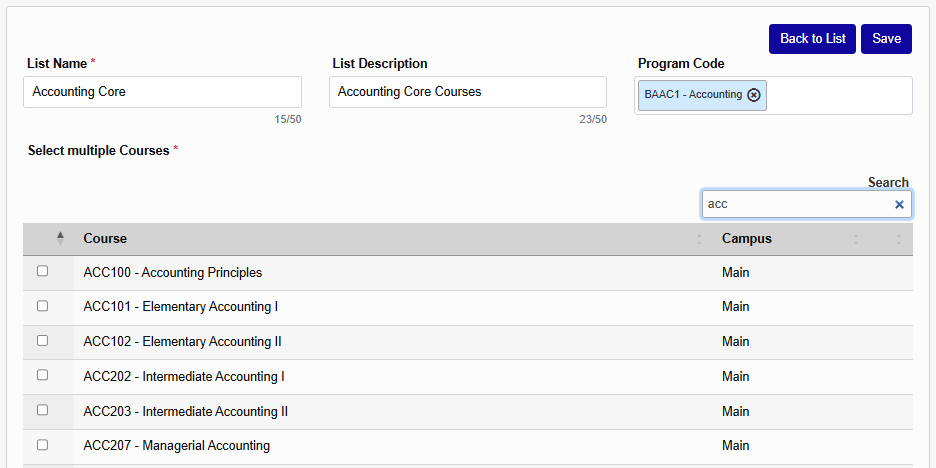
Select Courses to fill out the list. You can use the Search box to narrow down the list . You can also sort by the course or campus in ascending or descending order using the up and down arrows at the top of the table.
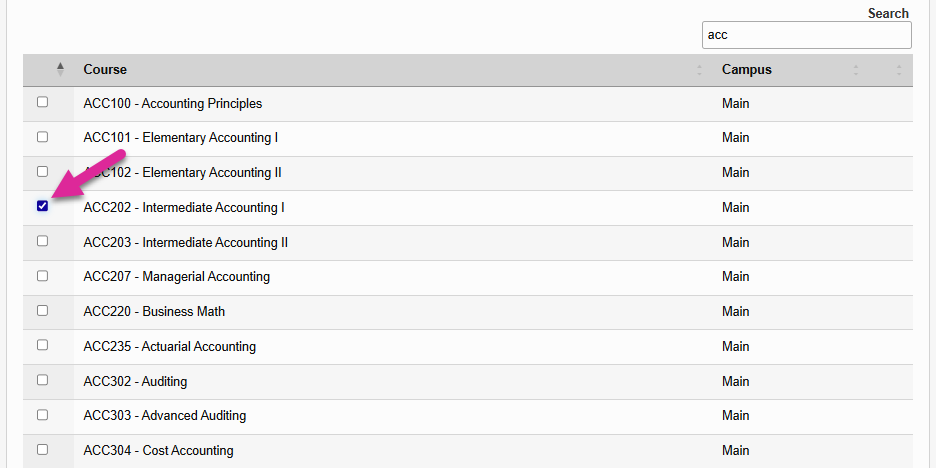
Once you've selected the appropriate courses for your list, click Save to create it.
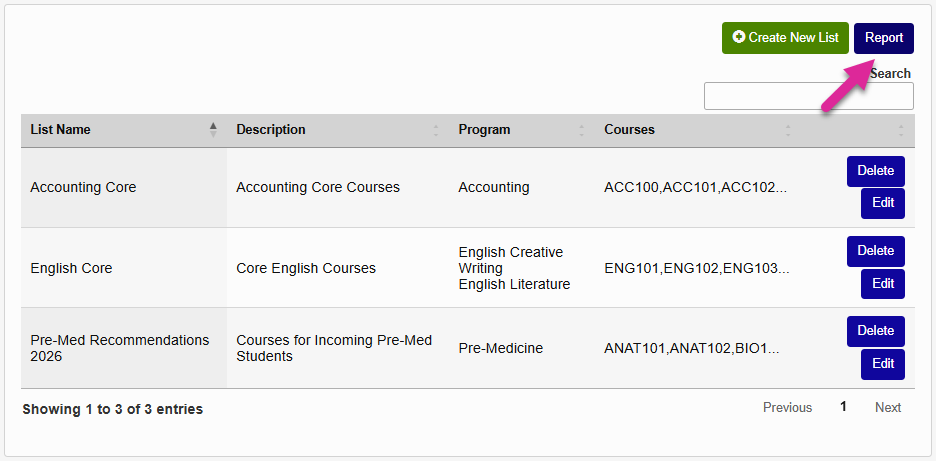
Once you've created a list, you can use the Edit button to make changes or the Delete button to remove it from the system.
Running the Report
To run the Enrollment History by Program report for one of the lists you've created, click Report.
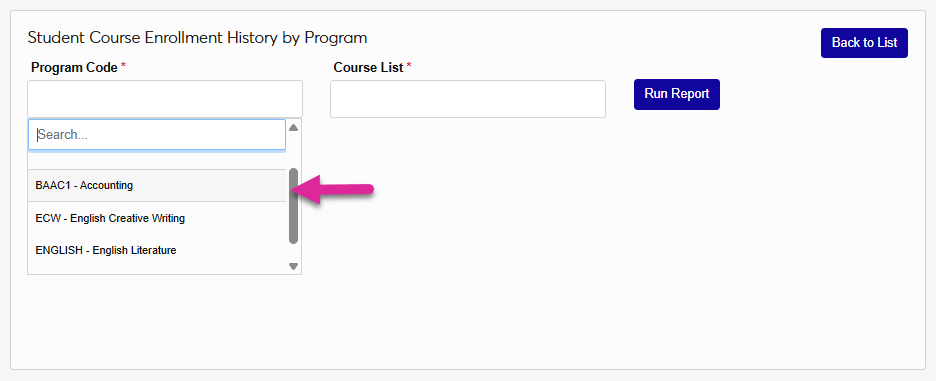
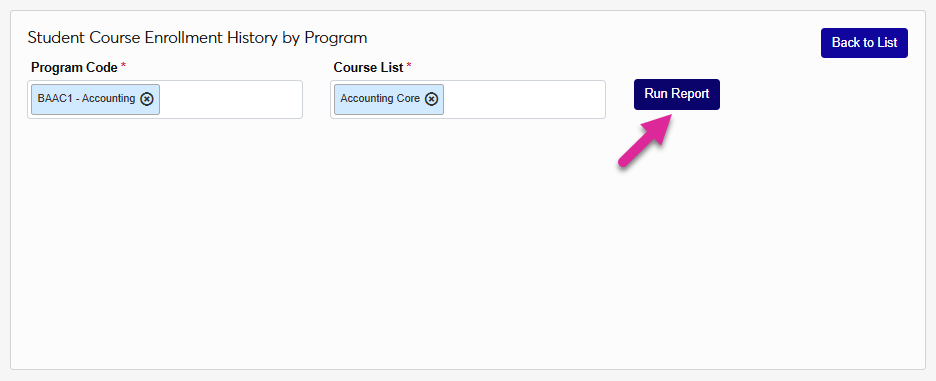
Select one or more options from the Program Code menu. Only programs that you've previously associated with a course list are available to be selected.
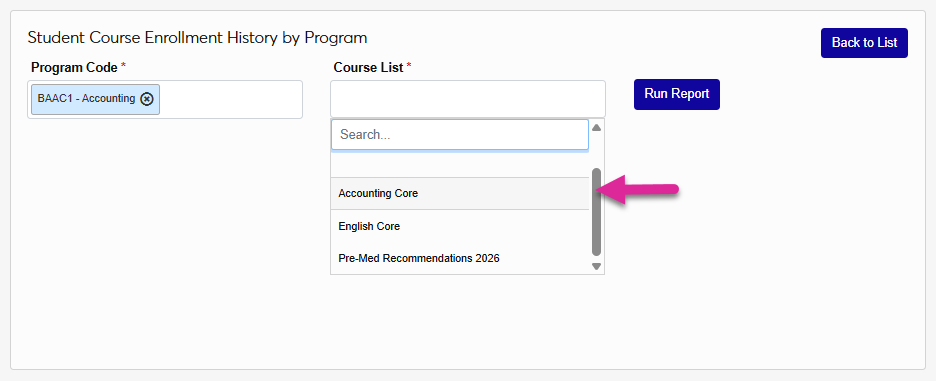
Select a Course List and click Run Report.
Note
When you run the report, an Excel file is created and begins downloading to your computer.
The report page displays every student and every course with a totals row at the bottom. You can use the Search Box to narrow down the results and the Export to Excel button to download another copy. You can also sort by each column header in ascending or descending order using the up and down arrows next to the label.
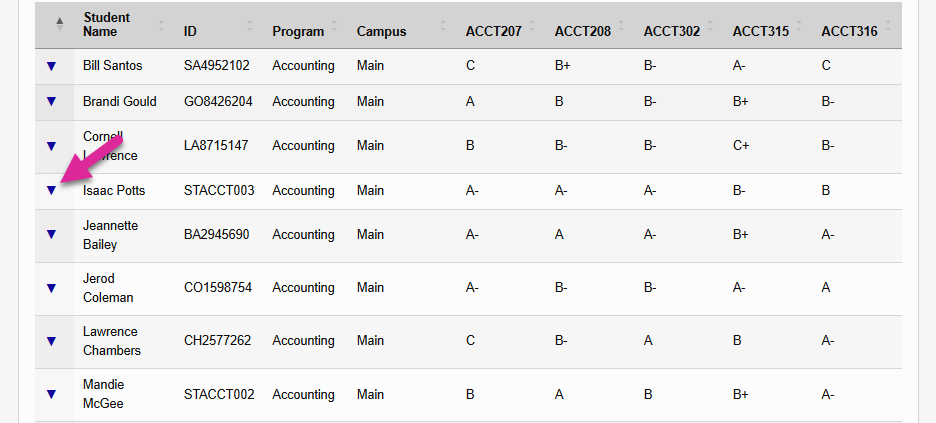
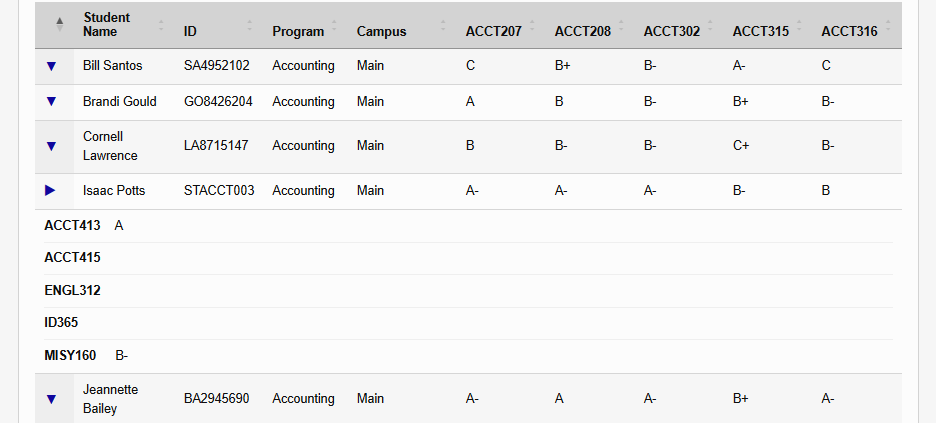
If your list of courses is too long to fit on one line horizontally, click the down arrow on each row to expand down and see the additional courses.