Hold Refund Request
Overview
Students who have received financial aid often have money left over after the refund money is applied to their existing bill. While some may need this money for books, living expenses, or other costs that are not covered in their bill, others may wish to have any positive balance applied to future bills. The Jenzabar SONIS system allows students to request that their refund balance be held through the Student portal. This request will then be displayed throughout the system so administrators who work with billing and financial aid will be notified and make the proper adjustments.
Activity Setup
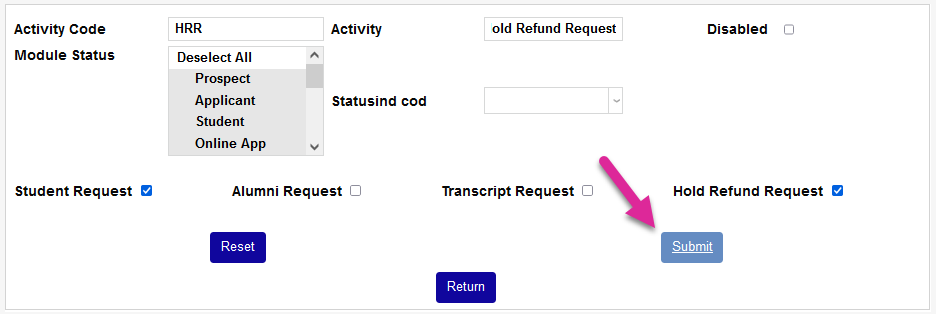
Before students can request a refund hold, a hold request activity must be created in the SONIS system. Navigate to the Activities Systems utility and click Add Request.
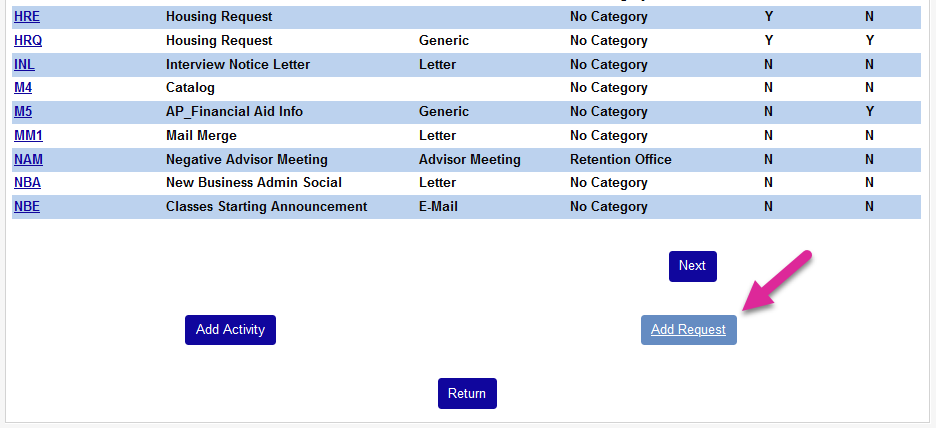
On the following page, create an Activity Code, the abbreviation for the request that will be used to store it in the database. The field has a three-character limit.
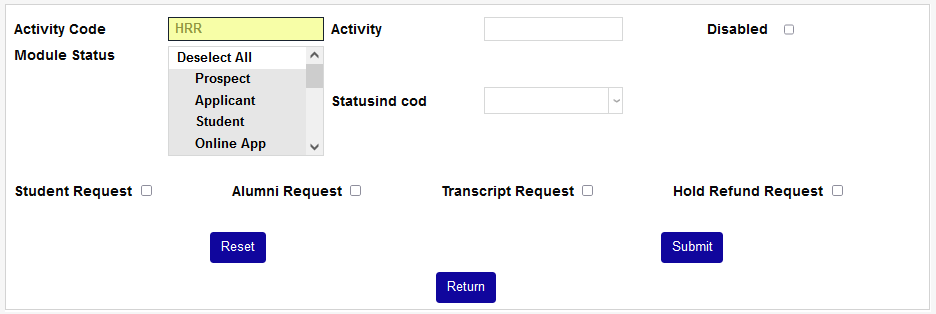
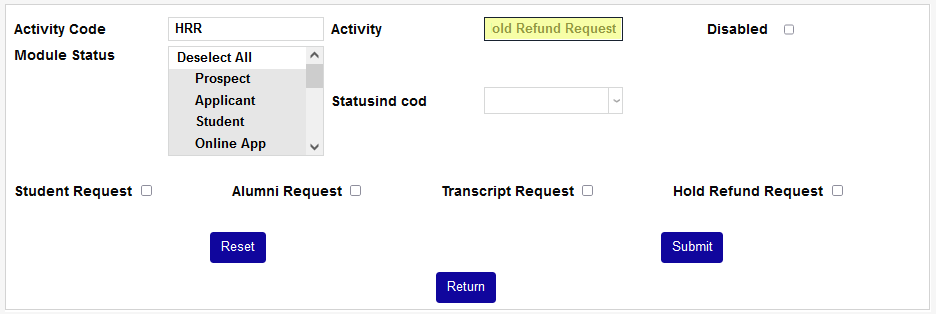
Then name the Activity itself. This should be a descriptive name that students will understand. The field has a 30-character limit.
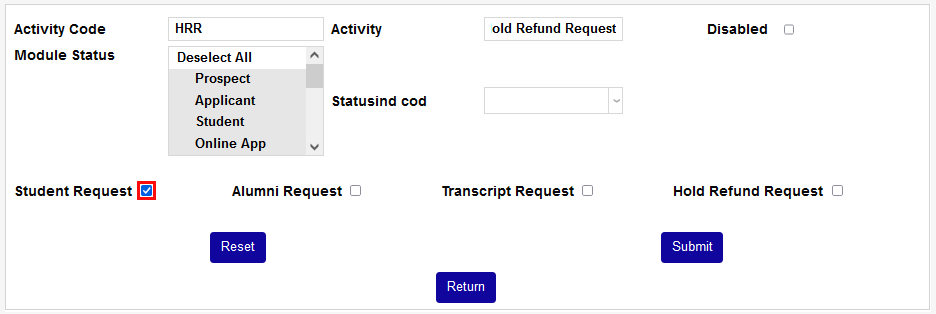
Check the Student Request box. This will ensure that the request appears as an option in the Student portal.
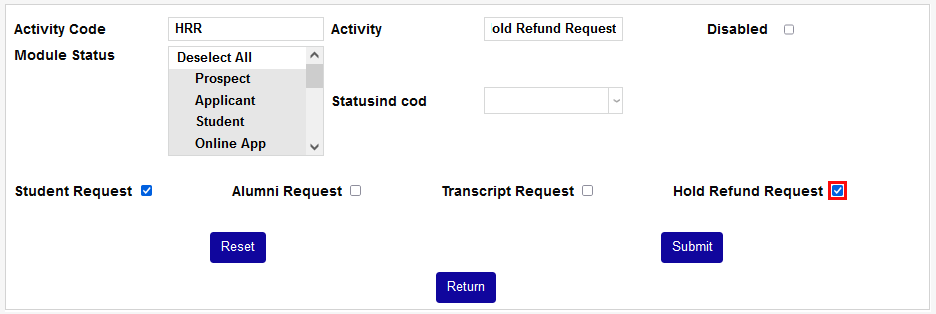
Check the Hold Refund box as well to designate the activity as a request of that type. Click Submit to save the changes.
Making a Request
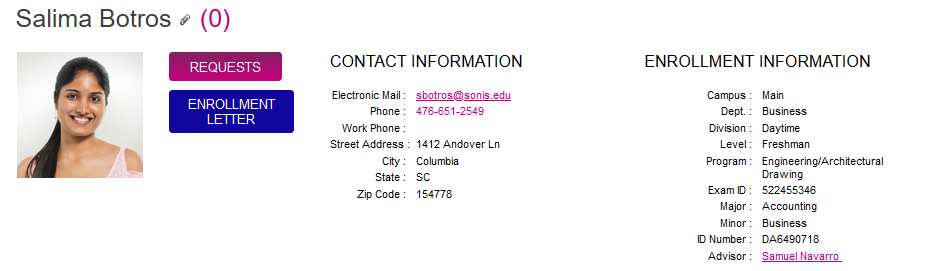
To make a hold refund request, a student should navigate to their Bio page and click the Requests button. A new window will open.
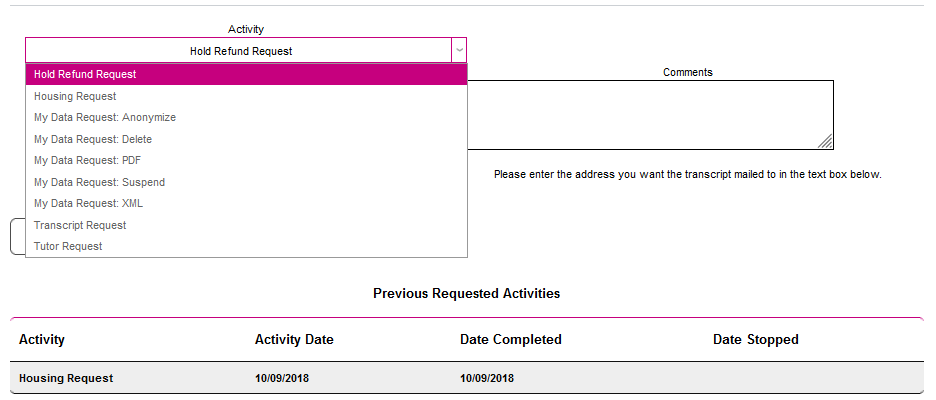
In the new window, the student will select the activity designated as a hold refund request from the Activity dropdown menu.
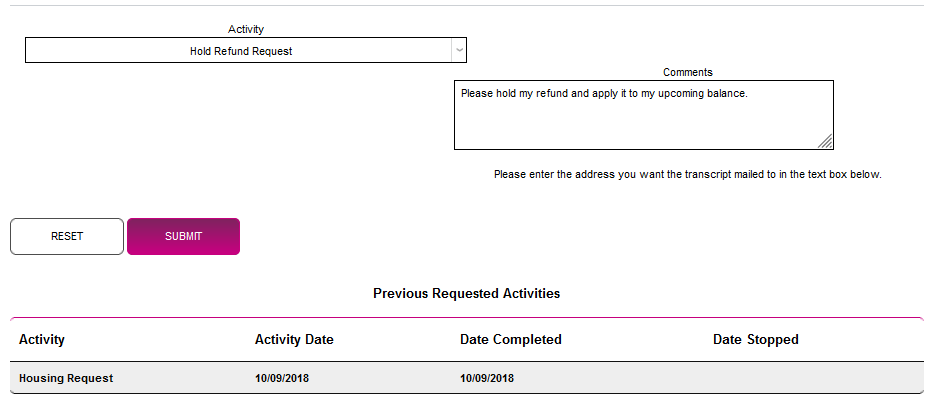
The student can choose to add Comments or leave this field blank. They should click Submit to submit the request.
Activity Record
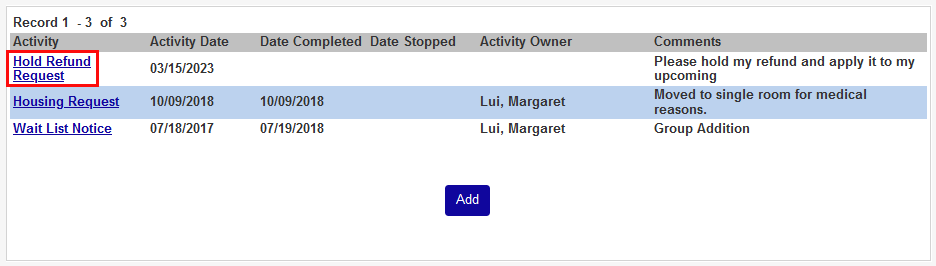
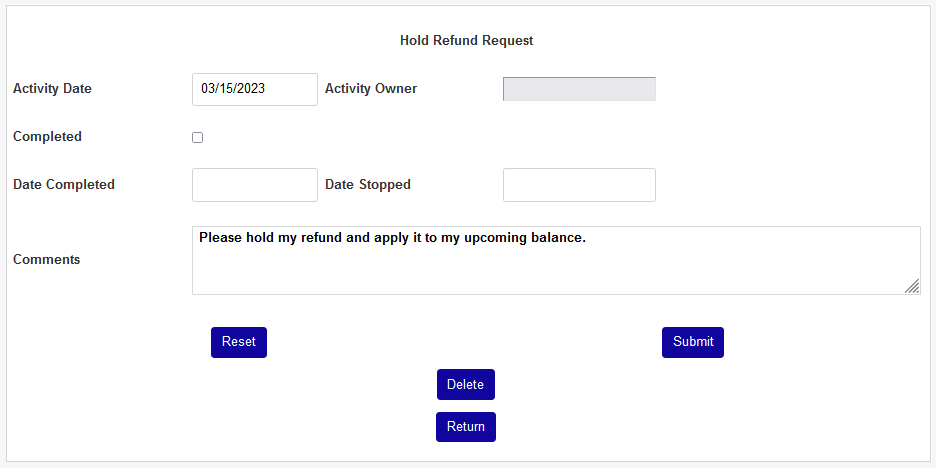
Once a student has placed a hold refund request, that request is added to their records. To view the request, navigate to the student's Activities record and select the activity. From here, it can be assigned to an owner, marked completed, edited in another way, or deleted.
Reports
Payables Report
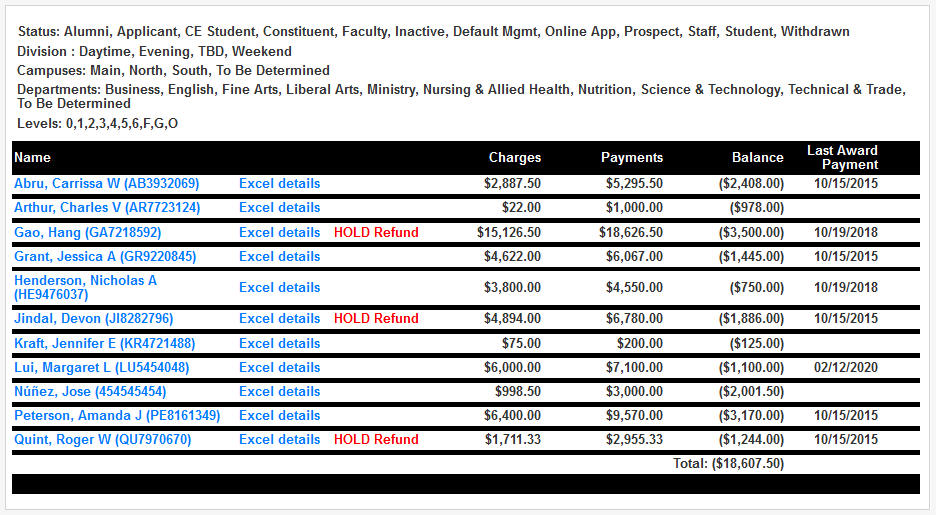
The Payables Financials report is designed to provide a quick overview of owed balances. Students who have requested that their refunds be held are marked with a "Hold Refund" designation in this report.
Hold Refund Request
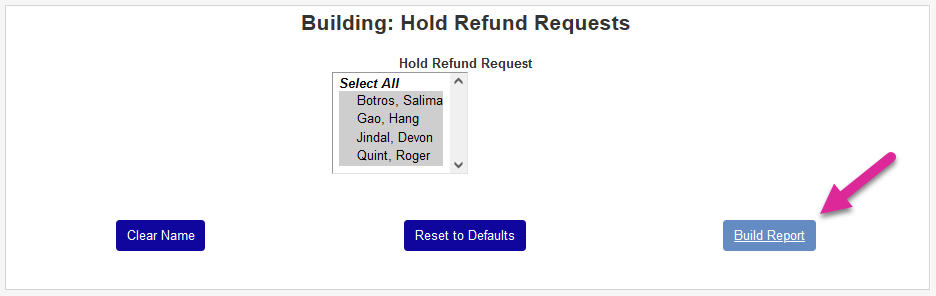
Additionally, a report has been created to display students who have outstanding hold refund requests. Navigate to Hold Refund Request under the Reports menu to access it. Leave all students selected or unselect one or more and click Build Report to continue.
On the following page, click Preview Report to open the report.

Administrators can also mark hold requests as completed from this page. Click Post Activity Completed to mark the hold requests of all the previously selected students as completed.

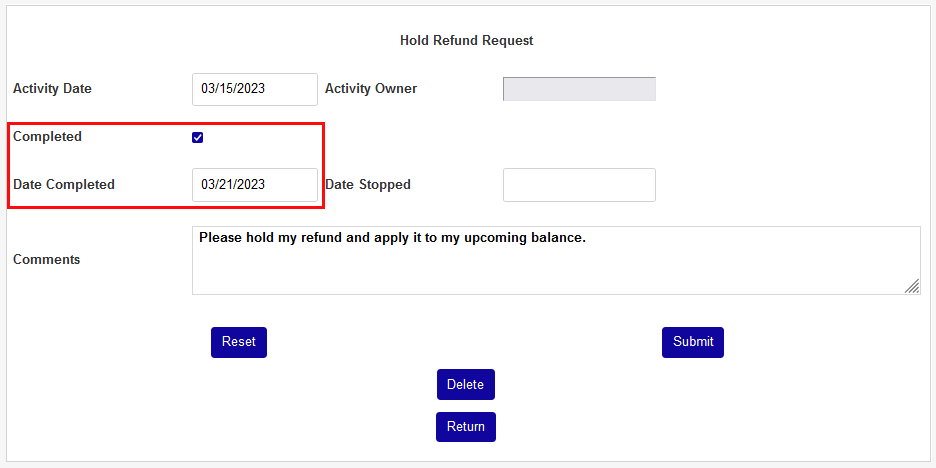
Once requests have been marked as completed, they will no longer appear in the report.
Refund Exports
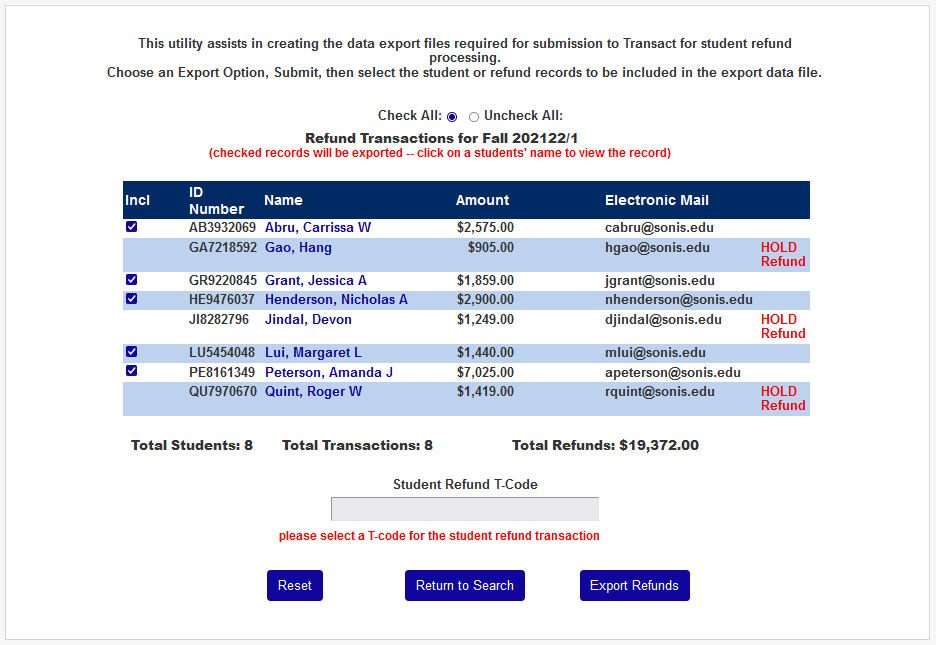
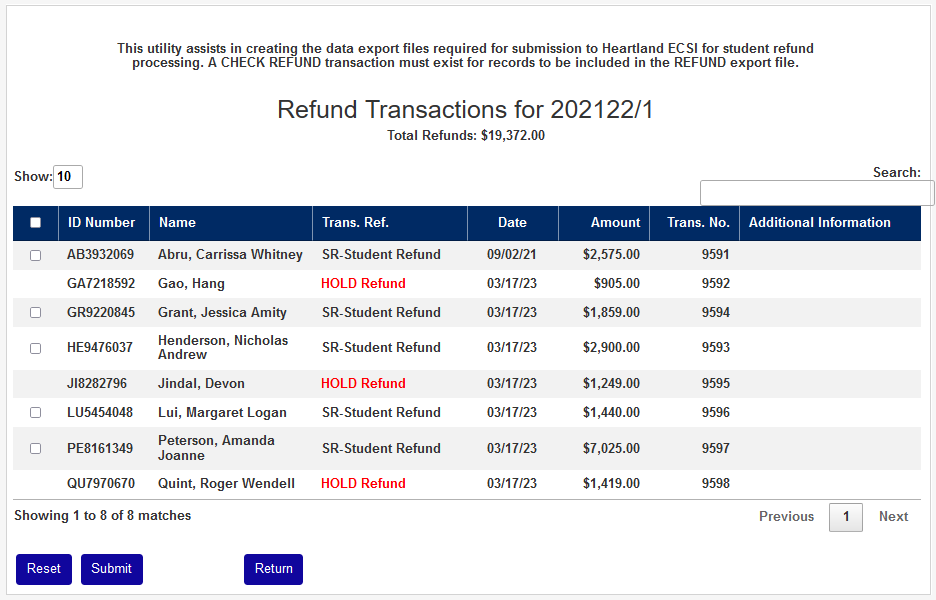
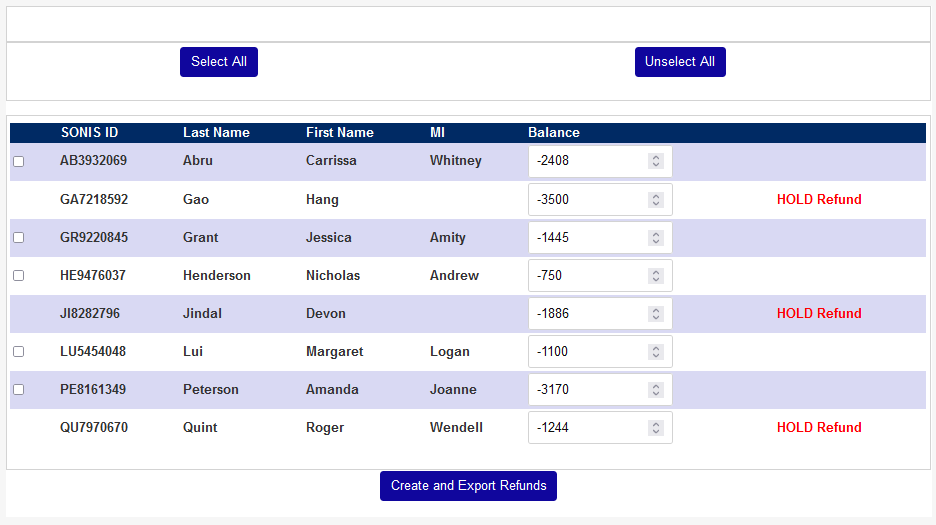
Jenzabar SONIS allows clients to export refund data to a few different third-party systems for processing. Each of the export utilities listed below displays refund requests and will not include the refund data for students with hold refund requests in the export file.