Citizenship/Ethnic IPEDS
Overview
The Citizenship/Ethnic IPEDS page, available in the Users hub, serves two purposes: 1) ethnicity, citizenship, visa, and SEVIS information can be entered and recorded, both manually and via the online application, and 2) IPEDS student ethnicity categories can be maintained for reporting purposes.
For more information, click here to access a recorded conference session about IPEDS reporting in SONIS.
User Security
To safeguard privacy, the SONIS system prevents administrators from viewing or editing a user's ethnicity unless they've been granted the Ethnicity Access User Security permission.

Note
This permission is also needed to view or edit a user's ethnicity anywhere else in the system, including the Biographic page, the Admissions Hub, the User Summary page, and any report that contains gender or ethnicity information.
Citizenship Information
To add citizenship information, navigate to the Citizenship/Ethnic IPEDS page from the Users hub. Click the Add button.

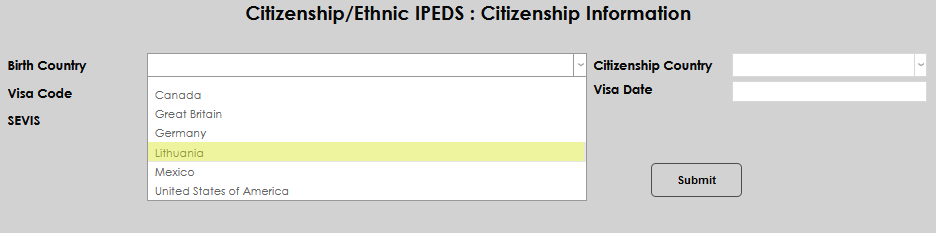
Select the Birth Country from the drop-down menu. If the needed country isn't available, an administrator must add it to the Country table.
Select the Citizenship Country from the drop-down menu. If the needed country isn't available, an administrator must add it to the Country table.
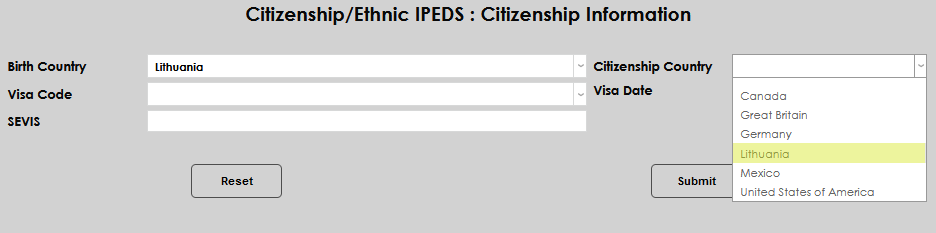
If applicable, select the individual's Visa Code from the dropdown menu and enter the Visa Date, which is the date on which the visa was issued.
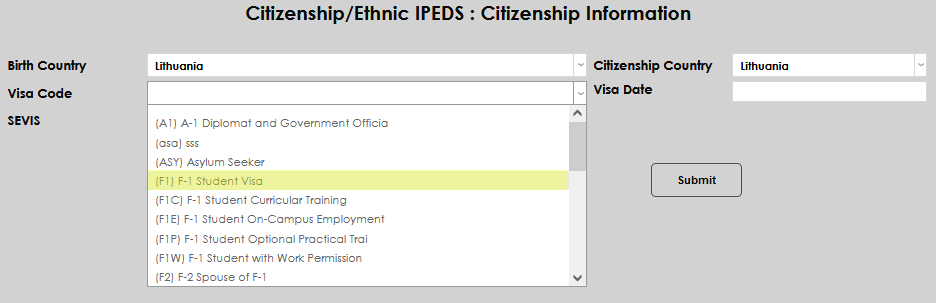
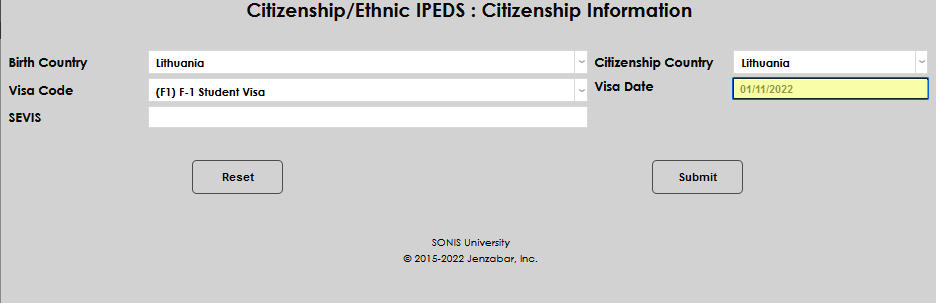
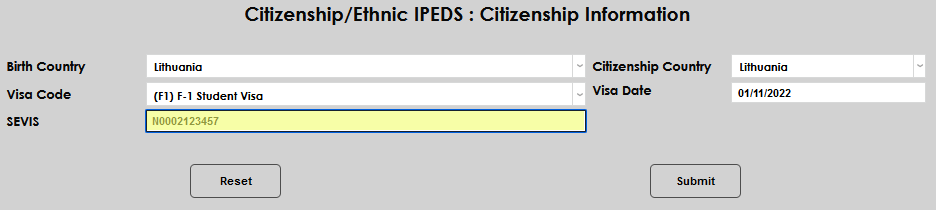
Enter the individual's SEVIS number in the SEVIS field.
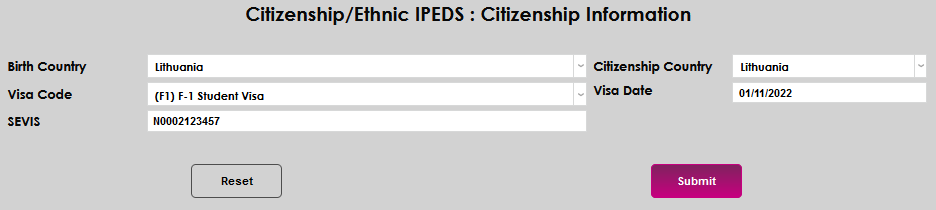
Click Submit to save the entries.
IPEDS Ethnicity Data
Ethnicity data needed for IPEDs reporting is entered on the web application and fills, or manually entered by a user in, the Users hub page Citizenship/Ethnic IPEDS. If ethnicity information is already on file, a link labeled IPED Ethnic Data will display. This link is used to modify existing data. If no link displays, proceed with adding the data, otherwise, use the link and edit the existing information.
To add ethnicity information manually, navigate to the page and select Add IPED Ethnicity Data.
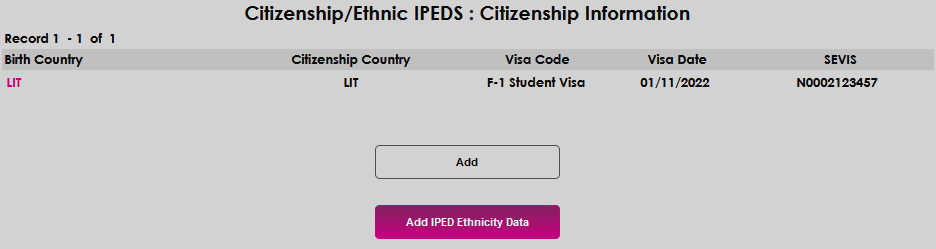
If no ethnicity data is currently on file, No Ethnicity Recorded will display.
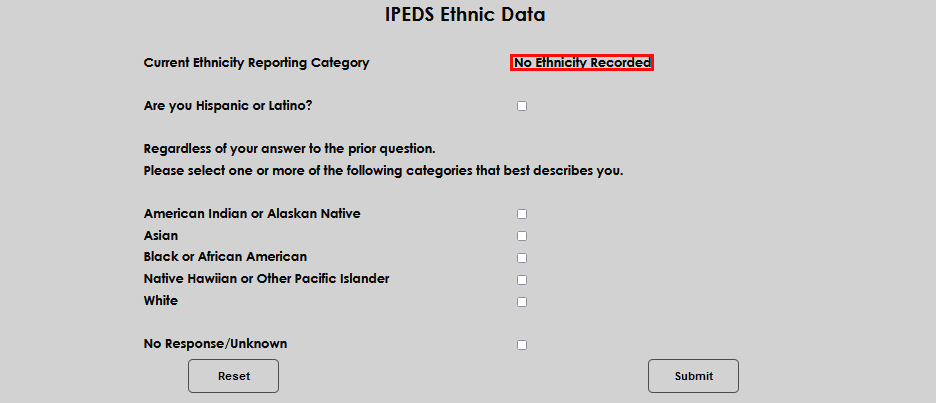
If the student has reported they are Hispanic or Latino, check the box to indicate their positive response. If they have not, leave this box blank.
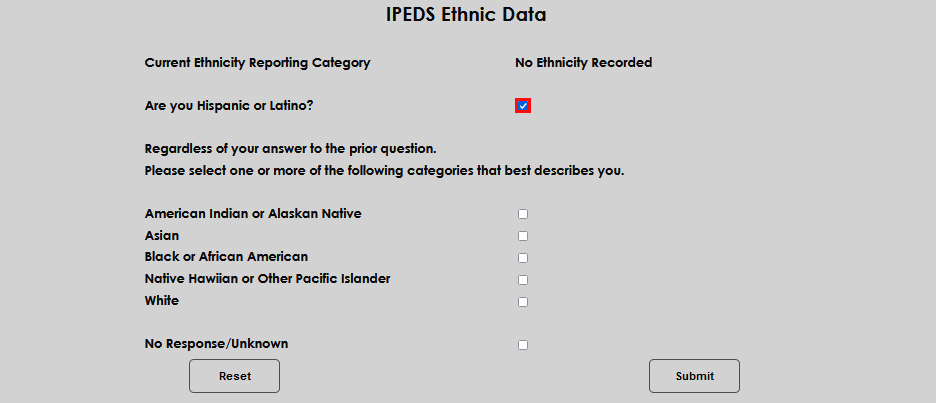
Enter the student's response to the ethnic category question, or enter No Response/Unknown if they did not provide a value. Click Submit to save the entered data.
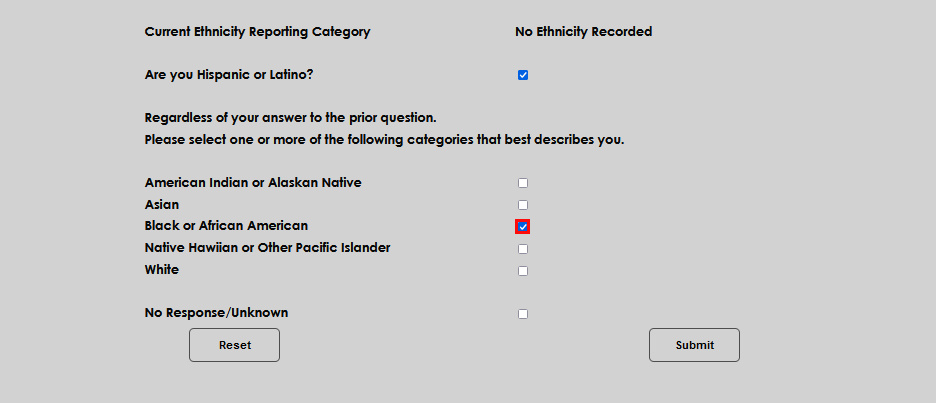
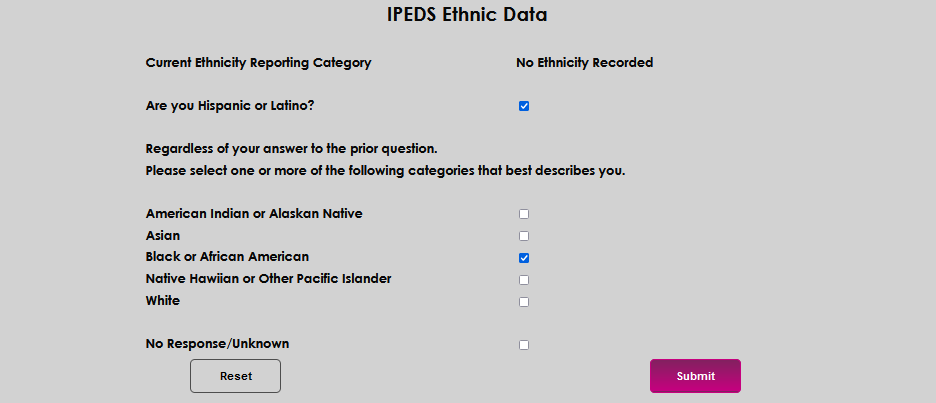
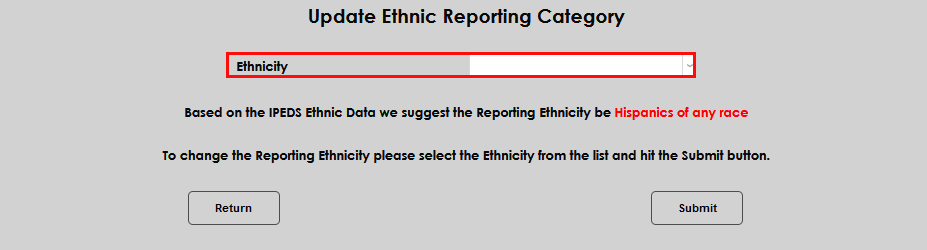
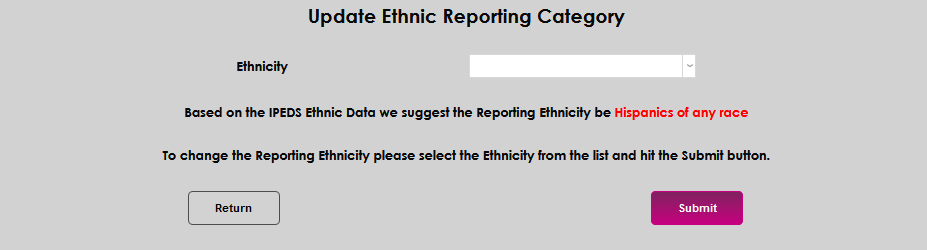
After submitting, SONIS will suggest what the Reporting Ethnicity should be. In this example, it is Hispanics of any race.
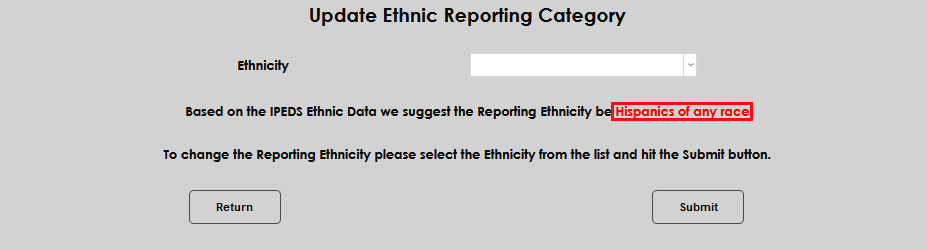
If the suggestion is incorrect, select the desired reporting ethnicity from the Ethnicity dropdown. Click Submit to save the suggest ethnicity or the updated ethnicity.