Biographic Information
Overview
The Bio page, available within the General folder or from the top menu, contains selected information from the user's demographic and academic records. Alumni can view their contact and enrollment information, access a list of their local courses and transfer courses, view notes added by administrators, and make requests for transcripts or other needs.
The Bio page is turned on and set up using the Portal Menu Utility in the Systems hub. The Employer portal can be accessed by the individual defined as the Primary Contact in the Employer record.
Biographic Information
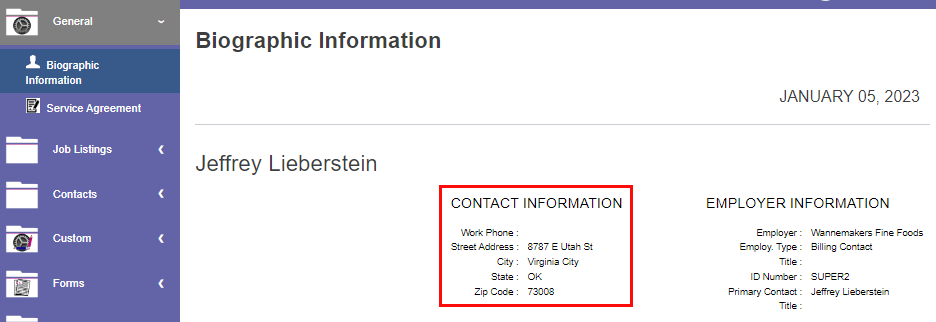
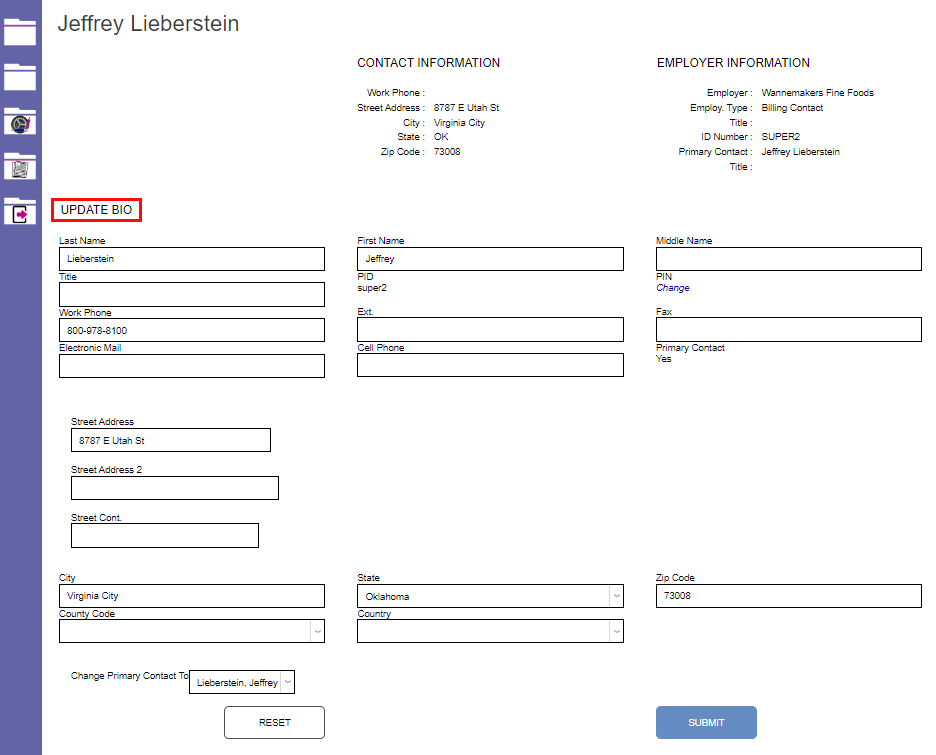
If entered as part of the Employer record, the Work Phone, Street Address, City, State, and Zip Code will display under the Contact Information header or Biographic Information menu label.
Administrators can update employer information using the Employer page in the Systems hub.
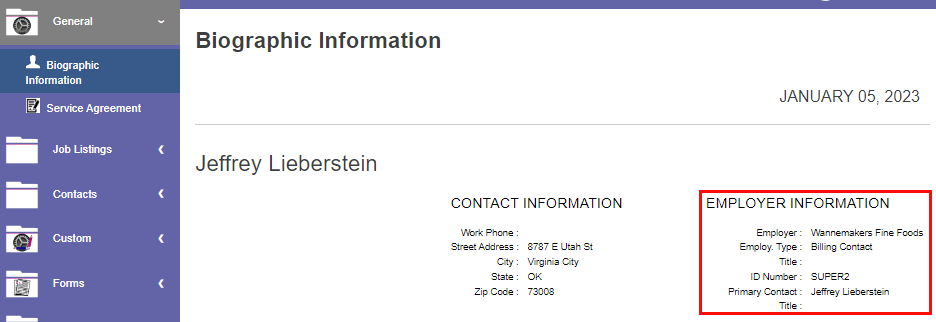
The Employer Information section displays as defined in the Employer record.
In the Update Bio section of the page, the user can update any of the existing contact information, add any missing information, and change the primary contact to any other users associated with the Employer record. After making edits or additions, click Submit to save to SONIS.
Users can not add new contacts to the record via the portal. Adding contacts associated with the employer record can only be done using the Employer Systems hub page.
PIN Change
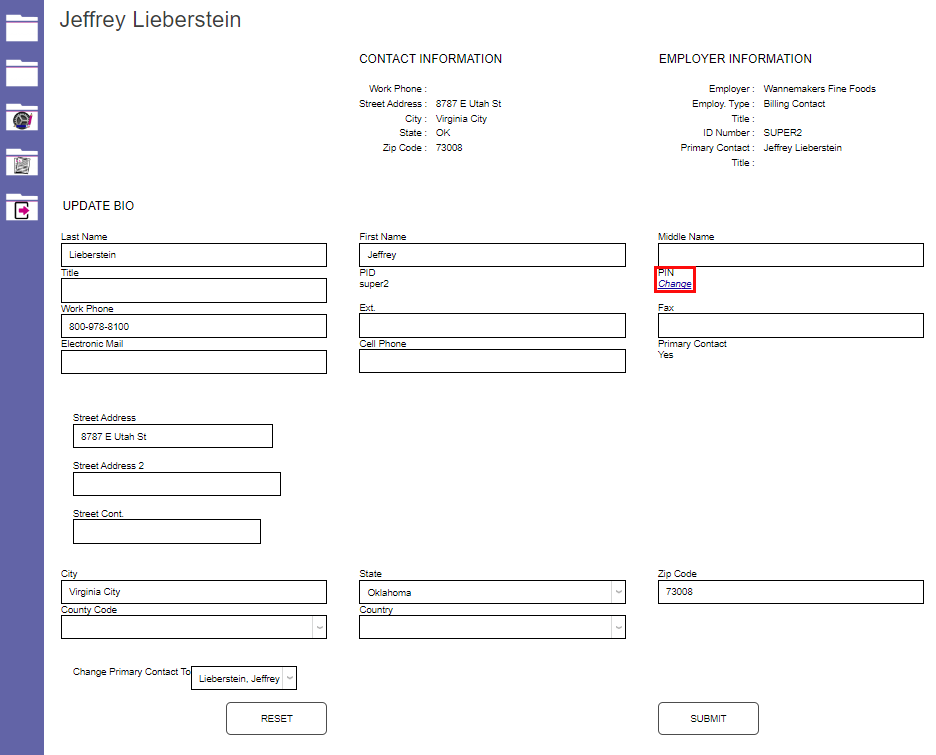
Users can also change their PIN in the Update Bio section if this function is enabled by administration. To begin, click Change.
Administrators, turn off on off the ability to edit pins using the Portal Menu Utility.
Service Agreement
If enabled by administration, Service Agreements can be accessed and responded to within the Biographic section of the Employer portal. This feature can also be used for policy changes, important campus news, and anything else that school administrators want to ensure that users read and confirm receipt of.
When a service agreement is enabled, it will be the first page displayed the first time the employer logs into the Employer portal. The Employer representative must accept or decline before they can proceed to other portal areas. If the representative declines, access to the portal will be automatically removed and the user will immediately be logged out of the portal. If they log back in, the service agreement will again be presented. If they accept, the representative may continue to portal navigation pages.
Administrators can learn more about this feature in the Terms of Service Agreements article,
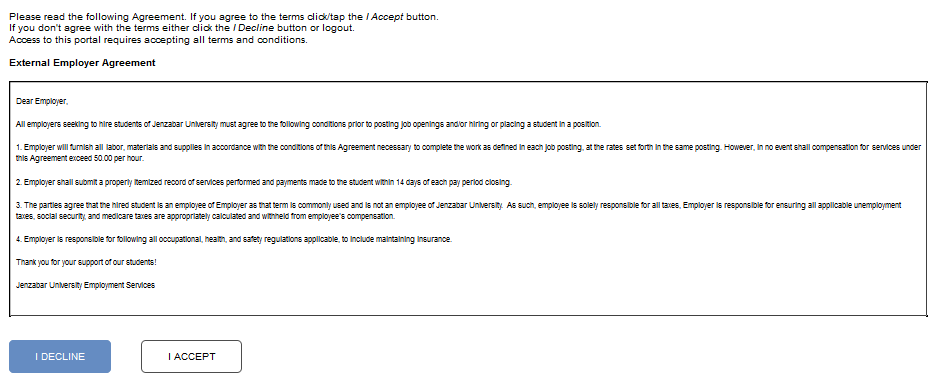
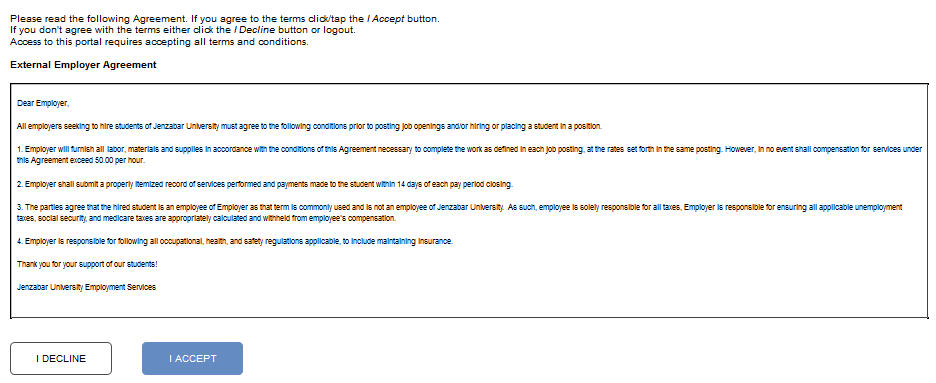
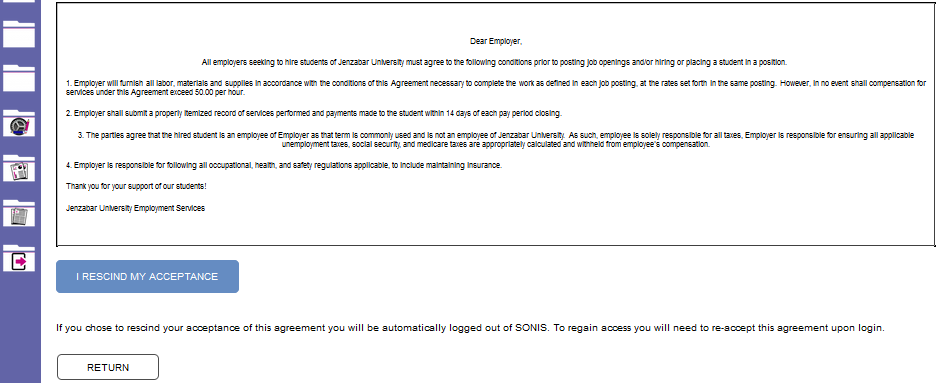
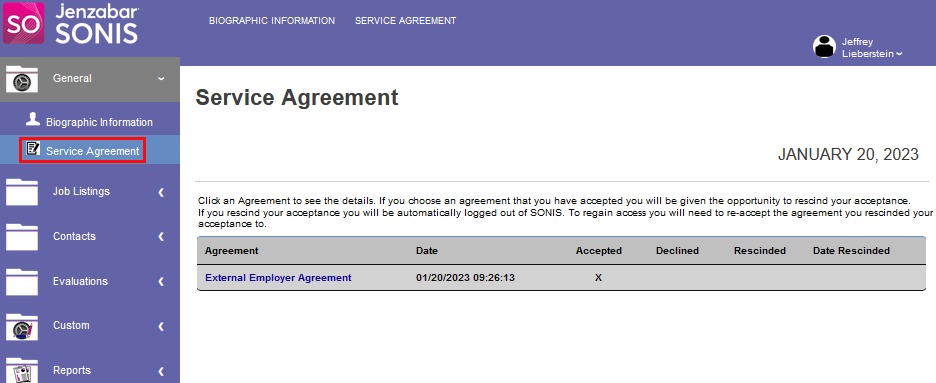
After accepting, the Biographic page will display, which includes a link to view any current Service Agreements. Clicking Service Agreement displays the agreement and it's acceptance status. The agreement can be viewed by clicking the Agreement link.
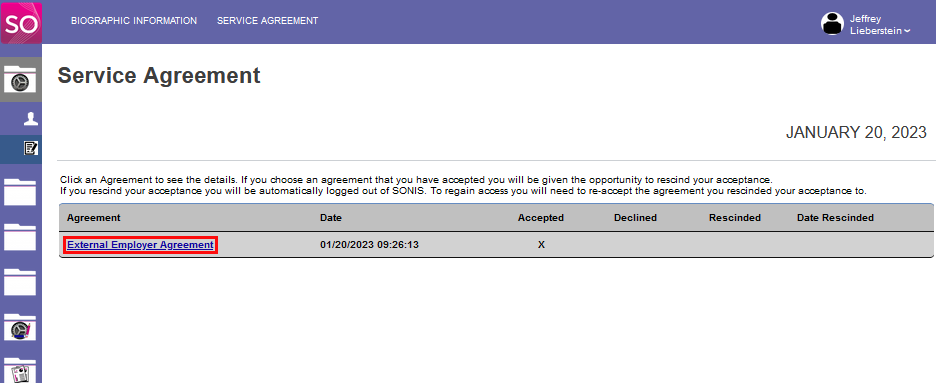
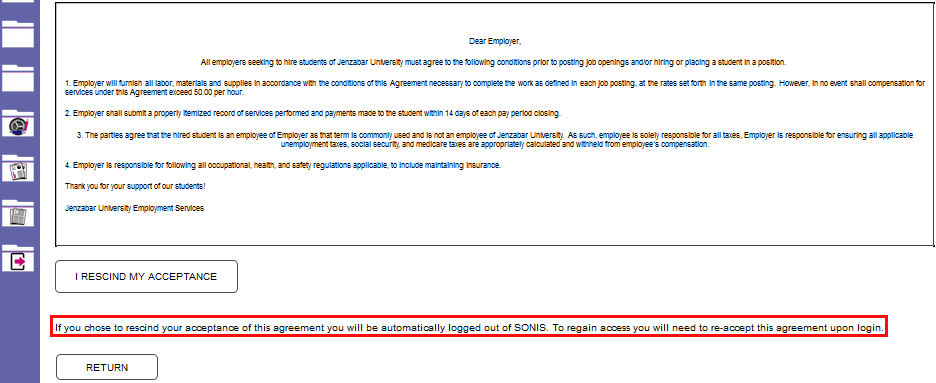
When viewing the agreement, the opportunity to Rescind Acceptance is provided. Clicking I Rescind My Acceptance will cause the user to immediately be logged out of the portal. As indicated in the warning message, to regain access the user can log back in and re-accept the agreement.