Bulk Online Registration Hold
Overview
The Online Registration Hold utility, available in the Systems hub, provides the ability to quickly identify the number of applicants who have submitted applications by level, division, and hold status, and either place or remove holds by level, in batch. For more information on hold processes and utilities within Jenzabar SONIS, visit the Holds page.
Viewing Holds by Level and Division
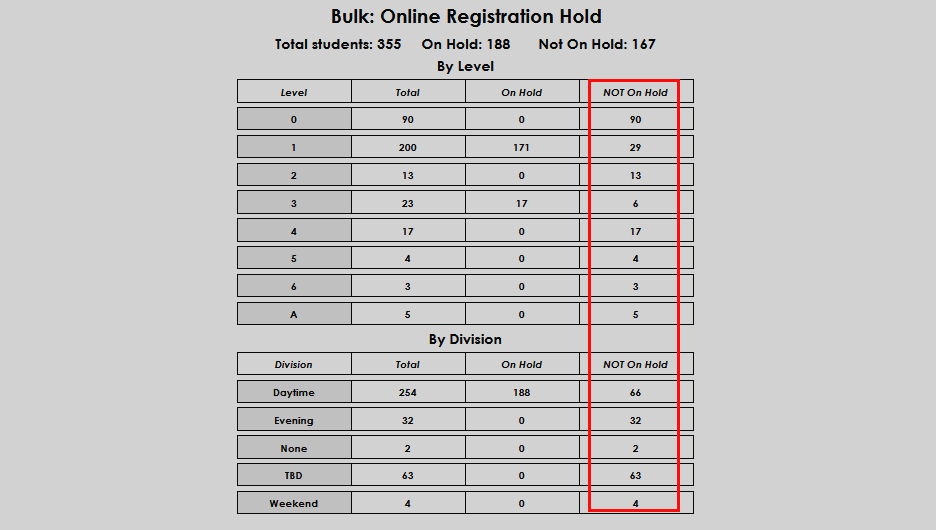
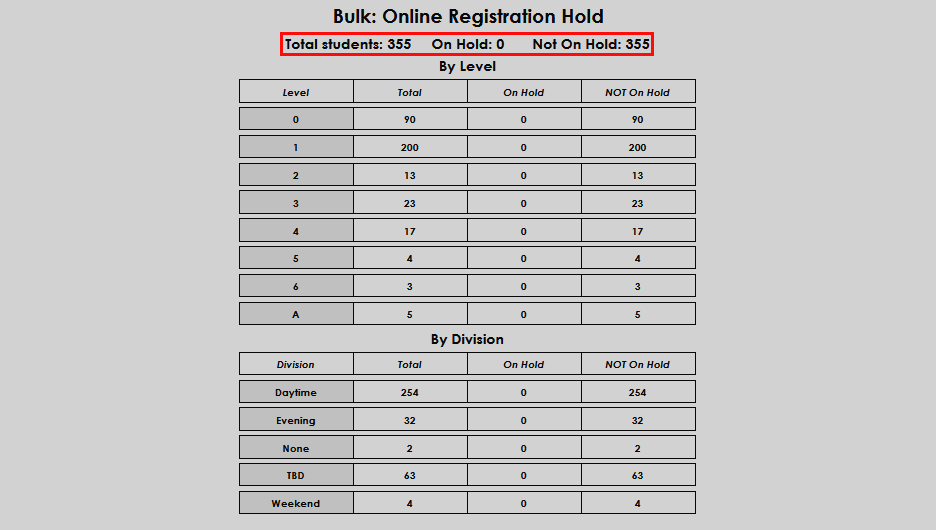
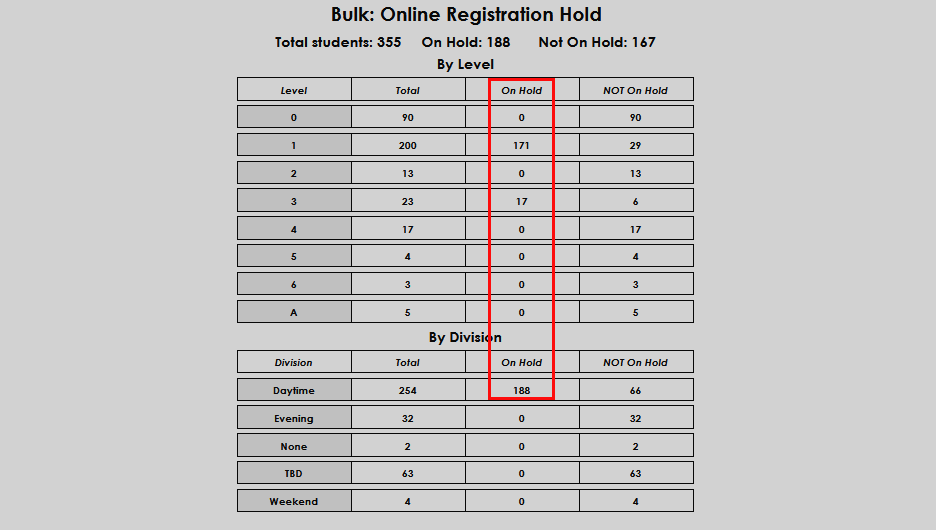
Upon entering the Bulk: Online Registration Hold page from the Systems hub, the page displays the count of students in SONIS, the number on hold, the number not on hold, and two charts: By Level and By Division.
The Total Students count is the sum of active SONIS users with a module status of Student. On Hold is the sum of students who have a current hold in place. Not On Hold is the number of students who do not have an active hold in place.
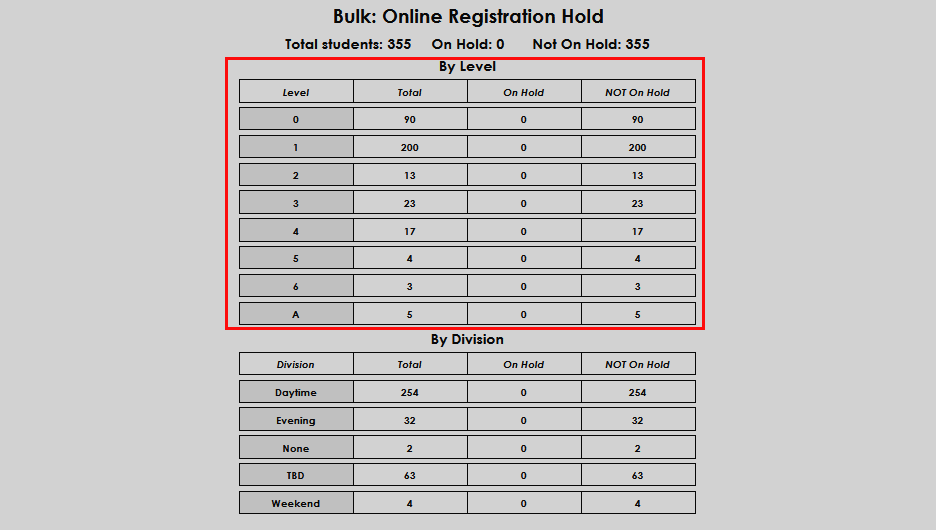
By Level displays the Grade or Education Levels that are defined in SONIS and assigned to students, and the hold status of students in each displayed level.
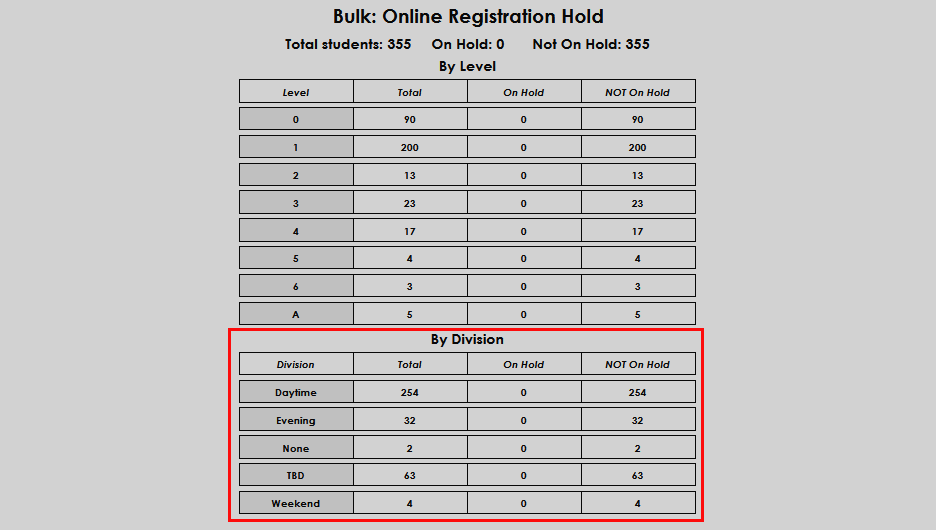
By Division displays the Divisions that are defined in SONIS and assigned to students, and the hold status of students in each displayed division.
Placing Students on Hold
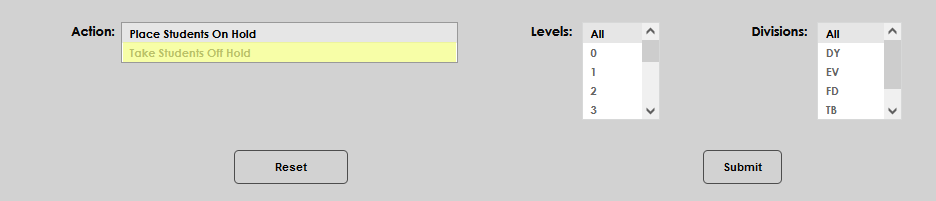
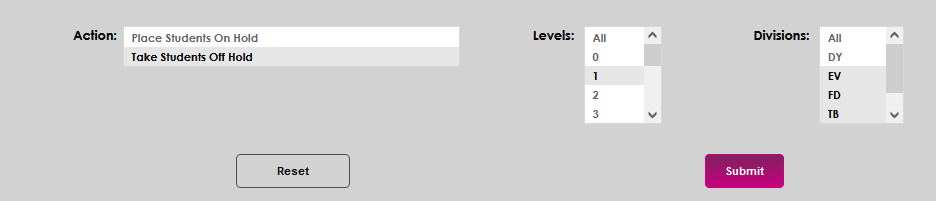
Below the charts are options for removing and placing holds by level and/or division. To put students on hold, select the Place Students On Hold option from the Action field, then select the desired level. The Levels filter defaults to All. To select fewer levels, simply click the desired level name(s).
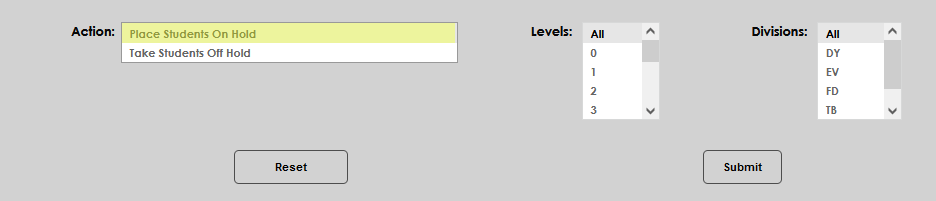
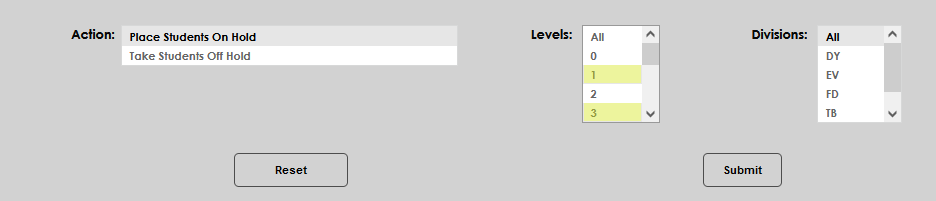
The Divisions filter also defaults to all. If fewer divisions are desired, click the needed divisions. Confirm that the appropriate filters are selected before submitting. Clicking Submit will place holds on the selected students.
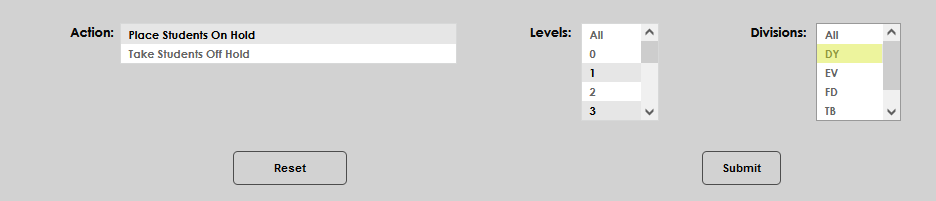
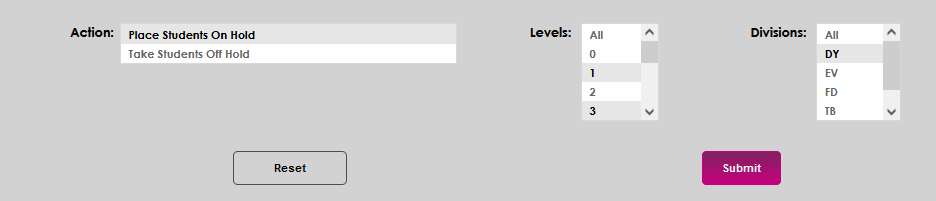
The results can be confirmed by viewing the On Hold column in the charts at the top of the screen.
Removing Holds
To remove holds, select Take Students Off Hold from the Actions menu. As with placing holds, the Levels filter defaults to all. If all levels are not needed select the appropriate level(s) by clicking on the level name(s).
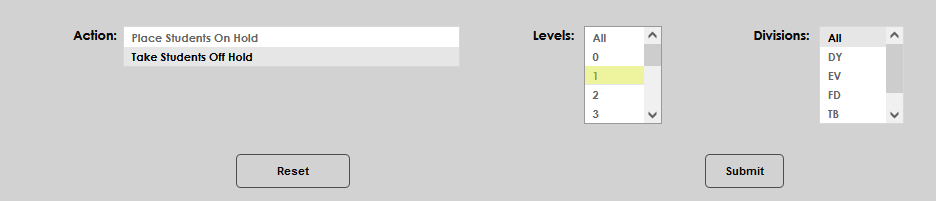
The Divisions filter also defaults to all. If all divisions are not desired select the appropriate division(s) by clicking on the division name(s). Confirm the appropriate filters are selected before submitting. Clicking Submit will immediately run the process and remove the identified holds.
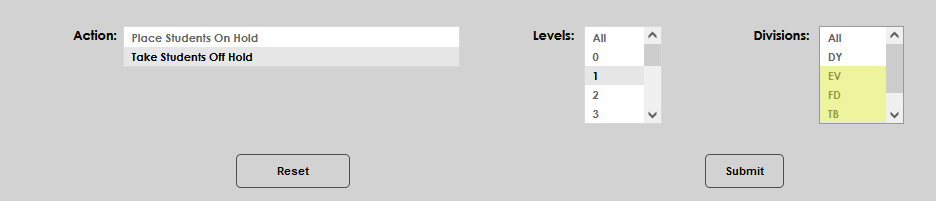
The results can be confirmed by reviewing the charts at the top of the screen.