Recruiting Plans
Overview
The Recruiting Plan utility is used to create a list of customized steps that should be followed to encourage the student to apply for admission and, if accepted, attend the institution. Once setup has been completed, Jenzabar SONIS automatically assigns contact points, tracked in the SONIS system as Activities, that are added to a prospect's records based on the Category that the prospect is assigned. The idea is that the school's method and frequency of reaching out to the prospective student can differ based on factors like their program of interest, how the school got their information, their history with the school, etc.
Creating Recruiting Plans
To create a recruiting plan, navigate to the Recruiting Plans page and click Add.

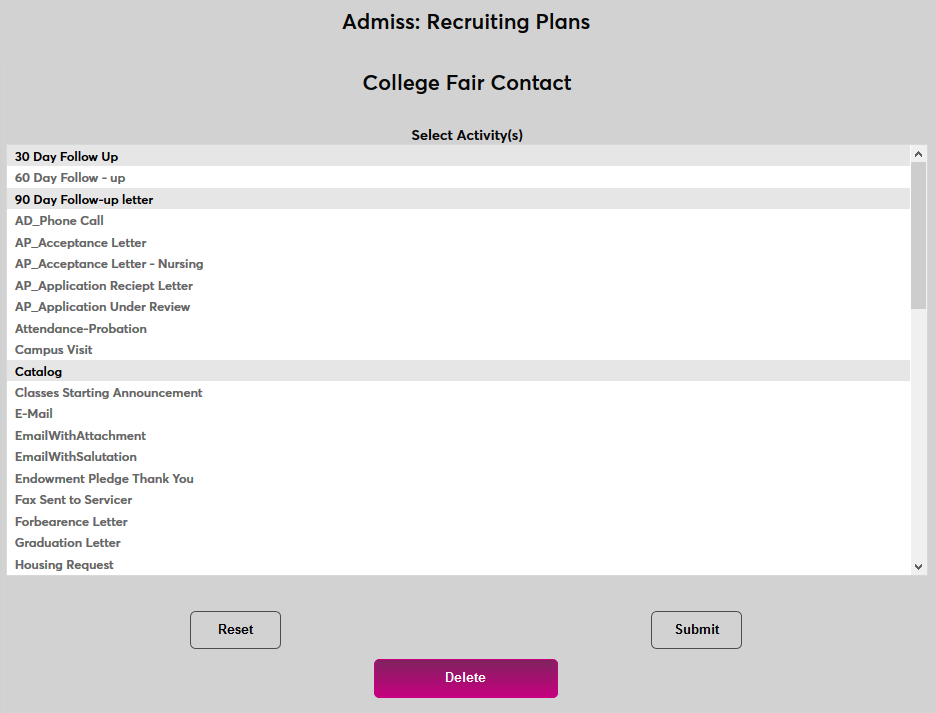
On the following page, select an admissions Category to associate with the plan.
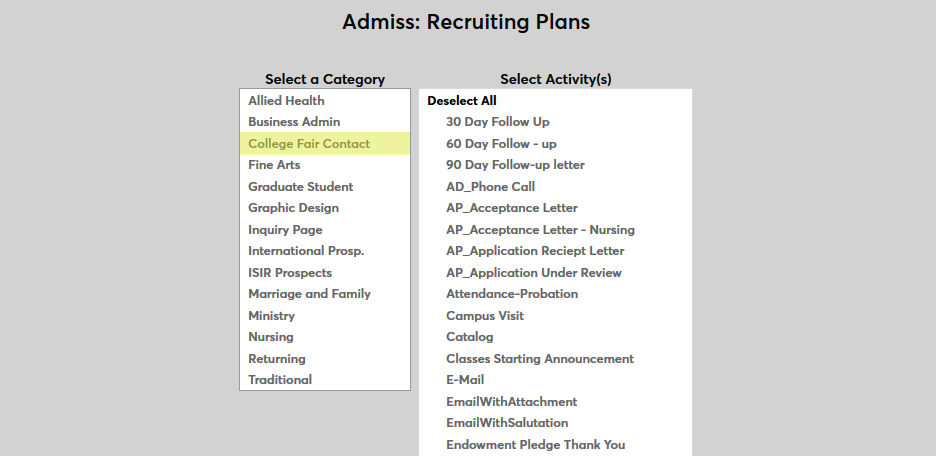
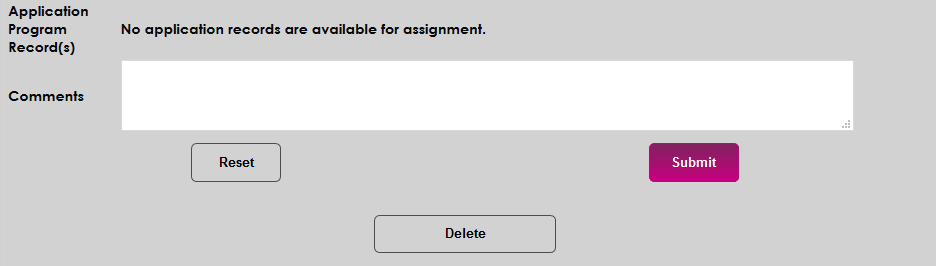
Next, select a Activity or Activities that will be created when the plan is assigned. Activities are created and edited through the Activities utility in the Systems hub.
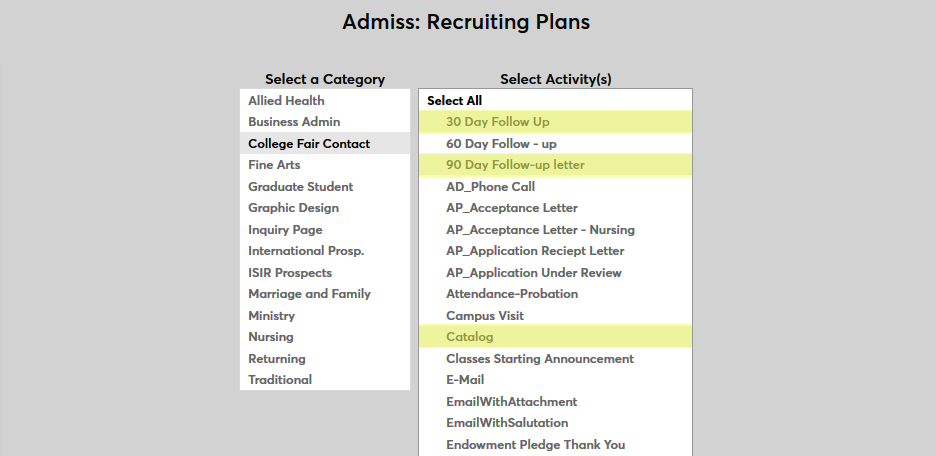
Click Submit to save the page and create the plan.

Once plans have been created, click on the Category Text to make changes.
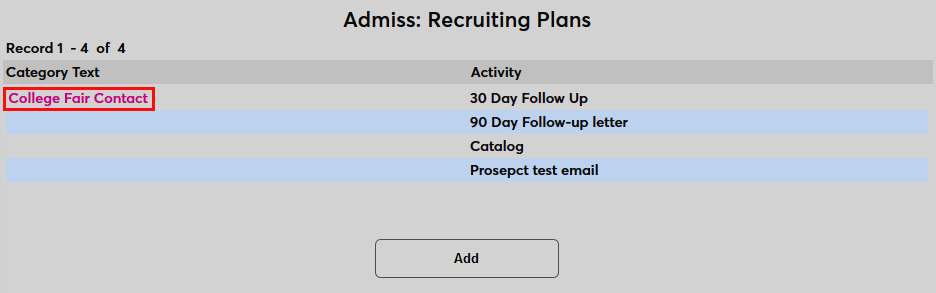
Select new activities and click Submit or click Delete to remove the recruiting plan from the system altogether.
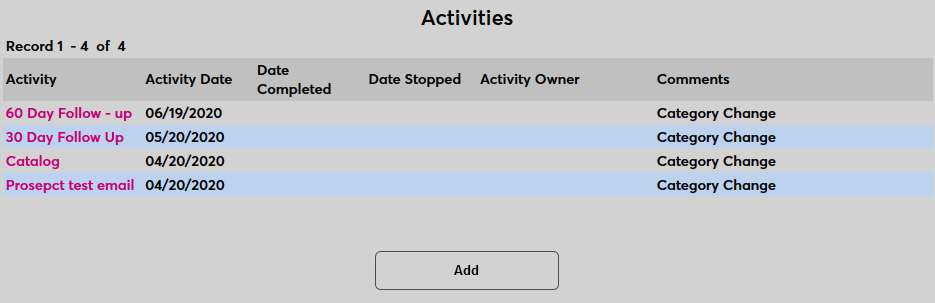
Once a recruiting plan has been created, any user with the category selected in their Prospect Inquiry Details will have the activities assigned to the plan added to their Activities record. The activities will also be added to the records of any user assigned the category in the future.
Creating Categories
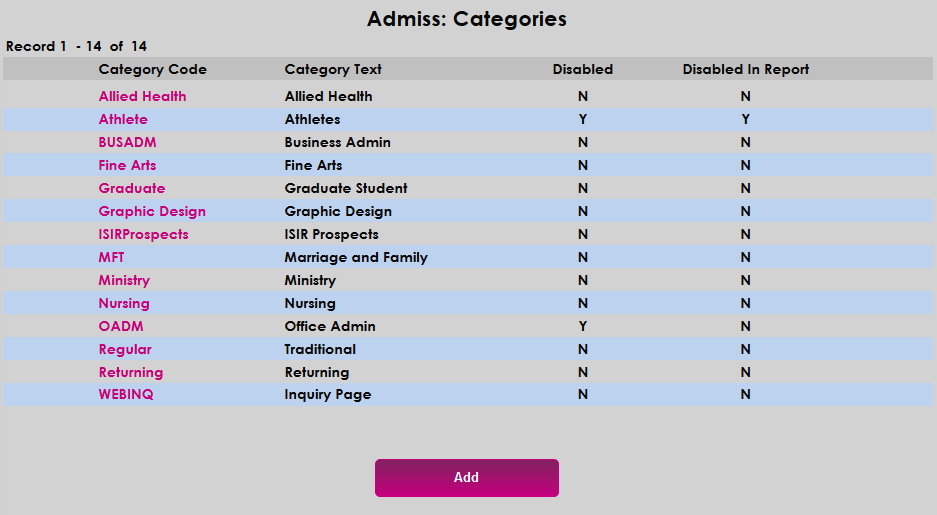
Before a recruiting plan can be created, each institution must create their own Admissions Categories. Navigate to Admissions: Categories in the Systems hub and click Add to create a new category.
On the following page, name the category in the Category Text field. The field has a 20 character limit.
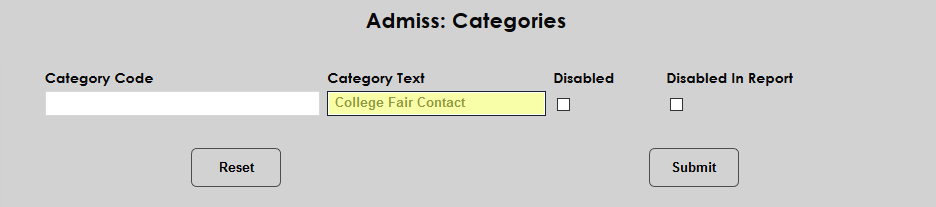
Next, create an abbreviated version of the category name that will be used in system tables in the Category Code field. The field has a 15 character limit.
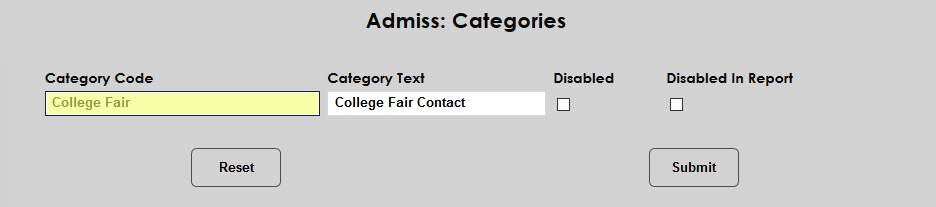
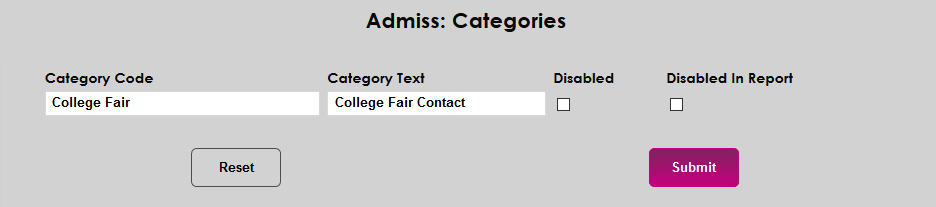
Click Submit to save the page and create the code.
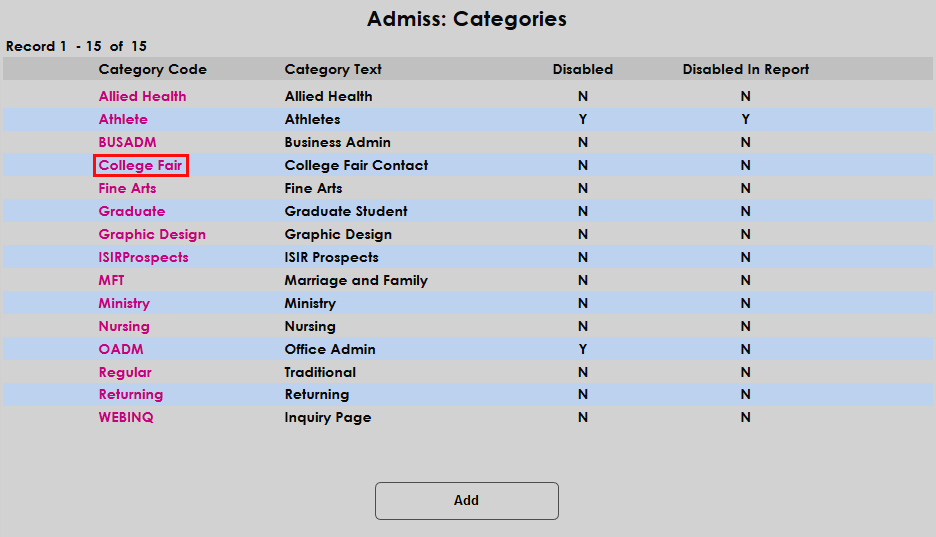
Once a category has been created, click on the Category Code to edit it.
The Category Text can be edited, but the Category Code cannot be changed. Check the Disabled box to prevent the category from being used and/or the Disabled in Report box to prevent the category from appearing in reports.
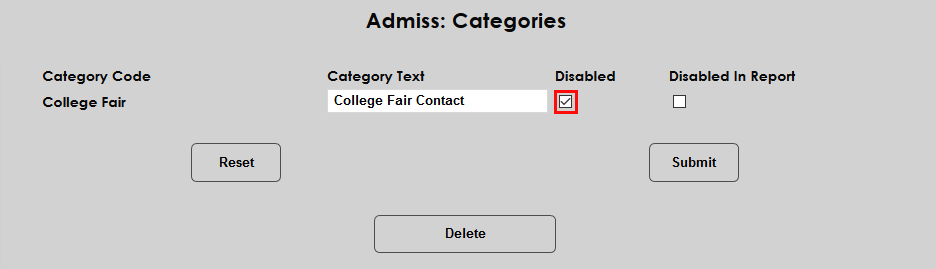
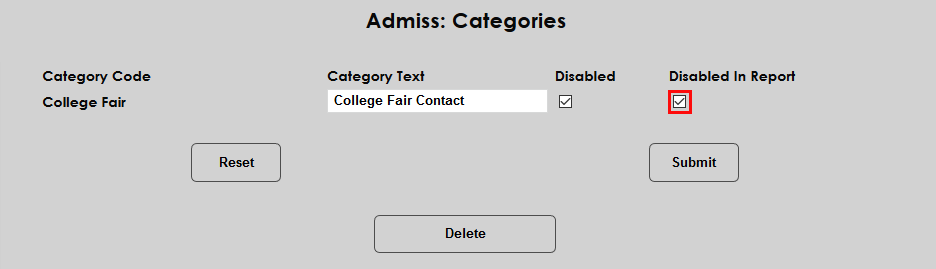
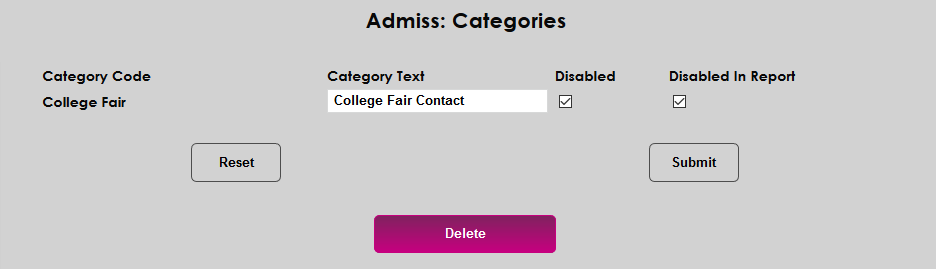
Click the Delete button to remove the code altogether. Click Confirm Delete to complete the process.

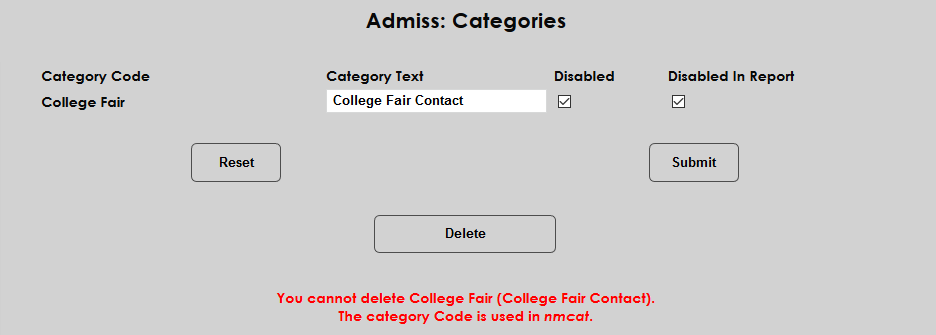
If the category is in use, it cannot be deleted.
Assigning Categories
Prospect Inquiry Details
To assign a category to a single student manually, navigate to that student's Prospect Inquiry Details record. Select the category in the Category Code field. Categories are used to create recruiting plans and can group prospects based on any relevant data point.
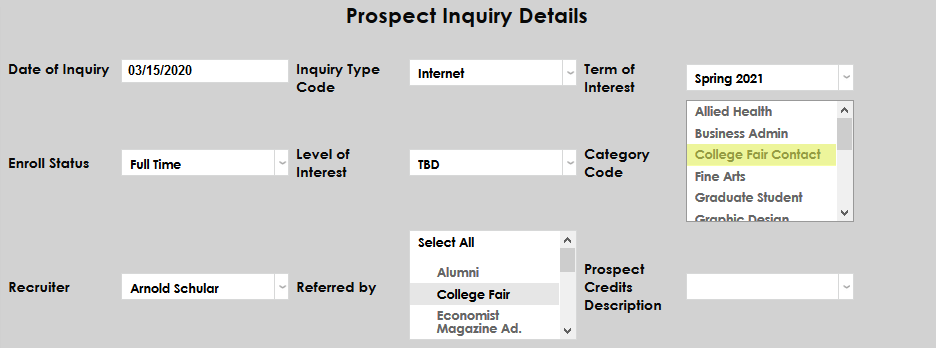
Click Submit to save the change.
Admissions Category Filter
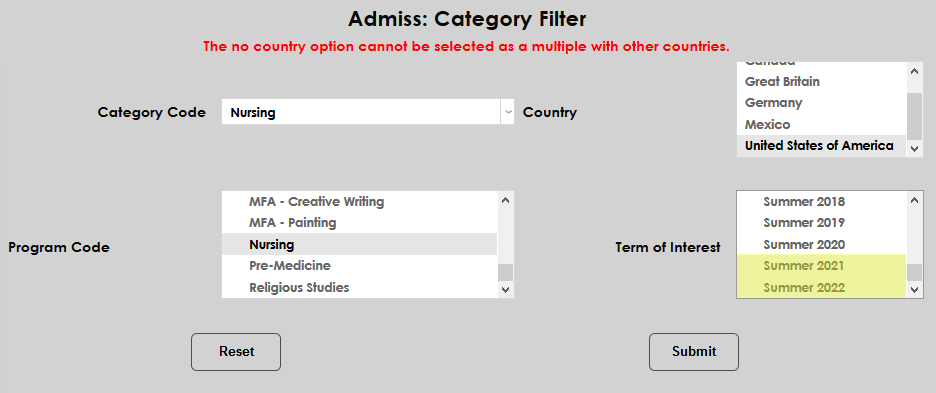
The Admissions Category Filter is a tool SONIS offers to assign categories to prospects automatically based on their program of interest. To begin, navigate to Admissions Category Filter in the Systems hub and click Add Category.

On the following page, begin by selected a Category Code to be assigned.
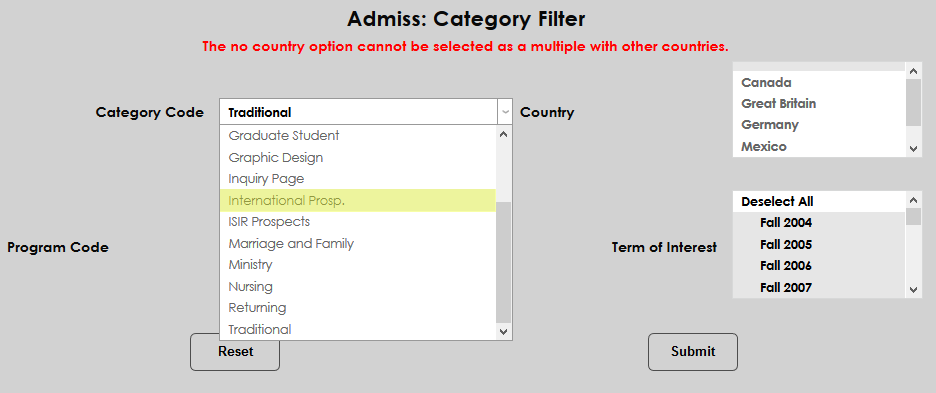
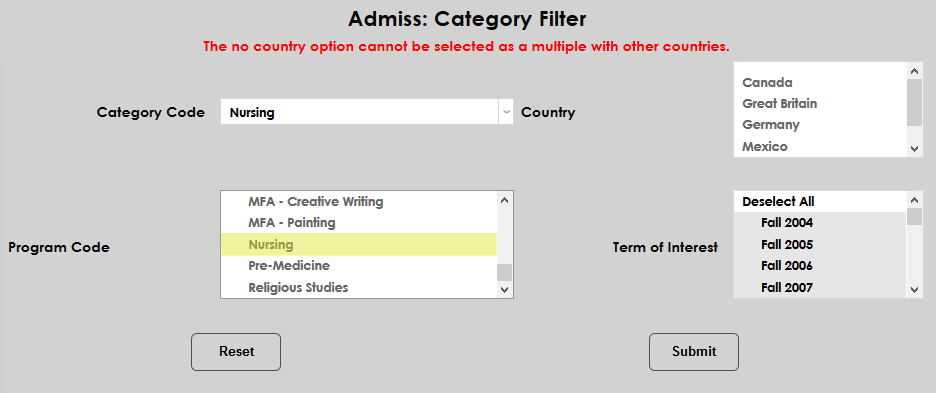
Next, select a Program Code to assign the category based on the prospect's program of interest. A program must be selected for the filter to save.
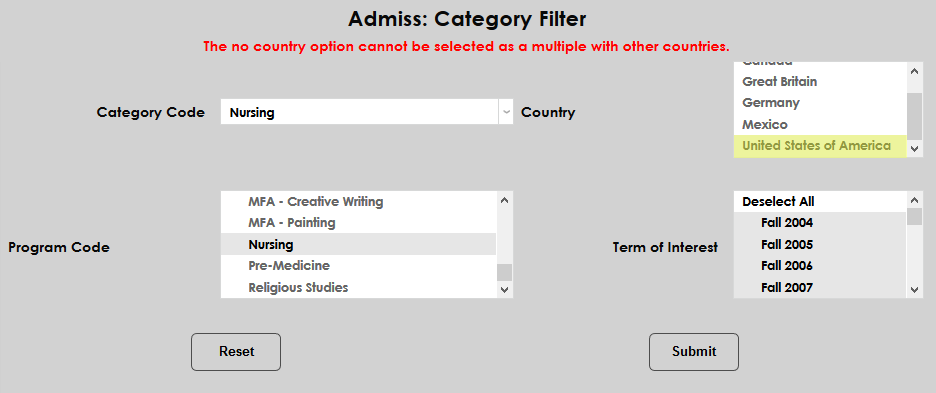
Select a Country to narrow down the category filter based on the country where the prospect lives. Or leave the blank option selected to not include country in the filter and assign the category to prospects regardless of their home country.
Finally, select a Term of Interest for the filter. This can be important because many institutions may with to change their Recruiting Plan based on how far into the future the prospect wishes to attend the school. Like the Program Code , a Term of Interest must be selected.
Multiple terms can be selected if the recruiting plans for those terms will be the same, but since each term of interest selected will create a separate filter, it's best not to select terms that have already passed because the list gets unwieldy.
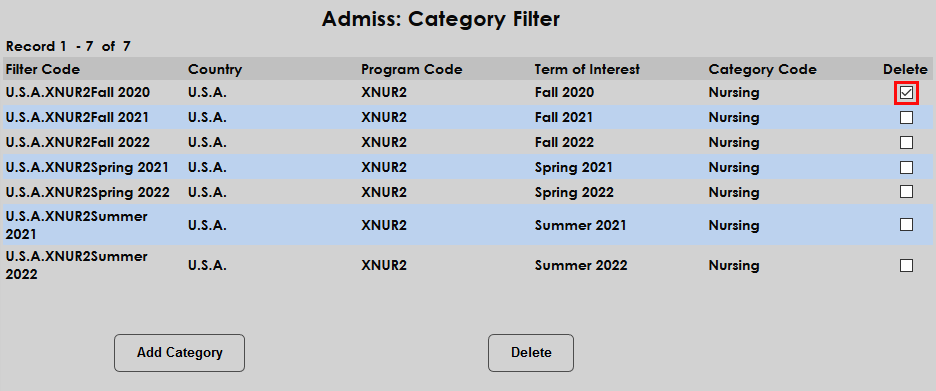
Once filters have been created, they are listed on the launch page. To remove a filter, check the box in the Delete column and click Delete .
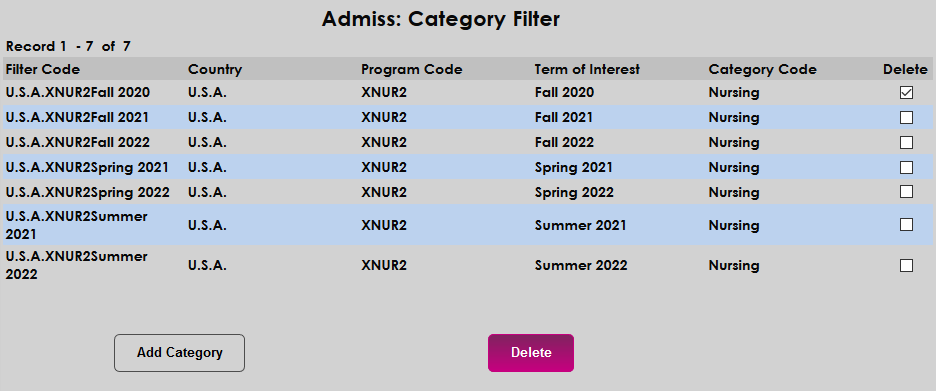
On the following page, click Yes to finish deleting the filter.

Admissions Category Change
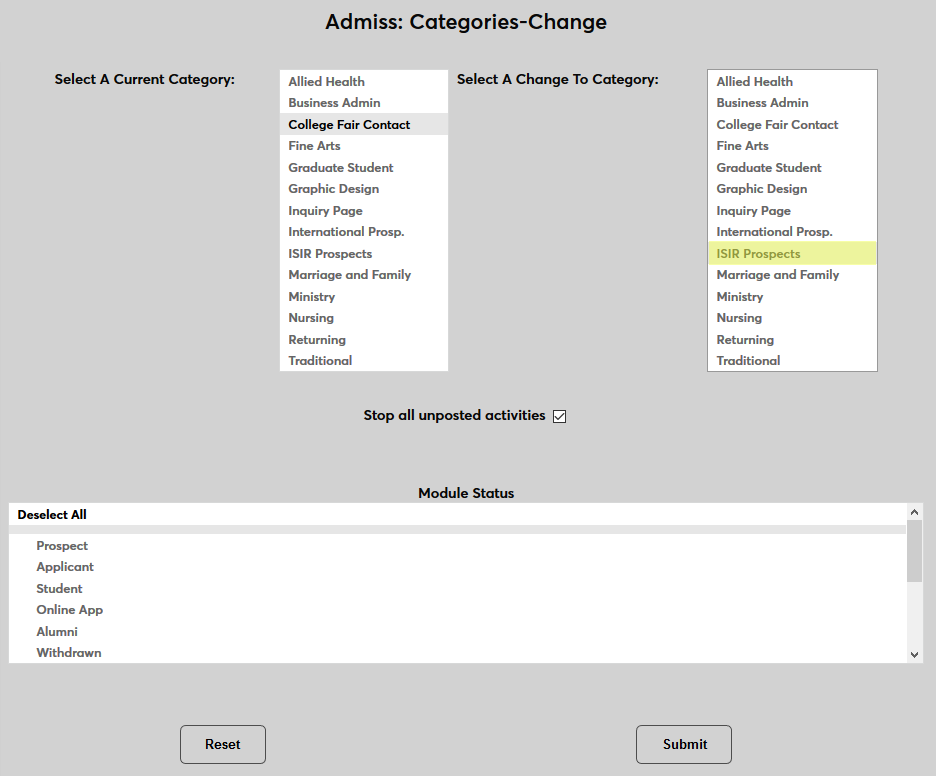
The Category Change utility allows administrators to make bulk changes to assigned admissions categories. Select a Current Category to move users from and a Change-To category to move them to.
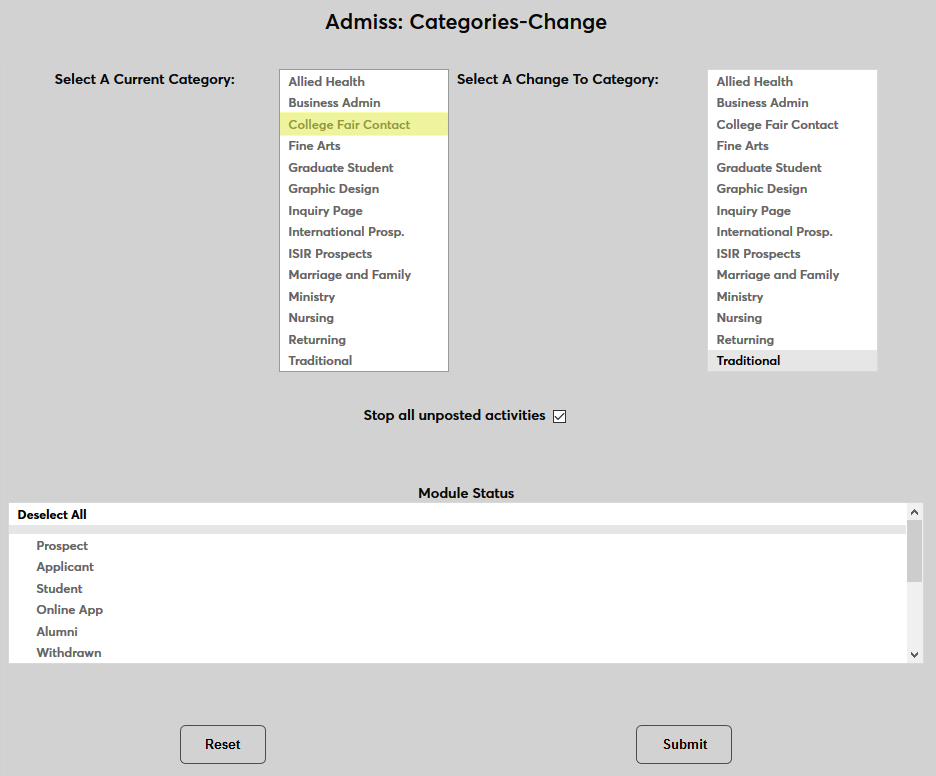
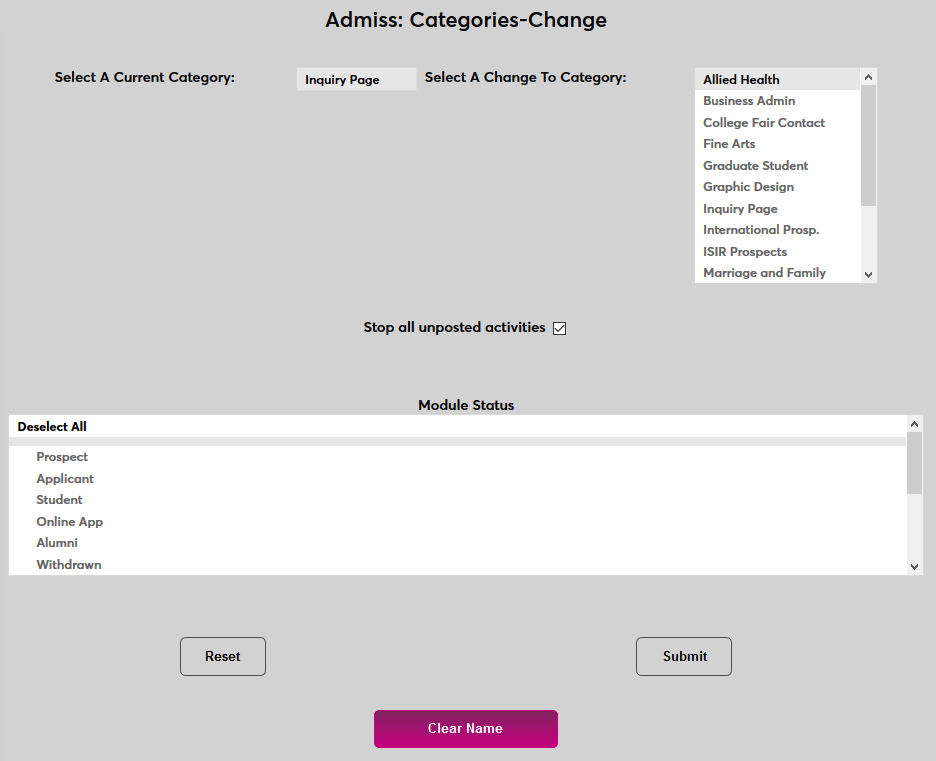
If a user has already been selected through Name Search , only the category assigned to that user will be available to select in the Current Category field. Click Clear Name to remove the current prospect and select another category.
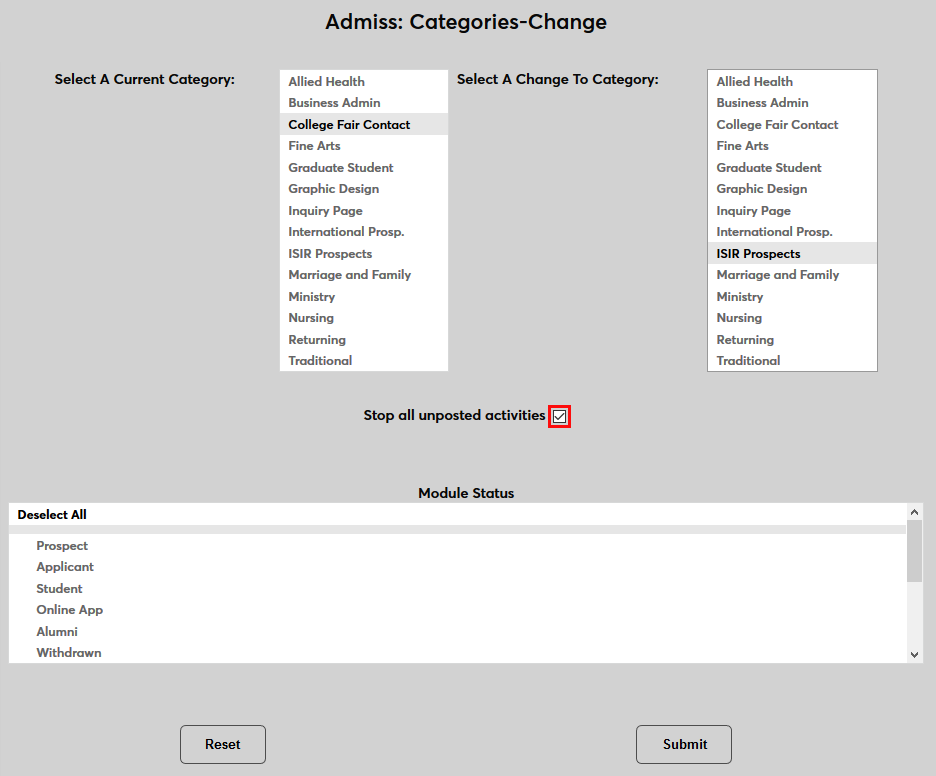
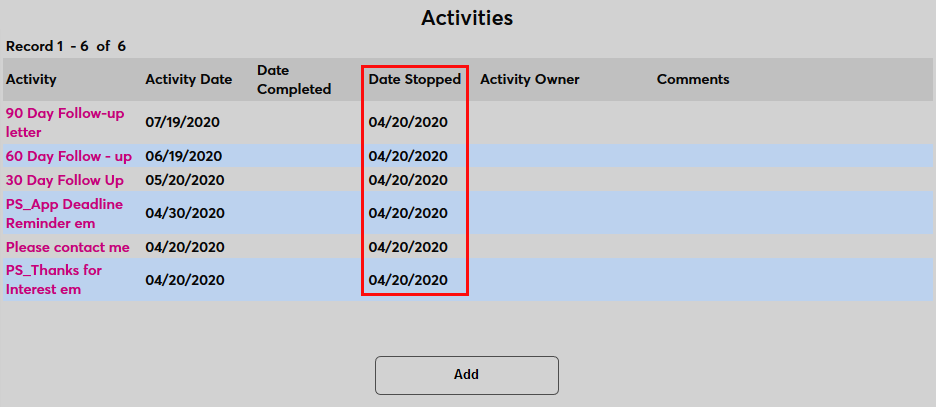
With the Stop all unposted activities checked, any activities in the user's records associated with their previous Recruiting Plan that have not been posted will have their status changed to Stopped with the current date appended. Uncheck this box to leave those activities active.
Select a Module Status to change. Only records under the selected module status will be altered. Select all to change all records for that admissions category regardless of status.
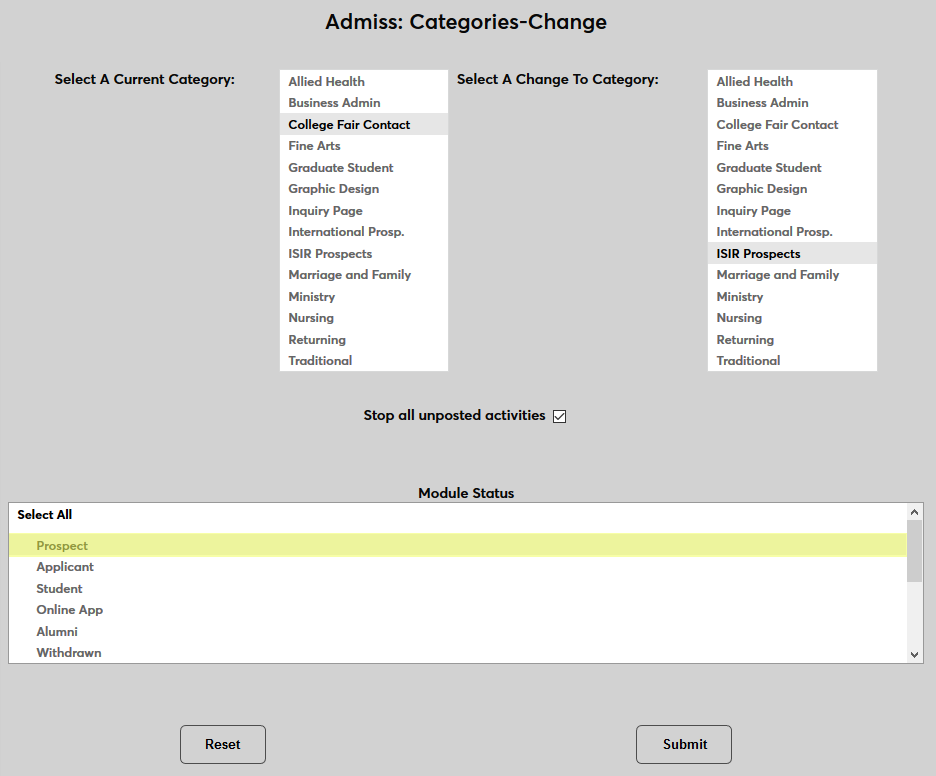
Click Submit to make the change.
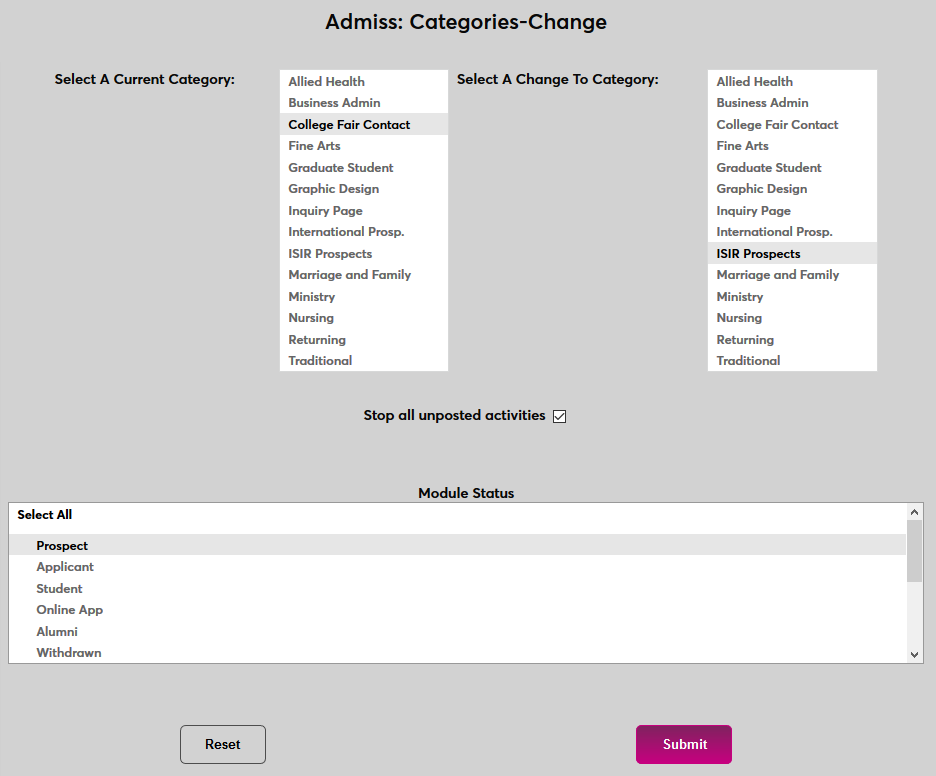
A results page displays the changes, including the number of records that have been updated.