TutorTrac
Overview
Jenzabar SONIS member institutions who use TutorTrac (TT) software to record tutoring sessions can choose to import TutorTrac record files or manually add records of tutoring sessions to the TutorTrac Records menu screen.
The Systems hub page Import TutorTrac is used to import files exported from TutorTrac. The student IDs in the import file must have a matching social security number in the name record. The record of a visit must have a visit date, time in, and time out within the file and the reason code must match the reason values in the TUTORTRAC_REASON table. If all of these items are available in the file, the information will load and display on the student's TutorTrac screen. Users can also add the information manually to the student's TutorTrac screen.
Adding a Record of Tutoring
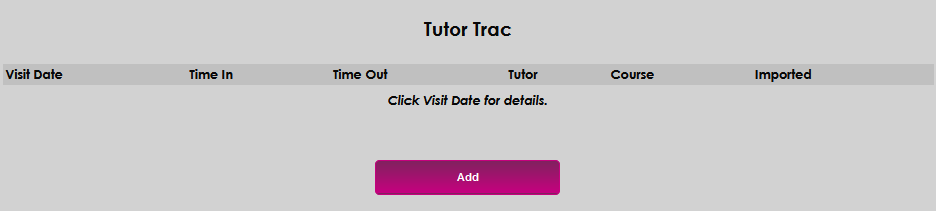
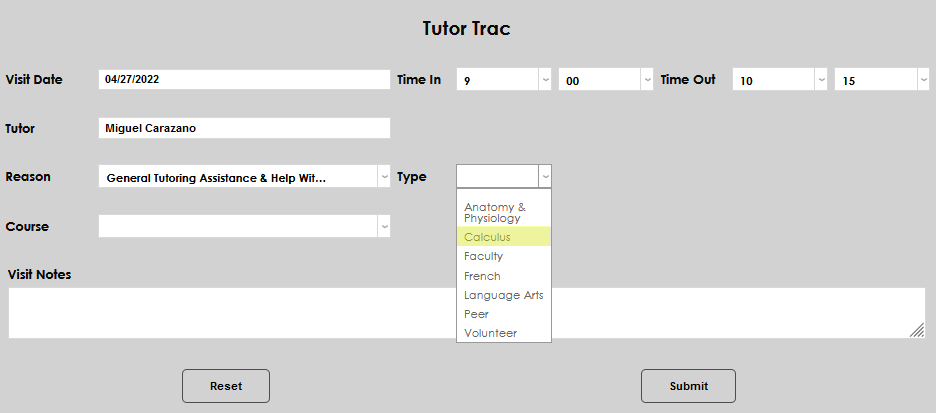
To manually add a TutorTrac record, enter the Tutor Trac page from the student's Users hub, and click Add. Enter the date of the tutoring session in the Visit Date field.
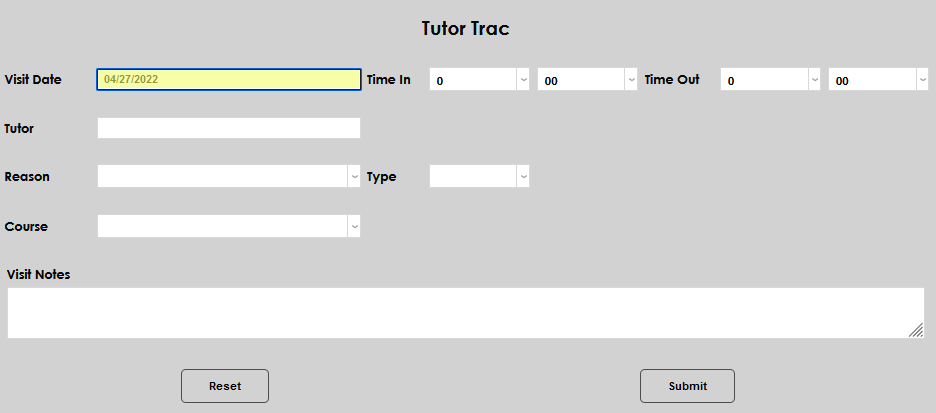
Enter the time the student began tutoring on the visit date in the Time In field and the time tutoring ended in the Time Out field.
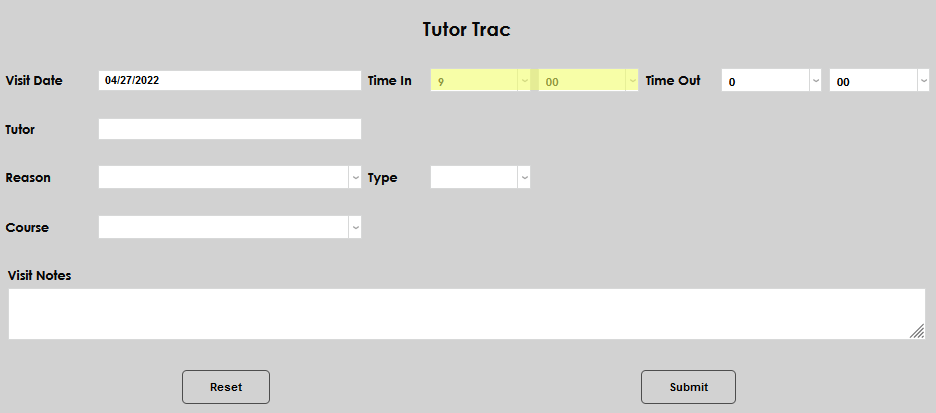
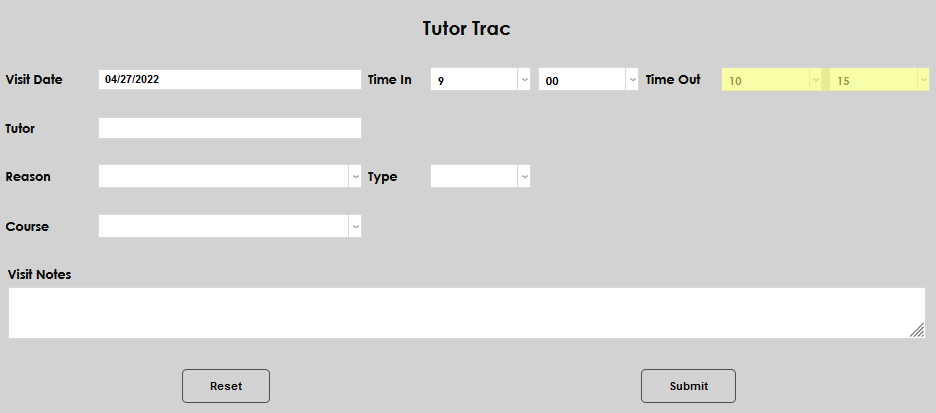
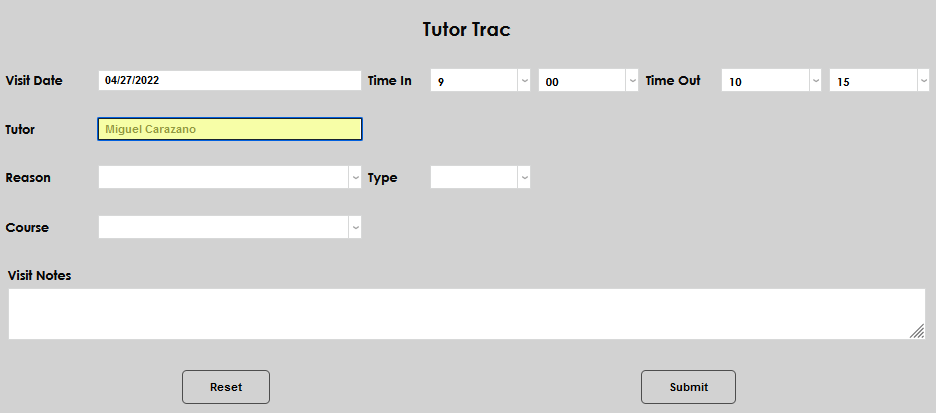
Enter the name of the person who provided the tutoring in the Tutor field.
Select the reason the tutoring was sought from the Reason dropdown. Select the type of tutoring provided from the Type dropdown. If either the Reason or Type needed is not available, an administrator must add it on the appropriate Table.
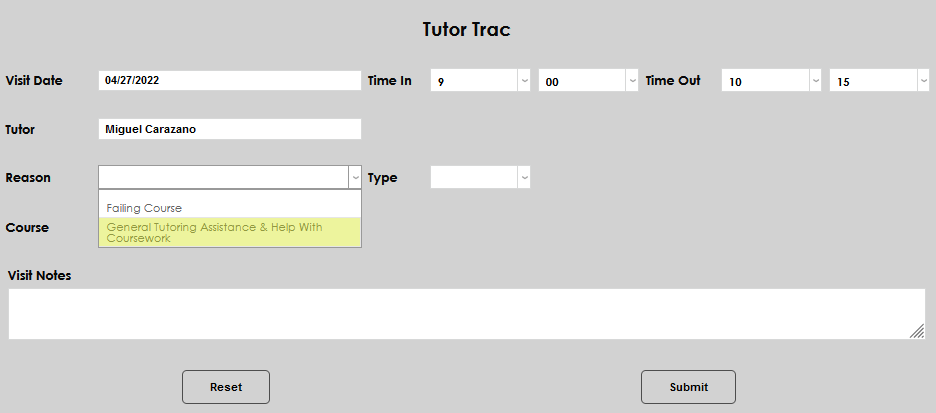
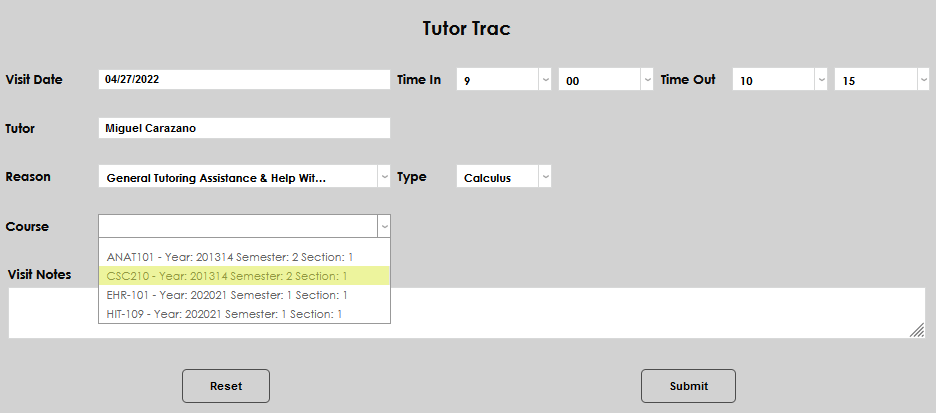
Select the Course the tutoring is for the dropdown, if applicable. Enter any pertinent details in the Visit Notes section.
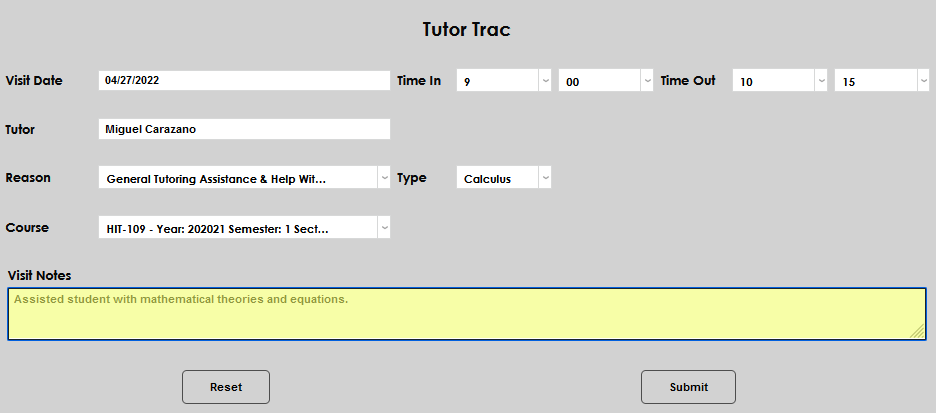
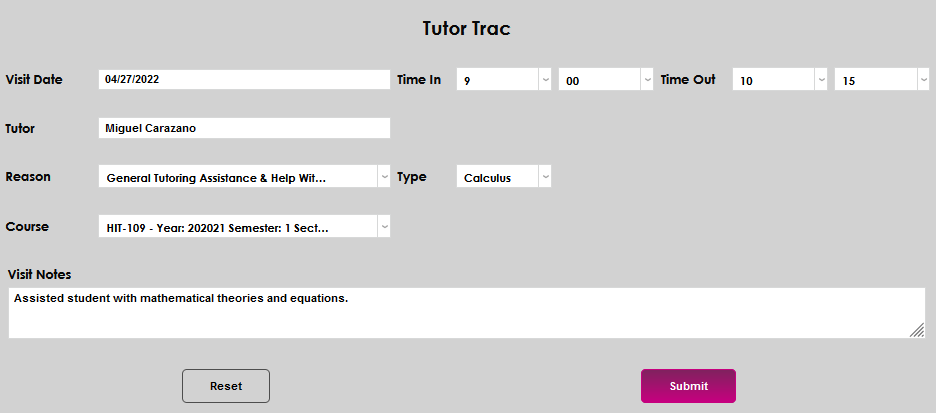
Click Submit to save the entered details.
Editing an Existing Record
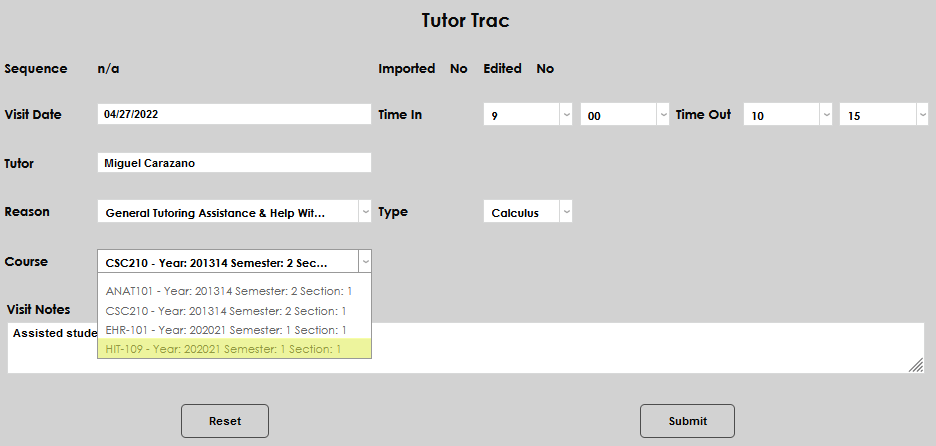
To edit an existing tutoring record, click the Visit Date.

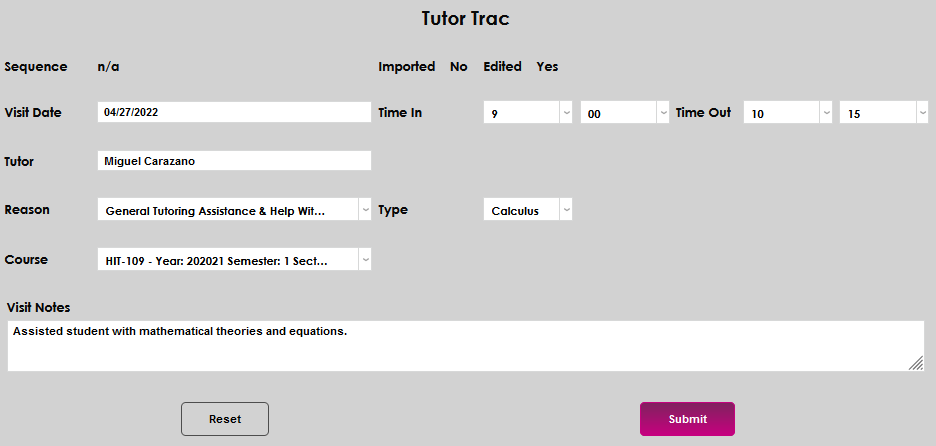
Make the desired edit and click Submit to save the edit. In this example, the Course has been changed.