Application Fees
Overview
The Application Fees utility can be used to create an application fee that will be charged to applicants when they submit an Online Application. Clients can create more than one fee with different names if desired, though most create and use a single fee. All created fees will apply to all applications.
Alternately, clients can use T-Code Pairing and the Credit Card Processing utility to institute an application fee. If a paired T-code application fee is in place, do not use the Application Fees utility as it will result in double charges. However, a value set in Credit Card Processing by itself will not result in double charges and will be overwritten by the values set here. The T-code pairing option should be used by institutions that have multiple online applications and charge different fees depending on the application being submitted.
For more information on other fee types that SONIS offers, visit the Fees overview page.
Creating a Fee
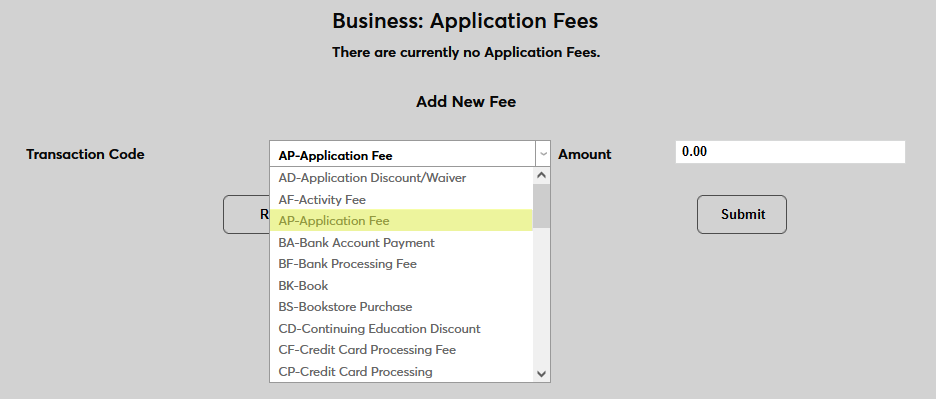
To create an application fee, navigate to the Application Fees page in the Systems hub and select a Transaction Code for the fee.
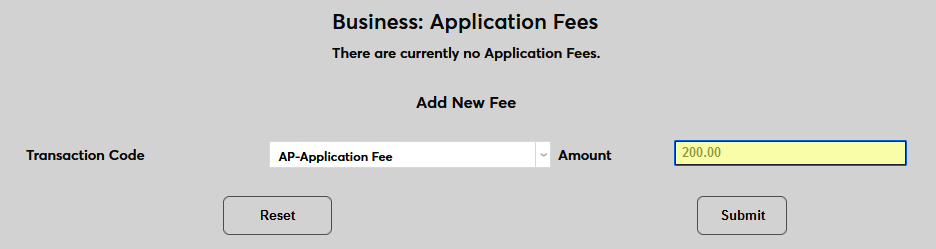
Next, set an Amount for the fee.
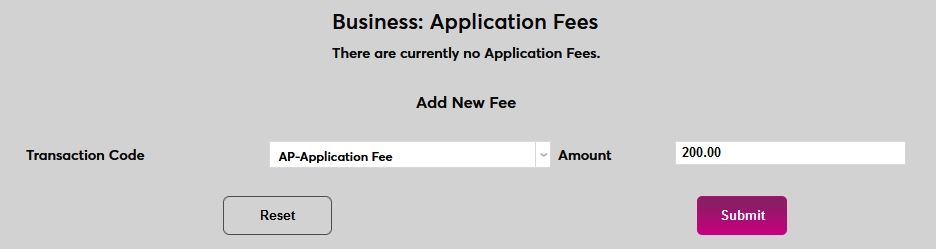
Click Submit to save and activate the fee.
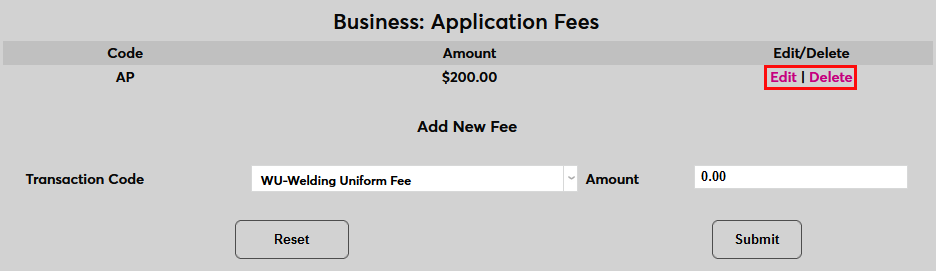
Once a fee is in place, click Edit or Delete to make changes.