Satisfactory Academic Progress
Overview
The Satisfactory Academic Progress utility creates reports that detail whether a student or group of students are in Good Standing based on their current academic history. The report is primarily used for federal reporting and separates financial aid's Good Standing from institutional Good Standing. The SAP utility is located in the Systems hub. Before running the SAP process(es) and creating the report(s), it is important to consider the following:
Ensure setup and settings are correct based on what is in the Wiki below before running the process(es).
Choose the term that has just been completed.
Wait until all grades have been made official.
Include all Statuses in SAP, found in System Variables, determines if SAP will be calculated just for records with a Student status or for all who took a course in the chosen term, regardless of current status.
The Campus, Division, Department, and Level options allow further restriction of the SAP calculation.
Setup
System Variables
Include All Statuses in SAP
There is a setting in Systems Variables called Incl. all statuses in SAP. The setting is read-only. Therefore, anyone wishing to change its value will need to notify Jenzabar SONIS support for a script to make a change.
No - Student
By default, the setting is No which means that only students (ST) will be considered for SAP inclusion. This means, for example, that if a student's status has changed to alumni, that student's SAP data will not be available.
Additionally, the script can turn SAP Completion Percentage Required from No to Yes.
Based on institutional policies, the Yes setting will add Completion Percentage to the criteria for Good Standing. When this setting is No, GPA alone determines Good Standing. With it on, the individual must have the required GPA and Completion Percentage to achieve Good Standing.

Yes - All Statuses
But suppose a student withdraws for some reason and their status is changed to withdrawn. Later, the student wants to re-enroll. It is likely that the acceptance process includes checking to see their standing at the time they withdrew. However, without a Student status, their information will not come up in SAP.
For that reason, an administrator may wish to see an individual's SAP in semesters prior to their change of status. This is done by requesting a script to change the setting to 'YES'. From then on, the SAP is available for each school year/semester regardless of an individual's CURRENT status. A Yes setting means that all statuses will be considered, making status changes easier to manage. For example, if a student graduated in 201516, their status student (ST) might have been changed to alumni (AL) as part of graduation process. If so, the SAP records for that alumnus (AL) will not show unless the function is also looking for ALL statuses, including alumni.
Additionally, the script can turn SAP Completion Percentage Required from No to Yes. Based on current policies, Yes will display a policy-determined percentage of graduation requirements that must be completed before SAP will be calculated and reported. In other words, SAP is not particularly meaningful when it's based on 3 credits of the 306 needed for graduation.

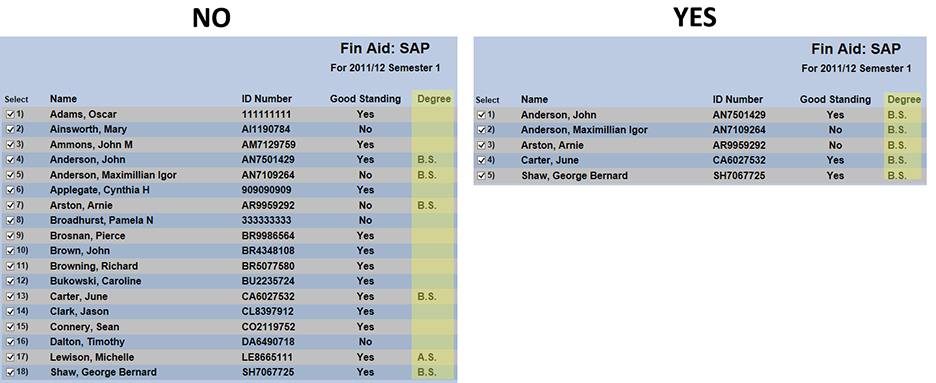
SAP Degree Required
This setting in Systems/Systems Variables determines whether or not individuals with no assigned Degree will be included in the results.
If the SAP Degree Required setting is No, then SAP Completion Percentage must also be No.
If the SAP Degree Required setting is Yes, then SAP Completion Percentage can be either Yes or No.

No - students with and without DEGREES
Yes - students with DEGREES
GPA Settings
There are two system variables that are not specifically tied to SAP that will affect the SAP process. These two variables are Multi-Transcript GPA and GPA Grouping. If Multi-Transcript GPA is set to Yes, then each education record will have its own GPA, completely separate from any other education records that a student may have. In this case, SAP will look only at the active education record for the semester selected. If GPA Grouping is set to Yes, then institutions can group degrees that will share a GPA and exclude degrees that should not be part of that degree using the Degrees utility.
If both of these variables are set to No, then an additional checkbox will appear on the SAP splash page labeled Include previous earned degree courses. This box is discussed further below.

Academic Good Standing
The thresholds for Academic Good Standing are set by a related Systems utility called SAP GPA. From this page, administrators can add new requirements or edit the existing requirements. To add a new requirement, click the Add button.
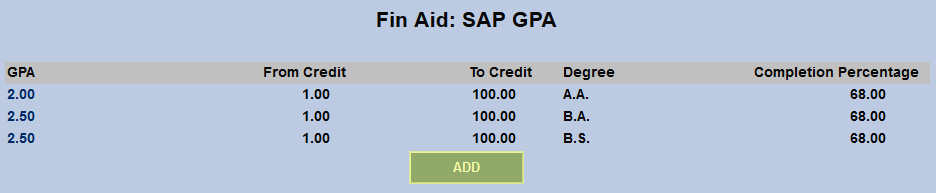
Select a degree from the Degree menu. This list is populated based on the degrees created and active in the Degrees table located under the Systems menu. The requirement being set up will only apply to students pursuing the listed degree.
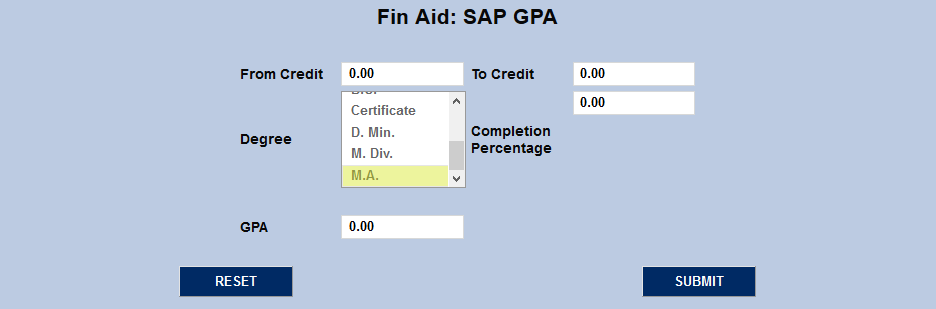
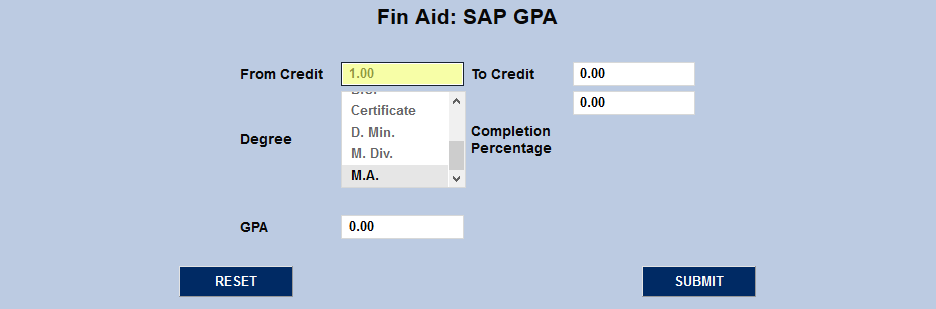
Next, enter values in the From Credit and To Credit fields. The requirement will only apply to students who have attained credits in the range encompassed by the two values.
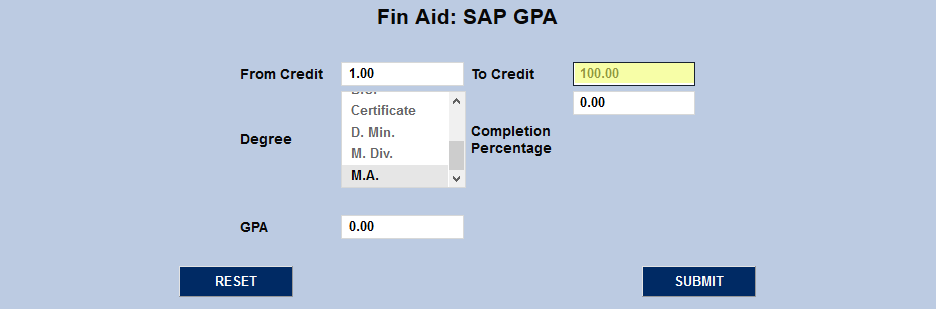
Enter a Completion Percentage value between one and 100. Students must have completed this percentage of the courses they've attempted to be in academic good standing.
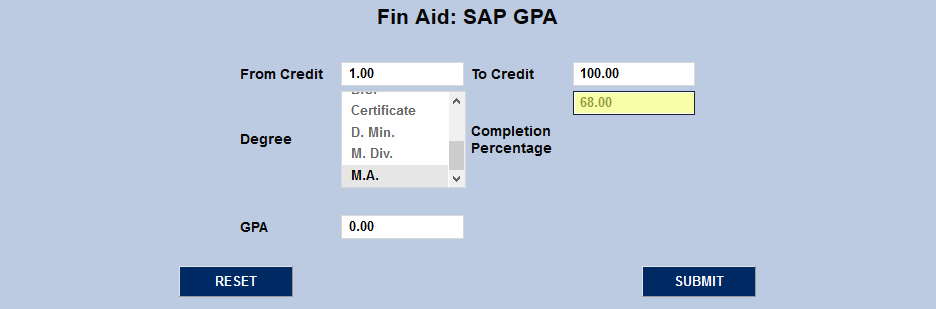
Finally, enter a GPA that the students in this degree program must attain in order to be in good academic standing. This value, of course, must be a GPA that can be obtained based on the grading system of the institution.
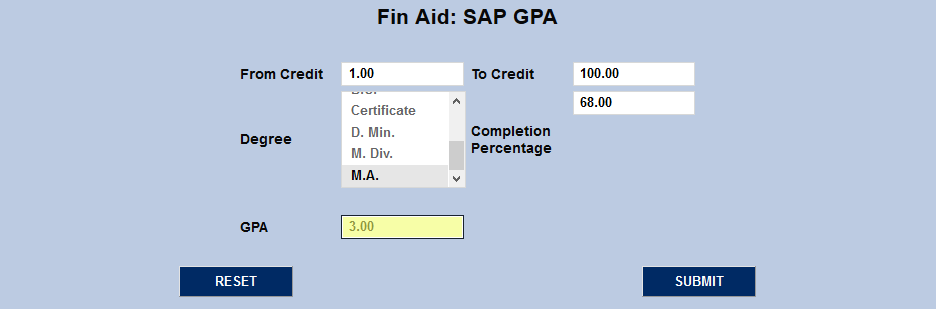
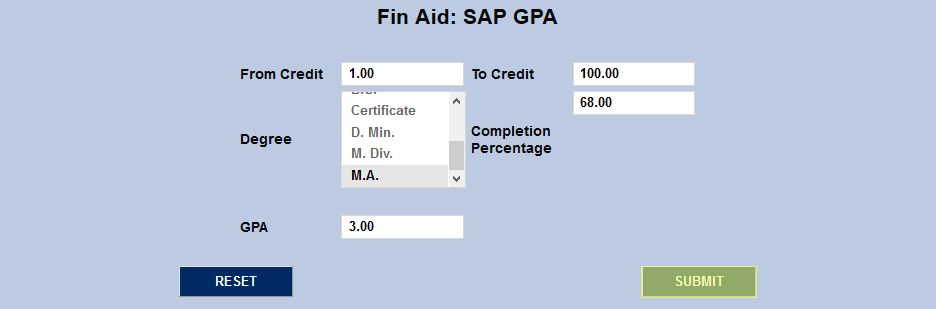
Once every field has been filled out, click Submit to save the settings. In the example here, students seeking a master's degree from this institution who have completed at least one credit and no more than 100 credits must have a GPA of at least 3.0 and have completed 68% of the courses they've attempted in order to maintain good academic standing.
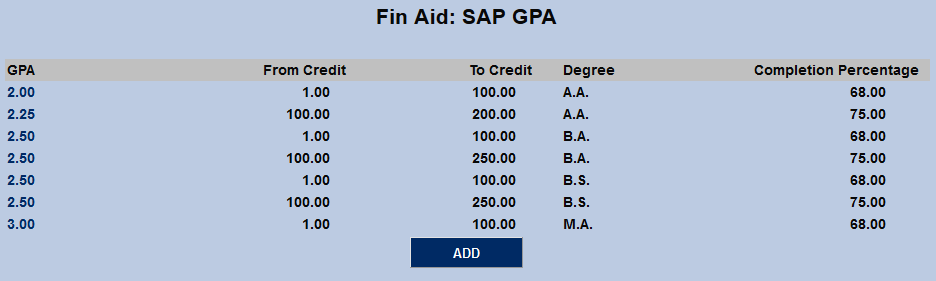
Institutions may wish to create more than one requirement for the same degree program. For example, students who have earned 100 credits or less can have a different GPA and/or completion percentage requirement than students who have earned more than 100 credits. No matter how the requirements are set up, it's important to create metrics that will capture all students in all possible scenarios.
Program Hours
In order for a student to be in Financial Aid Good Standing, they must meet all requirements for Academic Good Standing. In addition, they must not exceed the Maximum Time Frame for their specific degree program. The Maximum Time Frame is 150% of the Program Hours required to complete a degree. To set or change the Program Hours for a degree program, navigate to the Programs table under the Systems menu. Click Add to create a new program or click on the Program Code in the first column to the left to edit an existing program.
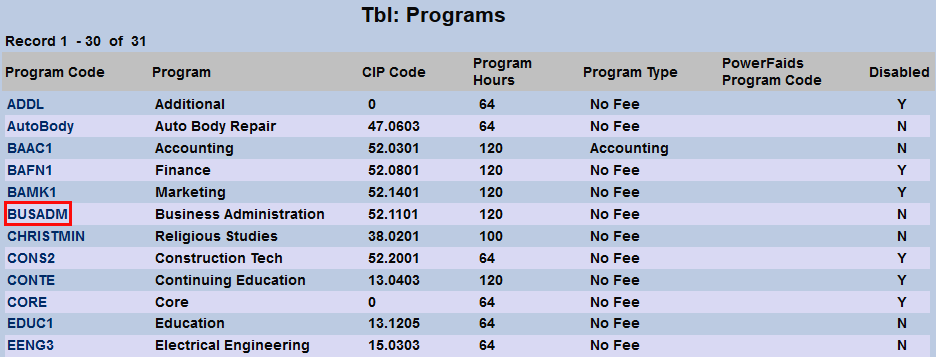
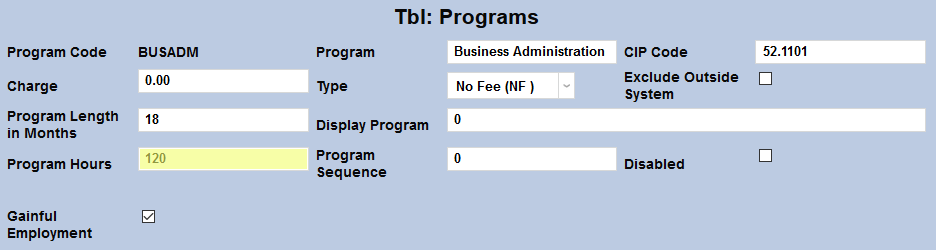
On the program details page, set the Program Hours. To reiterate, students in the listed program who have completed 50% more credit hours than the number entered here will not meet the requirements for Financial Aid Good Standing. Click the Submit button to save any changes made.
Award Eligibility
While a certain SAP standard is generally required for federal awards, some private awards may not adhere to the same standards. For this reason, awards can be marked as SAP Eligible to signify that they follow the set SAP guidelines. To access the checkbox, navigate to Award Codes under the Systems menu and select the appropriate award. By default, the box is unchecked.
To mark the award as following SAP guidelines, check the SAP Eligible box and click Submit to save the change.
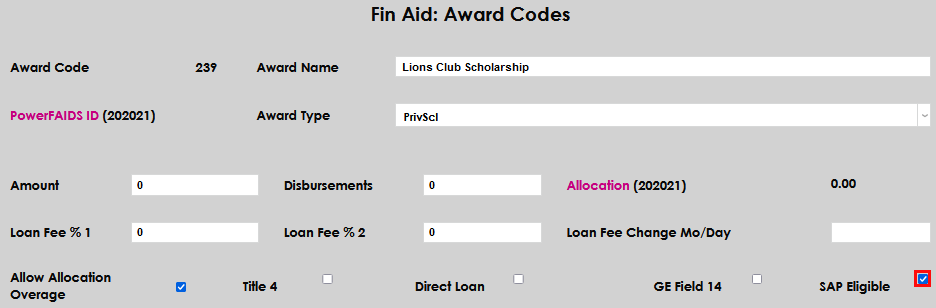
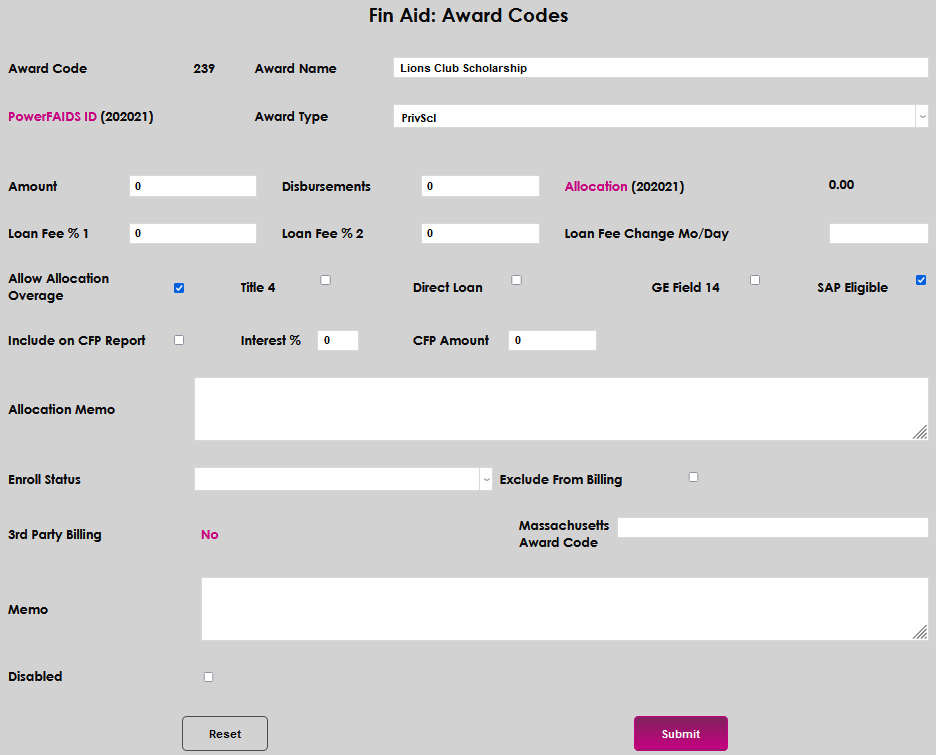
Only the active awards in a student’s transaction records that have been designated as SAP Eligible will be considered in determining if the student is a Financial Aid Recipient.
Course Exclusion
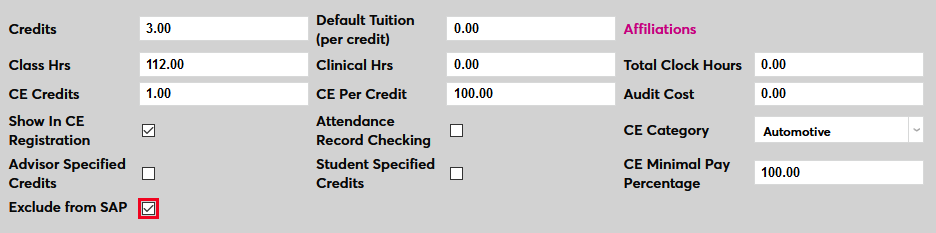
In addition to choosing which awards are SAP eligible or not, schools can choose which courses are used to calculate SAP eligibility as well. Courses can be excluded as they're being created through the Course Search page or edited to be excluded earlier from the Course Add/Edit page.
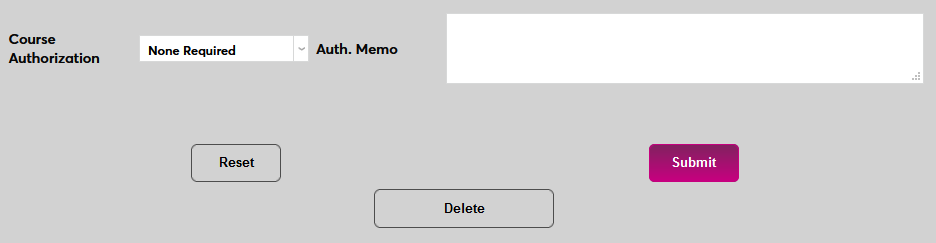
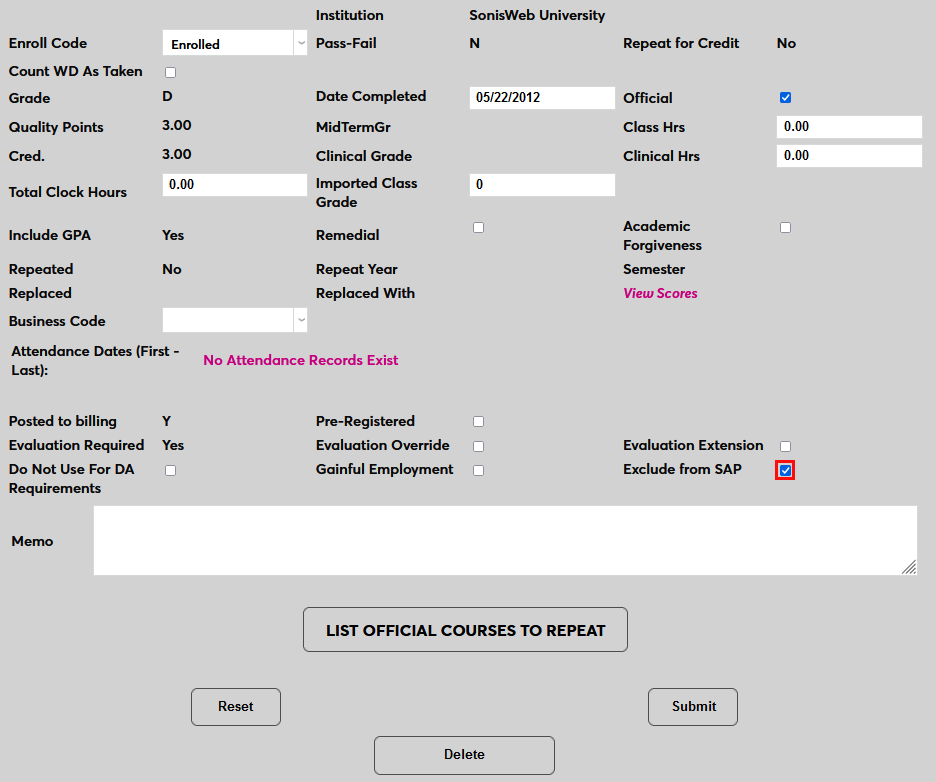
To exclude a course, check the Exclude from SAP and click Submit to save the changes. The course will be excluded when calculating both attempted credits and completion percentage.
This option does not affect GPA calculation or transcripts.
Student Course Exclusion Reversal
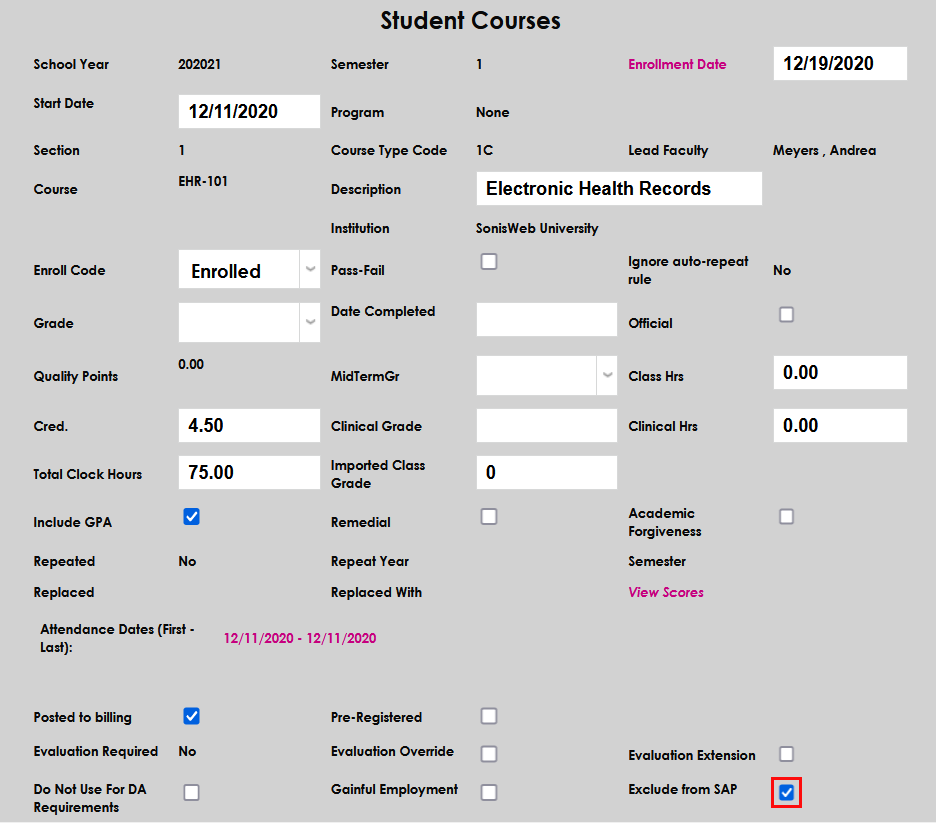
If it is decided that the Exclude from SAP option should not be applied to an individual student’s course enrollment, the option can be unchecked, allowing the student to receive SAP credit for the course, for Financial Aid purposes.
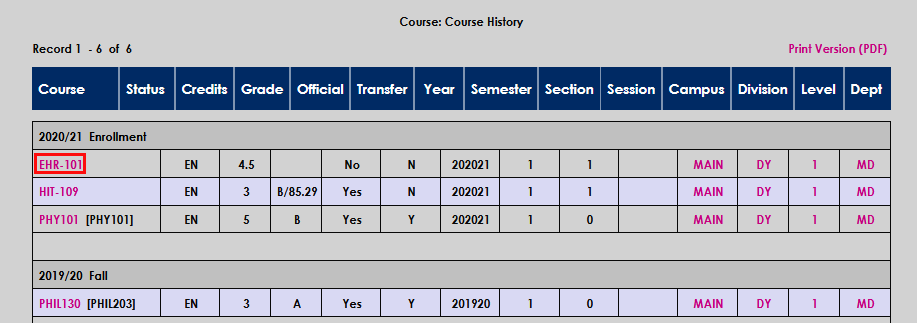
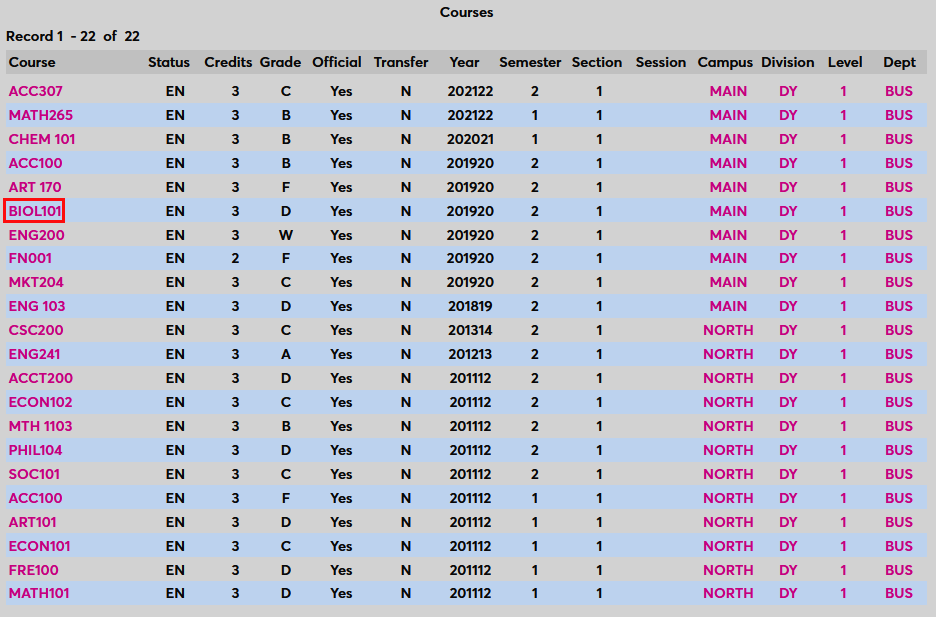
To uncheck Exclude from SAP, navigate to the student's Courses record and select the appropriate course by clicking its name in the Course History.
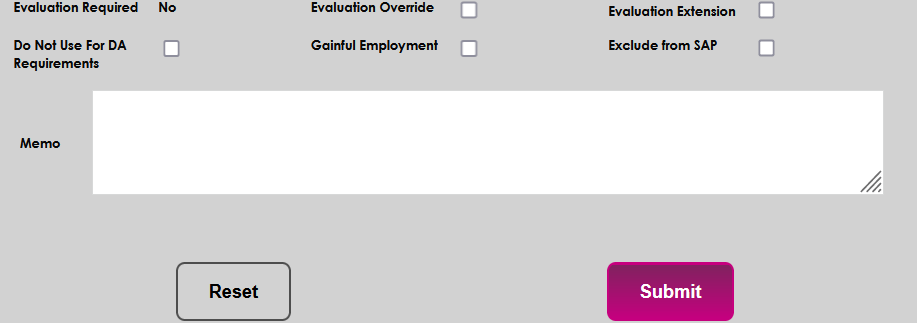
On the Student Courses page, scroll to the bottom, just above the Memo box, and remove the check from the Exclude from SAP box. Click Submit to save the change.
Creating SAP Report
To create the SAP report, navigate to the SAP utility in the Systems hub. Select a School Year and Semester to query. Only students with final grades within the school year and semester selected will appear in the report. This means that an in-progress semester should not be chosen as grades would not be finalized.
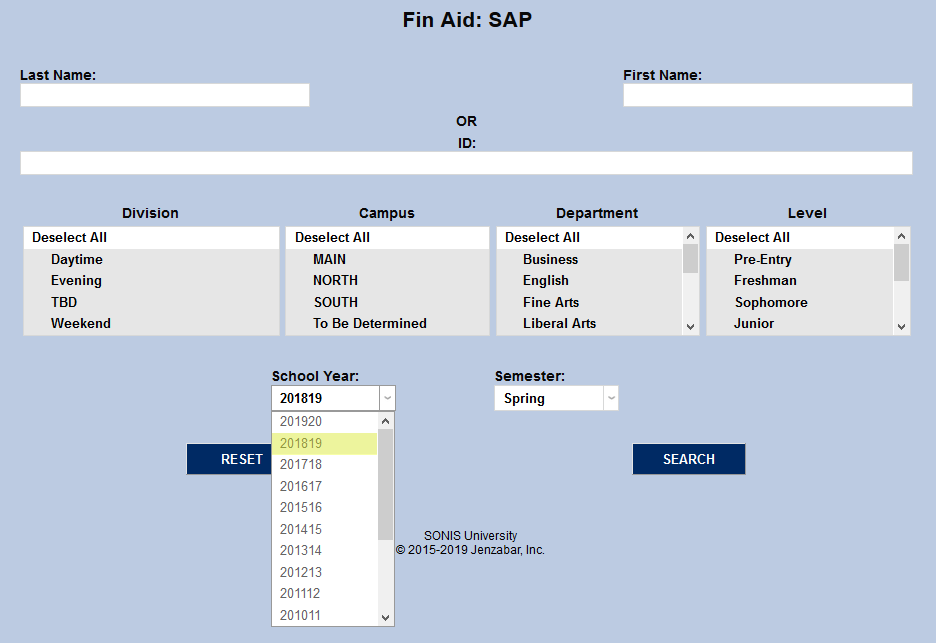
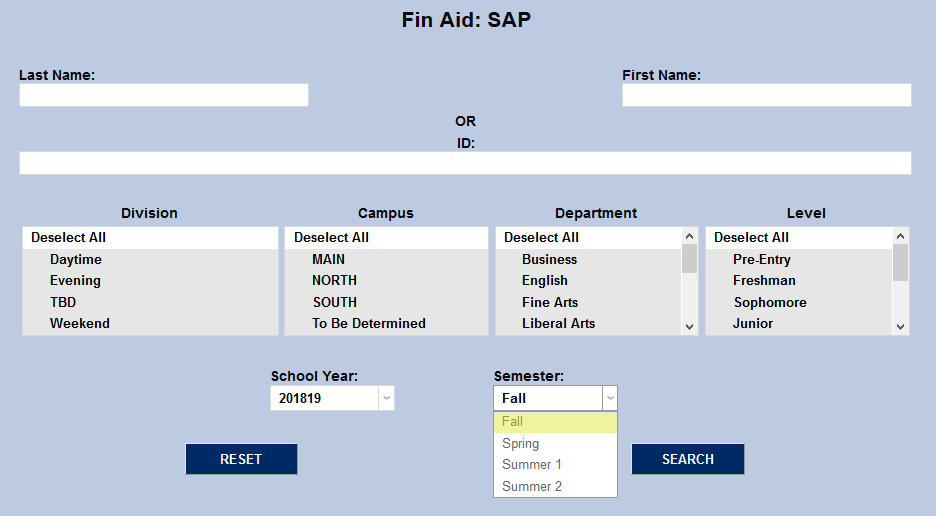
Administrators can choose a specific student to view by entering the student's first and last name and/or SONIS ID number or use the division, campus, department, and level menus to narrow down the students in the report to the desired group. If no name or ID is entered and all categories are left selected, every student with finalized grades during the chosen semester(s) will be displayed.
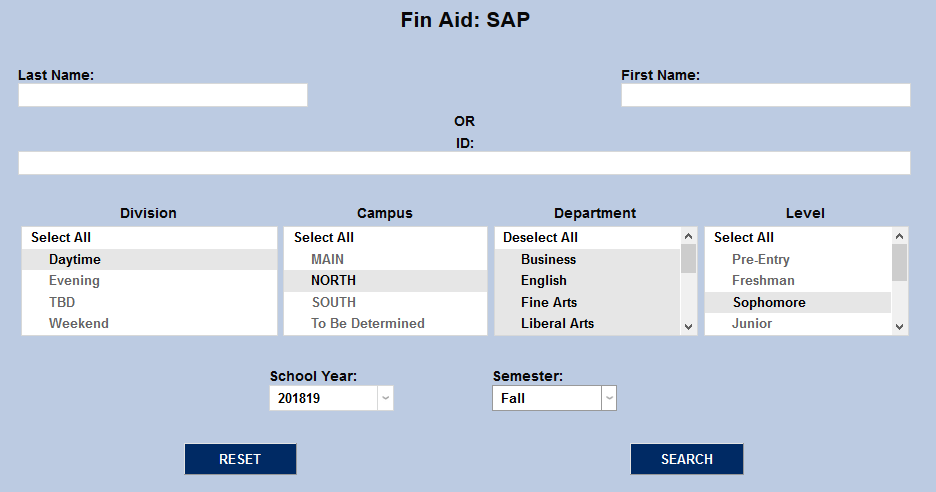
If a specific student has been selected via name search but another student or students need to be displayed, click Clear Name to remove this student's information and allow for a different search.
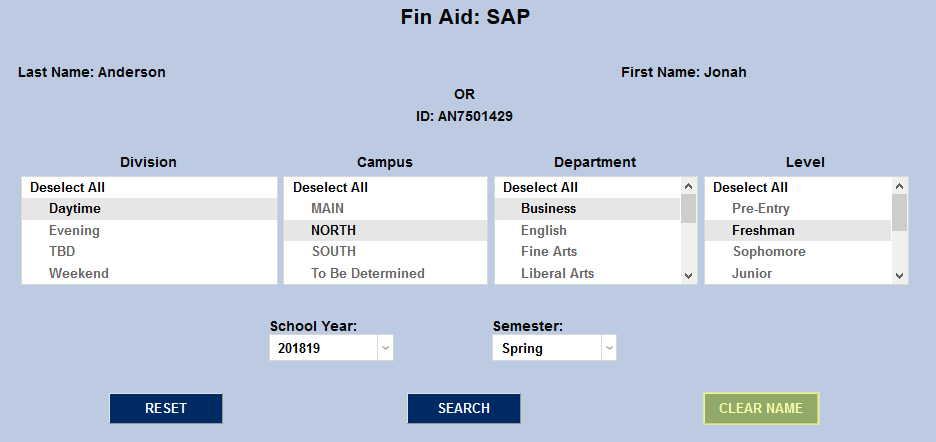
Once the proper demographic data or student info has been entered, click Search to continue.
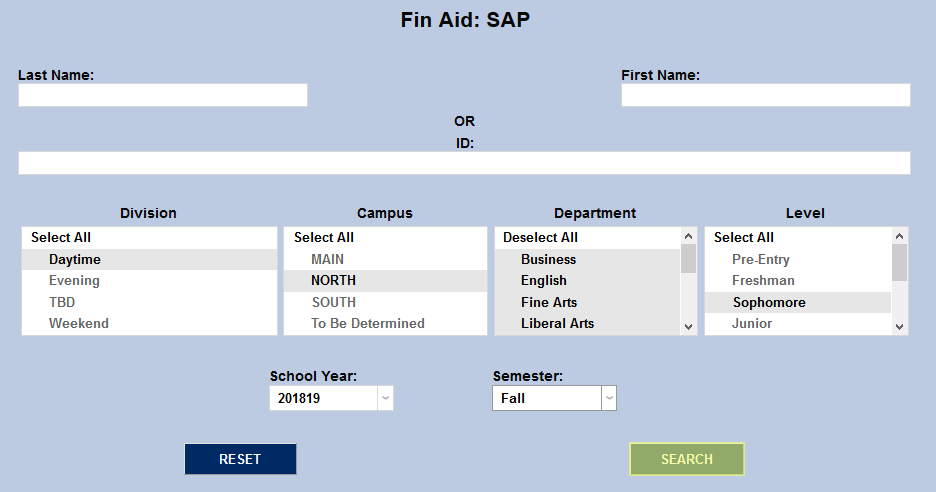
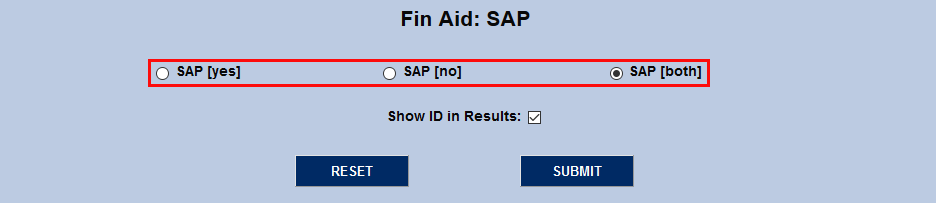
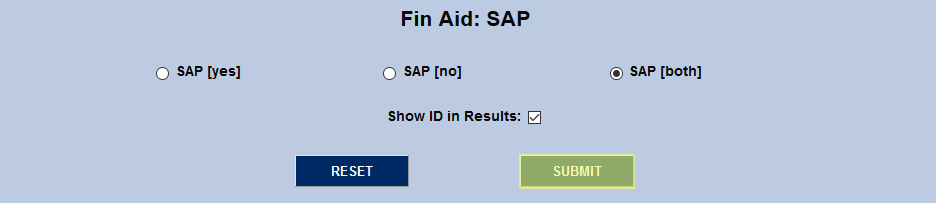
On the following page, administrators can choose to show only students who have met satisfactory academic progress standards by selecting the Yes button, only students who have not met SAP standards by selecting the No button or both groups by selecting the Both button.
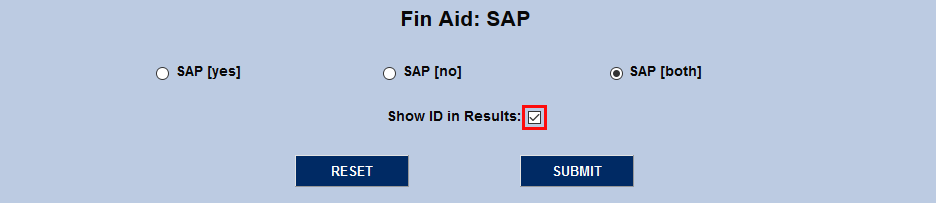
Leave the Show ID in Results box checked to include each student's SONIS ID or uncheck it remove this information from the report. This choice will be carried over to the PDF and Excel reports that can be created on the following page. Click Submit to create the report.
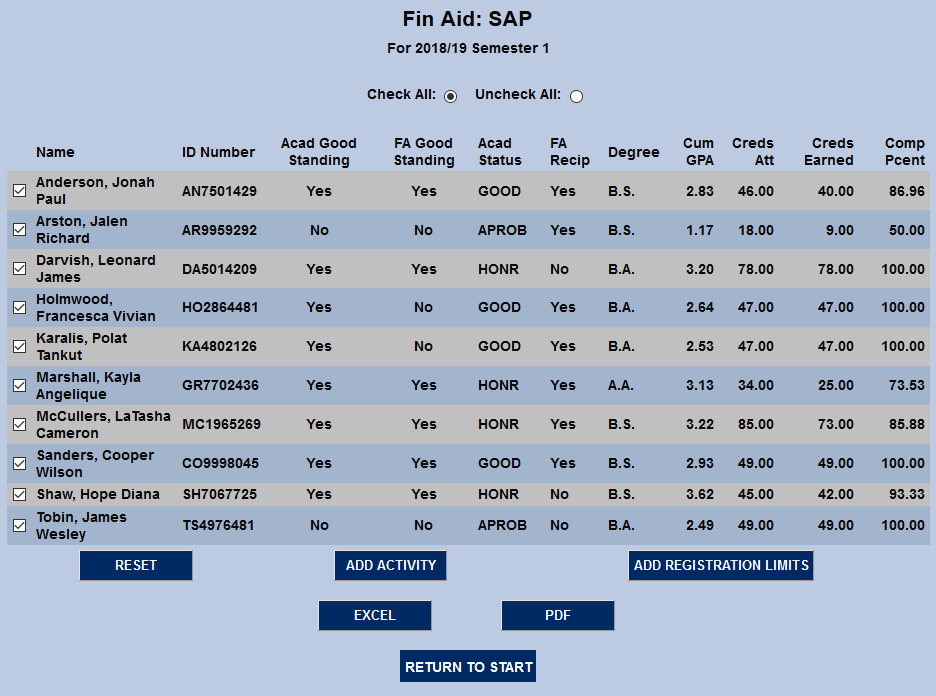
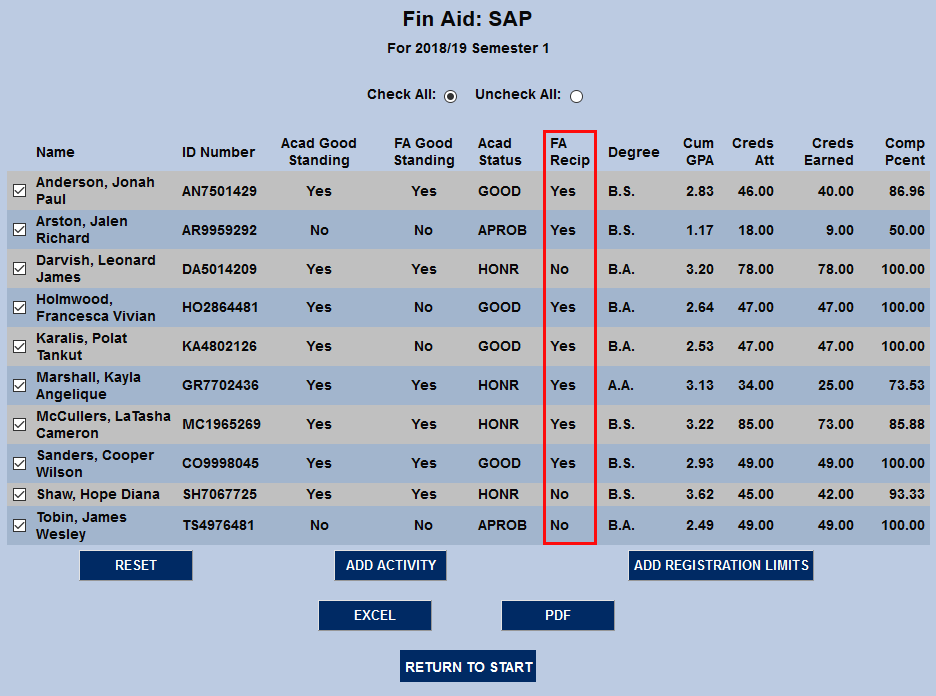
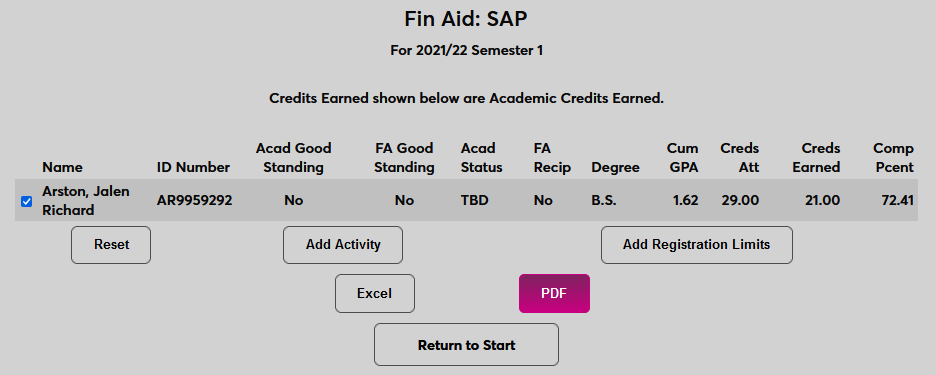
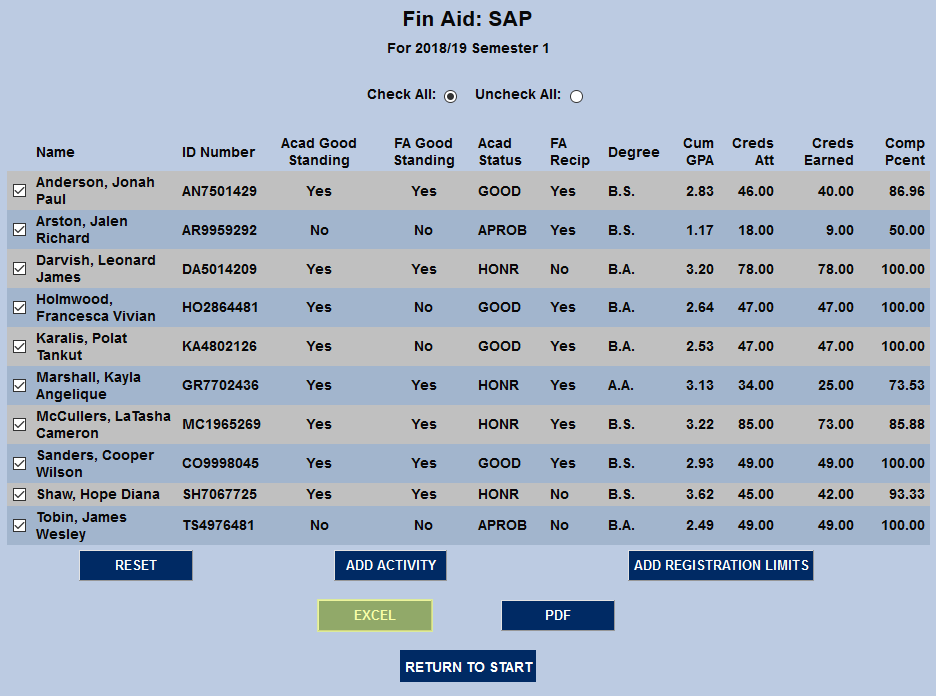
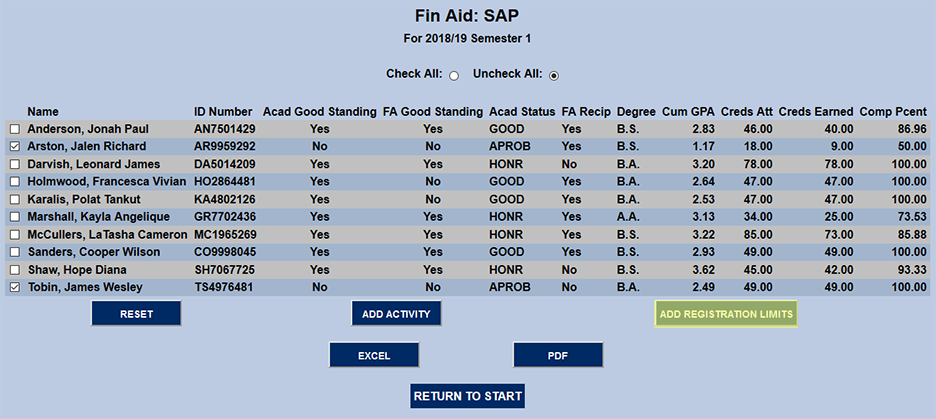
The report displayed lists the student's name, their SONIS ID number (if the Show ID option was selected), their academic standing, their financial aid standing, their degree, and their cumulative GPA.
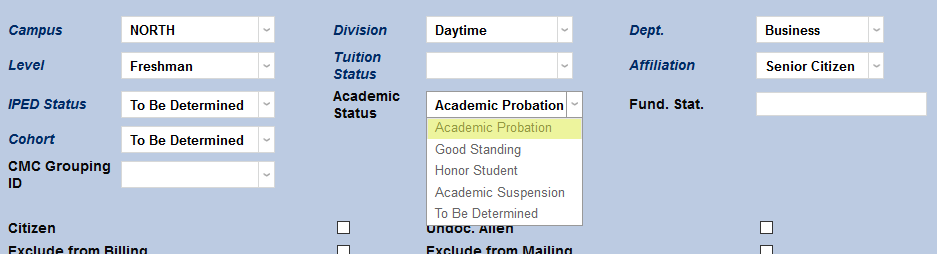
The student's Academic Status is set manually by a dropdown menu on their Biographic page. The dropdown is populated based on the statuses created in the corresponding table found in Table Maintenance in the Systems hub.
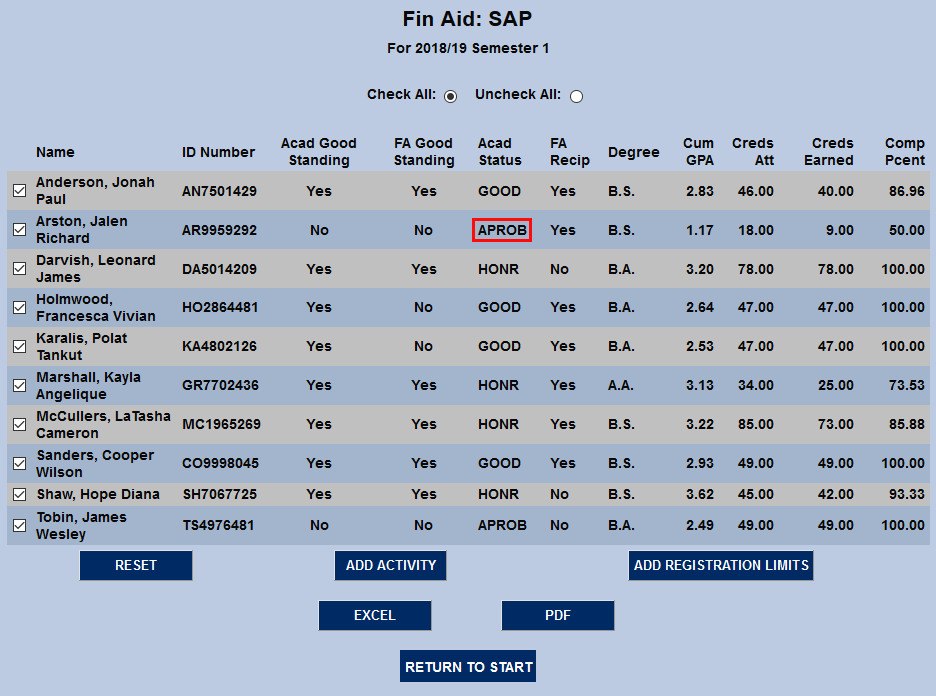
If the student has any financial aid transactions during the semester being queried, they will have a Yes in the FA Recipient column. Otherwise, the result will be No.
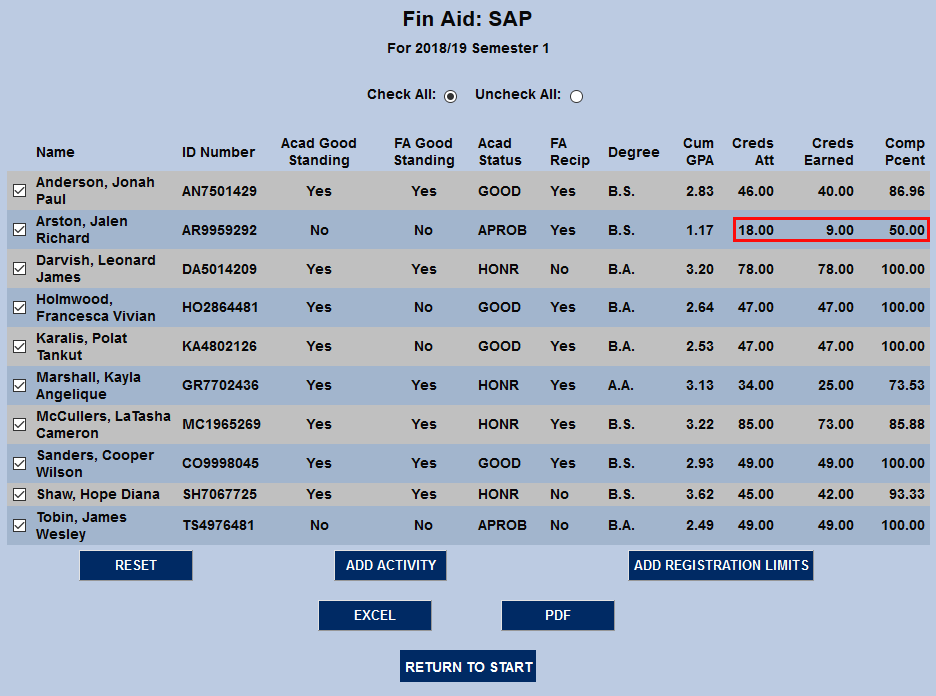
The Completion Percentage is based on the Credits Attempted divided by the Credits Earned.
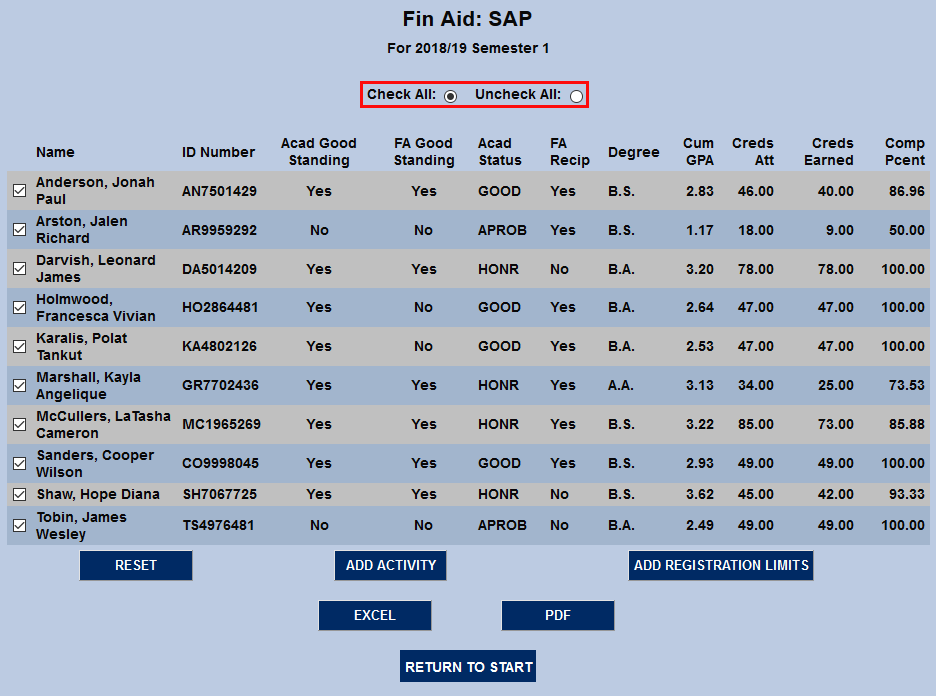
Check All and Uncheck All buttons are available at the top to save time when exporting results or adding activities.
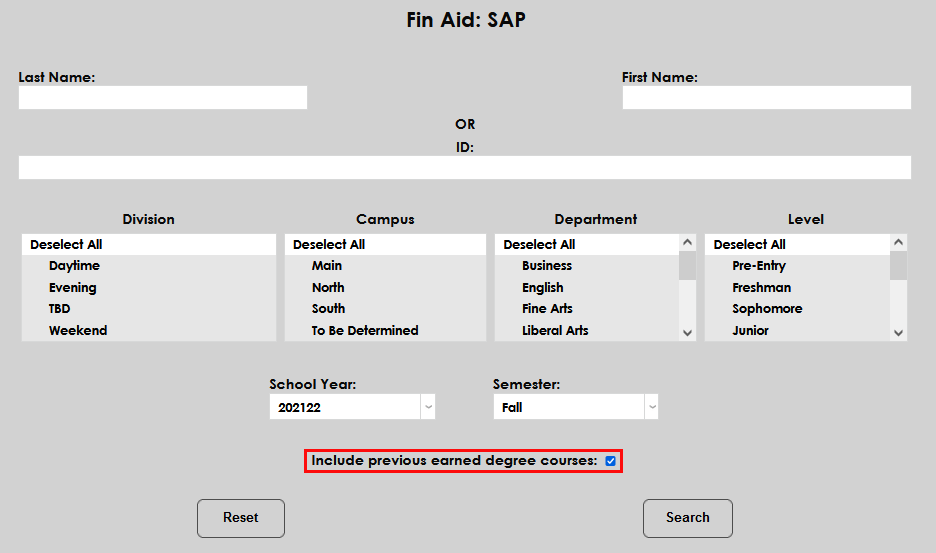
Include Previous Degree
As mentioned above, if and only if the Multi-Transcript GPA and GPA Grouping are both set to No, a checkbox will appear labeled Include previous earned degree courses. If this box is checked, the SAP report will include all courses that the student has taken at the home institution in the SAP calculation. If the box is left unchecked, only courses associated with the student's active degree will be included in the calculation.
Course Exclusion Example
When a course has been excluded, no indicator in the SAP report indicates this. If there is concern that a course has not accurately been excluded, compare the Credits Earned field on the SAP report to the student's courses page on the Records menu or to their Transcript report. If an error is noted, check the Course Exclusion status on the student's course record.
Exporting
Once the SAP report has been created, administrators can click the Excel or PDF buttons to export the data as a Microsoft Excel file or a PDF. Clicking the PDF button takes the user to a new page with the option to create the PDF in a new browser tab. The method used to download the file will vary depending on the web browser being used.

When the Excel button is clicked, a pop-up will appear asking the user to open or save the file. In order for the download to work, a Batch File Directory must first be set up in Web Options, though the file can be saved in another place.
Adding Activities
Administrators also have the option to add an Activity to the student's records directly from this utility. Generally, this would mean setting up an automated email to be sent to the student or notifying other administrators or staff that the student is not in good standing. To read more about activities and how to set them up, visit the Activities page.
To begin adding an activity, select the student or students to which the activity applies by checking the box next to their name and click the Add Activity button.
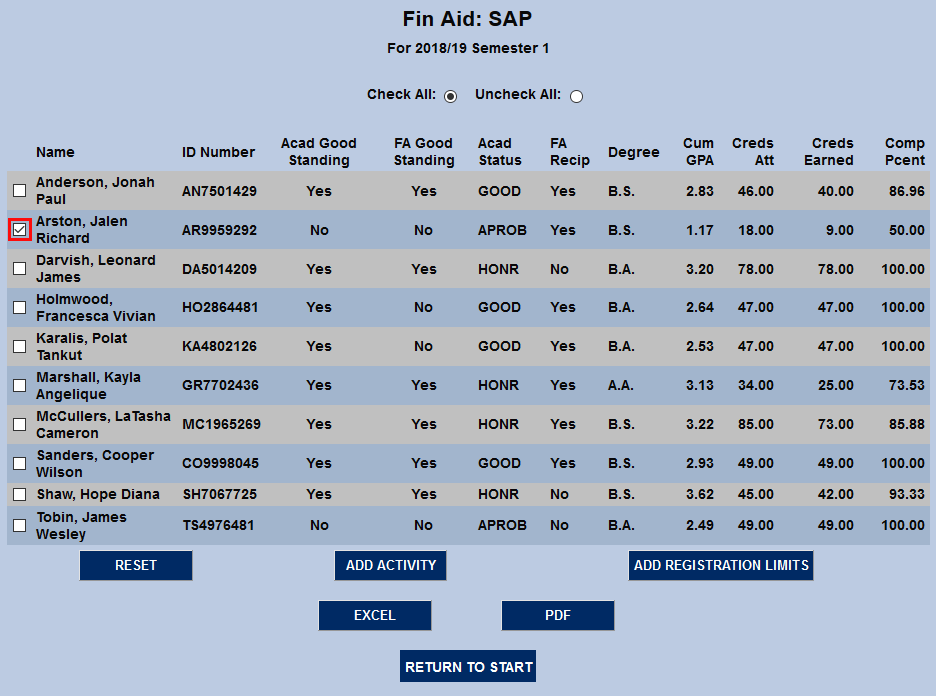
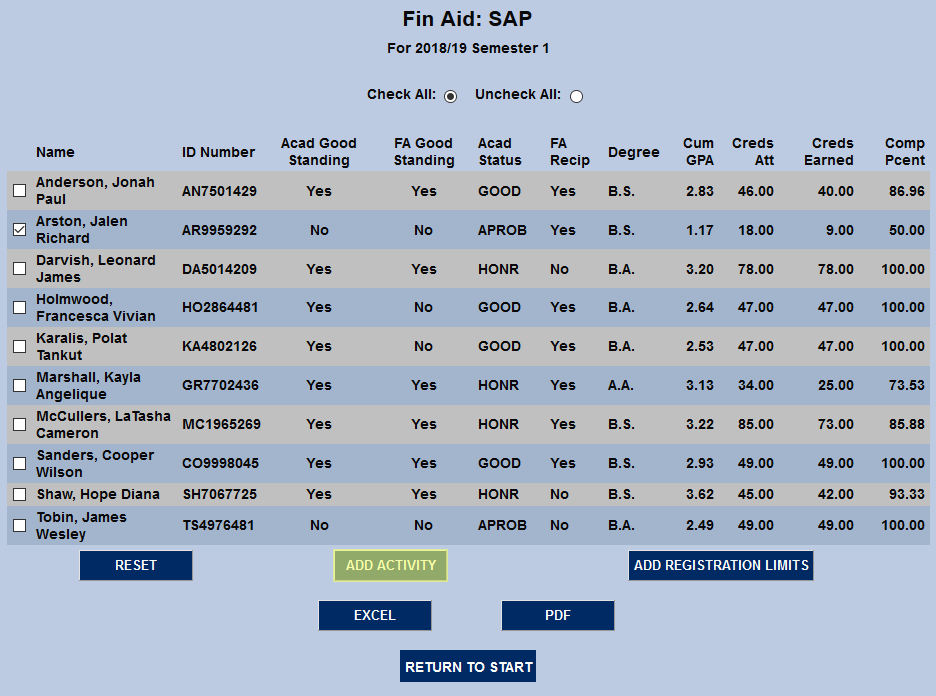
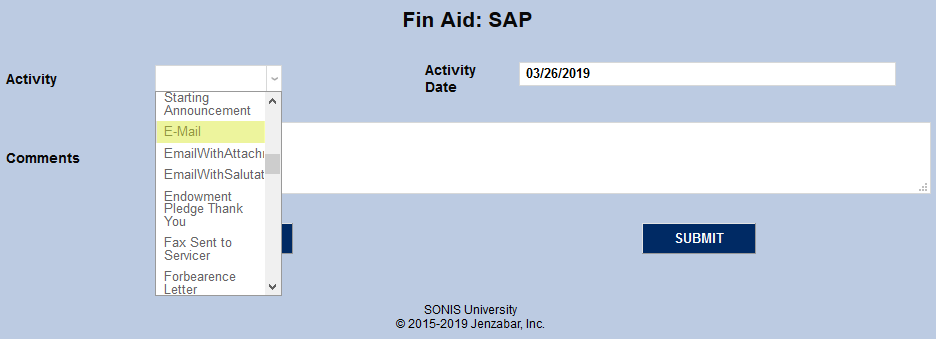
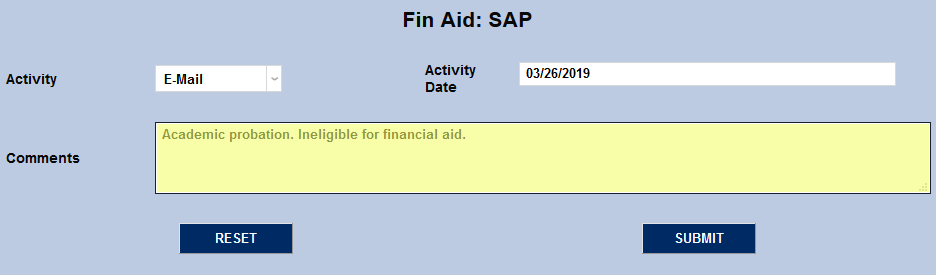
On the following page, select an activity from the Activity dropdown menu and set the Activity Date. The current date will be filled in automatically, but this field can be edited to any valid date.
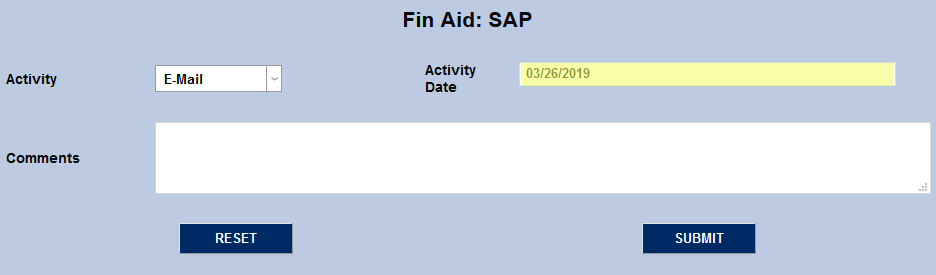
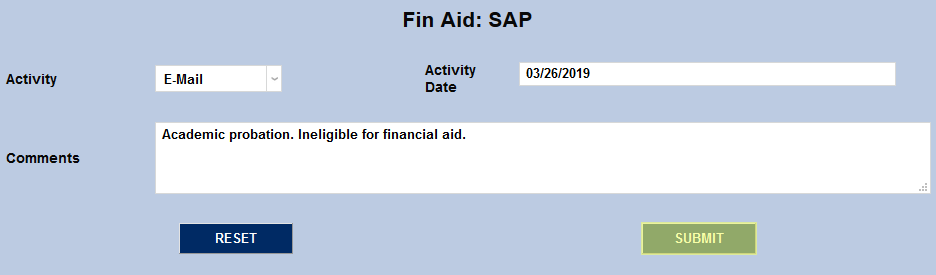
Add Comments that will be appended to the activity and click Submit.
User Replacement Report
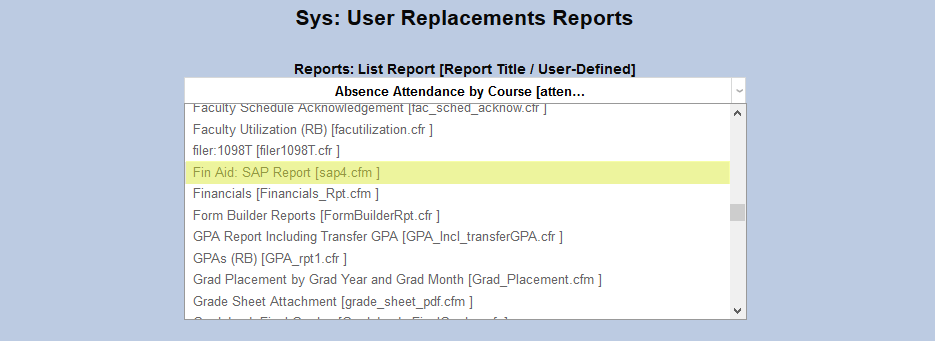
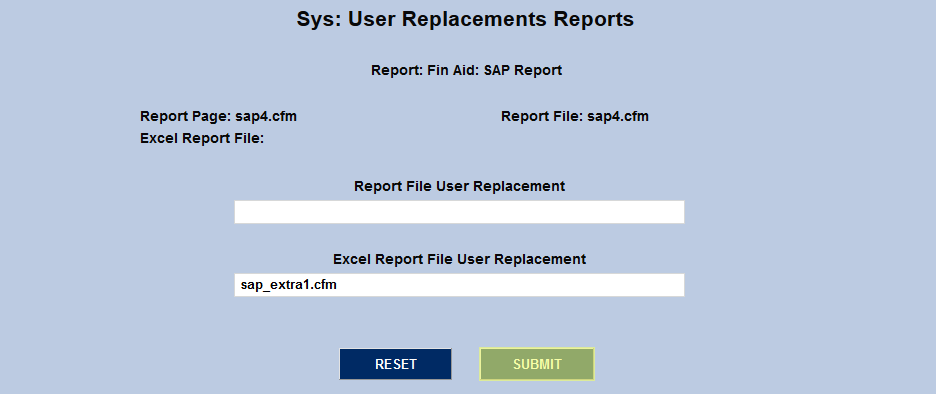
In addition to the standard PDF and Excel reports, which contain only the information shown on screen, SONIS offers a user replacement report, which provides greater detail. To replace the standard Excel report with the more detailed replacement report, visit the User Replacement Reports utility under the Systems menu and select Fin Aid: SAP Report.

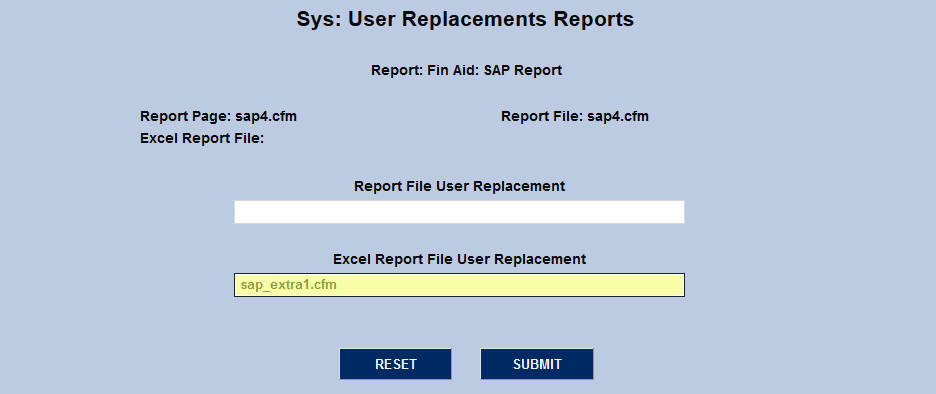
On the following page, type or paste the text sap_extra1.cfm into the Excel Report File User Replacement field and click Submit.
Additional columns in the replacement report include:
• Column indicating Primary Email Address of Student.
• Column indicating If Unsatisfactory SAP for GPA: Yes, or No (Y/N).
• Column indicating if Unsatisfactory SAP for Pace: Yes, or No (Y/N).
• Column indicating if Unsatisfactory SAP for both GPA and Pace: Yes, or No (No can be indicated by blank space).
• Column indicating if Unsatisfactory SAP for Maximum Time Frame; Calculated by the Set Number of Program Credits times 150%. Number is greater than or equal to cumulative attempted credits; Yes, or No (Y/N).
• Column indicating if Unsatisfactory for Pace: Full Credits Needed to Complete to Reach Pace, calculated by (.6767 x Cumulative Attempted Credits) – Cumulative Earned Credits)/.3233, rounded up to the next whole number if the result is a fraction of a whole number. Anyone who is Satisfactory for Pace will have a blank and no number will appear.
• Column indicating Total Minimum # of Required Credits to Completion: Number of Set Required Program Credits less Cumulative Earned Credits.
• Column indicating Total Minimum # of Attempted Credits to Completion: Number of Set Required Program Credits less Cumulative Earned Credits plus Cumulative Credits Attempted.
• Column indicating if Unsatisfactory for Pace: Minimum Pace to Completion of Program, calculated by the Current Pace Difference divided by Total Minimum number of Required Credits to Completion plus 67.67 Required Pace, rounded up to the next 100th decimal place number if the 1000th decimal place is a fraction of the 100th decimal place. Anyone who is Satisfactory for Pace will have a blank and no number will appear.
Adding Registration Limits
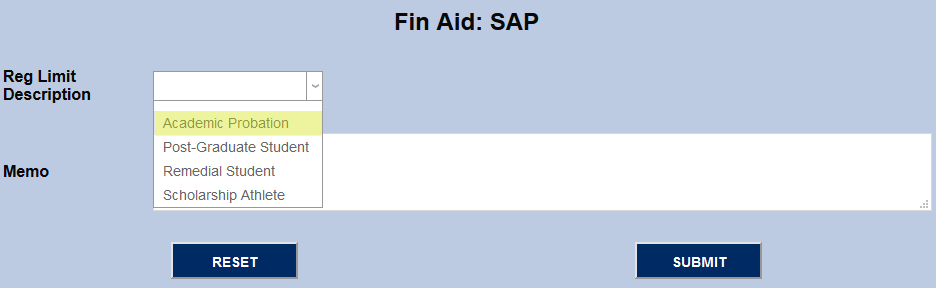
Registration Limits allow institutions to place a limit on the number of courses that a student can register for in a given semester or session based on academic difficulty or other issues. To make assigning registration limits easier, a button has been added to the SAP utility that allows limits to be added to groups of students based on their SAP query results. Once a report has been run, check the boxes next to the students to be limited and click the Add Registration Limits button.
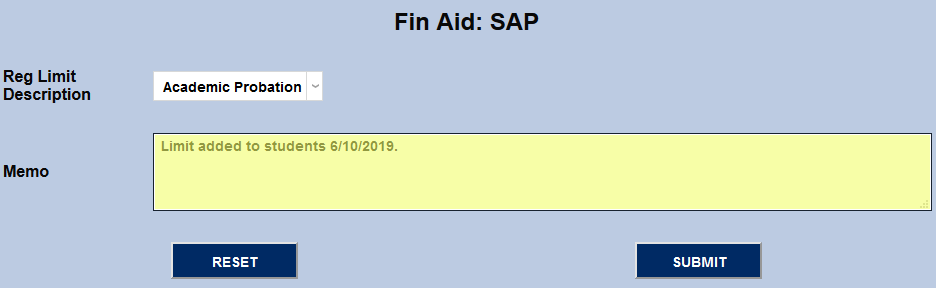
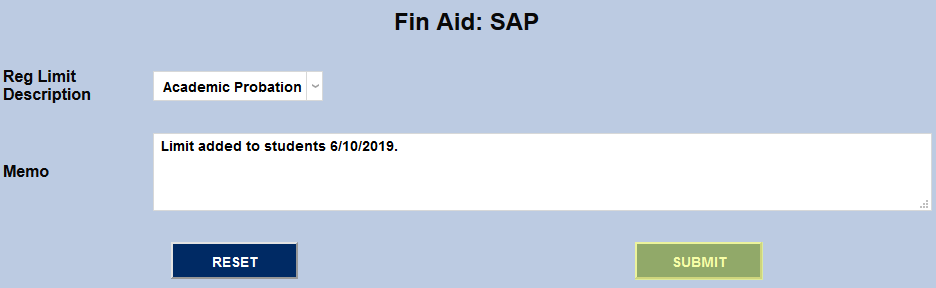
On the following page, select a registration limit, append a memo if necessary, and click the Submit button to place the selected registration limit on the selected students.