Jenzabar SONIS Version 3.7 Portal Billing Options Updates
Overview
The following changes to the Student portal Billing page was made as part of Jenzabar SONIS version 3.7. The first change is that the Billing page is now available in the CE Portal. See the section below for instructions on turning this page on. The second change is a new layout option, which can only be activated directly in the SONIS database. To change the Student Billing layout option, contact Jenzabar SONIS support.
CE Portal
A billing page can now be added to the CE Registration portal. To activate this page, navigate to the Portal Menu Utility under the Systems menu. Select CE Registration.
On the next page, scroll down to the Financial section. Ensure that the Financial tab itself is on along with the Left Menu Display and/or Top Menu Display options depending on institutional preferences.

Once the page has been turned on, it will display in the left-nav menu and/or the top-nav menu depending on the options chosen. The page is identical to the student and alumni billing pages.

Billing Page Layout Options
As of Jenzabar SONIS version 3.7, there are three options for the layout of the Billing page in the Student portal.
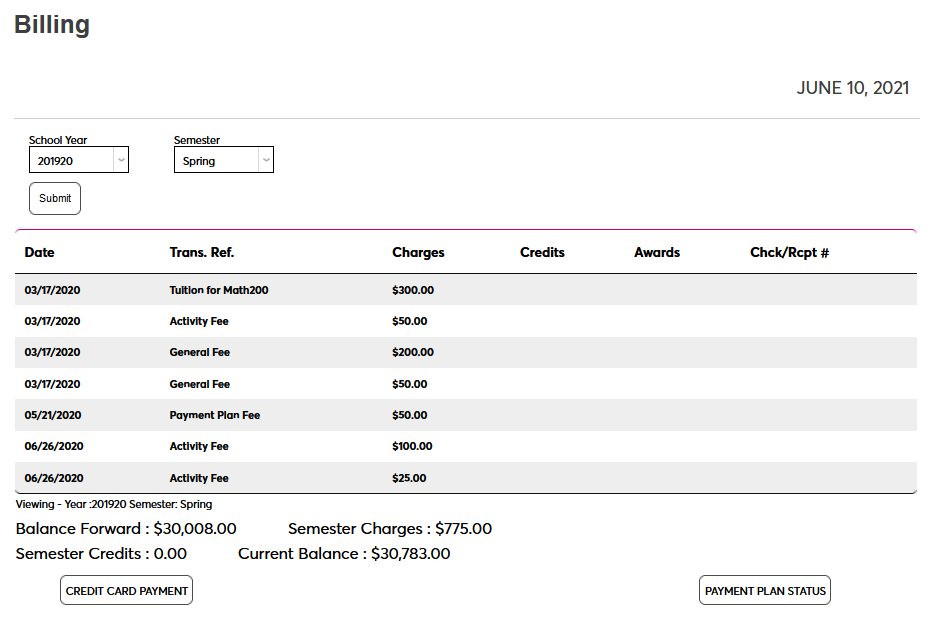
Option 1 displays a summary of the student's charges, credits, and awards in table form. The student can change the semester that is displayed using the School Year and Semester menus at the top of the page.
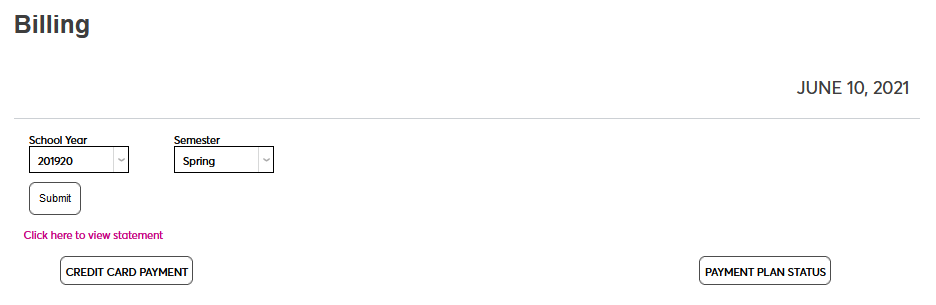
Option 2 displays a link to view a PDF billing statement. This can be either the standard SONIS billing statement or a custom statement.
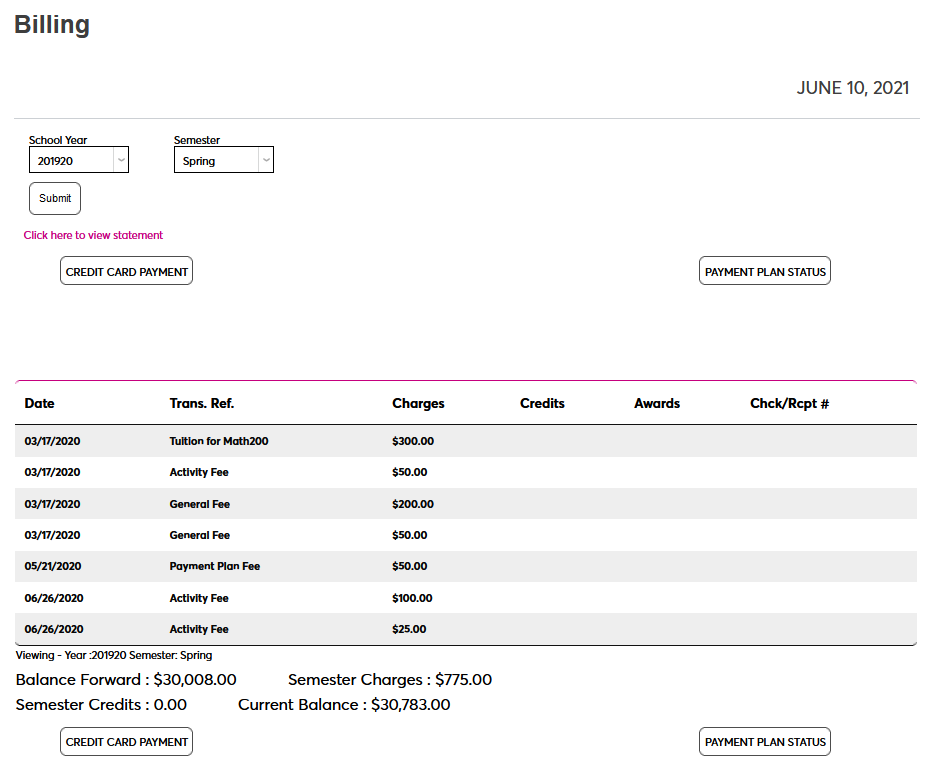
Option 3 displays both the summary table and offers a link to view a PDF billing statement.