Reverse Tuition
Overview
Reverse Tuition is a process used to reverse transactions for students who have withdrawn from courses. While these refunds can be provided at the time of withdrawal, most institutions prefer to activate this refund through a separate process that's controlled by the bursars and others in the accounting department. Reverse Tuition is only used to reverse charges if it's chosen as an option when creating Refund Settings. Reverse tuition will reverse transactions which have tuition t-codes that can be voided, are for the selected school year and semester, and are not in a posted or unposted accounting batch. If charges have already been posted to accounting, reverse tuition will create offsetting charges since they can not be voided.
The Reverse Tuition function is particularly useful for schools that use Flat Fee tuition. If a student has met the flat fee threshold but withdraws from a course and drops below that threshold, reversing the tuition is the easiest way to solve the issue and charge the student the proper amount. In these situations, the Reverse Tuition function unposts all of the student's courses from Billing and PreBilling. When the charges are posted to Billing again, the student is charged the per course rate.
Refund Settings
The option to make Reverse Tuition requests is controlled through the Refund Settings utility. When creating or editing a refund code, check the Reverse Tuition Request box to trigger a Reverse Tuition Request option when withdrawing a student from a course. Leave the box unchecked if reverse tuition requests are not necessary based on the school's operations standards.
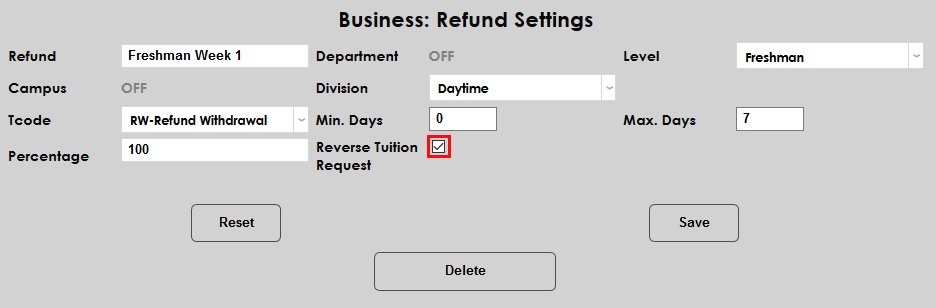
More information on refund settings is available in the Refund Settings help article.
Reverse Tuition Request
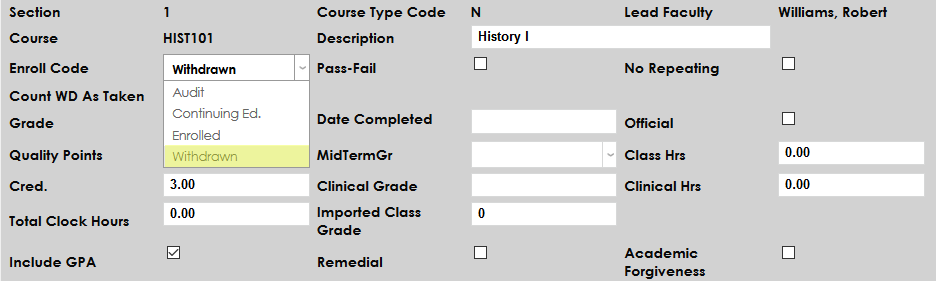
A tuition request is created when a student is withdrawn from a course they are currently enrolled in. To withdraw a student, navigate to the Student Courses page and change the Enroll Code to Withdrawn.
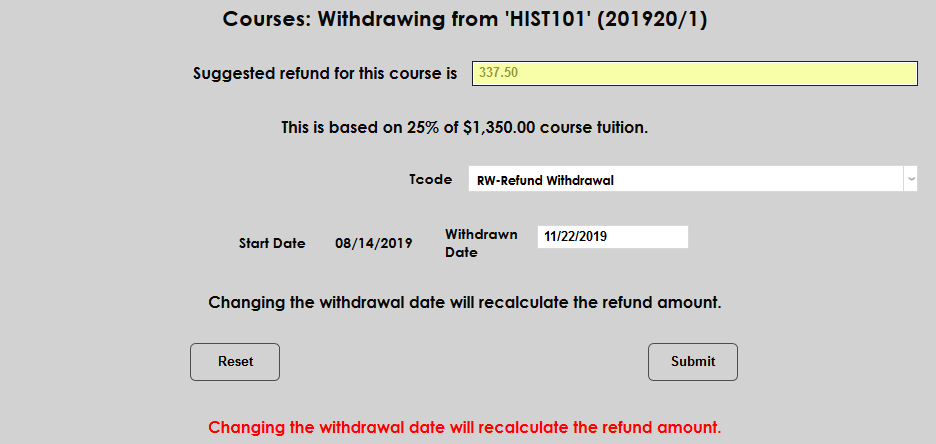
On the following page, the Suggested Refund field will be filled in automatically based on the institution's Refund Settings. Generally, the amount of money can be refunded goes down based on the time it's been since the course start date, but schools can offer refunds however they want, including offering different refund amounts based on the student's module status and/or Affiliation. If there are extenuating circumstances, the refund amount can be edited from this screen. The text below explains how the amount was calculated.
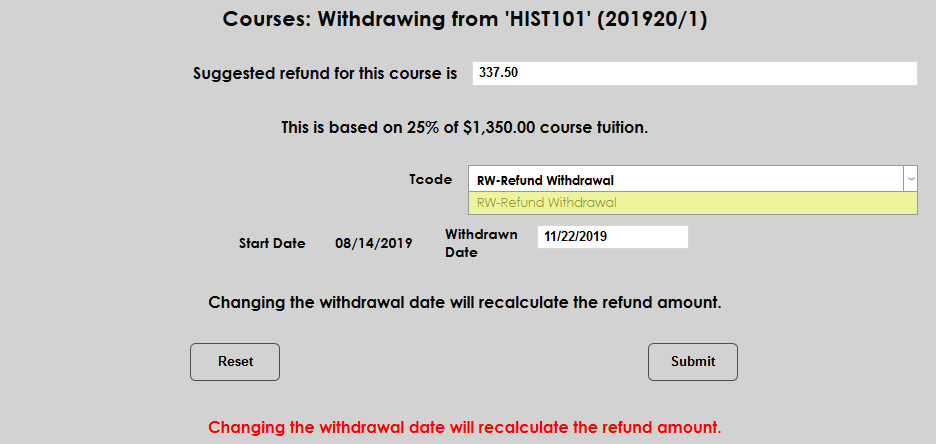
Next, select a T-Code to be used for the refund transaction. Only transaction codes included in the Tuition T-Codes list will be offered as an option. Most institutions use a single refund code for tuition refunds but some schools may wish to set up more than one to use for various situations.
The Withdrawn Date will be listed in the student's records. It's automatically set to the day that the change is taking place but can be edited if the actual withdrawal occurred on a different date.
Once any needed changes have been made, click Submit to withdraw the student from the course.
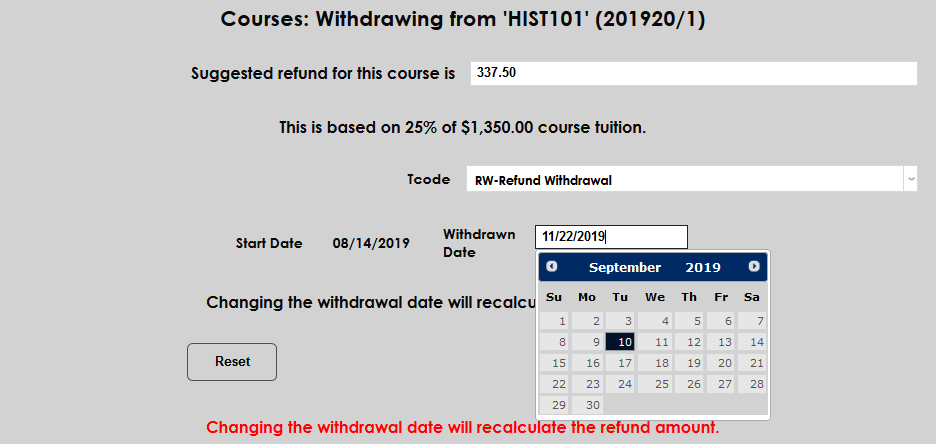
If the reverse tuition option has been selected and the withdrawal matches the correct criteria for a reversal, the course can be marked for reverse tuition.

Reverse Tuition Processing
To process tuition reversals, navigate to the Reverse Tuition utility under the Financials menu. If a user has been selected using the Name Search function, the student's name and SONIS ID will appear at the top of the screen. Click Submit to view requests for this student or Clear Name to search more broadly.
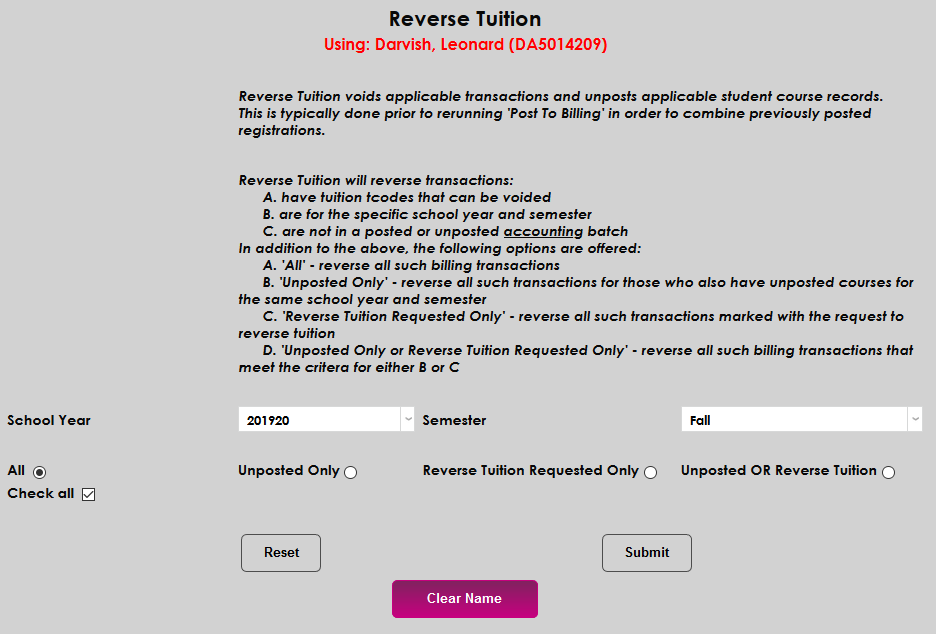
Select a School Year and a Semester. As previously noted, only reverse tuition requests from one semester at a time can be displayed and processed. In most cases, only reverse tuition requests from the current school year and semester will be accepted and processed.
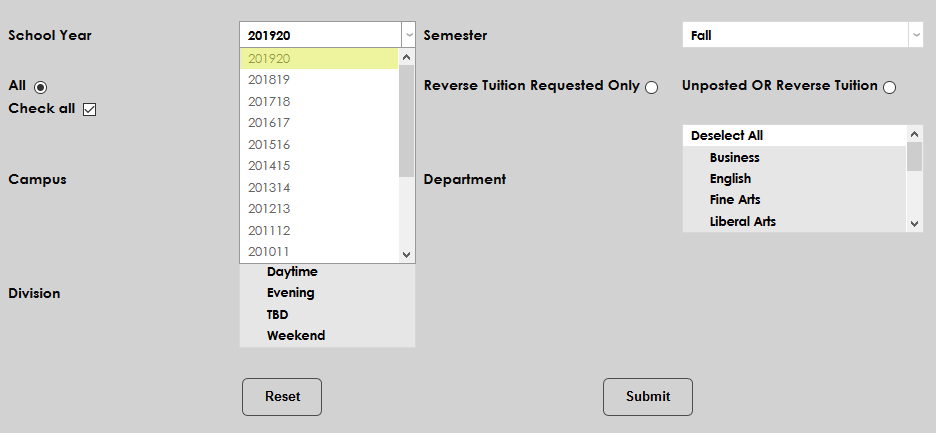
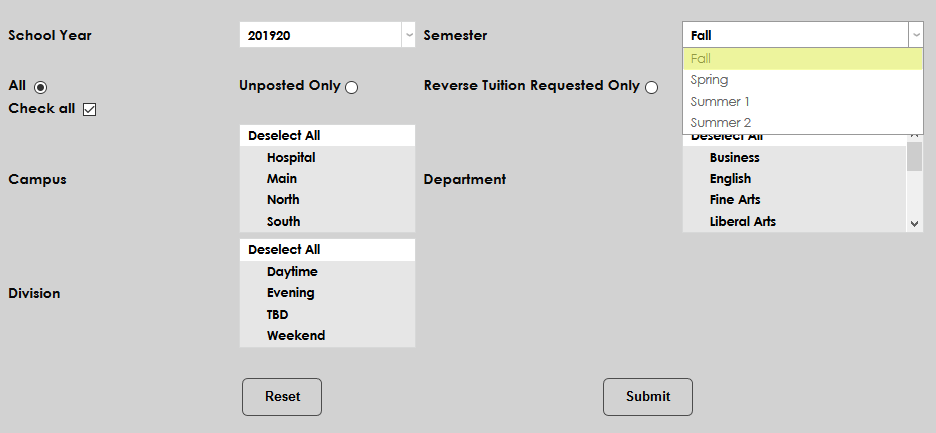
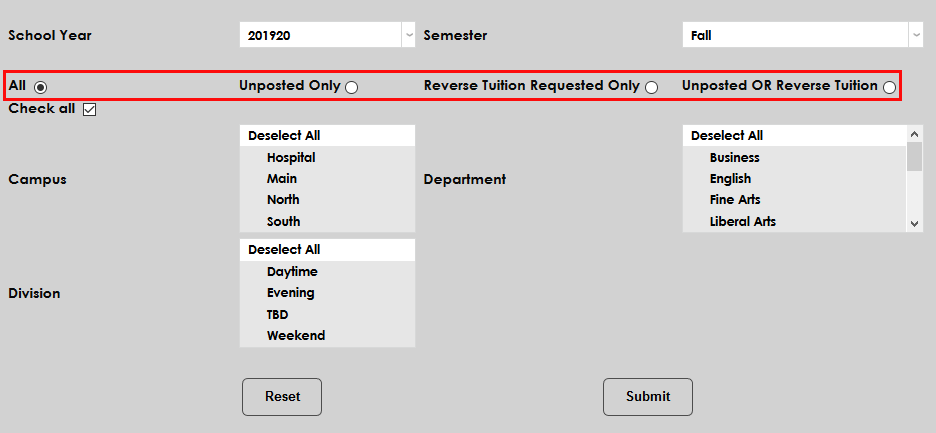
Next, select the kind of transactions that should be displayed. The All selection displays all reverse tuition transactions. The Unposted Only option displays only reverse tuition transactions associated with unposted courses. The Reverse Tuition Requested Only option displays only reverse tuition requests. The final option displays both Unposted courses and Reverse Tuition requests.
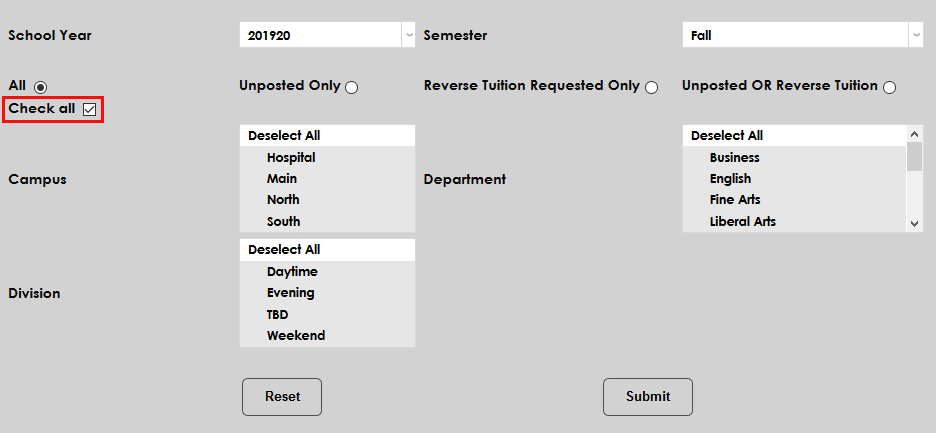
The Check All box is used as a time-saving device. If the box is checked, the displayed transactions will be automatically checked for processing. If the box is unchecked, the displayed transactions will be unchecked and any individual transactions that are too be processed will have to be selected one at a time.
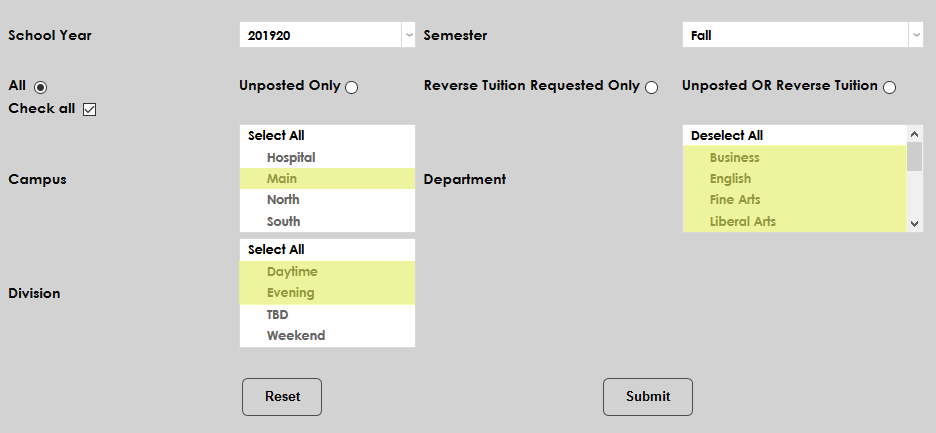
The Campus, Department, and Division menus can be used to narrow down the results of the query.
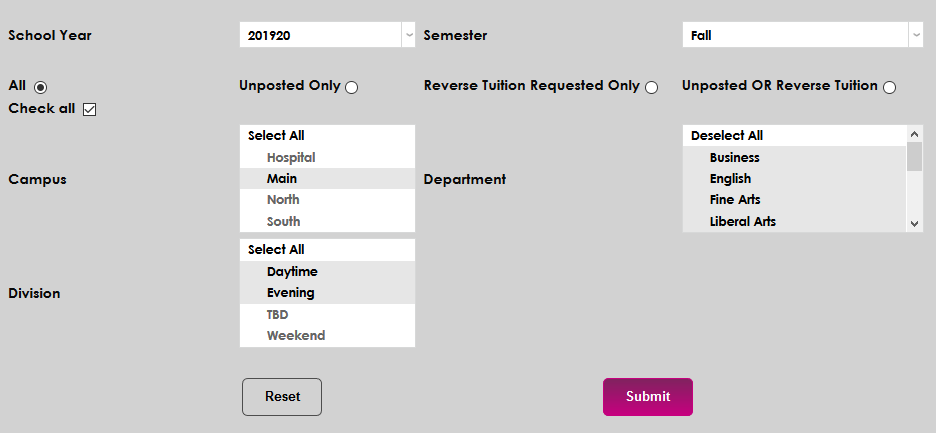
Click the Submit button to continue.
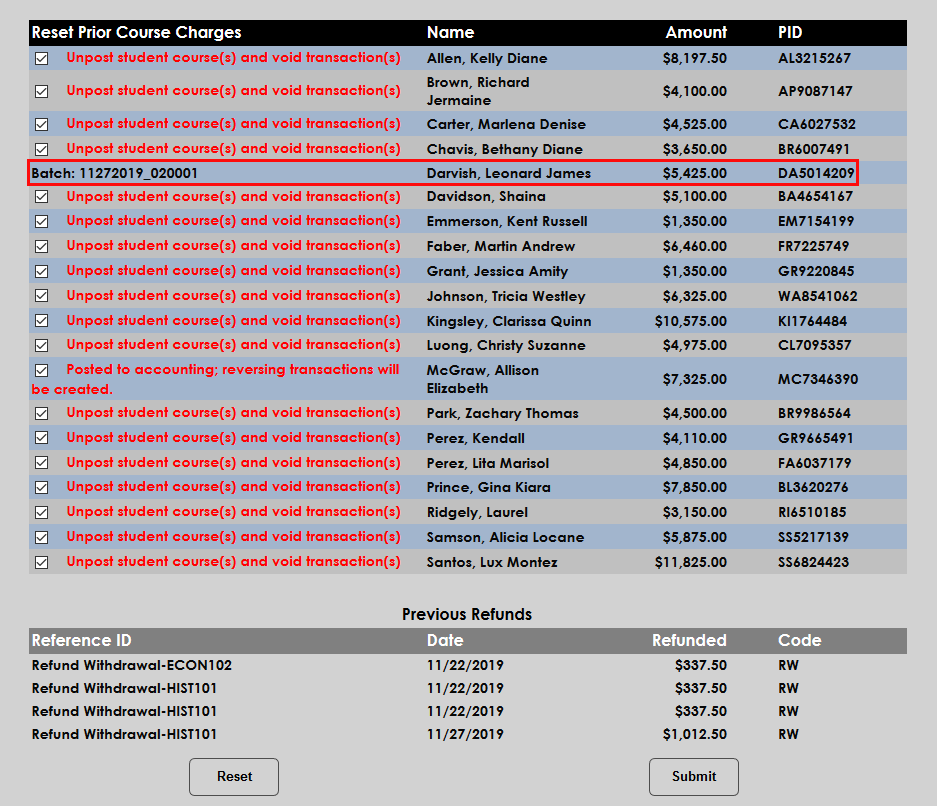
The following page lists the transactions that match the search criteria entered. If a transaction is in a bach that has not yet been posted to accounting, the batch number is listed. The transaction cannot be reversed until the batch is resolved.
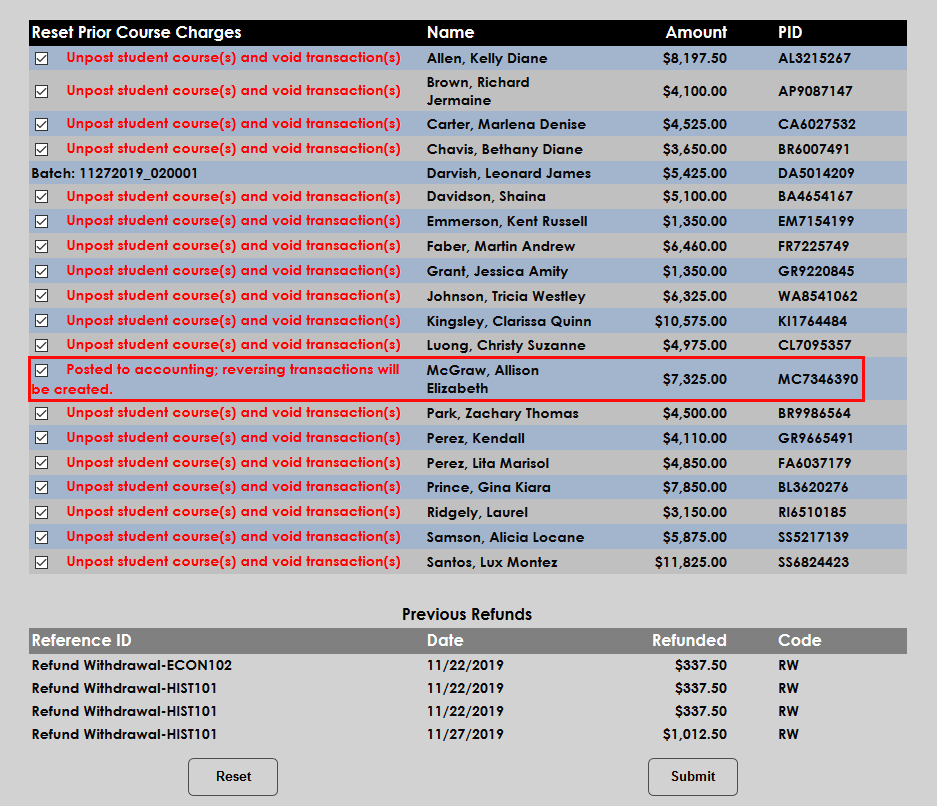
If a transaction has already been posted to accounting, the tuition can still be reversed. However, since the charges can no longer be voided, the utility will create offsetting transactions.
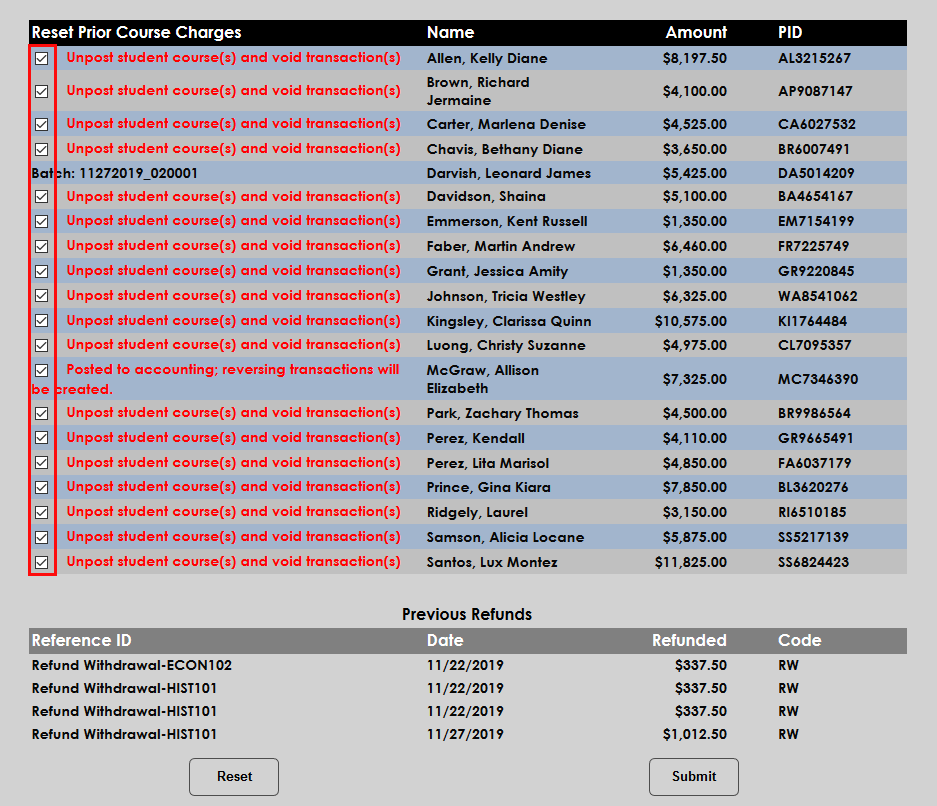
The checkboxes in the far left-hand column can be used to add or remove transactions from processing. Click Submit to process the checked items.
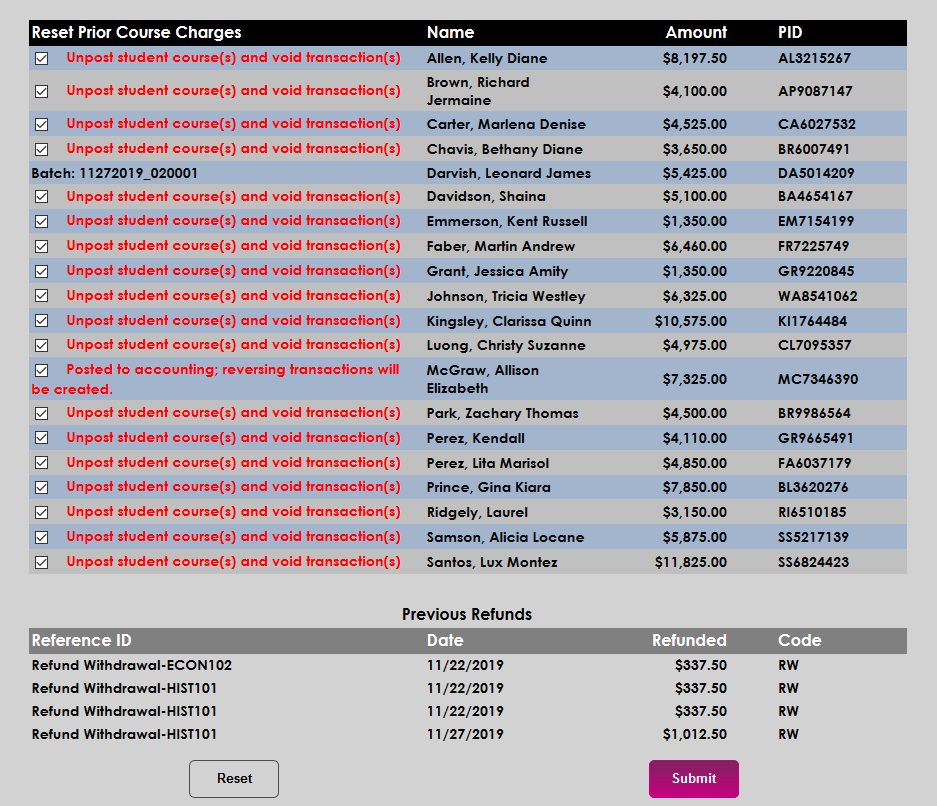
Once the transactions have been reversed, post the new transactions using the Post to Billing utility.