Balances Report
Overview
The Balances report displays both positive and negative outstanding balances. It combines the data available on the Receivables report with the data available on the Payables report. To run the report, select the appropriate filters to narrow down your criteria, check the appropriate checkboxes to control how the data is displayed, and click Create.
Running the Report
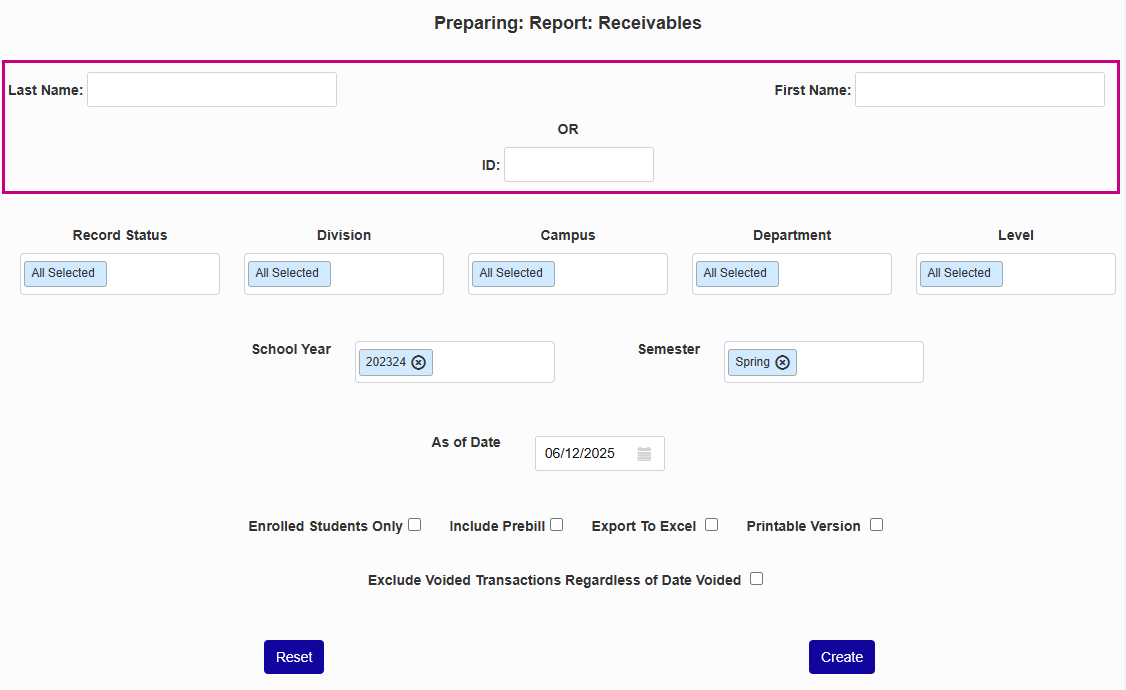
You can use the optional Last Name and First Name fields or the ID field to select a specific user.
Note
If you use any of these fields to select a specific user, you will be asked to select the user from a list of potential users before viewing the report. This remains true even if only one potential user is found.
You can select a Record Status, which is the module status of the user. You can change a user's module status or give them a new one using the Module Status Add/Replace modal.
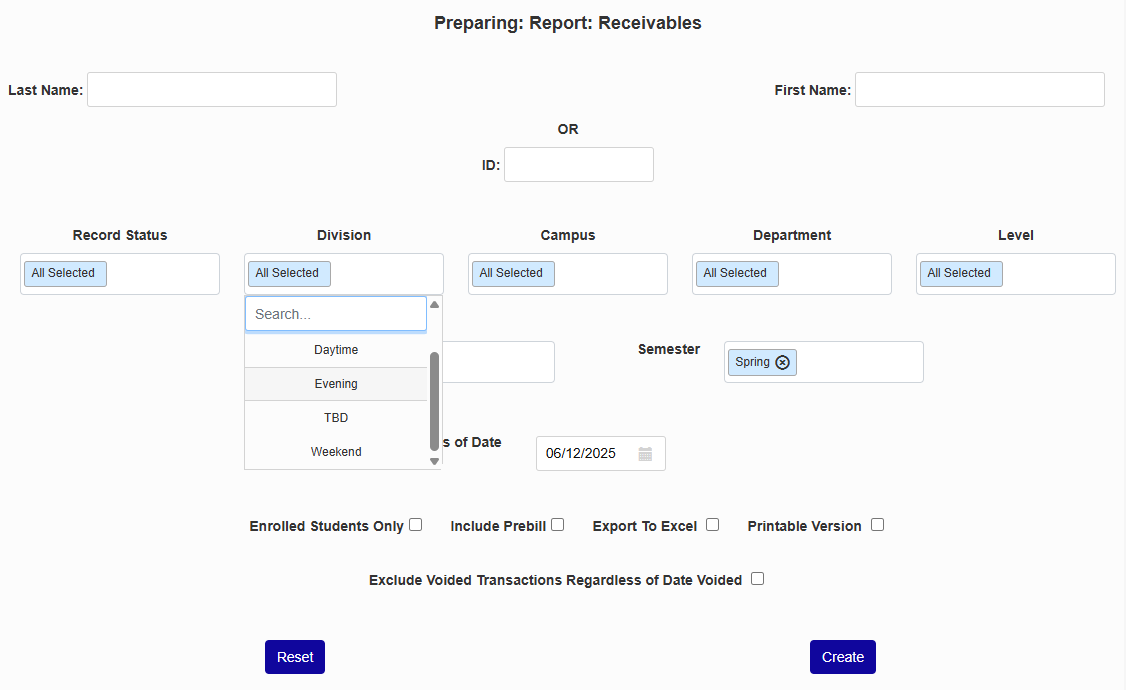
You can also narrow down the results using the Division, Campus, Department, and Level filters. Each of these categories is created using Table Maintenance and can be assigned to each user on their Biographic page.
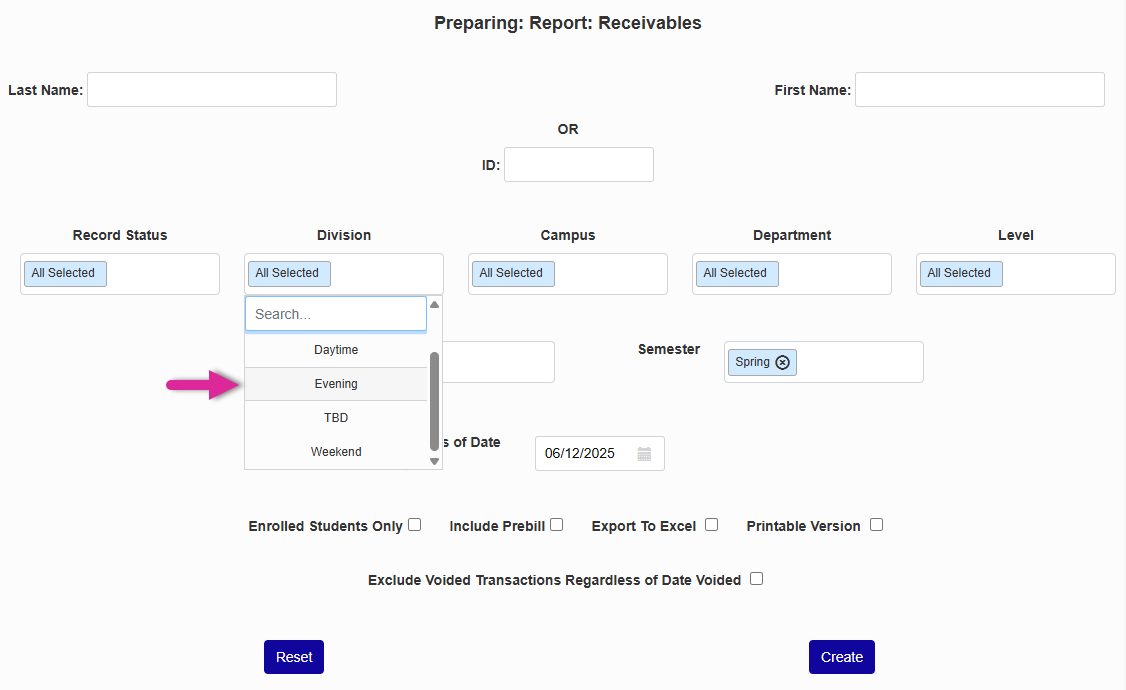
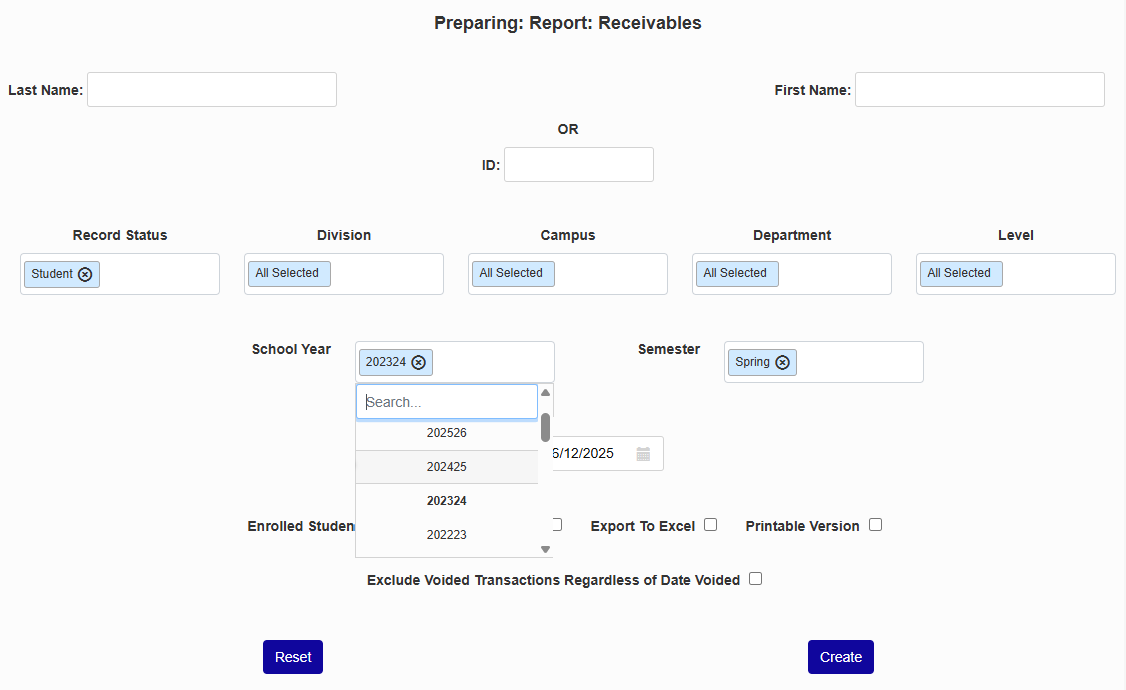
Select a School Year and Semester or use the Select All options in each menu to include all terms.
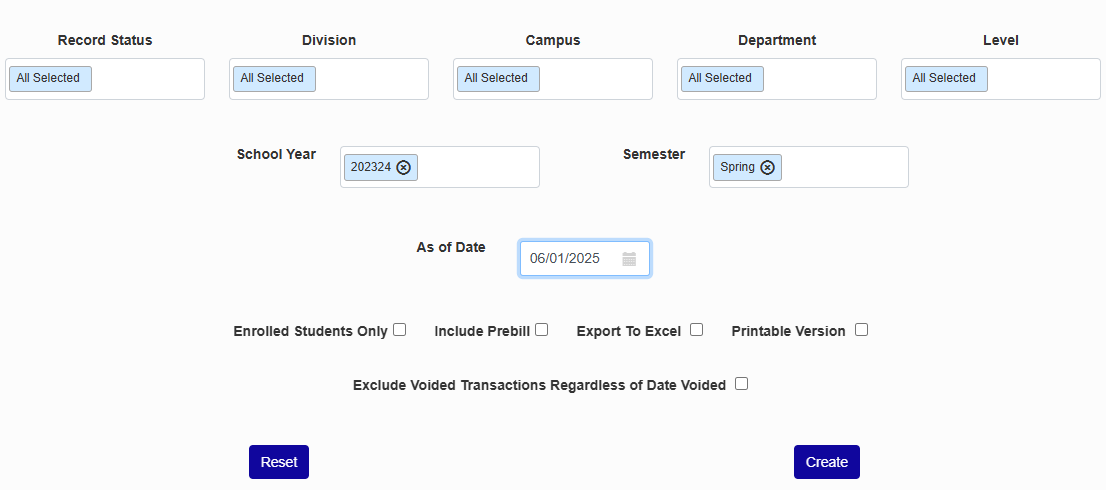
The As of Date field is the date of the last transaction that will be included in the report.
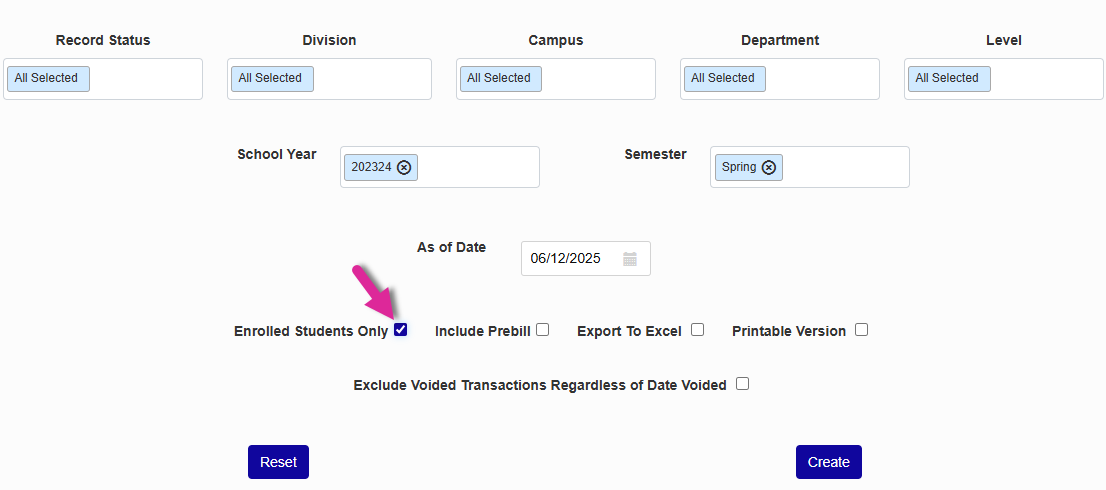
Check Enrolled Students Only to include only students who are currently enrolled in at least one course.
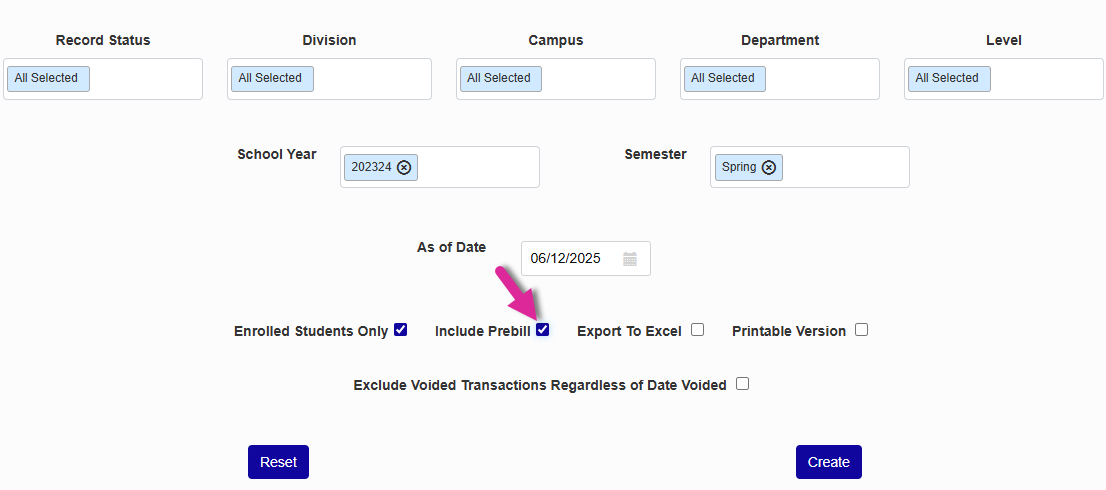
Check Include Prebill to include prebill charges. These are anticipated charges that are not yet official.
Note
Prebill charges display in their own column of the report. Additionally, if these charges are included, they will change the Projected Balances totals.
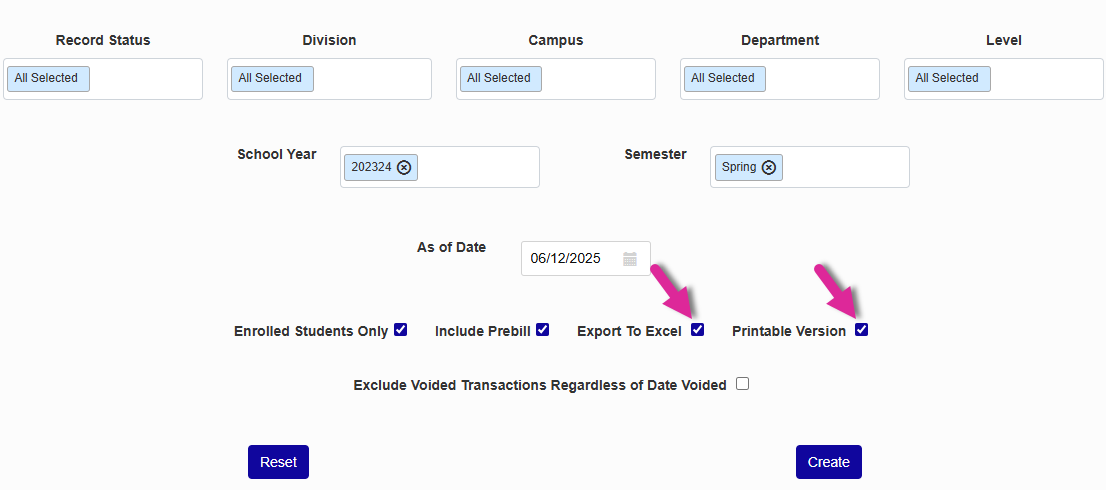
Check Export to Excel to create an Excel file of the report that will automatically download to your computer. You can also check Printable Version to view the report in a format that's easier to print.
Check Exclude Voided Transactions Regardless of Date Voided to remove all voided charges from the list, even if they were voided in a different school year and semester or with a different As of Date than you specified.
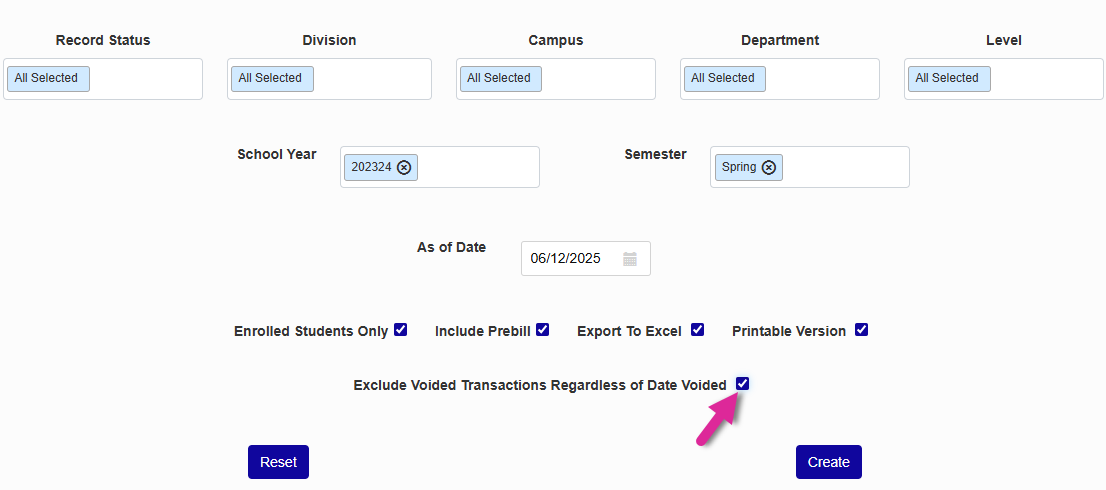
Click Create to view the report.
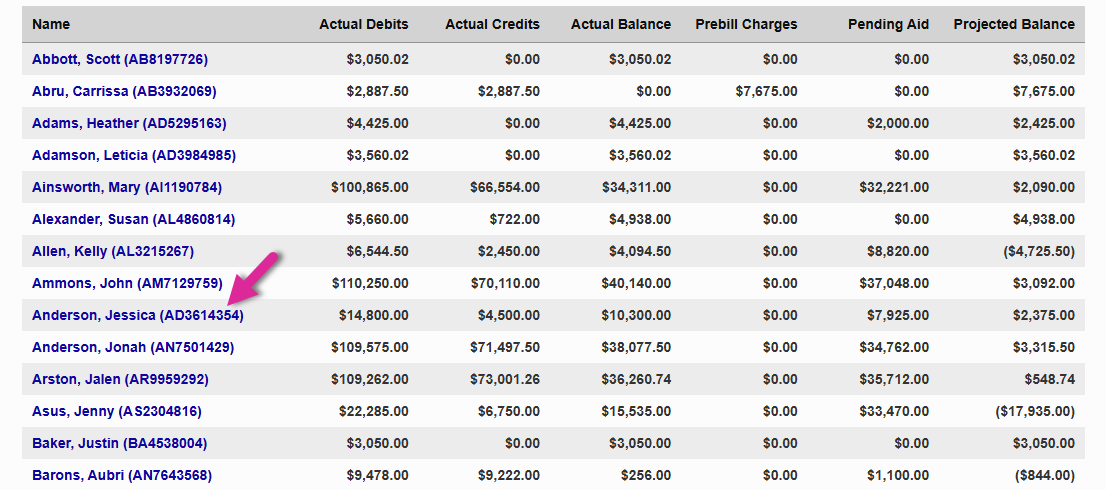
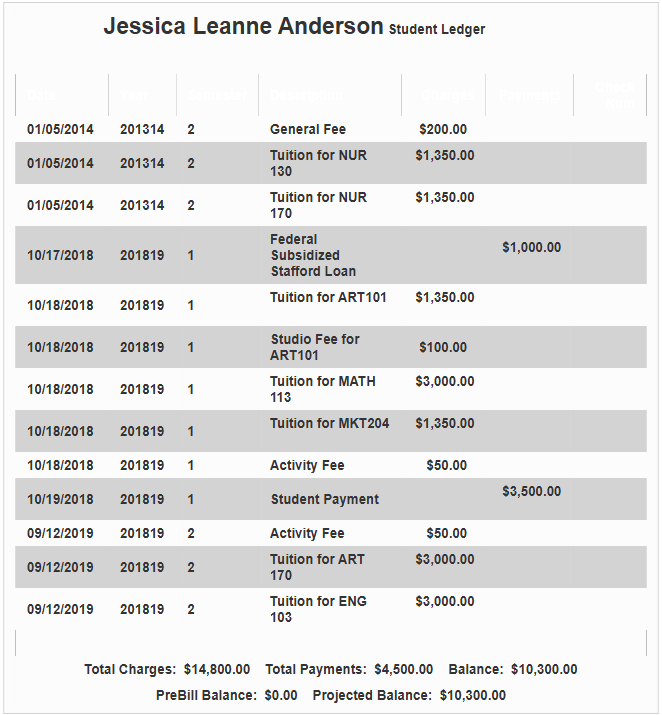
The report displays each user's Actual Debits, Actual Credits, Actual Balance, Prebill Charges, Pending Aid, and Projected Balance. Click on a user to see a detailed breakdown in a pop-up window.